Two-Factor Authentication
Banno uses two-factor authentication (2FA) to keep your end users’ information safe by adding an additional layer of security. 2FA is a method of confirming a user’s identity by requiring two of three pieces of evidence:
- Something you know (like a password)
- Something you have (like a phone or security token)
- Something you are (biometric data)
To mitigate the threat of guessed or stolen credentials, Banno requires 2FA for three scenarios:
- It’s the end user’s first time interfacing with your app.
- A new device is being used to access bank accounts.
- The end user recovering their account.
To get started on the Banno Platform, new end users:
- Sign in to establish their first authentication factor: something they know (their credentials) or something they are (like a fingerprint).
- Create an account using their personal identifiable information.
- Carry over their username and password associated with your institution’s current online banking solution.
- Receive a username and temporary password issued by your institution.
- Designate their second authentication factor, which is something they have (like a phone).
Banno keeps tabs on the devices and browsers that are signing in to user accounts by using device IDs and browser fingerprinting. Whenever end users attempt to sign in on a device that the Banno service layer doesn’t recognize, they are asked to prove their identity using 2FA in case their credentials are compromised.
End users can reset 2FA settings within the Security option on the Settings menu. Your institution can reset 2FA for end users in Banno People under Permissions. This reset is a high-risk action and requires users to proceed through the configured high-risk method.
Setting Up 2FA
To get started on the Banno platform, new users log in, and mobile users will choose a PIN for quick account access in the future. This login process establishes their first authentication factor: something they know (their credentials) or something they are (like a fingerprint).
Wonder how new users get their credentials?
- Create a new account using their personal identifiable information;
- Carry over their username and password associated with your current online banking solution;
- Receive a username and temporary password issued by you, the FI.
Then, they will designate their second authentication factor: something they have (like a phone).
First-Time Setup for End Users Without 2FA
When an end user attempts to use the app without 2FA configured while your institution has 2FA enabled, an additional layer of security is required before choosing and configuring a 2FA method.
After entering their username and password, the end user is sent an email containing a verification that must be entered into the app before they can continue with 2FA configuration. After the verification code is confirmed, the end user can continue to the 2FA method configuration outlined below. They are then required to verify their configured 2FA method before accessing their account.
First-Time Enrollment for International End Users
End users can receive 2FA sign-in codes via international phone numbers; however, brand new users creating a username and password for the first time cannot use an international number for the verification step of the enrollment flow, due to known limitations that prevent Banno from validating international phone numbers against the core. Therefore, financial institutions that want to support international end users can enable the Enrollment verification toggle on the Initial 2-step enrollment screen in Banno People. If the Enrollment verification toggle is turned on, end users are required to verify their identity (with a single-use password sent to the email address on core) when initially enrolling in 2-step verification.
Note that this optional security measure only affects 2-step verification enrollment and is unrelated to your end users’ 2FA code delivery methods.
2FA Verification Methods
There are plenty of ways an end user can prove who they are, and secure new methods are being developed all the time. To ensure there are as few barriers as possible to utilizing the security of 2FA, Banno maintains a growing list of 2FA authentication options for end users to choose from and for you to control. No matter what kind of person the end user is, we make sure they can enroll in 2FA.
Banno apps offer the following methods of 2FA authentication for end users and can be managed by your institution in Banno People.
- Settings
- 2-step verification
If an end user is unable to receive a 2FA code, commonly they’ll receive the error warning Your 2FA code failed to deliver to your default method. Please try another way. and be prompted to verify the code delivery again. In the Verification code delivery window, they can choose from other delivery methods set within their account.
Phone or Text Message
The end user provides a phone number to validate with, selecting to receive authentication codes via text message or automated phone call. When performing an action that requires 2FA authentication, the end user receives a text message or phone call containing a code to enter into their Banno app.
Your institution can decide whether or not to validate the provided phone number against your core records. If this is enabled, the end user must enter a phone number you have on file for that user. End users without a correct phone number will be unable to successfully enroll.
Authenticator App
Banno supports authenticator apps. The Banno app provides a text code, as well as a QR code for desktop users, to enter into their chosen authenticator app. The end user can then use their chosen app according to its documentation.
Symantec Hardware/Software Tokens
Banno supports Symantec VIP tokens as either a hard or soft token. The end user provides their credential ID and then validates the 2FA code based on that credential when enrolling. When logging in, the end user provides the code as requested to access Banno.
FIDO Security Keys
The FIDO security key is a physical token that connects to the end user’s computer via USB, Bluetooth, or NFC. The authenticator code is automatically entered and never shared with anyone, including the end user utilizing the key.
Please note that all physical keys must comply with the FIDO protocol. This is not guaranteed in older or legacy keys. You can test your security key for compatibility by trying to connect it to the WebAuthn demo website. If your key does not connect, it will fail to connect to Banno apps. When replacing your key, ensure the key supports FIDO U2F or WebAuthn/FIDO2. The Titan security key and the YubiKey Bio Series are two such keys.
The FAQ provides more details about FIDO security keys.
Formerly known as our biometrics login feature, the passkey login feature Sign in with a passkey follows FIDO Authentication specifications. It aligns with changes in web browsers and enables the browser autocomplete feature to make signing in with passkeys even easier - especially on mobile browsers - for end users. With passkeys, end users can sign in to Banno Online quickly, easily and more securely by using their device’s biometric capability or PIN to authenticate themselves in a single step instead of entering a password and completing 2FA. Passkeys protect end users in a variety of ways, including these:
- Unlike passwords, passkeys cannot be used on their own to authenticate (i.e. passkeys cannot be copied, pasted, stolen).
- Passkeys use cryptography and tie the device, end user, and app or website together, so that attackers cannot steal credentials by using phony websites.
- End users don’t have to remember, update, or manage passwords.
FIDO Security Keys vs. Symantec Hardware Tokens
Both FIDO security keys and Symantec hardware tokens serve the purpose of multi-factor authentication (MFA), often as the “something you have” factor, but they differ significantly in their underlying technology, security features, and user experience. Here’s a breakdown of their benefits and disadvantages:
The Benefits of Symantec Hardware Tokens (e.g., Symantec VIP Card)
- Physical Possession
- Like FIDO keys, they represent a physical item that a user must possess for authentication, adding a layer of security over just a password.
- Offline Functionality
- Some FEITIAN OTP Tokens can be used for offline access in Duo Authentication for Windows Logon.
- Simplicity of Use (for OTP)
- The Symantec VIP Access app generates a time-limited code that is manually entered.
- Integration with Symantec VIP ecosystem
- Symantec VIP is a robust, scalable authentication service that supports various methods, including the VIP Access app and physical cards, and can be integrated across enterprise systems.
The Disadvantages of Symantec Hardware Tokens (e.g., Symantec VIP Card)
- Phishing Vulnerability
- Traditional OTP codes generated by Symantec hardware tokens or the VIP app are susceptible to phishing, man-in-the-middle, or man-in-the-browser attacks. An adversary can intercept and reuse these codes if a user is tricked into entering them on a fake site. This is a major security weakness compared to FIDO keys.
- Limited Device Use (for Cards)
- A physical Symantec VIP card can only be registered as one ID and used for a single account at a service like Fidelity, meaning you cannot use the same card ID for multiple accounts or across multiple personal devices if each requires a unique registration.
- Setup Complexity
- Activating a physical Symantec VIP card with a service like Fidelity requires calling customer service.
- User Experience
- Manual entry of codes can be prone to mistyping or errors.
The Benefits of FIDO Security Keys (including U2F and FIDO2/Passkeys)
- Strong Phishing Resistance
- This is a core advantage. FIDO keys, especially FIDO2, use a real-time challenge-response protocol based on public-key cryptography, cryptographically binding the login to the correct website. This prevents man-in-the-middle attacks because the private key never leaves the user’s device, making it extremely difficult for attackers to steal authentication tokens.
- User Verification (FIDO2/Passkeys)
- FIDO2 keys and passkeys typically require user verification (like a biometric scan or a PIN) to unlock the credential on the device, adding a strong “something you are” or “something you know” factor to the “something you have” factor. FIDO1 (U2F) keys, while phishing-resistant, did not include this user verification.
- Passwordless Potential (FIDO2/Passkeys)
- FIDO2 is designed to enable full passwordless sign-in, where the passkey completely replaces the need for a traditional password, streamlining the login process while enhancing security.
- Open Standard & Wide Adoption
- FIDO is an open standard, gaining rapid adoption from major industry players like Google, Microsoft, and Facebook, leading to widespread familiarity and support.
- No Special Drivers Required
- FIDO U2F and FIDO2 security keys generally do not require any special client software or drivers to be installed, identifying as standard USB Human Interface Devices (HID).
- Durability and Convenience (Hardware Keys)
- Physical FIDO keys like YubiKeys are designed to be durable (crush- and water-resistant), do not require batteries or have moving parts, and are portable enough to attach to a keychain.
- Syncability (Software-Bound Passkeys)
- Software-bound FIDO2 credentials (passkeys) can often be synced across multiple devices through cloud accounts (e.g., iCloud Keychain, Google Password Manager), offering greater convenience.
- Multiple Functions
- A single YubiKey can support various authentication modes, including one-time passwords, smart card functionality, and FIDO U2F/FIDO2.
The Disadvantages of FIDO Security Keys (including U2F and FIDO2/Passkeys)
- Recovery Challenges (U2F/Hardware Keys)
- Unlike OTPs, there is generally no way to “back up” a U2F private key or recovery codes because the private key exists only in the hardware. If a U2F hardware key is lost and no alternative hardware duplicate or account recovery method is provided by the service, recovery may be impossible.
- Potential for Physical Compromise (Older Chips)
- Some U2F hardware tokens, including older models from Google, FEITIAN, and Yubico using specific NXP microchips, were found to have a vulnerability that allowed private key extraction with physical access, specialized equipment, and destructive means. While difficult to execute, this is a potential theoretical vulnerability for certain older keys.
- Service Provider Implementation Differences
- Even if a service technically uses FIDO2, its specific implementation might limit how or where a FIDO authenticator can be stored (e.g., a “security key” for 2FA might not be storable as a platform authenticator on a PC, while a “passkey” from another site might be).
- Browser/OS-Specific Registration
- On macOS, FIDO biometric authenticators might need to be registered in each browser where they are intended to be used, as the OS registers them at the browser level, not system-wide.
- Limited FIDO2 Support in Older Integrations
- Some legacy Symantec VIP integrations, such as with Microsoft Credential Provider or Radius, may only support FIDO1 (U2F security keys) and not the more advanced FIDO2 authenticators.
- Incognito Mode Limitations
- FIDO authenticator registration in incognito mode is not supported because it requires a cookie to be installed in the browser.
How do passkeys work?
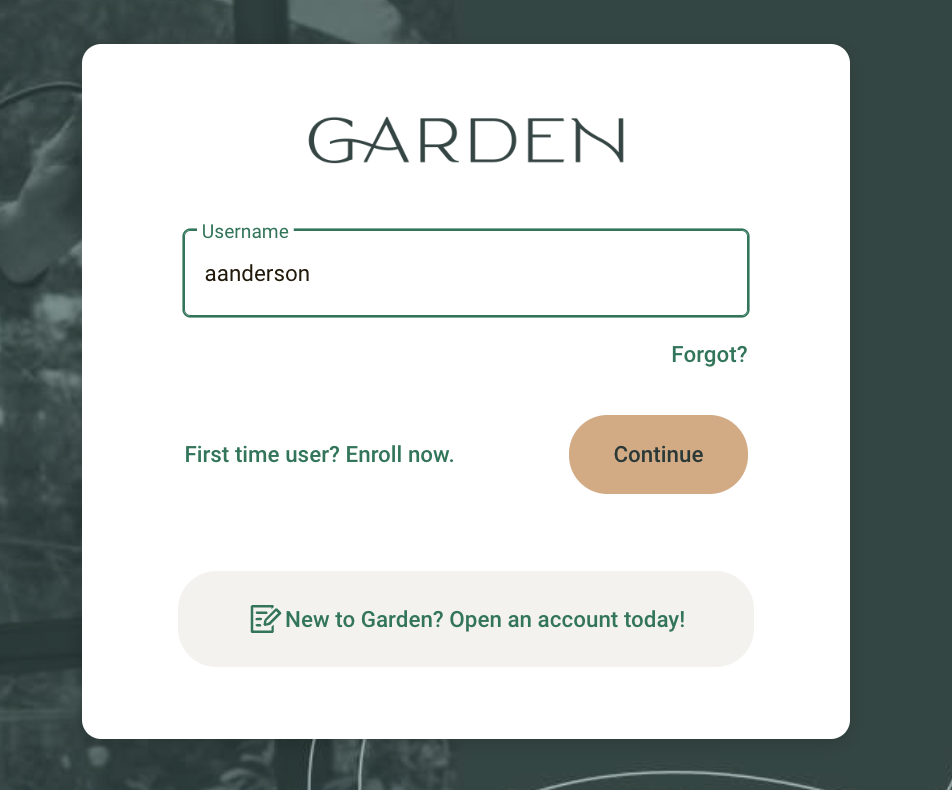
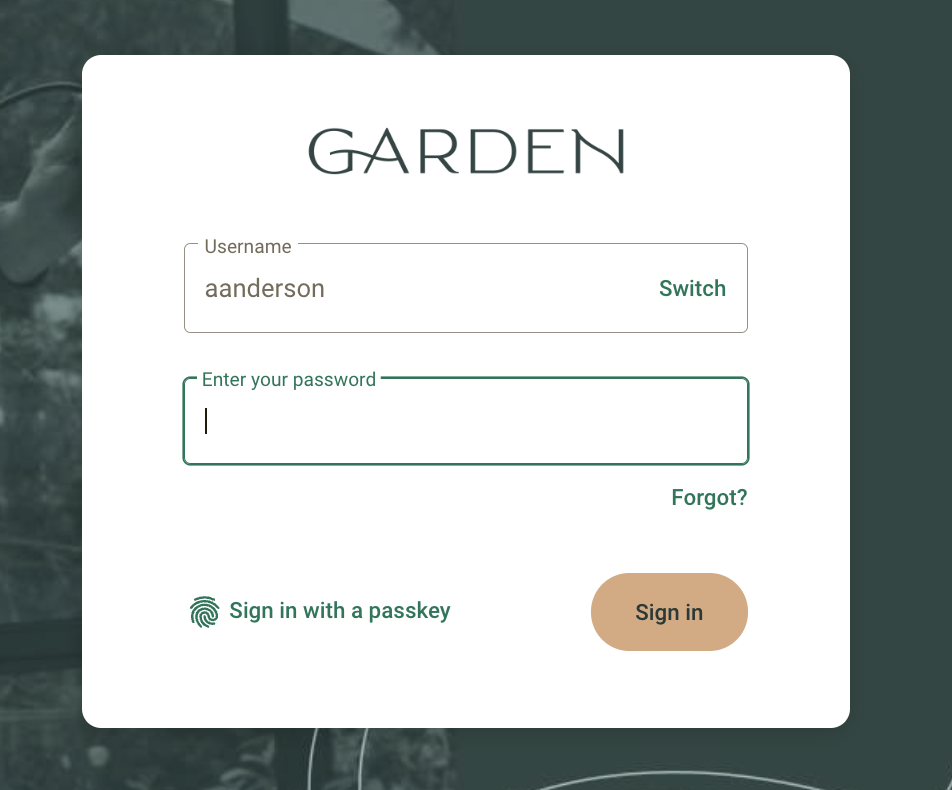
- Banno Online login screen
- enter username (1)
- Continue (2)
- Sign in with a passkey (3)
After an end user registers their passkey, the end user clicks Sign in with a passkey. Depending on the end user’s platform, web browser, and device biometric setting (face ID, PIN, etc.), the passkey manager prompts the end user to authenticate using their device’s biometrics to log in. Desktop end users whose devices that may not have biometrics can also authenticate using their nearby mobile device to scan a QR code that displays on the desktop .
Once a passkey is registered with Banno Online, end users can log in from their other devices that are synced to their passkey manager. End users will also see autofill prompts to use passkeys found in their passkey manager. For example, passkeys created on iOS or in Safari on macOS are stored in iCloud Keychain. Passkeys created in Chrome on Android are stored in the Google Password Manager.
Tokens Only Tier
Some financial institutions with strict regulatory or domain-specific requirements may have internal policies that prohibit the use of standard authentication apps. To accommodate these financial institutions, and without compromising our existing security framework, a specialized Tokens Only tier has been created.
What it Includes
This tier limits 2FA options exclusively to FIDO and Symantec Tokens.
Availability
This is a per-institution configuration that must be enabled on a case-by-case basis.
Requirements
For this tier to function, the financial institution must already have Symantec services turned “on” within their configuration.
Autofill Username
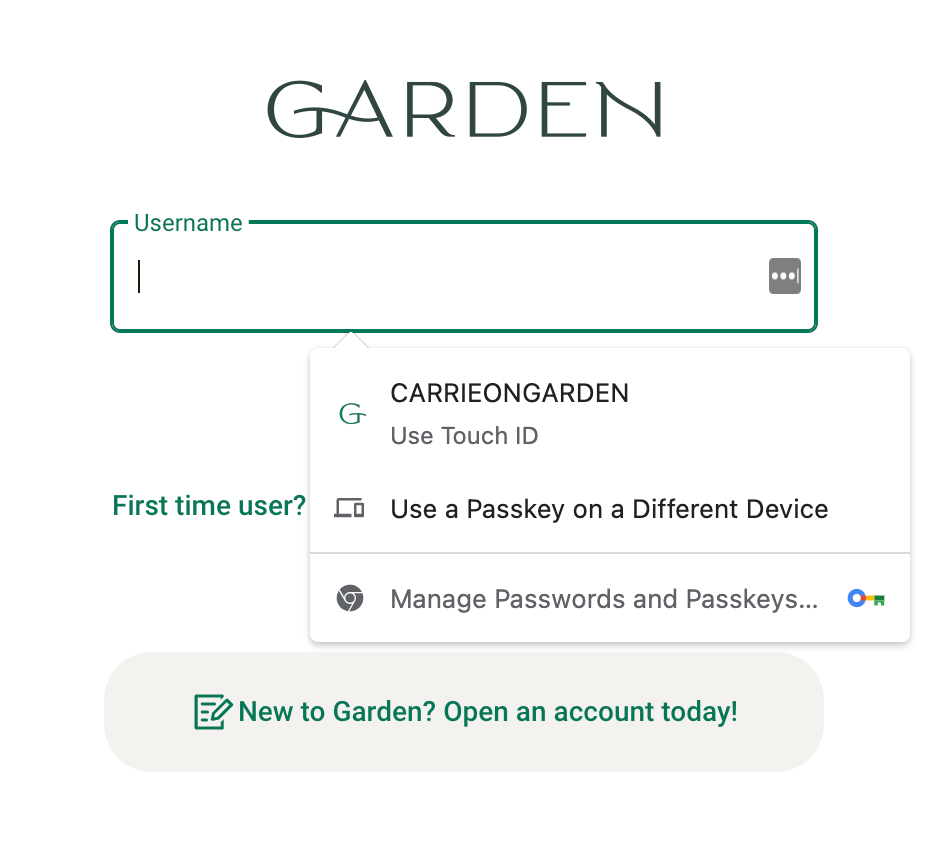
Autofill entries vary based on the information provided by the end user’s passkey manager.*
End users who register a passkey will then have the option use autofill at the username field prompt on the login page (1). For autofill to function, the end user needs to be logged in to their passkey ecosystem (Google, Apple, etc.) - autofill functionality does not populate from the end user’s device or browser. This method streamlines the login experience by eliminating the need to enter a username, password, or complete 2FA.
Use a Passkey on a Different Device
The Use a Passkey on a Different Device (2) entry that displays in the autofill prompt allows end users to authenticate log in from a mobile device when using a desktop. Both devices must have Bluetooth enabled, and the mobile device needs to be placed within Bluetooth range of the desktop. Using a passkey on a different device is managed by the passkey provider and not by the Banno Digital Platform. FIDO Alliance offers more information on the user experience.
Register Passkey
-
- End user profile menu
- Settings
- Security
- Passkey sign in
- Register this device
Before an end user can successfully sign in with a passkey, they need to log in to Banno Online and enable the Register this device toggle in their profile’s Settings. After they enable the toggle, the end user follows the passkey provider’s prompts to complete passkey setup. When the device is successfully registered and the passkey created, the confirmation toast Passkey registered displays in the app. Passkey prompts and messaging will vary depending on the end user’s operating system, passkey provider, device, and web browser, because passkey prompts are controlled by the passkey provider and not by the Banno Digital Platform.
If the end user doesn’t successfully set up a passkey, an Error registering passkey toast message displays in the app. The end user needs to log out of Banno Online, sign back in, and attempt registering a passkey again.
Unregister and Remove Passkey
If end users want to remove their passkey, they need to unregister the passkey from Banno Online. To remove the passkey entry from displaying in the the autofill prompt, it’s recommended end users also remove it from their passkey manager.
Banno Online
- End user profile menu
- Settings
- Security
- Passkey sign in
- Register this device
To unregister a passkey, the end user disables the Register this device toggle in their profile’s Settings. After they disable the toggle, the end user follows the passkey manager’s prompts. When the passkey is successfully unregistered, the confirmation toast Passkey removed displays in the app. Passkey prompts and messaging will vary depending on the end user’s operating system, passkey provider, device, and web browser, because passkey prompts are controlled by the passkey provider and not by the Banno Digital Platform.
When the end user unregisters their passkey in Banno Online, they cannot log in with Sign in with a passkey or have the option to complete high-risk authentication with a passkey. If the passkey isn’t also removed from the end user’s passkey manager, the option to sign in with a passkey still displays in the autofill prompt but the end user is unable to log in using that option.
Passkey Manager
When an end user removes a passkey in Banno Online, we recommend they also remove it from their passkey manager. The Banno Digital Platform manages registering a passkey with Banno Online, but we do not have control of passkeys stored in an end user’s passkey manager. If the end user doesn’t remove the passkey from their passkey manager, the option to sign in with a passkey continues to autofill but it will not work - the end user is unable to sign in using the entry. To remove a passkey from the passkey manager, institutions and end users should refer to the documentation provided by the end user’s passkey manager.
Update Username in Passkey Manager
If an end user updates their username in Banno Apps, they also need to update the username in their passkey manager so that the autofill prompt reflects the correct username. To update the username in a passkey manager, institutions and end users can refer to the the documentation provided by the end user’s passkey manager.
Symantec Hardware/Software Tokens
Banno supports Symantec VIP tokens as either a hard or soft token. The end user provides their credential ID and then validates the 2FA code based on that credential when enrolling. When logging in, the end user provides the code as requested to access Banno.
Change Banno Apps Settings
- Settings
- Security
- 2-step verification
If an end user wants to change their 2FA settings in Banno Apps, the security menu allows users to edit their existing 2FA methods or add a new one. End users can also set a primary 2FA method that will be automatically highlighted whenever they receive a 2FA authentication prompt.
Change Enterprise Settings
Within Banno Enterprise, you can control your institution’s 2FA verification methods in Banno People. You can also change 2FA settings on behalf of individual end users in their Security settings.
New Device: Prove a User’s Identity
Banno keeps tabs on the devices and browsers that are logging into user accounts by using device IDs[^1] and browser fingerprinting[^2]. Whenever an end user attempts to login on a device that the API doesn’t recognize, they will be asked to prove their identity using 2FA. It’s just another security measure taken to protect the end user in the even that their credentials are compromised.
[^1]: Device ID: A unique ID is issued to a device with every installation of Banno Mobile. That ID is presented with every login as a way for the system to associate the device with an authenticated user.
[^2]: Browser fingerprinting: A method used to collect information about a user, like their operating system, language, and various other active settings.
Banno Enterprise
Within Banno Enterprise, you can control your institution’s and end users’ 2FA settings. Because we consider changing 2FA options a high-risk change, an enterprise user will need to be in a group with 2FA enabled.
Customer Communication
Utilizing 2FA for Banno
It’s important your team is aware 2FA will be your biggest call driver at go live. End users who utilize modern apps are typically familiar with 2FA, but less experienced end users may struggle. To assist end users as best as possible, we suggest your customer/member care team be fully trained on Banno 2FA, utilize it themselves, and have the following information on this page.
The weakest point of protection for an end user is before they are signed up for 2FA. Once they activate 2FA it doesn’t matter what phone number they use – they are protected. We recommend minimizing the time frame between credentials being issued and 2FA enrollment. This is most vulnerable during a conversion.
The gap allows a malicious actor who knows a user’s credentials enrolling them in 2FA using a number that the attacker controls. To combat this, we email the user throughout this process at the following points:
- New device sign in
- 2FA enrollment
- Other authentication changes
Even if a malicious actor manages to act during this gap, the end user will be notified immediately and can reach out to your institution for assistance.
For the few institutions that are uncomfortable with this gap, it’s possible to enable core validation to ensure the 2FA number matches the phone number logged in your core. Core validation helps prevent an attacker from enrolling an unknown number, but it causes two problems:
- Cash management users don’t have phone numbers to validate against, so core validation will not work for them.
- End users often have valid reasons for using a phone number that does not match what’s on the core, such as having only home numbers logged in the core.
Projects are in progress to add more 2FA options using authenticator apps. Authenticator apps and security keys don’t have an analogous option for core validation, so core validation is not compatible with those further 2FA options. See the public-facing roadmap for information on additional 2FA options.
End User Experience
- Enrollment
- When end users login to Banno for the first time from any platform, they’ll have to enroll in 2FA. As part of the enrollment, ends users provide their email and phone number. Unless the end user selects their device to be remembered by Banno Online, the 2FA phone needs to be accessible each time they login. They’ll also have to choose between four methods of receiving the verification code. We recommend end users receive a text via a mobile phone, but they can also choose to receive a phone call via a landline or a verification code through an authentication app. If the user sets up a new phone number or enters the incorrect number, admins can reset 2FA for users within the permissions section of the Banno portal. Once the user has enrolled, they will not have to re-enroll unless they or the institution chooses to reset their 2FA.
- Phone Call Verification
- If the end user selects to receive a phone call instead of a text message, they’ll receive the verification code in the form of a robocall. The robocall provides a single digit for the end user to enter on the phone. Then the robocall provides a seven-digit verification code for the end user to enter in the Banno App (Online or Mobile) they’re using. If the end user doesn’t enter the initial single digit, the verification code isn’t given nor is it left on a voicemail system. If the end user doesn’t answer the robocall, they’ll have to select to have the code re-sent. The robocall phone number may be listed as coming from anywhere in the U.S. due to the pool of numbers used.
- Reset Enrollment
- End users can reset their own 2FA enrollment in both Online and Mobile by going to the security settings in their profile page. The financial institution can also reset 2FA by navigating to the end user’s profile in Banno People, clicking Security, then scrolling to 2-step verification and clicking Remove. We recommend the financial institution find the exact activity events initiating the fraud and discuss with the user, ensuring that neither of the above cases is true. If neither of the two causes occurred, we can help look into it further if needed. We’ve experienced occasions when end users told us they didn’t give away the code, but we later learned they did. However, it’s almost always one of the two causes above.
Codes
- Doesn’t Receive a Code
- If a care team receives a report of the user not receiving a code, it could be one of the following:
The main issue we see is the user requests receiving a code via SMS, but enters a landline number. If they report not receiving the code via SMS, and you’ve verified they’re not entering a landline number, instruct them to try another way and receive it via phone call.
- If the user tries both methods to receive the code, reset and have them verify they entered the correct phone number.
- If the phone number and method is correct, validate the user isn’t using a phone operating on a prepaid plan. Oftentimes, the money runs out and they no longer receive SMS until adding to the account balance.
- The user reaches their max attempts. See the FAQ for more detail.
- If all of the above is validated, the issue’s likely with the carrier.
- Views an Invalid Code
- A standard error return message will state, “Too many attempts. Try again later.” There are many reasons why end users might see invalid codes (or token errors). Below is a list common causes:
- The most obvious reasons are typos (when retyping token codes) and expired tokens.
- The device’s time isn’t synchronized with the server’s time. This occurs when end users travel. For example, end users need to ensure the device’s time is correct to fix the issue.
- The account was reset.
These reasons might not be the source affecting your reported end users, but it’s a helpful reference.
- Locked Out
- End users can lock themselves out of enrolling and verifying 2FA codes. The FAQ provides more details.
- Switch Profile
- If an end user adds more profiles to their mobile app, they will need to set up 2FA for each of them. If the account has already enrolled in 2FA, they will need the verification code sent to that end user.
Frequently Asked Questions
Have questions about 2FA and related topics? Check out our Frequently Asked Questions page that covers functionality, FIDO, and more.