Quick Reference Guide: Wire File Upload
Overview
The Wire File Upload feature of the TM platform meets the needs of higher volume wire originators and can improve integration with a business payment process. The capabilities include a file mapping function, intuitive file upload workflow, and new reports. Note: The workflow supports the existing fraud and risk controls that exist with the platform such as alerts, approvals and two factor authentication. This capability is completely controlled by the bank. It becomes available to a company and its users only after the features are enabled at the bank and company levels in the Treasury Management Back Office.
Benefits
Benefits for Banks
- Additional key wire payment capability, especially for high volume businesses.
- Back Office Report providing visibility into the wire file activity.
- Ability to charge via Enhanced Account Analysis through a billing counter.
Benefits for Customers
- Eliminates the need to input individual wires when volume is a concern.
- Easy to use file mapping tool allowing flexibility while creating or updating formats.
- Enabling workflow allowing users to review, edit and confirm wire file contents.
- Wire File Activity reporting to easily track wire file activity.
- Additional fraud risk point controls.
Product Configuration
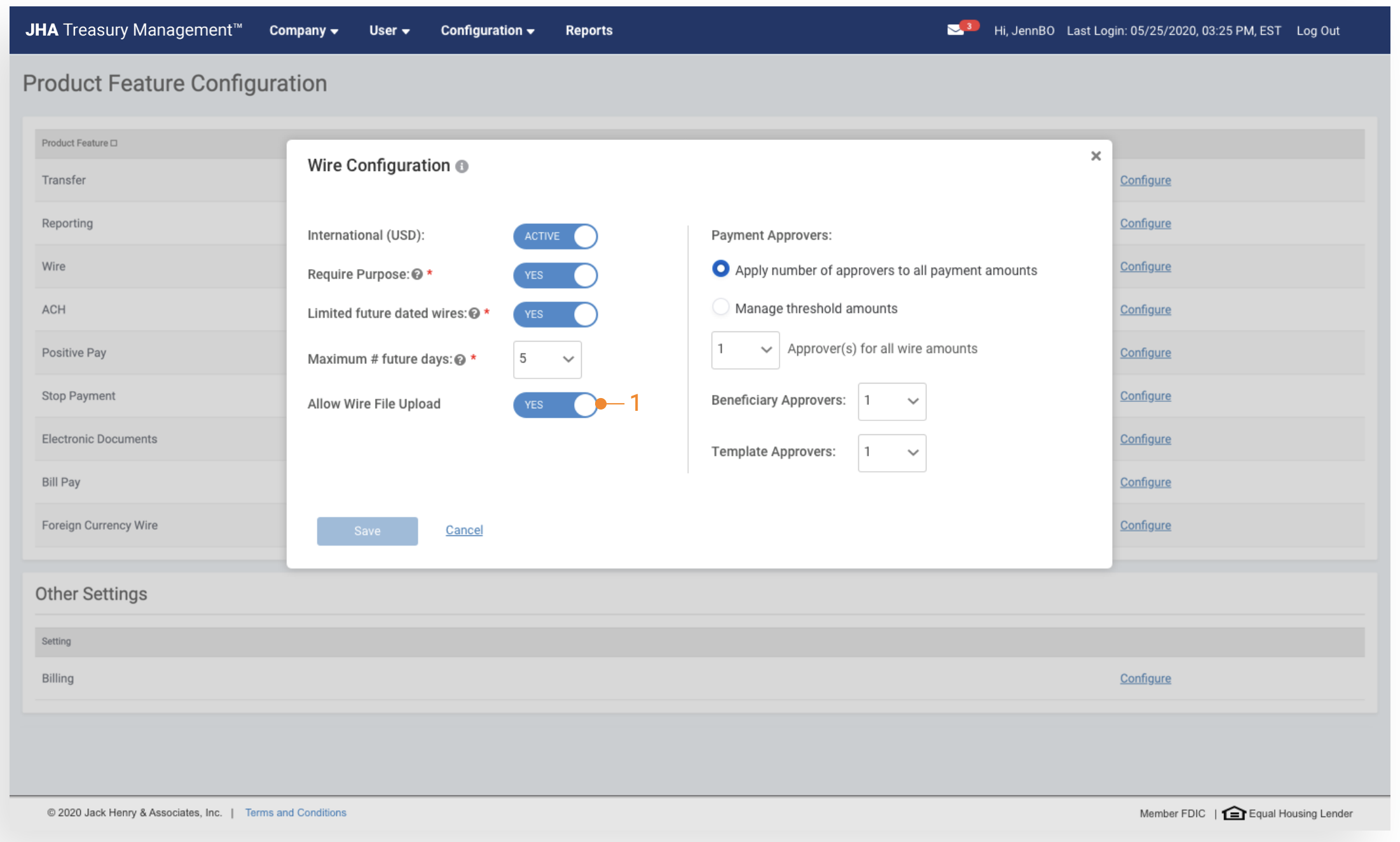
- Product Configuration
Wire File Upload can be enabled within the Wire Configuration of the Product Feature Configuration. Once it has been enabled, configuration settings for active companies will be applied.
Company Configuration
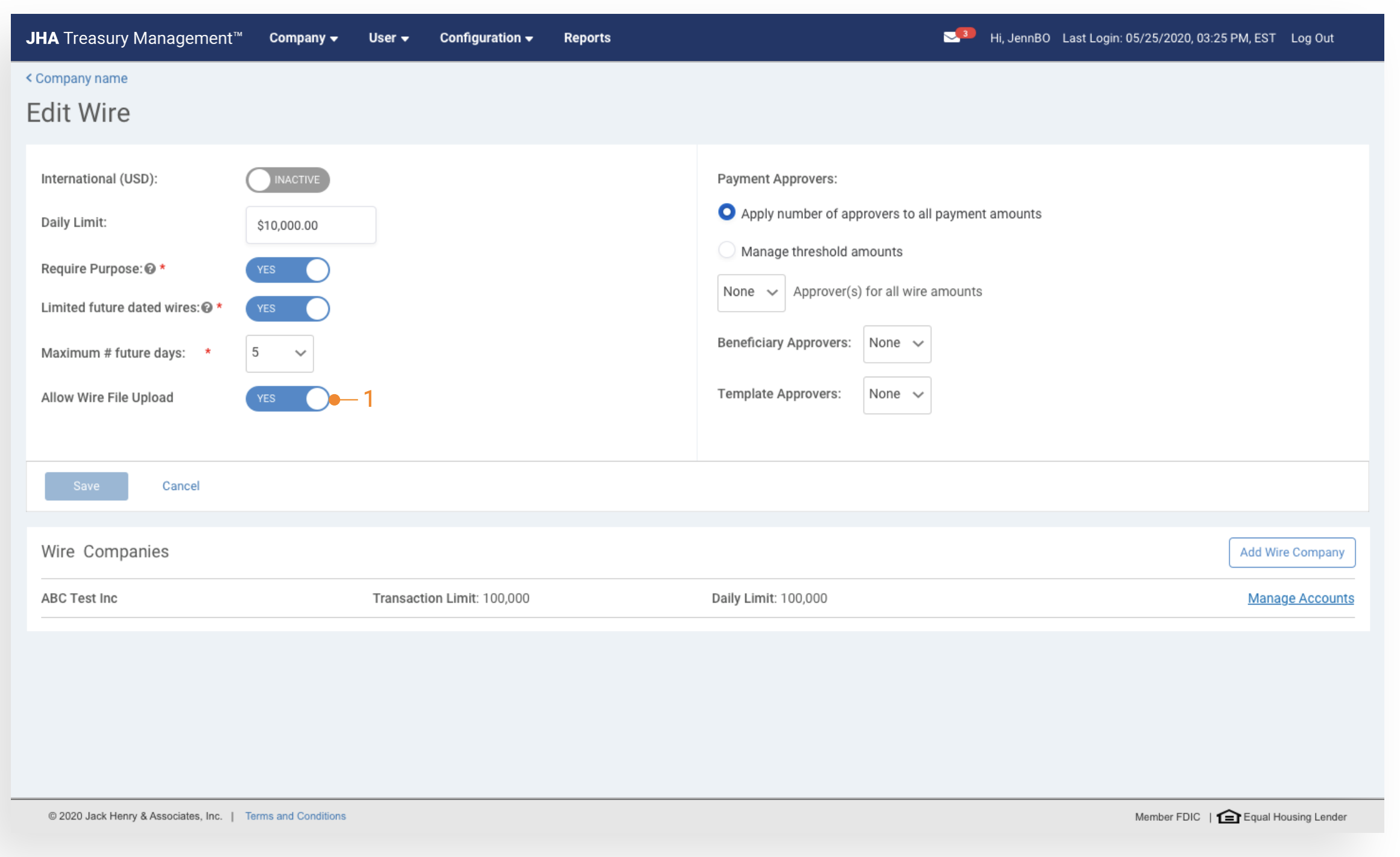
- Company Configuration
To enable this feature for a specific company, navigate to their Company Details page and select Wires from the Product Features widget. Selections will be applied when the Product Configuration is set to Yes.
Back Office Notification Configuration
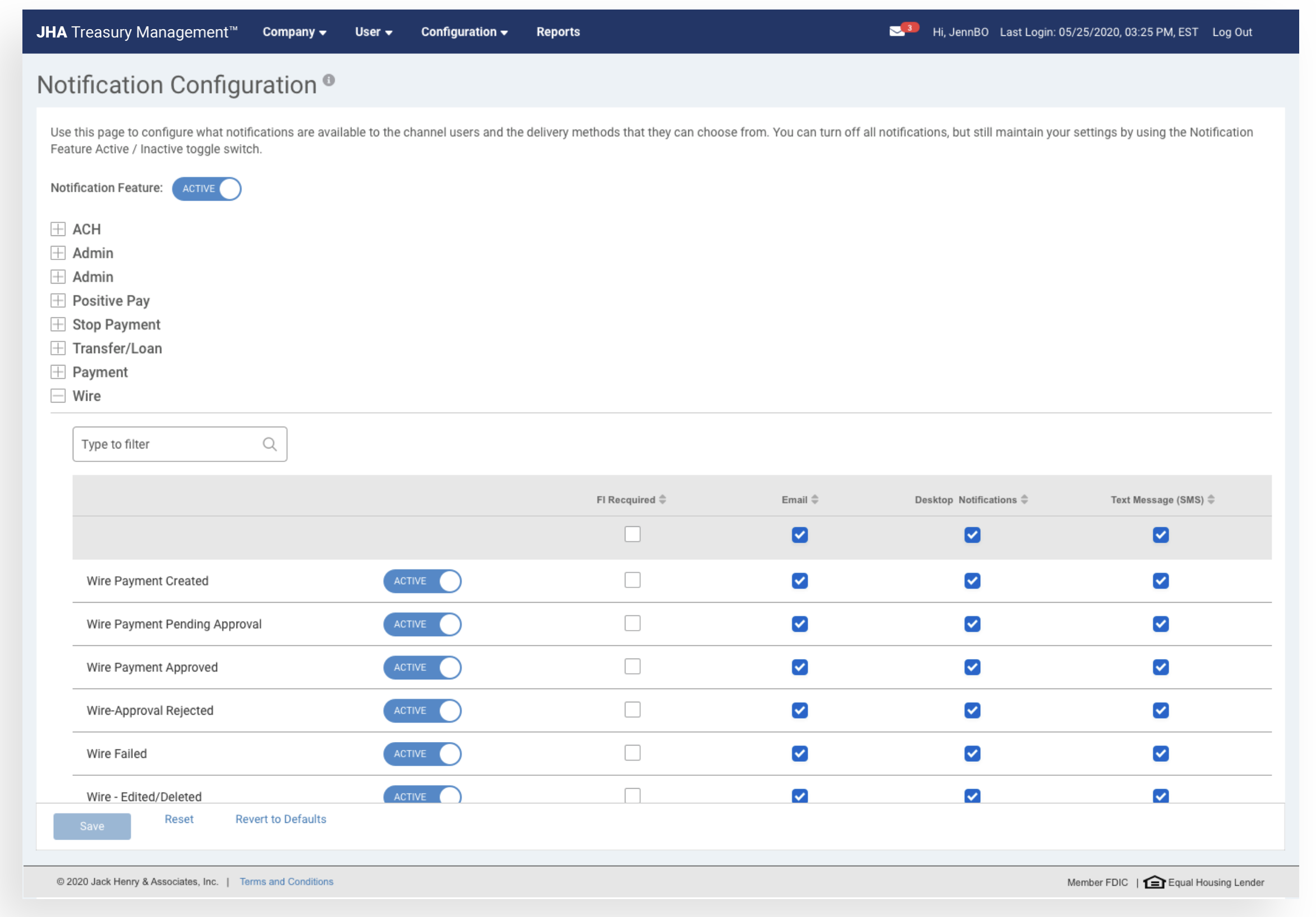
- Notification
Wire File Uploaded will alert a user when a wire file has been successfully uploaded into Treasury Management. To receive this notification, a user needs to be entitled for the Wire Company as well as have the following user entitlements enabled:
- Wire File Upload
- Create Domestic Wire
Wire File Upload Report
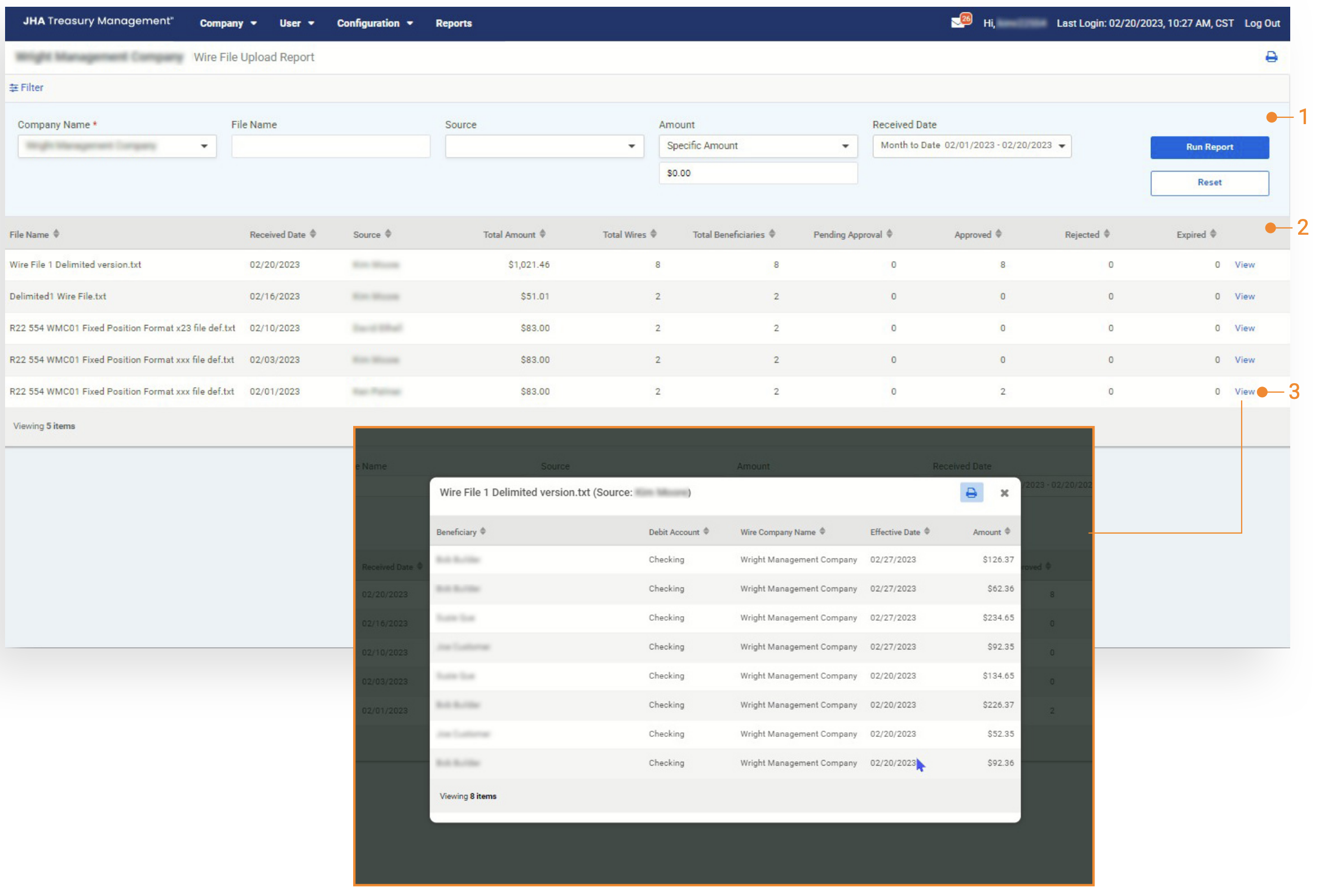
Back Office report that provides information about the files uploaded.
- Search
Report Results will be based on the search criteria that is used.
- Report Results:
- Received Date
- File Name
- Source
- Amount
- The total amount of the wires in the file
- Total Wires
- Includes any wires that were excluded from processing during file upload
- Total Beneficiaries
- Number of unique beneficiaries
- Approved
- Pending Approval
- Rejected
- Expired
- File Size
- View Select
View to display the list of wires included in the file. The list of wire transactions will open in a modal.
To view additional detail for a wire, use the existing Wire Payment Activity Report.
Navigation
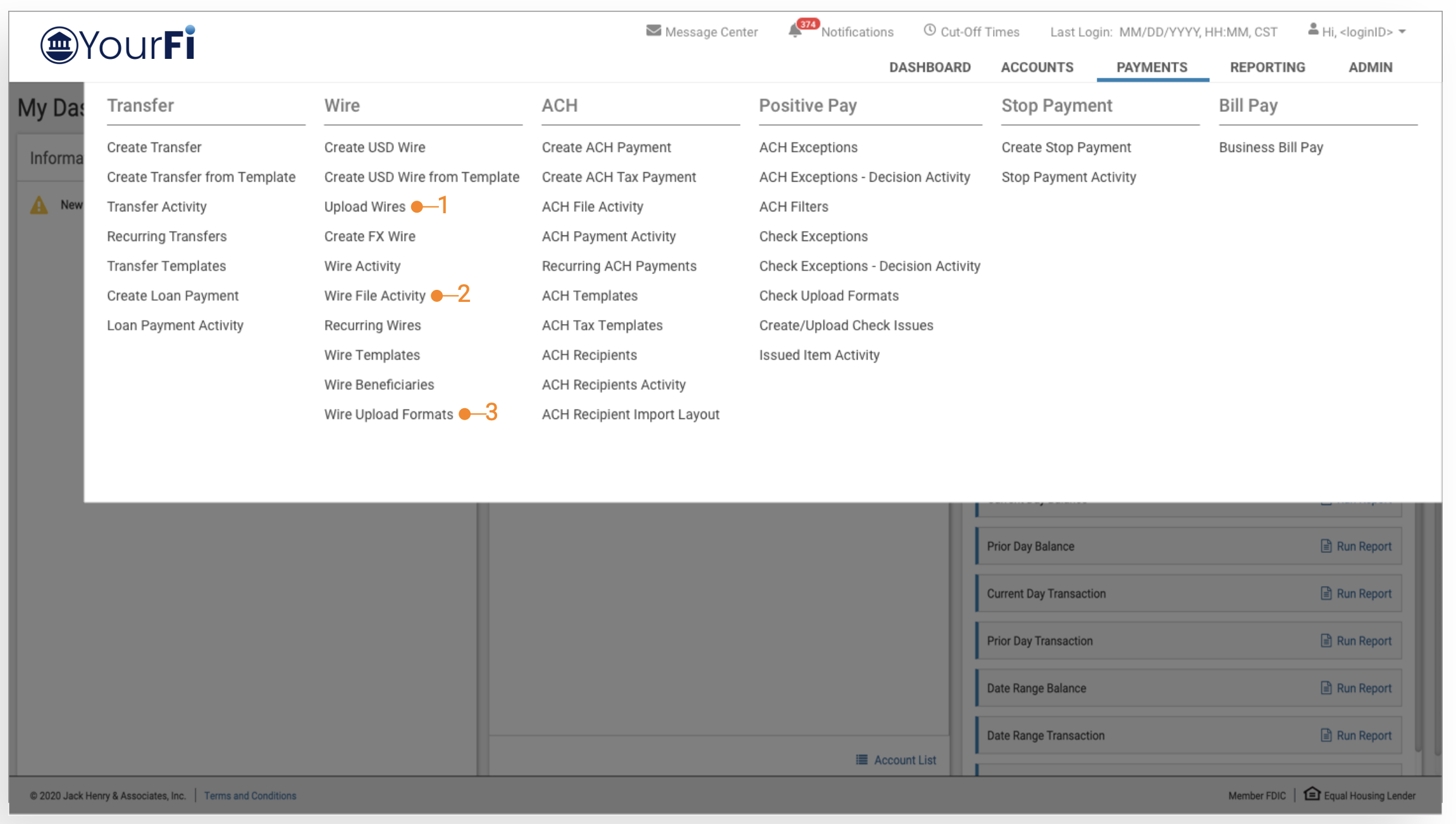
From the main navigation, users can:
- Upload Wires
- View Wire File Activity
- Select Wire Upload Formats
Wire File Upload Workflow - Summary
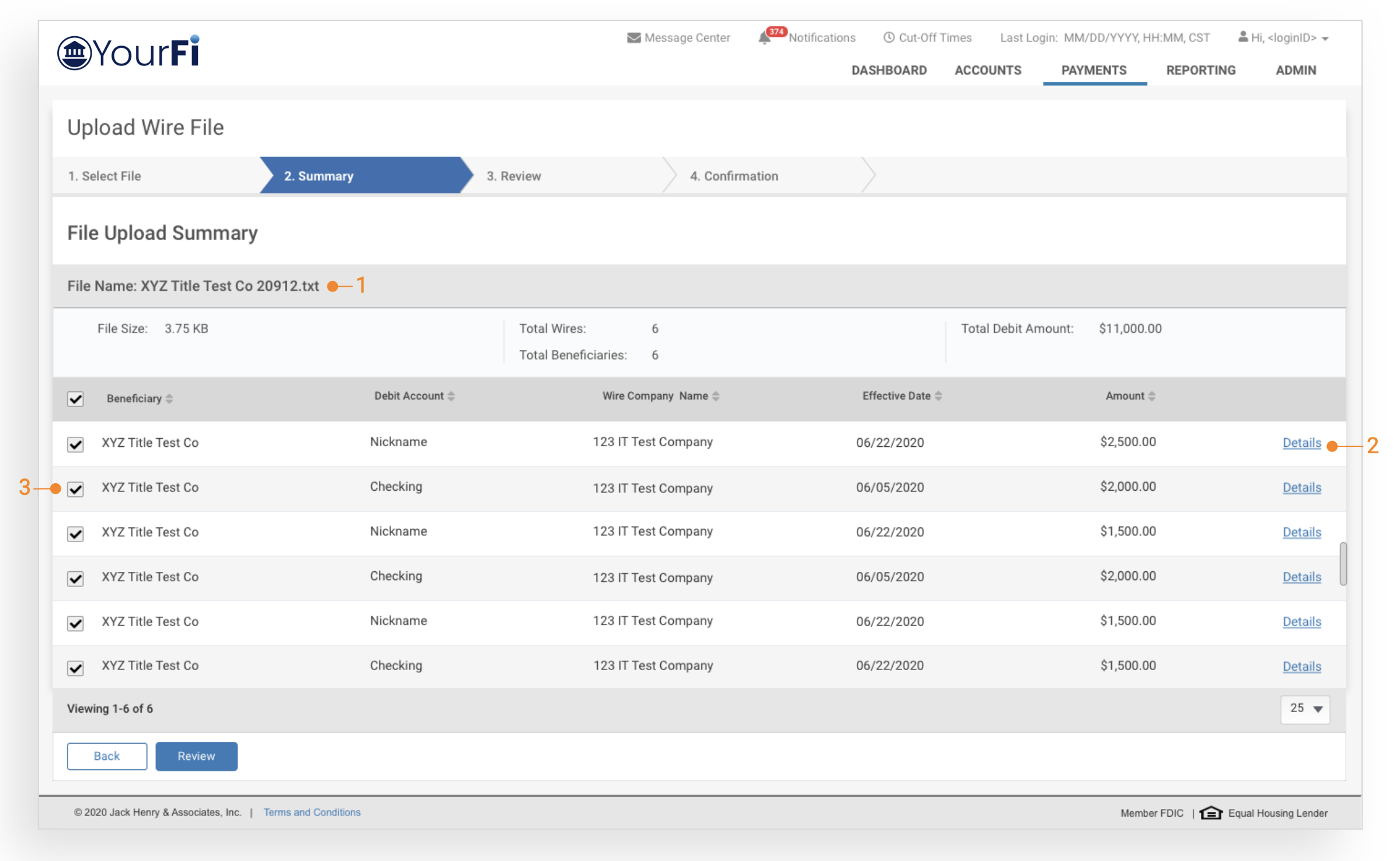
- File Summary
After a file has been uploaded, users can view a summary of file information including the file name, summary information (File Size, Total Wires and Beneficiaries, and Total Debit Amount), and a list of wires included in the file.
- Wire Detail
Select Details to the view the detail for the selected wire. A user can edit the payment information while viewing the detail.
- Wire Selection
A user can choose to exclude a wire from being submitted for processing by un-checking it during review.
Wire File Upload Workflow - Review
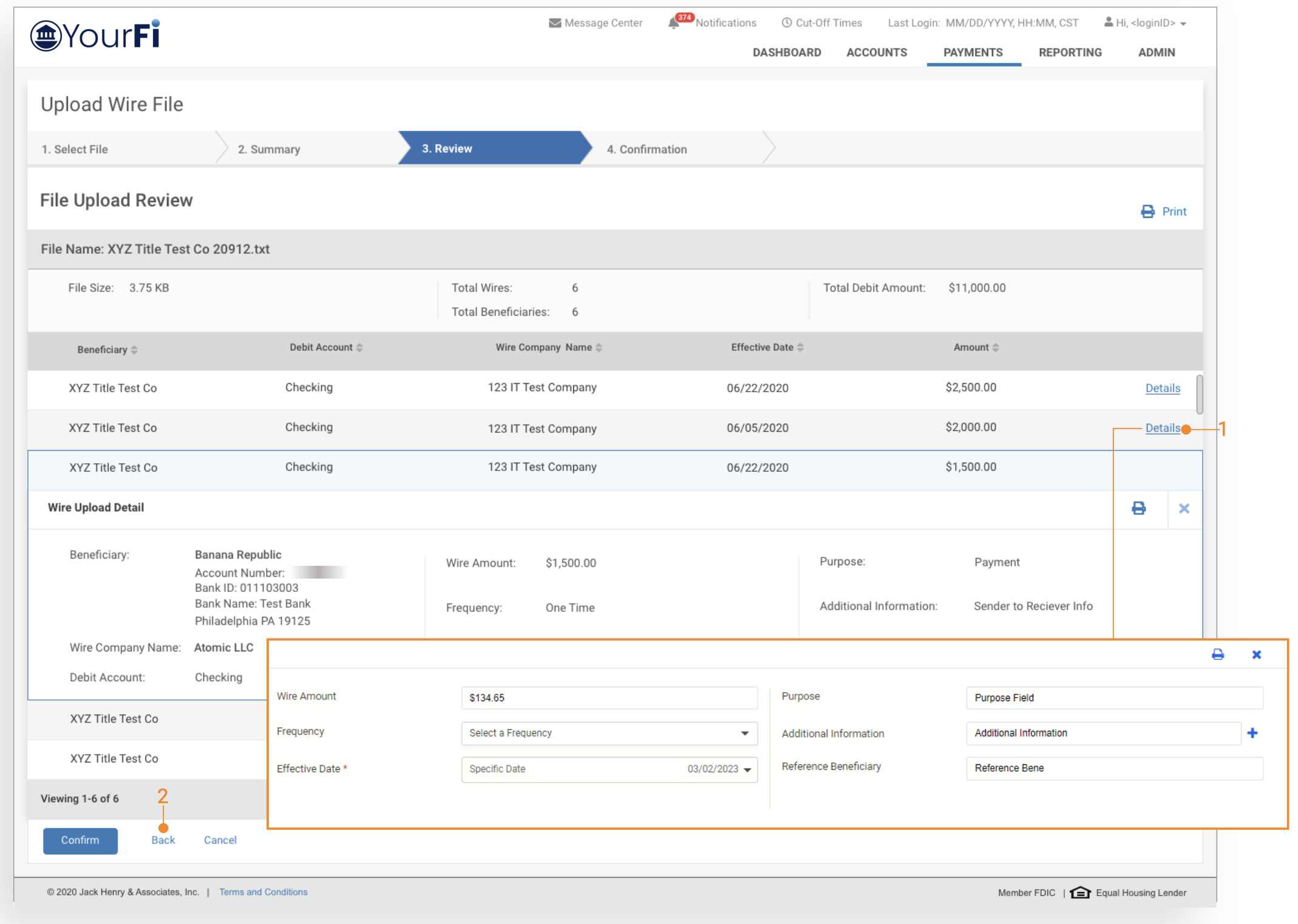
Users can review the wires a final time before submitting the wire payments.
- Wire Details
Payments details can also be viewed by selecting details. Details will display the details for the selected wire. A user can edit some payment information within the Summary portion of this work flow.
- Fields that can be edited:
- Wire Amount
- Frequency
- Effective Date
- Purpose
- Additional Information
- Reference Beneficiary
- Back
Select the back button to navigate to the Summary page and select the details link to make any changes to the payment information.
Wire File Activity
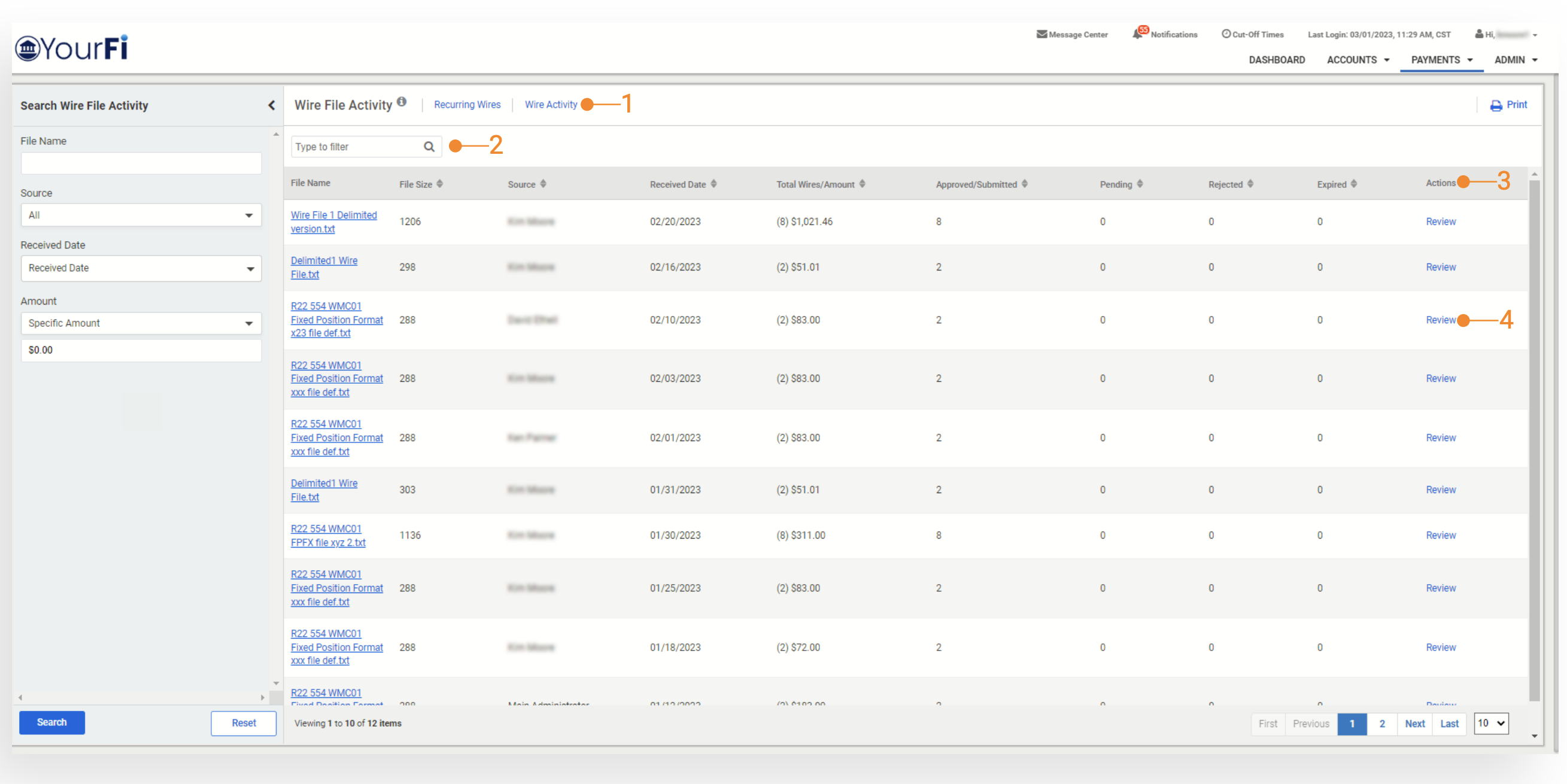
Wire File Activity view will display a list of wire files that have been uploaded.
- Quick Navigation
Users can quickly navigate between page views (Wire File Activity, Recurring Wires, and Wire Activity).
- Type to Filter
Users may utilize the Type to Filter in order to narrow the results. This feature will filter across the results to refine based on the users entered criteria.
-
Information Available:
- File Name (Link to wire transactions)
- File Size
- Source (User)
- Received Date
- Total Wire / Amount
- The status of the wires including
- Approved / Submitted
- Pending
- Rejected
- Expired
- Action
-
Wire Activity
To see a list of wires that were included in the file select Review or click the File Name.
Wire Activity - File Hyperlink
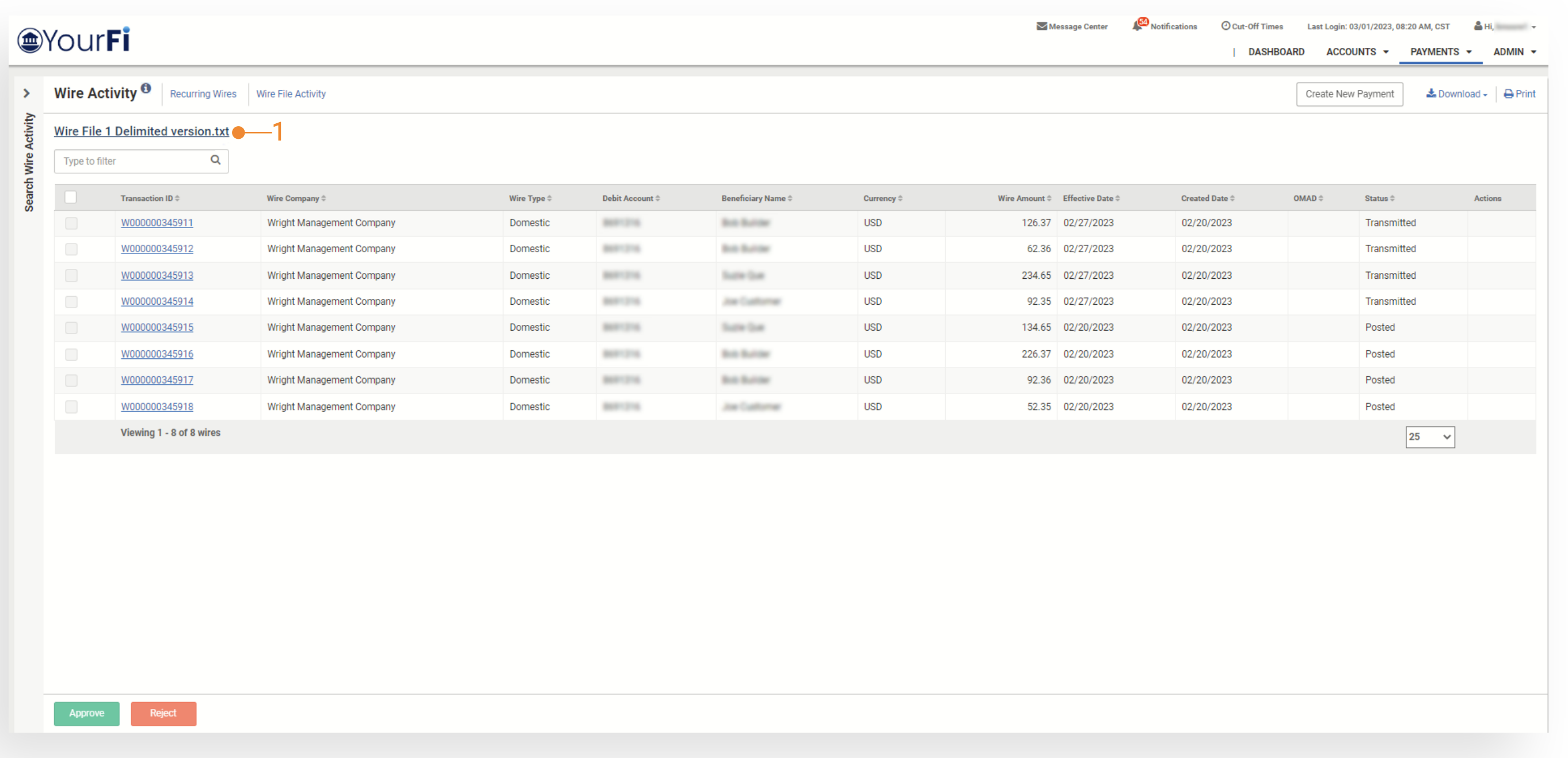
- File Name
Users can navigate to the Wire Activity page for a specific wire file by using the REVIEW action on the Wire File Activity page. When this action is selected, the user will be taken to the Wire Activity page with just the wire transactions for that specific file presented. The file name displayed on the Wire Activity page is a quick link, allowing quick navigation back to the Wire File Activity page, with details specific to the wire file.
Wire Activity
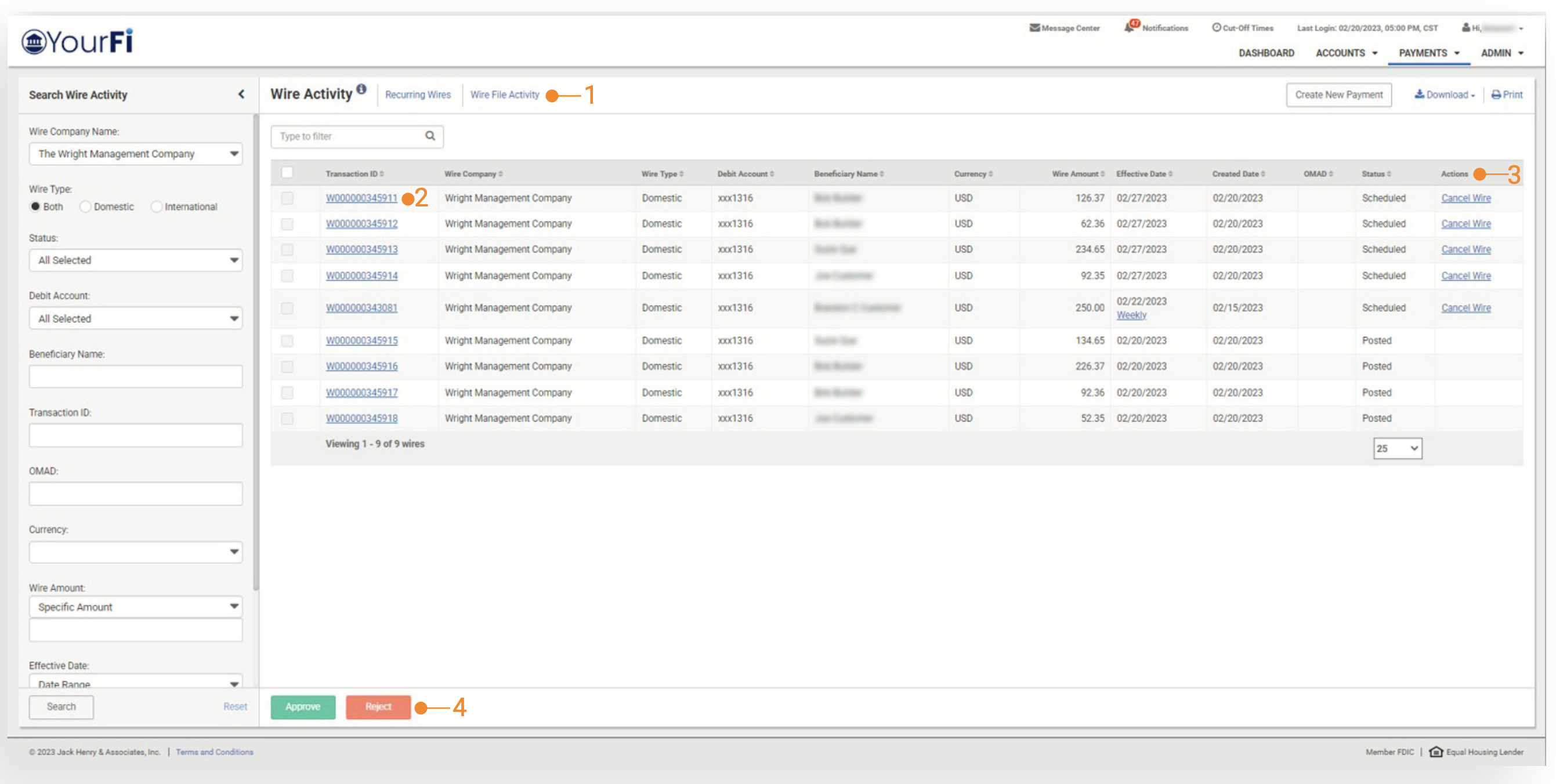
The Wire Activity page will list the wires that were included in the file selected.
- Quick Navigation
Quickly navigate between page views. Will allow users to go quickly between Wire File Activity, Recurring Wires, and Wire Activity page views.
- Wire Detail
To view the detail for a wire select the Transaction ID.
- Action Menu
If a payment is Pending Approval, selecting Approve or Reject from the Actions menu drop-down will update the status for that wire.
- Action Buttons
Users can select one, multiple, or all wires to approve or reject.
Wire Activity - Wire Details
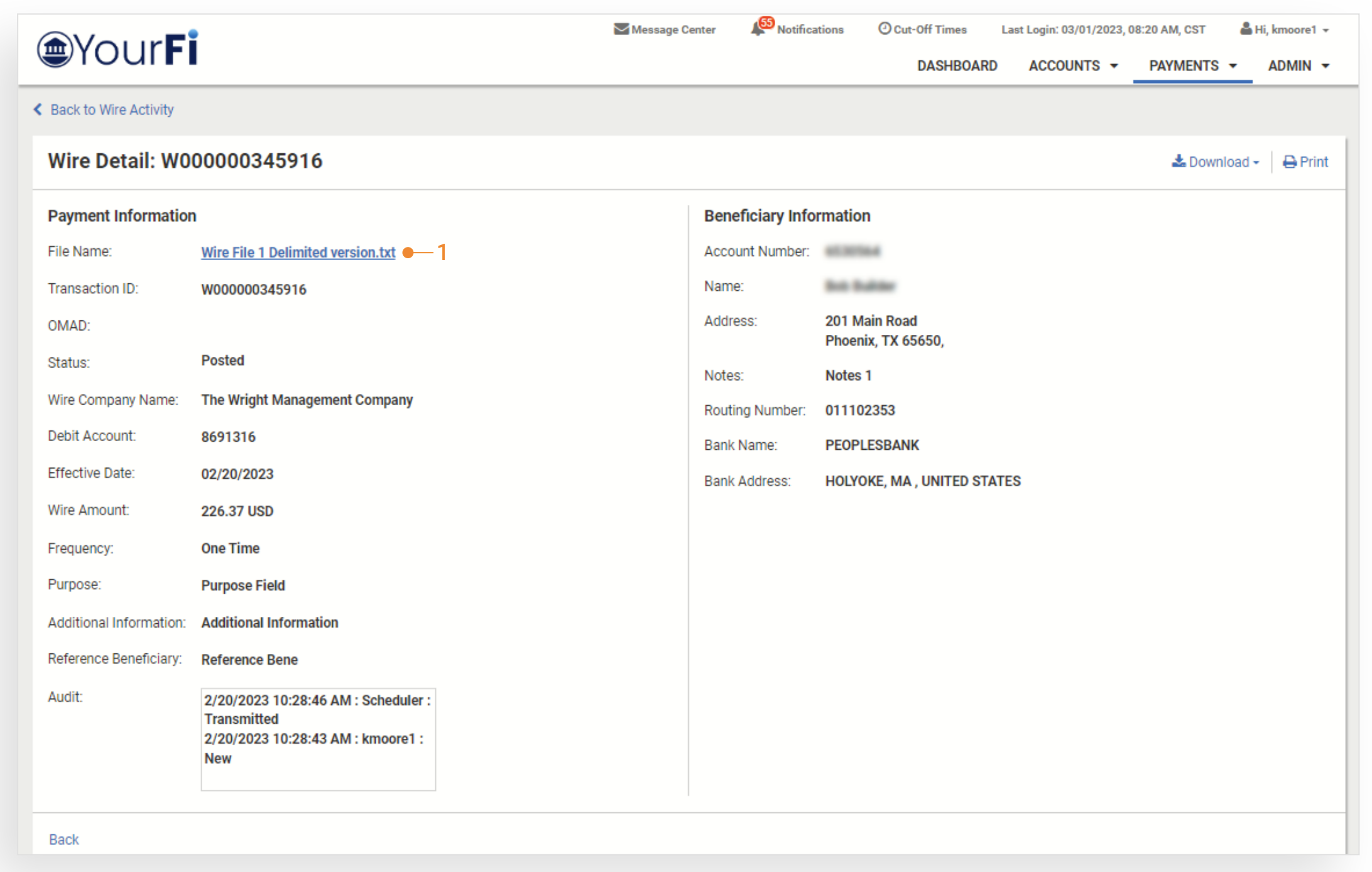
The Wire Detail view displays specific details about a single wire transaction
- File Name
To view the details of the wire file, select the file name. The user will be taken to the Wire File Activity page with the details specific to the file containing this transaction.
Wire Upload Formats
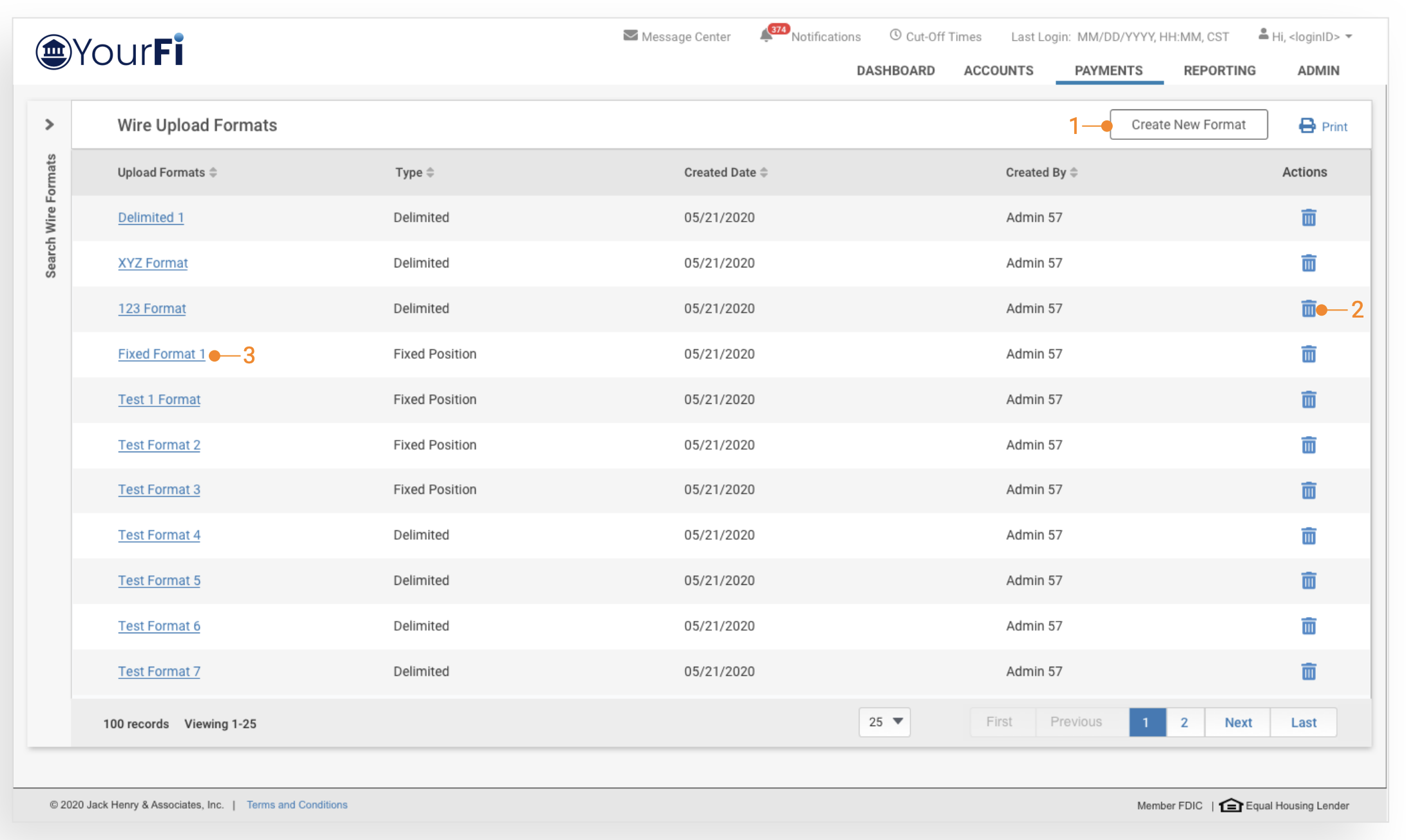
New page will display a list of saved file formats:
- Create New Format
Navigates to the mapping tool where the user can create a new wire upload format.
- Delete Format
Deletes the selected format.
- View Format
Navigates to the mapping for the selected wire upload format where a user can view and edit the current format.
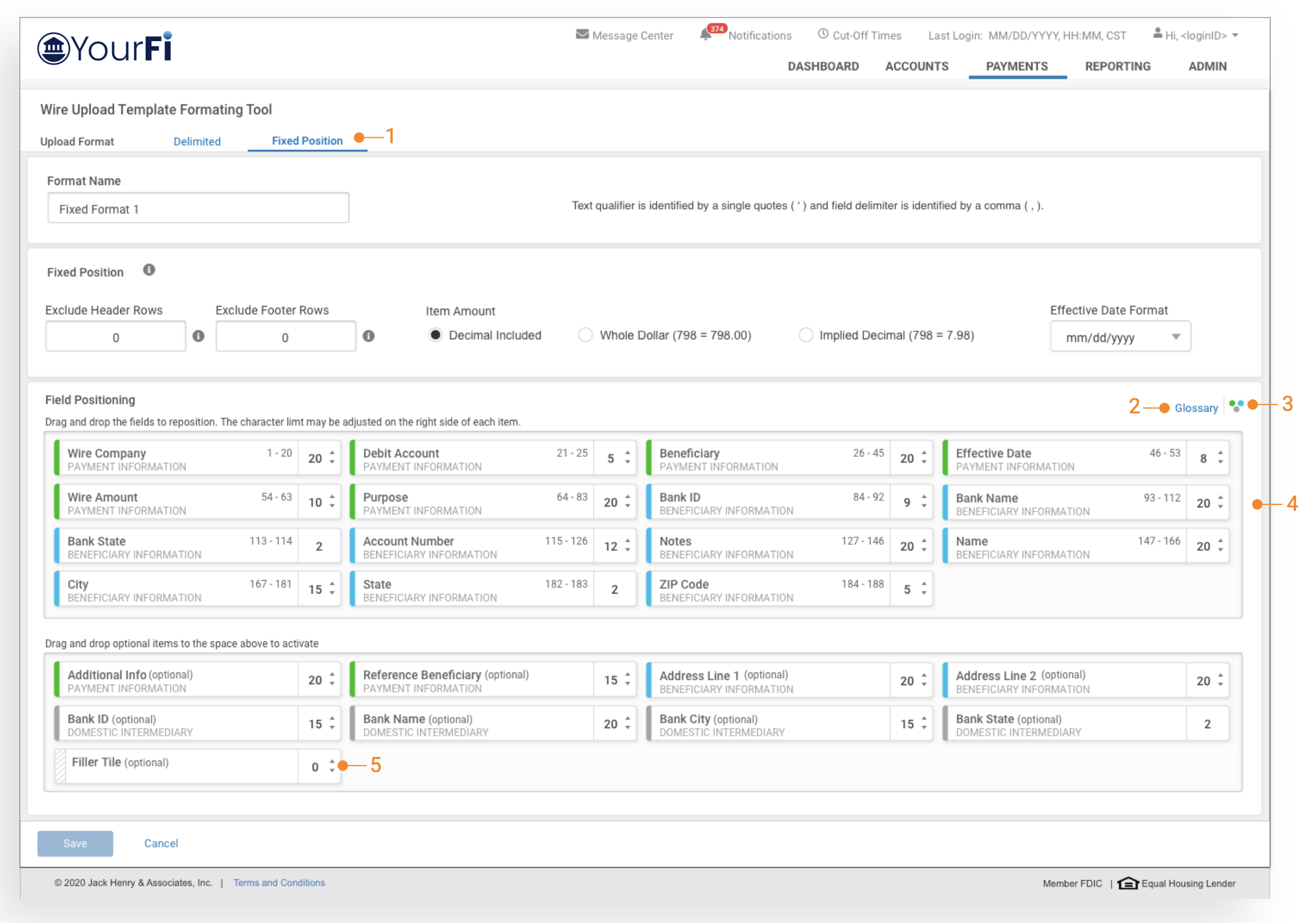
Wire Upload Formatting Tool
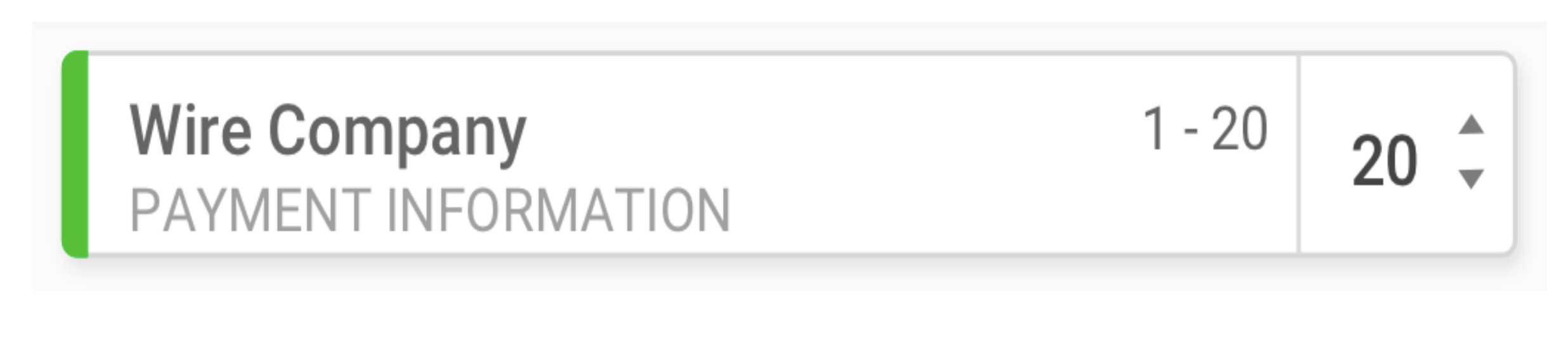
Fixed Position When creating a Fixed Position file format, the tiles will display the position in the file and, the length of the field. Users can adjust the length by using the arrows.
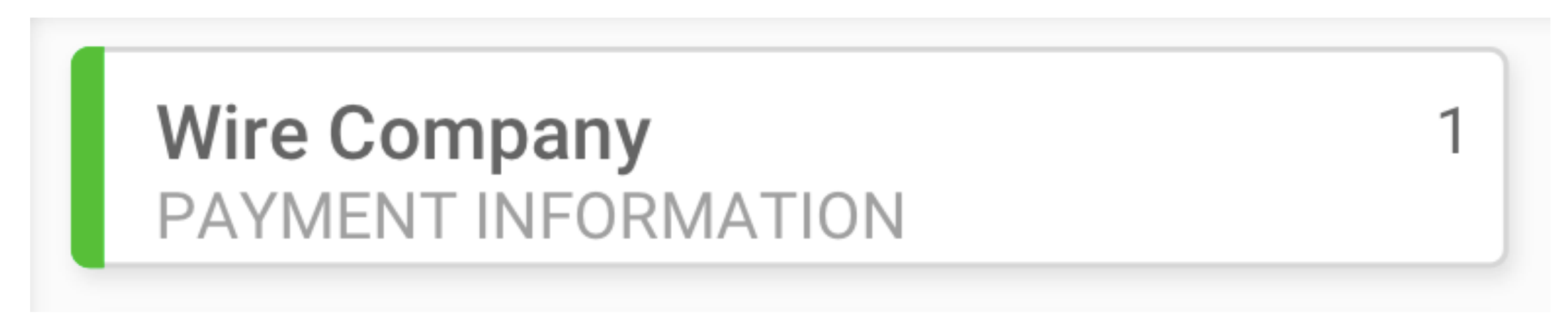
Delimited When creating a Delimited file format, the position in the file is shown as the tile number and, will update as the tiles are moved.
- Select Format
User is able to build either a Fixed Position or Delimited file map. They select the Upload format as the first step.
- Glossary
Defines each field and provide users with any character or size limitations for a field.
- Legend
Tiles are color coded to help users quickly identify each field.
- Mapping Section
Tiles displayed in the mapping section are required and cannot be moved to the optional sectional below. Users can set the file order by dragging the tiles.
- Optional Tiles
In addition to the optional fields, the Filler Tile can be used a placeholder to account for items in the file that will not be included in the payment details.