Quick Reference Guide: Transfer Templates
Overview
Users can create and save transfer templates to quickly initiate internal transfers. Templates can be set up to fund transfers from one account to another, from one account to multiple accounts, or multiple accounts to one. In addition, templates can be set up for cash concentration purposes.
Furthermore, users have the ability to create transfer templates (one to one, one to many, and many to one) from transfer payments. These new templates may be awaiting an approval or be available immediately to initiate a transfer payment. This feature is available for desktop as well as mobile.
Benefits
Benefits for Customers
- Payment creation simplicity and efficiency.
- Once a template has been saved, templates will be accessible through the menu option Transfer Templates which allows users to select one or more templates to initiate at one time.
- Within the Transfer Templates listing, users can filter the results, create payments from a single selected template, modify a template, print the template listing or details.
Back Office - Company - Product Features
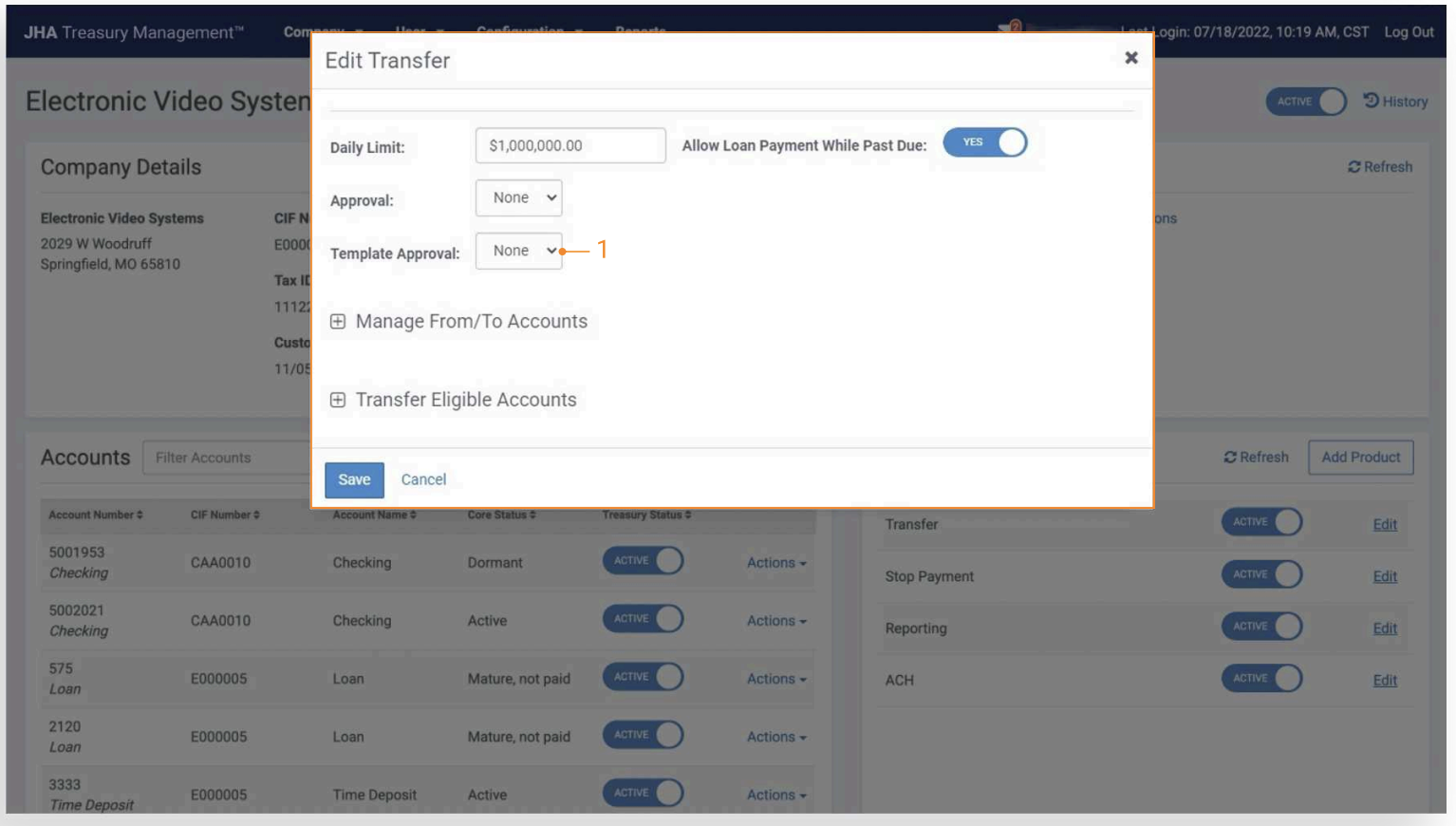
- Company Configuration - Approvals
To set the number of approvers required for a newly created template:
-
Select a company from the Company Search.
-
Navigate to their Company Details page and select the Transfers link in under Product Features.
-
The Number of template approvers can be set at none, one, two or three.
Back Office - User Information - Transfer Entitlements
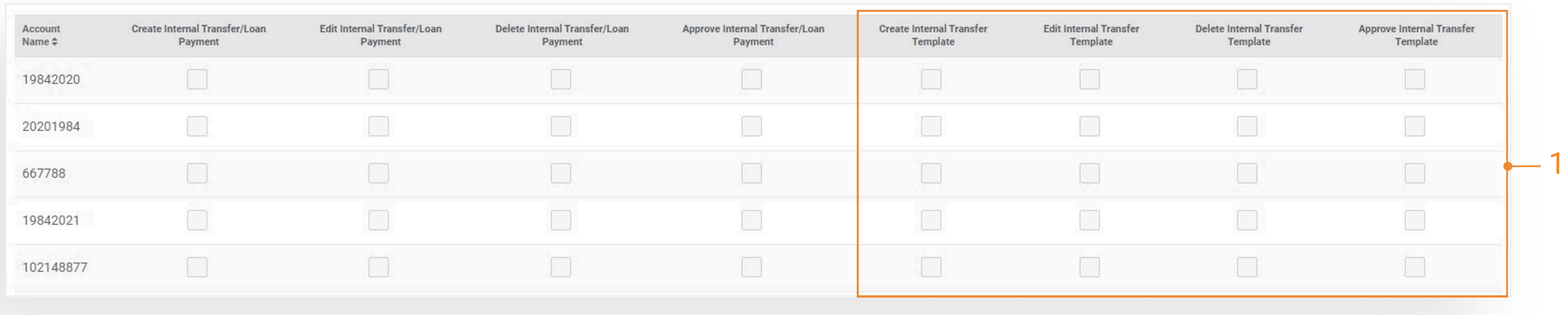
- User Information – Transfer Entitlements
Entitlements for a channel user can be updated in Back Office or Channel by accessing their User Information page and selecting the Transfers tab.
- Create: Allows the user to create a template.
- Edit: Allows the user to edit the entire template.
- Delete: Allows the user to delete a template.
- Approve: Allows the user to approve a template.
Back Office - Reporting
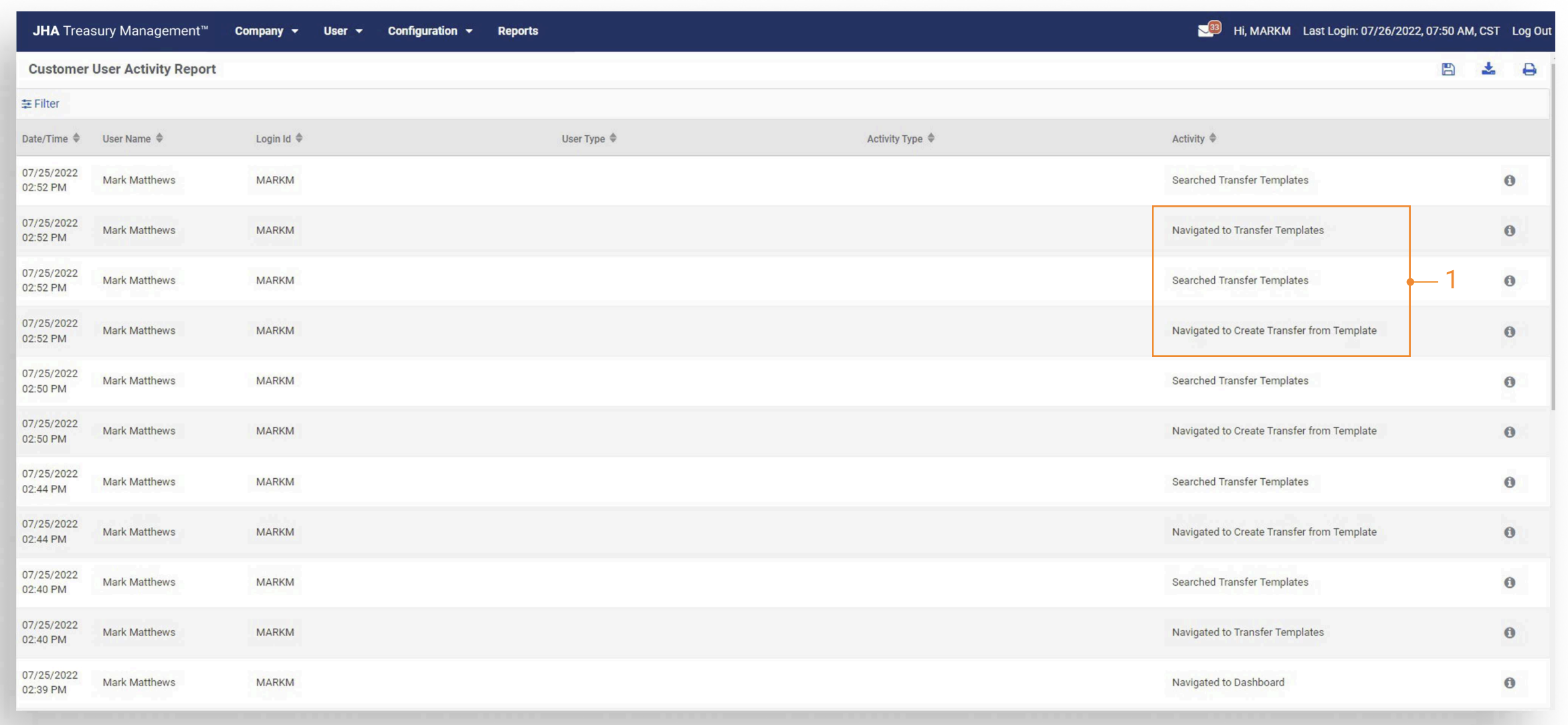
- Customer Activity Report
Displays user activity related to Transfer Templates.
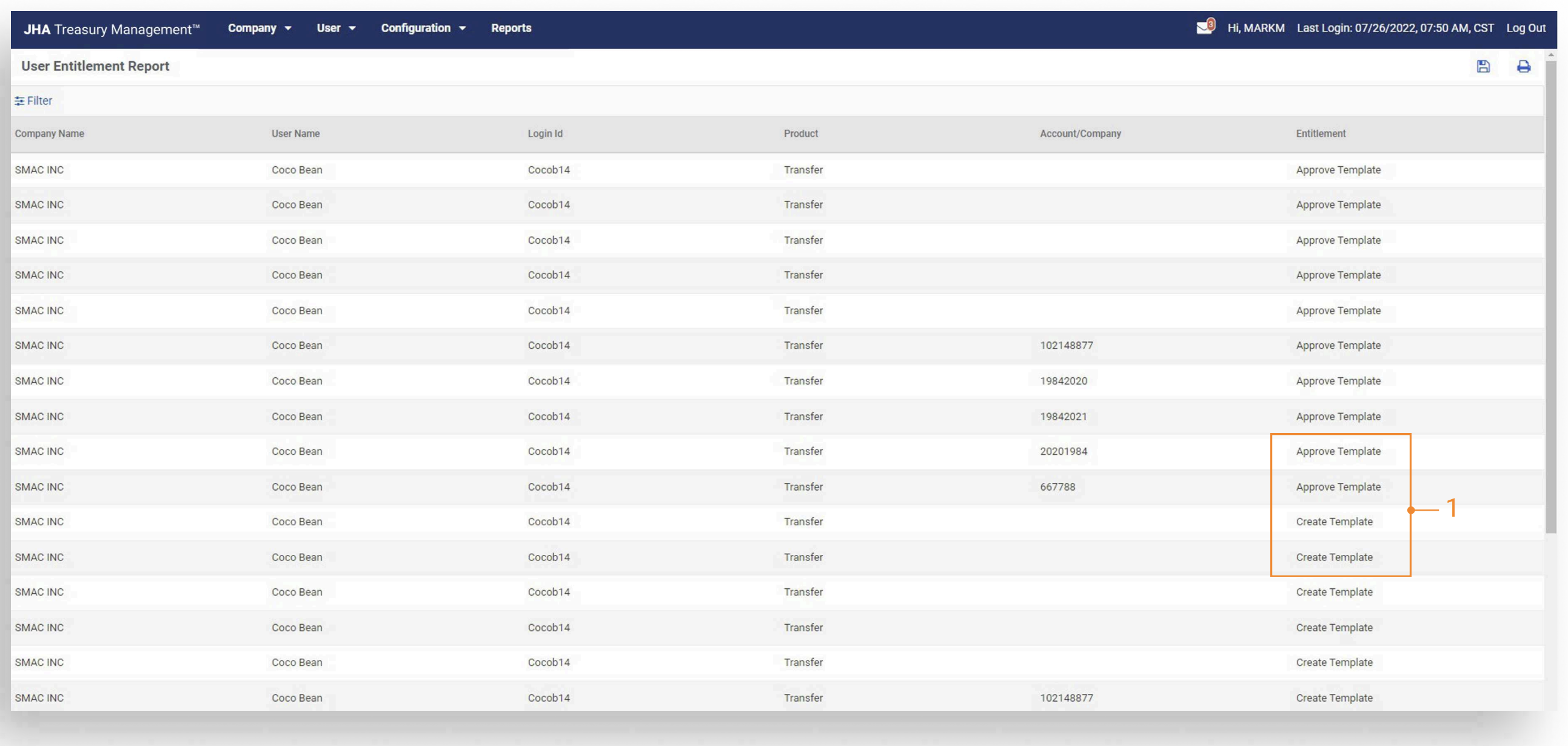
- User Entitlement Report
Acess to view / filter by user entitlements specifically for Transfer Templates.
Transfer Templates - Navigation
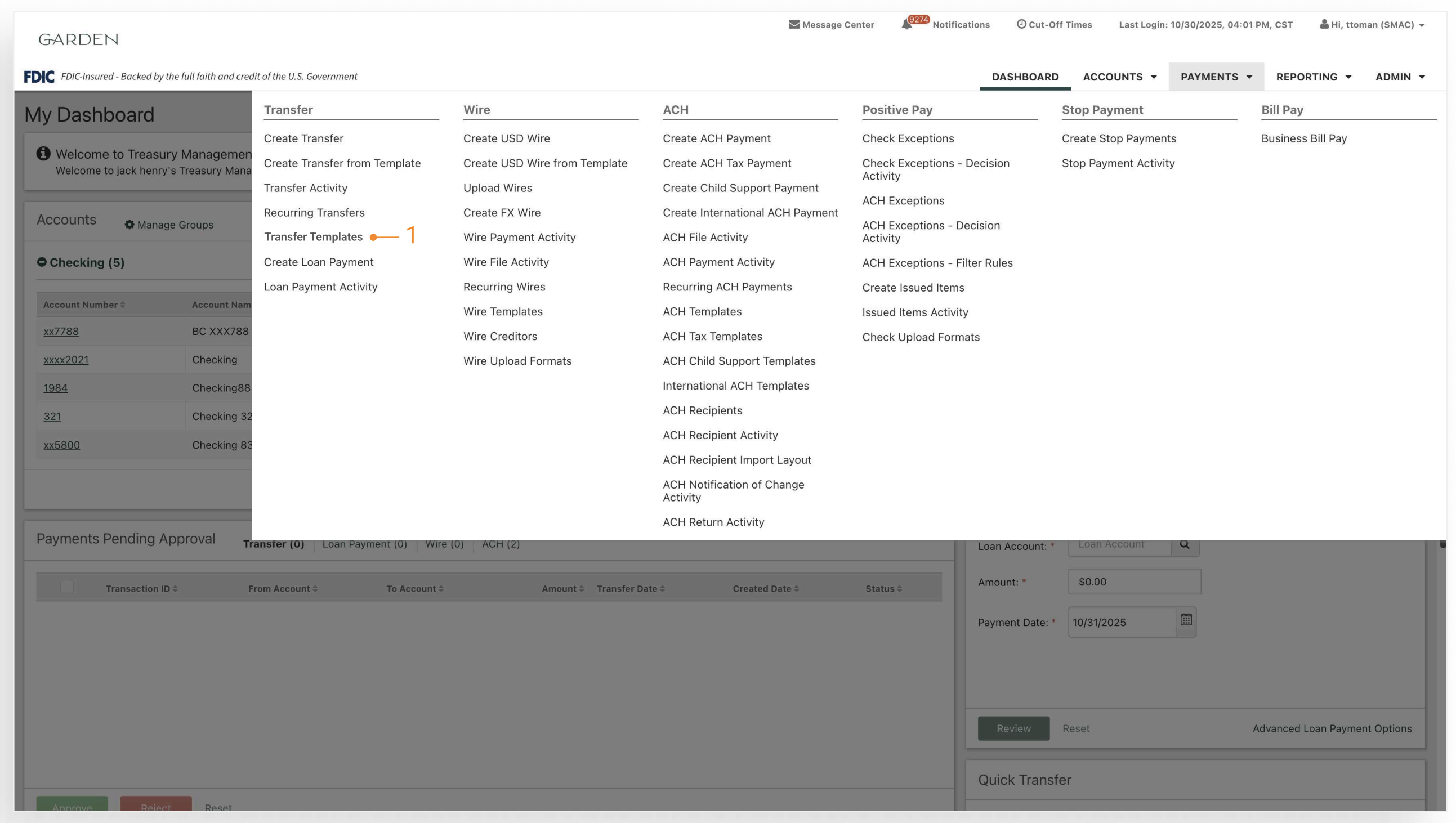
- Transfer Templates
Main Navigation Menu > Payments > Transfer
Create Transfer from Template
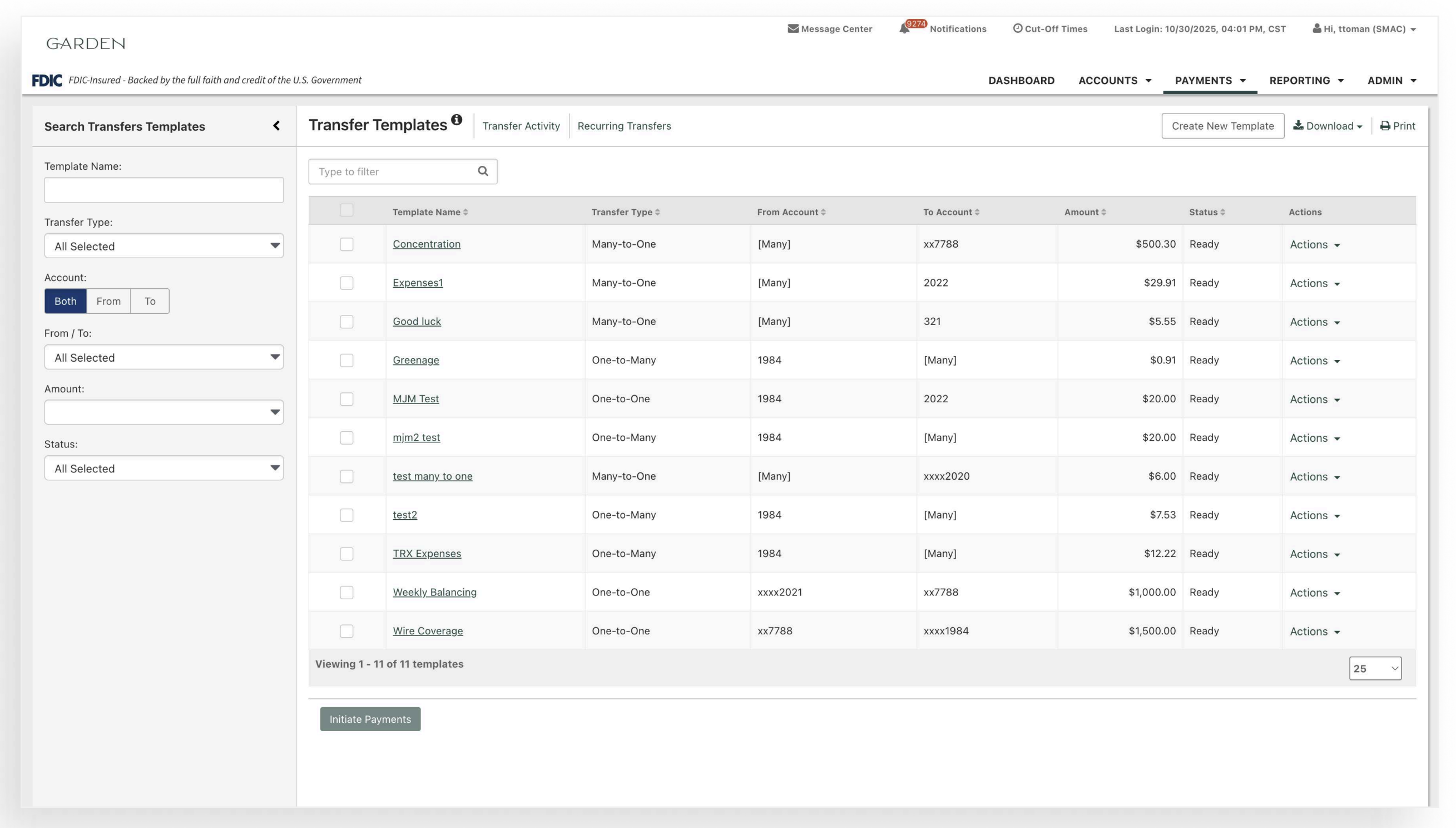
To Create a Template:
- Select Transfer Templates.
- From the Transfer Templates list page select the Create New Template button.
To Approve a Template:
- Select Transfer Templates.
- Click the Actions drop down for the template and select Approve or Reject. Or
- Click the template name to navigate to the Template Details page.
- Select the Approve or Reject button.
To Make a Transfer Using a Template:
- Select Create Transfer from Template.
- Select the checkbox for the template that you want to initiate. Or
- Select Transfer Templates.
- Click the Actions dropdown for the template that you want to initiate.
- Select Initiate.
Create Template from Transfer Payment
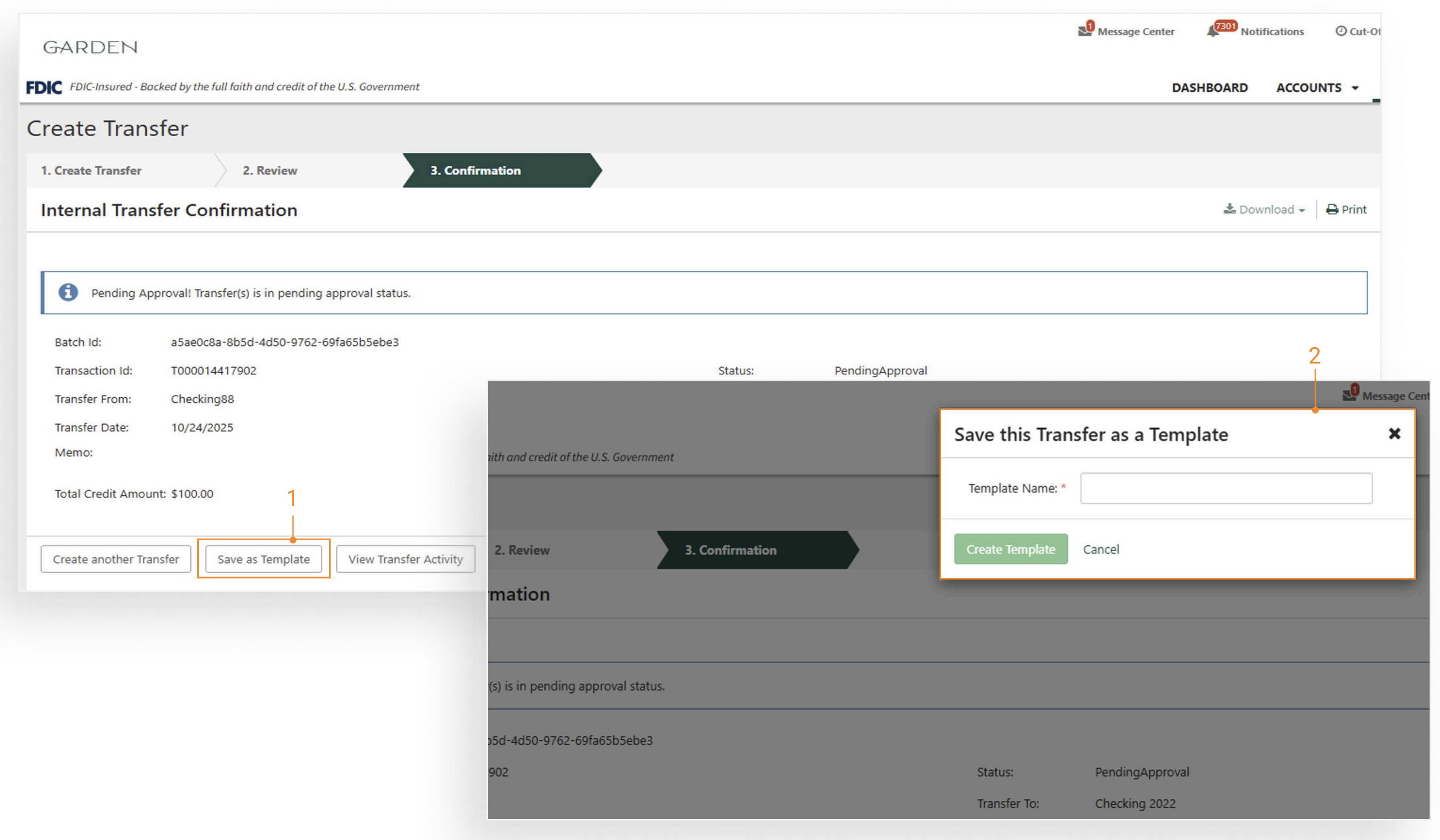
Create Transfer:
- Select Create Transfer.
- Select One-to-One Transfers, One-to-Many Transfers, or Many-to-One Transfers.
- Select the appropriate to and from accounts based on the type of transfer selected.
- Enter the amount, frequency (if applicable), date, and memo fields for the respective type of transfer selected.
- Select Review, then select Confirm.
Create Template from Transfer Payments:
- Select Save as Template.
- Enter in a unique Template Name & select Create Template.
Create Transfer from Template
Key things to know:
-
Templates will be available on the Transfer Templates page to all users that have Transfer Template entitlements for every account in the template.
-
Changes cannot be made to a template while it is pending approval.
-
When initiating a transfer from a template the user can update the Amount, Frequency, Transfer Date and memo fields for that payment.
-
One template can be selected per initiation.