Quick Reference Guide: Unified Identity Service - Support Guide
Enrollment
Users are ‘invited’ to create a Digital ID. The link provided in the enrollment email is good for 7 days. Once clicked, the user has 45 minutes to complete the enrollment process.

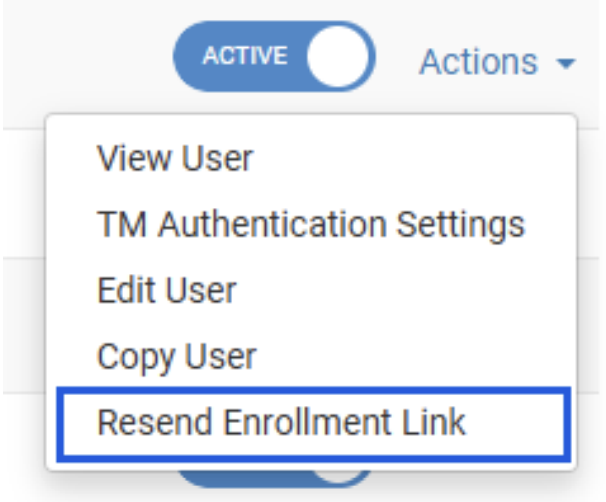
If the user does not take action in the time allowed, a new enrollment link can be generated via Treasury Back Office by selecting Resent Enrollment Link next to the user.
Digital ID Management
Digital IDs and profiles for Unified Identity Service for Treasury Management are managed through the People application, which has traditionally been used for the Banno product.
Identity is a feature of People that allows financial institutions to manage aspects of a user’s digital identity, including profile, password, and security information.
You can access a Treasury user’s Identity settings via Treasury Management Back Office or directly via People.
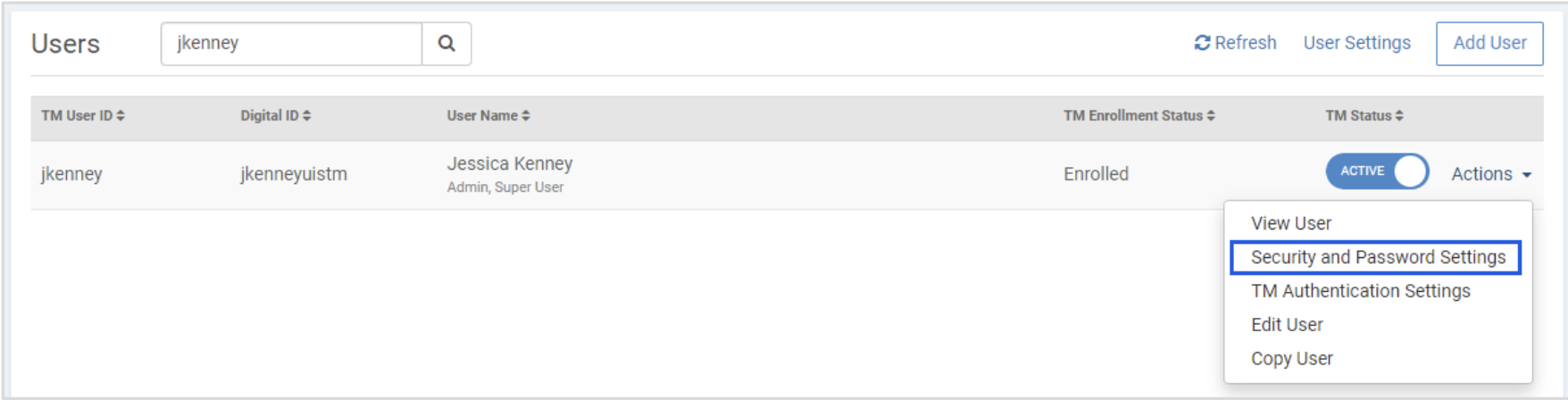
Treasury Management back Office: Company > Users > Actions > Security and Password Settings
You may be prompted to log in to the People application but then will be taken directly to the user’s Identity settings.
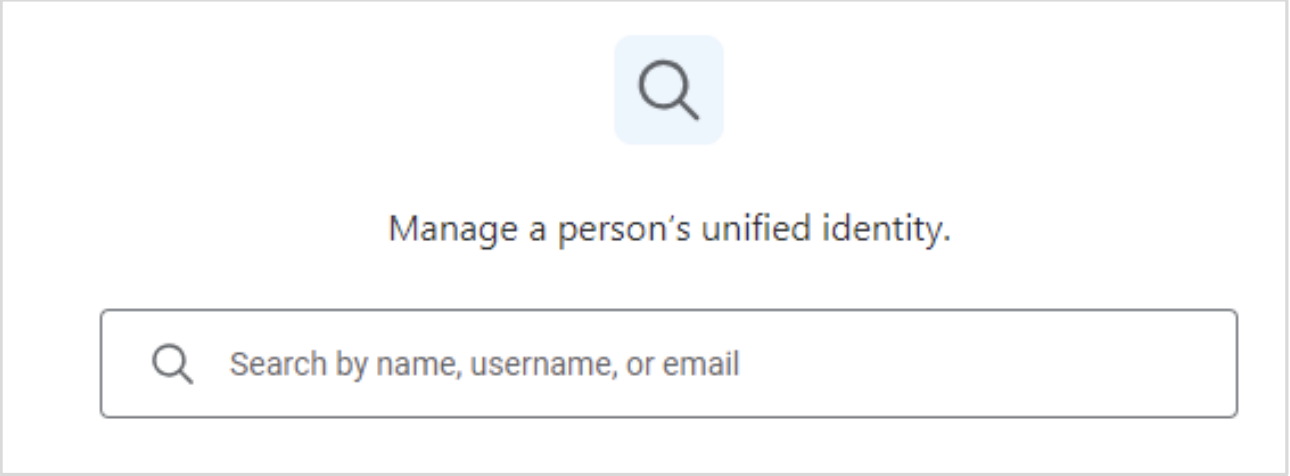
People: If you are already logged in to People you can search in Identity for a user by name, username (digital ID), or email address. Treasury users will not appear in a search for People, but rather can be found by searching in the Identity section.
Passwords
Password Information:
- Passwords for Digital IDs do not expire.
- Passwords for Digital IDs will not be locked out due to successive invalid attempts.
- There are no restrictions on previously used passwords.
Password Rules:
- Passwords must be between 8 and 64 characters in length.
- All ASCII and Unicode characters (including spaces) are supported for passwords.
- Passwords must not match or contain your username.
- Passwords must not begin or end with a space.
Password Resets:
There are multiple options for Digital ID password resets:
- End Users: From the Treasury Management login screen, select Forgot Password, and follow the steps to create a new password.
- Company Admins: From the User List, select Send Reset Password Link to send a password reset email.
- Bank Users: From the Identity app in People:
- Initiate a prompt for the user to choose a new password at next login.
- Send the user a link to create a new password.
Digital ID Settings
Digital ID Information: Digital IDs can only exist once per bank brand.
Ex: jhenry cannot exist for a Banno retail user and a Treasury user.
Digital ID Rules:
- Usernames must be between 4 and 64 characters in length.
- Usernames can contain letters (a-z), numbers (0-9), dashes (-), underscores (_), apostrophes (’), and periods (.) and can begin or end with non-alphanumeric characters except periods (.) and spaces.
- Usernames cannot contain more than one period (.) in a row, accents, accented letters, ampersands (&), equal signs (=), brackets (<,>), plus signs (+), at signs (@), or commas (,).
Identity Settings (People > Identity)
Personal Information
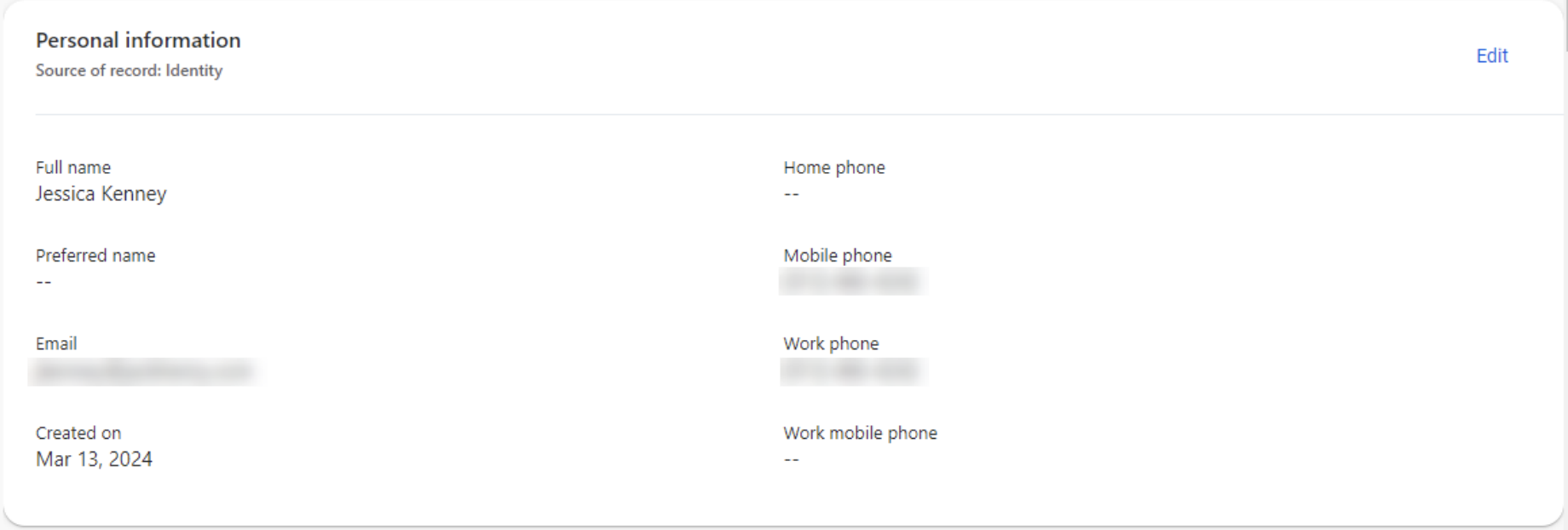
Users can modify their personal information themselves via their Security and Password settings in Treasury Management: Treasury Management > Profile & Preferences > Security and Password Settings
If they are unable to do so, you can modify their information via People using the Edit link in the upper right-hand corner.
Note that this information only applies to their Digital ID and will not change the email address, phone number, or name associated with their Treasury Management user (used for TM notifications, etc.). Those changes still need to be made in Treasury Management Back Office or by the user in Profile & Preferences.
Security
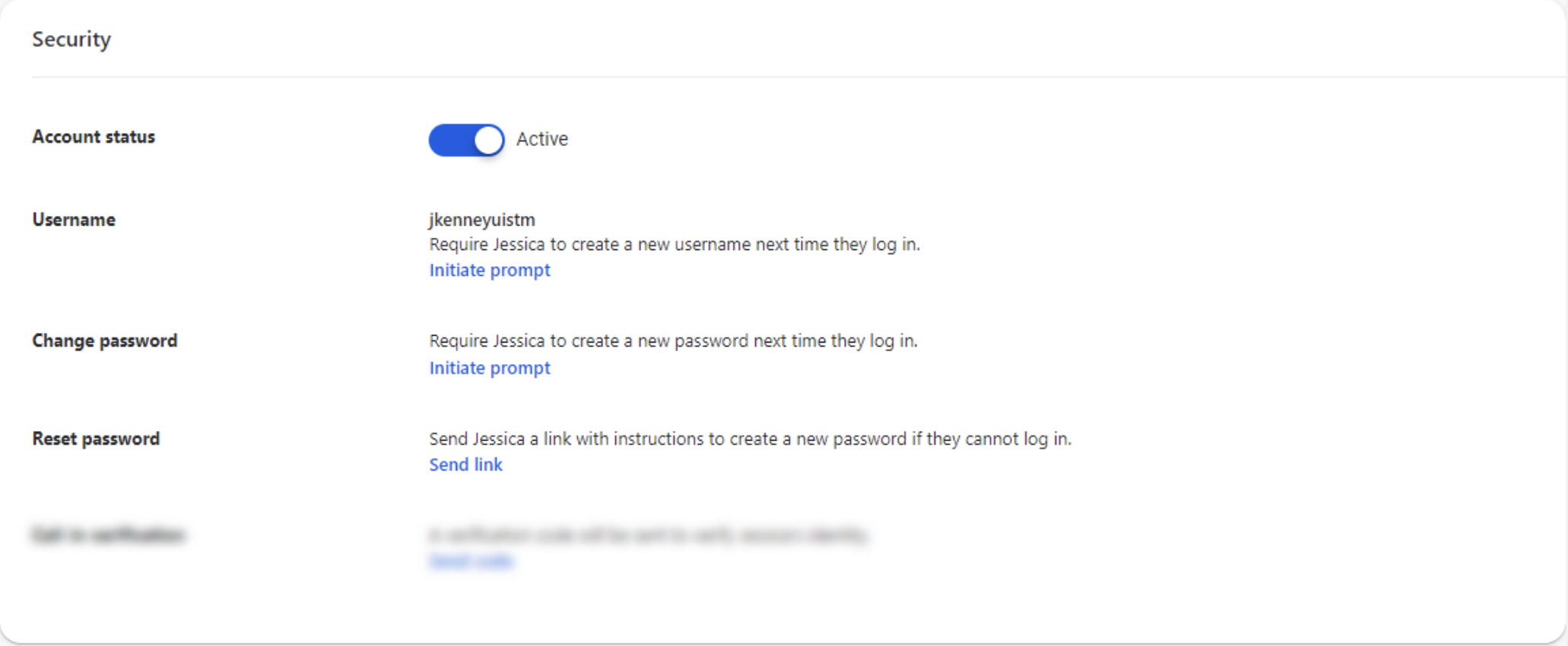
- Username: Initiate prompt for user to change their Digital ID at next log in. This does not change their TM User ID.
- Change Password: Initiate prompt for user to change their password at next log in.
- Reset password: Initiate the password recovery process in the event a user cannot log in.
- Call-in verification: Call-in verification is not an option for Treasury Management at this time.
2-Step Verification Methods
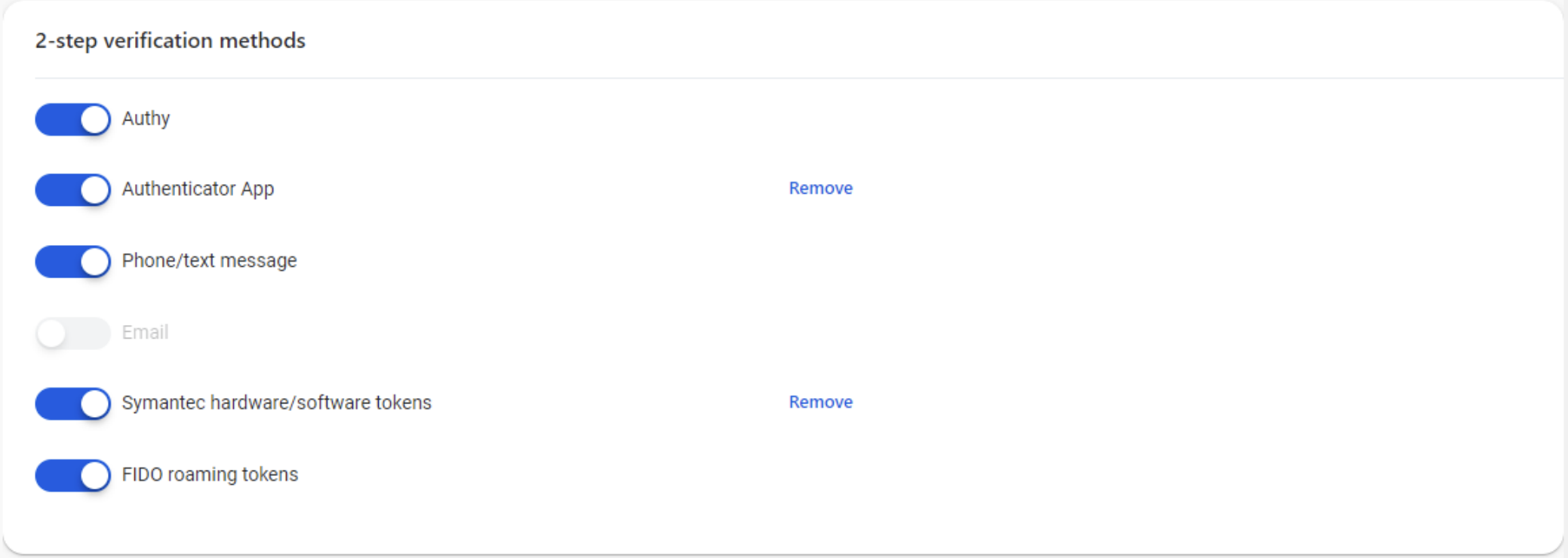
If a user has misplaced a token, gotten a new phone or phone number, etc., you can remove their existing 2FA methods. If all methods are removed, the user is prompted to select a new one at their next login.
Devices
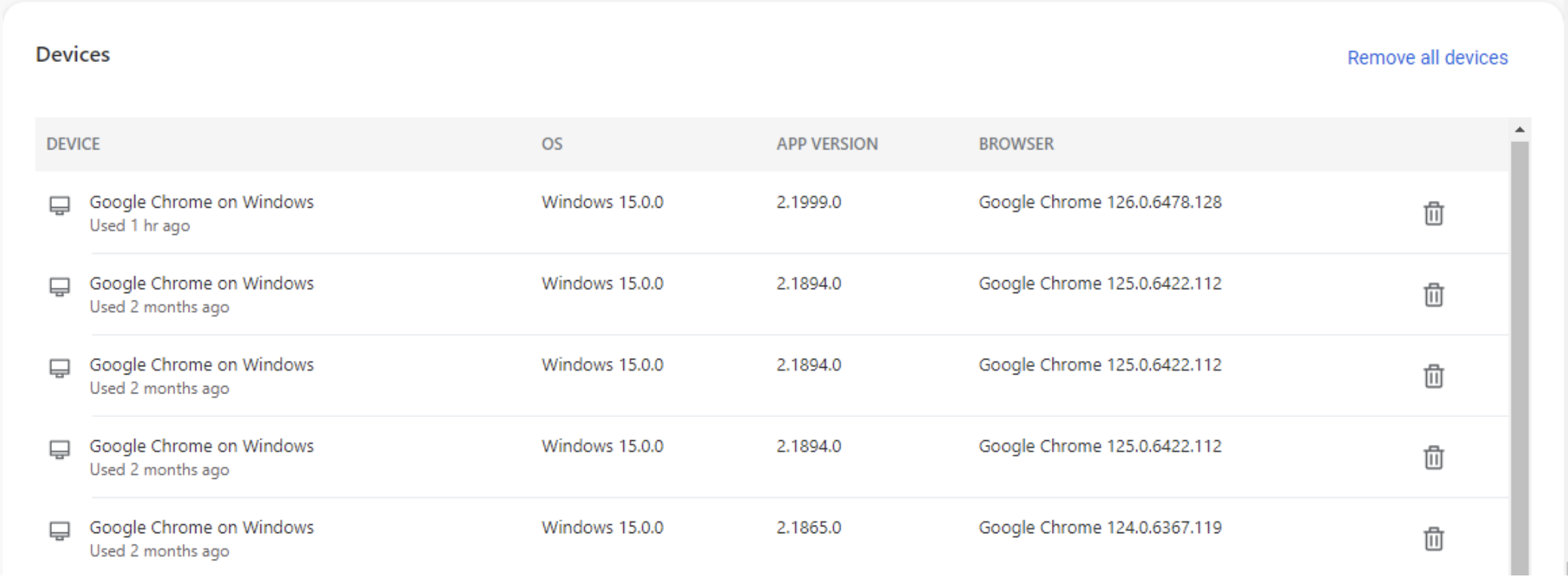
If a user has selected the ‘Don’t ask for codes again while using this browser’ option, removing the device from the Devices list will result in them being challenged with their selected 2FA method at next login.
Lockouts
Multiple invalid password attempts will not result in the user being locked, however they will be unable to attempt for a period of time (up to five minutes), or they can follow the steps to change their password to login immediately. A message will display to the user:
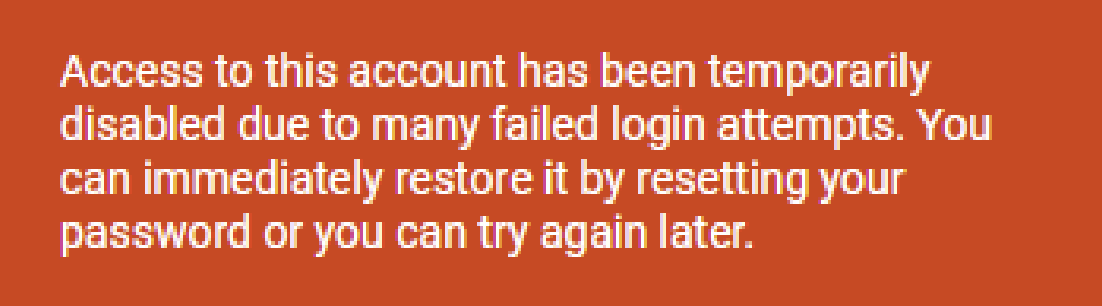
Temporary lockouts due to excessive attempts will occur if the user fails their 2FA method repeatedly. The number of attempts vary by authentication method but is generally between 4 and 10 attempts. The temporary lockout can be up to five minutes.
In most cases the temporary lockout can be mitigated by a successful login/2FA challenge in a new tab or browser.
Users can either wait until the lockout period has expired, or if the user cannot successfully authenticate, the bank can act on the user’s behalf by removing the registered 2FA methods in Identity (see 2-step verification methods section).
Removal of all 2FA methods will prompt the user to select a new one upon next login.
Activity
(People > Identity)
The Activity log shows events for:
- Authentication
- High-risk authentication
- Devices
- Profile
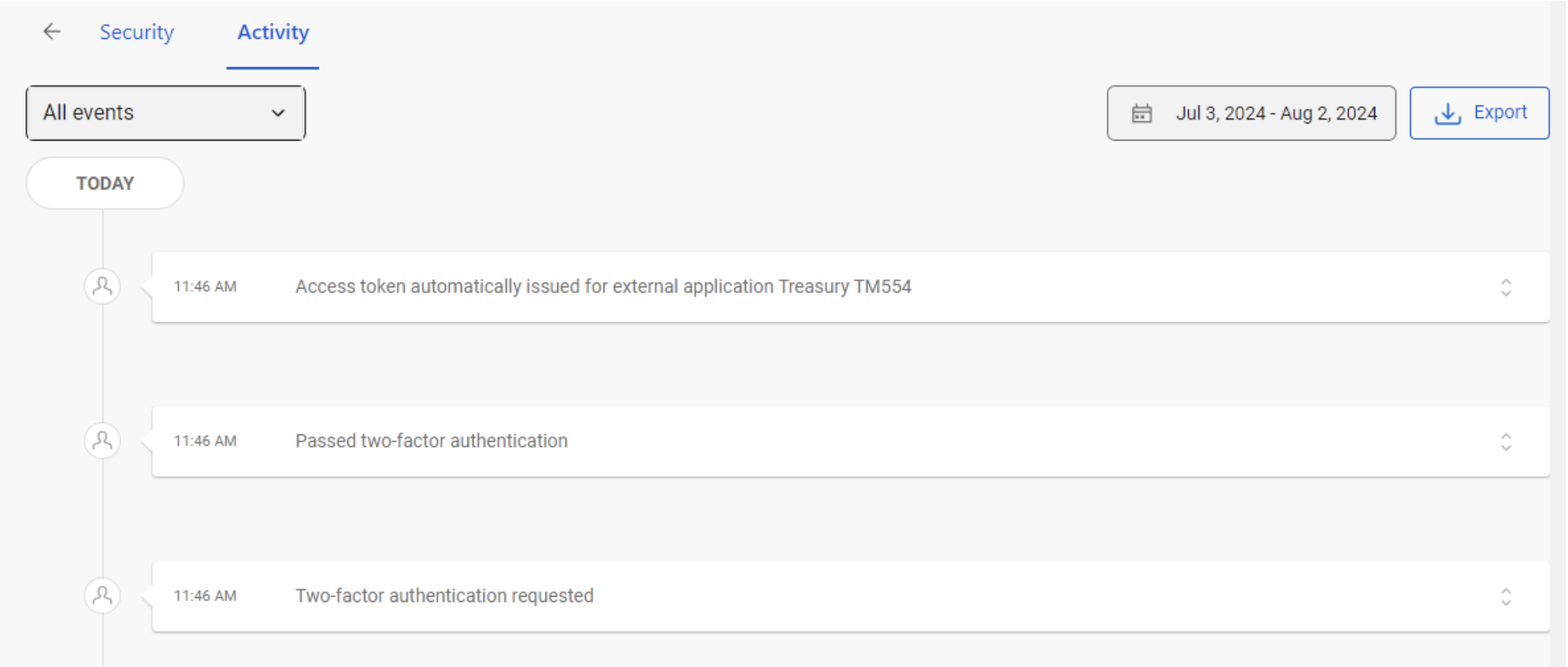
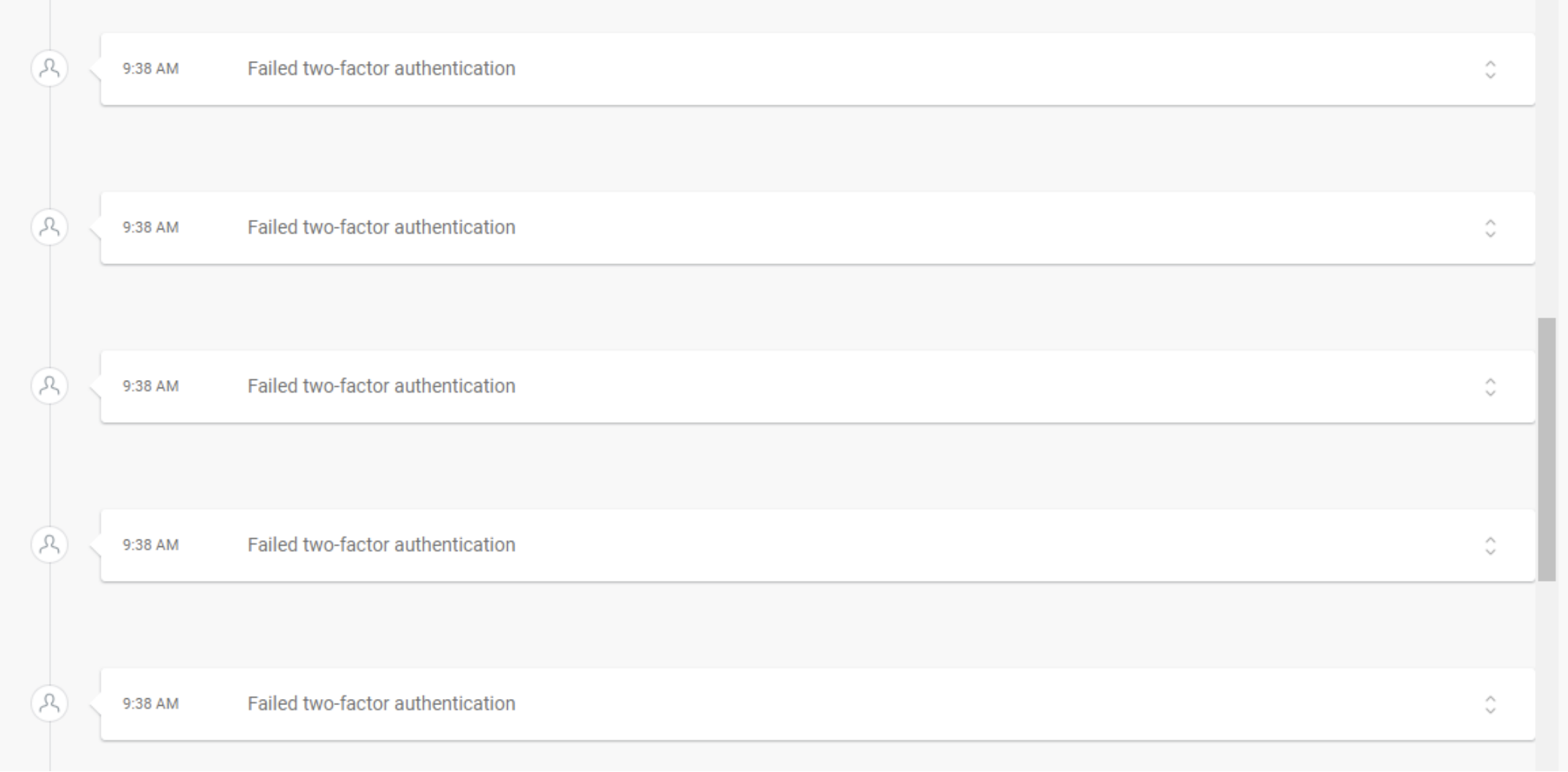
If a user is experiencing temporary lockouts, you can verify any failed two-factor authentication attempts.