Quick Reference Guide: Channel Information Reporting
Overview
This guide is designed for financial institutions to effectively utilize the Information Reporting suite within the Treasury Management platform. This modern interface allows for detailed oversight of balances, transaction histories, and electronic statement management.
Navigating the Information Reporting Dashboard
The Reporting menu provides a centralized location to run, print, and download critical financial data.
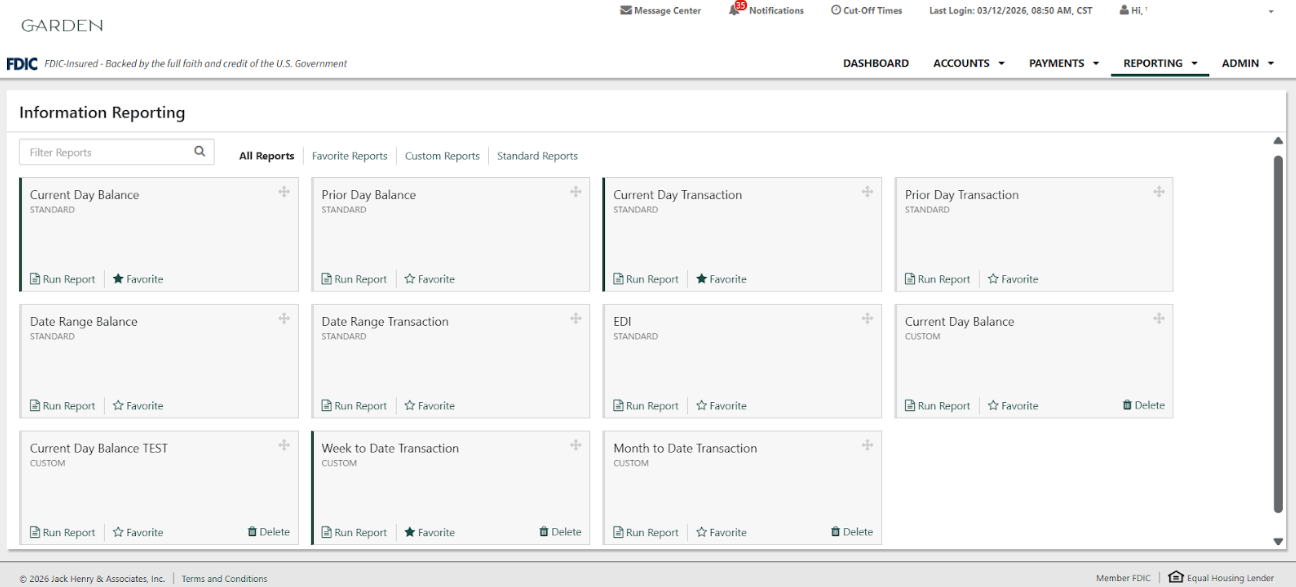
- Unified View
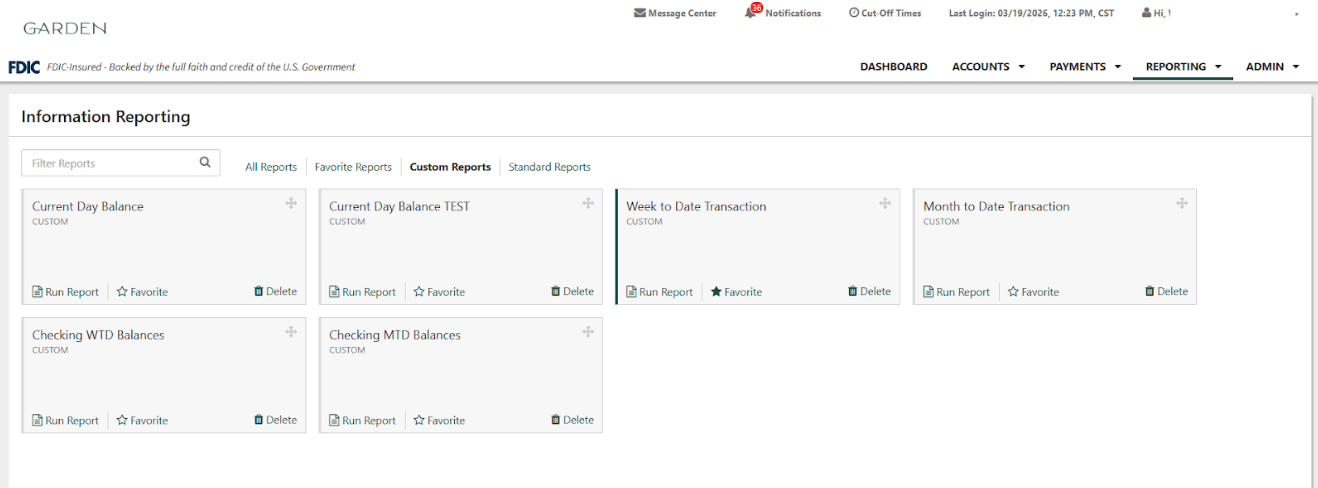
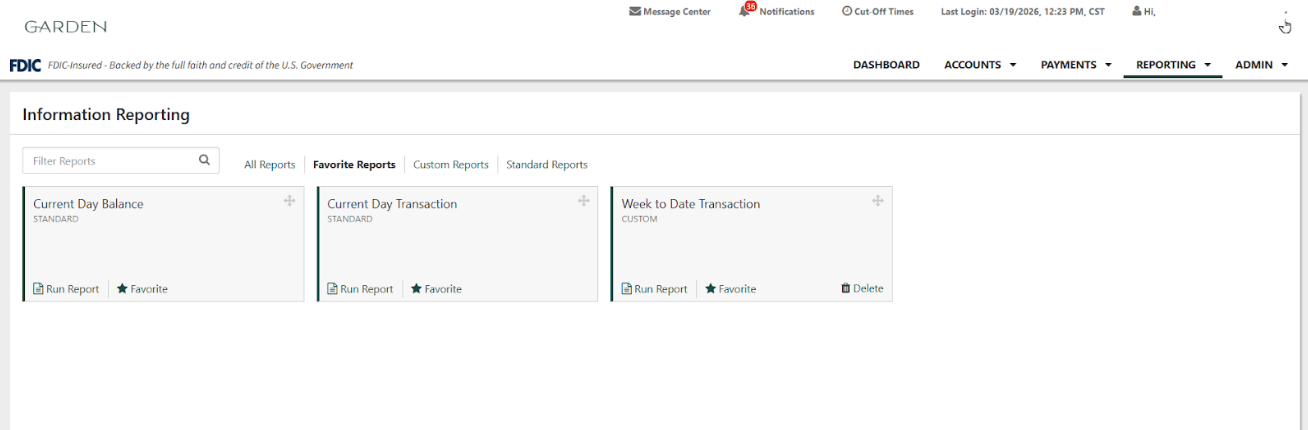
- The All Reports tab serves as the default view, integrating Favorite, Custom, and Standard reports into a single screen.
- Workflow Optimization
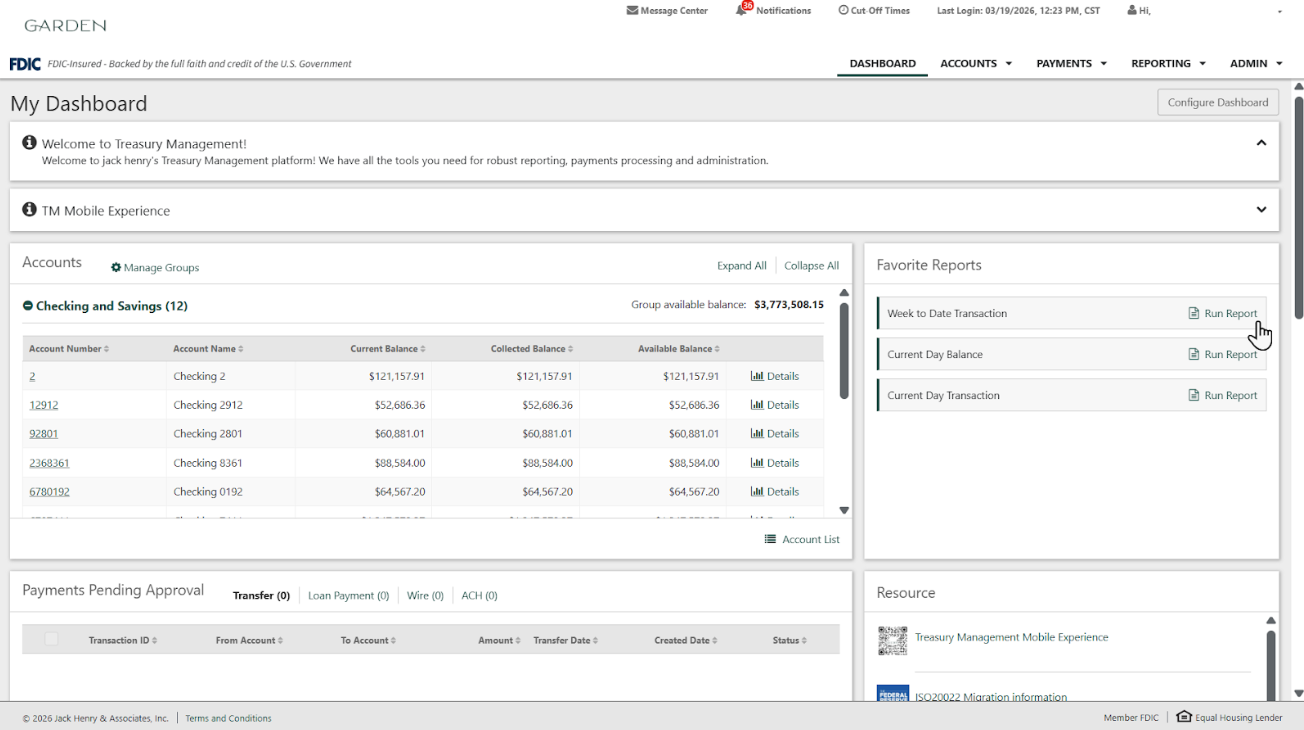
- Users can add any report to their Favorite Reports view by selecting Favorite within the report name box for rapid access.
- Data Organization
- On the All Reports tab, reports can be sorted by dragging the report tiles into any order. This can help prioritize specific data points.
Advanced Report Generation Workflow
To generate a comprehensive report, utilize the following workflow:
- Selection
- Navigate to the Reporting menu and select Information Reporting, then identify the report you wish to generate from the Information Reporting dashboard.
- Initiation
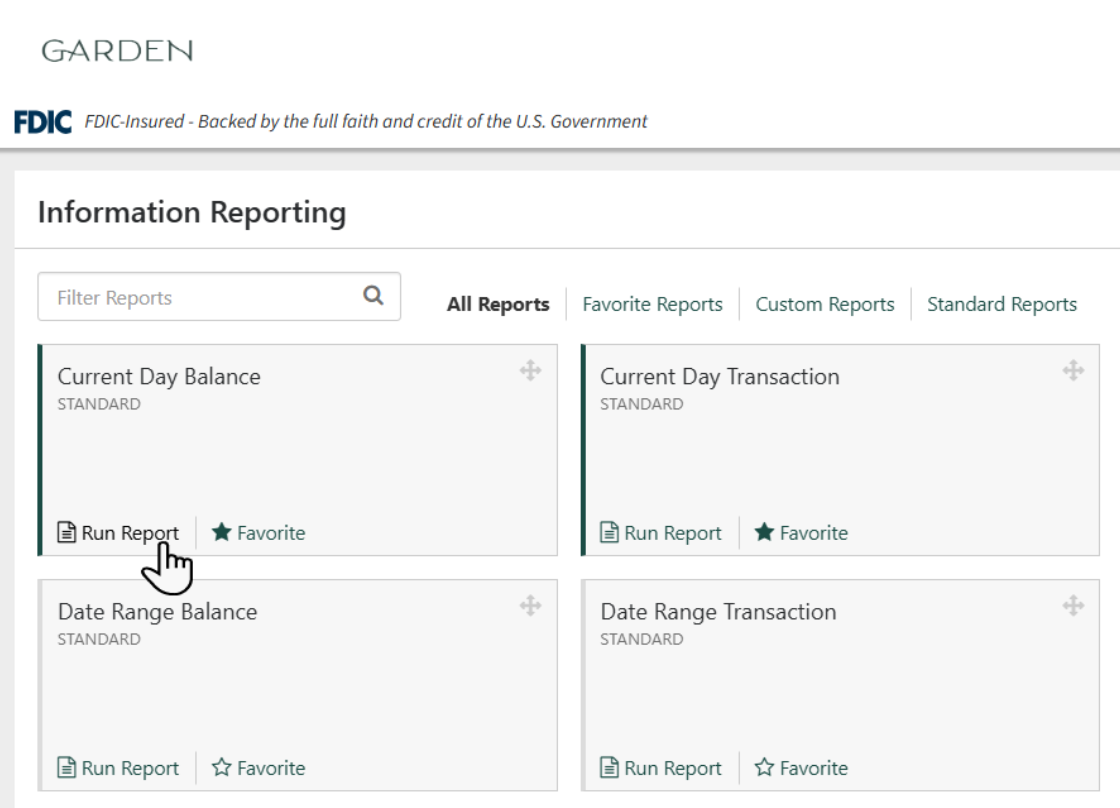
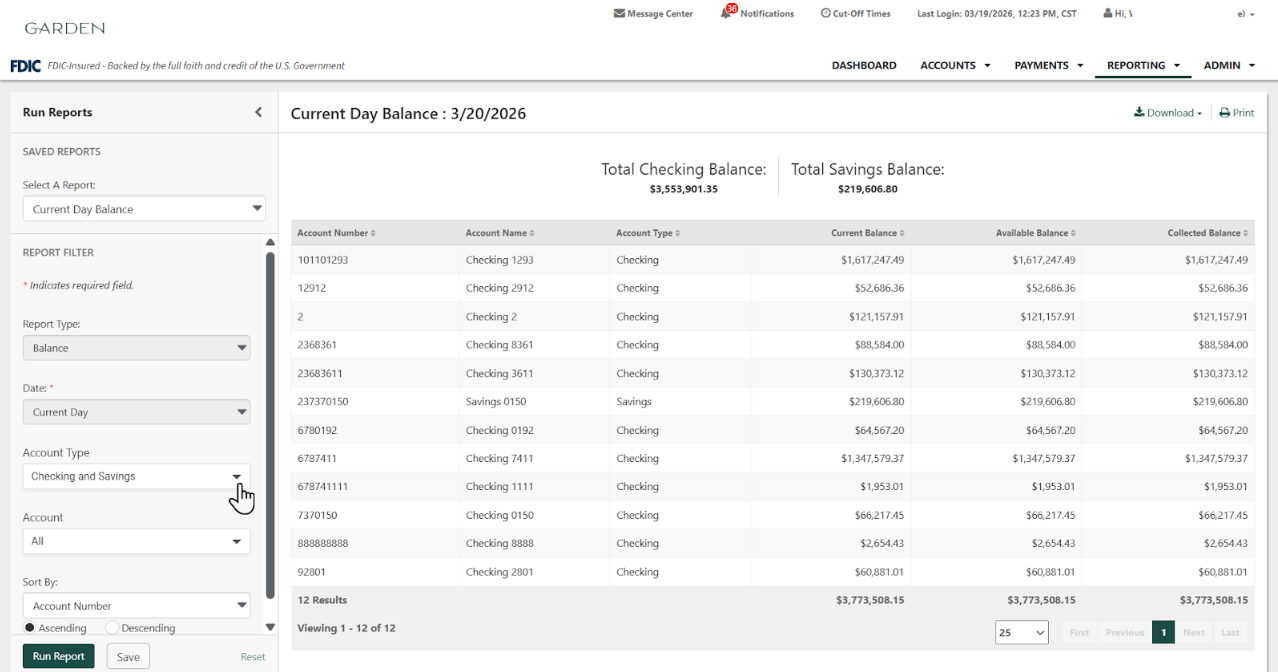
- Select Run Report within the report tile, then expand the filter panel to define your report parameters.
- Parameter Definition
- Date Selection: For the reports that are ‘Date Range’, choose the date type:
- Today
- Date Range
- Specific Date
- Week to Date
- Month to Date
- Year to Date
- Account Selection: Filter by Account Type and select specific or all account numbers.
- Sorting: Determine the sort order (Ascending or Descending) based on operational requirements.
- Granular Filtering
- Some reports allow further granular filtering and can be defined as needed:
- Check Number
- Amount
- Payment Type
- Transaction Type
- Transaction Direction
- Execution
- Select Run Report to display matching information in the main panel.
- Save
- Customizing the reports allows users to bypass repetitive data entry by saving preferred filters, account selections, and date ranges. Use the Save and Save As features to build a personalized library of frequently used reports.
Creating a New Custom Report (Save)
Use this method to turn a Standard Report template into a permanent Custom Report:
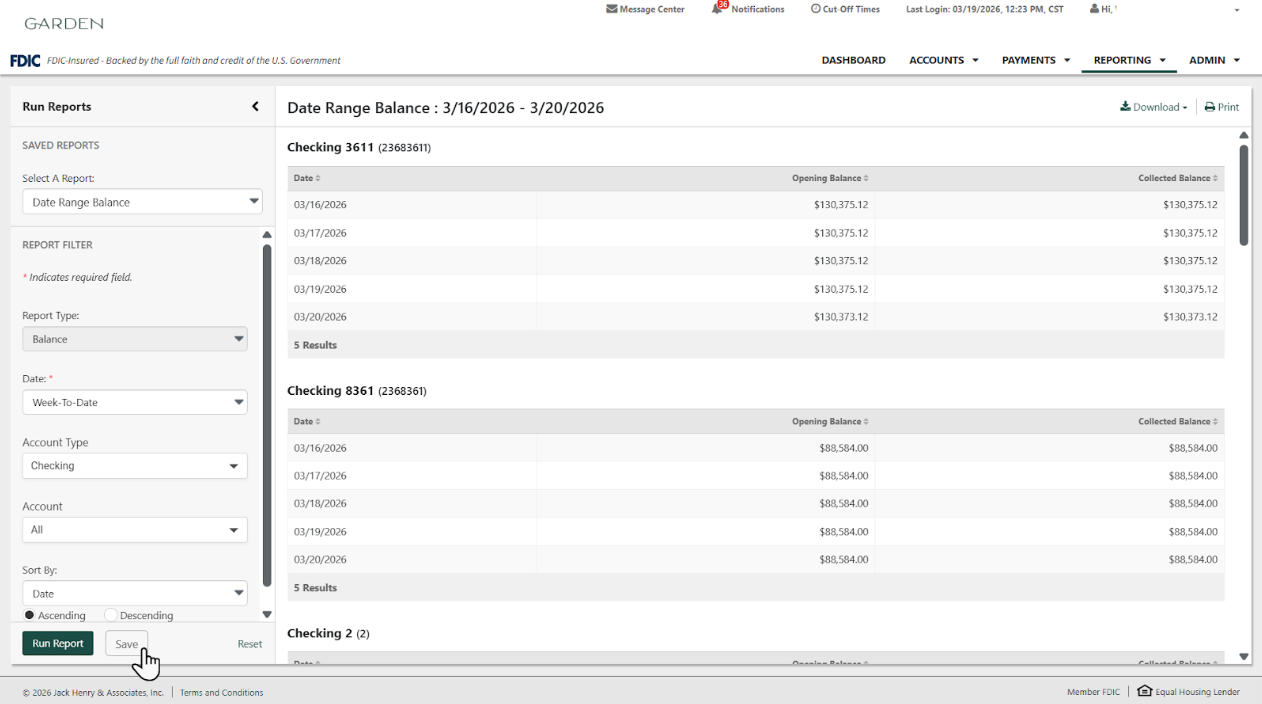
- In the flyout filter, select specific criteria (Accounts, Transaction Types, etc.).
- Click the Save icon at the bottom of the filter menu.
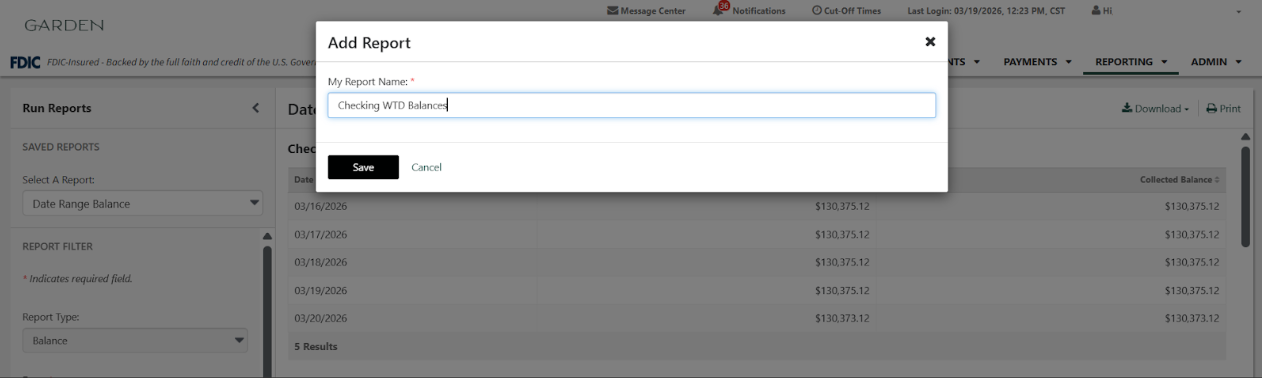
- An Add Report modal will be presented. Enter a unique name (e.g., “Week to Date Transaction”) and click Save.
Duplicating an Existing Report (Save As)
Use the Save As feature to create a new report based on an existing custom template. This is ideal for creating variations of the same report without starting from scratch.
- Navigate to the Custom Reports tab.
- Click Run Report on an existing custom template.
- (Optional) Modify any filters or criteria if the new report requires different parameters.
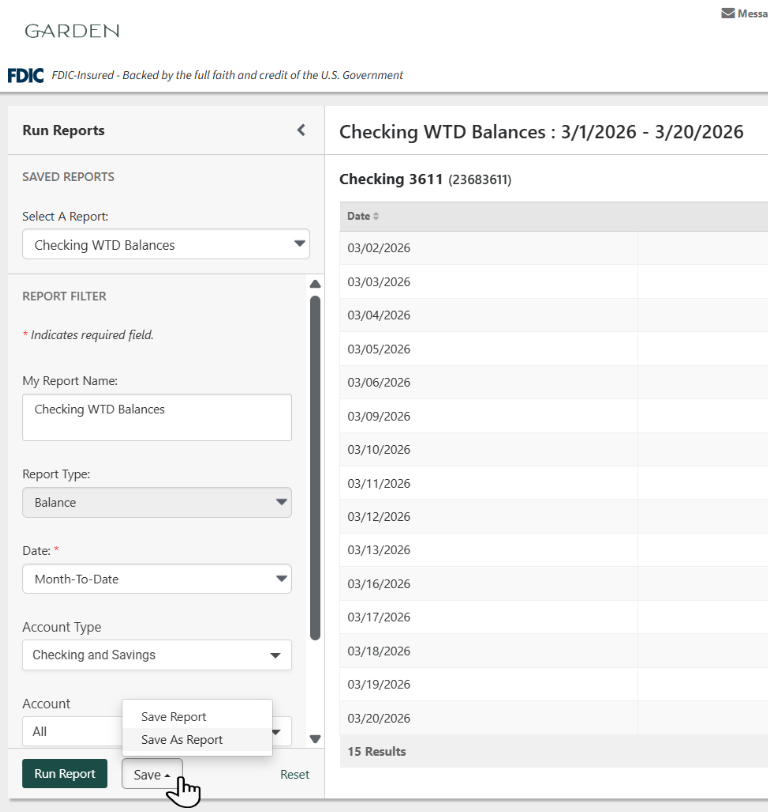
- Click the Save arrow at the bottom of the filter menu and select Save As Report.
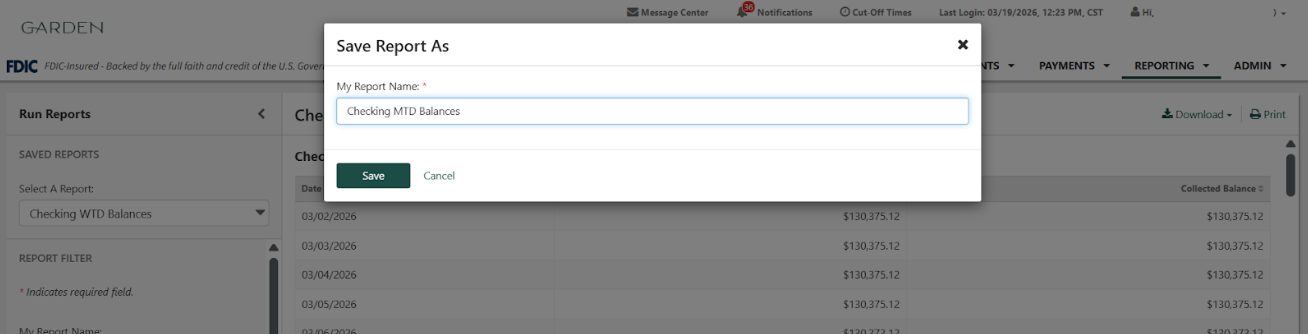
- In the Save Report As modal, enter a new name for this version (e.g., “Month to Date Transaction”).
- Click Save.
Strategic Standard Reports
The platform includes several default Standard Reports essential for daily liquidity management:
| Report Name | Strategic Value |
|---|---|
| Current Day Balance/Transaction | Real-time visibility into account balances and transactions throughout the business day. |
| Prior Day Balance/Transaction | Essential for morning reconciliation, showing opening and closing balances from the previous business day, plus any prior day transactions. |
| Date Range Balance/ Transaction | Detailed audit of inbound and outbound transactions over a specified period, as well as balances for the date range selected. |
| EDI | Detailed EDI information either posted or pending. |
Additional Information
- Output Formats: All reports are available to print or download in PDF and CSV formats. Balance and transaction reports also support BAI2 specialized file format for automated cash management and electronic balance reporting.
- Report Deletion: Users may delete Favorite or Custom reports that are no longer needed, though Standard Reports are permanent and cannot be removed.
- Security: Ensure audit integrity by reviewing inbound and outbound transaction types within daily reporting cycles.
Electronic Document Management
When activated by the institution, the Electronic Documents (ESI) feature allows for interactive management of sensitive records. To use this feature, navigate to Reporting > Electronic Documents.
- Centralized Access: View e-statements and notices directly from the Reporting menu.
- Communication Preferences: Configure email settings and manage additional recipients for automated document notifications.
Backoffice Configuration: Financial Institution-Level Settings
To ensure Treasury Management companies and users have the correct reporting capabilities, financial institution staff must configure the following settings within the Treasury Backoffice under Product Feature Configuration > Report.
Report Export & Download Formats
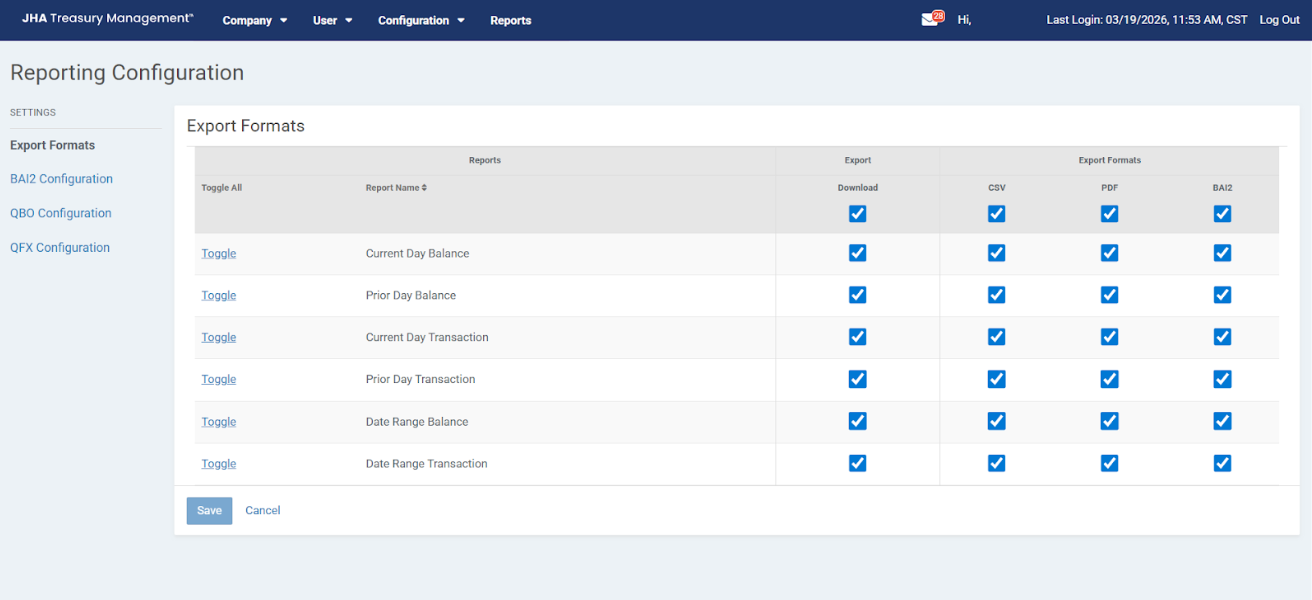
This setting defines which reports are eligible for downloading and which file formats are available to end users.
- Navigation
- Product Feature Configuration > Report > Export Formats
- Report Selection
- Locate the specific report (e.g. Current Day Balance)
- Enable/Disable Downloads
- Checked: Users are allowed to export/download the report.
Unchecked: The download option is disabled for users. - Available Formats
- For each enabled Treasury Management report, users must specify the file types allowed by checking the corresponding box:
- CSV: Standard spreadsheet format.
- PDF: Portable document format for viewing/printing.
- BAI2: Specialized format for high-volume cash management data.
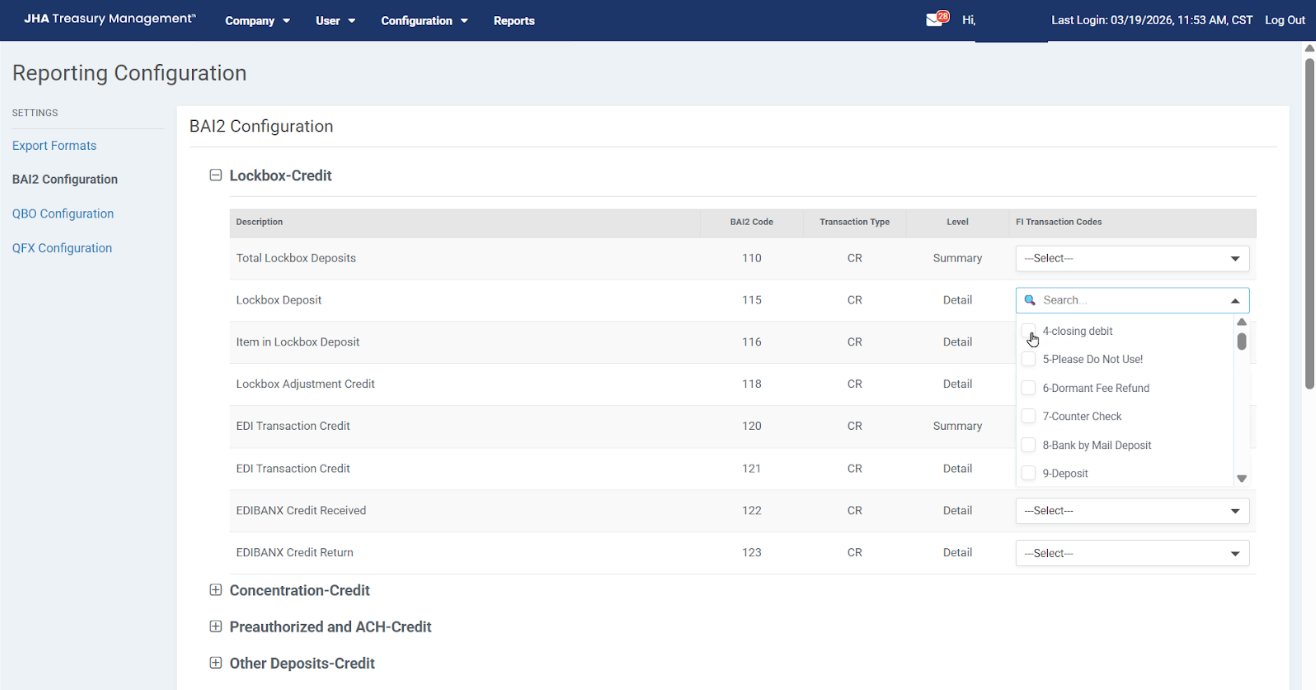
BAI2 Configuration
This configuration ensures core system data is mapped correctly to the industry-standard BAI2 format for automated reporting.
- Navigation: Product Feature Configuration > Reporting > BAI2 Configuration
- Purpose: To tie specific BAI2 Codes to their corresponding Silverlake Transaction Codes.
- Action: Select the FI Transaction Code from the dropdown that matches the appropriate BAI2 Code for accurate data translation in exported files.
QBO and QFX Configuration
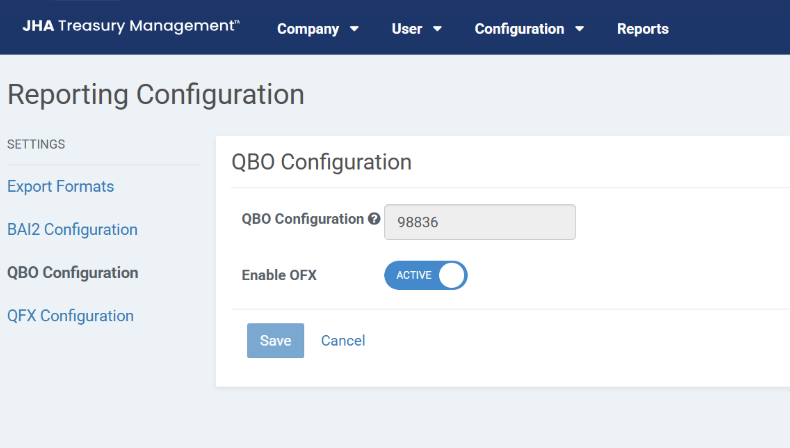
If enabled, input the financial institution Intuit Bank ID and toggle Enable OFX to ACTIVE. Click Save.