Quick Reference Guide: BAI2 File Download
Overview
The BAI2 download feature within Treasury Management relies upon mapping of your bank’s transaction codes to the appropriate BAI2 codes. The following reports can be enabled for BAI2:
- Current Day Balance
- Prior Day Balance
- Date Range Balance
- Current Day Transaction
- Prior Day Transaction
- Date Range Transaction
Benefits for Banks
- Additional integration features for your customers.
- Configuration simplifies setup by letting users select from the bank’s transaction code setup on SilverLake.
Benefits for Customers
- Ability to export transaction and balance information out of Treasury Management and import into Treasury Management Software Solutions.
- Simplifies reconcilement.
Configuration
Back Office BAI2 Configuration
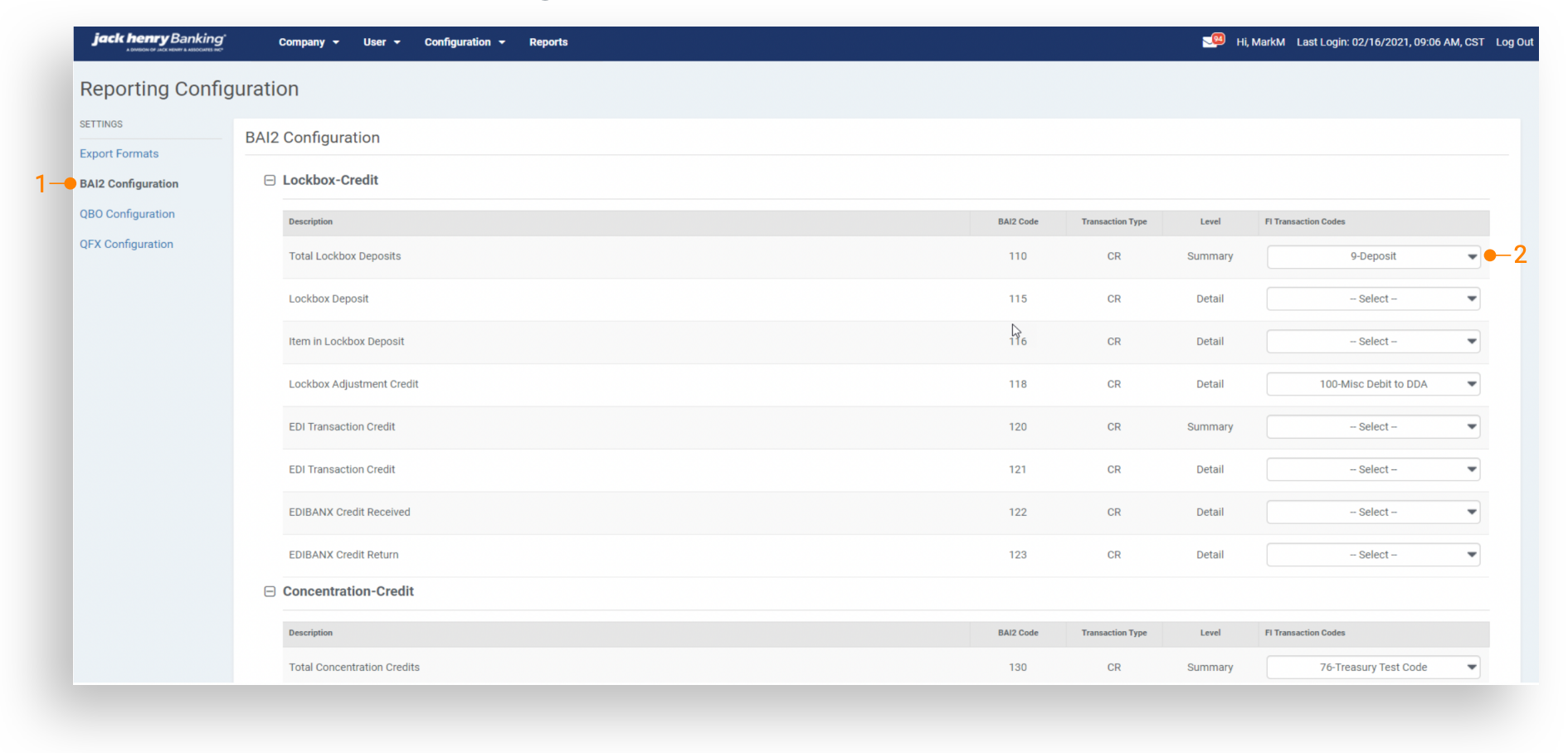
1. Reporting Configuration – BAI2 Configuration Tab (Step 1): The BAI2 Configuration feature is configured within Reporting Configuration under Product Features. This is where the mapping of the bank’s transactions codes to the BAI2 descriptions occurs. This mapping configuration will need to be completed before the BAI2 export option is available to enable.
2. FI Transaction Codes: The bank’s transactions code need to be mapped to the appropriate BAI2 descriptions. Transaction codes that are set up in Silverlake will be shown in the dropdown for mapping to the selected BAI2 code. A transaction code can be mapped one time and will no longer be available the dropdown menu once selected. Multiple transaction codes can be mapped to the same BAI2 code.
Reporting Configuration - Export Formats
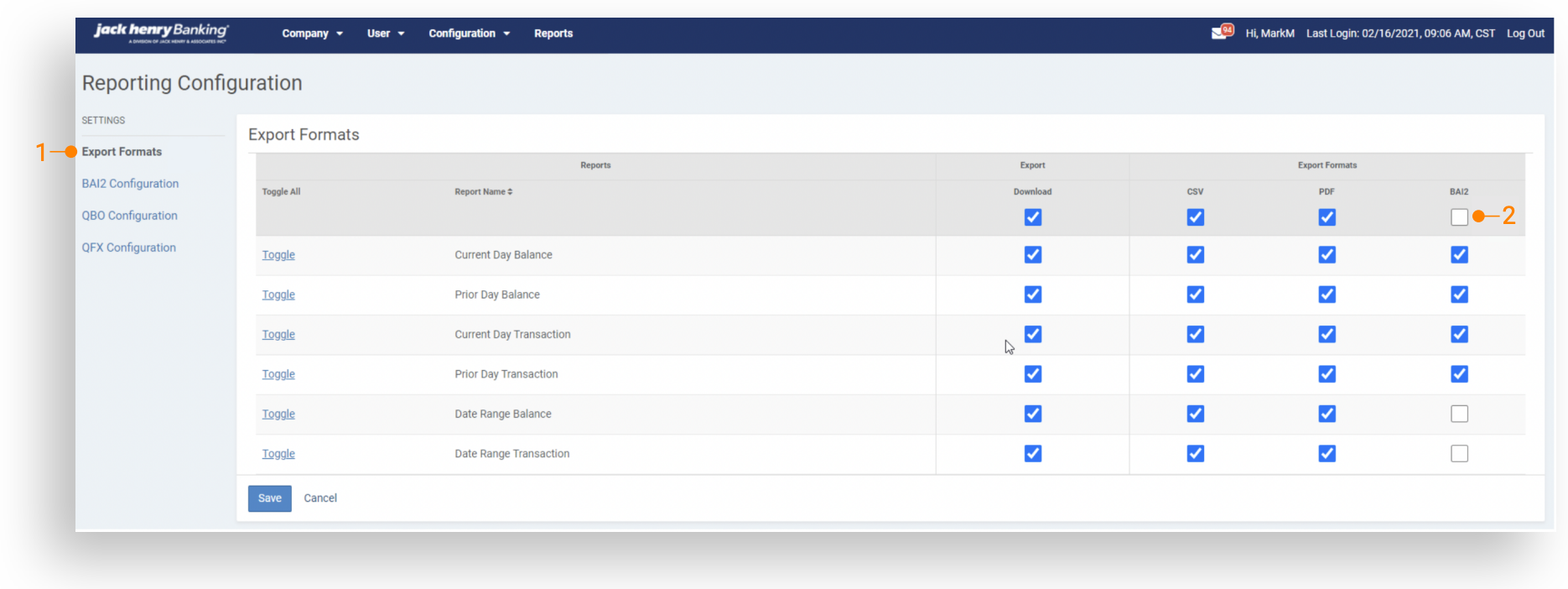
1. Reporting Configuration – Export Formats Tab (Step 2): The BAI2 feature is enabled within Reporting Configuration under Product Features. Under the Export Formats tab, BAI2 must be checked for this export option to be available to channel users. The Toggle All option to enable all reports is available. The BAI2 File Download will be available to all company users that have reporting entitlements for the reports selected on the page.
2. Export Formats – BAI2: Information Reporting balance and transaction reports (current day, prior day, and date range) can be exported into a BAI2 format by channel users if configured under Reporting Configuration.
Navigate to Information Reporting
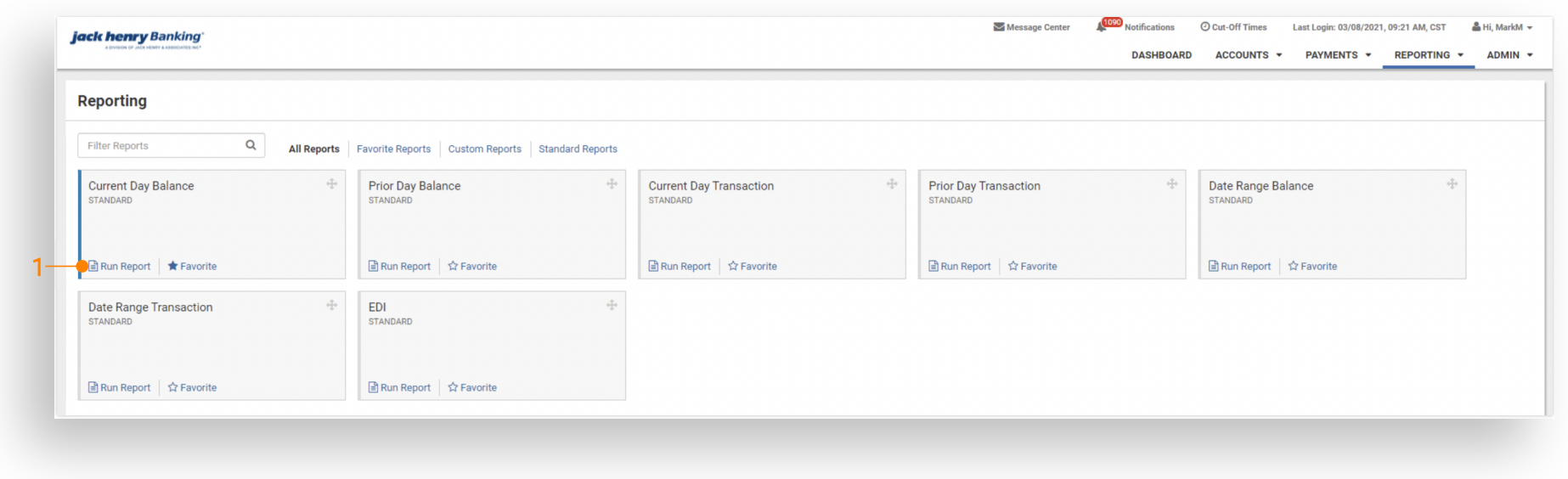
Users select Reporting using the main navigation bar. Once here, they can select from All Reports or Standard Reports. The reports available to download a BAI2 file are Current Day Balance, Prior Day Balance, Date Range Balance, Current Day Transaction, Prior Day Transaction, as well as Date Range Transaction.
Balance Reports / Transaction Reports: Users select “Run Report” for the desired balance or transaction report.
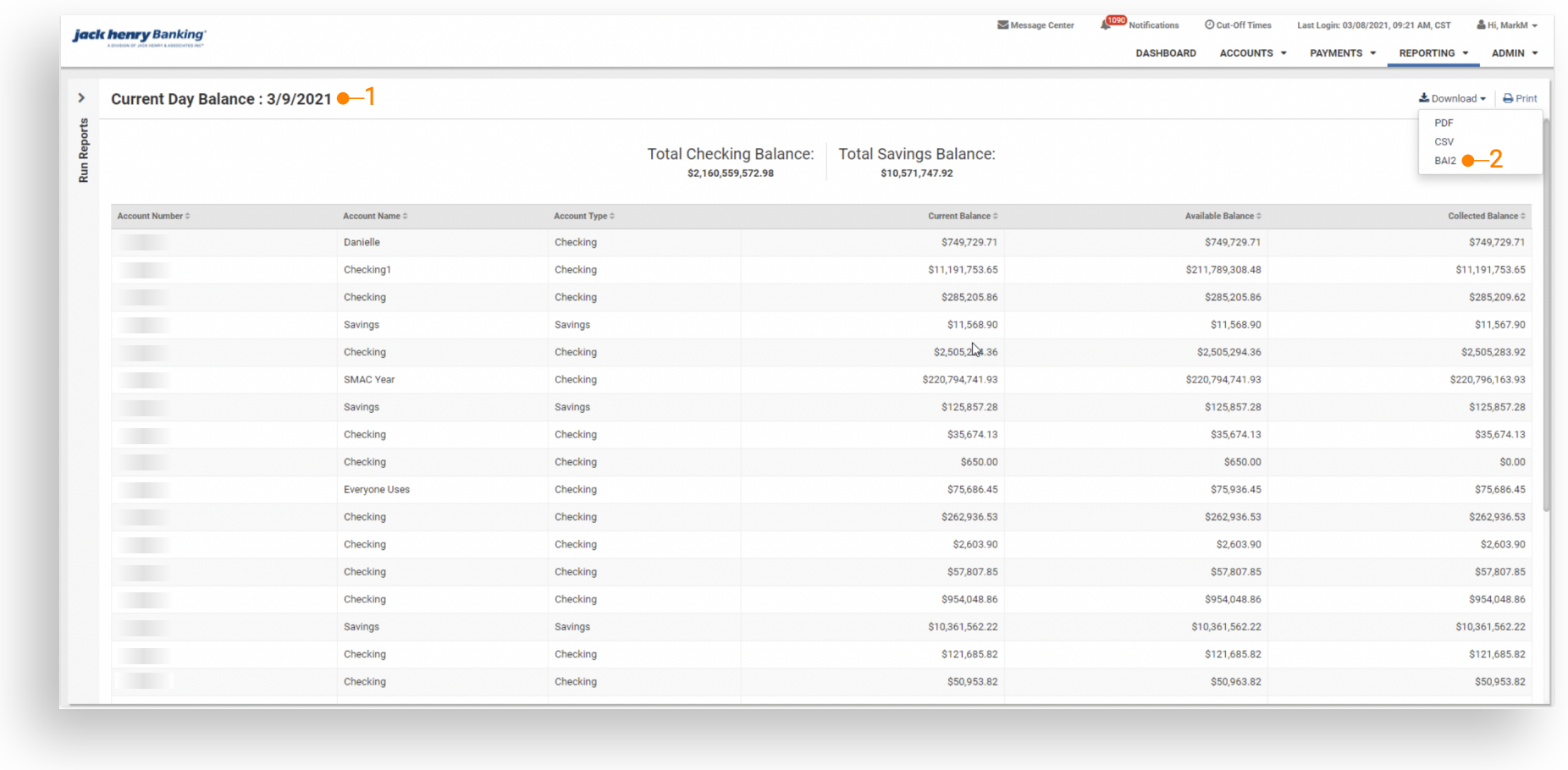
1. Current Day Balance Report: After users have selected the desired report to run, they will have the option to download the report in a variety of formats from the executed report’s detail page. The formats available are PDF, CSV, and BAI2 if configured in Back Office.
2. Download – BAI2: Users selecting BAI2 will have a BAI2 formatted file downloaded which can be opened or saved to their computer.
BAI2 File Structure
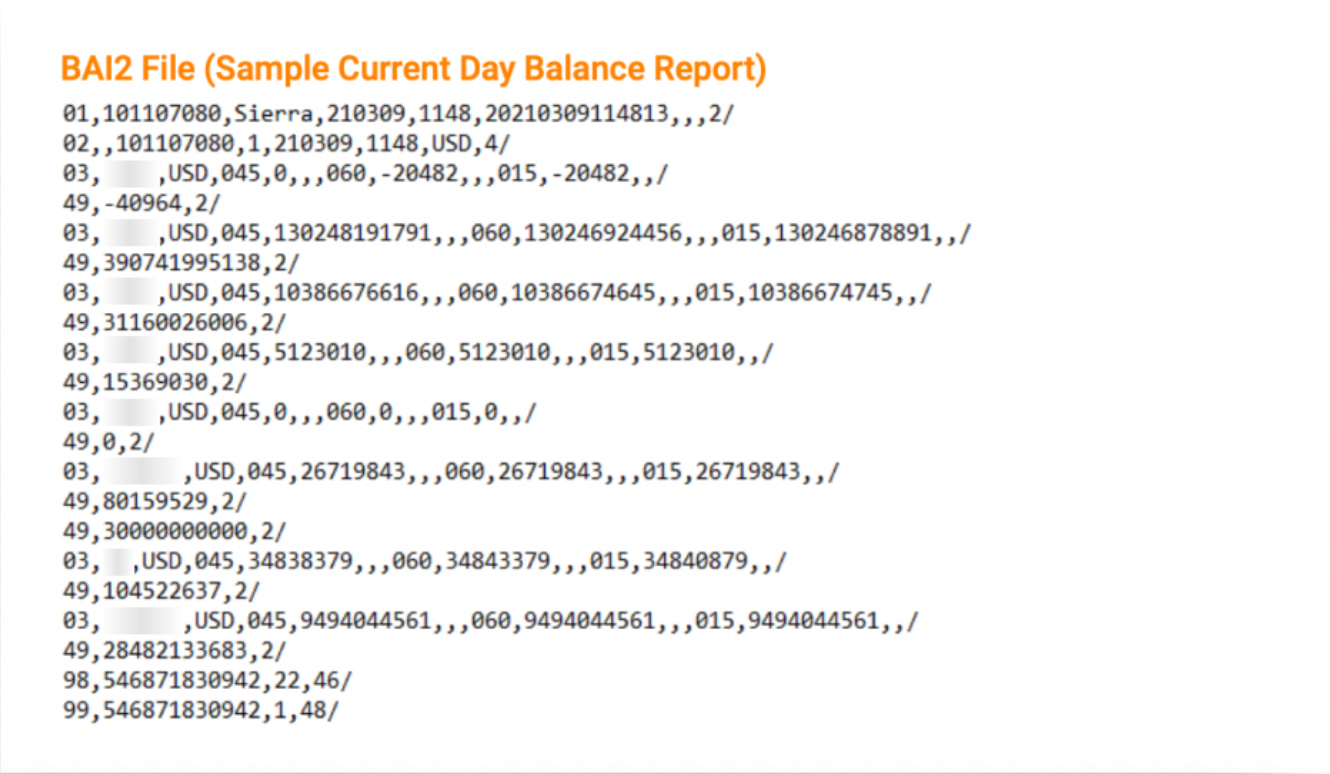
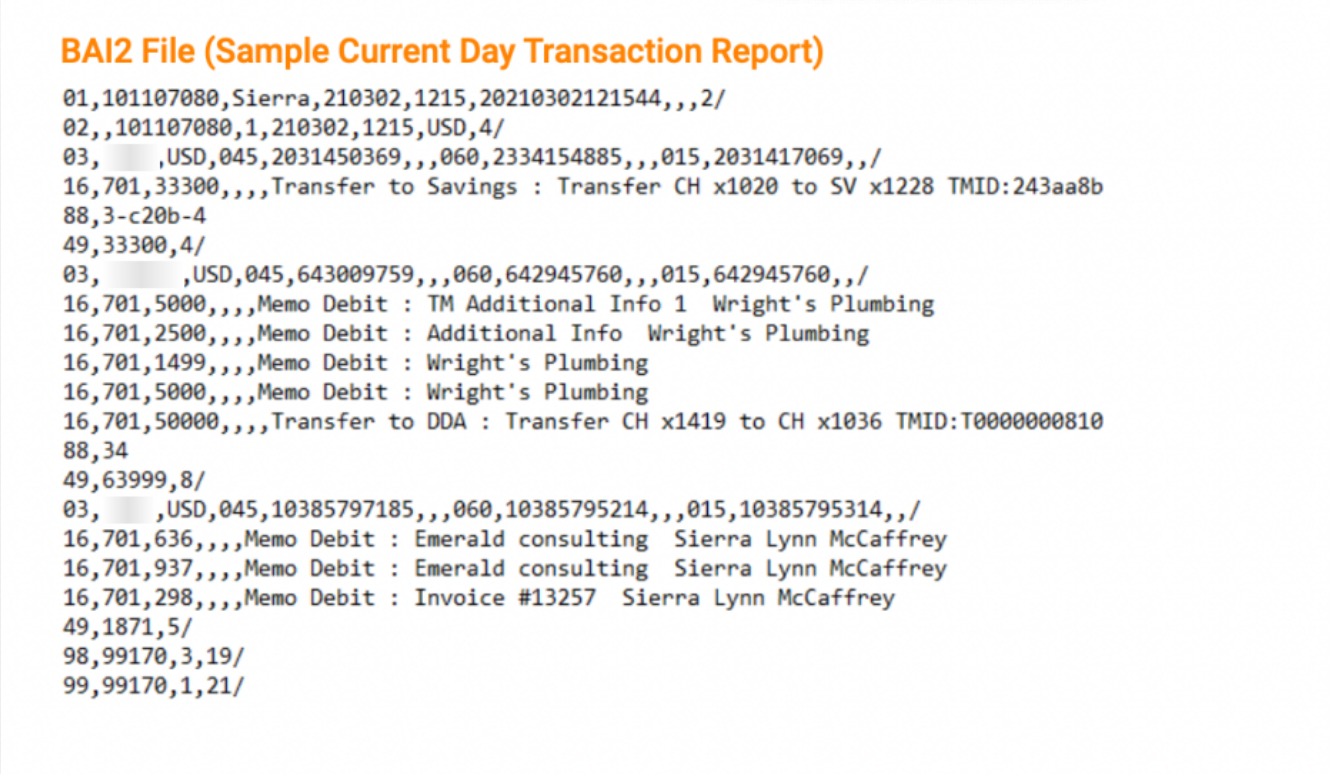
BAI2 files contain the following 3 levels of data:
1. File (01 Record): Combines groups for transmissions which can have different dates and times.
2. Group (02 Record): One or more account levels for the same financial institution. All information in the group is for the same date and time.
3. Account (03 Record): Includes balance and transactional data for a single account.
Status Codes included in the Balance and Transaction Reports:
- 045 (Collected Balance)
- 015 (Closing Ledger Balance)
- 060 (Current Available Balance)
Status Codes included in the Transaction Report:
- All uniform BAI Activity Summary and Transaction Detail type codes that are mapped to your bank transaction codes will be included.
- Any transactions that are not mapped to a Transaction Detail code will report as 390 (Miscellaneous Debit) or 400 (Miscellaneous Credit).
- Status codes 045, 015 and 060 are also included in the 03 records.