Quick Reference Guide: Account Reconciliation Reporting
Overview
Account Reconciliation Reporting allows users with the appropriate entitlements to request reports by account and by activity period:
- Specific Date
- Date Range
- Previous Week
- Previous Month
- Previous Year
- Week to Date
- Month to Date
- and Year to Date.
These reports are created by SilverLake and are visible via Treasury Management. Customers are able to generate reports when they need them and no longer rely on the bank to generate and deliver them. In addition, banks can take advantage of this more efficient process and allocate resources to other tasks.
Account Reconciliation Reports List
| Report Description | Report Name | Overview | Date Period |
|---|---|---|---|
| Previous Outstanding Items - Detail | AR2520P | Items outstanding as of beginning date not including expired stops | Prior to |
| Previous Outstanding Items - Summary | AR2520PSUM | This report shows the summary of the previous outstanding items by date | Prior to |
| Issued Not Offset | AR2560P | Items entered before the ending date that are not cleared, void, or stop and have an issue date greater than zero | As of |
| Dormant Items | AR2580P | Total of all dormant items in the ARITEM file | As of |
| Stale Dated Items | AR2585P | Total of all stale items in the ARITEM file | As of |
| Checks Paid Returned | AR2450P | This report lists the items that were paid or returned | Start/End Date |
| Non-Issued Checks Paid/Returned | SAR2455P | This report lists the items that were not issued and have been returned | SStart/End Date |
| Expired Stops | AR2460P | Total of stops expiring with the date range | Start/End Date |
| Issued Items Paid Previous Period | AR2465P | Items issued within the date range but paid previous to beginning date | Start/End Date |
| Issued Items - Detail Effect Date | AR2500P | List of issued items by effective date | Start/End Date |
| Issued Items - Summary Effect Date | AR2500PSUM | This report shows the summary of issued items by effective date | Start/End Date |
| Issued Items - Detail by serial | AR2510P | List of issued items by the issued serial number | Start/End Date |
| Adjustment Transactions | AR2530P | This report show adjustments made on ARP accounts | Start/End Date |
| Duplicates Paid Not Issued | AR2535P | Items with DUP violation code that have not been issued | Start/End Date |
| Paid No Issue | AR2540P | Total of checks paid but not issued in ARP | Start/End Date |
| Electronic Transactions | AR2545P | Issued items that were received through upload | Start/End Date |
| Other Non-Issued Items | AR2547P | List of transactions in DDA with an excluded transaction code | Start/End Date |
| Items Cleared | AR2520P | The items paid total less returns | Start/End Date |
| Items Cleared - Summary | AR2551P | This report provides the summary of paid items by date cleared | Start/End Date |
| Items Reconciled | AR2555P | Total of paid items in ARP | Start/End Date |
| Void Items | AR2570P | This report lists all void items received today | Start/End Date |
| Void Items Paid | AR2571P | This report lists all void items paid | Start/End Date |
| Stop Items | AR2575P | This report lists all stops received today | Start/End Date |
| Stop Items Voided | AR2578P | This report lists all stop payments that were voided | Start/End Date |
| Dormant/Stale Items Purged | AR2590P | Items placed in the purge file within the date range with purge code of STL | Start/End Date |
| Account Reconciliation | AR2600P | This report shows all ARP/Pos Pay accounts receiving a DDA statement that day | Start/End Date |
| Consolidated Report | AR2610P | This report shows the activity on the account by date(s) | Start/End Date |
| Deposit items by Ticket Location | AR2630P | The report shows deposits made to the account by each location that is set up for this account | Start/End Date |
Configuration
Back Office – Product Feature Configuration
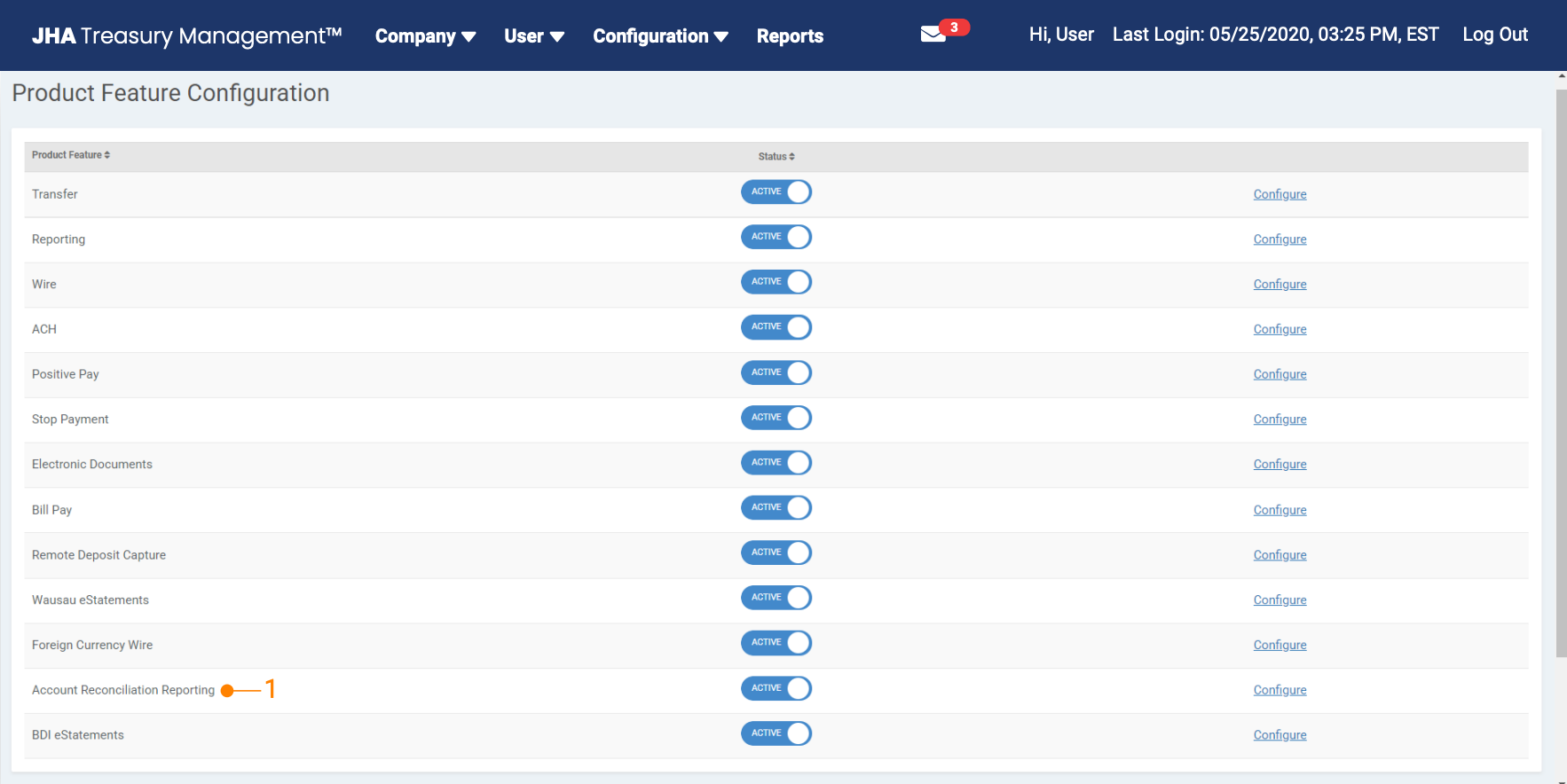
Account Reconciliation Reporting is located in the Product Feature Configuration in Back Office as a standalone product that can be toggled on and off.
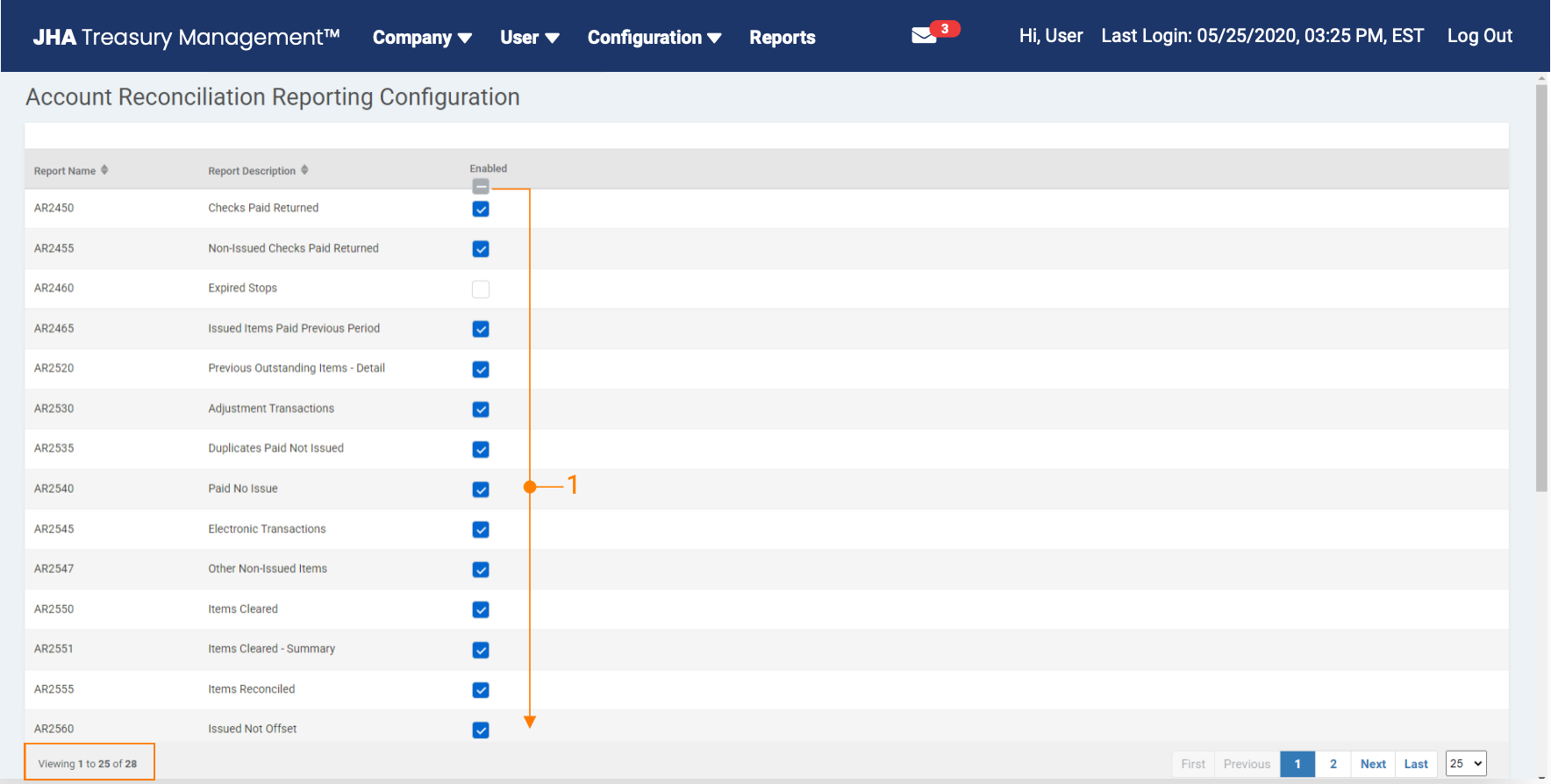
Product Feature: There are 28 separate account reconciliation reports available for financial institutions. Institutions determine which reports they want to make available to their customers.
Back Office – Notification Configuration
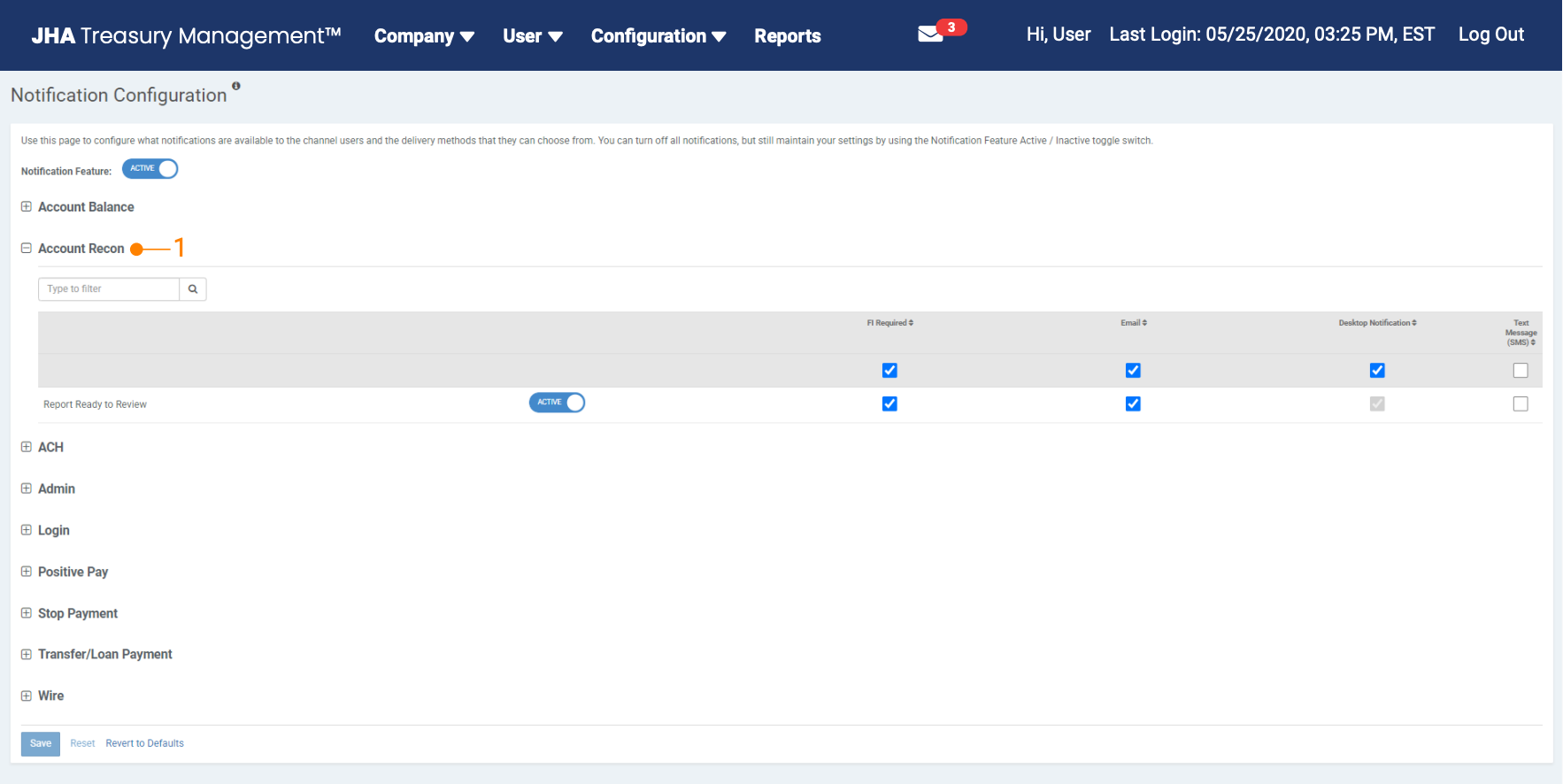
Notification Configuration: Users can enable notifications via email, text, or desktop. Notifications are sent immediately after the report requested is successfully posted to the user’s Report Library.
Back Office – Company Product Feature Configuration
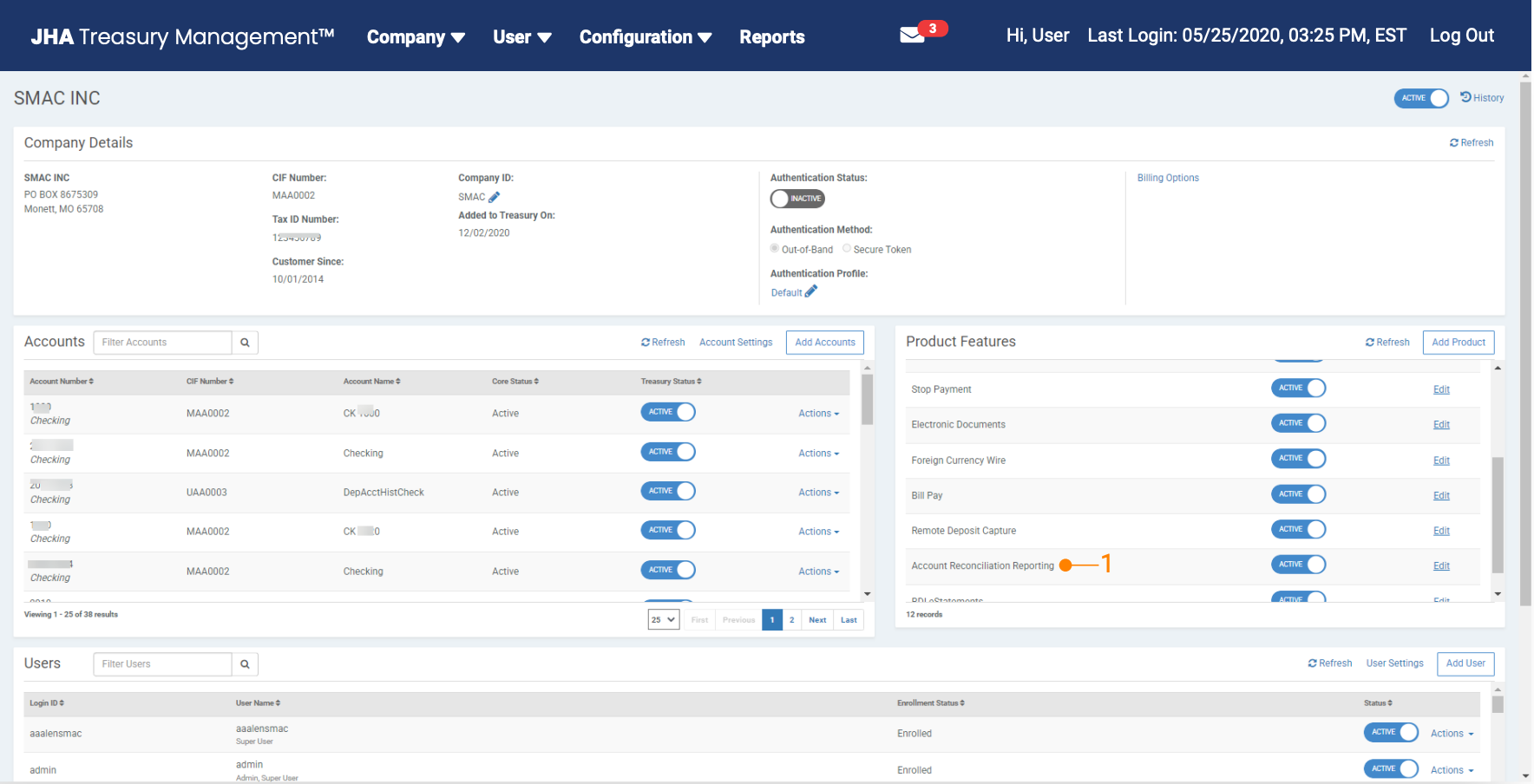
Product Feature: Account reconciliation reporting is located in the Company Product Feature as a standalone product that can be toggled on and off. This configuration needs to be completed at the company level so that each company has access to Account Reconciliation Reports.
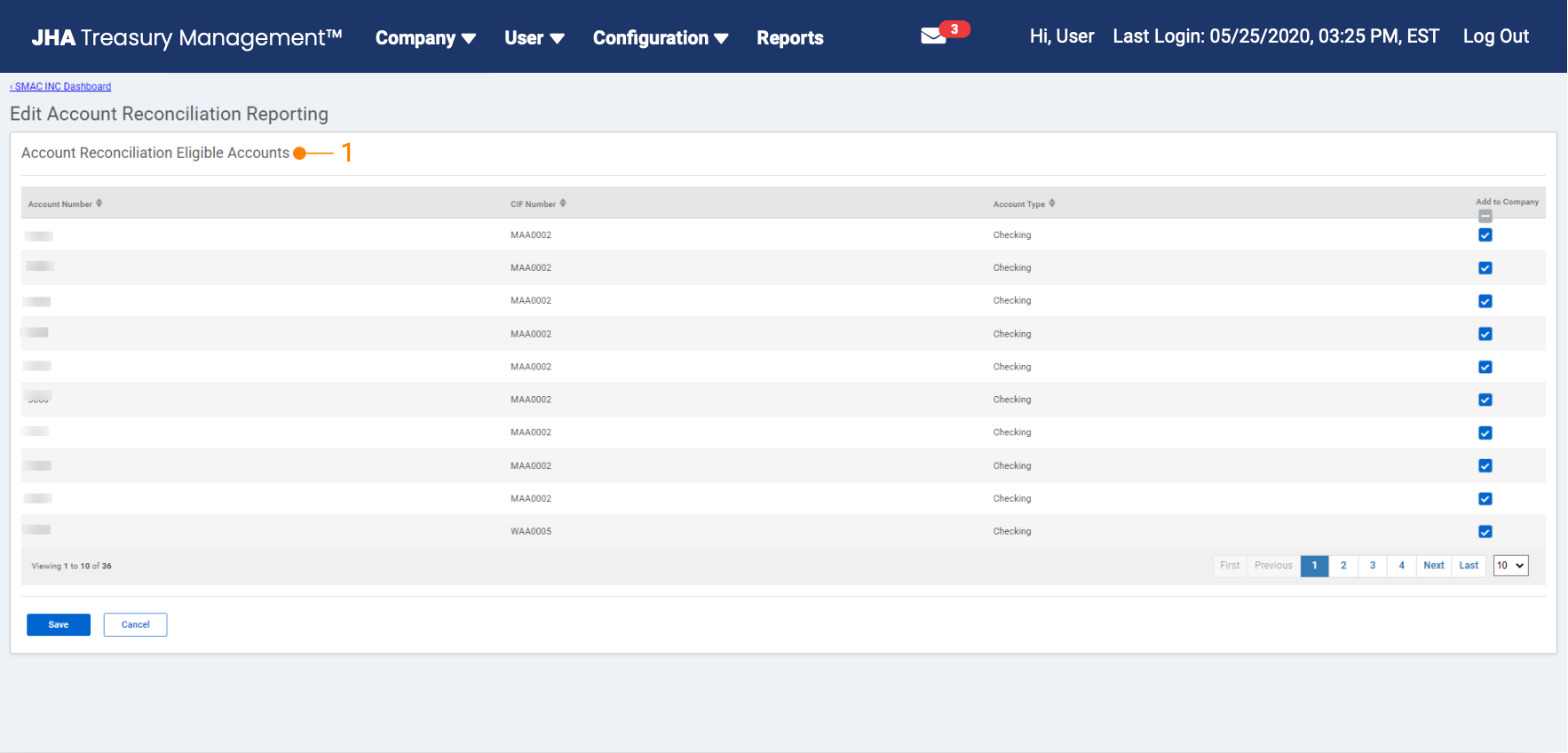
Account Reconciliation Eligible Accounts: Navigate to the company product feature configuration page and select Account Reconciliation Eligible Accounts.
Back Office – Company User Entitlements
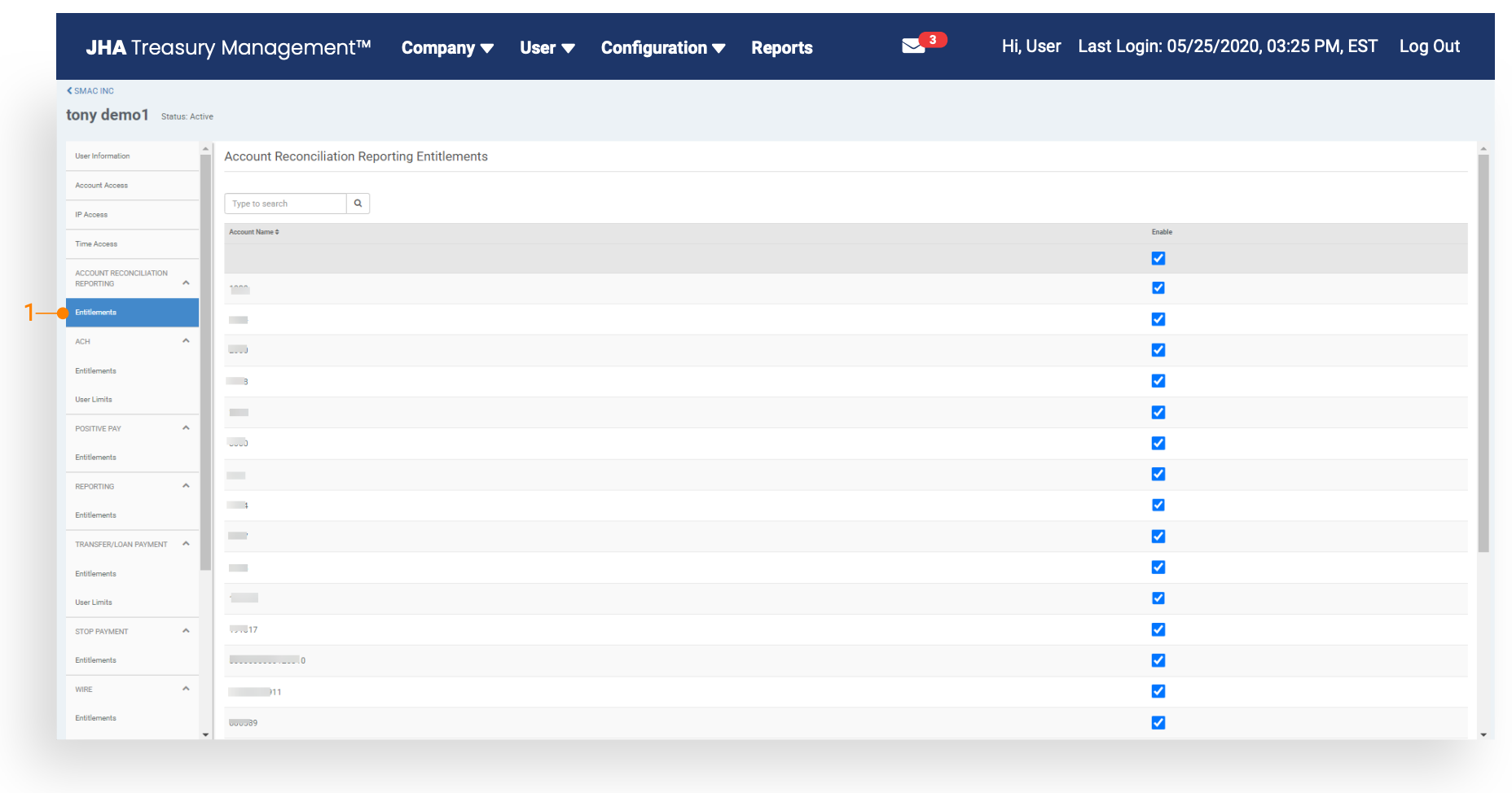
Account Reconciliation User Entitlements Users can be granted access to account reconciliation reporting by enabling an entitled eligible account. Access entitles the user to view, create, edit or delete account reconciliation reports in Channel.
Back Office – Account Reconciliation Billing
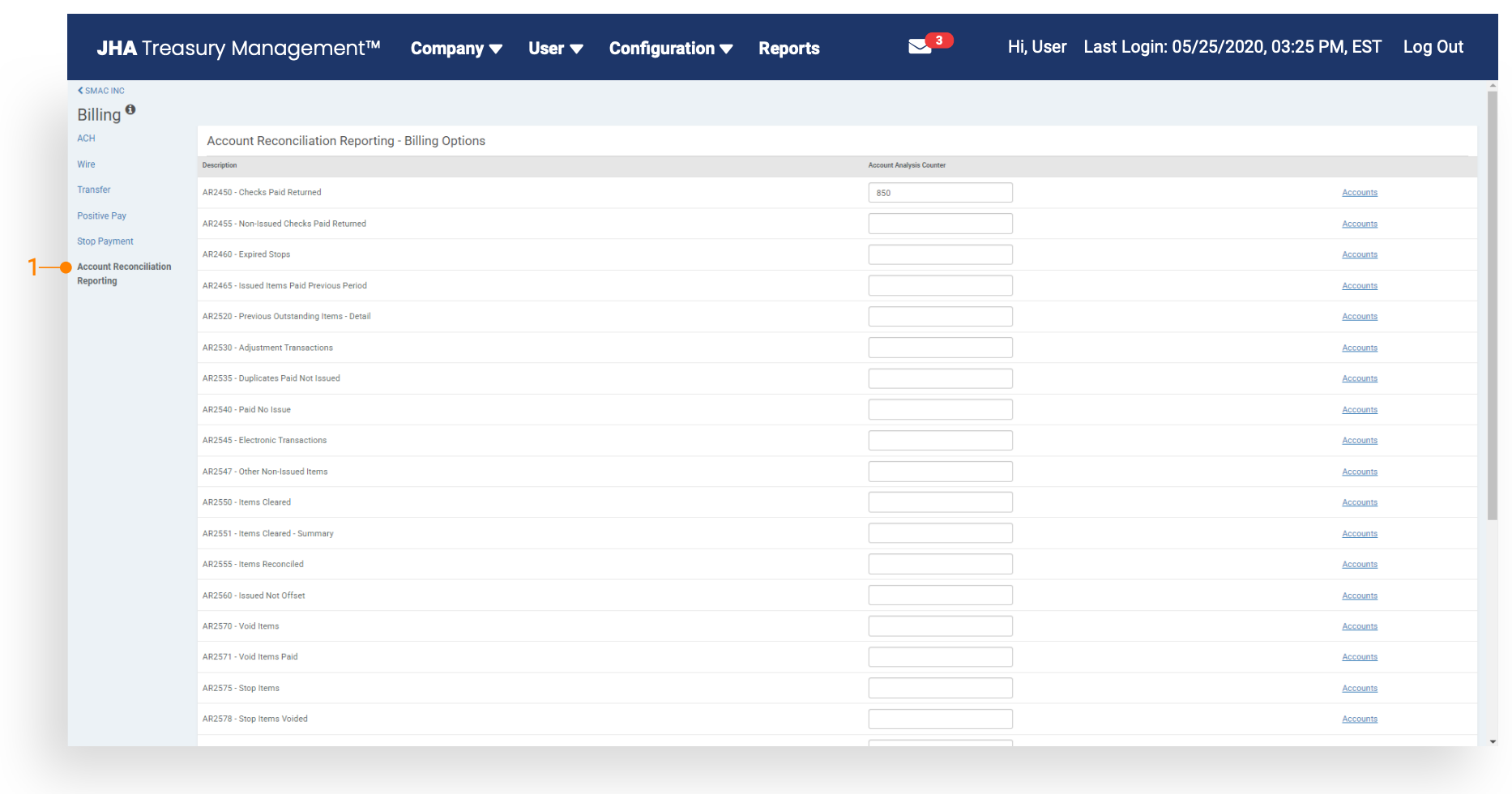
Account Reconciliation Billing: There is an account analysis counter for account reconciliation reporting that will increment each time a report is successfully generated (created) in Treasury Management.
Report Templates - Home Page
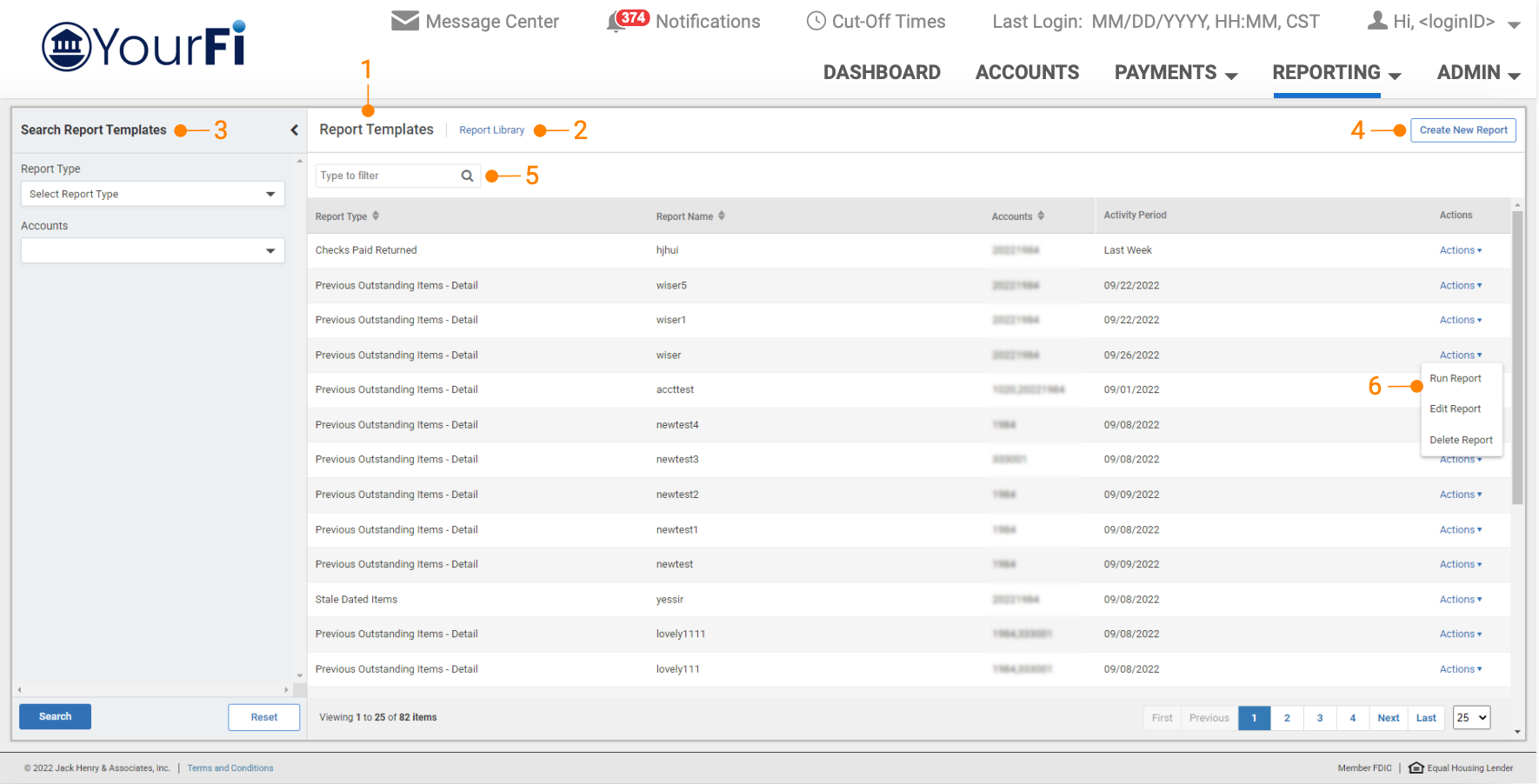
1. Report Templates: Displays the list of your saved report templates by the Report Type, Report Name, Account Number, and Activity period at the time the reports were saved.
2. Report Library: This is a list of your account reconciliation reports that were created. Reports are generated from the Report Template or Create New Report feature.
3. Report Templates - Search Filter: Searches the report templates by Report Type or Accounts.
4. Create New Report: The Create New Report button is used to create your specific Account Reconciliation Report Template.
5. Report Templates - Type to Filter: Search for a specific report template by entering template information or entering a character/numeric string. The Type to Filter will search across all columns looking for a match on the string of data whether at the beginning, middle, or end of the field.
6. Actions Drop Down Menu Button: Users can easily run, edit or delete an existing report template by selecting the actions menu button.
Creating a New Report
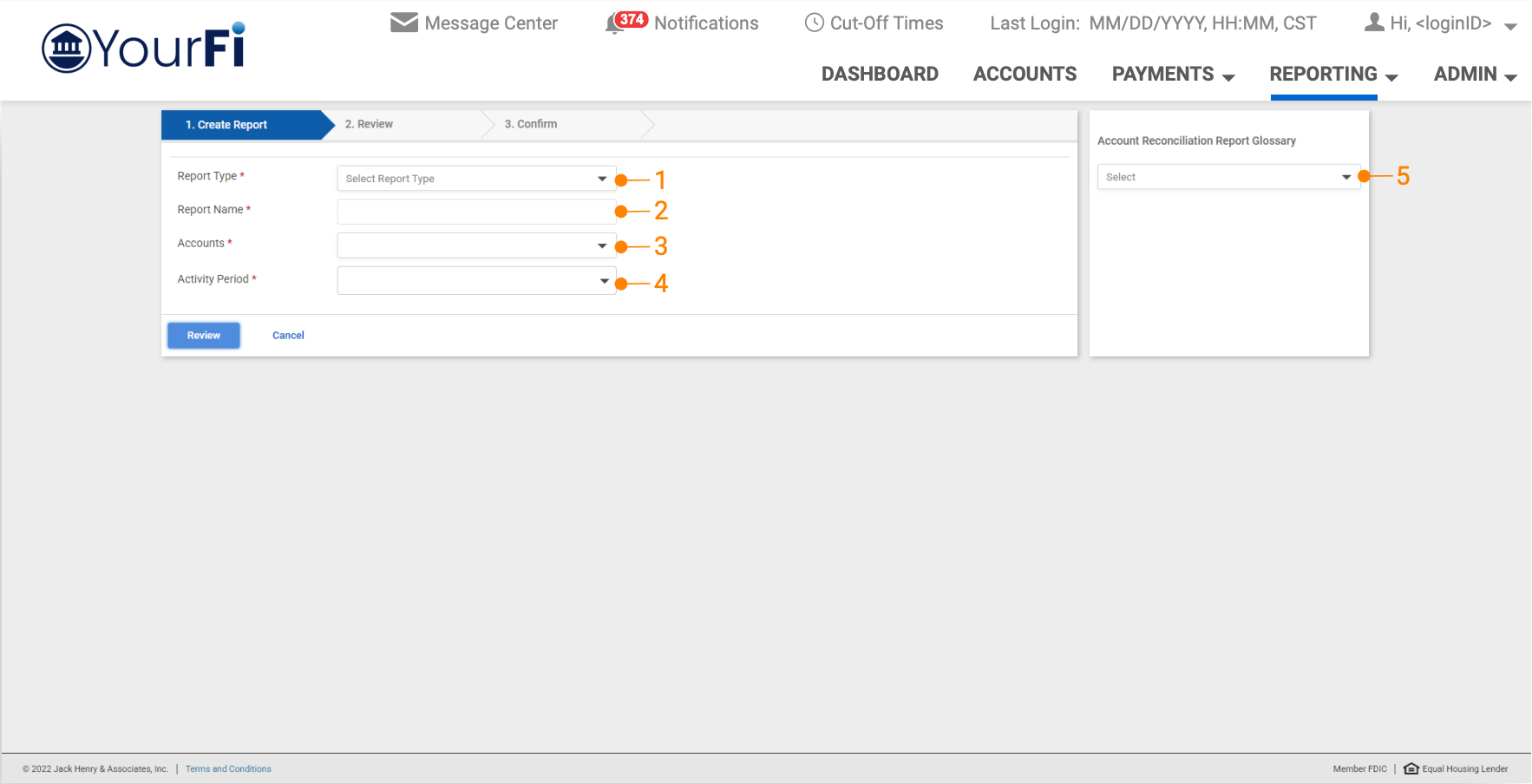
Selecting the Create Report button on the Report Templates page takes the user to this Create Report workflow.
1. Report Type is a required selection from the dropdown menu.
2. Report Name must be a unique report name.
3. Accounts is the list of the user’s eligible accounts. Users can select a single or multiple accounts.
4. Activity Period: Select the desired activity period using the dynamic date picker:
- Specific Date
- Date Range
- Previous Week
- Previous Month
- Previous Year
- Week to Date
- Month to Date
- Year to Date
5. Account Reconciliation Reporting Glossary: Provides a dropdown list of report types with a brief description of the selected report type.
Creating a New Report - Activity Period
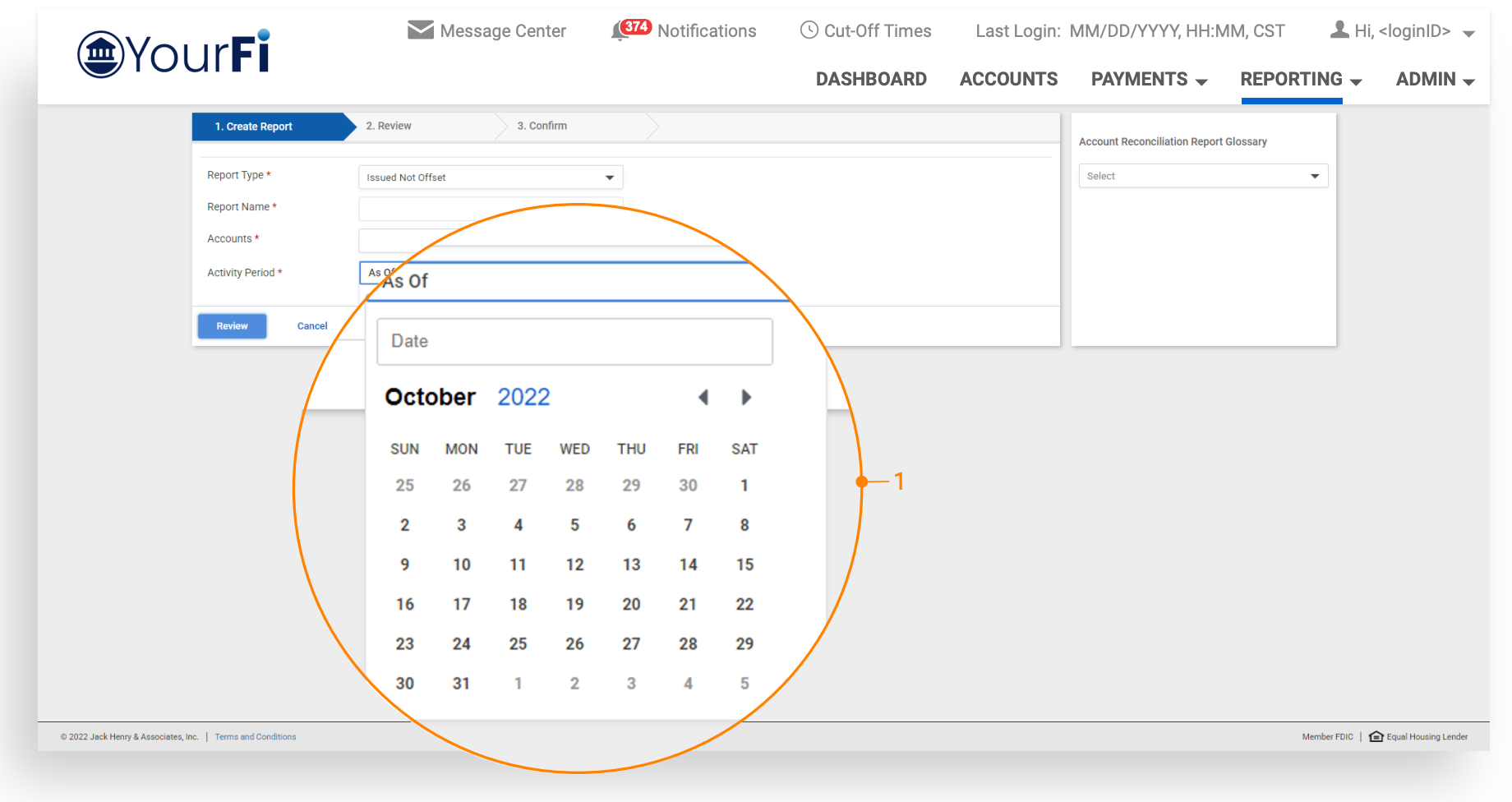
Activity Period: The Activity Period of the following 5 reports is a single date component. The “As Of” or “Prior To” is stated in the date picker and is based on the report selected:
- Previous Outstanding Items - Detail “Prior To”
- Previous Outstanding Items - Summary “Prior To”
- Issued Not Offset - “As Of”
- Dormant Items - “As Of”
- Stale Dated Items - “As Of”
Creating a New Report - Review/Confirmation
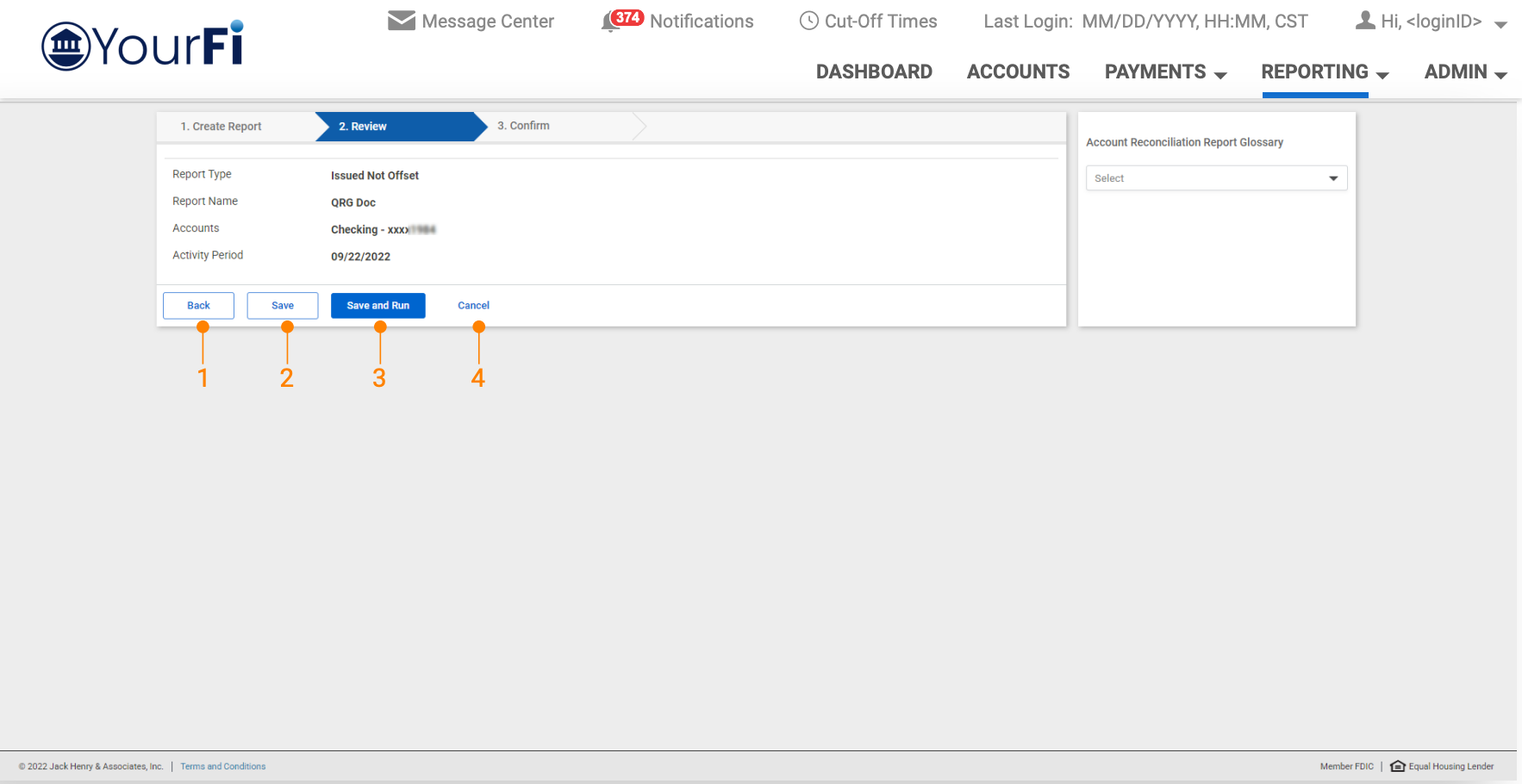
1. Save: Saves the request as a report template.
2. Save and Run: Saves the request as a report template and generates a PDF report that will be posted to your Report Library.
3. Back: Takes the user back to the previous screen to continue editing.
4. Cancel: Gives the user a pop-up message that will allow the user to continue editing or navigate back to the Report Templates page.
Edit an Existing Report Template
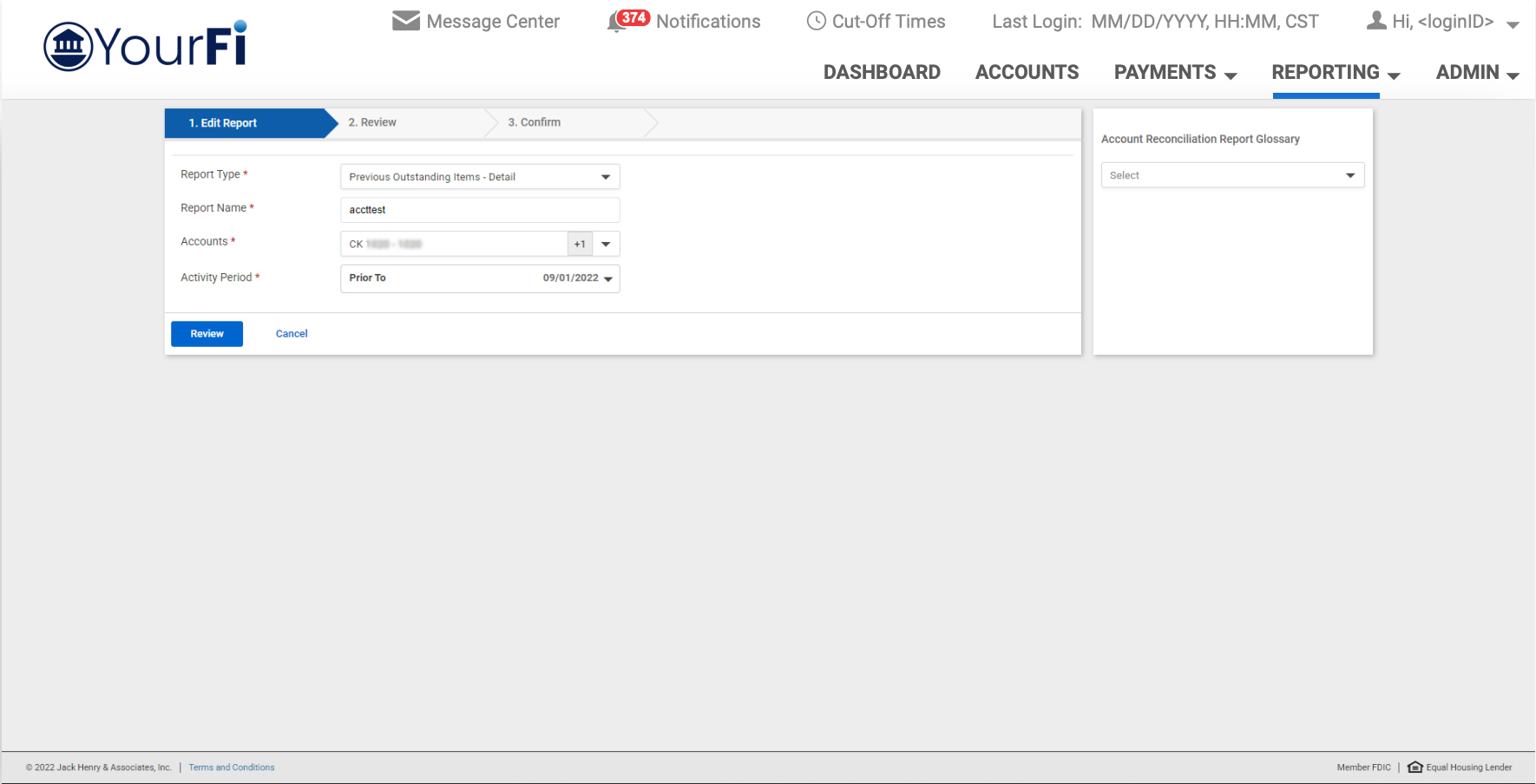
Select the Edit Report button from the template’s Actions menu. This is the same workflow as the “Create New Report” workflow. Users can save the template or save and run the report if desired.
Account Reconciliation Report Library
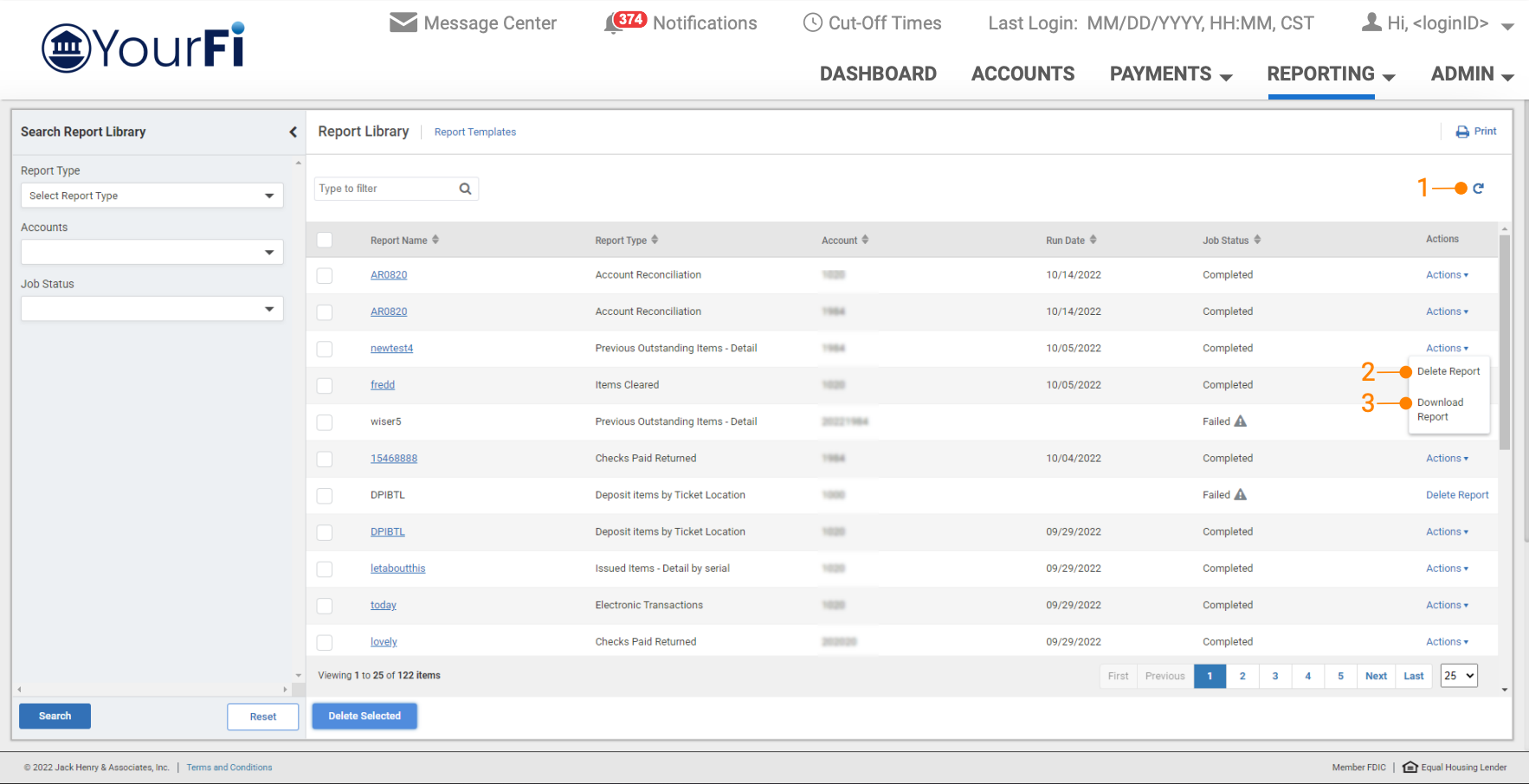
Report Library displays the list of your account reconciliation reports that were created from the Report Templates page.
1. Refresh Icon: The refresh icon at the top righthand corner of the page, refreshes the report results so that the job status can be updated.
2. Delete Report: Reports can be deleted by selecting the delete checkbox then select the Delete Selected button or by selecting the delete report option from the Actions menu.
3. Download Report: Reports can be downloaded in PDF format by selecting the report name hyperlink or by selecting the download report option from the. Actions menu.
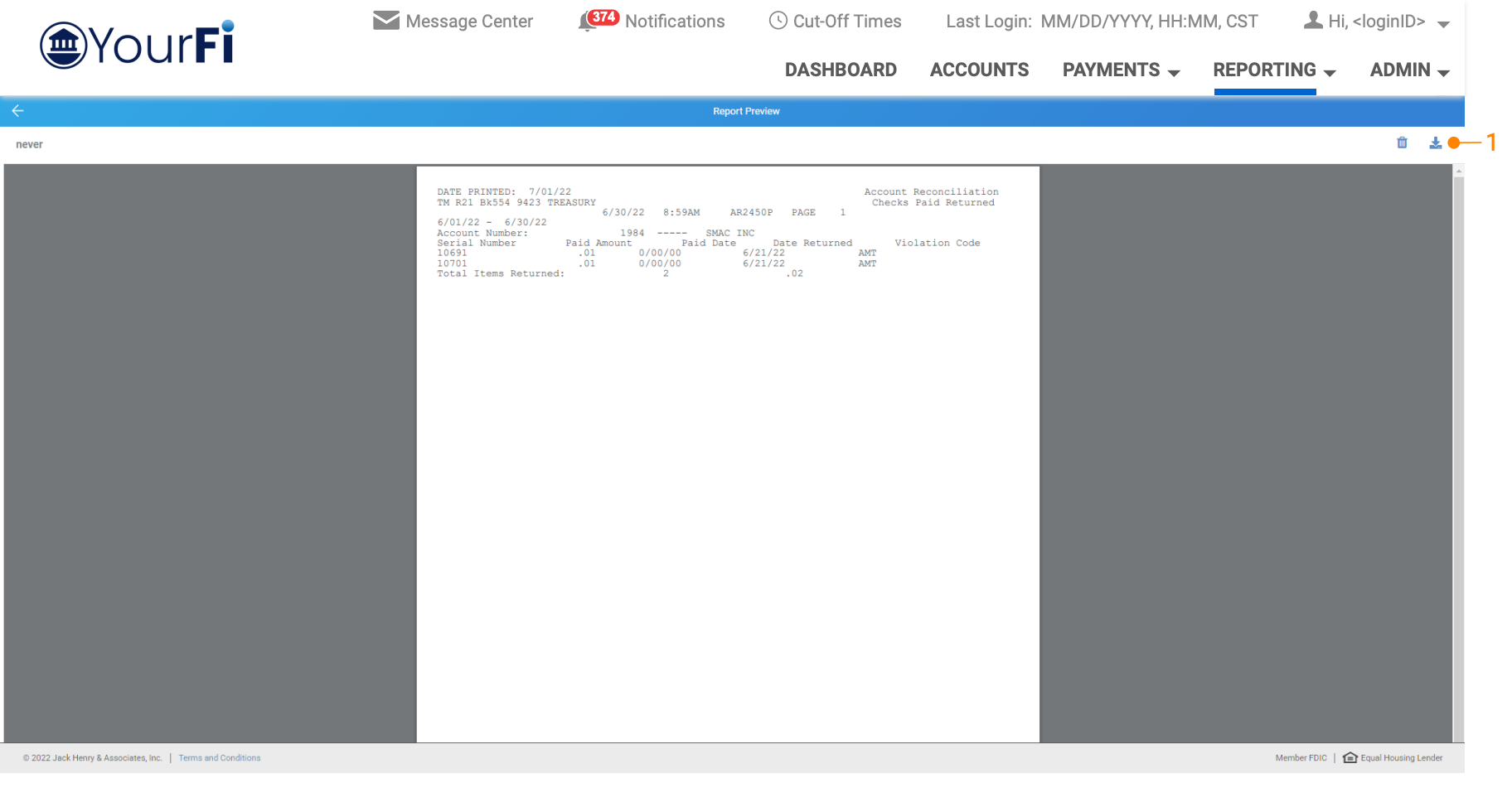
Download Report Viewer: Report viewer displays the specific report when the report name hyperlink is selected. Select the download icon to download the report in PDF format.
User Entitlements
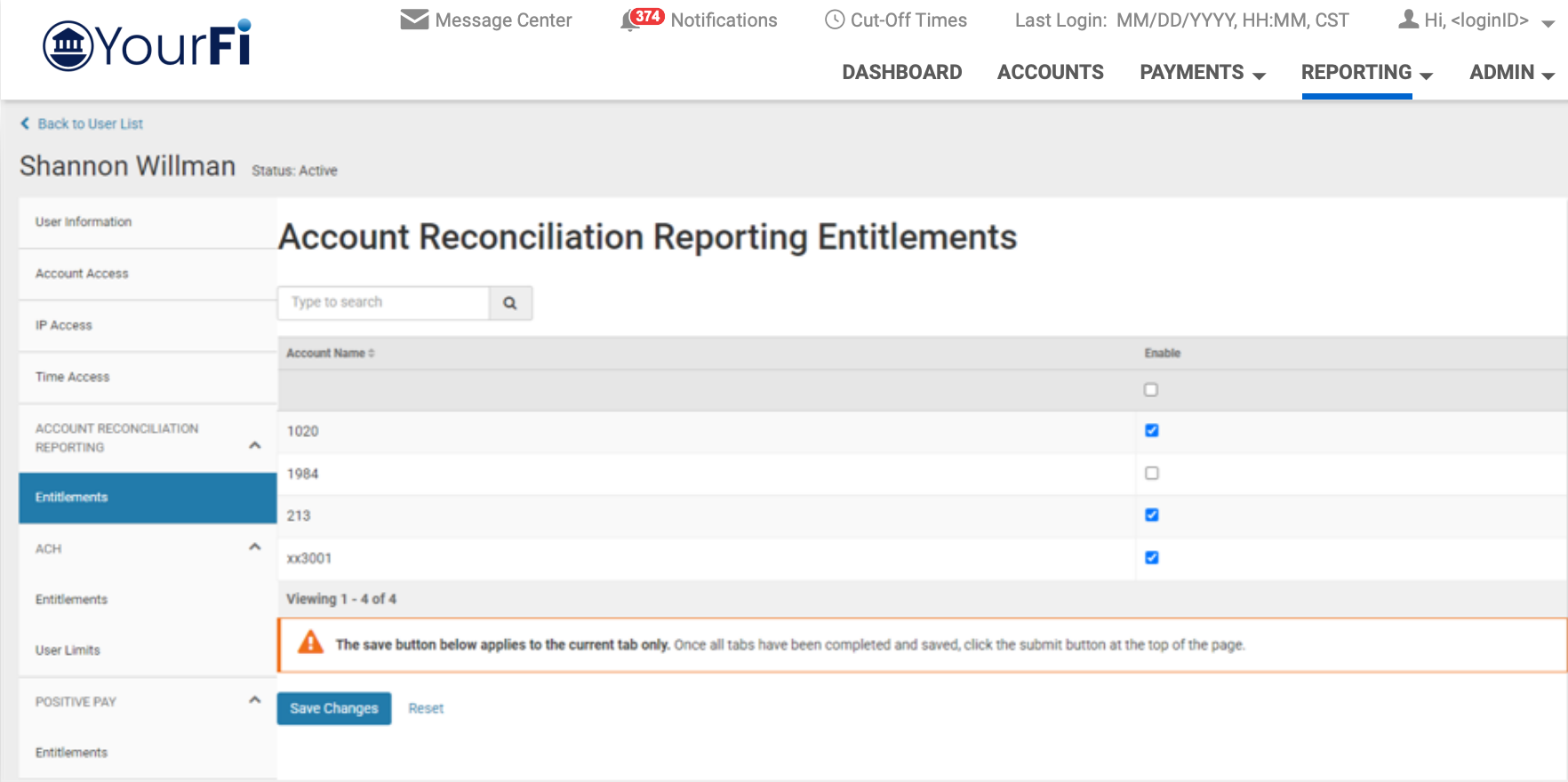
User access can be controlled by the bank or by an admin user at the company.
When enabled, users have the ability to view, create, and delete reports for the selected account.
Admin users can select Admin > User List, then select View User from the Actions menu, navigate to Account Reconciliation Reporting and select Entitlements to add or update these entitlements.