Quick Reference Guide: Positive Pay - Issued Item File via SFTP
Overview
The Issued Items via SFTP feature allows Treasury Management customers to automate the delivery of Positive Pay Check Issued Item files. Instead of logging in to manually upload a file, companies can transmit formatted data directly from their accounts payable systems to Treasury Management using a secure SFTP (Secure File Transfer Protocol) connection. Once transmitted, these files are monitored by a “watcher” service and ingested into a new Issued Items File Activity page. From this central hub, authorized users can review, process, or delete their transmitted files using existing Treasury Management workflows.
Benefits
Benefits for Banks
- Operational Efficiency: Automates the initial file ingestion process, reducing the need for manual support of file upload issues at the user level
- Enhanced Audit and Oversight: Provides a dedicated File Activity page to track all transmitted files, their processing status, and the specific users who took action on them in the audit logs.
- Flexible Billing: Offers new billing counters to charge specifically for file transmissions (“Per File”) in addition to standard per-item charges.
- Improved Troubleshooting: Includes detailed ingestion error logs and notifications in the Secure Message Center if a transmitted file cannot be assigned to a specific company.
- Robust Reporting: Updates to the Back Office Issued Items Report allow financial institution staff to filter and identify items specifically created via SFTP transmission.
Benefits for Customers
- Seamless Automation: Eliminates the manual step of exporting files from an accounting system and logging into Treasury Management to upload them, saving significant time for high-volume users.
- Centralized Activity Hub: The new Issued Items File Activity page defaults to displaying the last seven days of activity for all delivery methods. Users can customize this view by adjusting the date range within the flyout filter.
- Real-Time Validation: Transmitted files undergo the same rigorous business rule and data validations as manual uploads, ensuring data integrity before the core is updated.
- Immediate Notifications: Users can opt-in to receive email, text, or desktop alerts as soon as a file has been successfully transmitted and is ready for processing.
- Greater Control: Even though the transmission is automated, customers maintain control by requiring an entitled user to “process” the file before items are sent to the core.
Process Overview
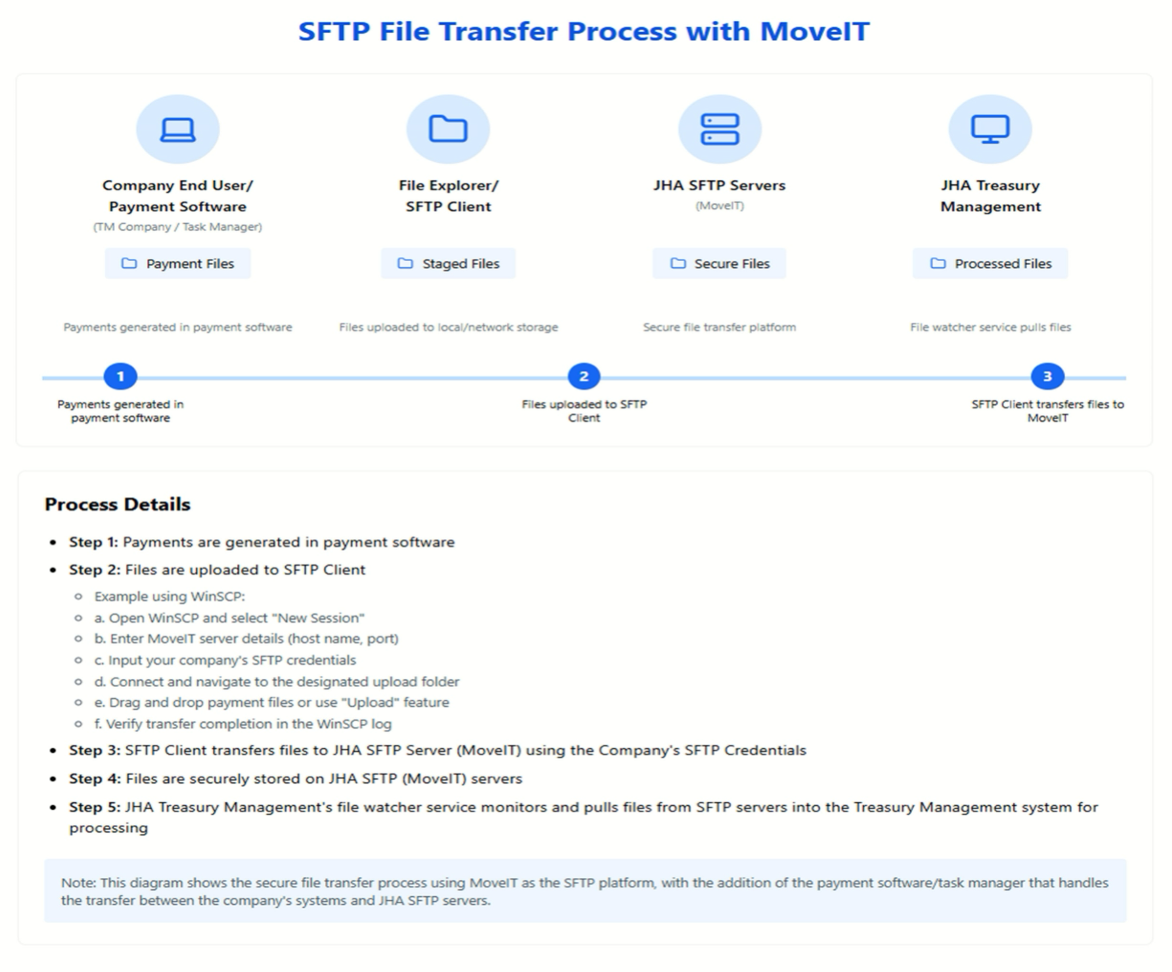
This workflow consists of five key stages designed to ensure secure and automated file handling:
- Generation: Payment files are created by the company’s end user or internal payment software.
- Staging: Files are uploaded to an SFTP client (such as WinSCP) to be prepared for transmission.
- Transmission: The SFTP client securely transfers the staged files to the JHA SFTP (MoveIT) Server using the company’s specific credentials.
- Secure Storage: Files are held securely on the MoveIT servers.
- Retrieval and Processing: The Treasury Management file watcher service monitors the server, automatically pulling new files into the Treasury Management system for final processing.
Technical Highlights
- SFTP Platform: Utilizes MoveIT for secure file hosting and transfer.
- Automation: The process concludes with an automated “file watcher” service, reducing the need for manual intervention once the file is uploaded.
- User Action: The primary user responsibility is generating the file and ensuring it is correctly uploaded to the SFTP client.
Configuration
Back Office Company User Positive Pay Configuration
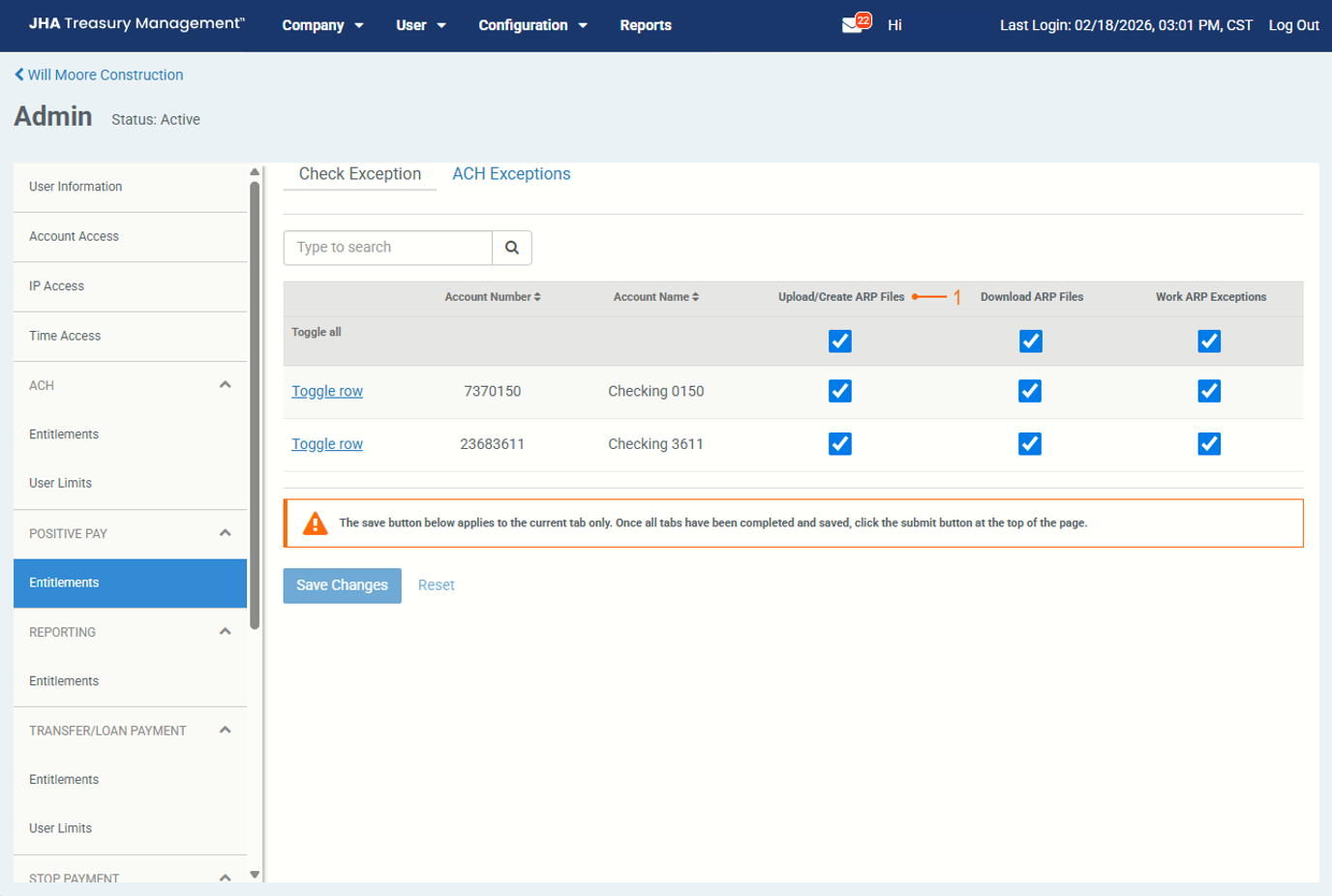
Positive Pay Entitlements
Upload/Create ARP Files can be enabled within the Company Users Configuration. This configuration will be utilized for manually uploaded files and to process files sent via sFTP.
Back Office Positive Pay Notification Configuration
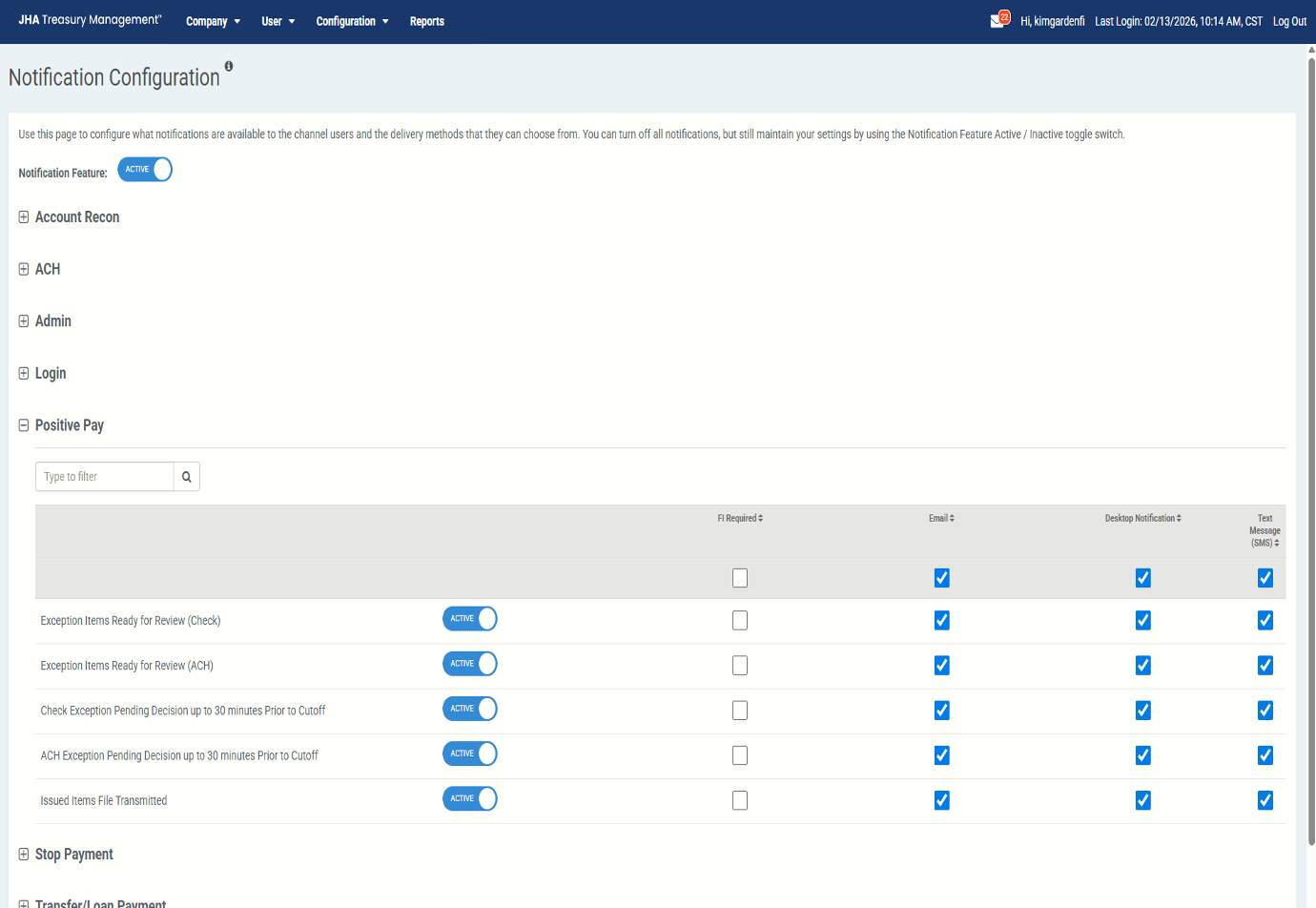
Notification
The Issued Item File Transmitted notification alerts users when a file has been successfully transmitted and is ready for processing on the Issued Item File Activity page. To receive the notification, users must be entitled to at least one account included in the file and have the Upload/Create ARP Files entitlement.
Back Office Positive Pay Billing Configuration
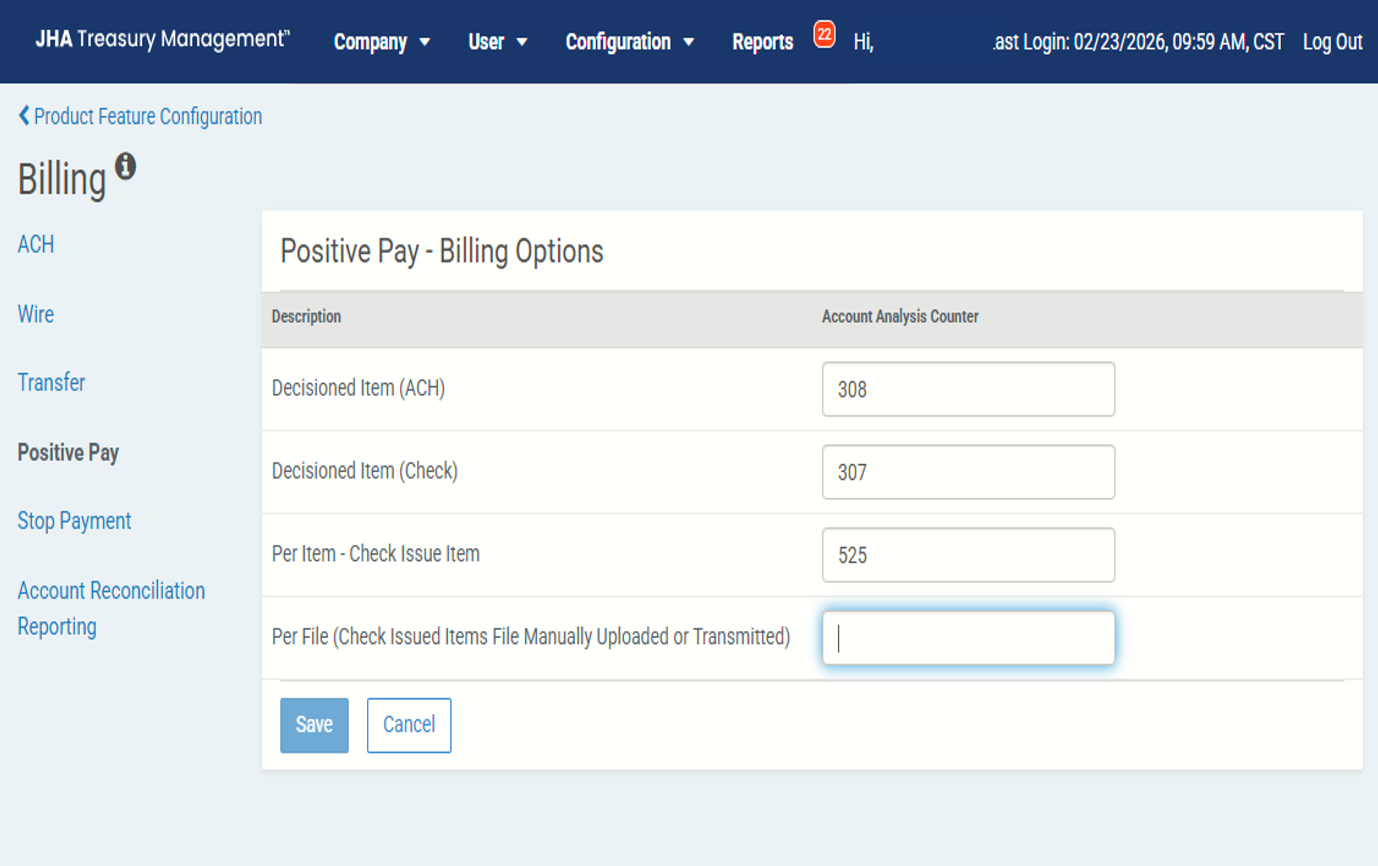
Account Analysis Billing – Financial Institution-Level Configuration
- Per Item – Check Issue Item: The existing counter is used to specifically track individual items created.
- Per File (Check Issued Items File Manually Uploaded or Transmitted): A new counter that increments by one every time a file is manually uploaded or sent via SFTP.
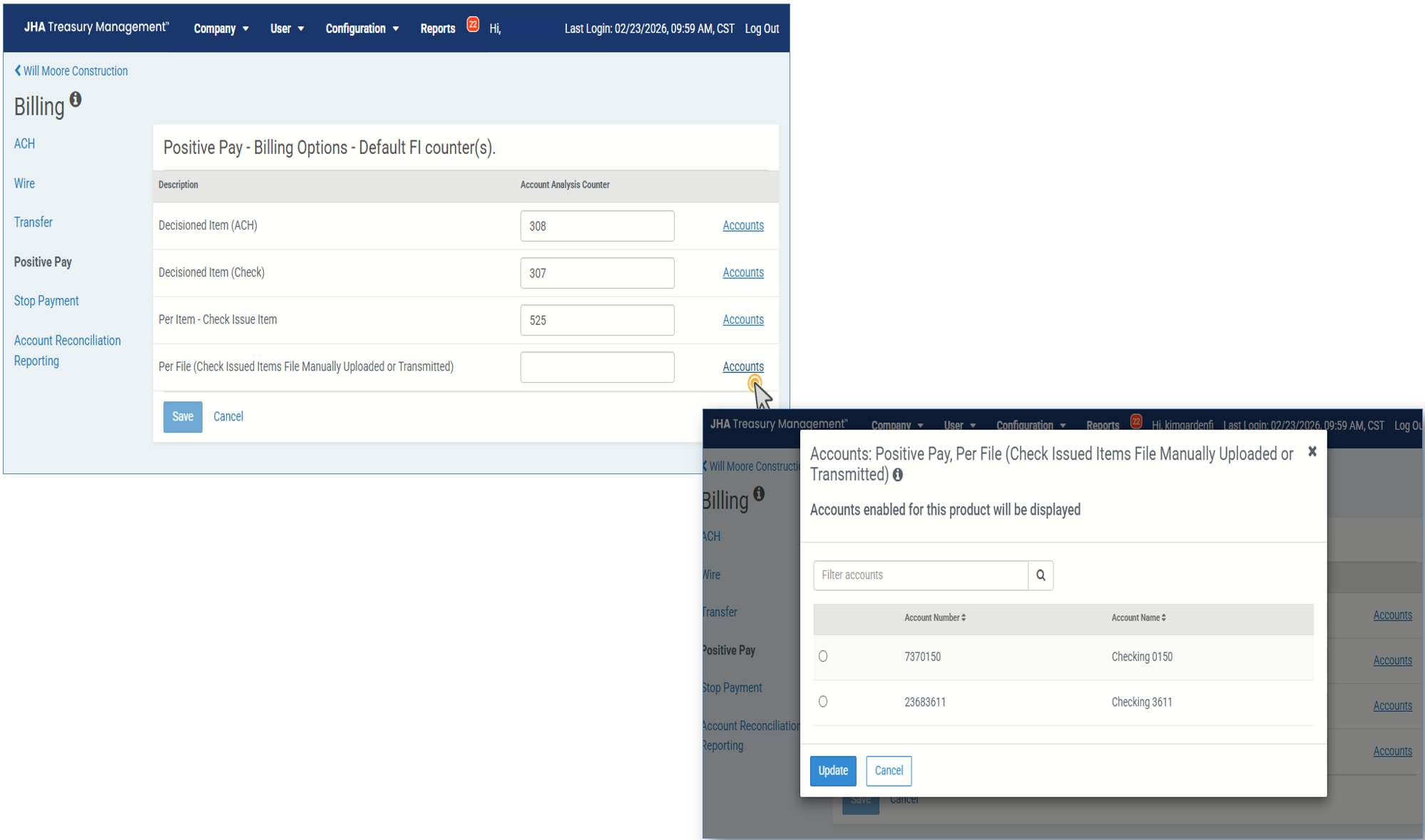
Account Analysis Billing
- Per Item – Check Issue Item: The existing counter is used to specifically track individual items created.
- Per File (Check Issued Items File Manually Uploaded or Transmitted): A new counter that increments by one every time a file is manually uploaded or sent via SFTP.
- Billing Account Selection: At the TM Company level, banks must select a single specific account to receive the “Per File” charge to ensure files containing multiple accounts are only charged once.
Positive Pay Issued Item Backoffice Report
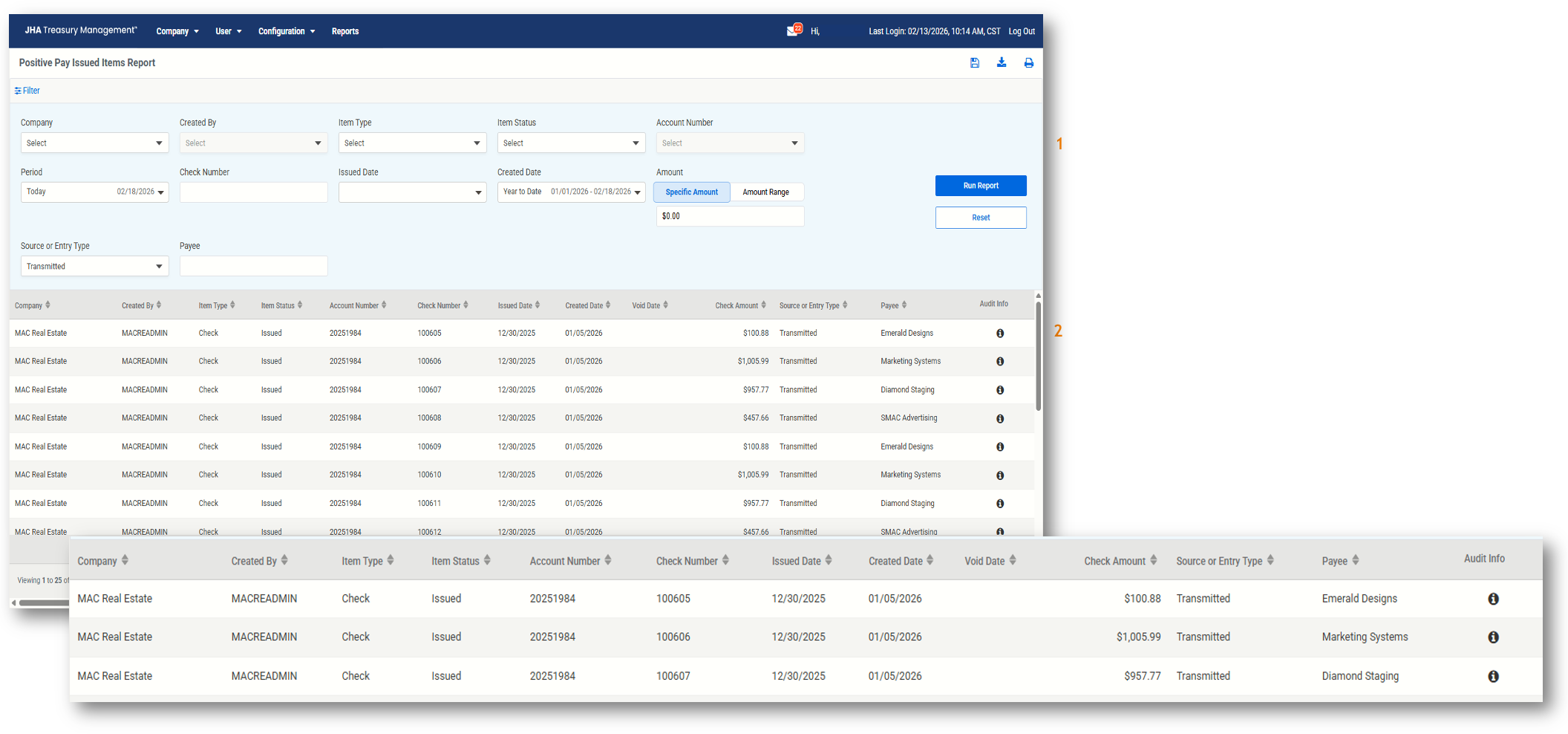
The Positive Pay Issued Item Report is a back-office report detailing items that were manually entered, uploaded, or transmitted via SFTP.
1. Search
Report results will display based on the search criteria that is used.
2. Report Results
Result fields include the following:
- Company
- Created By
- Item Type
- Item Status
- Account Number
- Check Number
- Issued Date
- Created Date
- Void Date
- Check Amount
- Source or Entry Type
- Payee
- Audit Info
Channel Navigation - Payments > Positive Pay
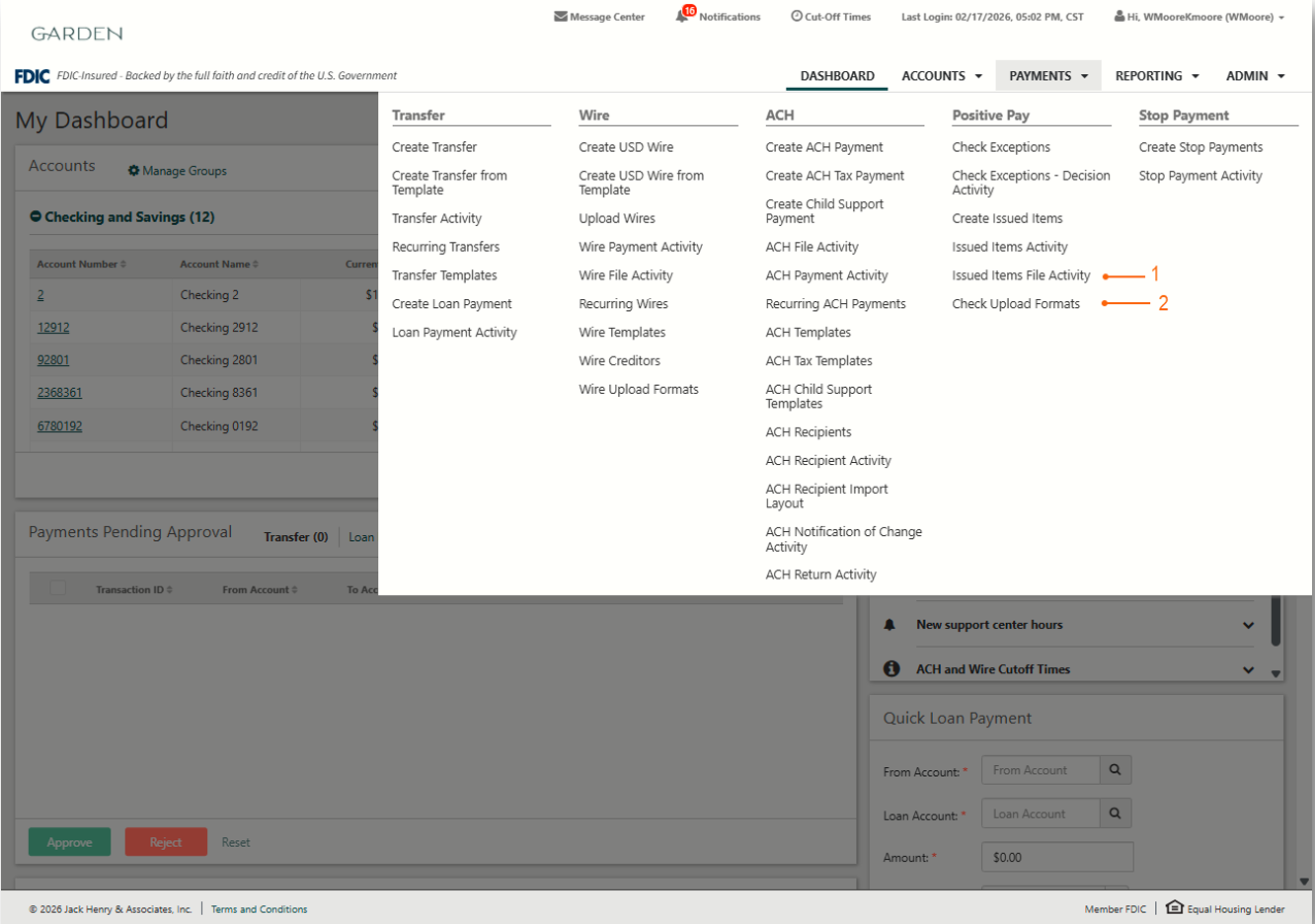
From the Payment/Positive Pay main navigation, user can do the following:
1. View Issued Item File Activity
- Process files
- Delete files
- View files
2. Select Check Upload Formats
Issued Item File Activity
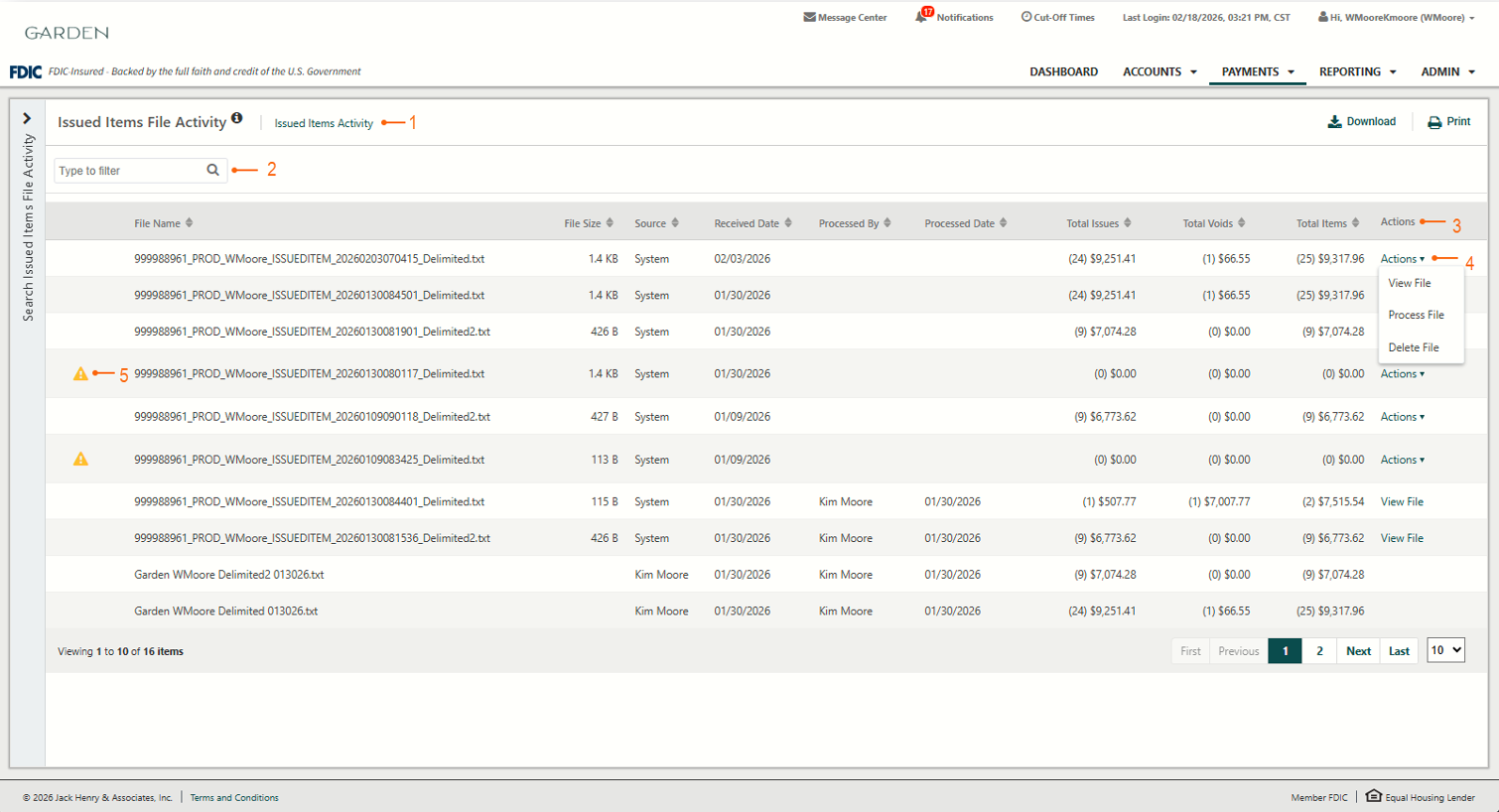
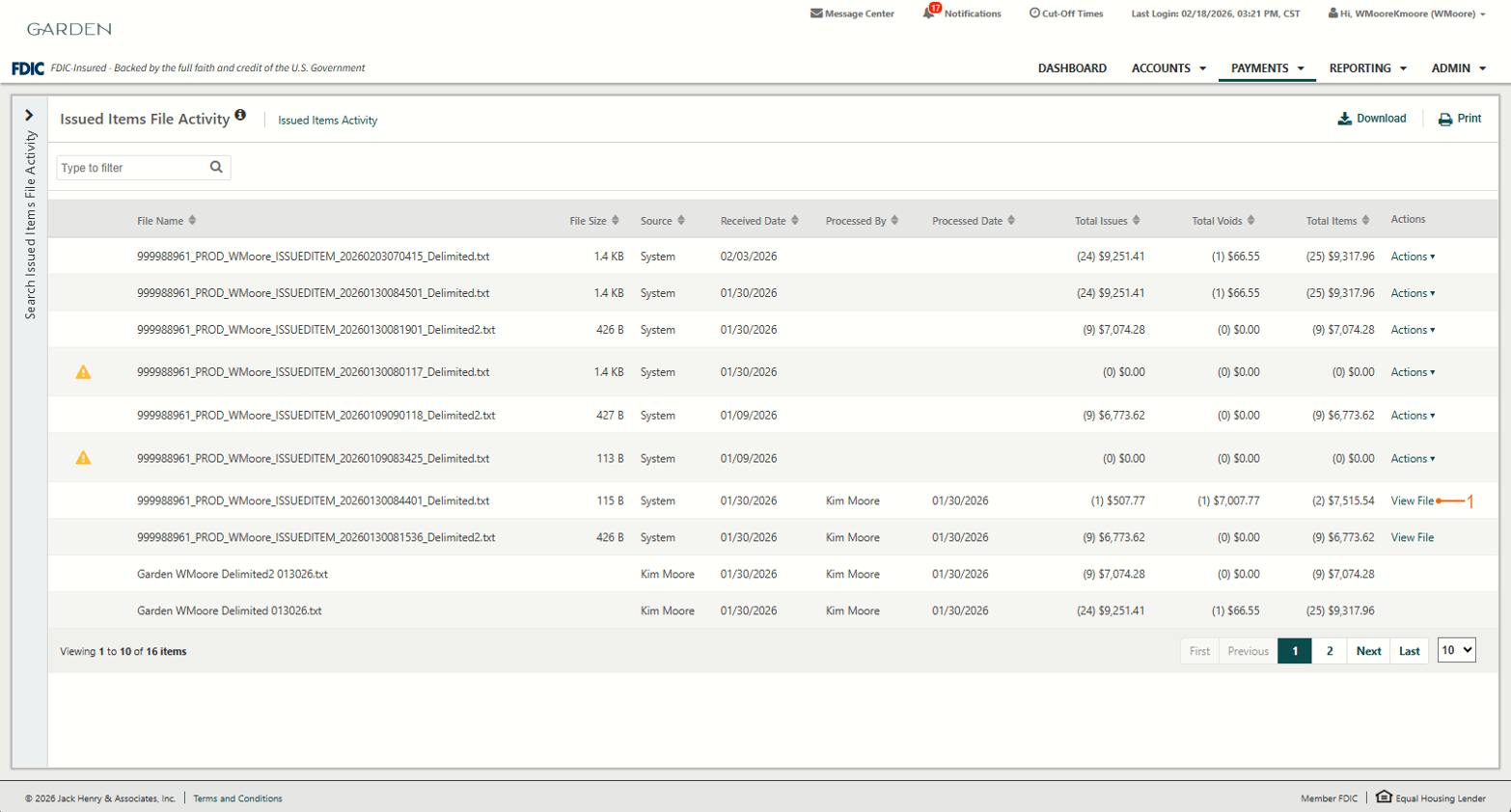
This Issued Item File Activity view will display a list of files that have been uploaded or transmitted via SFTP.
1. Quick Navigation
Users can quickly navigate between page views.
2. Type to Filter
Users may utilize Type to Filter to narrow the results. This feature will filter across the results to refine based on the user’s entered criteria.
3. Information Available
Fields available include the following:
- File Name
- File Size
- Source (User or System)
- Received Date
- Processed By
- Process Date
- Total Issues
- Total Voids
- Total Items
- Actions
4. Actions
For a file transmitted via SFTP, users will have the ability to process, view, or delete the file. At this time, manually uploaded files will have no actions. Once a file is processed, the process and delete actions will no longer be available.
5. Error Indicator
For a file transmitted via SFTP that encounters an error during ingestion or when processing, selection of the error icon will open a modal displaying the errors for that file.
Issued Item File Activity, Continued
Actions
- Once the transmitted file has been successfully processed, the actions to process and delete will no longer be available. The action to view the file will be the only available action.
- Files transmitted via SFTP will use the Source of System.
- Received Date will be the date the file is transmitted via SFTP or manually uploaded by a company user.
- Processed By and Processed Date will be the date a company user either manually uploads a file or takes the action to process a transmitted file.
Issued Item File Activity Process Workflow – Process File Action
Process File
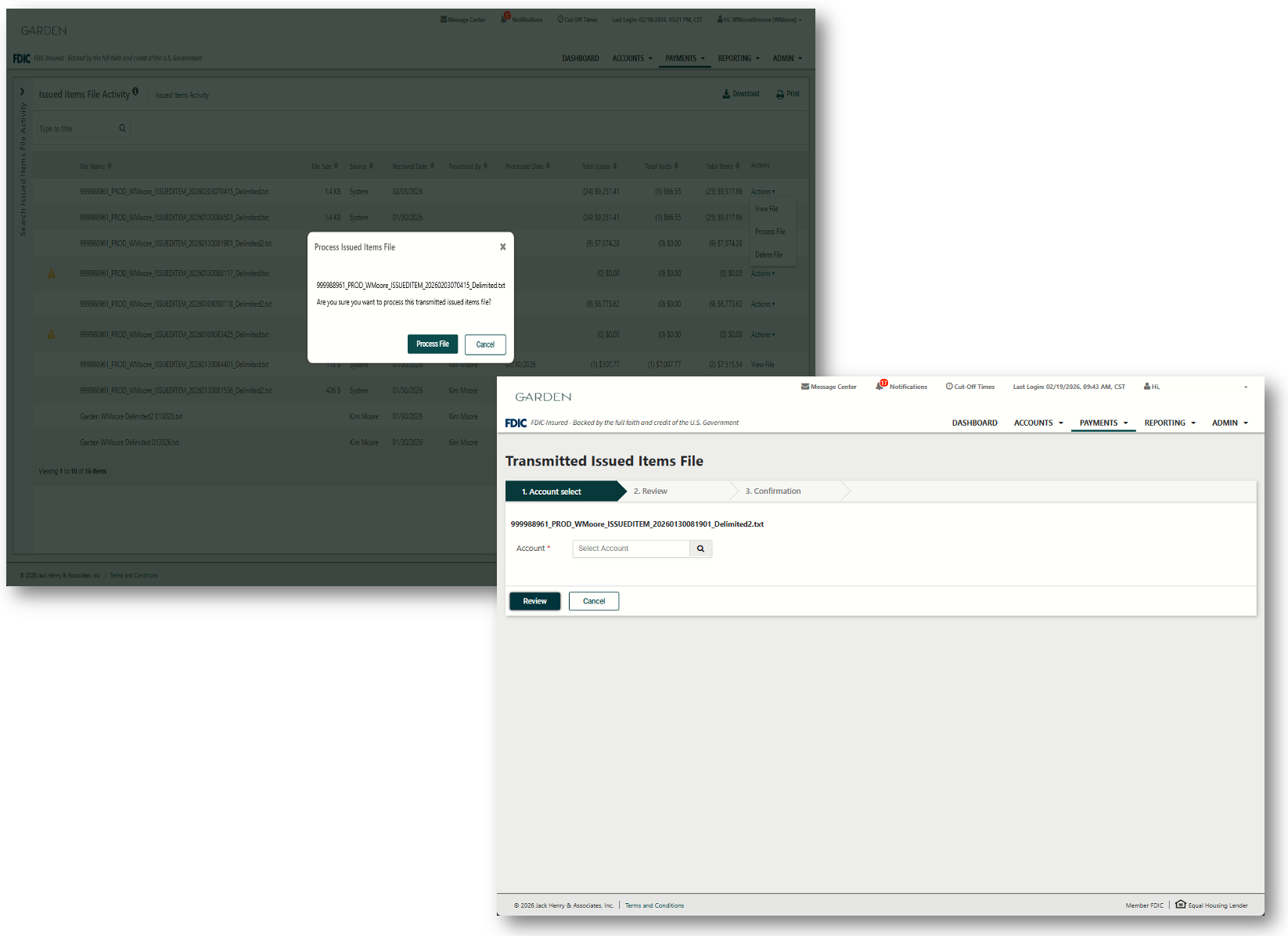
When the action to process a file is taken, the user will be presented with a confirmation message asking “Are you sure you want to process this transmitted issued items file?” The message will include the file name and the choice to Process File or Cancel:
- Process File: Clicking this button will initiate the Process File workflow. If the file lacks account numbers, a user will first be prompted to select an account on the Account Select page. Next, the user will verify the detected checks and voids on the Review page. Once Confirm is clicked, the system will validate the data and create the items in the core.
- Cancel: Cancel will return the user to the Issued Item File Activity page with no action taken on the file.
Issued Item File Process File Workflow, Continued - Review Page
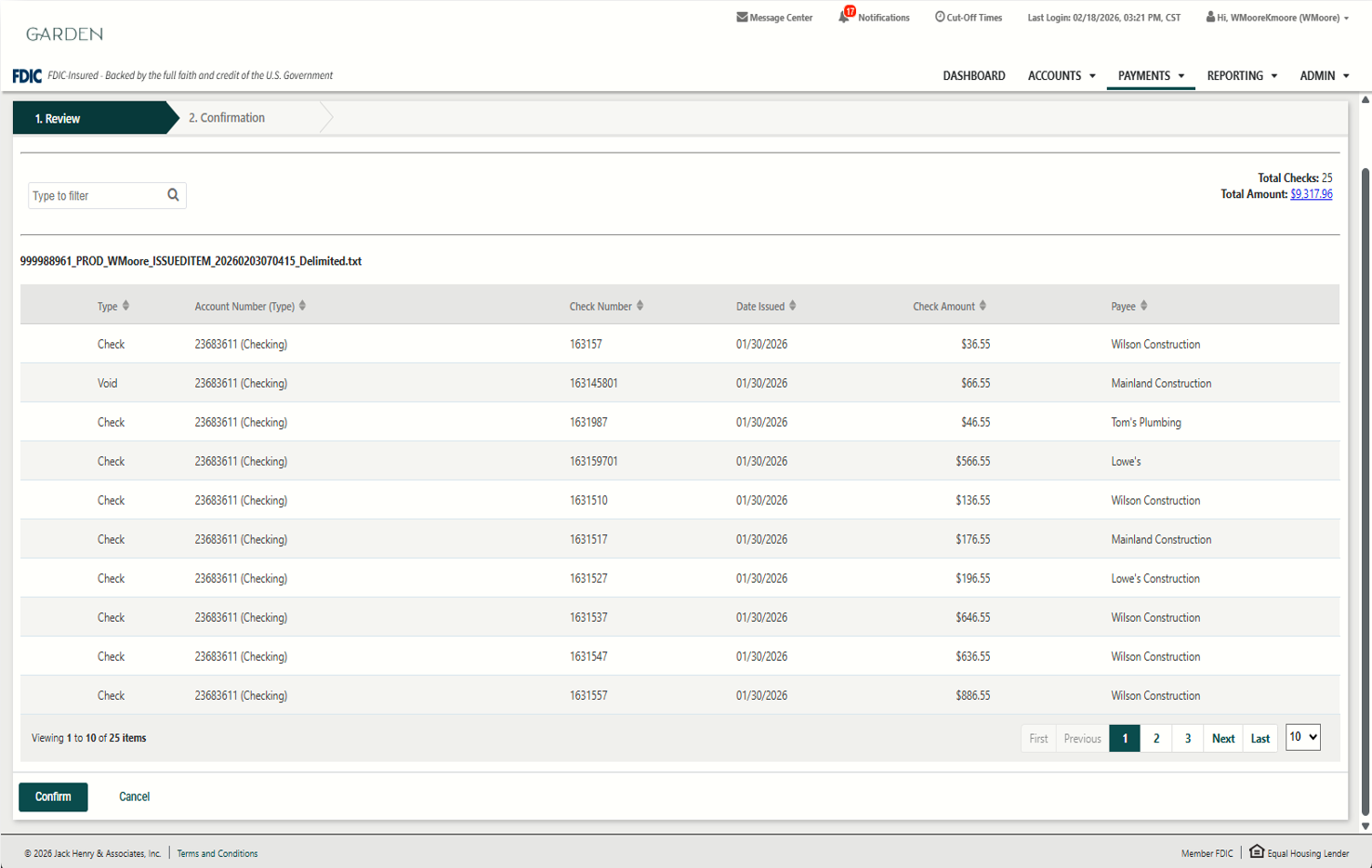
Users can review the items a final time before submitting the records.
1. Issued Item Details
Displayed information includes the following fields:
- File Name
- File Totals
- Item Type
- Account Number
- Check (Serial) Number
- Date Issued
- Check Amount
- Payee
2. Confirm
Clicking Confirm validates the data against business rules and processes the items into the core.
3. Cancel
Clicking Cancel opens a confirmation prompt:
- OK: Discards changes and returns users to the Issued Item File Activity pagepo.
- Cancel: Closes the prompt, allowing users to continue their work.
Issued Item File Activity Workflow – Delete File Action
Delete File
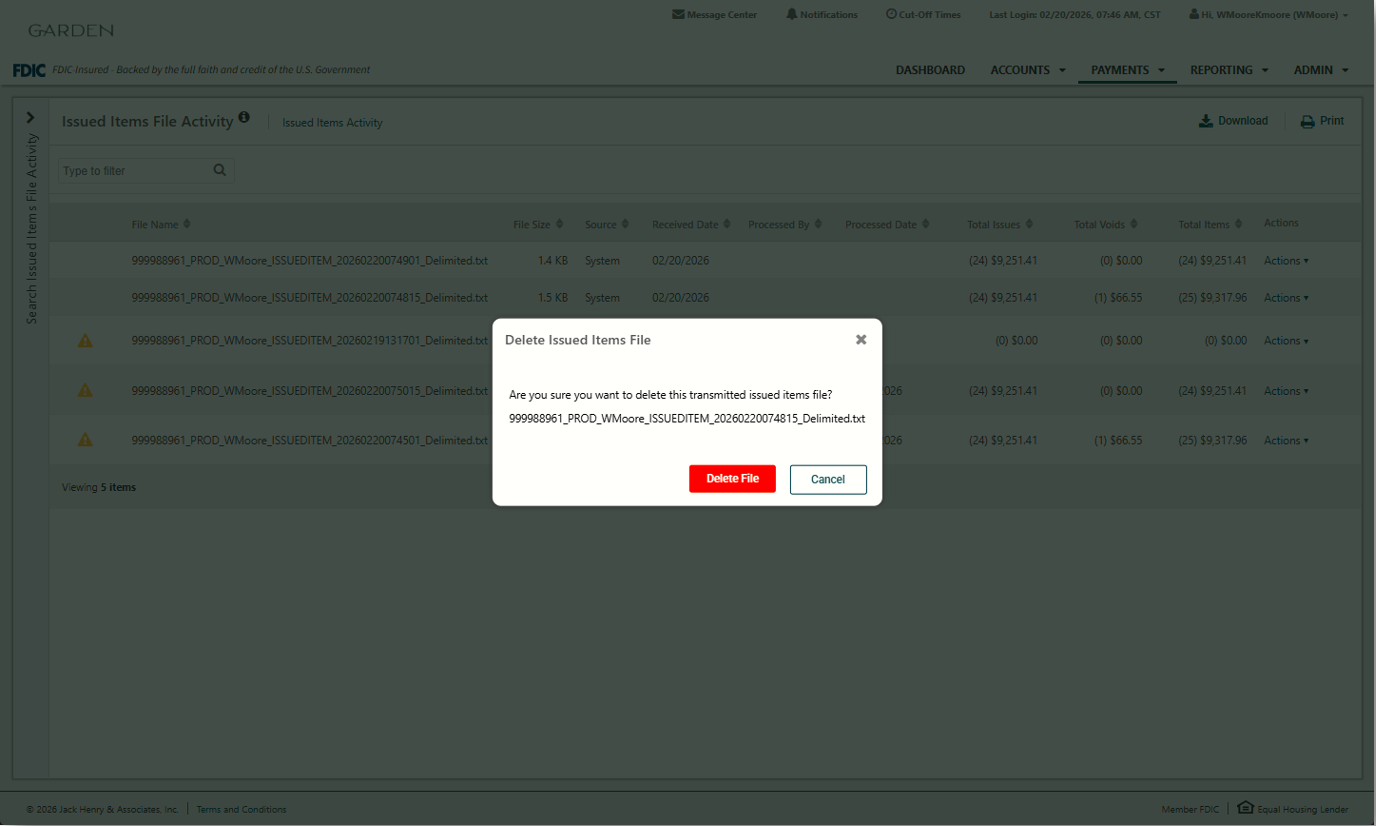
Selecting Delete prompts a confirmation modal displaying the file name:
- Delete File: Permanently removes the file from the Issued Item File Activity page.
- Cancel: Returns users to the Issued Item File Activity page without making changes.
Issued Item File Activity Workflow – View File Action
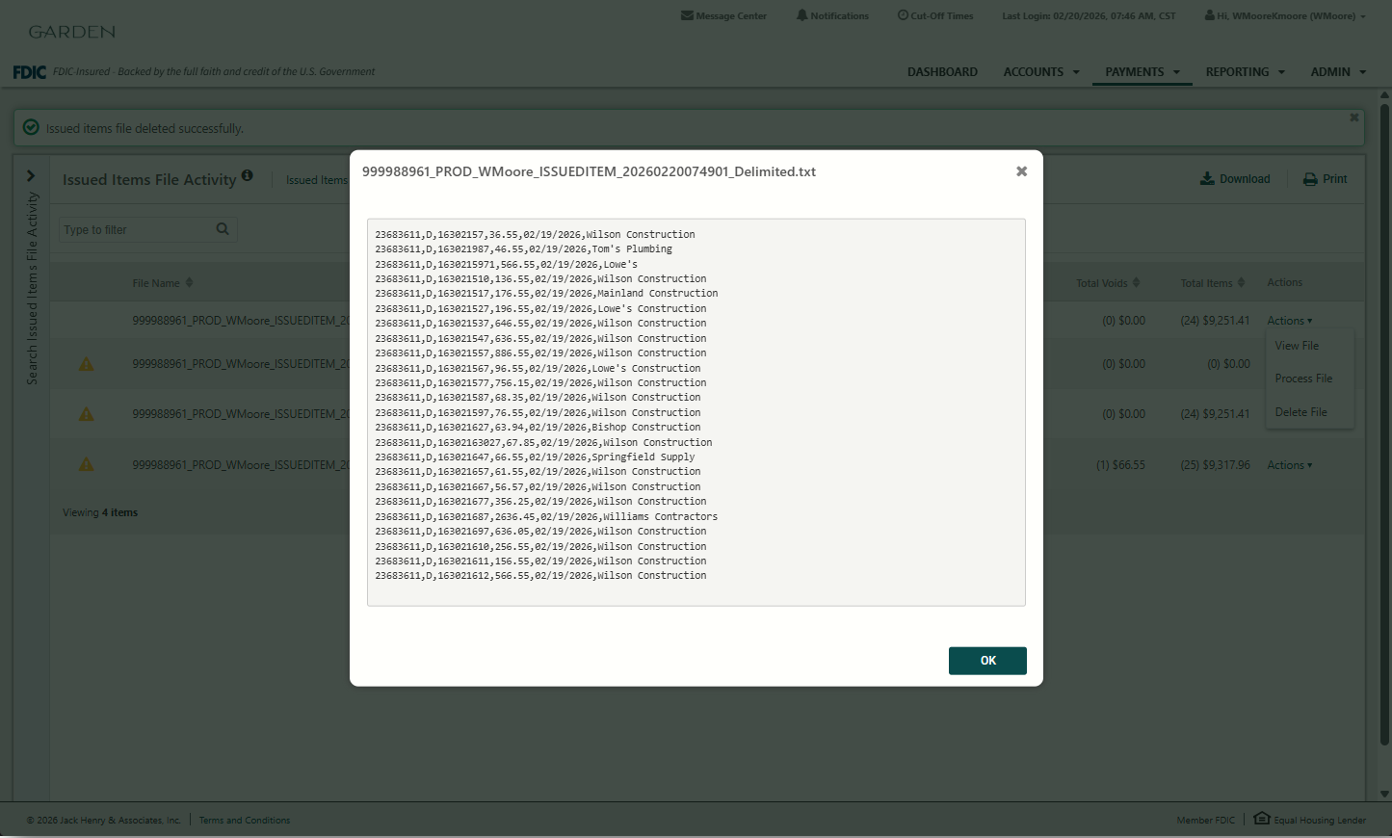
View File
Selecting View opens a modal displaying the file’s raw contents exactly as transmitted. The file name and type appear in the top-left corner. If the content exceeds the window size, users can use the scroll bar on the right to navigate. Clicking OK closes the modal.
Issued Item Activity
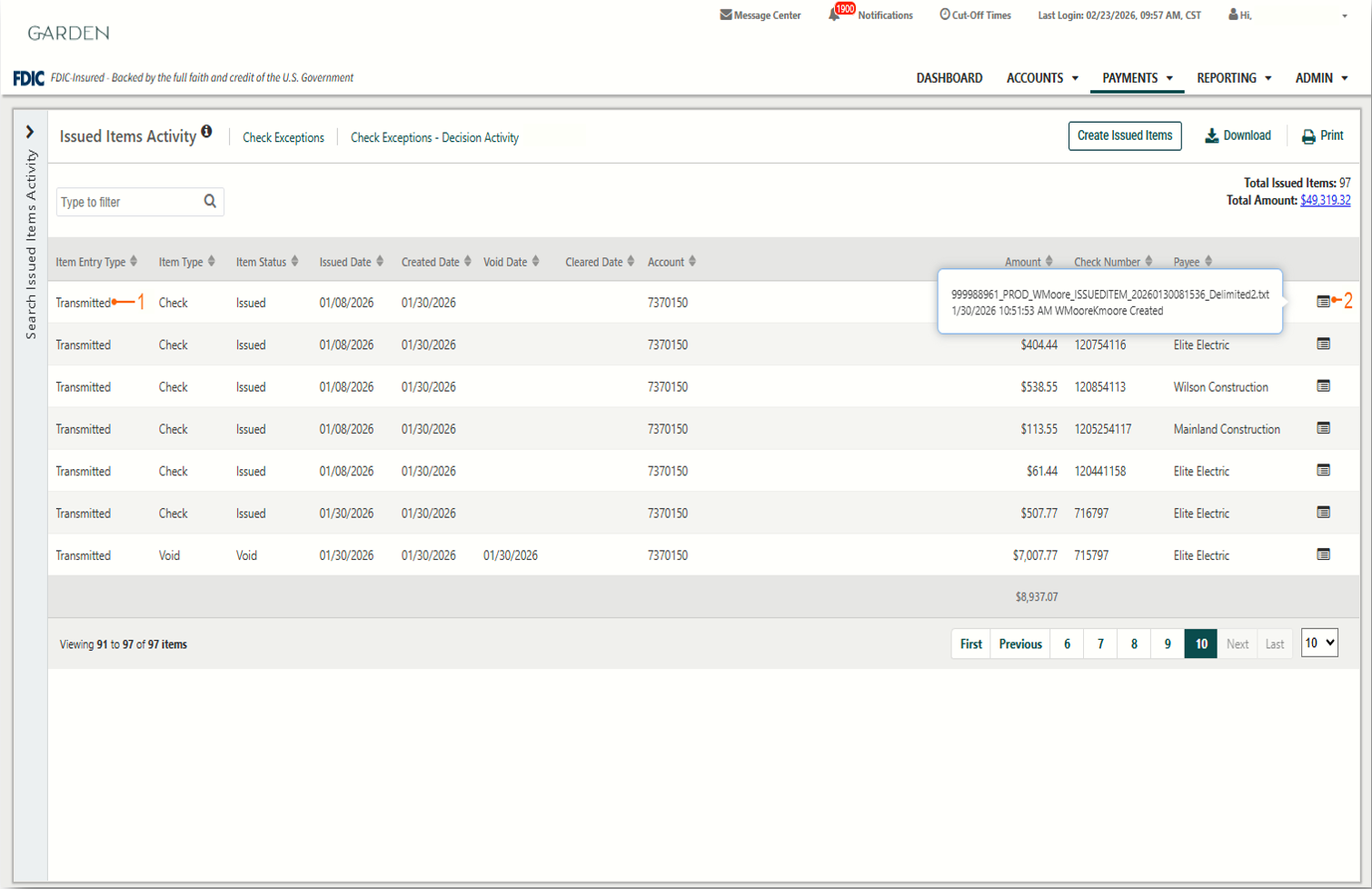
The Issued Items Activity page centralizes all issued items from manual entry, file uploads, and SFTP transmissions.
Item Entry Type
Item Entry Type identifies the specific method used to submit the issued item:
- Manual (user manually input item)
- Upload (manually uploaded)
- Other (entered via core)
- Transmitted (sent via SFTP)
Audit Information
Audit Information includes the following:
- User: Who created or voided the item.
- Timestamp: The exact date and time of the action.
- Source: The file name in which the item was included.
Check Upload Formats /Issued Item File Format
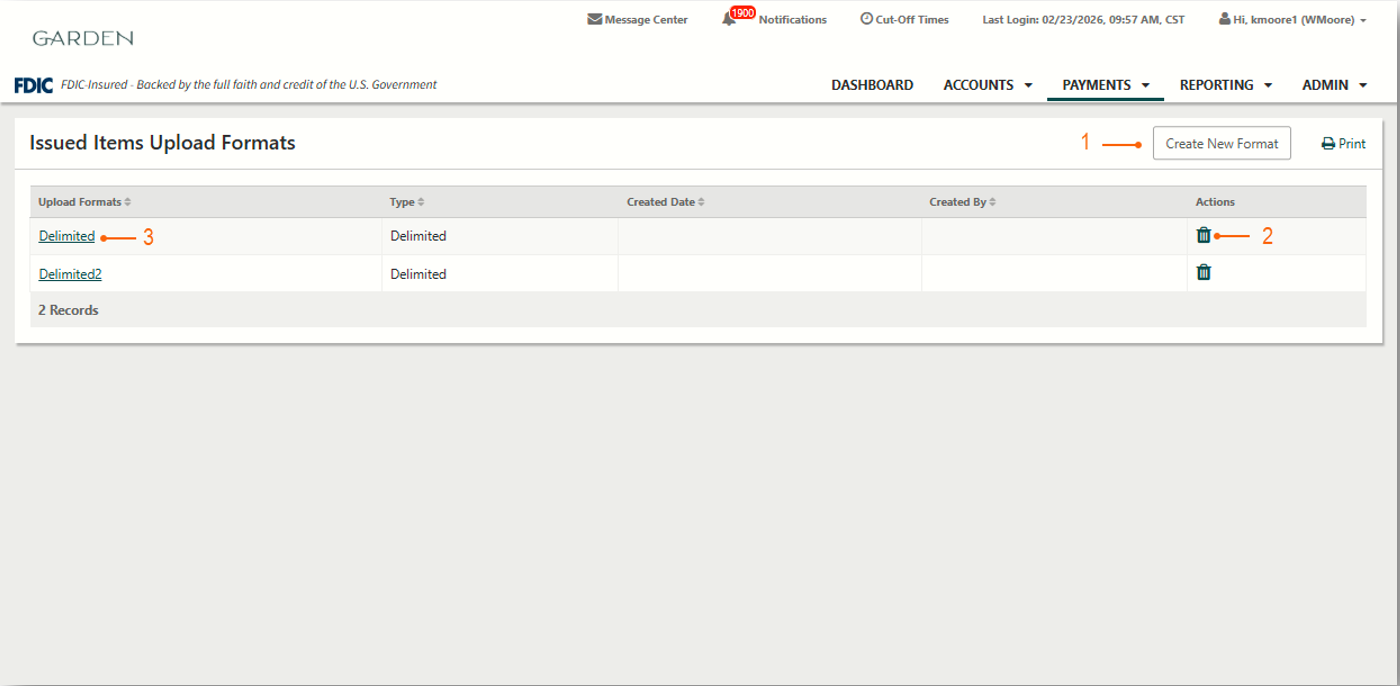
This page will display a list of saved file formats.
1. Create New Format
Create New Format navigates to the mapping tool where a user can create a new issued item upload format. Formats available are delimited and in a fixed position.
2. Delete Format
Selection of the trash can icon deletes the selected format.
3. View Format
View Format navigates to mapping for the selected upload format, where a user can view and/or edit the current format.
Check Upload Formats /Issued Item File Format
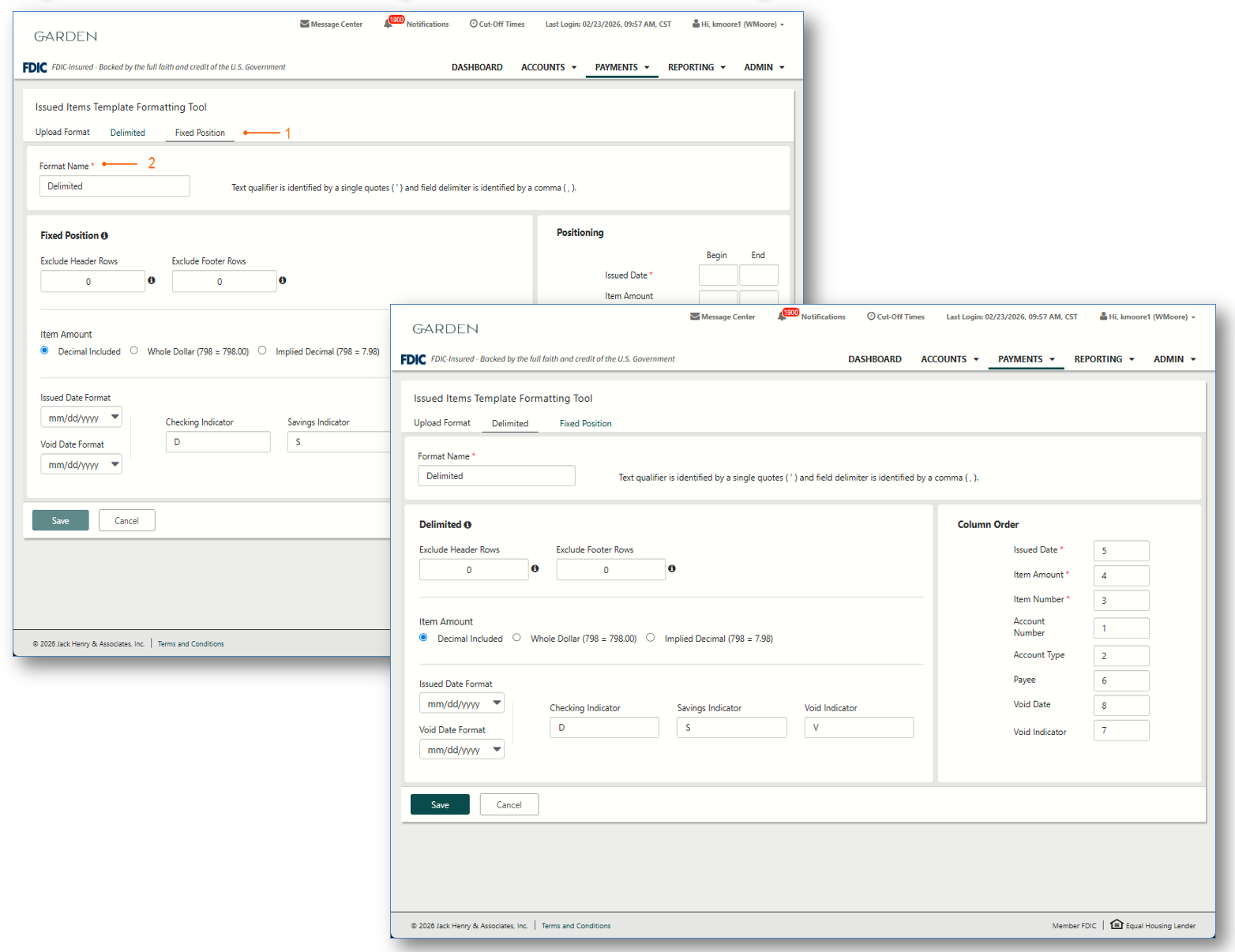
The Issued Item Template Formatting Tool uses a consistent interface for both Delimited and Fixed Position formats. Input screens are nearly identical, sharing the same core configuration fields for date formats, amount types, and account indicators. The primary distinction lies in how users define field locations:
- Fixed Position: Users define the specific character length for each field by entering the Begin and End positions.
- Delimited: Users specify the field sequence by assigning a numerical Column Order.
1. Select Format
The first step in building a file format map is selecting the upload format. Users can then proceed to create either a Delimited or Fixed Position map based on their specific needs.
2. Required Fields
Field that are required in the file layout format are indicated by a red asterisk next to the field name. (*)