Quick Reference Guide: Positive Pay - Return Reasons
Overview
This enhancement provides the ability to select a return reason when reviewing check exceptions. Users can also add comments and/or upload an attachment to provide additional information with the return reason. Additionally, correction requests can now be submitted through Treasury Management. New configurations have been implemented at the FI and company level product feature configurations in Back Office.
Benefits
Benefits for Banks
- Updated Positive Pay – Check Exceptions report within Back Office provides additional information including the return reason, comments, and attachments
- Correction requests can be easily tracked through Secure Message Center
- Banks can establish a default return reason in Back Office
- Return reason codes are updated in SilverLake with the check exception return decision
Benefits for Customers
- Ability to add comments for the bank and attach supporting documents to exception items during the review process
- Streamlined process for correcting issued items
- Banks do not have to manually update return reason codes in SilverLake
Positive Pay Product Feature Configuration in Back Office

- Allow Correction Request: When set to Active, users can submit a correction form requesting specific corrections to check exceptions.
- Allow Return Reasons: When set to Active, users can add a bank defined return reason with the corresponding SilverLake 2-character code, attach supporting documentation, or make comments.
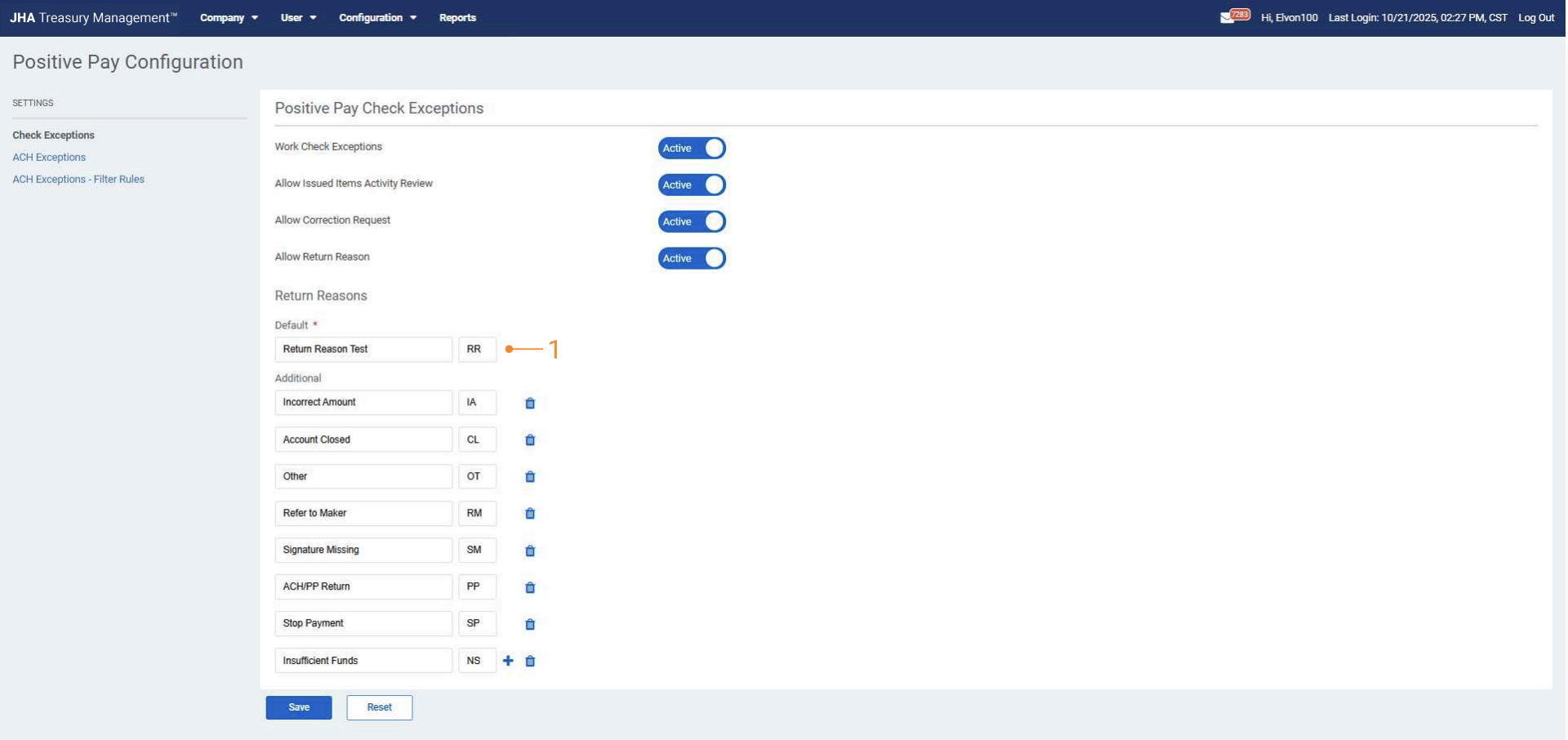
Return Reasons
- Default - Return Reason: When reviewing exceptions, if the user does not select a return reason, the bank defined default is used. When set to Active, users can add a bank defined return reason with the corresponding SilverLake 2-character code, attach supporting documentation, or make comments.
Note:
- A minimum of 2 return reasons must be entered before the configuration can be saved. The maximum number of return reasons supported is 25.
- A suggested default return reason is “Select Return Reason”. This will prompt users to select a reason but also keeps it obvious to the bank if they do not. Also, it provides a unique reason on BO Positive Pay - Check Exception Report that makes it clear it to the FI that the default reason was applied.
- In SilverLake, EPPAR, option 2 is where return reasons and the codes are located. Banks should sync the return reason description in Treasury Management Back Office with the return reason in EPPAR and then enter that code into TMBO. There is nothing to update in SilverLake. Enter the codes for the return reasons in TMBO.
Positive Pay Company Configuration in Back Office
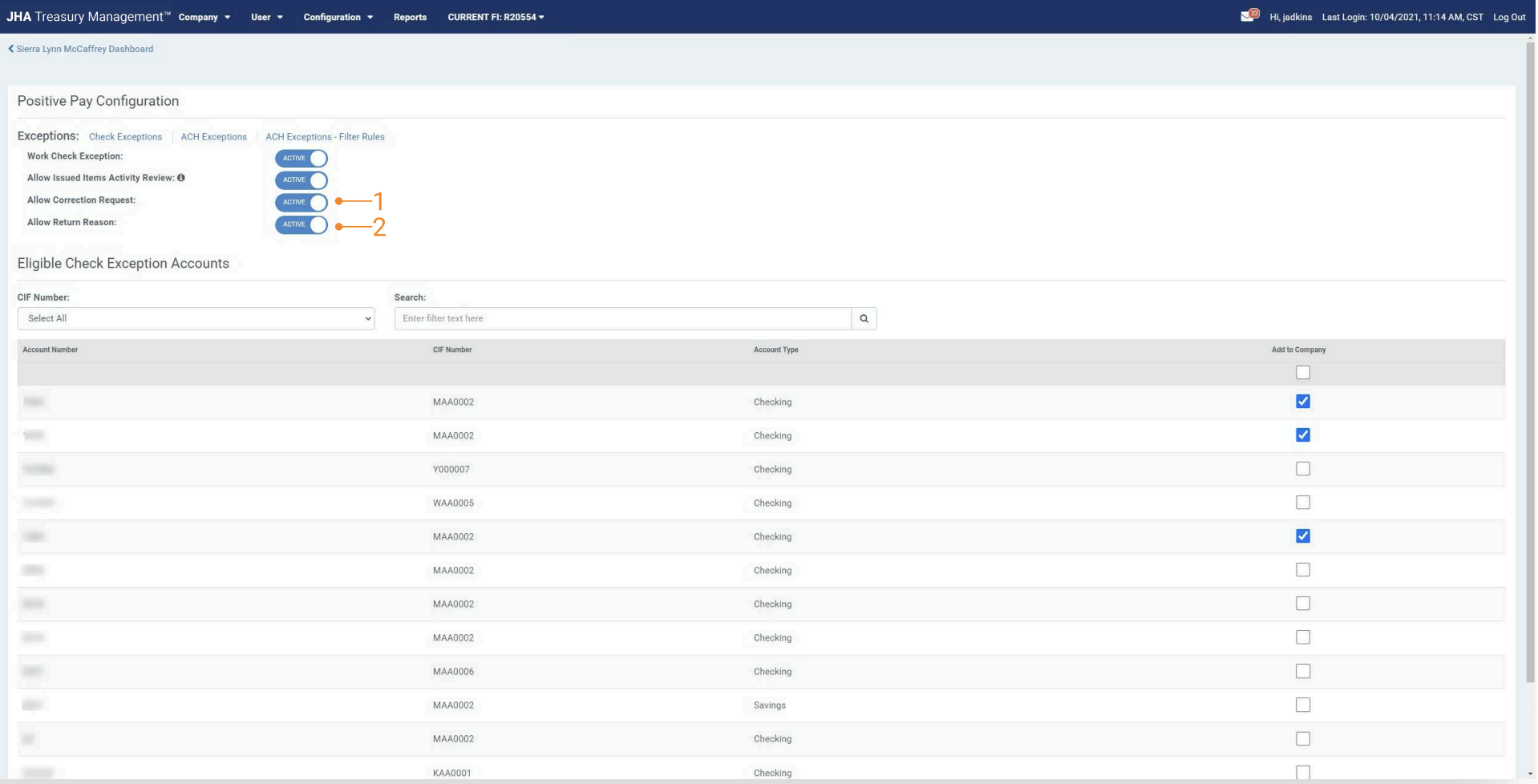
- Allow Correction Request: When set to Active, users can submit a correction form requesting specific corrections to check exceptions.
- Allow Return Reasons: When set to Active, users can select return reasons based on the FI configuration.
Positive Pay Check Exceptions Report in Back Office
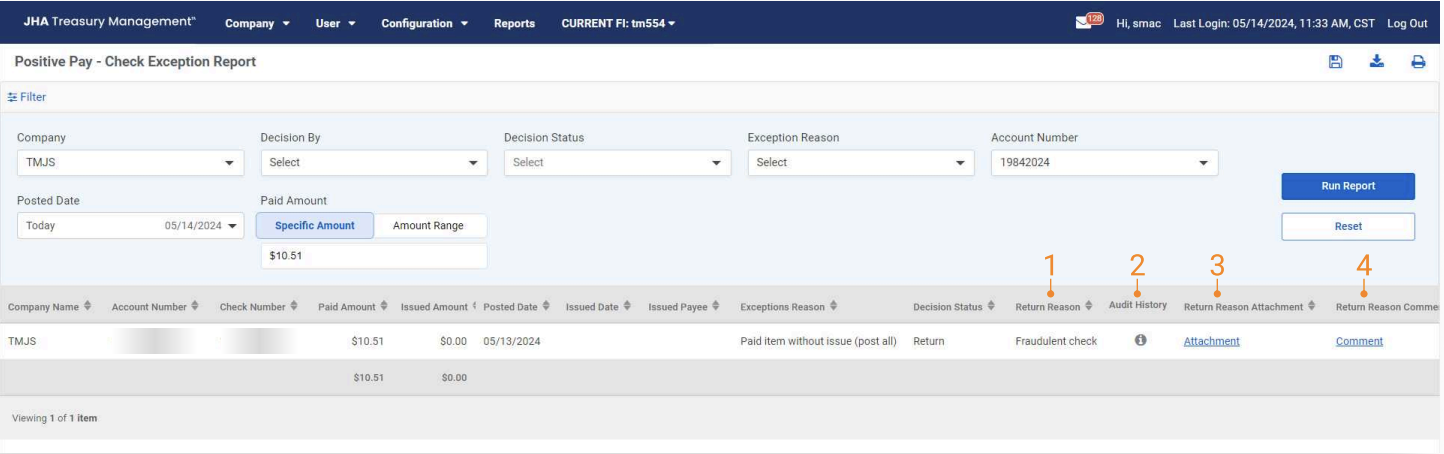
- Return Reason: Displays the return reason selected by the user.
- Audit Log Updated: If a correction request was submitted, the audit log updates with an entry for the action ‘Requested Correction’.
- Return Reason Attachment: Displays the attachment the user provided.
- Return Reason Comment: Displays the comment the user added to the return.
Correction Requested in Back Office & Channel
 ,
, 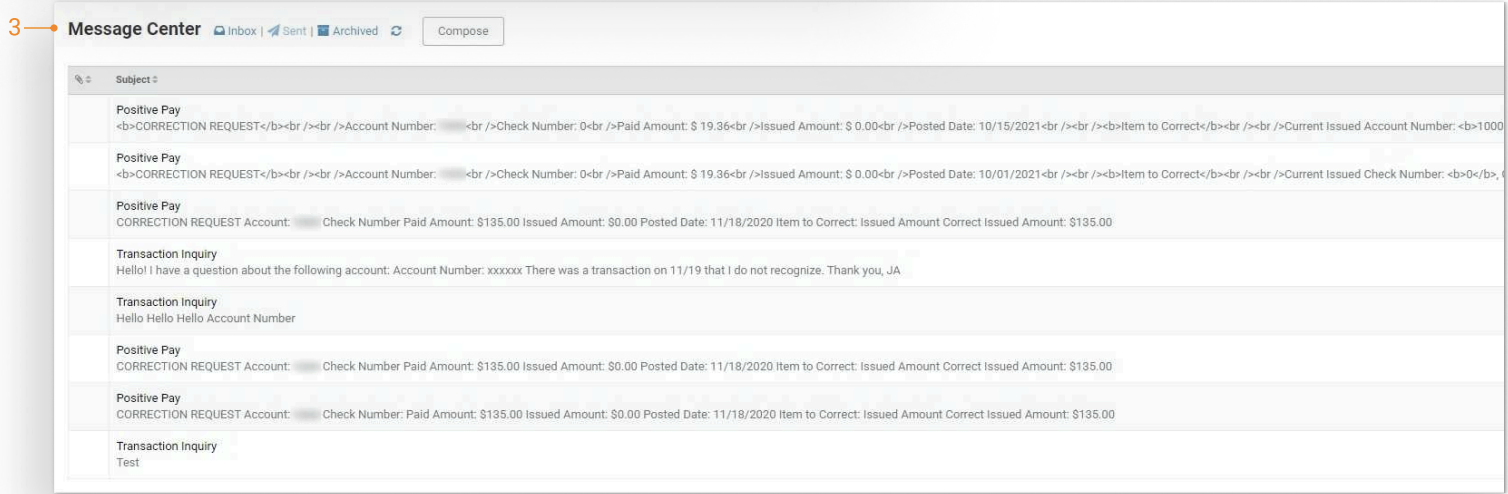
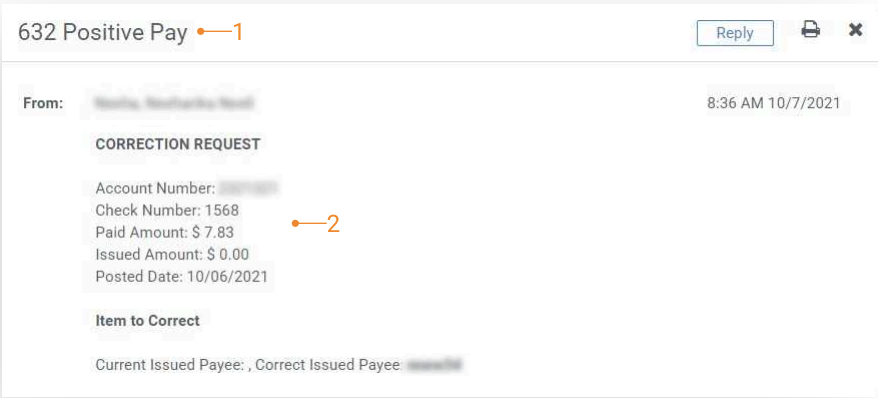
- Secure Message: Correction requests are secure messages and can be viewed using the Message Center (Back Office).
- Item Details/Item to Correct: The message provides item details and the item requiring correction (Back Office).
- Message Center: A copy of the correction request is available in the company’s Sent items within the Message Center (Channel).
Dashboard Widget in Channel
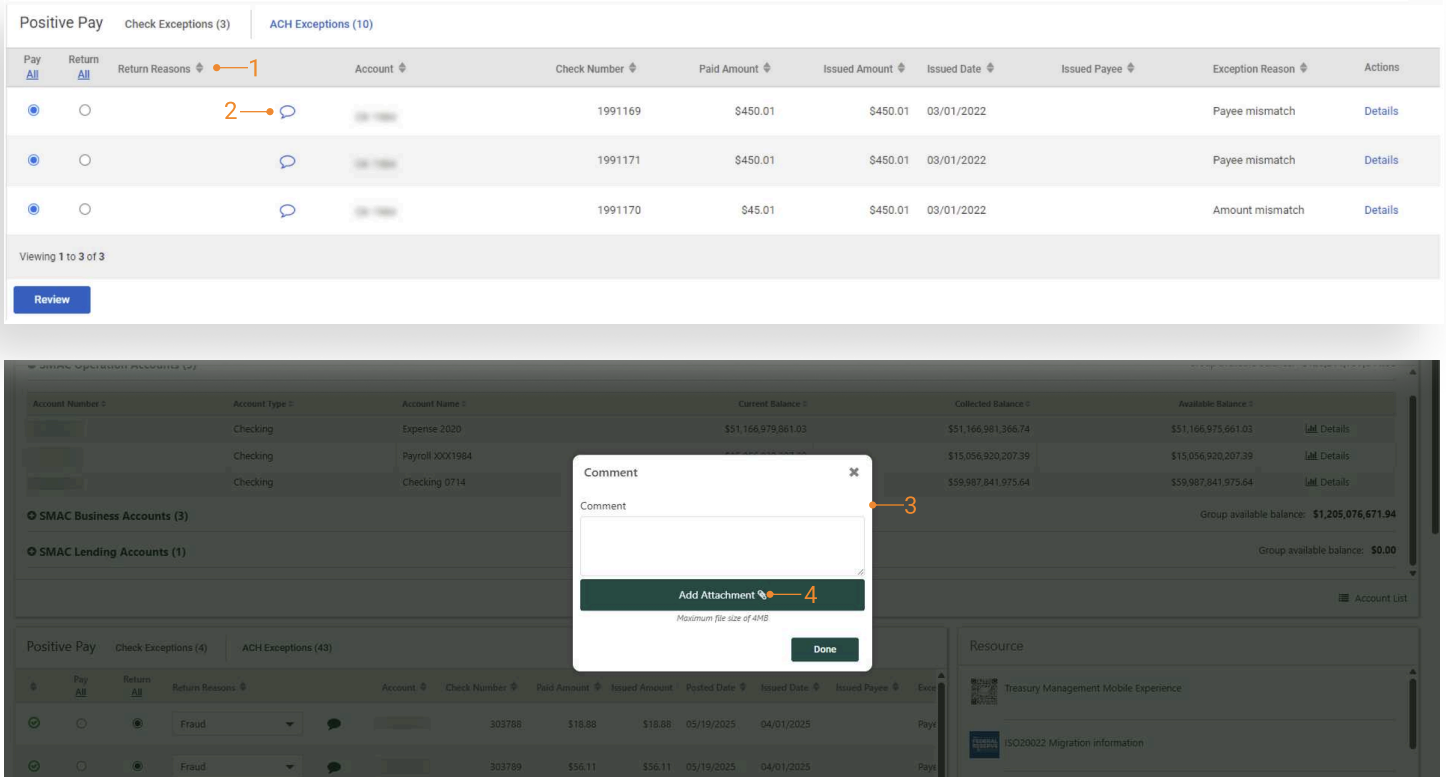
- Return Reason: Allows a user to select a return reason from the return reason drop-down menu.
- Comments: Click the comment icon to add comments. When a comment has been added the icon turns blue.
- Comment Modal: When the comment icon is selected, a modal displays which allows users to input comments.
- Attachments: Users can add an attachment to their comment.
Check Exceptions Page in Channel
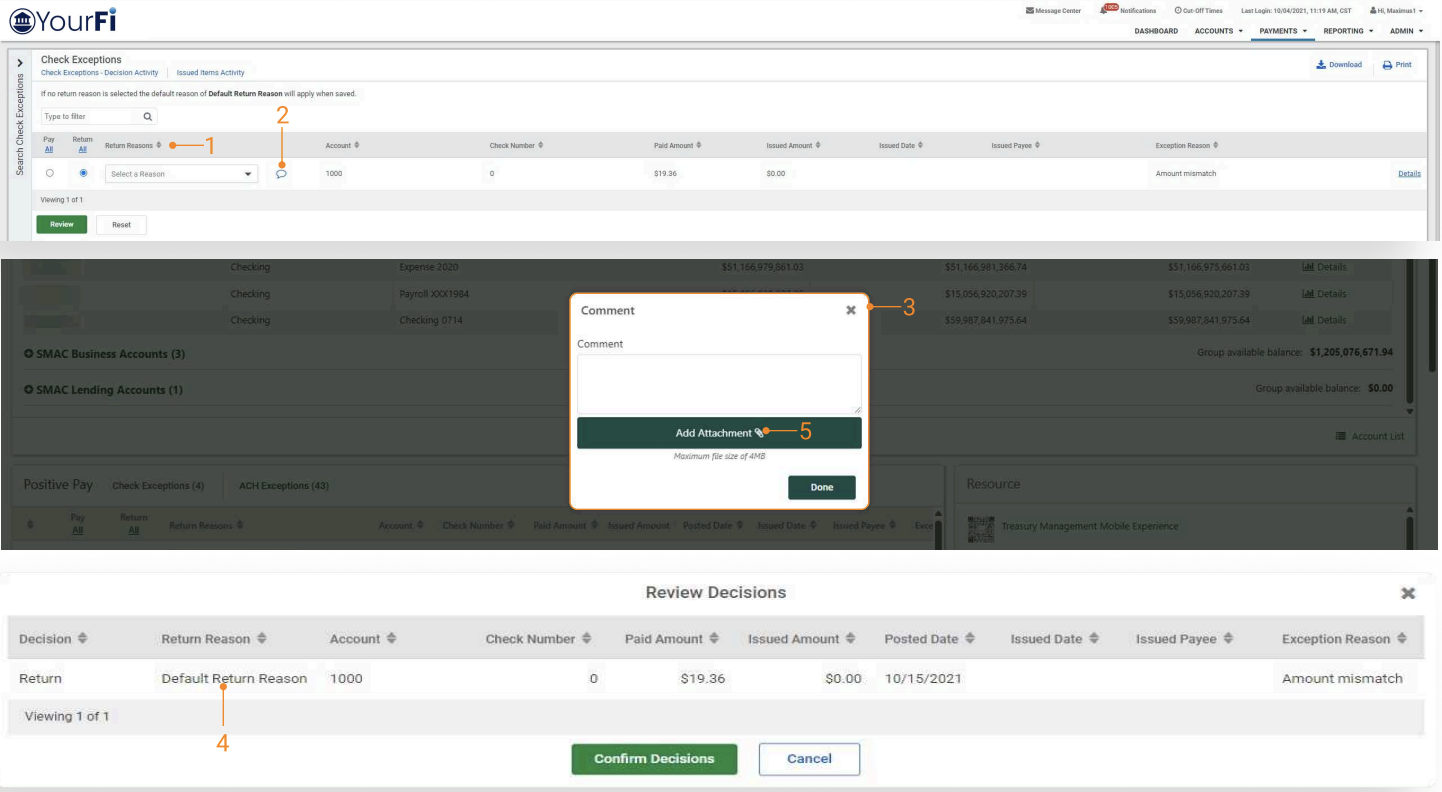
- Return Reason: Allows a user to select a return reason from the return reason drop-down menu.
- Comments: Click the comment icon to add comments. When a comment has been added the icon turns blue.
- Comment Modal: When the comment icon is selected, a modal displays which allows users to input comments.
- Return Reason: When selecting Return as a check exception decision, users can select a return reason from the drop-down menu. The information is sent to SilverLake with the decision. If a return reason is not selected, the default return reason is applied when the Confirm Decisions action is taken.
- Attachments: Users can add an attachment to their comment.
Note: After the check exceptions cutoff time, all check exceptions are locked and no further actions are allowed. Furthermore, all check exceptions will remain on this page until EOD processing has completed. At that time, these transactions will be move to history and can be viewed on the Check Exceptions - Decision Activity page.
If check exceptions have not been decisioned, and the default decision in SilverLake is return, the default return reason is applied to all exceptions after cutoff and end of day processing completes. The exceptions move to the Check Exceptions - Decision Activity after EOD completes.
Check Exception Detail in Channel
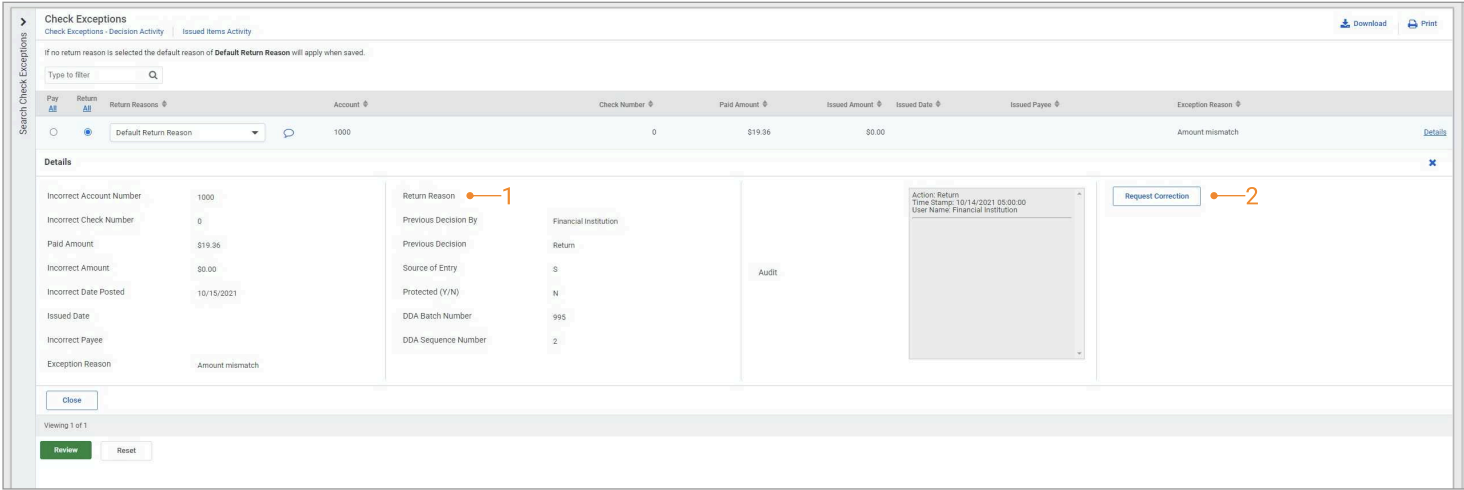
- Details Display: The selected return reason displays in the details. Users can still select or change the return reason in this view.
- Request Correction: Click the Request Correction button to display the corrections form. The Request Correction form is available for exceptions that are marked pay or return.
Correction Request in Channel
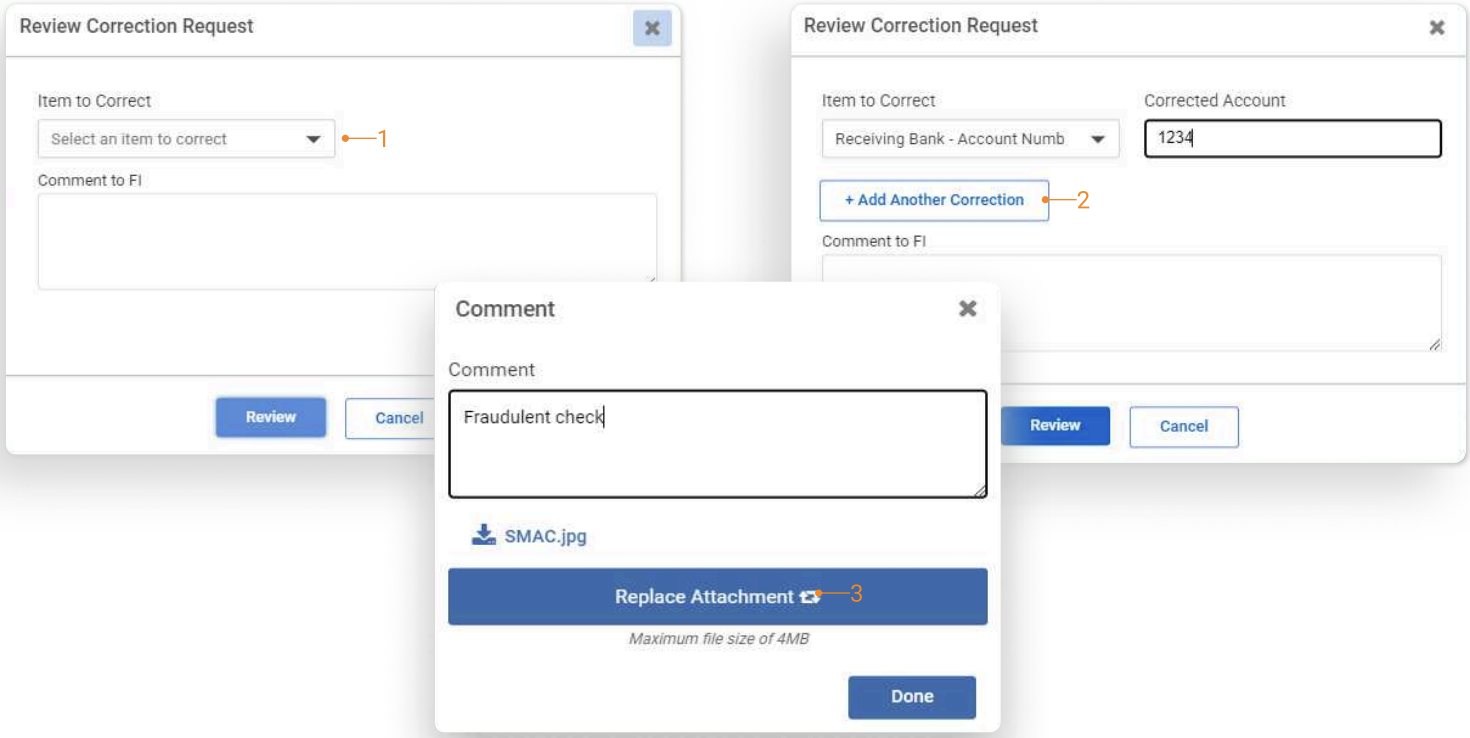
- Item to Correct: Select one of the following items to correct:
- Receiving Bank – Account Number
- Receiving Bank – Date Posted
- Receiving Bank – Check Number
- Receiving Bank – Amount
- Receiving Bank – Payee
- Duplicate Check
- Add Another Correction: After an Item to Correct has been selected, users can enter the correction and add addition items to correct, if necessary.
- Attachment: Users can add attachments to the correction form submission.