Quick Reference Guide: Positive Pay - Upload Multiple Accounts
Overview
Allows users to upload an issued items file with one or multiple accounts. In addition, users have the ability to manually enter issued items for one or multiple accounts within one entry session.
Benefits
Benefits for Banks
- Allows users to upload an issued items file with one or multiple accounts
- Provides ability to manually enter issued items for one or multiple accounts within one entry session
- Delivers efficient processes and competitive advantages
Benefits for Customers
- Efficiencies are gained in the workflow
- Users can complete multiple tasks in one function
- Time management can be shifted to other neccessary task which improves customer service
- Human error is reduced with information access
Upload an issued items file that includes a single account or multiple accounts
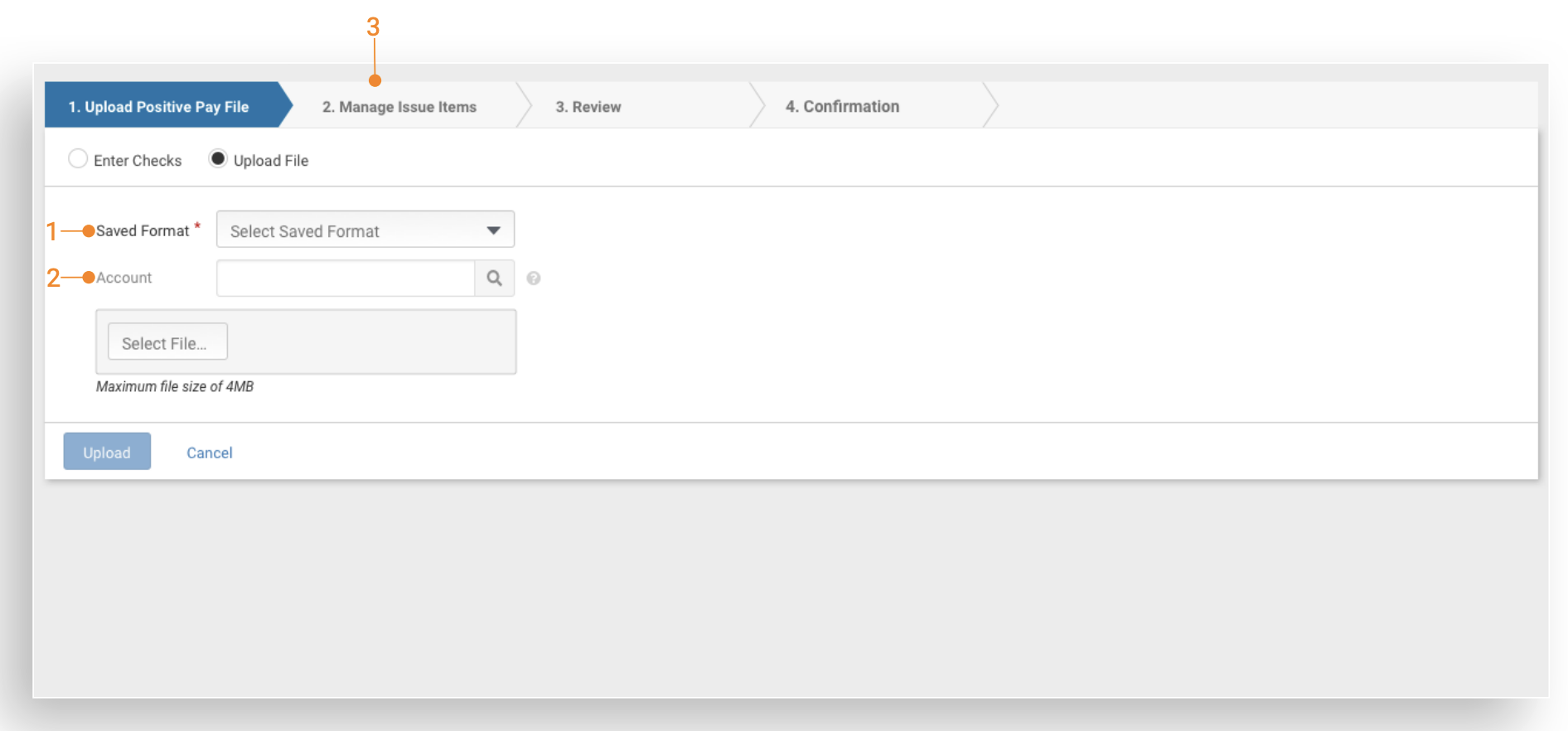
- The Saved Format drop-down menu appears before the Account selection field.
- List of issued items displays the Account and Account Type. Users are also presented with a Totals link that includes the total amount and count of issued items by Account and Account Type.
- Users are presented with an option to automatically increment the check number if they opt to manually enter issued items while in the Manage Issued Items workflow.
Note: An account is required and the user can provide it in one of the following ways:
- File Format: If the file format contains an account number then the Account drop-down will be inactive.
- Account Drop-down: If the file format does not contain an account number then the user will be required to select one from the Account drop-down.
Manual Entry
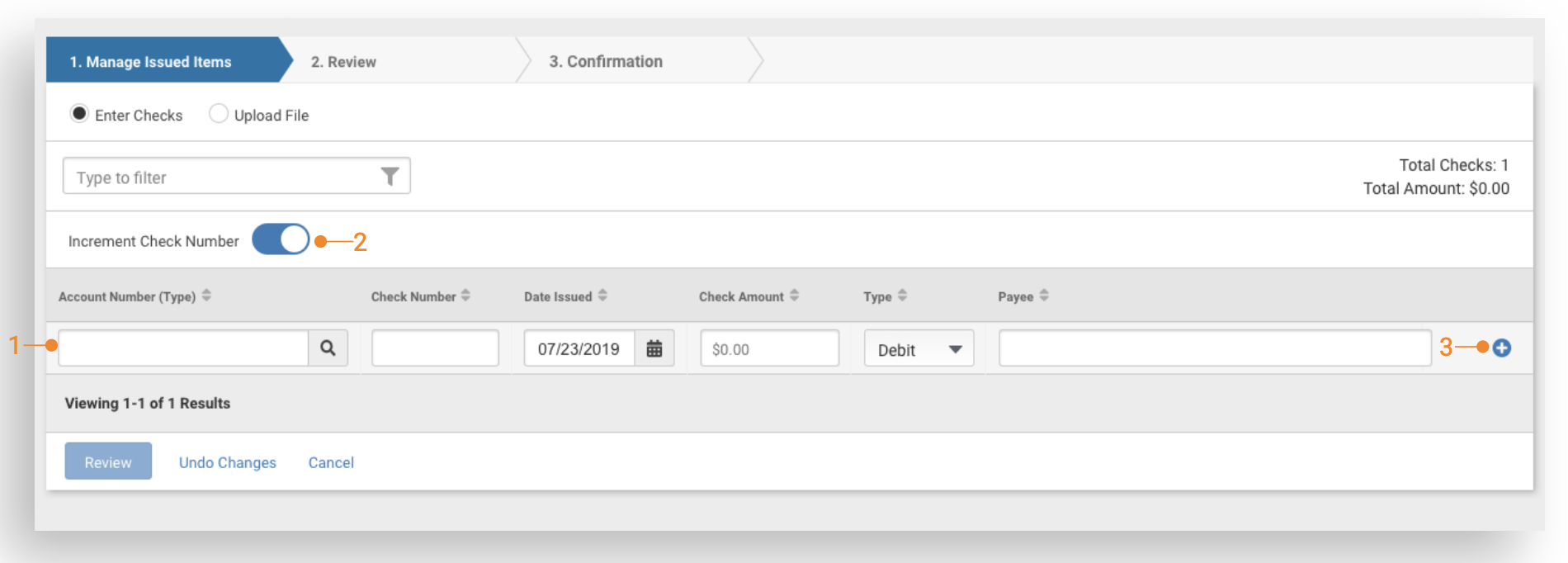
- A list of issued items displays with the Account and Account Type. Users are also presented with a Totals link that includes the total amount and count of issued items by Account and Account Type.
- Users can choose to automatically increment the check number as a new row is added to the issued item listing.
- The add row icon displays with each additional issued item.
Preparation Tips: Treasury Management company users should review ALL existing check upload formats to determine if any changes should be made:
- To upload issued items files with a single account or multiple accounts:
- A check upload format with the account number and with or without an account type configured must be present.
- The account type is no longer a required field.
- If the account is present without an account type, the system determines the account type.
- If the account type is present, the system uses the account type in the file.
- To upload issued items files without a single account or multiple accounts:
- Users must create/modify a check upload format without the account number and account type configured.
- Users are required to select a saved format, and then select an account to use for the file upload.
Upload Flow for Multiple Account Issue Files
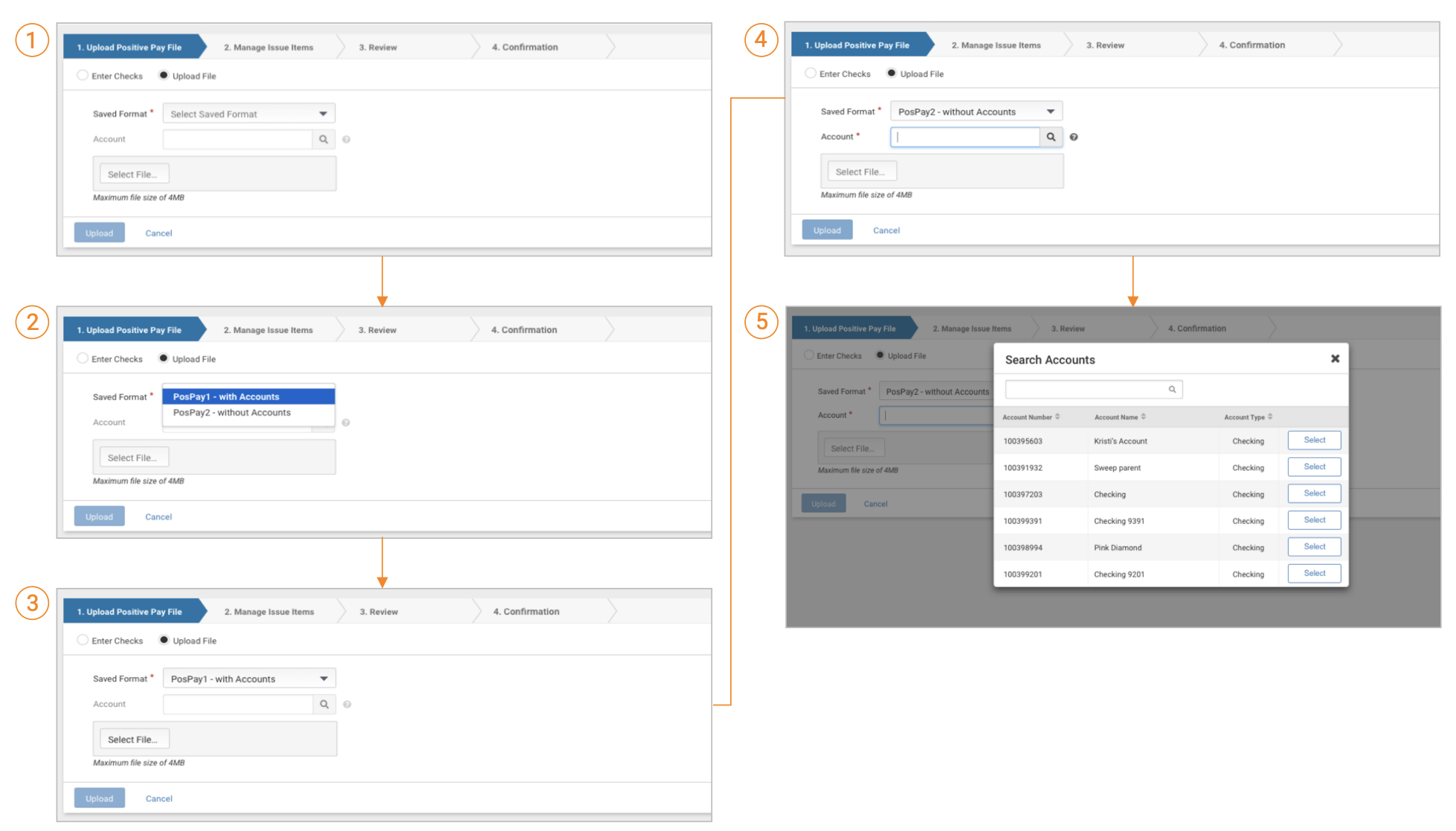
- Upon navigating to issued item creation, users can select Upload a File.
- From the Saved Format drop-down menu, the user should make their selection.
- The file uploaded can include multiple accounts. If a format that includes account numbers is selected, the Account field displays as inactive.
- If the format selected does not include Account Number and Account Type, the Account field is required. The issued items in the file uploaded are applied to the account selected.
- Upload the positive pay file and enter the checks. Users have the option to manually enter an eligible account or use the search tool to display a list of eligible accounts.
Manage Issue Items
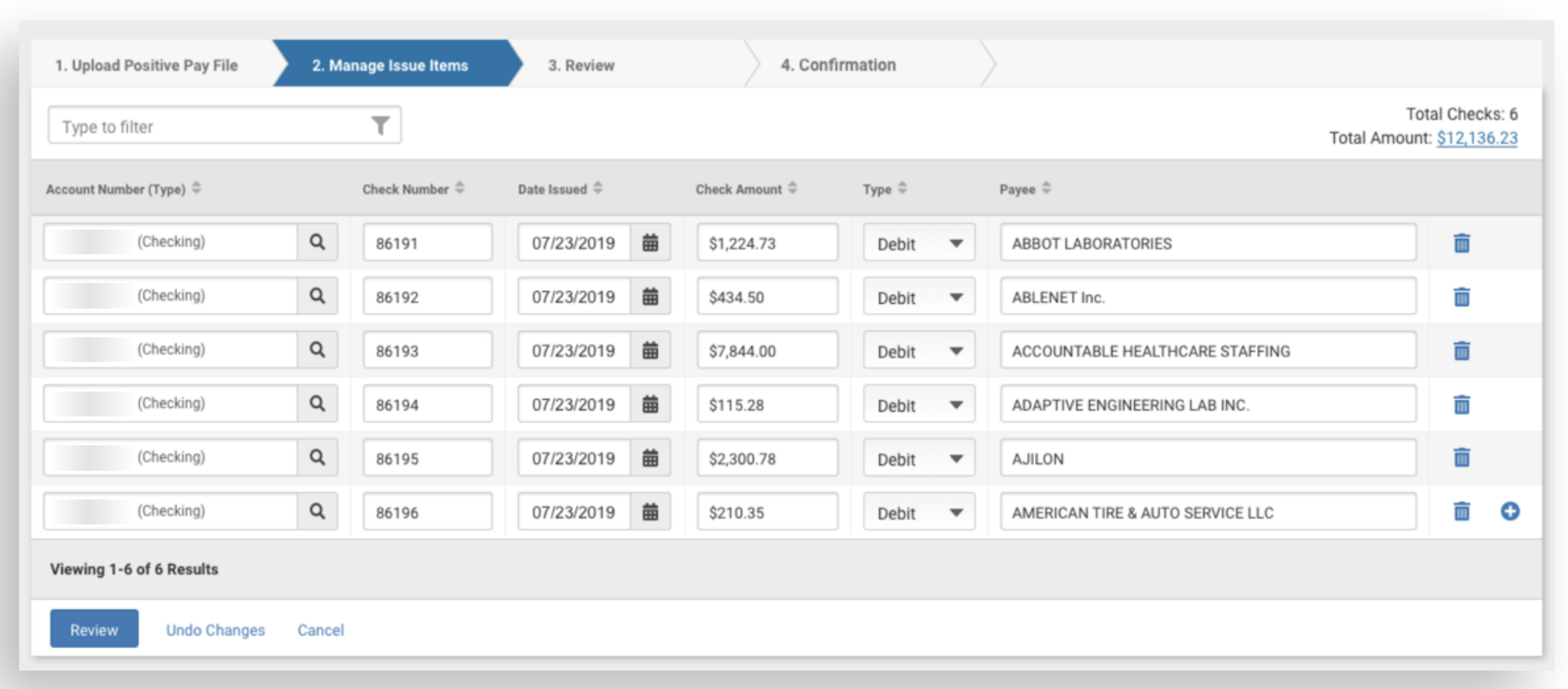
Upload Positive Pay file: Users can edit issued item information.
Increment Check Number Option
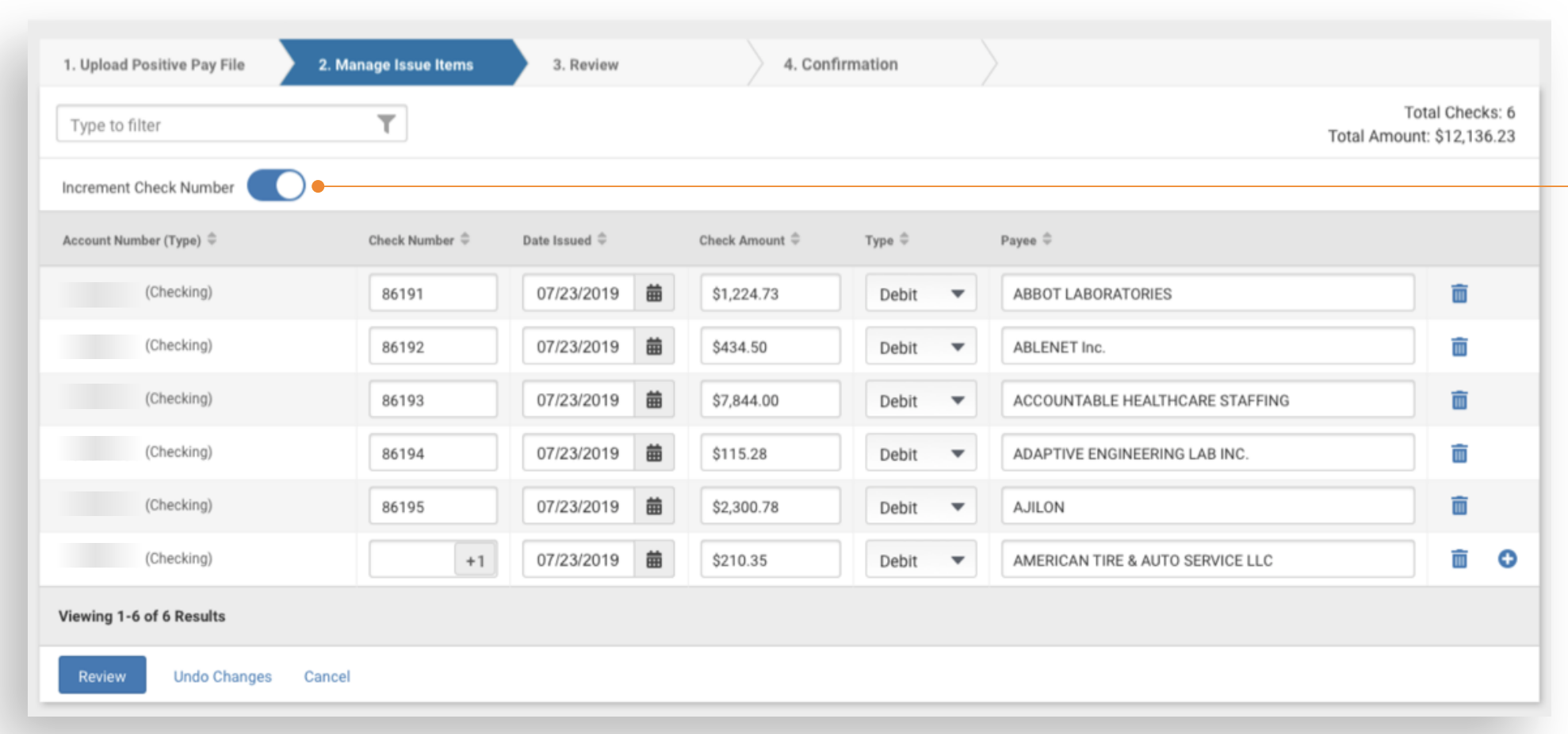
Users can use the Incremement Check Number toggle to select whether they want to increment a check number when manually adding items to an uploaded file (after it has been uploaded) or when manually entering checks.
Upload Positive Pay File & Enter Checks
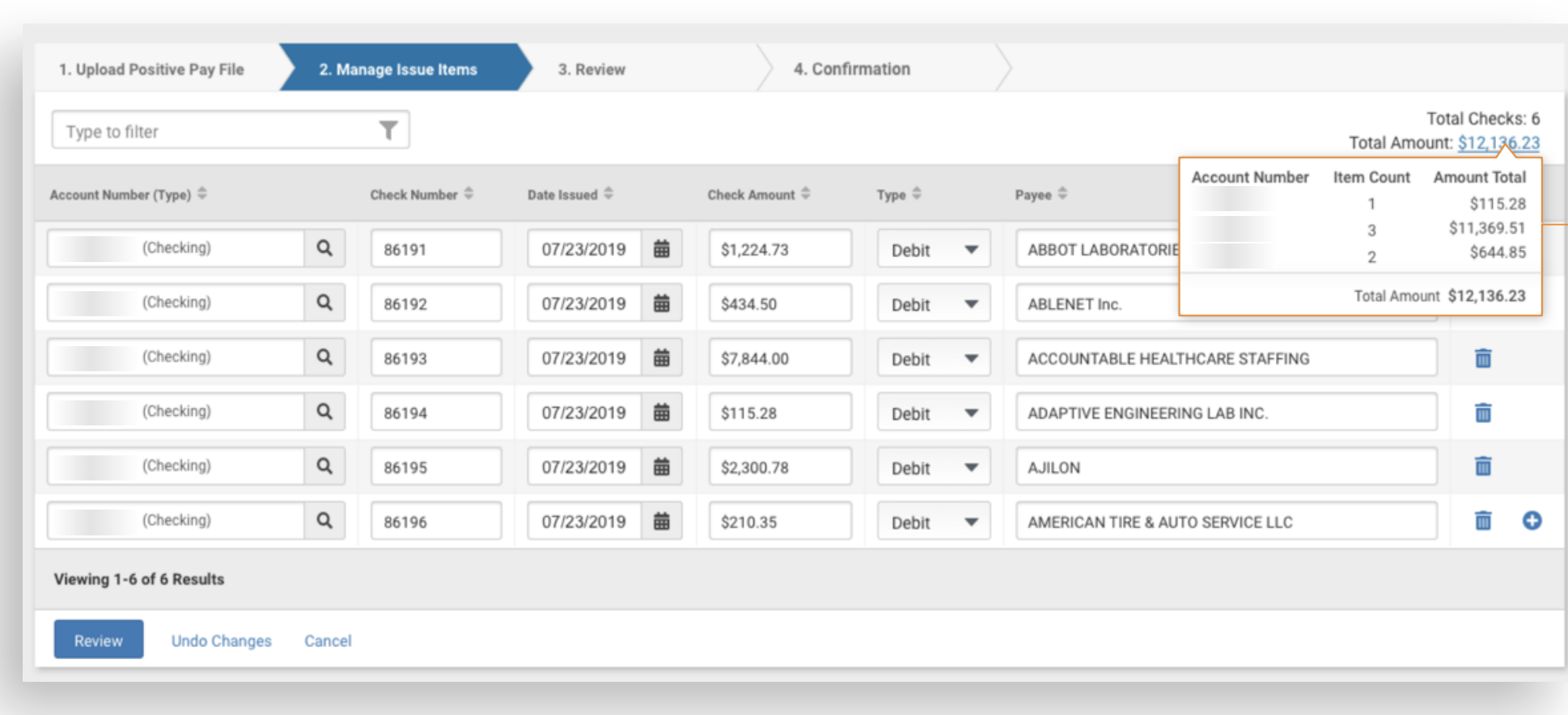
During the review process, users have the option to review the submitted file or the items that were manually entered prior to confirmation.