Quick Reference Guide: Positive Pay Check Exceptions
Overview
Customers are provided with a workflow to decision potentially fraudulent check exceptions. Within the Check Exceptions listing, users will be presented with three views – To Decision, Decisioned Today, and All Items which will further assist in understanding which exceptions were previously reviewed and decisioned. Exceptions that were worked in either the widget or Check Exceptions listing will be identified with a green check indicator. Users will have up to the bank’s cutoff time to decision and update exceptions. After cutoff, users can view their transaction history under the Decisioned Today view. After nightly processing, users will be able to view their transactional history on the Check Exceptions – Decision Activity view.
Benefits
Benefits for Banks
- Ability to scrub exceptions prior to the Check Exception Start Time.
- Available notifications to customers – items ready to review and pending decision 30 minutes prior to cutoff.
- Positive Pay Check Exceptions Report – this report will provide a view of all exceptions presented, and will provide up to date tracking of exceptions decisioned along with an audit trail.
Benefits for Customers
- Ability to review check exceptions via the widget or main listing.
- Ability to determine which exceptions have been previously reviewed and decisioned and which have not.
- Ability to decision exceptions up until bank cutoff time.
- Ability to view exceptions in the widget after cutoff time.
- Ability to view exceptions in Check Exceptions Decisioned Today and All Items after cutoff time.
- Ability to review historical exceptions in Check Exceptions – Decision Activity.
Back Office - Product Configuration
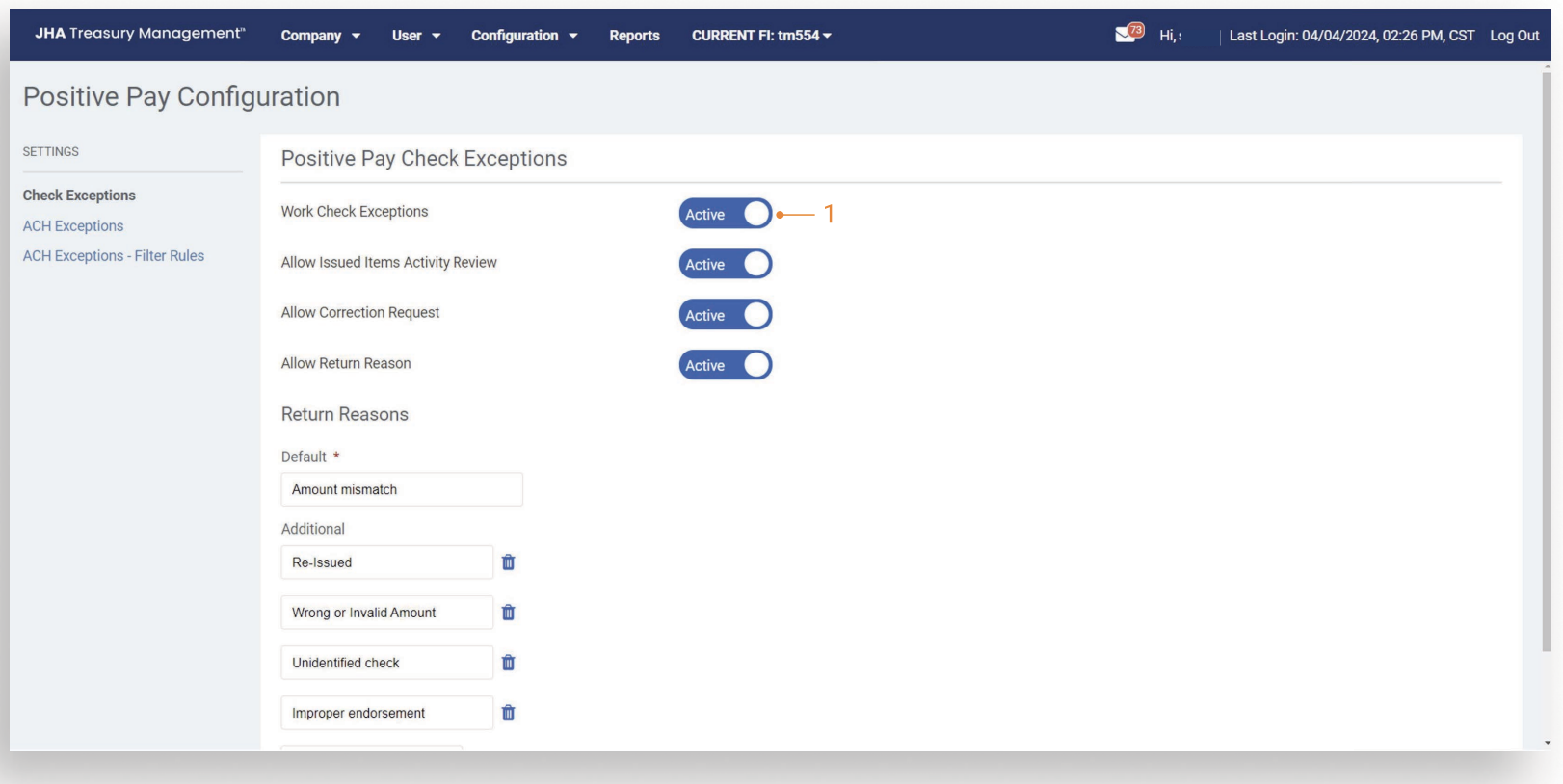
- Work Check Exceptions:
This confirguration along with the company level configuration will allow entitled customers to work check exceptions.
Back Office - Product Feature Configuration
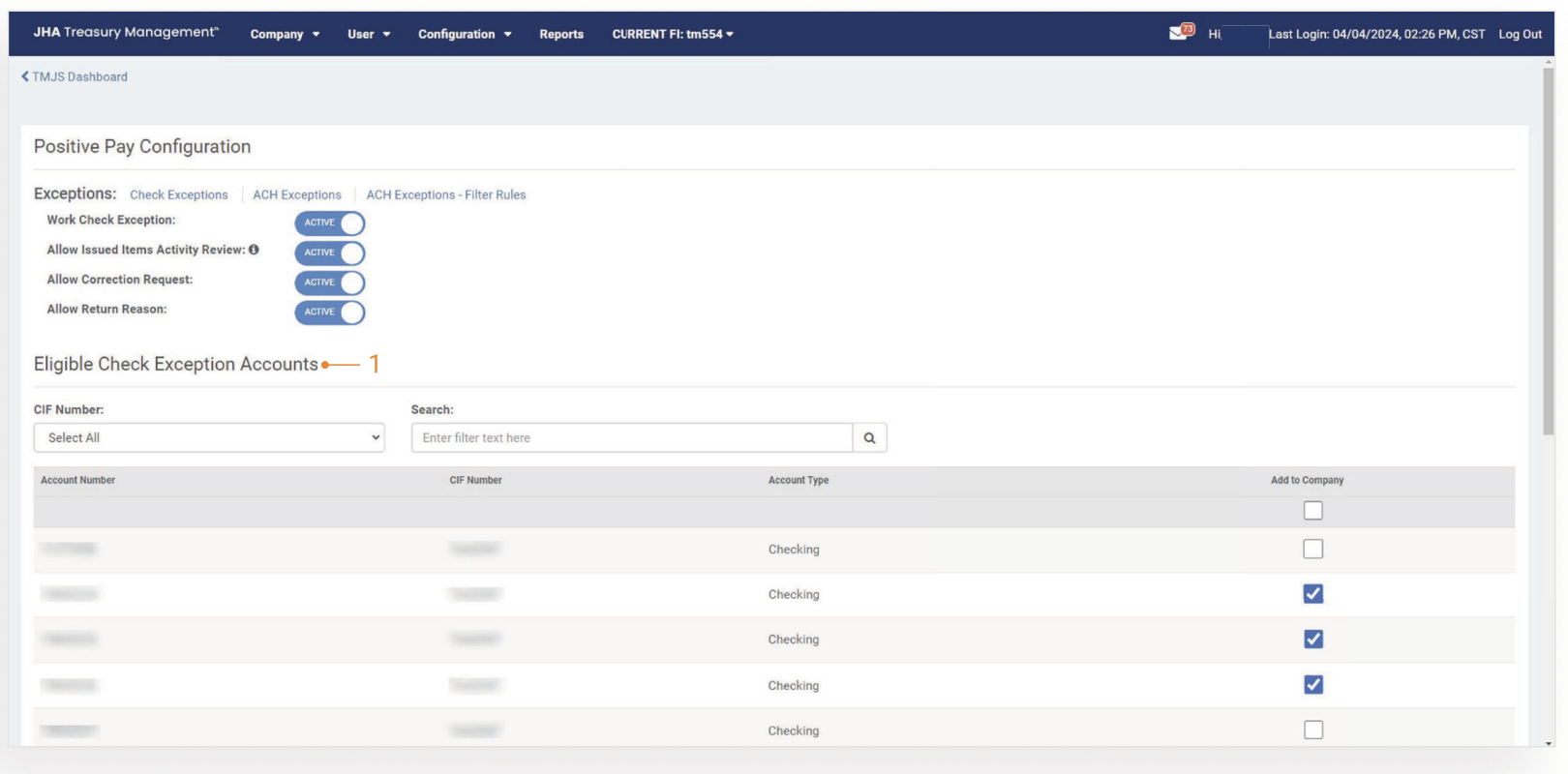
- Work Check Exceptions:
Once this confirguration is activated and at least one eligible account is selected, entitled customers can work check exceptions.
Positive Pay Check User Entitlements
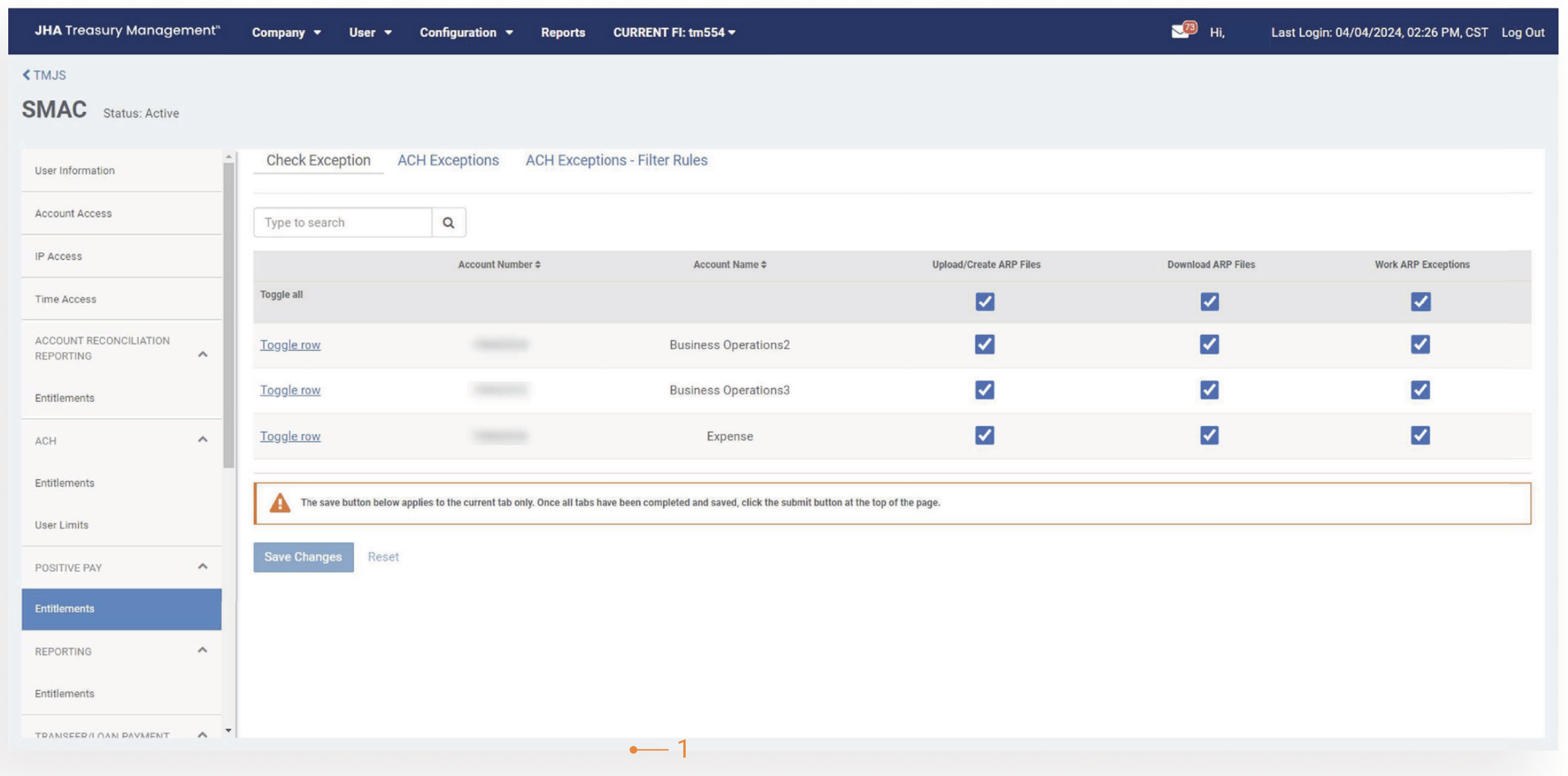
- Work Check Exceptions:
Once an account or accounts have been selected, customers will have the ability to work check exceptions.
Notification Configuration
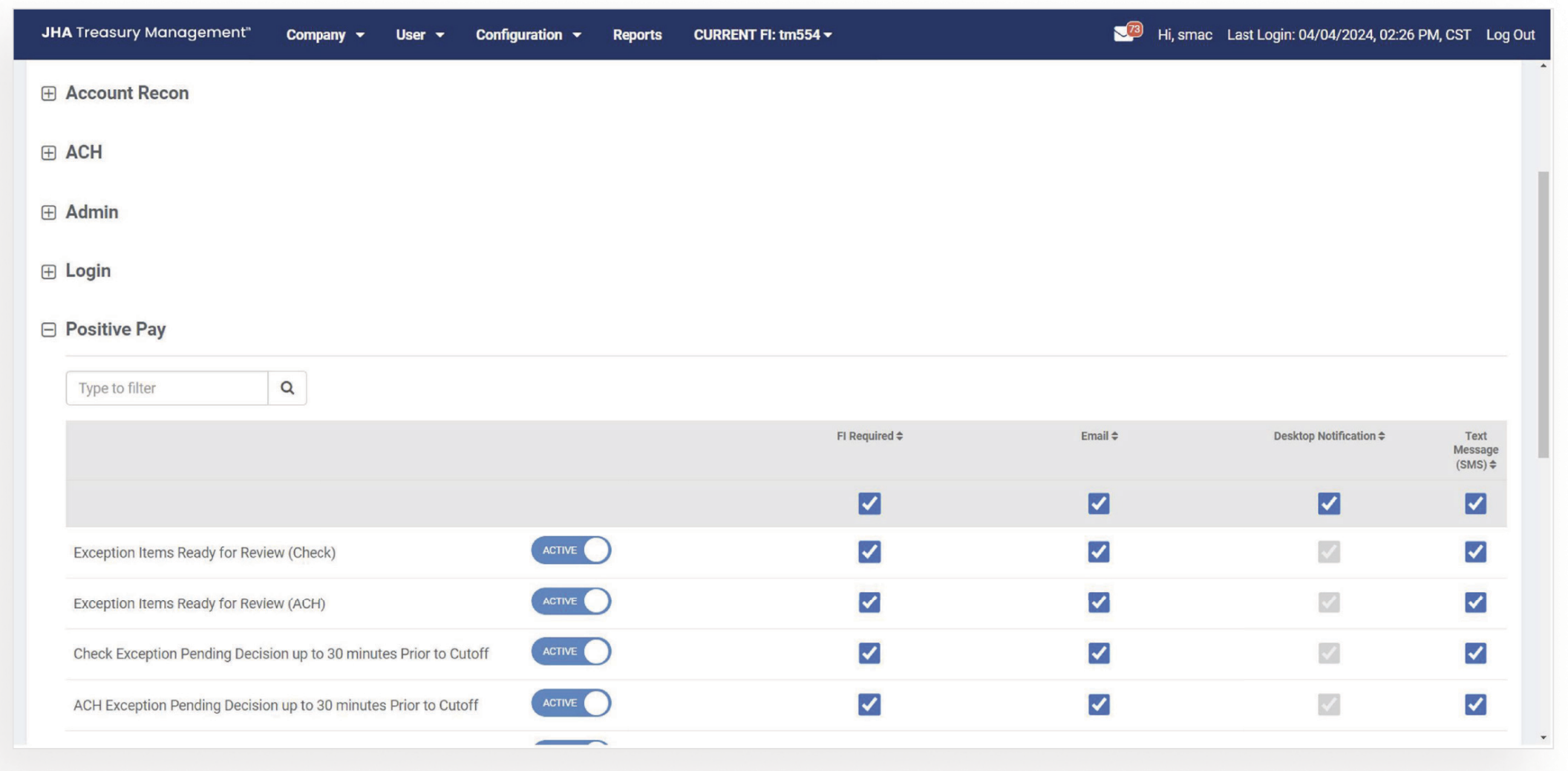
- Available Check Positive Pay Exceptions:
- Exception Items Ready for Review.
- Check Exception Pending Decision pp to 30 minutes Prior to Cutoff.
Back Office Reporting
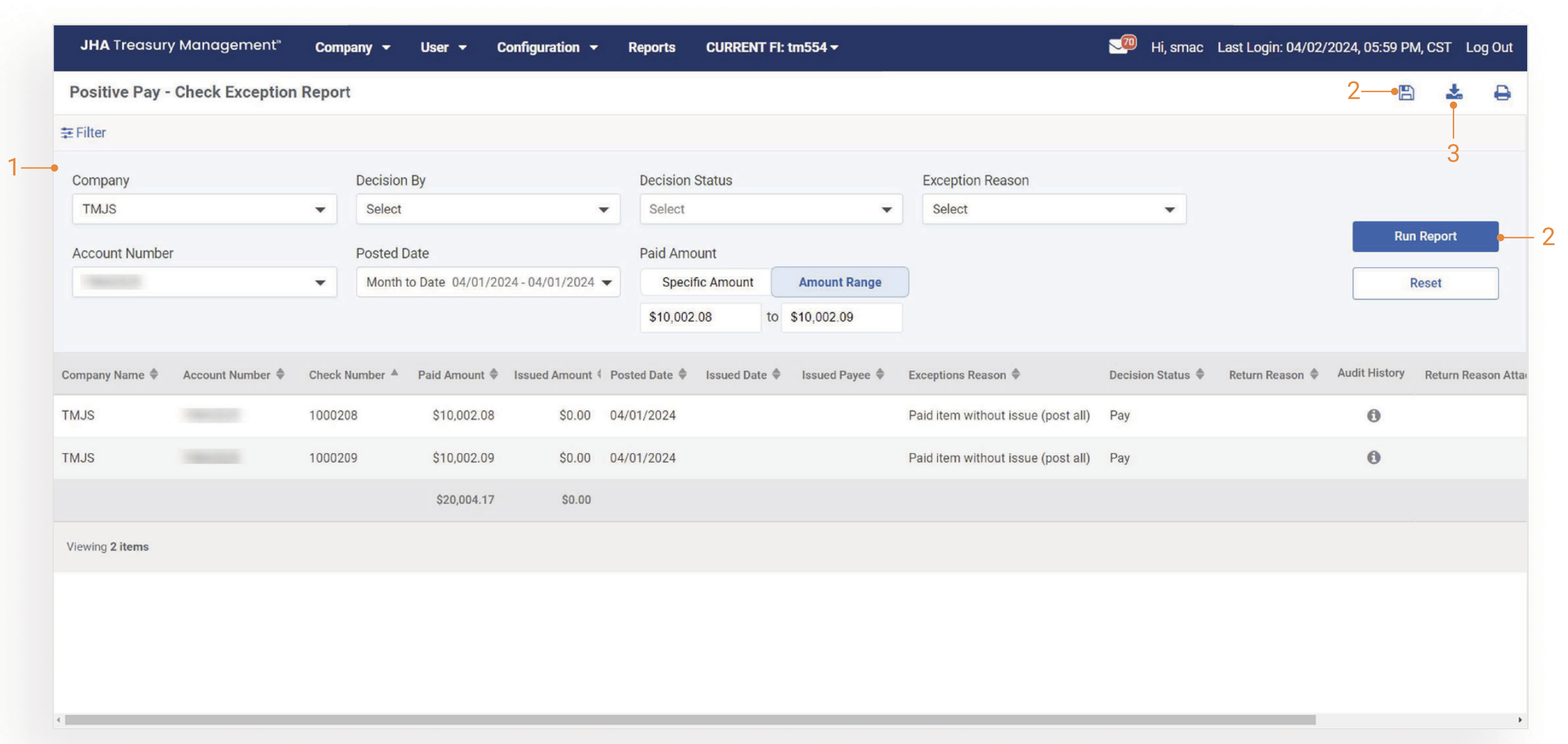
Positive Pay - Check Exception Report:
- Filter:
Financial Institution Users can utilize filter options to search for data based on specific criteria.
- Save Report:
Financial Institution Users have the option to save reports that include their specified criteria.
- Download Report:
Financial Institution Users can download and print reports for offline use.
- Run Report:
Financial Institution Users can generate a full report without applying specific filters or criteria.
Navigation
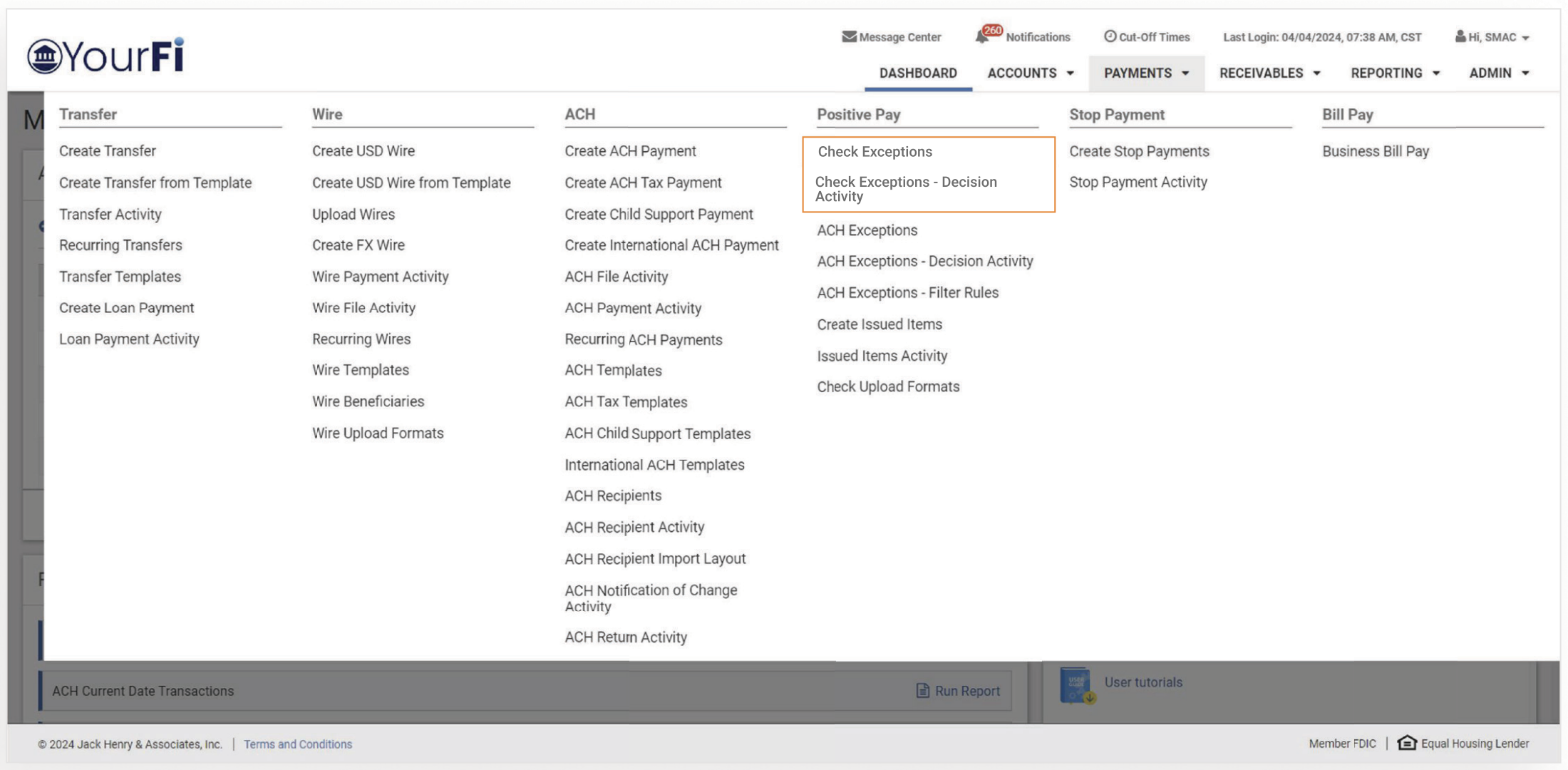
Check Exceptions and Check Exceptions - Decision Activity:
Once the appropriate user entitlements have been granted, the customer will see the following navigation: Payments > Positive Pay > Check Exceptions and Check Exceptions – Decision Activity.
Check Exceptions - Results
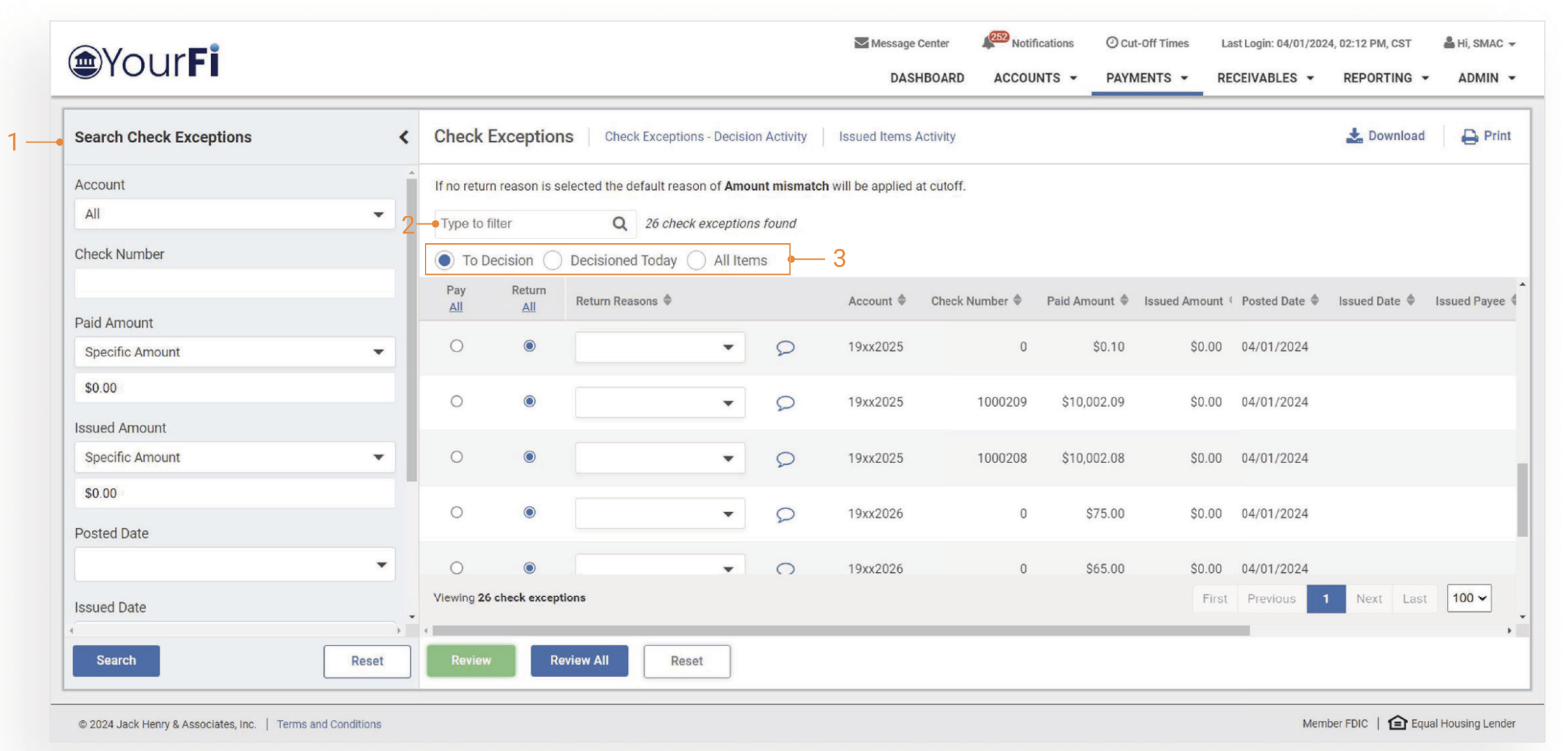
- Flyout Filter:
The flyout filter allows the user to search the exceptions using specific search criteria.
- Type to Filter:
Search for a specific transaction on the Check Exceptions view by entering a character/numeric string. The Type to Filter will search across all columns looking for a match on the string of data whether at the beginning, middle, or end of a field. available to further narrow the results.
- Results:
-
To Decision will be the default and display all exceptions that have not been reviewed and decisioned.
-
Decisioned Today will display all exceptions that have been reviewed and decisioned.
-
All Items will display exceptions that have not been reviewed and decisioned as well as exceptions that have been reviewed and decisioned.
-
Exceptions - Decisioning
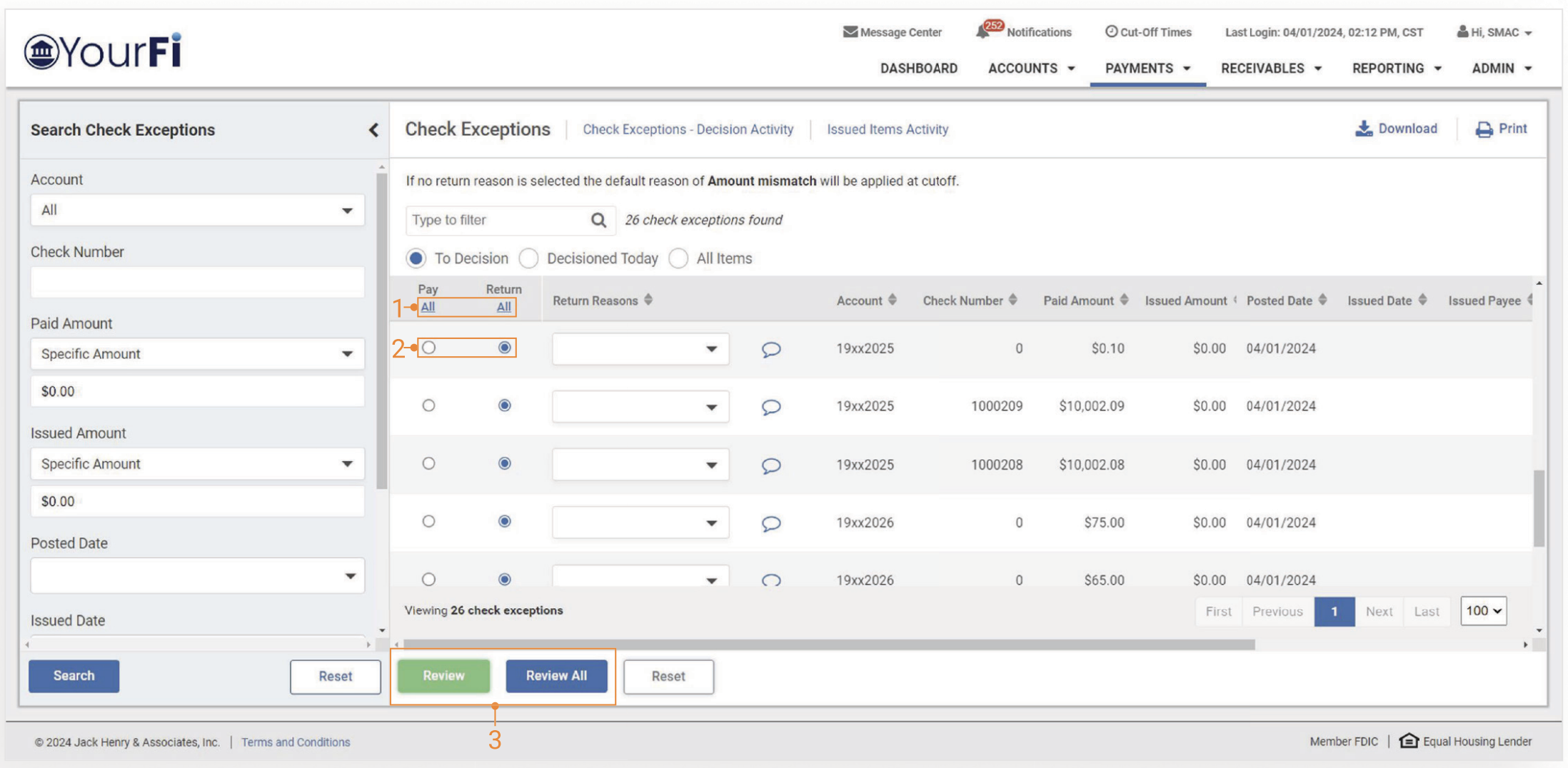
- Pay All or Return all:
Users have the option to pay all exceptions or return all exceptions with the selection of the All hyperlink.
- Individual Decisions:
Users have the option to individually decision exceptions.
- Review and Review All:
Review will allow the user to decision all exceptions that they have taken action on. Actions such as adding a return reason or modifying the decision from the default will be counted.
Review All will allow the user to decision all exceptions that they have taken action on as well as any exceptions the user wishes to accept the default decision.
Check Exceptions - Return Reasons and Comments
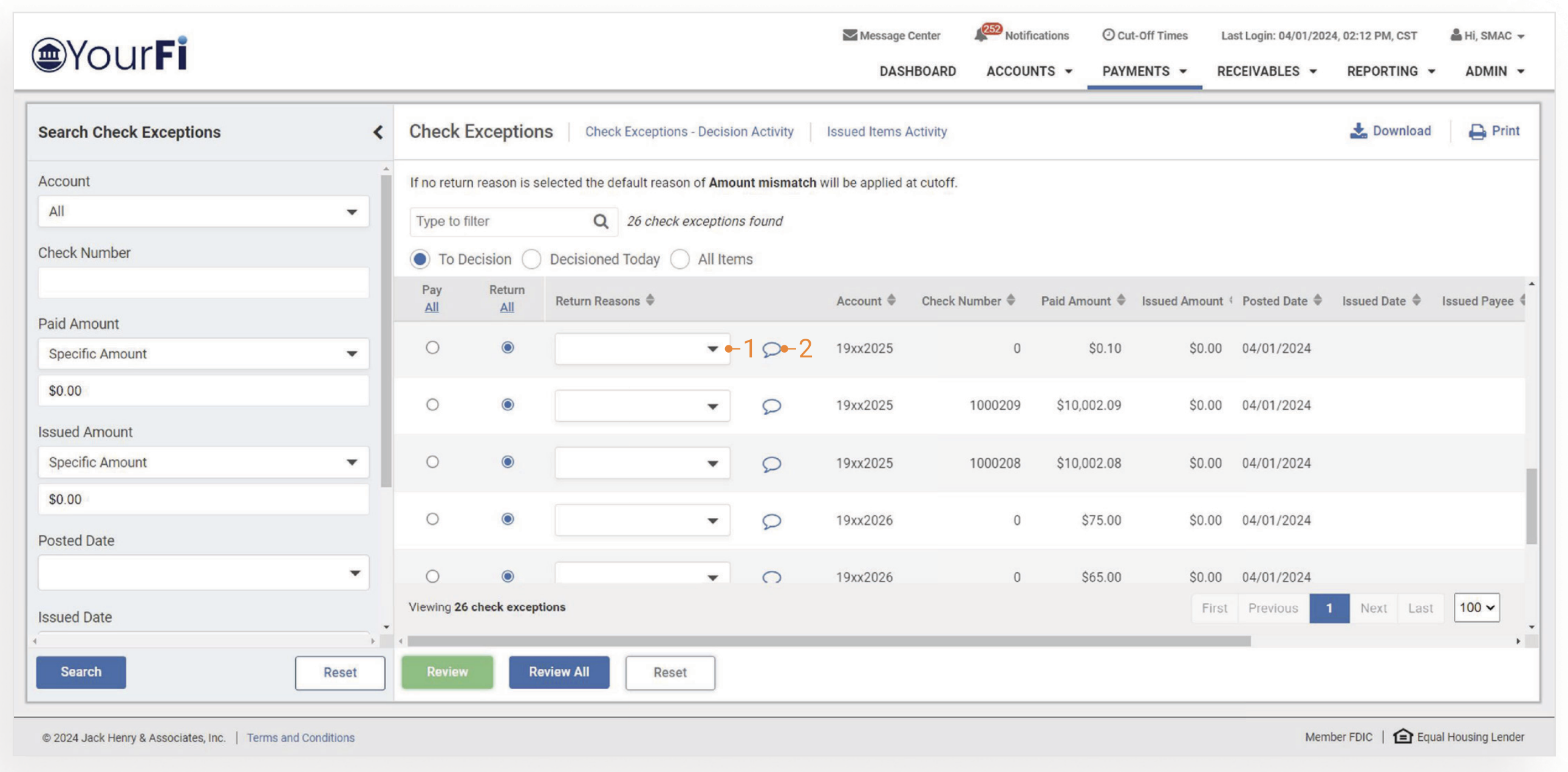
- Return Reasons:
Users have the option to add a return reason with the exception they wish to return.
- Comments:
Users have the option to add a comment with the exception they wish to return.
Check Exceptions Widget
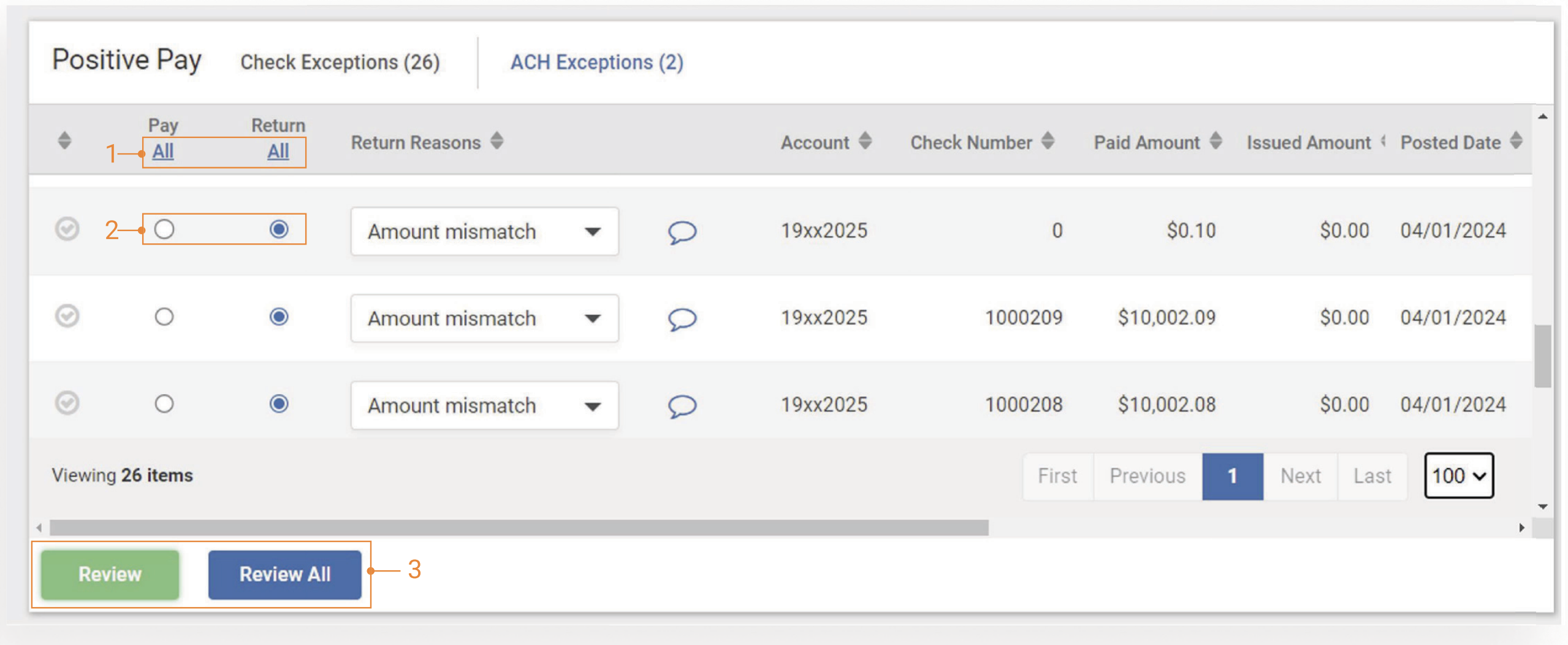
- Pay All or Return All:
Users have the option to pay all exceptions or return all exceptions with the selection of All.
- Individual Decisions:
Users have the option to individually decision exceptions.
- Review and Review All:
-
Review will allow the user to decision all exceptions that they have taken action on. Actions such as adding a return reason or modifying the decision from the default will be counted.
-
Review All will allow the user to decision all exceptions that they have taken action on as well as any exceptions the user wishes to accept the default decision for.
-
Check Exceptions - Decision Activity
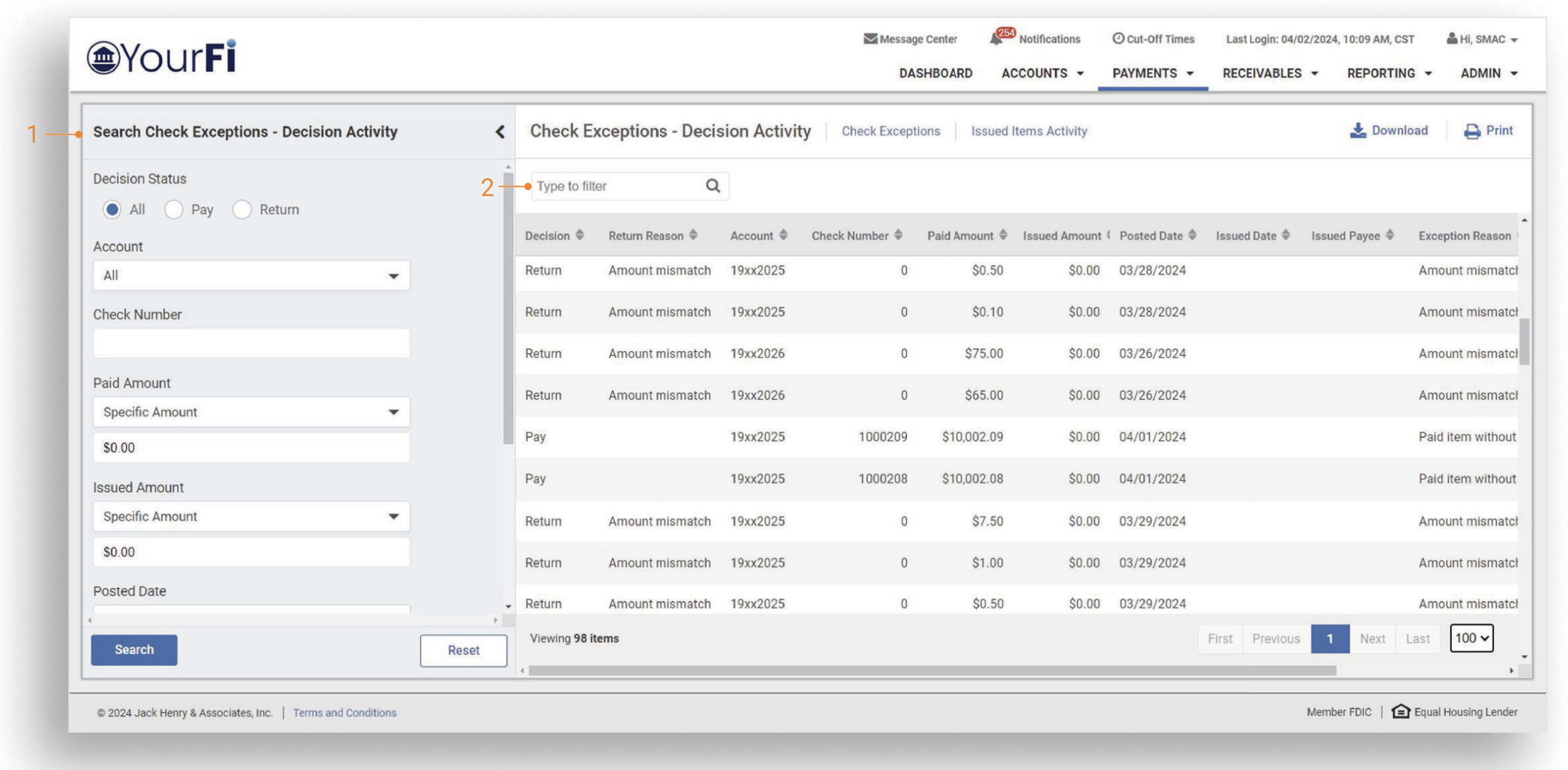
- Flyout Filter:
The flyout filter allows the user to search the results for specific criteria for historical exceptions.
- Type to Filter:
Search for a specific transaction on the Check Exceptions view by entering a character/numeric string. The Type to Filter will search across all columns looking for a match on the string of data whether at the beginning, middle, or end of a field to further narrow the results.