Quick Reference Guide: Positive Pay ACH Filter Rules
Overview
ACH Filter Rules allow customers with the appropriate entitlements to manage (create, edit, and delete) ACH Filter Rules. This feature allows your customers to enable additional fraud mitigation controls by filtering out unauthorized ACH transactions. This capability had previously required the bank to manage the rules. By giving control to your customers, you not only expand the fraud control function but eliminate a resource intensive operational task. The service will provide an essential added layer of security towards safeguarding the company’s assets by automatically filtering out unauthorized ACH transactions.
ACH Filter Rules will filter transactions from specific companies by using their ACH company ID, ACH company name, types of pre authorizations (SEC Codes) or designated transaction amounts. ACH Filter Rules can be utilized to allow or stop specific ACH transactions.
ACH transactions that do not meet the filter rule criteria will generate an ACH Exceptions item that can be decisioned (Pay or Return) when working ACH Exception items with ACH Positive Pay.
Benefits
Benefits for Banks
- This feature is a self-service function that moves a task from the bank to the end user
- Saves time and reduces ongoing customer maintenance
- Adds additional ACH fraud controls due to the ease of use/self-service option for users
Benefits for Customers
- Self-service feature that allows customers to create and maintain their own ACH Filter Rules
- In today’s ever growing risk environment, providing the user access to add and maintain rules allows them to improve their risk management routines/capabilities
Product Configuration in Back Office

- Product Configuration: ACH Filters are enabled within the Positive Pay Product Feature Configuration when Work ACH Exceptions is set to Active.

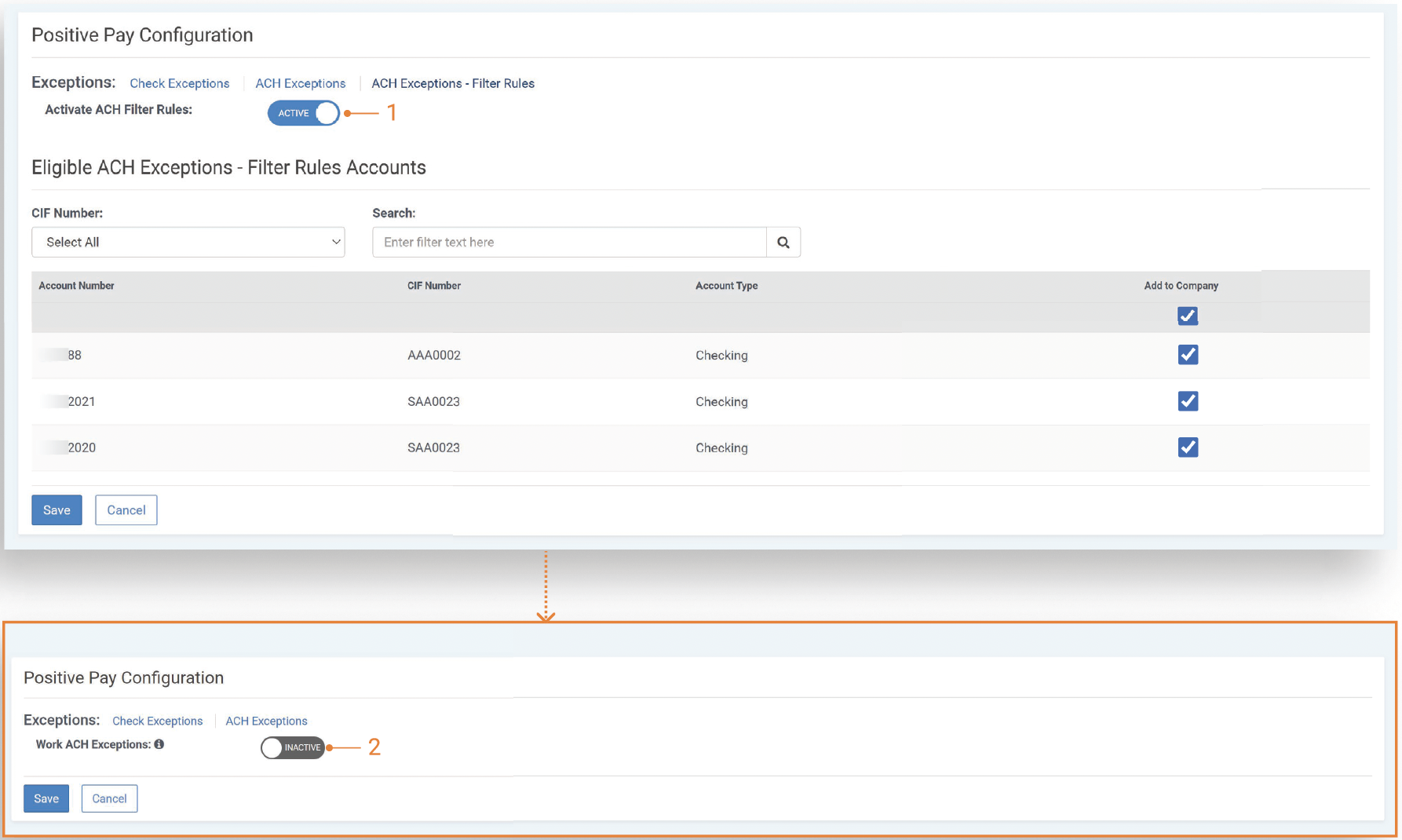
- Work ACH Exception is set to Inactive: Setting Work ACH Exceptions to Inactive will remove ACH Exceptions - Filter Rules link and deactivate the product feature. Also, this will deactivate the feature at the company level.
Notification Configuration in Back Office
-
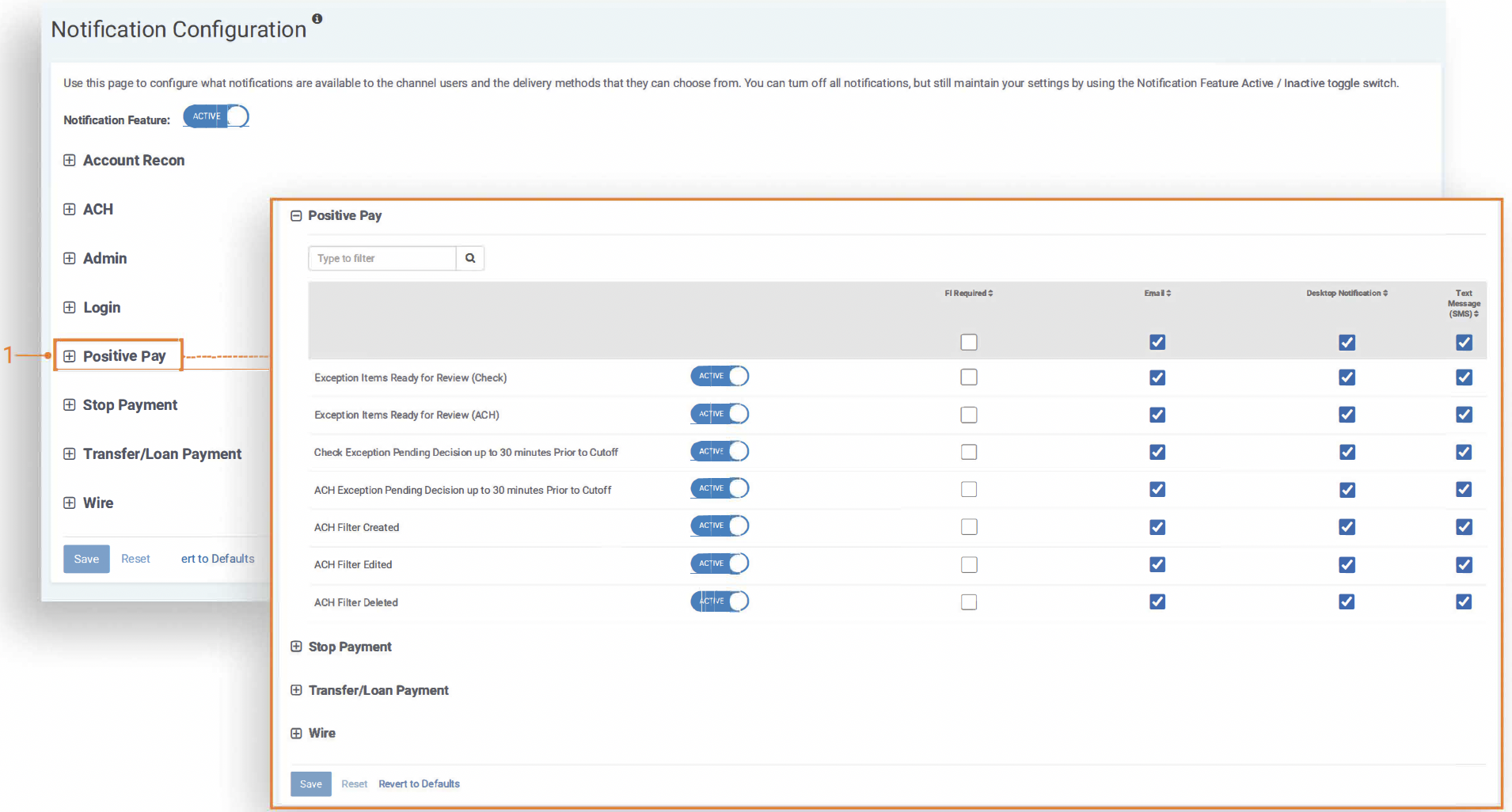
Notification Configuration: Positive Pay ACH Filters introduce several new notifications. To receive these notifications, a user needs to be entitled for the ACH Company as well as have the appropriate user entitlements enabled.
The available notifications include:
- ACH Filter Created
- ACH Filter Edited
- ACH Filter Deleted
Company Product Configuration in Back Office
-
Company Product Configuration: To enable this feature for a specific company, navigate to their Company Details page, select Activate ACH Filter Rules and select the eligible accounts.
-
Work ACH Exception is set to Inactive: Setting Work ACH Exceptions to Inactive will remove ACH Exceptions - Filter Rules link and deactivate the product feature.
Company User Entitlements in Back Office
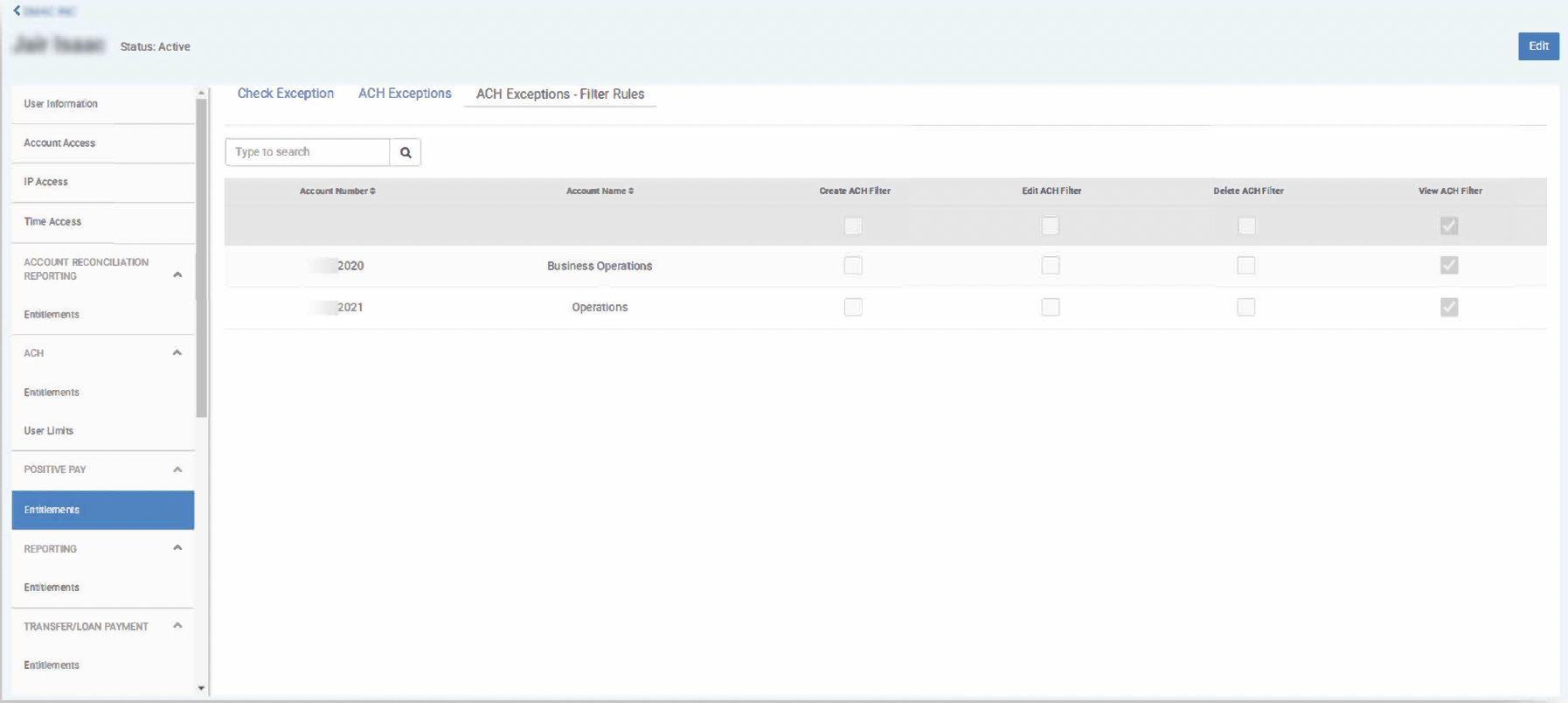
Company User Entitlements:
- User access can be controlled by the bank users.
- Company users can be given access to View, Create, Edit, and Delete ACH Filter Rules for specific entitled accounts.
- Bank users can navigate to the company users, then select View User from the Actions menu. Navigate to Positive Pay and select Entitlements to add or update these entitlements.
- To manage these entitlements, select Edit User from the Actions menu. Alternatively, you can select View User, click Edit, and navigate to Positive Pay > Entitlements.
- Once the entitlements have been enabled, this menu option is visible in the channel.
Back Office ACH Exceptions Filter Rules Report
-
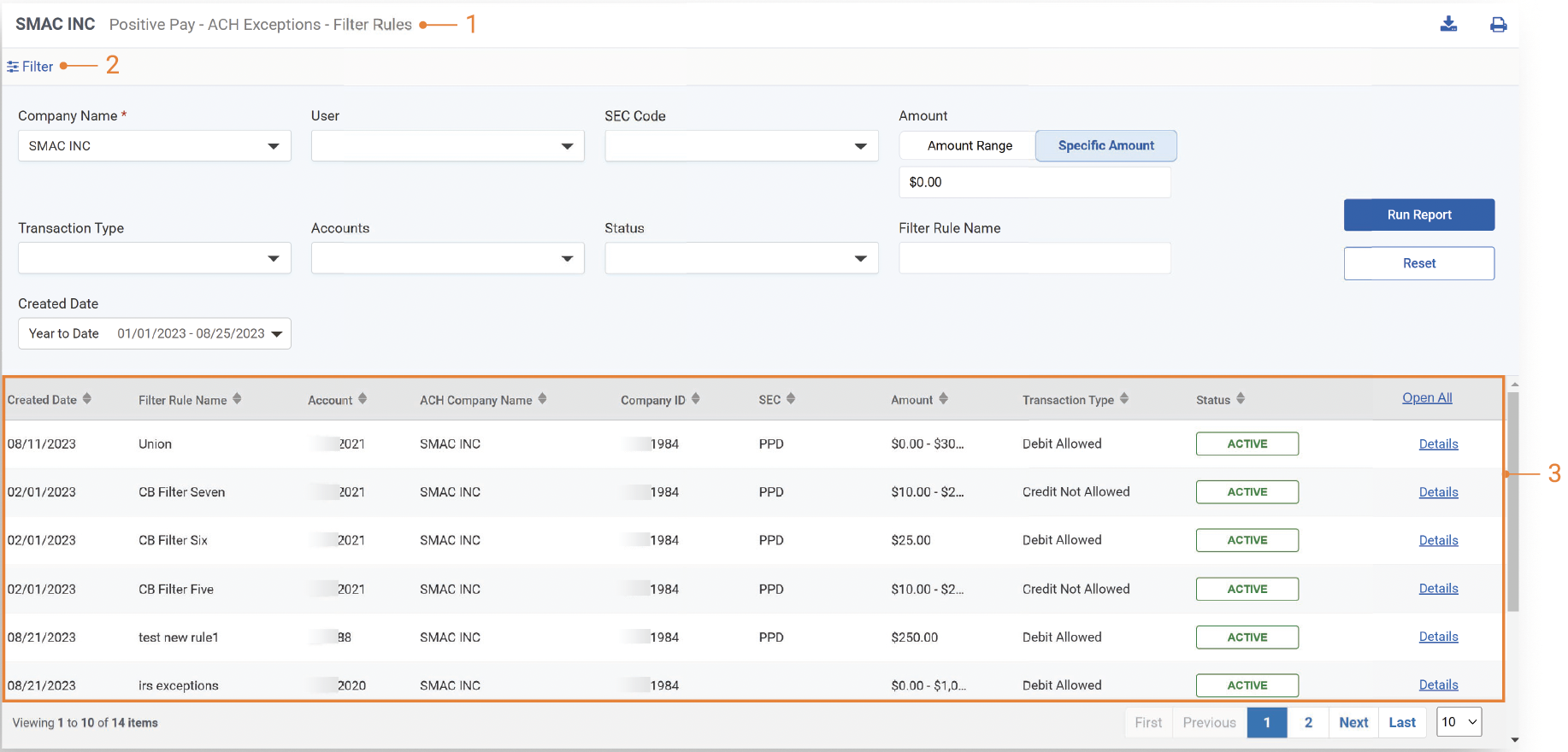
ACH Exceptions - Filter Rules Report: This Back Office report displays ACH Exceptions - Filter Rules, providing a summary view. In addition, the details hyperlink allows the user to view additional details about the filter exceptions.
-
Filter: Allows the Back Office user to select from a comprehensive list of search options (Company Name, User, SEC Code, Amount, Transaction Type, Accounts, Status, and Filter Rule Name) to generate a report about filter rules for a specific company.
-
Report Results: Displays results based on the filter criteria submitted. The report displays summary information and allows the user to view additional detailed information. This report can be downloaded or printed.
Channel ACH Exceptions Filter Rules Summary
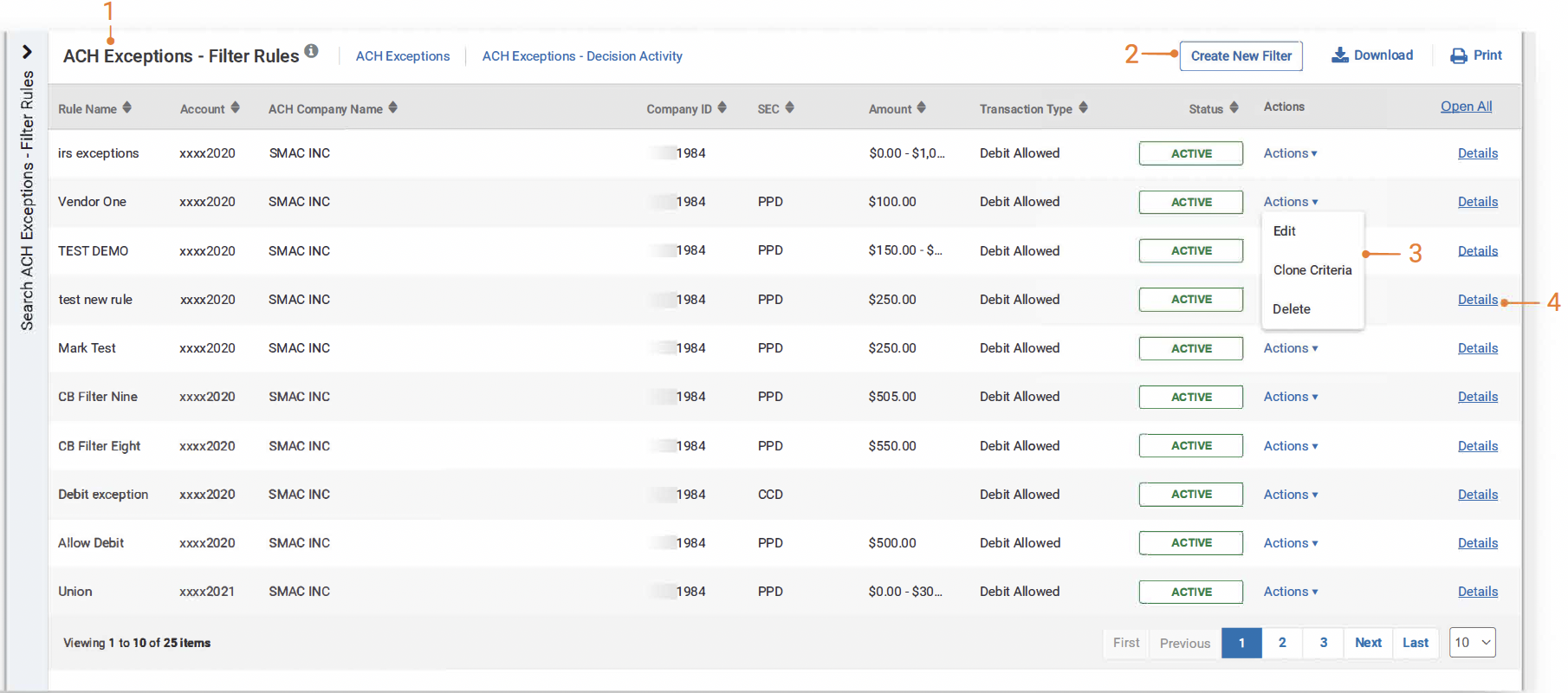
- ACH Exceptions - Filter Rules: The following column headings can be sorted in ascending and descending order:
- Rule Name
- Account
- ACH Company Name
- Company ID
- SEC
- Amount
- Transaction Type
- Status
- Active
- Inactive
- Failed
- Actions
- Edit
- Clone Criteria
- Delete
- Details link
-
Create New Filter Rule: Use the Create New Filter Rule button to easily create a new ACH Filter Rule.
-
Actions: Select from the drop-down list (described in greater detail below)
- Edit
- Clone
- Delete
- Details: Use the Details hyperlink to see additional information for a Filter Rule along with an audit trail. A print feature is available to print the individual transaction.
Channel ACH Exceptions Filter Rules Filter Rules Details
-
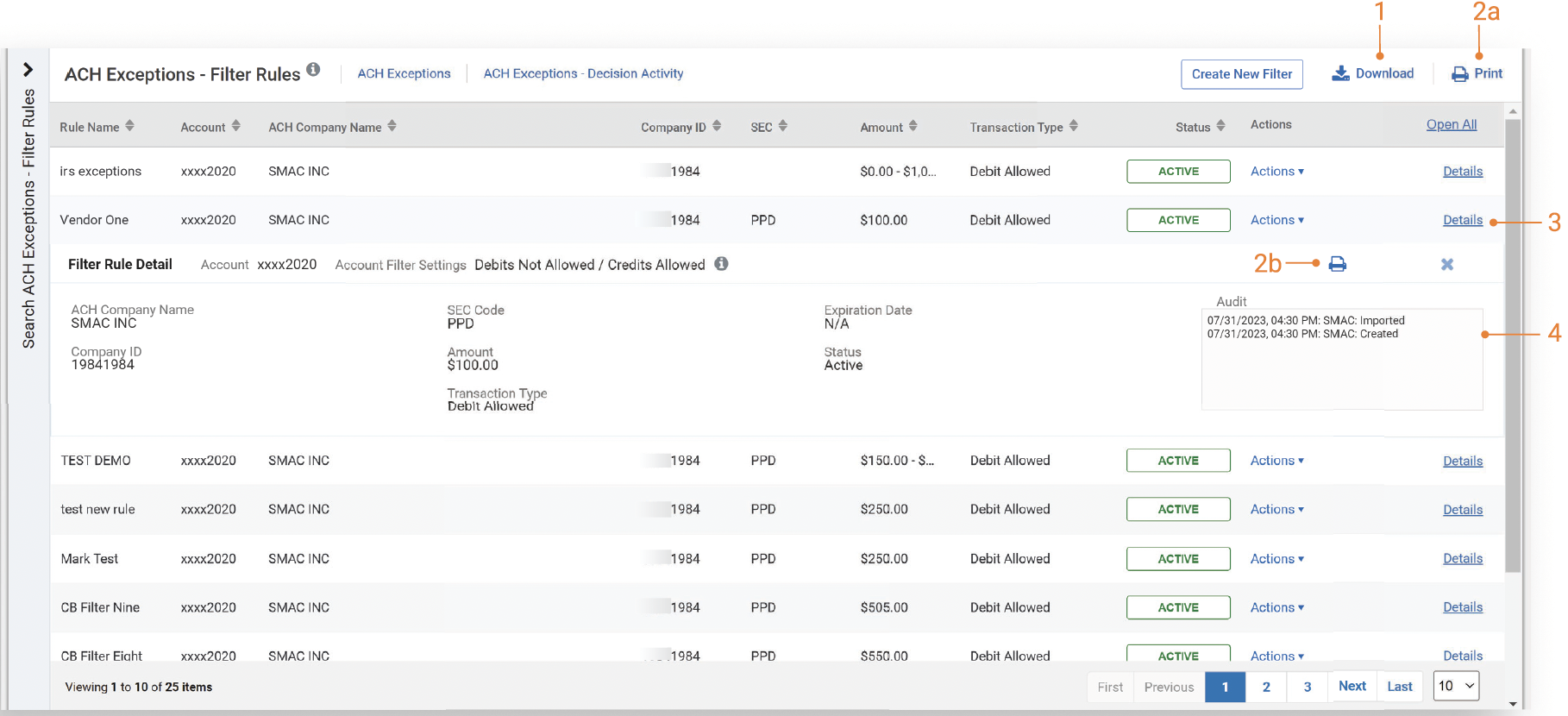
Download Feature: The ACH Filter Rules report can be downloaded in a PDF or CSV format.
-
Print Feature:
- 2a. The Print button at the top of the page prints the browser page.
- 2b. The Print button in the details view prints the individual filter rule.
-
Details Link: The details link expands the ACH Filter Rule to display additional information.
-
Audit Box: An audit box is available to view an audit trail of who created, updated, or deleted the filter rule and includes:
- Username
- Action taken
- Date and time stamp
Create an ACH Filter Rule in Channel
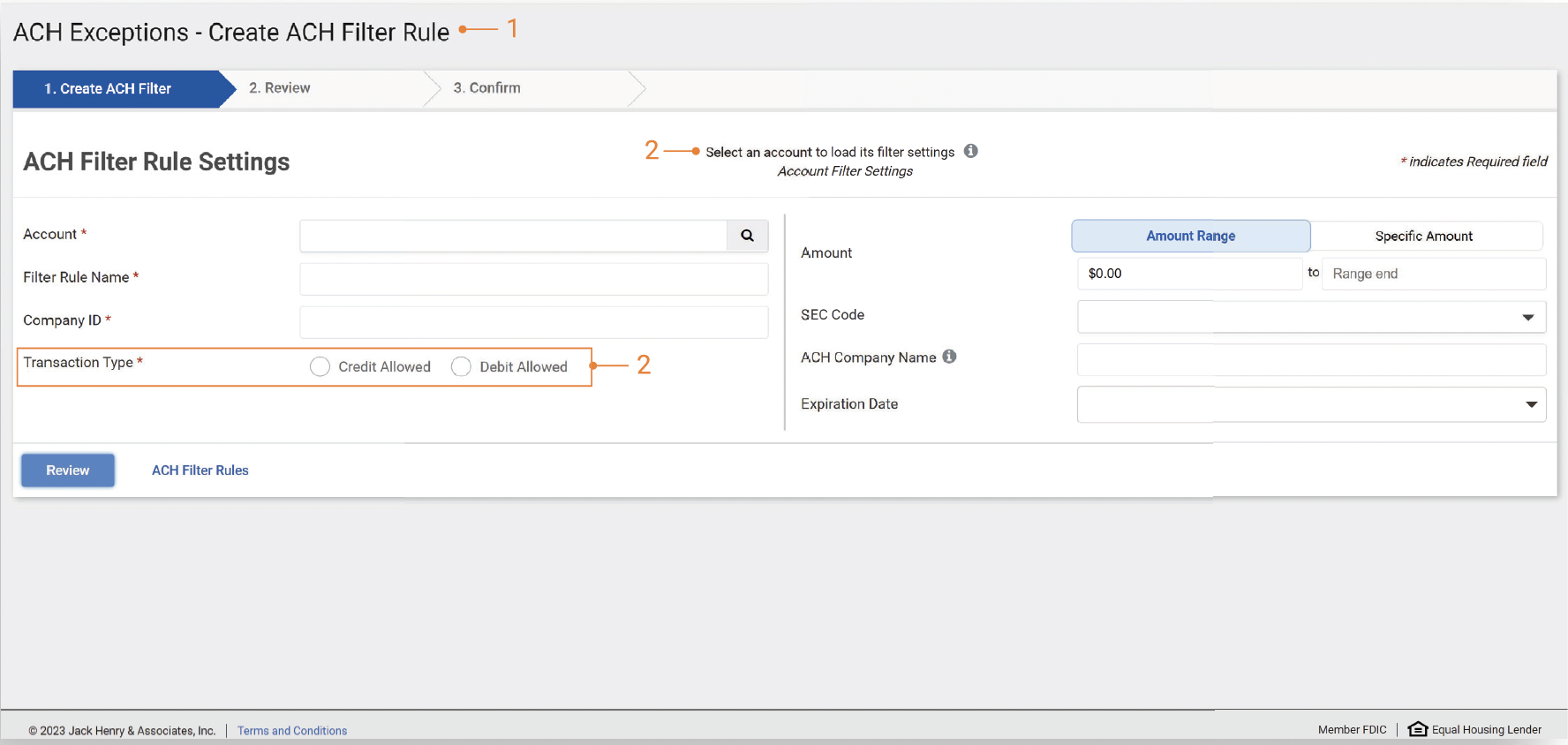
Navigate to ACH Exceptions - Filter Rules
- Create ACH Filter Rule: The Create ACH Filter Rule screen displays when the Create New Filter button is selected.
- Account, Filter Rule Name, Company ID and Transaction Type (Debit/Credit) are required filter rule inputs.
- Optional filter rule criteria can also be selected, such as Amount, SEC Code, ACH Company Name, and Expiration Date.
- Transaction Type (Debit or Credit):
- If the account status set by the bank is Credit Allowed and the Transaction Type selected is Credit, any inputs entered would be automatically “Not Allowed” and vice versa.
- If the account status set by the bank is Debits Not Allowed and the Transaction Type selected is Debit, any inputs entered would be automatically “Allowed” and vice versa.
Note:
- The transaction type selected is always the opposite of the account master settings (status) set by your financial institution.
- ACH Company Name and the company name in the originating transaction must match exactly for the filter to capture the transaction for the specific company. If the name is not an exact match, items will not be captured as exceptions.
Edit an ACH Filter Rule in Channel
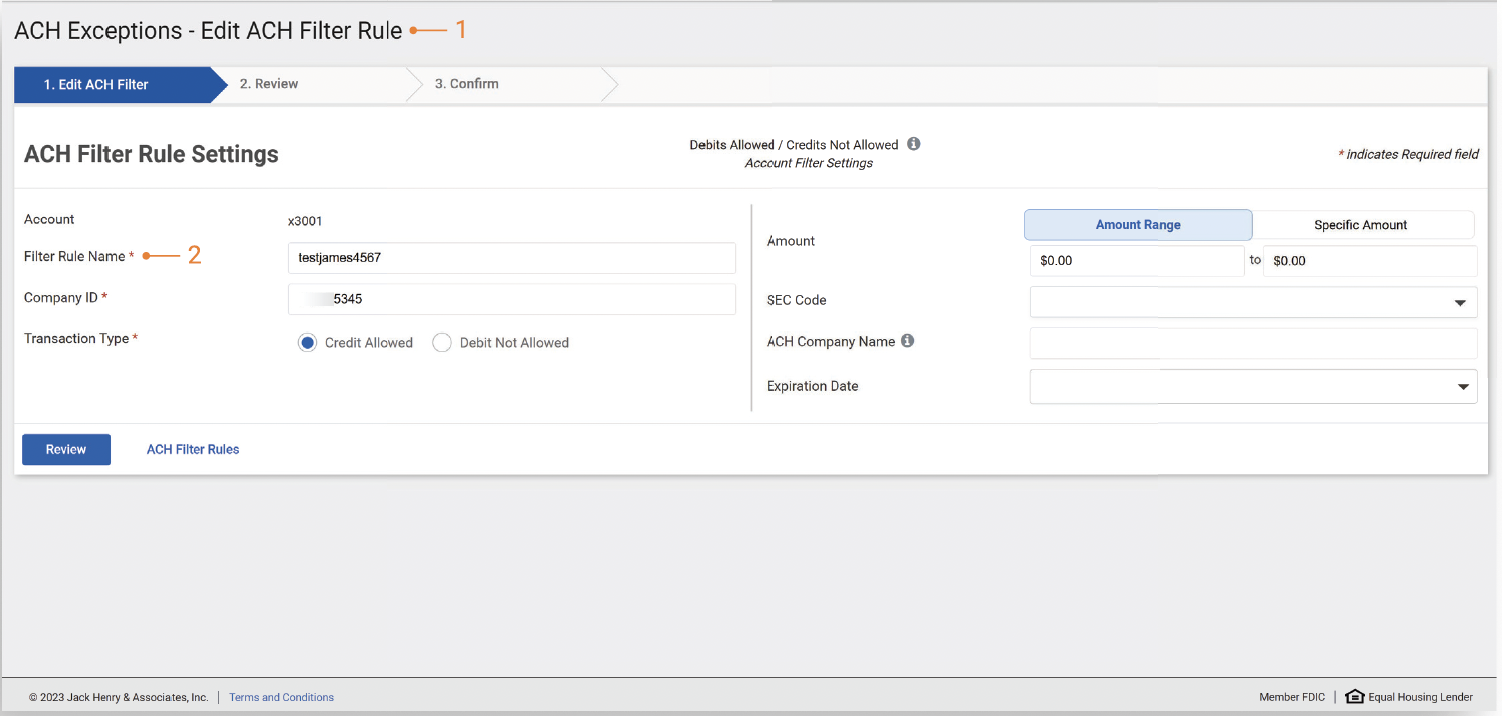
Navigate to ACH Exceptions - Filter Rule > Edit ACH Filter Rule
- Create ACH Filter Rule: The Edit ACH Filter Rule screen displays when the Edit button is selected from the Actions menu.
- Account, Filter Rule Name, Company ID and Transaction Type are required filter rule inputs.
- Optional filter rule criteria can also be selected, such as Amount, SEC Code, ACH Company Name, and Expiration Date.
- Filter Rule Name: The rule name is alphanumeric, can contain special characters, and must be unique to the TM company.
Note:
- See Create New Filter above to create a filter rule.
- ACH Company Name and the company name in the originating transaction must match exactly for the filter to capture the transaction for the specific company. If the name is not an exact match, items will not be captured as exceptions.
Clone an ACH Filter Rule in Channel
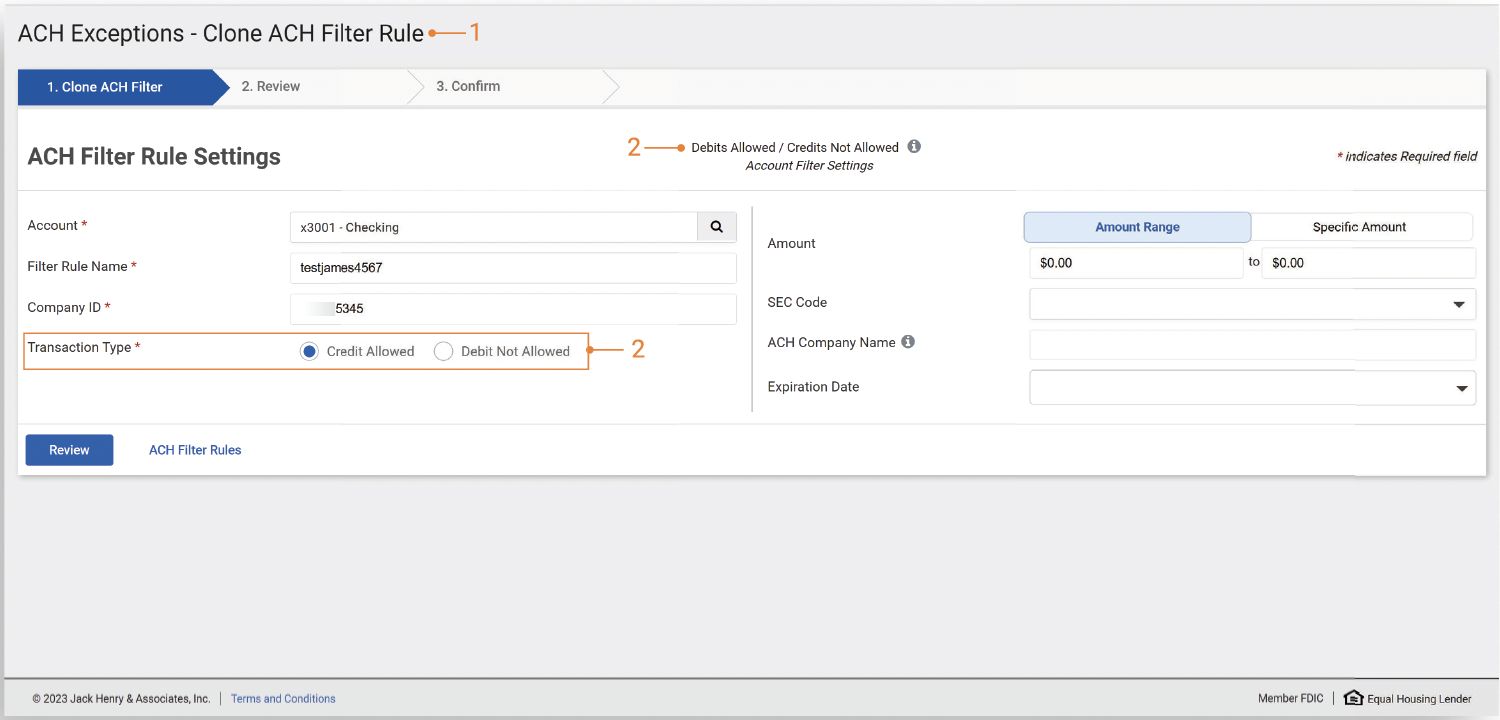
Navigate to ACH Exceptions - Filter Rule > Clone ACH Filter Rule
- Clone ACH Filter Rule: The Clone ACH Filter Rule screen displays when clone criteria is selected from the Actions menu.
- The information from the filter rule selected will prepopulate the screen.
- Company ID and Transaction Type are required filter rule inputs.
- Optional filter rule criteria can also be selected, such as Amount, SEC Code, ACH Company Name, and Expiration Date.
- Transaction Type (Debit or Credit): If the account status set by the bank is Credit Allowed and the Transaction Type selected is Credit, any inputs entered would be automatically “Not Allowed” and vice versa.
Note:
- The transaction type selected is always the opposite of the account master settings (status) set by your financial institution.
- ACH Company Name and the company name in the originating transaction must match exactly for the filter to capture the transaction for the specific company. If the name is not an exact match, items will not be captured as exceptions.
Create a Filter Rule from ACH Exceptions in Channel
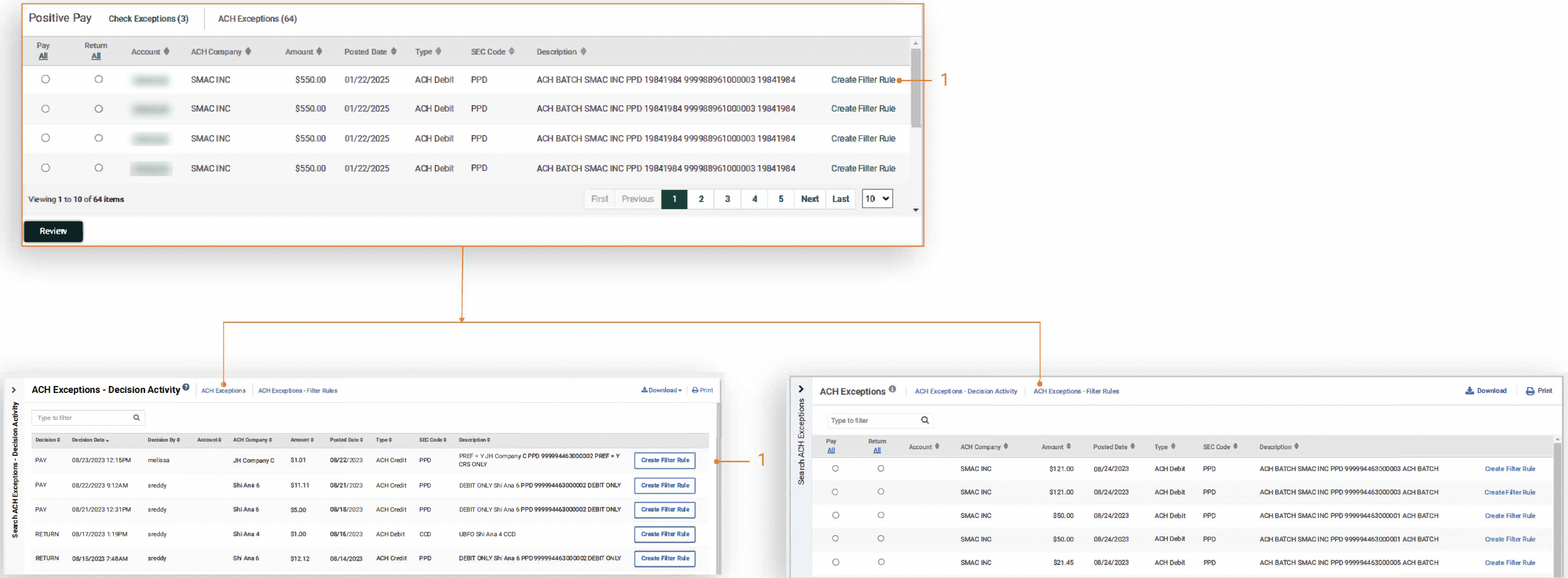
- Create Filter Rule: An ACH Filter Rule can be created while working an ACH exception item by selecting the Create Filter Rule button on the ACH Exceptions dashboard widget, ACH Exceptions listing, or the ACH Exceptions - Decision Activity listing. When selected, you are redirected to the Create ACH Filter Rule workflow.
-
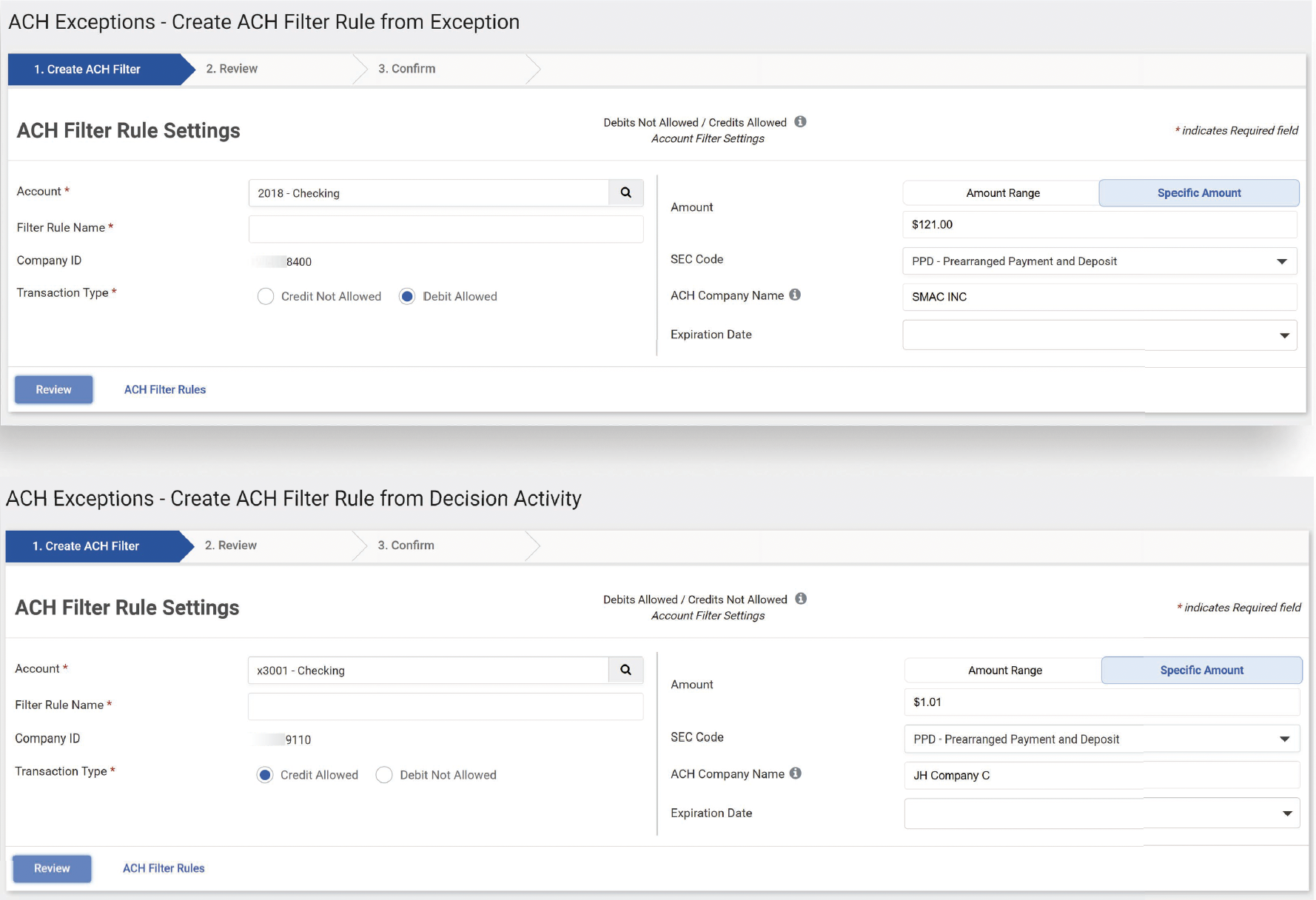
Exception Data: The information from the exception item will populate the Create ACH Filter Rule screen with the following data elements providing the information is available with the exception.
The data elements that may populate are:
- Company ID
- Account
- Transaction Type
- Amount
- SEC Code
- ACH Company Name
User Entitlements in Channel
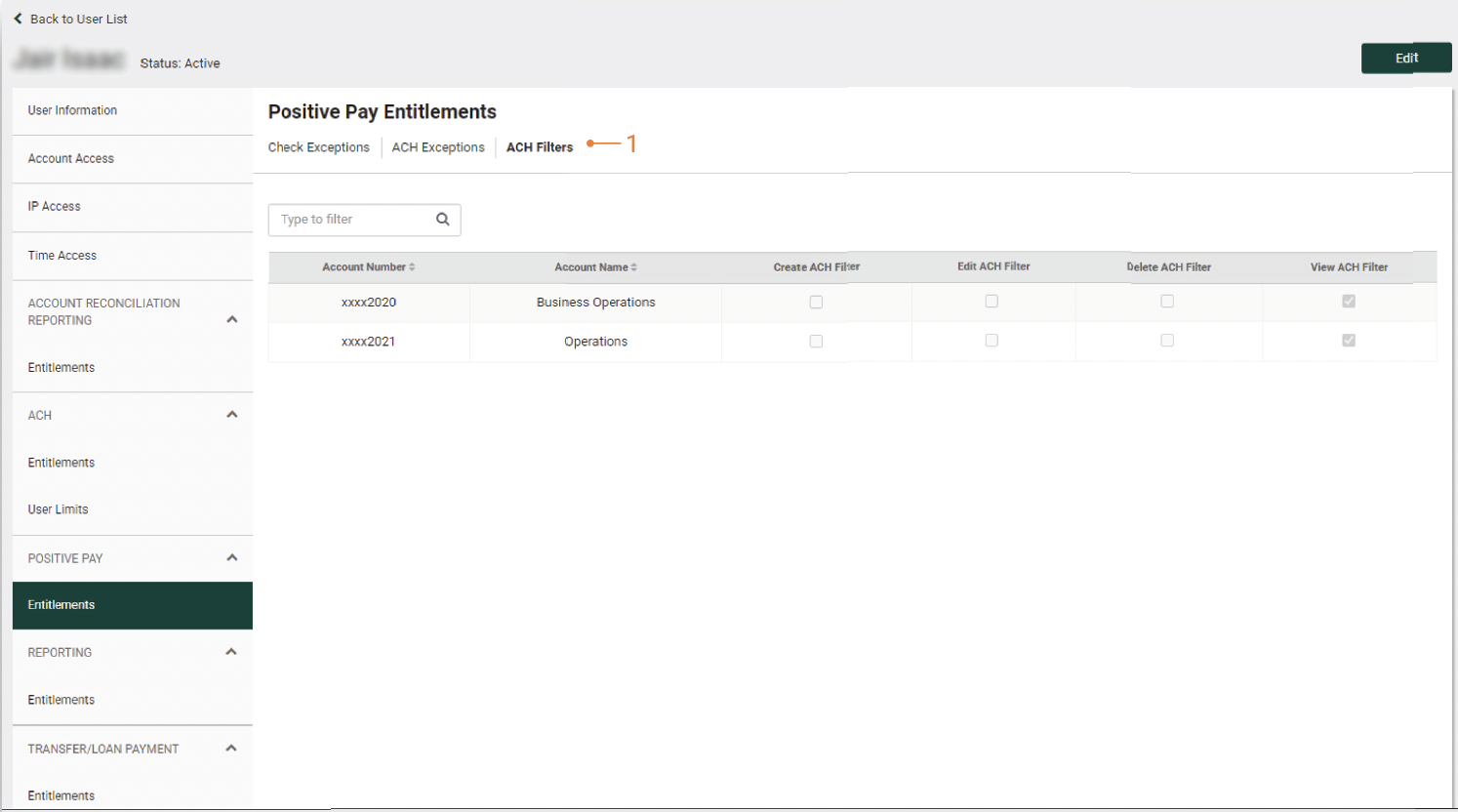
Navigate to Positive Pay > ACH Filyers > User Entitlements
- ACH Filters - User Entitlements:
- User access can be controlled by the bank or an admin user.
- Users can be granted access to View, Create, Edit, and Delete ACH Filter Rules for specific accounts.
- Admin users can update these settings by selecting Admin > User List, choosing View User (via the Actions menu), and navigating to Positive Pay > Entitlements.
- Users can add or update entitlements by selecting Actions > View User, then Edit, and navigating to Positive Pay > Entitlements. Users can also select Edit User from the Actions menu.