Quick Reference Guide: Mobile Experience Remote Deposit Capture
Overview
Treasury Management Mobile Experience Remote Deposit Capture allows users to deposit checks and view deposit activity. Users can submit a single check or multiple checks at once.
Benefits
Benefits for Banks
- Mobility
- Speed
- Competitiveness with larger banks
- Secure
- Broad access via the TM Mobile Experience
Benefits for Customers
- Users can deposit checks remotely
- Users have 24/7 smartphone access to view account activity
- Comparative with remote deposit at other banks
- Secure as the desktop platform
- Access via TM Mobile Experience’s Secure URL
Prerequisites for mRDC Requirements and EPS Set Ups
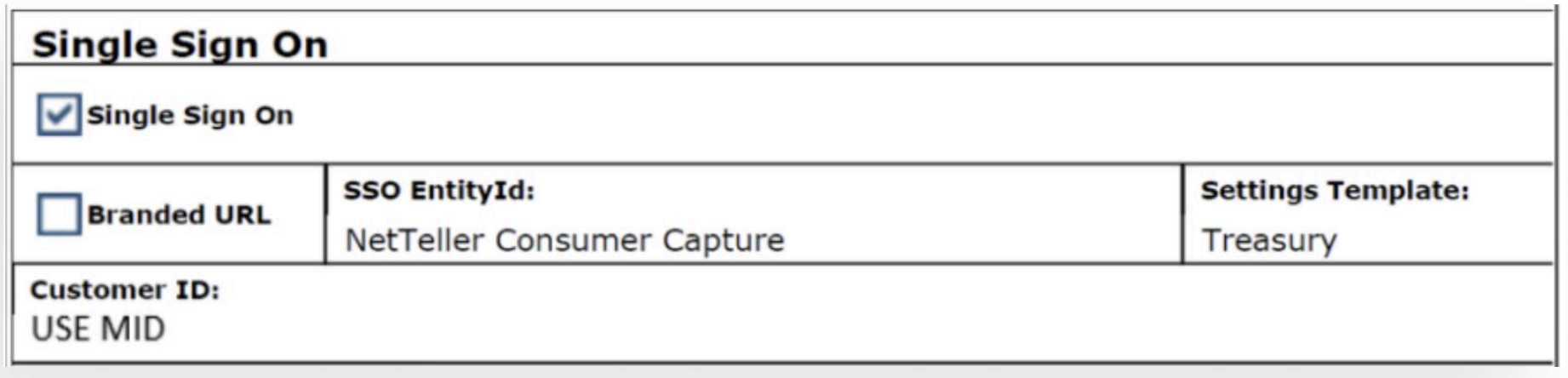
To establish new Merchants, submit an Online Customer Setup (OCS) form in SmartPay Manager. Under Additional Options and Features, select the following: Setting Template to Treasury, Single Sign Entity ID to NetTeller Consumer Capture and Customer ID to USE MID.
-
A contract with EPS for the mRDC product is required.
-
When a contract is received from Sales, the implementation team will contact the financial institution to start the implementation.
-
For existing Merchants already established, email the EPS financial institution Maintenance group at, requesting the merchant be configured for Treasury Management SSO.
-
In SmartPay Manager, enable mRDC on the merchant level.
-
In SmartPay Business, create a new user. Under User Settings enter a Full Name, User Name and RDC ID (The same TM Company User ID as the RDC ID may be used). Under Roles within the Customer Service Privilege, select mRDC.
-
Locations will also need to be select for the user.
JHA Treasury Management ™ Back Office Requirements
-
If the user has already been setup for Remote Deposit Capture (RDC) within TM Channel, no additional setup within TM Back Office is needed for mRDC.
-
Login to TM Back Office. Navigate to the Company, then Users.
-
Select Edit on an existing user or create a new user.
-
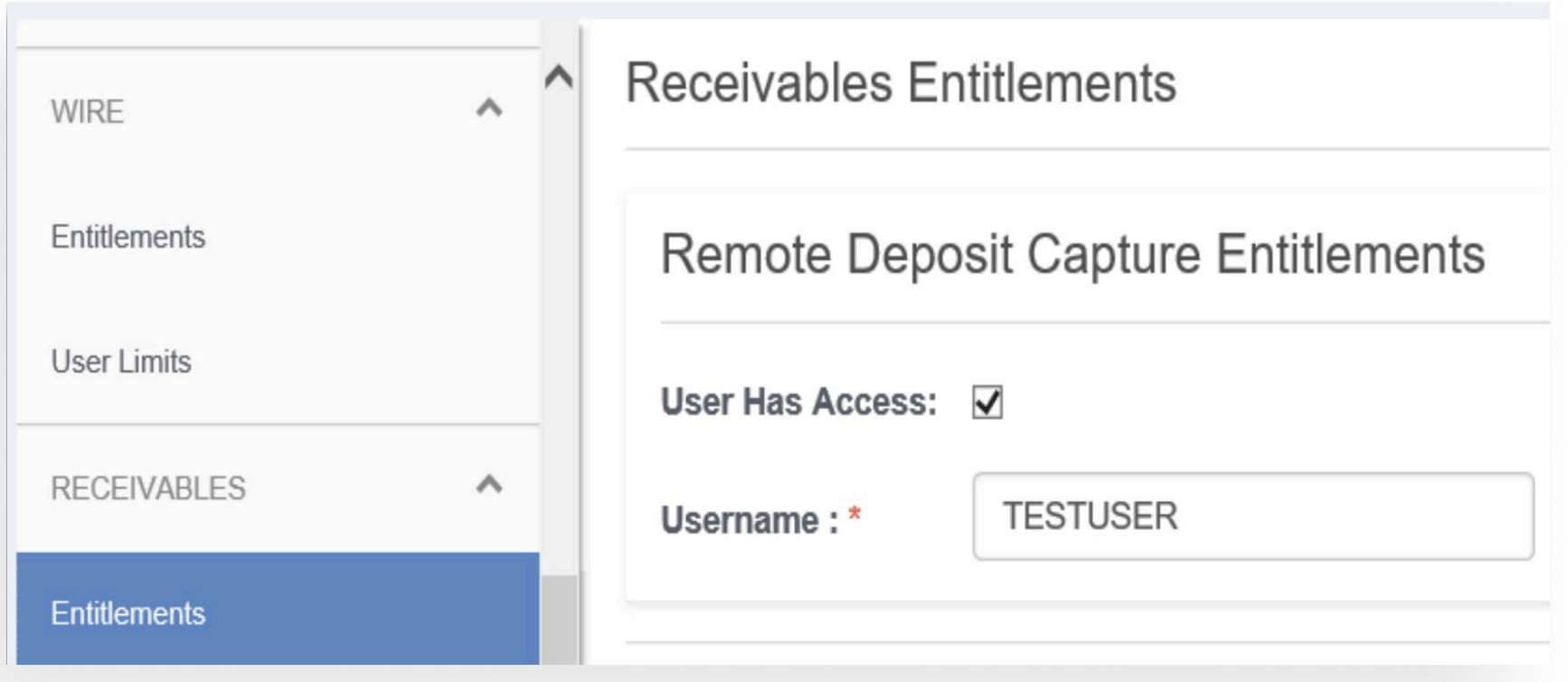
Under Receivables select Entitlements.
-
Select User Has Access. In the Username field, enter the RDC ID listed in SmartPay Business – Users Settings. (If an incorrect username or a username that is not setup in SmartPay Business is entered and the user attempts to access mRDC within TM Mobile, an error message will display).
Dashboard and Main Menu
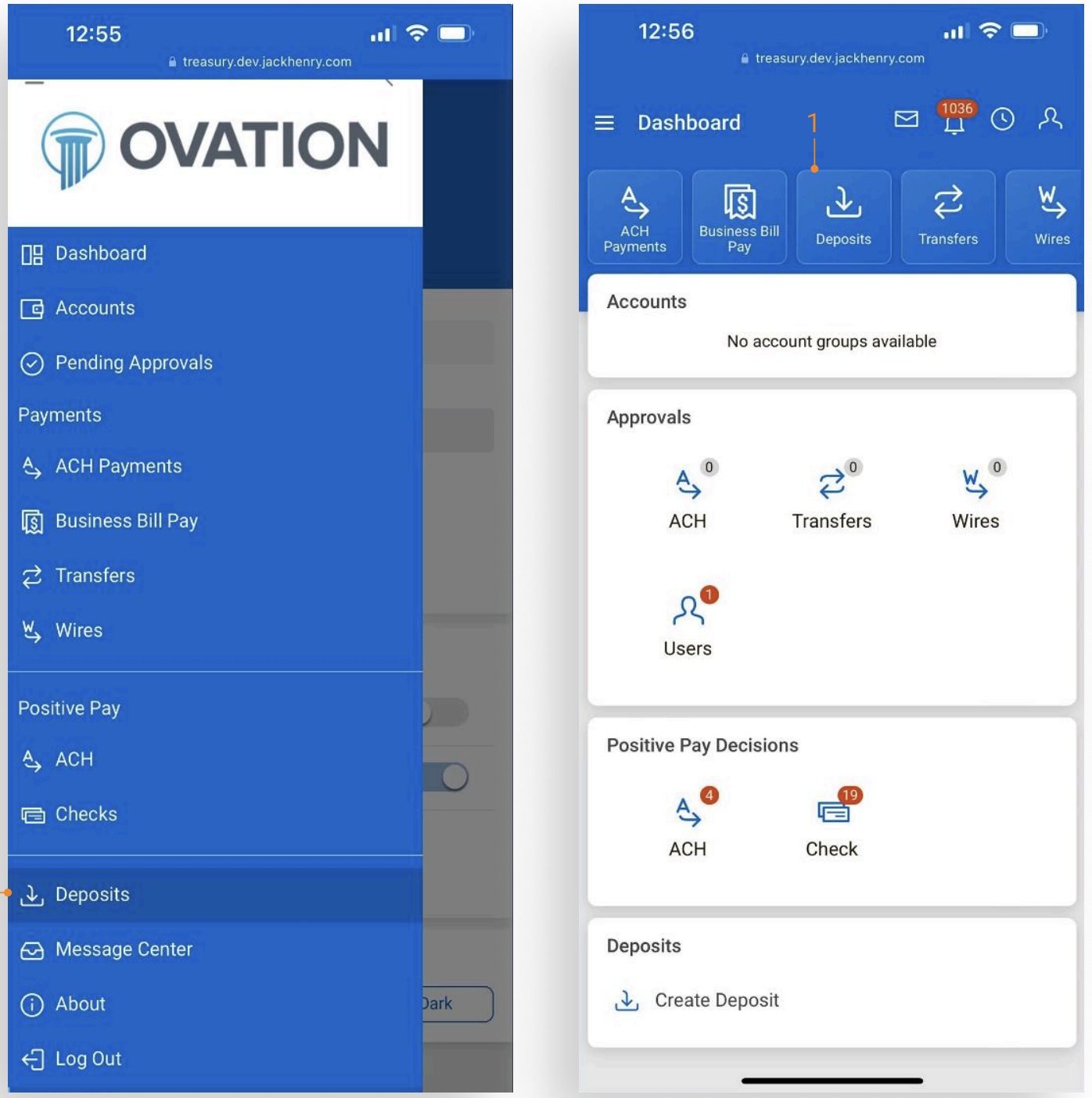
- Navigate to Deposits from the Dashboard or fly-out menu.
Deposit Activity and Details
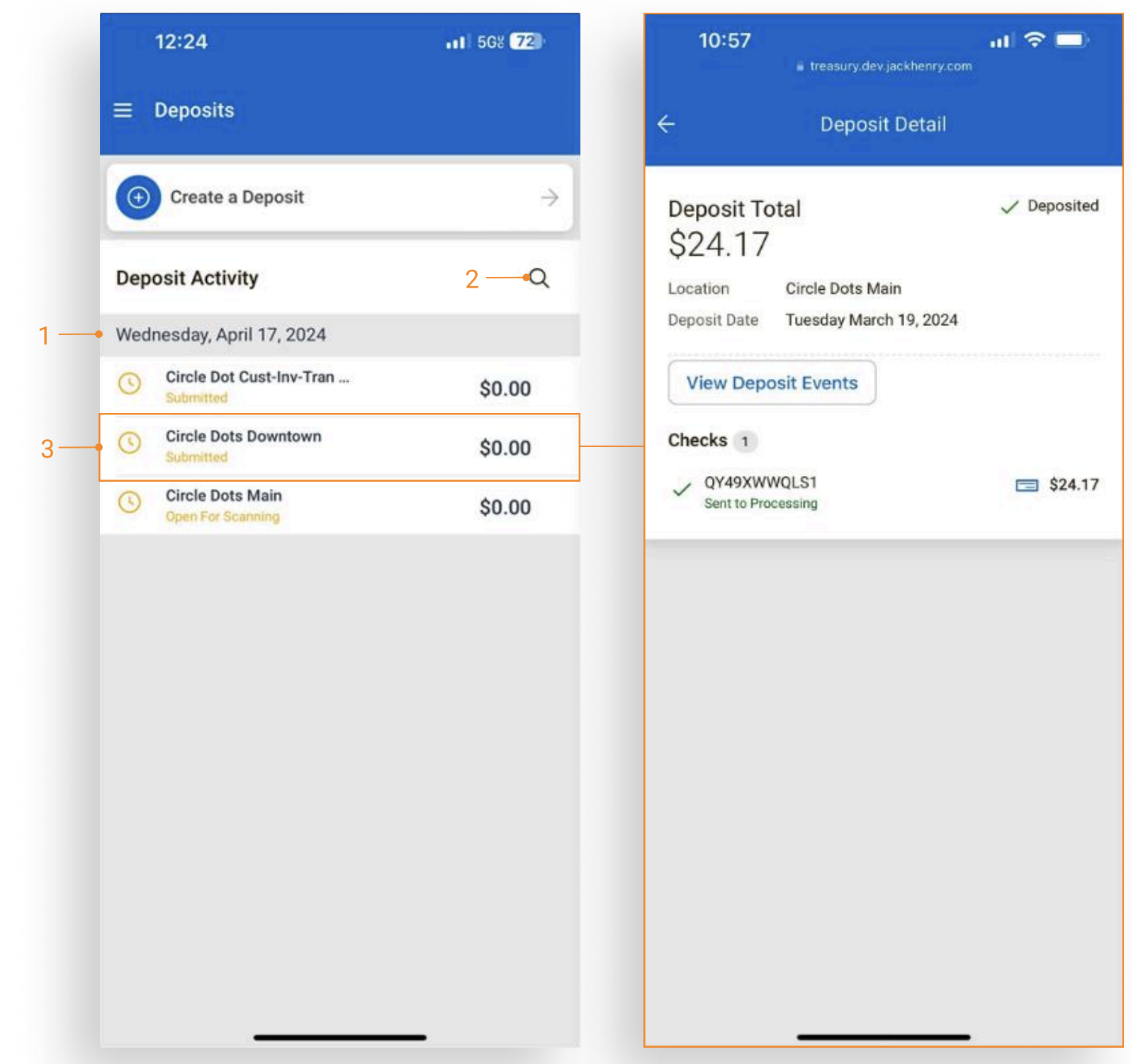
- List of deposits displayed by date in descending order.
- Type to filter available to narrow search results.
- Tap an item to view full deposit details.
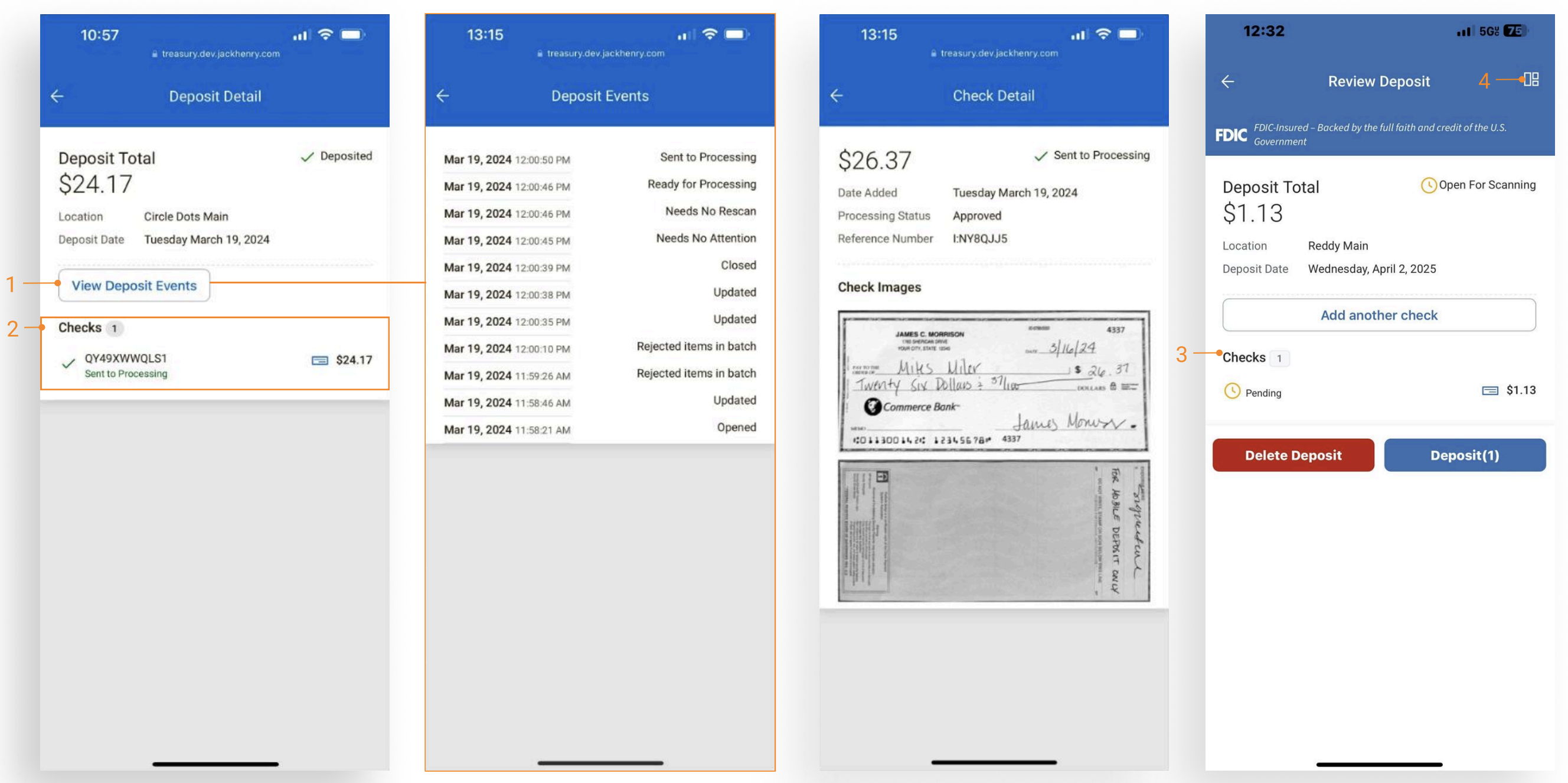
- Select View Deposit Events to view the full list of events.
- Tap on a check to view the front and back images.
- Deposit activity details with a status of Open For Scanning can be updated by adding additional checks, deleting the deposit, or completing the deposit.
- Quick navigation back to the dashboard.
Making a Deposit
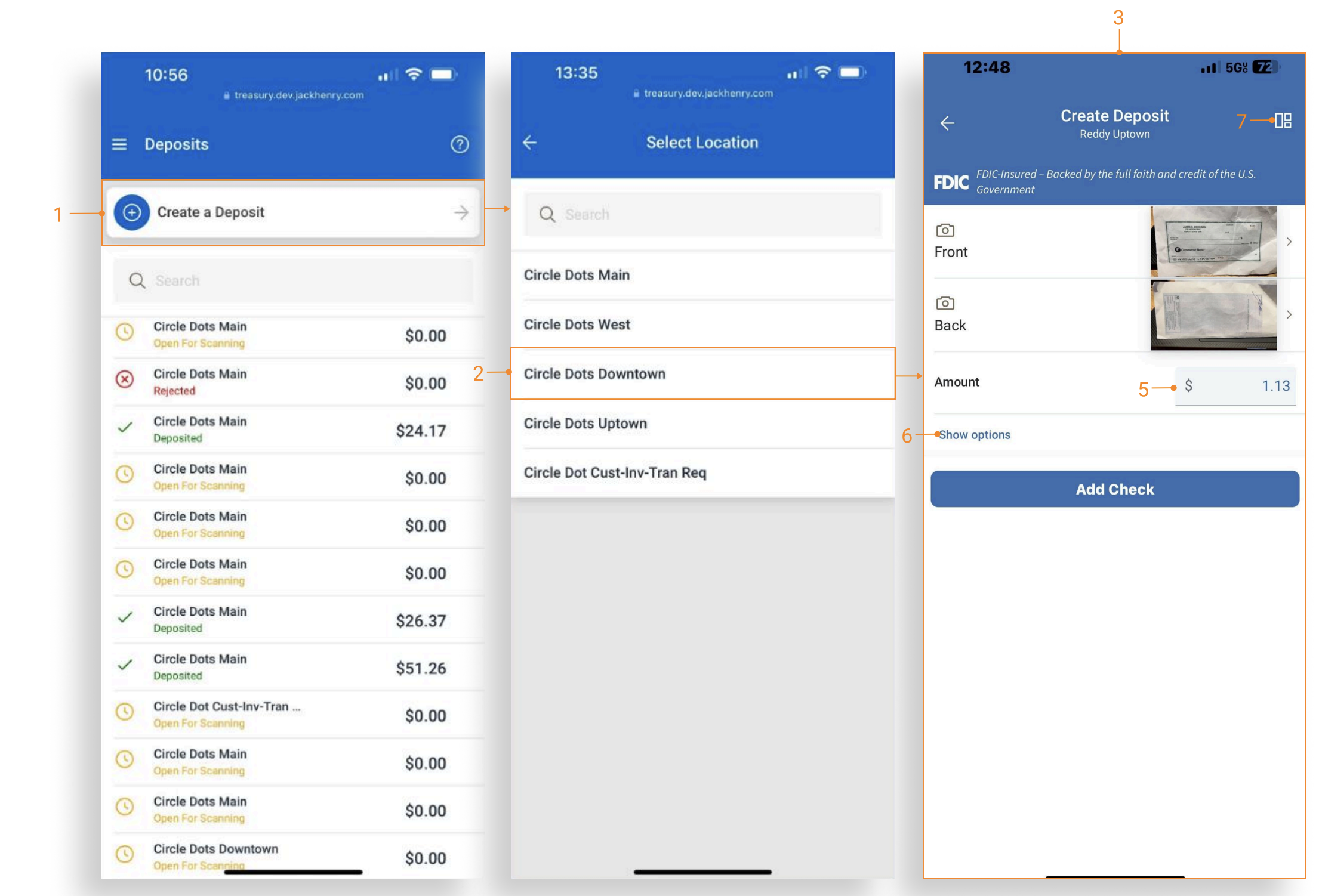
- Select the Create a Deposit button on the Deposits home page to make a deposit.
- Select a location. Locations are determined by the bank.
- Selecting a location automatically opens the device’s camera to capture the check images.
- When prompted to provide access to the device’s camera, allow access to the camera to start capturing the front and back images of the deposit.
- Enter the deposit amount.
- Select the show/hide options link to display or close additional optional fields.
- Quick navigation back to the dashboard.
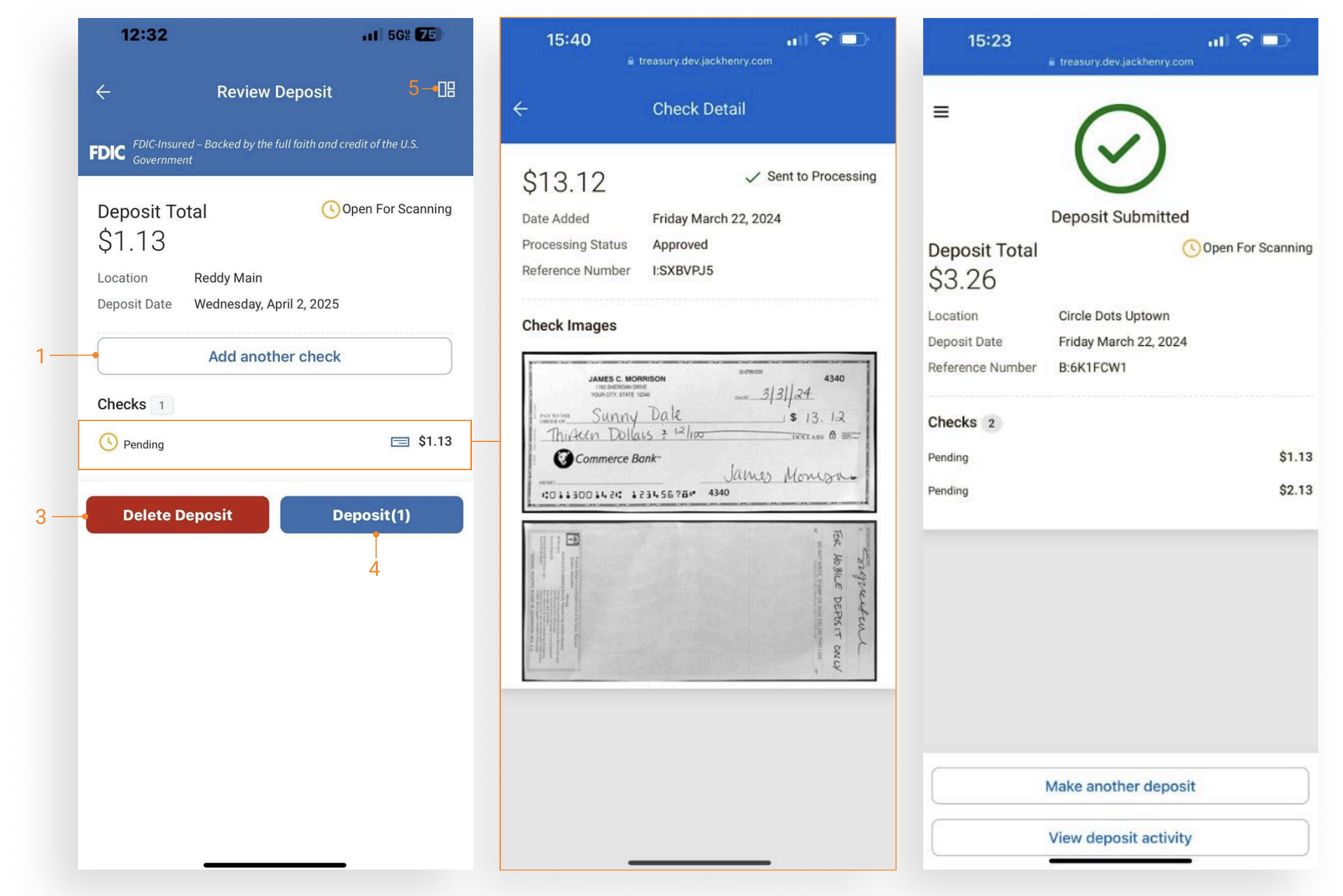
- Scan and add additional checks by selecting Add another check.
- Tap a check to view the front and back of the uploaded check image.
- To delete, select Delete Deposit.
- Select Deposit to submit and complete the remote deposit.
- The number of checks included in the deposit displays on the deposit button.
- Quick navigation back to the dashboard.