Quick Reference Guide: TM Mobile Experience - Positive Pay
Overview
The Positive Pay feature within the TM Mobile Experience allows users to pay or return ACH and check exceptions and to view essential details for these items while on the go. JH Treasury Management offers a full suite of products revolving around a powerful Positive Pay solution. Additionally, your business customers are empowered to validate payment-related information, manage exceptions, and view decision activity. JH Treasury Management automates the end-to-end review process for Check Positive Pay and ACH Positive Pay and provides timely notifications. JH Treasury Management Positive Pay saves your bank time and money and provides the critical fraud mitigating service for your business customers.
Dashboard and Main Menu
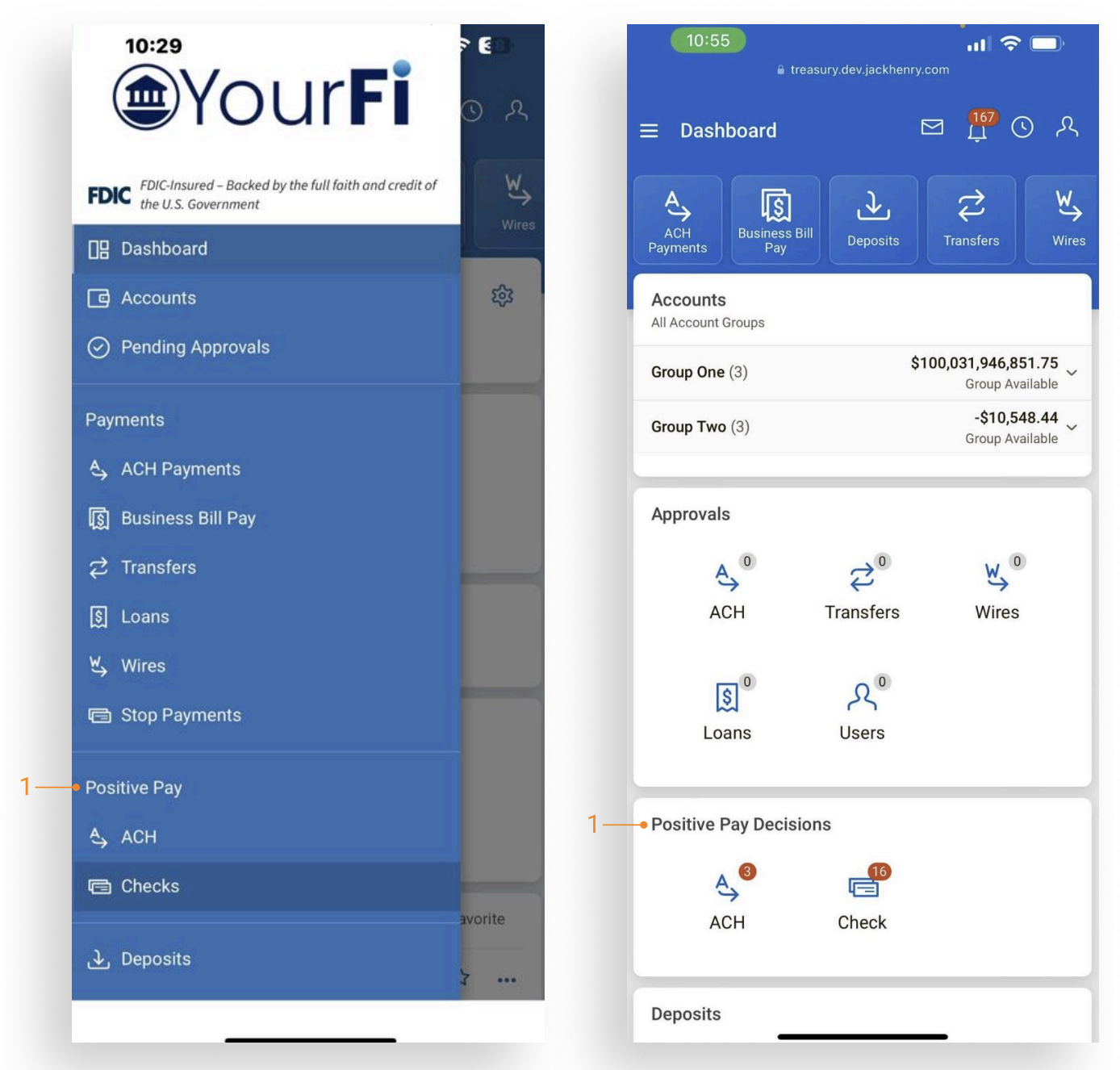
Users can select Positive Pay Exceptions from the Dashboard tile or the fly-out navigation menu.
- View the summary count of items for ACH and check exceptions in the Positive Pay Decisions panel of the dashboard. Select the ACH Exceptions or Check Exceptions to view and decision the items.
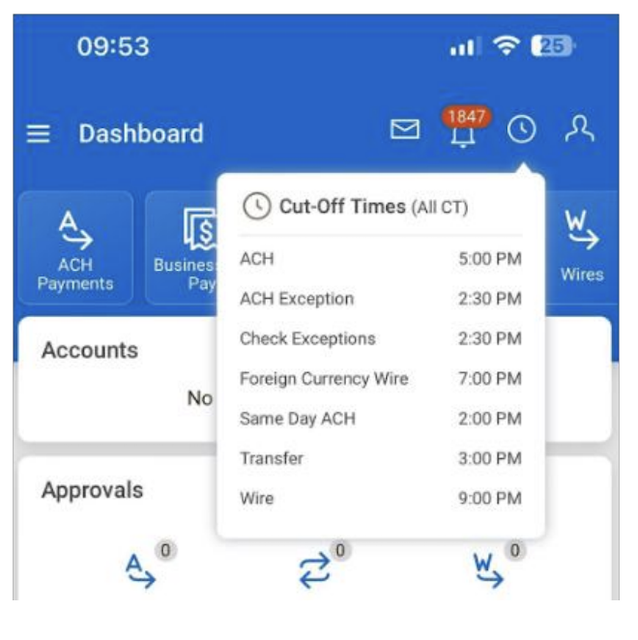
Note: To view ACH and check exceptions cut-off times, tap the Cut-Off Times icon at the top of the dashboard.
Decisioning ACH Exceptions
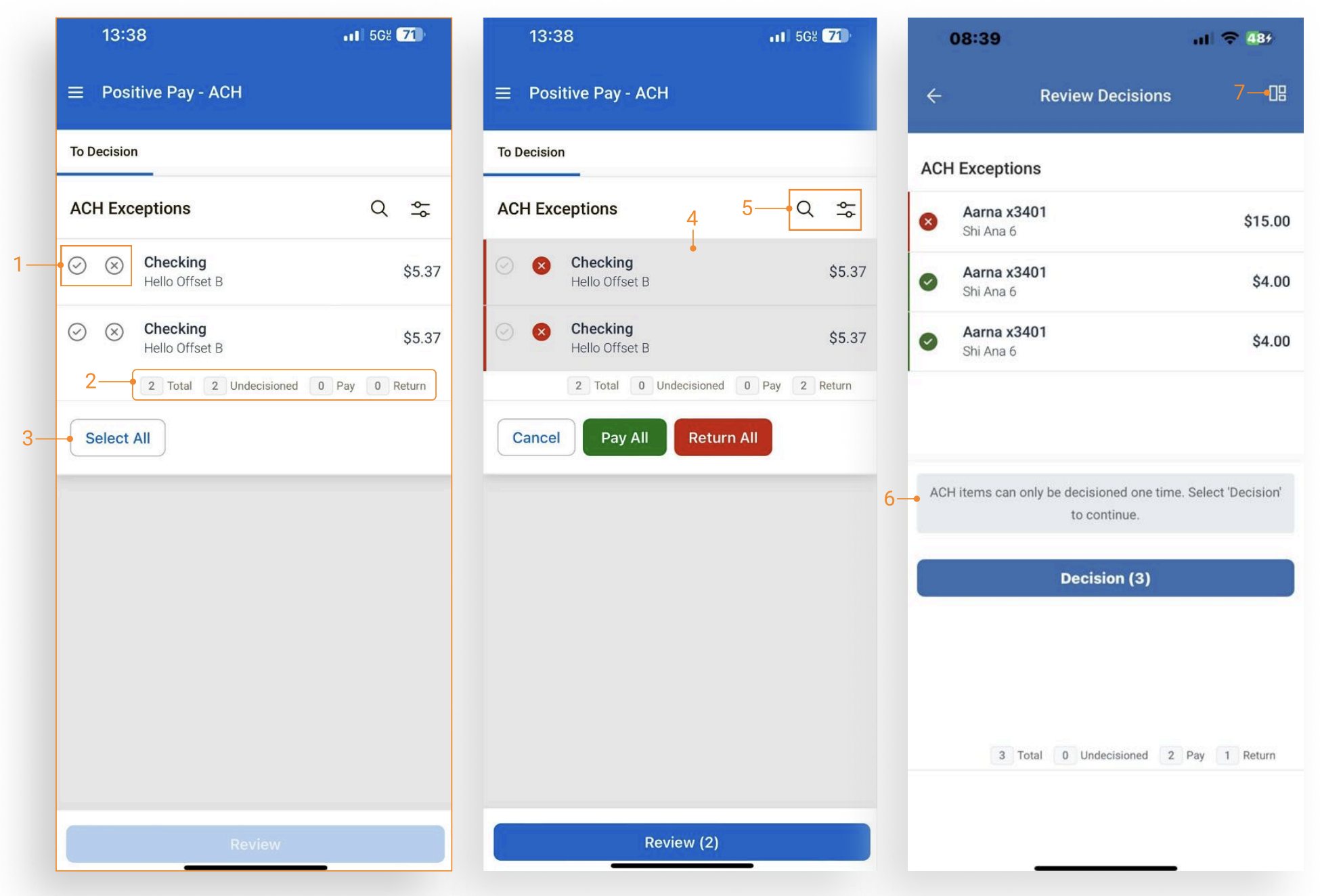
Navigate to the ACH Exceptions screen from the Dashboard tile or the Main Menu.
- Tap the appropriate radio button to Pay (green) or Return (red) an item.
- A counter displays a running total of items to decision: Total, Undecisioned, Pay, and Return.
- The Select All button exposes the Pay All and Return All functionality.
- Tap anywhere on the item’s description to view exception details. The item can be paid or returned from the details screen.
- Use Search or the Advanced filter to narrow search results.
- A message reminder is presented to the user on the Review Decisions page prior to decisioning the item.
- Quick navigation back to the dashboard.
Decisioning Check Exceptions - To Decision
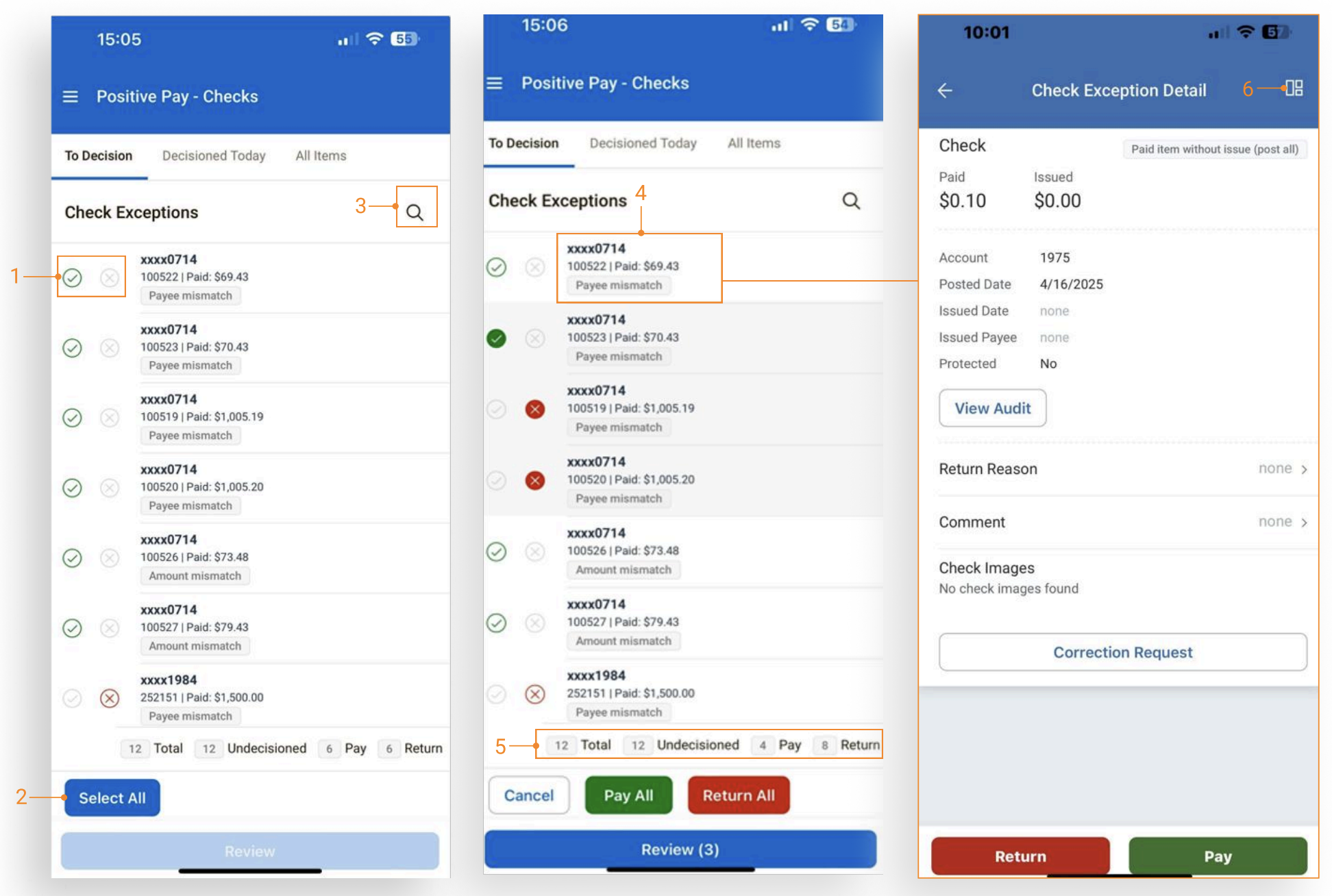
Navigate to the Check Exceptions screen from the Dashboard tile or the Main Menu.
To Decision: All check exceptions under the “To Decision” view are the unworked exception items. The item’s default decision of Pay or Return will display with the default decision radio (unpopulated green or red).
- Select the appropriate radio button to Pay (green) or Return (red) an item.
- The Select All button exposes the Pay All and Return All functionality.
- Use Search to narrow search results.
- Tap the item’s description to view exception details. The item can be paid or returned from the details screen.
- A counter displays a running total of items to decision: Total, Undecisioned, Pay, and Return.
- Quick navigation back to the dashboard.
Decisioning Check Exceptions - Decisioned Today
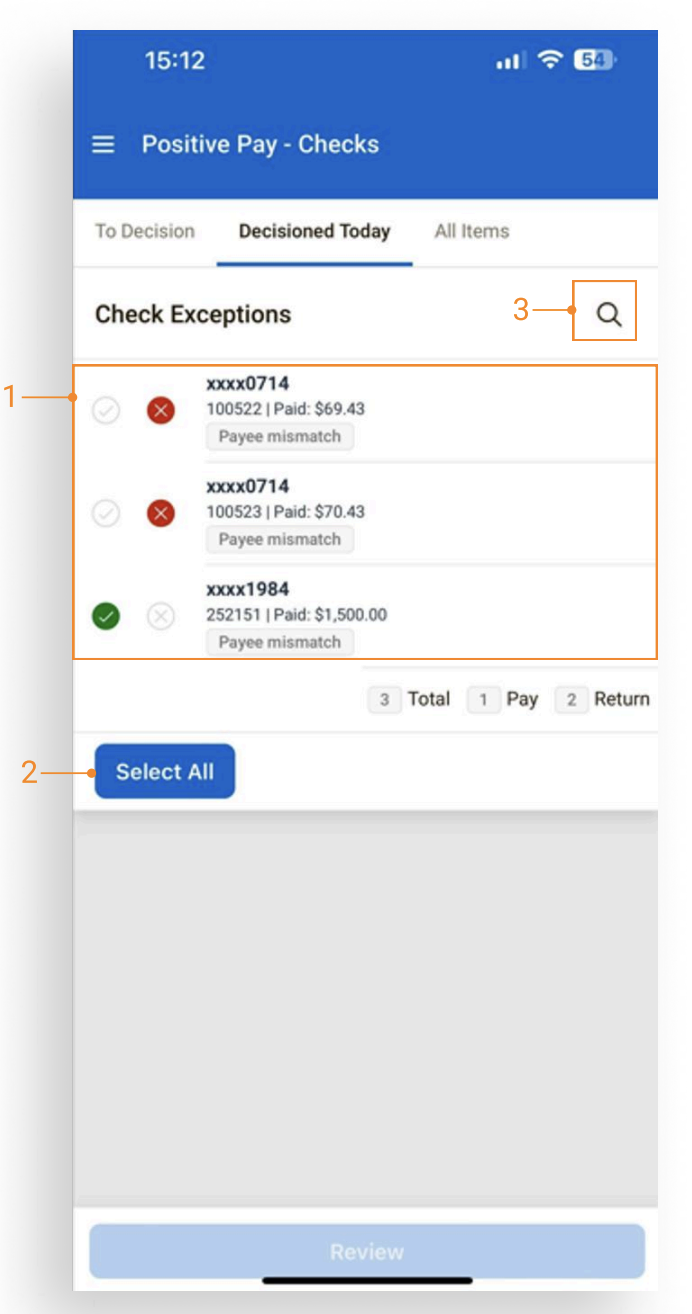
Navigate to the Check Exceptions screen from the Dashboard tile or the Main Menu.
Decisioned Today: Check exceptions under the “Decisioned Today” view are items that were previously decisioned or items that the bank has decisioned and protected. Items decisioned by a company user display a solid-color radio button. If items are not decisioned by the user or the bank, the Decisioned Today view will not display any exceptions.
- Items not protected by the financial institution can be decisioned again, up to the cut-off time.
- The Select All button exposes the Pay All and Return All functionality.
- Use Search to narrow search results.
Decisioning Check Exceptions - All Items
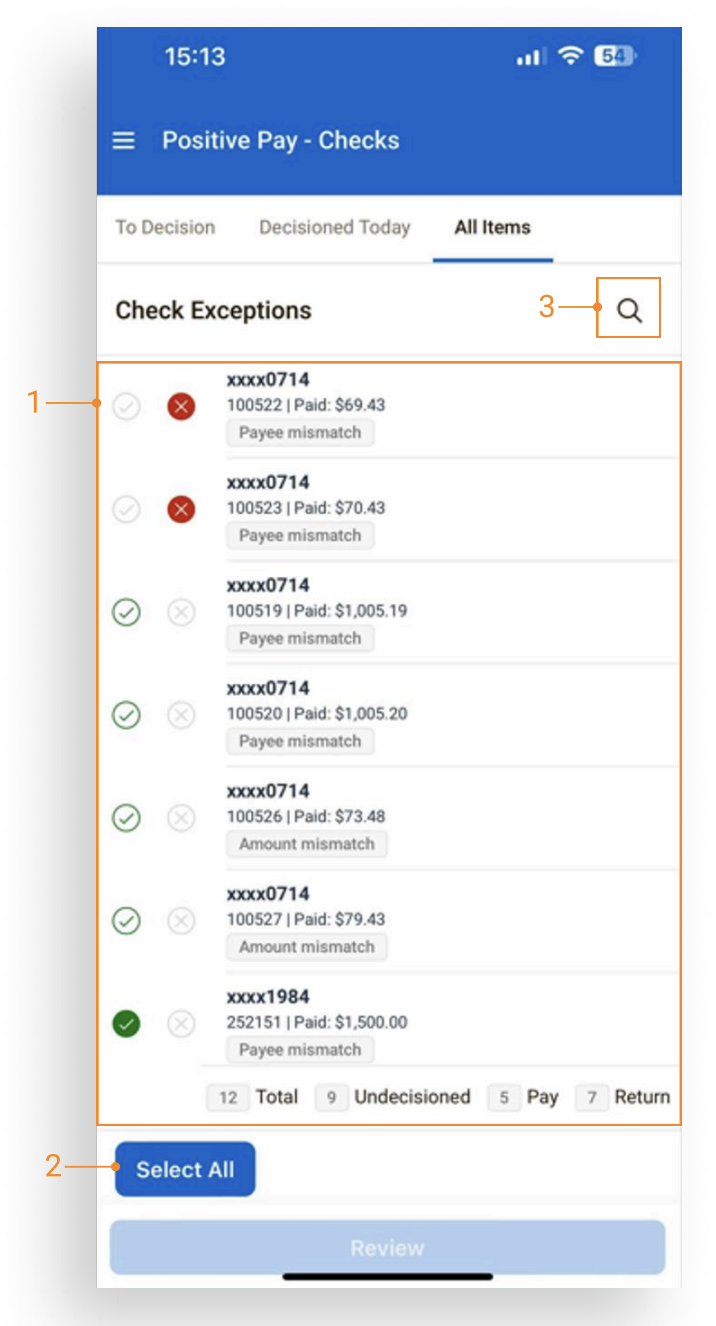
Navigate to the Check Exceptions screen from the Dashboard tile or the Main Menu.
All Items: A comprehensive view that combines items To Decision and items Decisioned Today, including check exception items that have been worked and protected by the financial institution.
- Items not protected by the FI can be decisioned again, up to the cutoff time.
- The Select All button exposes the Pay All and Return All functionality.
- Use Search to narrow search results.
Check Exceptions - Details
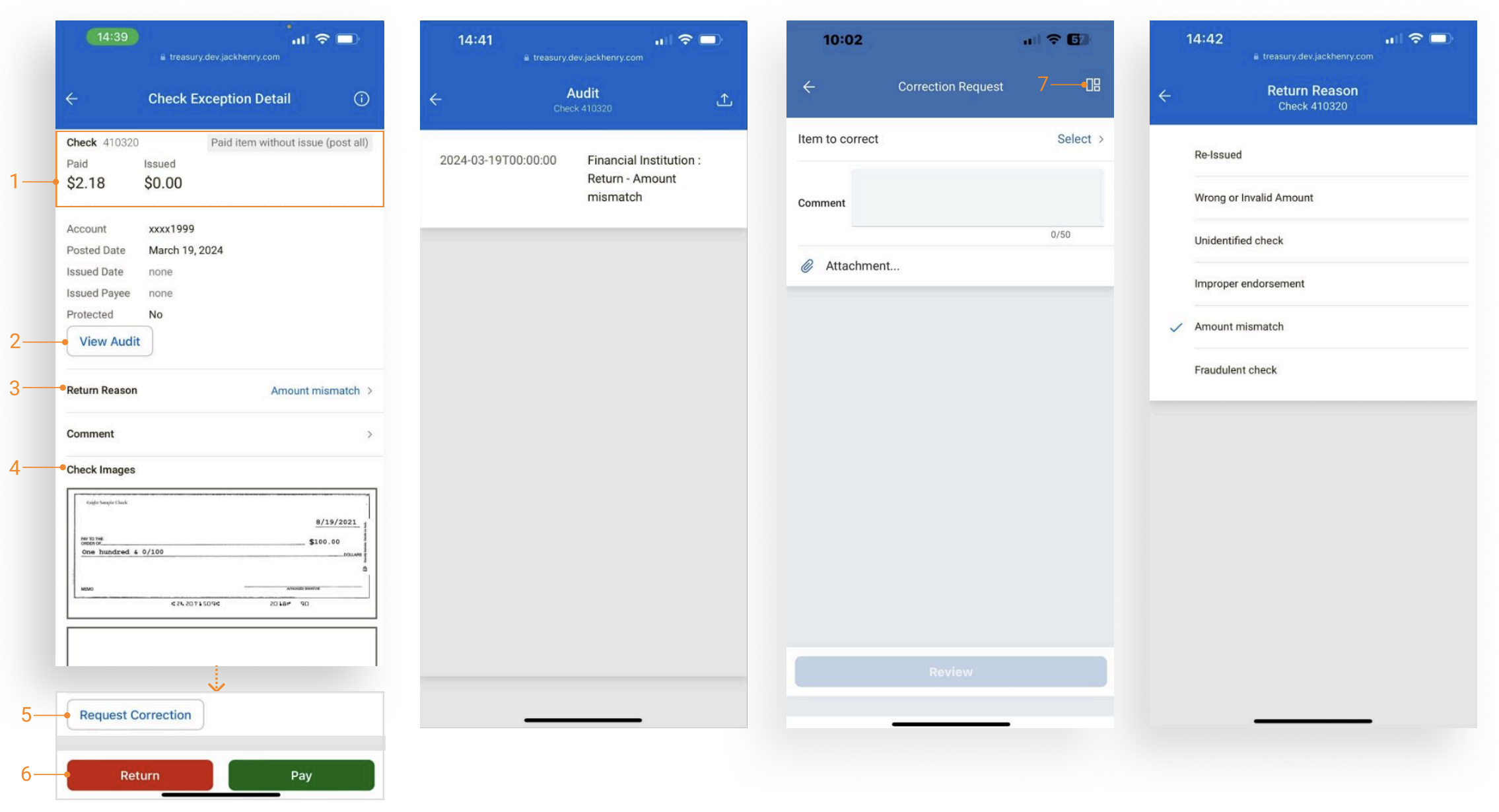
- Tap anywhere on the item’s description to view the full exception details.
- Tap the View Audit button to view audit trail data such as the decision by user.
- Tap on the Return Reason link to select a return reason.
- The front and back of the check display when an image is available.
- The Request Correction button allows the user to add a comment as well as upload an attachment.
- Tap the Return or Pay button to decision the item from the detail view.
- Quick navigation back to the dashboard.
Check Exceptions - After Cut-Off Time
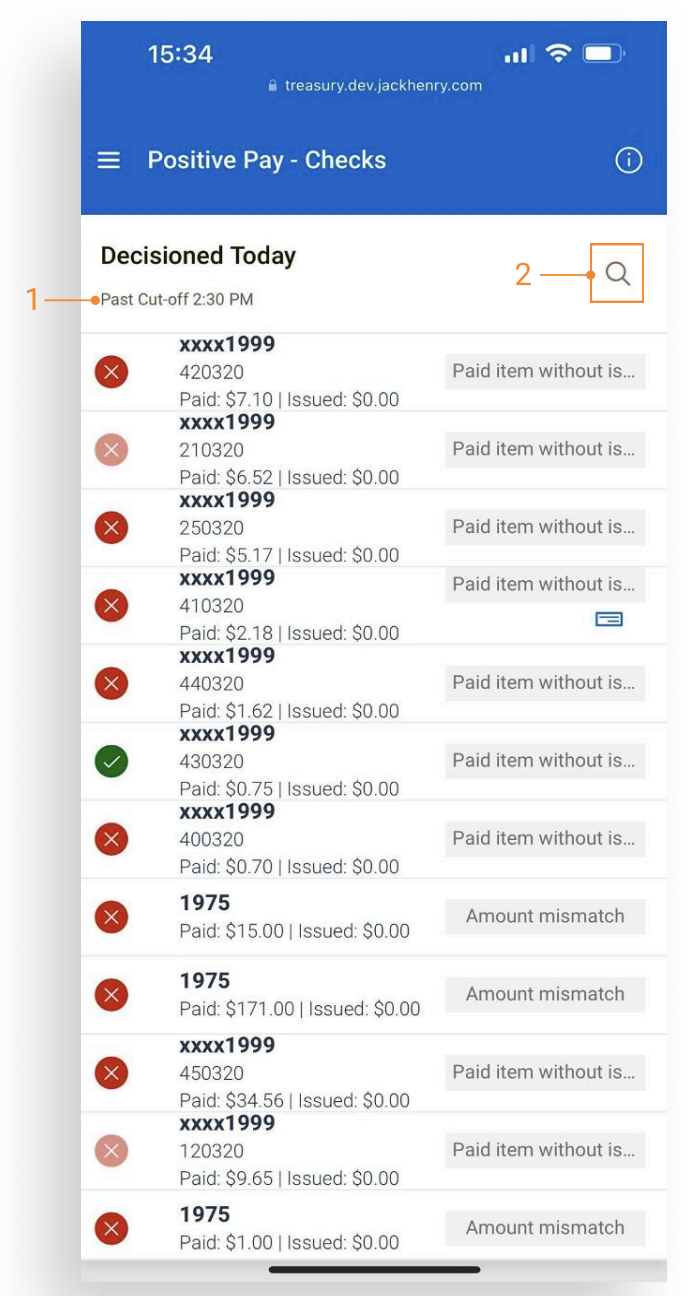
- After cutoff time, all items display on the Decisioned Today page in a read-only state. Items remain visible to the user until the completion of End of Day. After End of Day is complete, the exceptions displayed on the Decisioned Today will be available as history on the Check Exceptions - Decisioned Activity page on the desktop.
- Use Search to narrow search results.