Quick Reference Guide: Treasury Management Mobile Experience
Overview
The Treasury Management Mobile Experience allows users the ability to take the following actions:
- view accounts, account transactions, check images, notifications, messages, payment activity, deposited checks, and more
- approve payments (ACH, wires, transfers, loan payments)
- approve new or edited users
- create new transfers
- initiate payments from existing ACH, wire, and transfer templates
- create bill payments
- and so much more.
Benefits
Benefits for Banks
With the Treasury Management Mobile Experience, banks can enjoy…
- more customer mobility.
- increased speed of financial services.
- improved efficiencies for financial institutions and their customers.
- security equal to the JHA Treasury Management™ desktop experience.
Benefits for Customers
With the Treasury Management Mobile Experience, customers have the on-the-go abiliy to…
- view account transactions, notifications, and payment activity.
- deposit checks, decision positive pay items, and create bill payments.
- initiate ACH payments, wires, and transfers from templates.
- approve ACH, wires, and transfer payments, as well as approve users.
- research transactions across all entitled accounts.
- run current day and prior day reporting for balances and transactions from the Information Reporting widget.
- security equal to the JHA Treasury Management™ desktop experience.
Configuration
Login
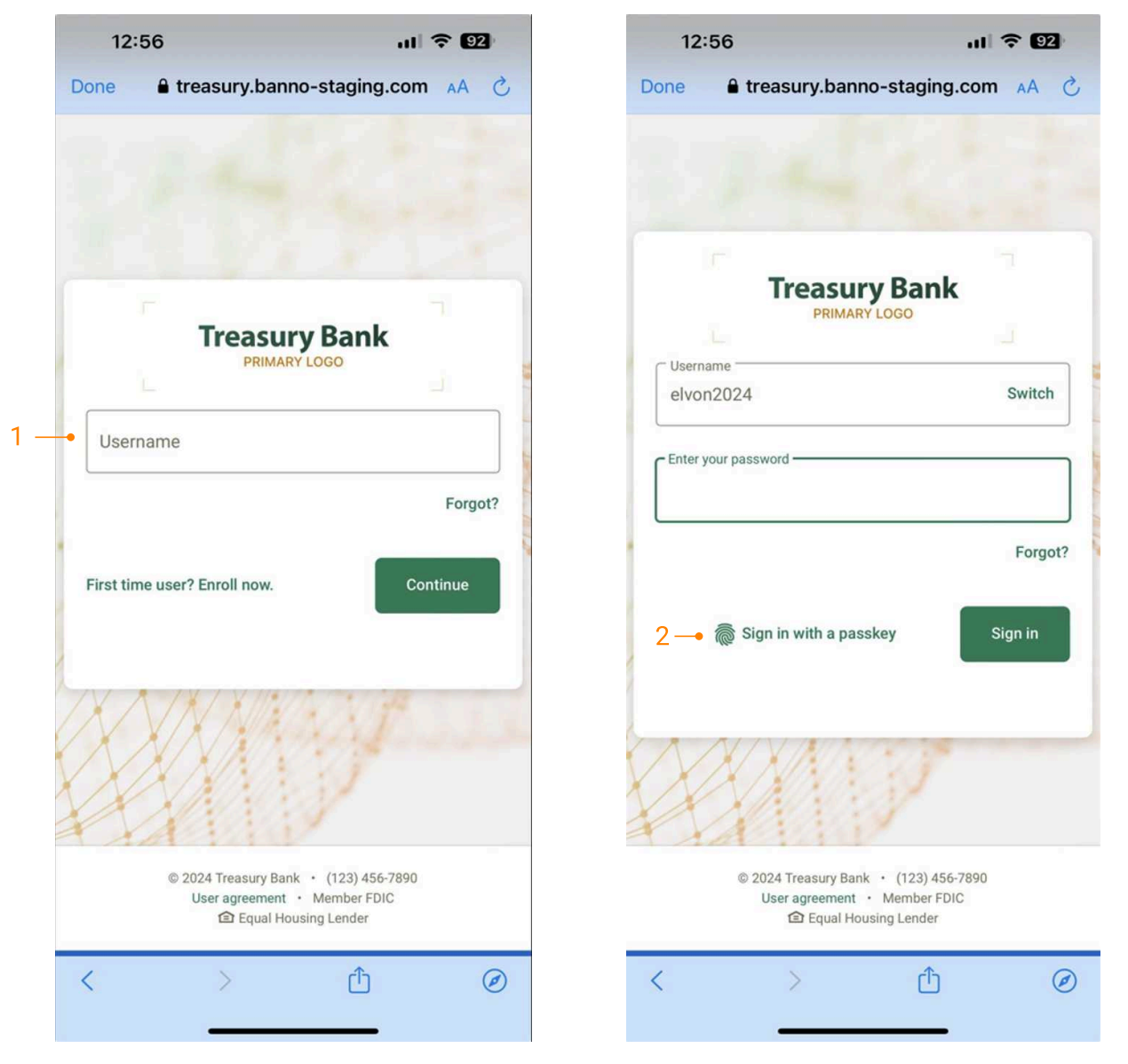
Login Process
- Enter the username/digital ID, then select Continue to enter your password. The user will be verified using the 2-step verification method established during creation of the Digital ID.
- To login using Face ID or Fingerprint, select Sign in with a passkey after registering the device to use biometrics. See note below.
- Upon successful login, the user will be taken to the dashboard.
Note:
- Users cannot be logged into channel and Treasury Management Mobile Experience at the same time.
- The Digital ID is set up in Treasury Management on the desktop prior to login into Treasury Management Mobile Experience. Passkey can be enabled at the time of enrollment for biometric login. See how to enable biometric login in the next section.
- Secure tokens and out-ofband authentication are supported for payments.
Biometric Login
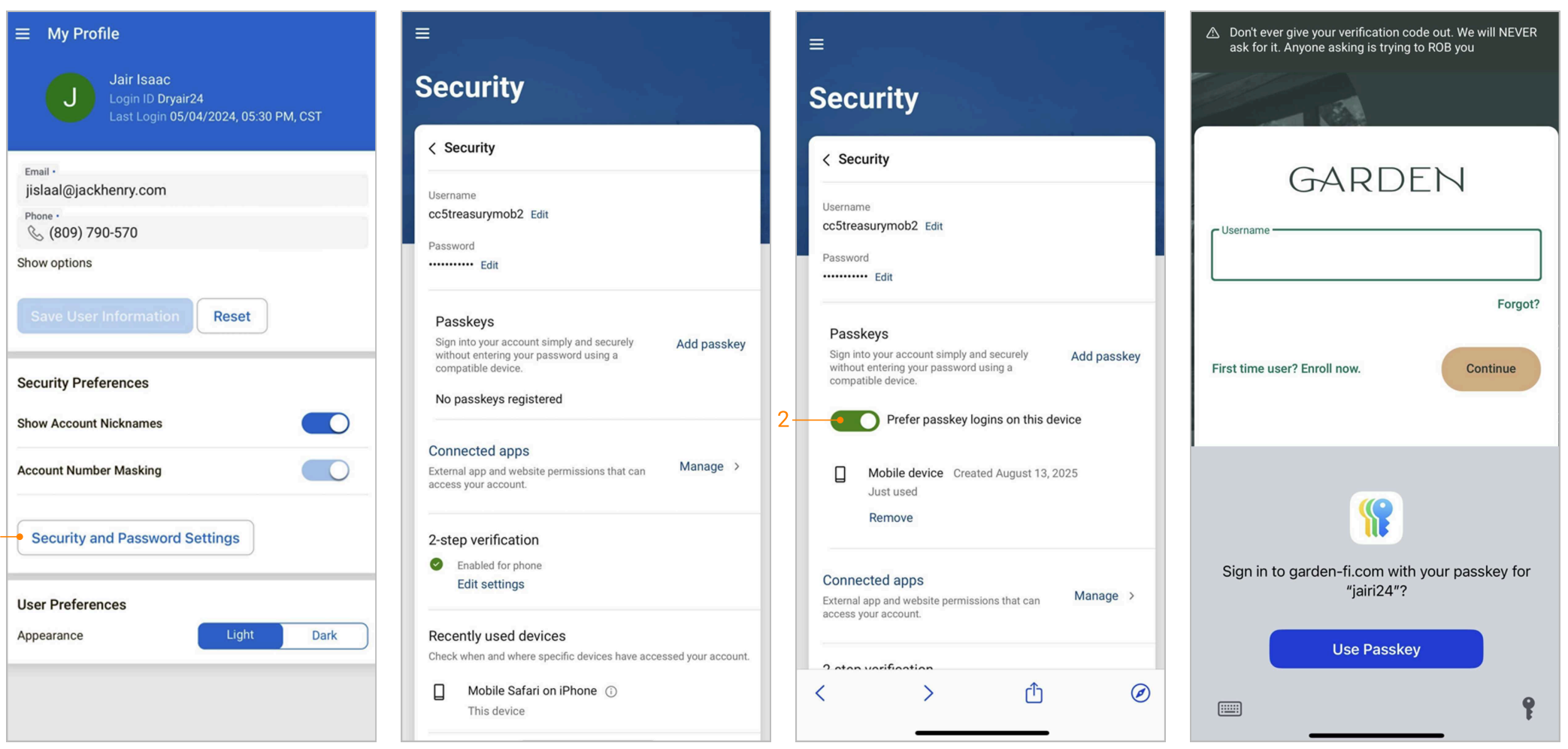
1. Biometric Authentication
- Navigate to My Profile from Treasury Management Mobile Experience’s main menu or the icon at the top of the dashboard.
- Select the Security and Password Settings button and sign in using the digital ID and password and the authentication method chosen.
2. Sign In with a passkey
- Select Add passkey and enter your password to confirm request (re-authentication may be required), then select a passkey type.
- Once the passkey type is selected, a toggle will appear in the Passkeys section. Toggle this setting on (green) to make the passkey the preferred login method for the device.
- On the next sign-in to Treasury Management Mobile Experience, select Use Passkey to start using biometrics at subsequent logins.
Note:
- In order for the Use Passkey button to become available on Apple devices, do not save your Treasury Management password to the device’s saved passwords.
- Passkey types supported, such as face ID or fingerprint, is dependent on your device’s capabilities.
Installing the App
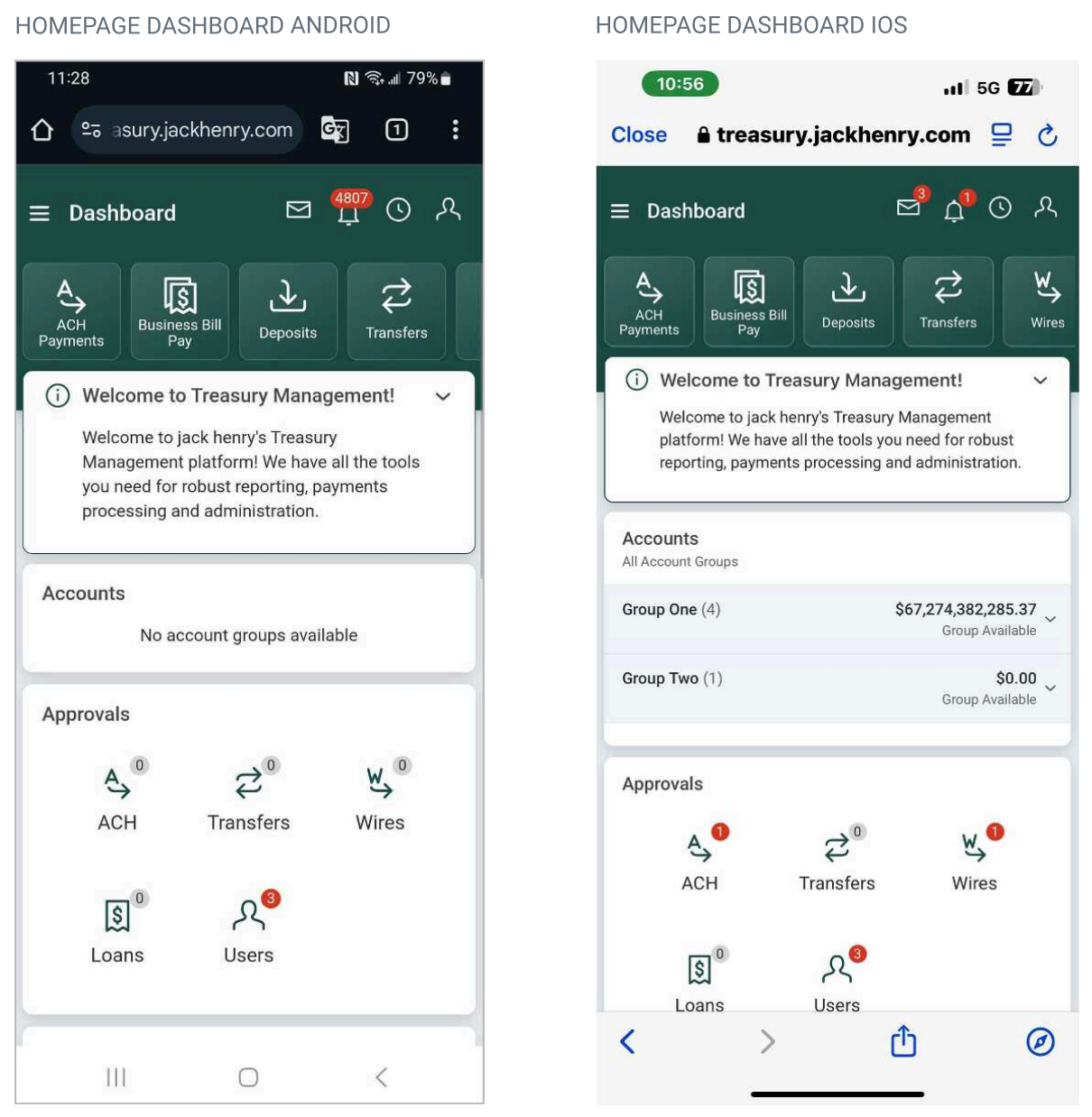
The Treasury Management Mobile Experience can be accessed by adding / (forward slash) PWA to your existing Treasury Management Channel URL, which can be accessed using the following URL template: https://treasury.jackhenry.com/pwa/yourFIID/login
To install the app manually on an Android device, follow these steps:
-
Select Settings (3 dot/ellipsis icon) on Google Chrome.
-
Select Install App.
-
Select Install on the Install App modal.
To install the app on an iOS device, select the share icon at the bottom of the page, and then select Add to Home Screen.
Note:
- Always bookmark or add the URL to the device’s home screen from the Treasury Management Mobile Experience homepage dashboard. DO NOT “Add to Home Screen” or “Bookmark” from the UIS login page. The user will receive an error message if the UIS login page is bookmarked.
- If you have a vanity URL, please reach out to Jack Henry via support case for your unique Mobile Experience URL.
- Easily access the Mobile Experience by installing or adding the app from the Treasury Management homepage dashboard.
- Treasury Management Mobile Experience supports most browsers; however, it does not support Internet Explorer or other obsolete browsers. Current and prior versions of Google Chrome and Safari browsers are supported.
Dashboard
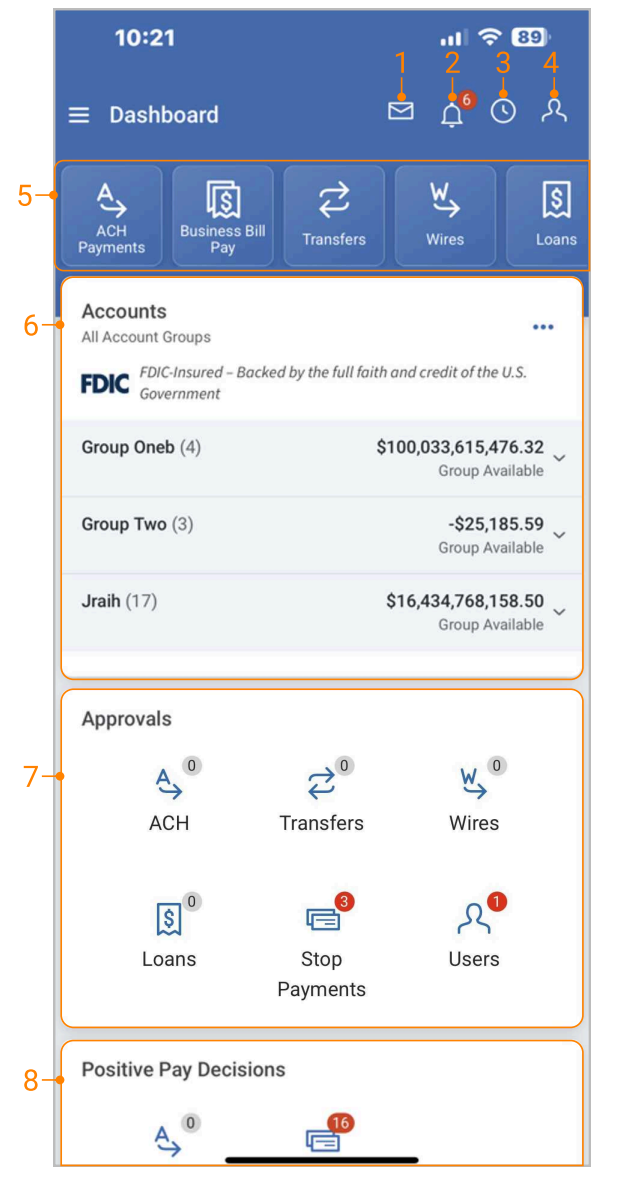
-
Select the Message icon to view, reply, archive and create messages.
-
Select the Notifications icon to view or filter notifications.
-
Select the Cut-Off Times icon to view the list of your financial institution’s specific product cutoff times.
-
Select the My Profile icon to view and update user preference dat, such as light/dark mode and account security preferences.
-
Select a product tile such as ACH Payments, Business Bill Pay, Deposits, Transfers, or Wires to quickly navigate to a specific product homepage.
-
From the account widget, select an account from an account group to access details and transactions.
-
Select an approval type on the Approvals widget to view the specific approval page and initiate approvals.
-
From the Positive Pay Decisions widget, select ACH or Checks exceptions to decision positive pay items.
Main Menu
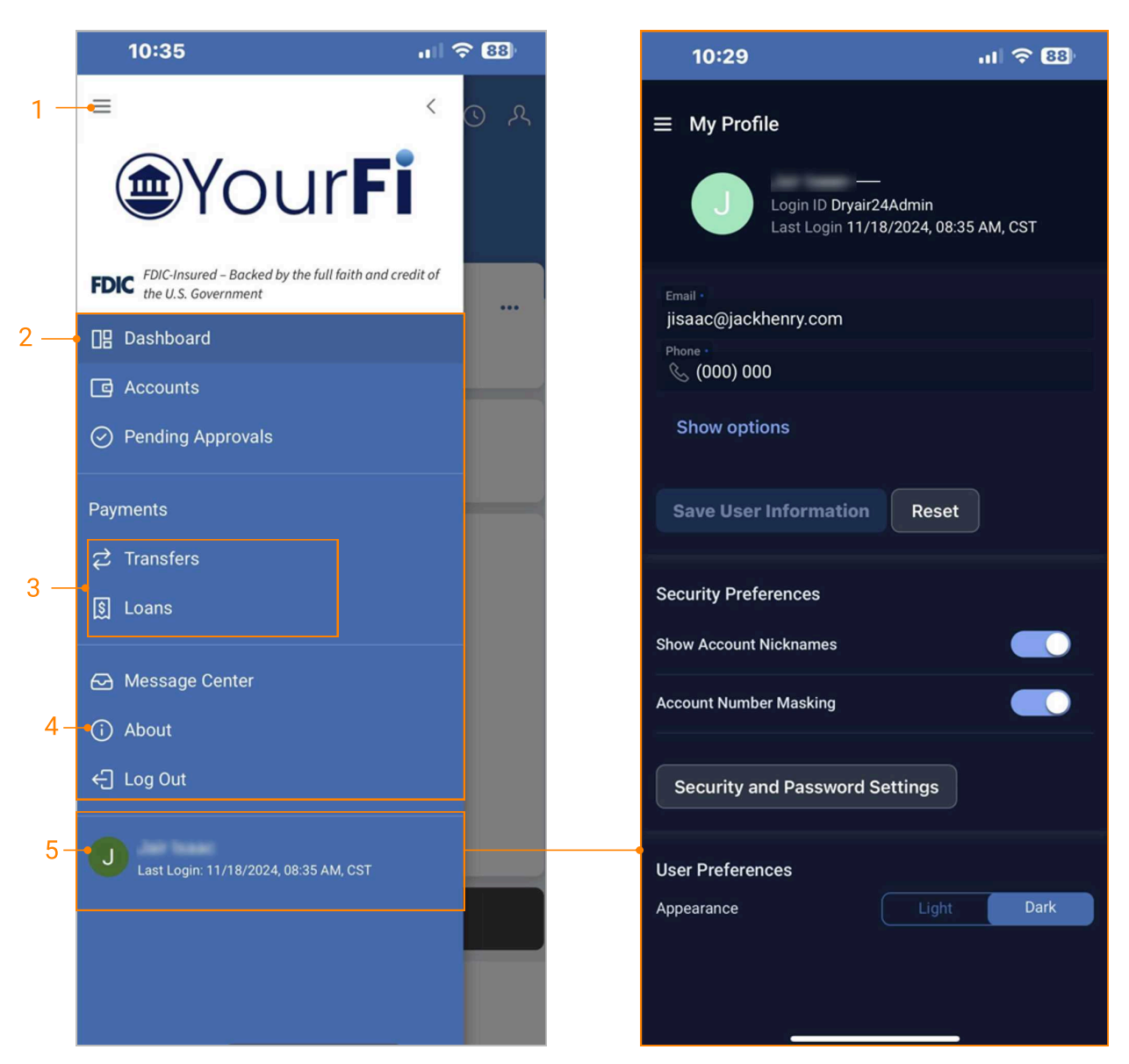
1. Main Menu: Select the menu icon to display full menu options.
2. Menu Items: Select a menu item to be taken directly to the corresponding page.
3. Sub-Menu Items: Sub-menu items available for Payments and Positive Pay menu items.
4. About: Contains contact information, Privacy Statements, and Terms and Conditions for the financial institution. Select Privacy Statement and Terms and Conditions to view details.
5. My Profile: View and update user preference data, such as account security preferences and light/dark mode, as well as update user information such as phone numbers.
Accounts
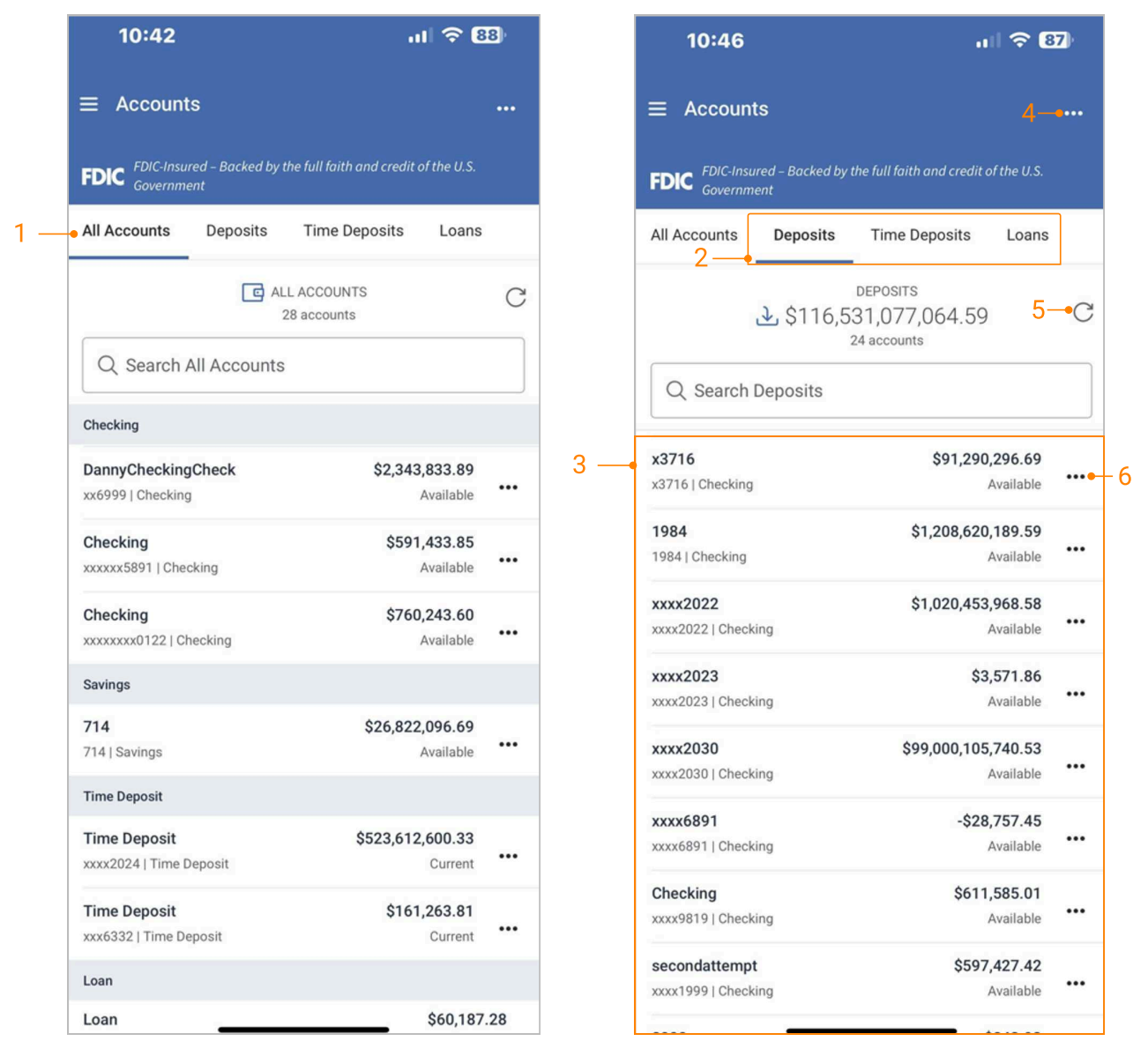
1. All Accounts: Displays the total count of accounts across all menu options.
2. Account Types: Accounts are separated by type: Deposits, Time Deposit, and Loan.
3. View Accounts Details: Tap anywhere on an account to view the details and transactions.
4. Ellipsis Icon: Access features such as download and account research transactions by selecting the ellipsis icon at the top of the page.
5. Refresh Icon: The Refresh icon updates the balances real time when selected.
6. Ellipsis Icon - Individual Account: Quickly transfer funds between accounts by selecting the ellipsis icon on an individual account.
Transactions
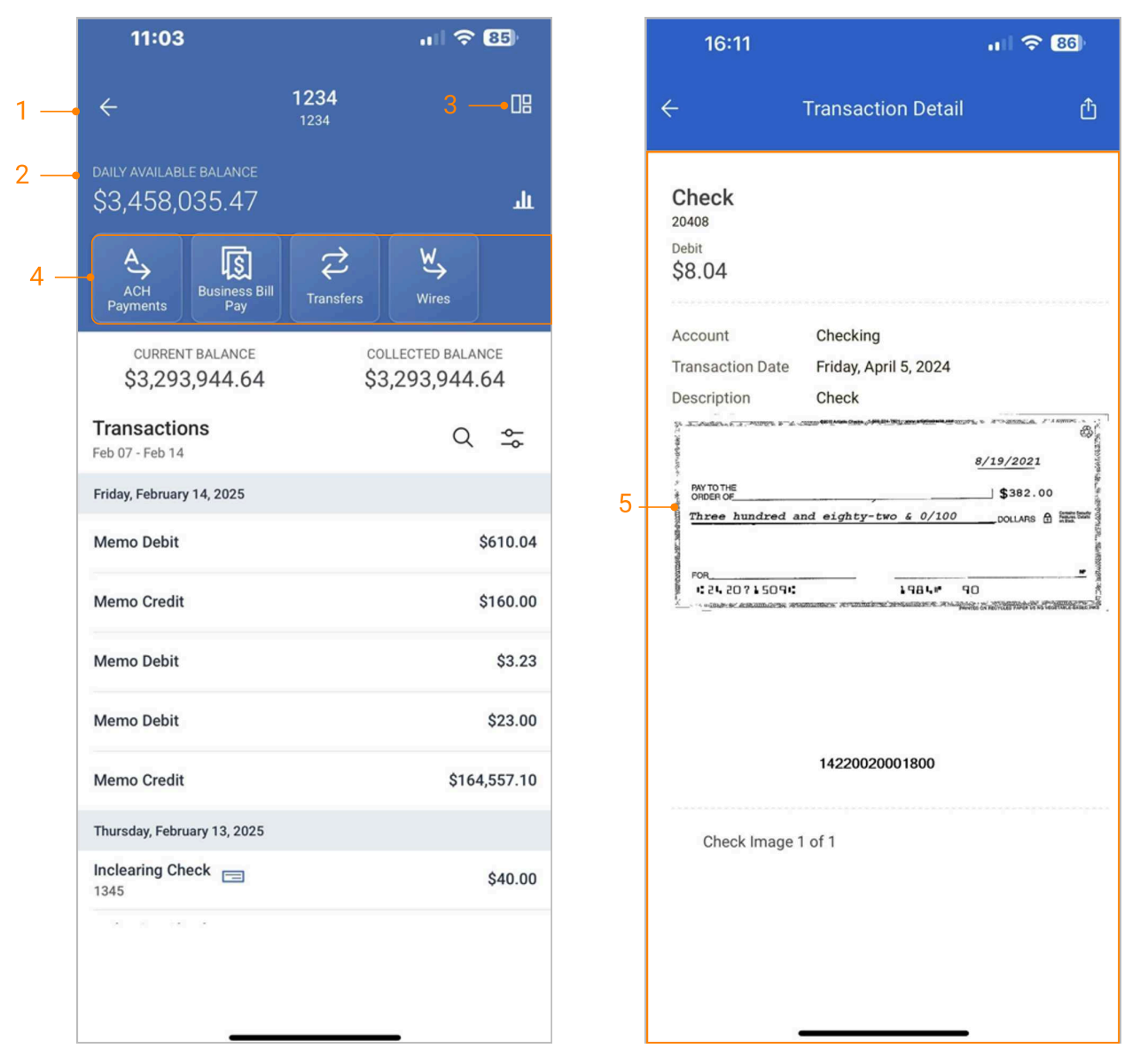
1. Account Details: Displays the selected account’s transaction history.
2. Daily Average Balance: For deposit accounts, a graph charts the daily available balance over the past 10 days.
3. Dashboard Navigation Icon: Use the dashboard navigation icon to quickly access other features of the Treasury Management Mobile Experience.
4. Payment Functions: Easy access to payment functions such as ACH payments, transfers, bill pay, and wires.
5. Transaction Details: Tap anywhere on a transaction to view additional details, including check images (if applicable).
Account Research Transaction
-
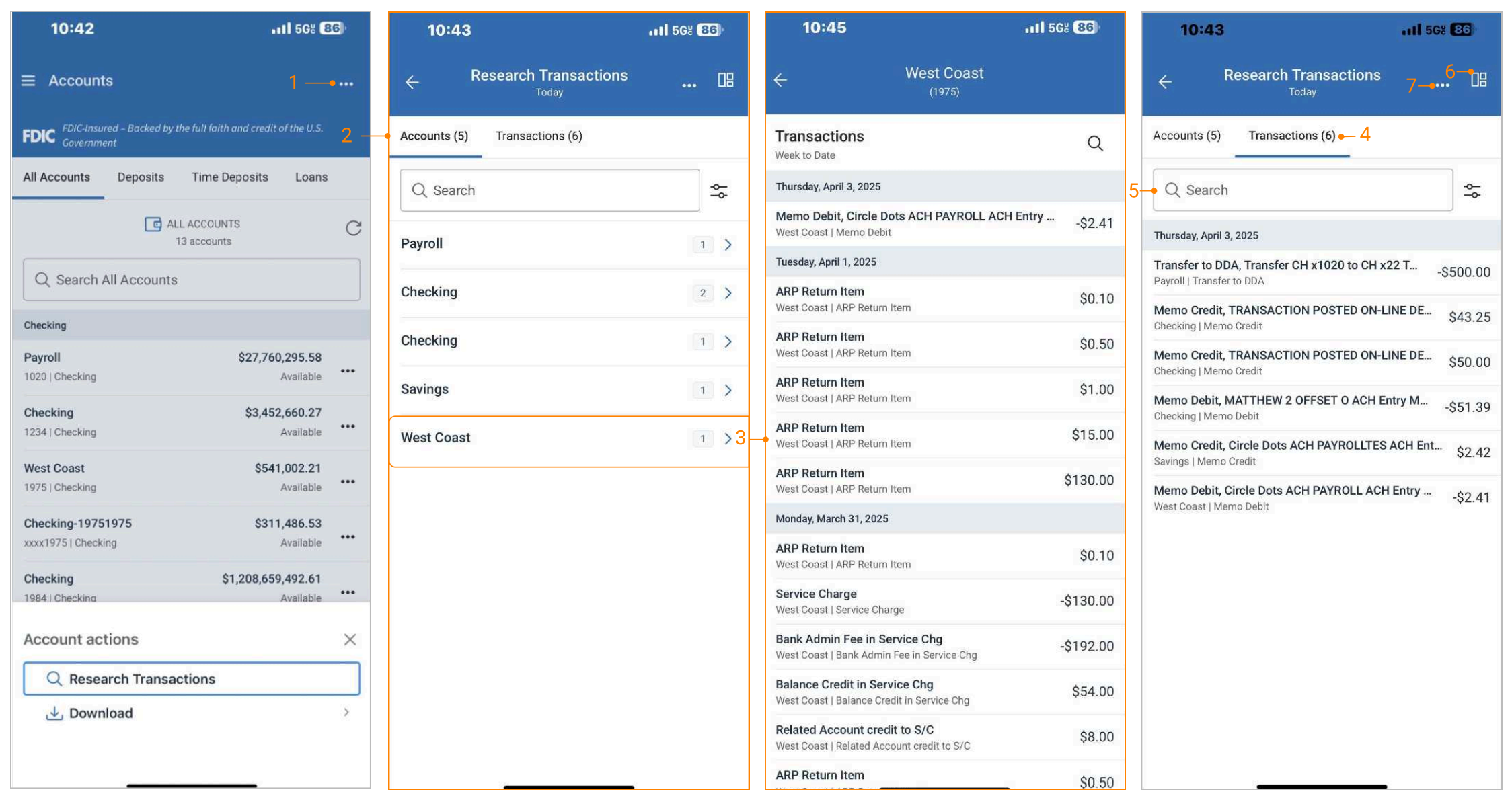
From the flyout navigation menu, navigate to the Accounts homepage, then select Research Transactions from the ellipsis icon at the top of the page.
-
Default results display the current day’s summary count by accounts and transactions.
-
The Account tab displays the summary count of transactions for each individual account.
-
Select the dropdown icon next to the summary count of transactions for an account to view all transactions for the selected account.
-
The Transaction tab displays the full list of all transactions for the given date period.
-
Use the search bar and the advanced filter for a more specific search request.
-
Quickly go back to the homepage dashboard by selecting the dashboard icon.
-
Select the ellipsis icon to download account research transactions in PDF and CSV formats.
Payments
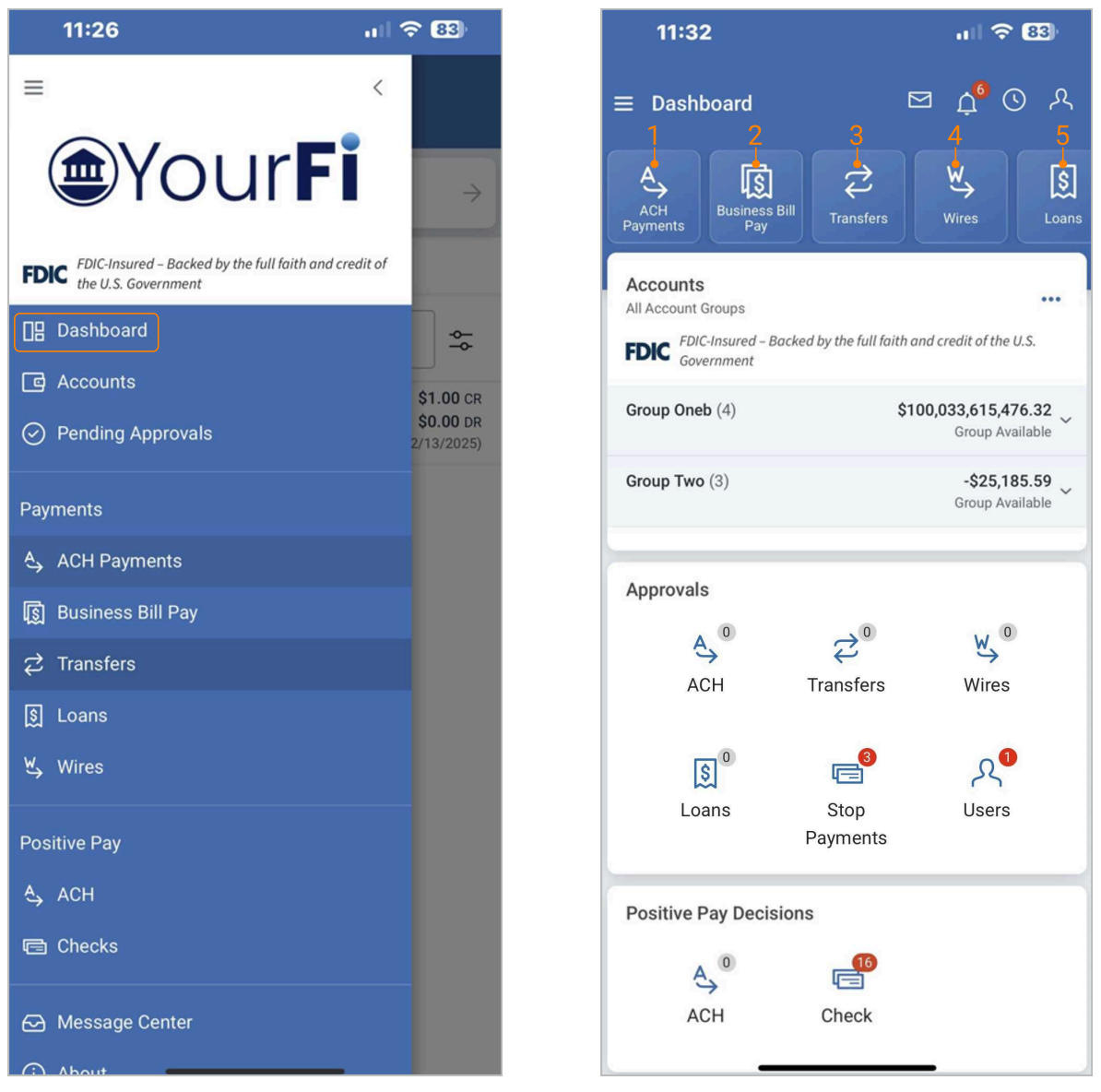
Select a payment type to navigate to the respective payment page where additional actions can be executed.
1. ACH Payments: Allows users to create an ACH payment from a template and view ACH activity.
2. Business Bill Pay: Allows users to create a payment, view payees, payment activity, and scheduled payments.
3. Transfers: Allows users to create a freeform transfer or transfer from a template and view transfer activity.
4. Wires: Allows users to create a USD wire from a template and view wire activity.
5. Loans: Allows entitled users to create a free-form loan payment and view loan payment activity.
Create Transfer
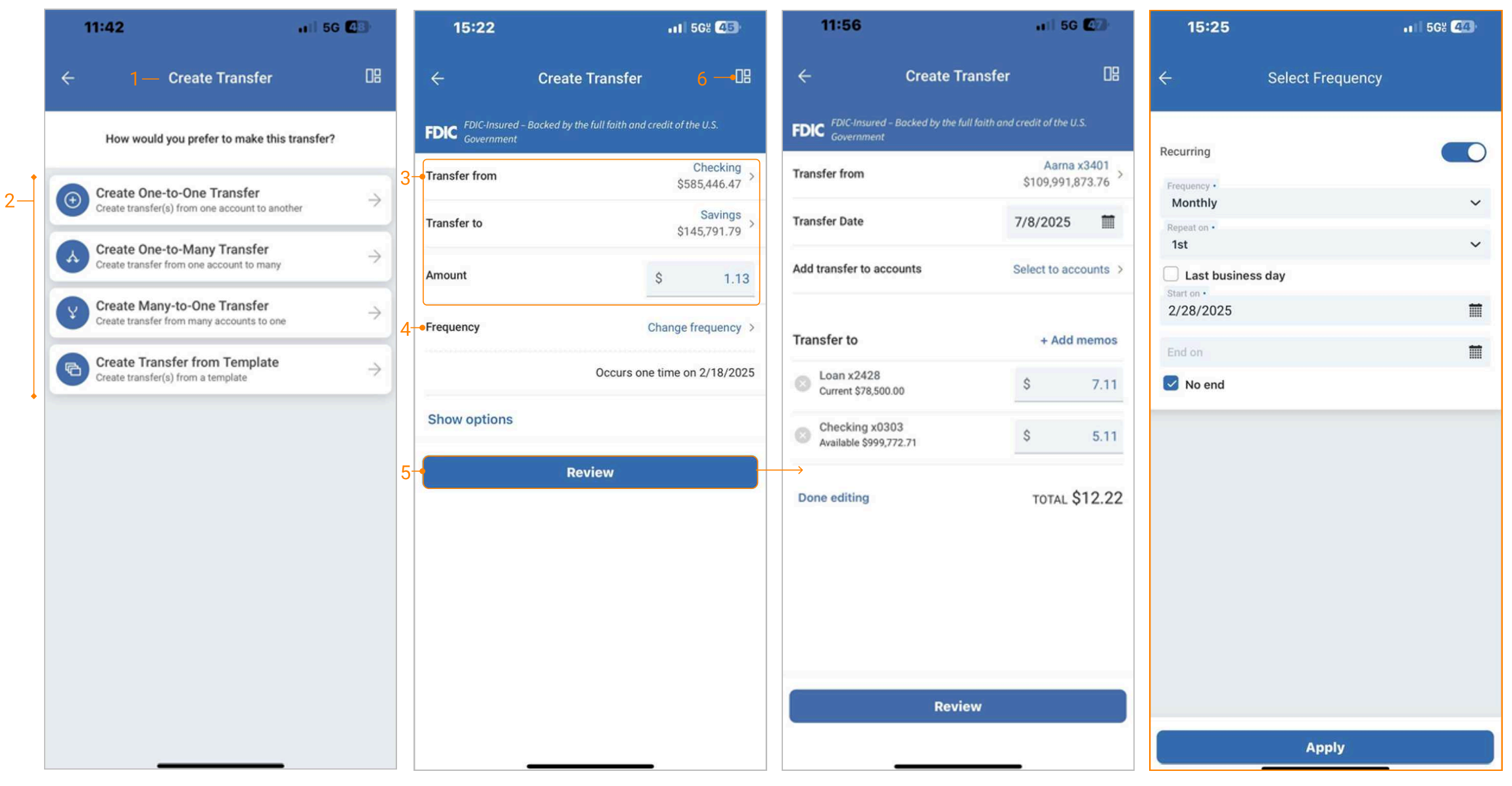
1. Navigate to Transfers:
- From the the main menu, select Payments > Transfers > Create Transfer Payment
- From the dashboard, select Transfers > Create Transfer Payment
- From an individual account, select Transfers > Create Transfer Payment
2. Transfer Type Select the type of transfer desired:
- One-to-One Transfer
- One-to-Many Transfer
- Many-to-One Transfer
-
Complete transfer fields to enable the review button.
-
Select Frequency to set up a recurring transfer.
-
Select Review, then transfer.
-
The quick dashboard navigation icon takes the user back to the dashboard.
Create Transfer From Template
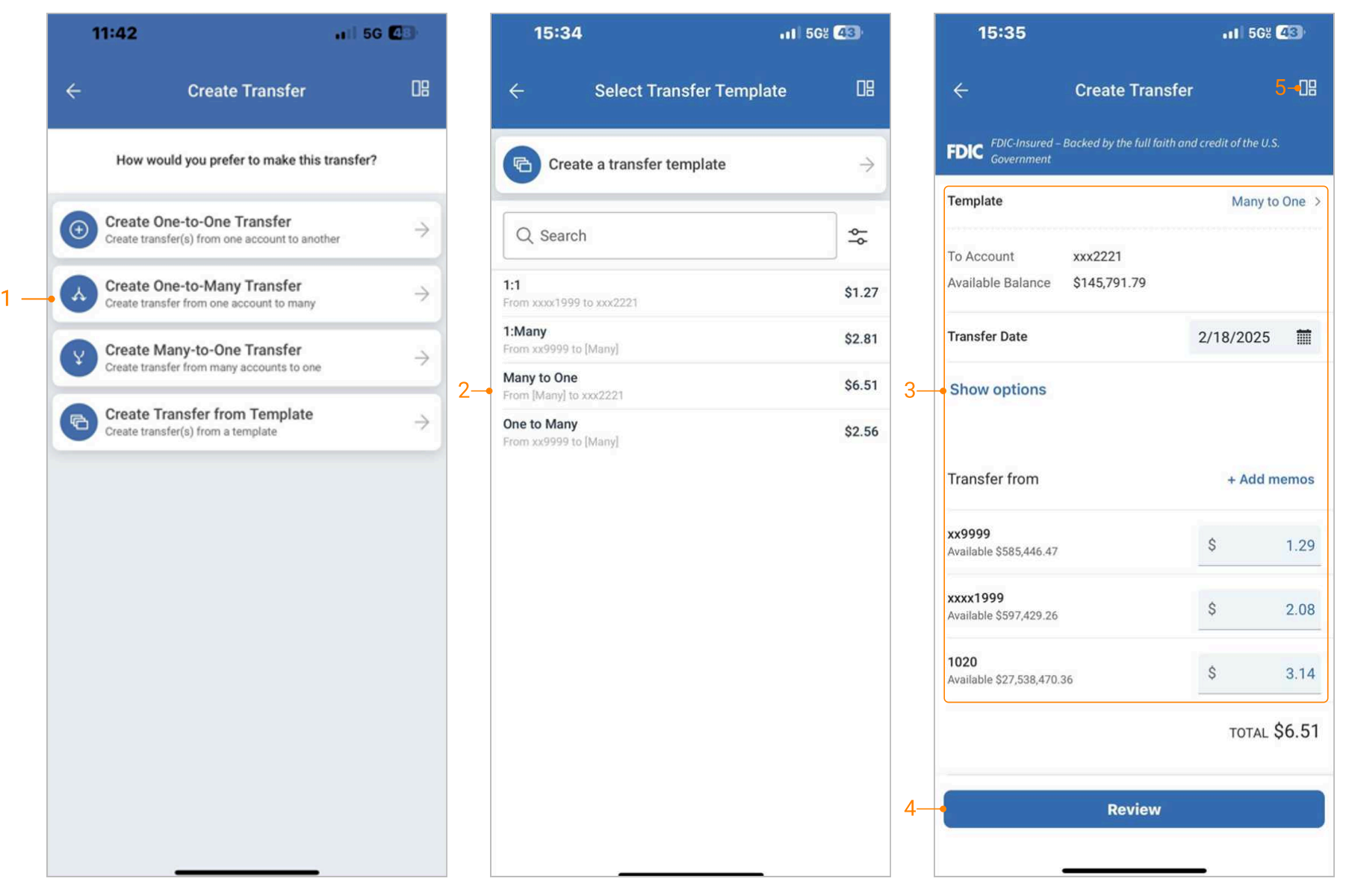
1. Navigate to Transfers:
- From the the main menu, select Payments > Transfers > Create Transfer Payment > Create Transfer from Template.
- From the dashboard, select Transfers > Create Transfer Payment > Create Transfer from Template.
- From an individual account, select Transfers > Create Transfer Payment > Create Transfer from Template.
-
Select an existing template or use the Create a transfer template button to create a new template.
-
Edit fields if needed.
-
Select Review, then transfer.
-
The quick dashboard navigation icon takes the user back to the dashboard.
Create a Transfer Template
-
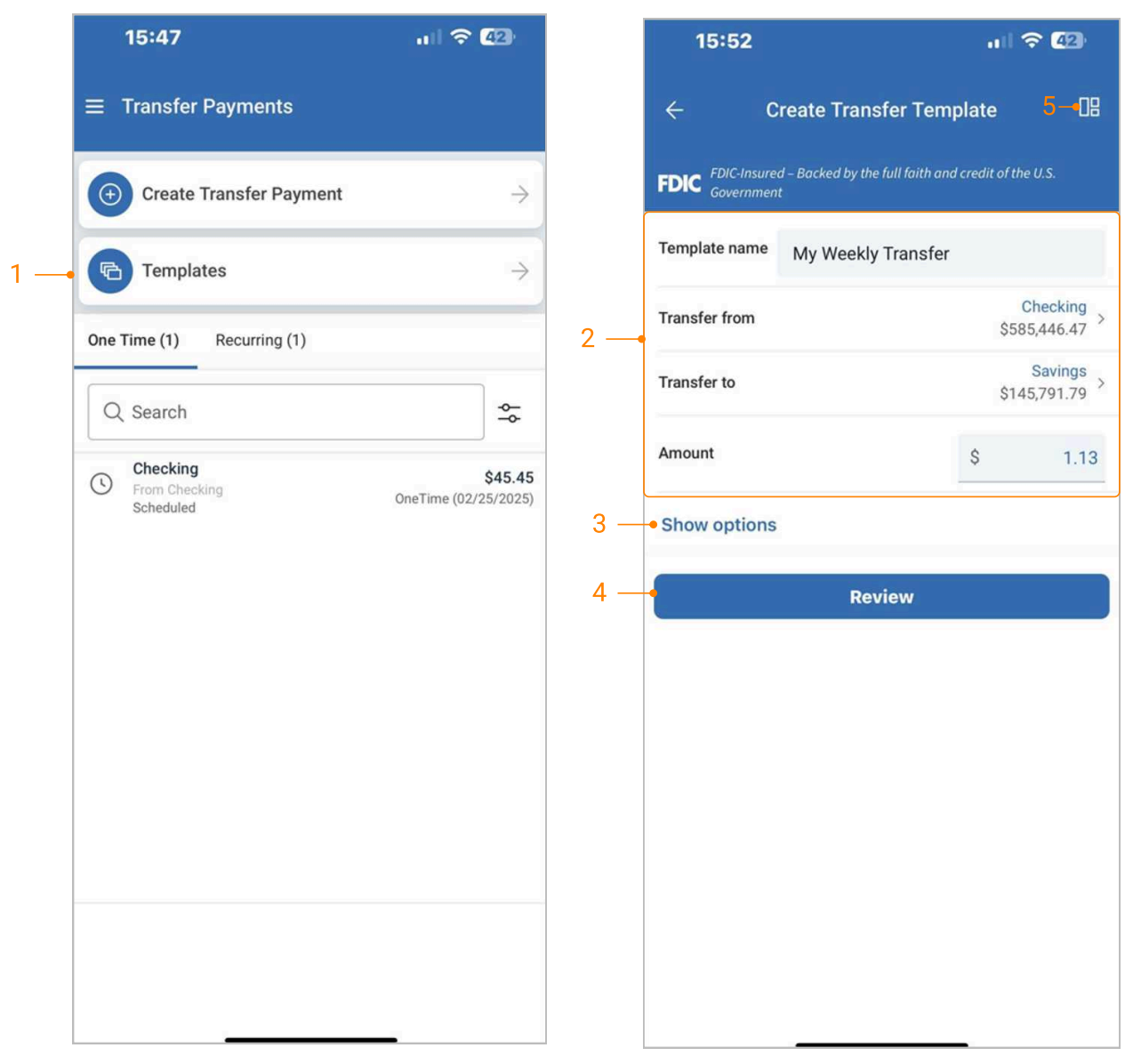
Navigate to Create Transfer Template by selecting the Templates button from the Transfer Payment homepage.
-
Complete all required input fields to enable the review button.
-
Select the Show options link to add optional data.
-
Select Review, then create the transfer template.
-
The quick dashboard navigation icon is available on the create transfer template workflow.
Create Transfer Templates from Transfer Payments
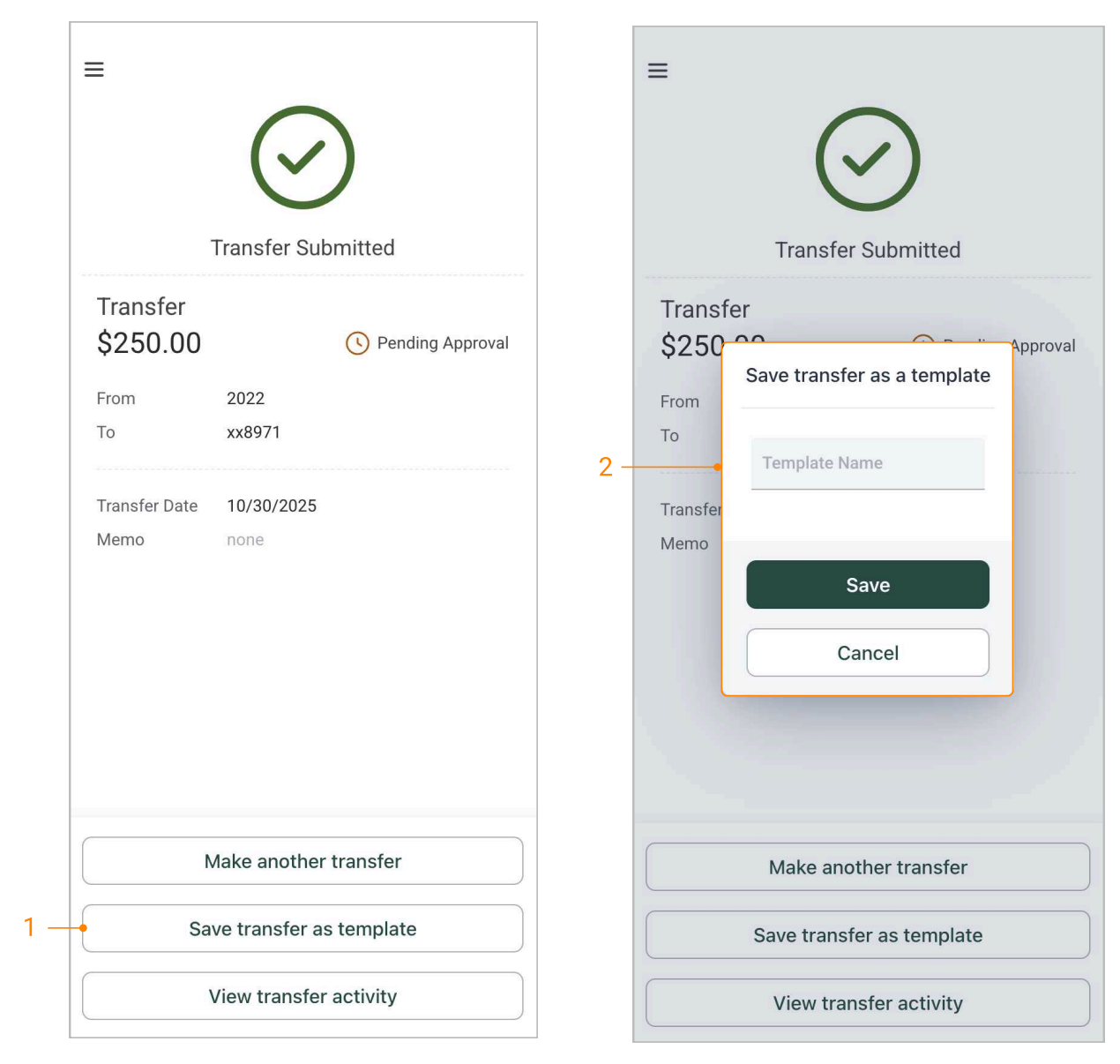
-
Select Save transfer as template.
-
Enter a unique Template Name, then click Save.
Create Loan Payment
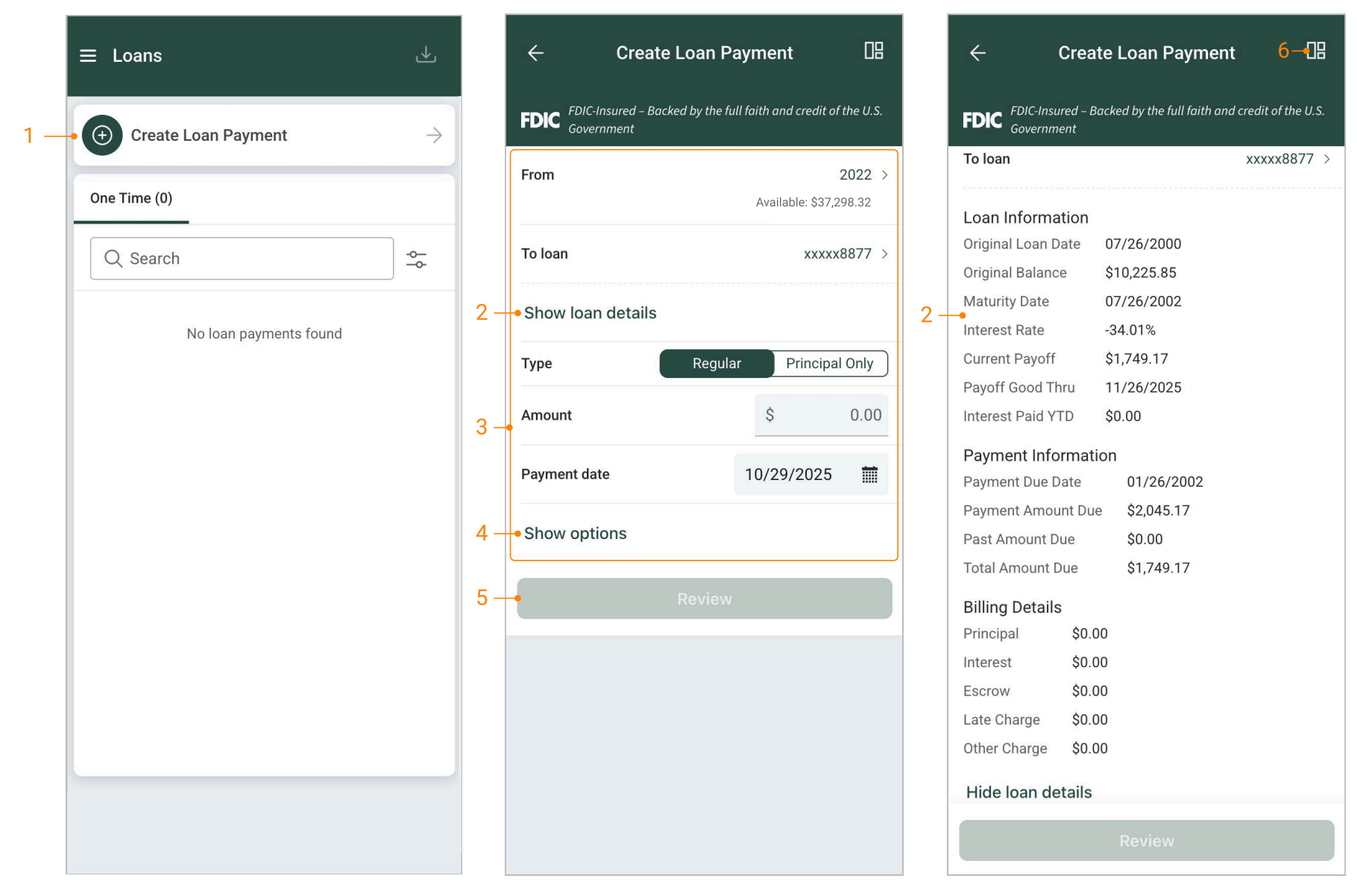
1. Navigate to Loans:
- From the main menu, select Payments > Loans > Create Loan Payment.
- From the dashboard, select Loans > Create Loan Payment.
- From an individual account, select Loans > Create Loan Payment.
- Click Show loan details.
- Complete all required loan fields to enable the Review button.
- Select the Show options link to add optional data.
- Select Review, then pay loan.
- The quick dashboard navigation icon is available on the create loan payment workflow.
Note:
- If two-factor authentication is established for a payment, the user will be prompted to authenticate upon initiating the transfer/loan payment.
- Additional loan details are available on the create loan payment page after selecting a “To loan account” as well as selecting a loan account from the account list.
Create ACH Payment from Template
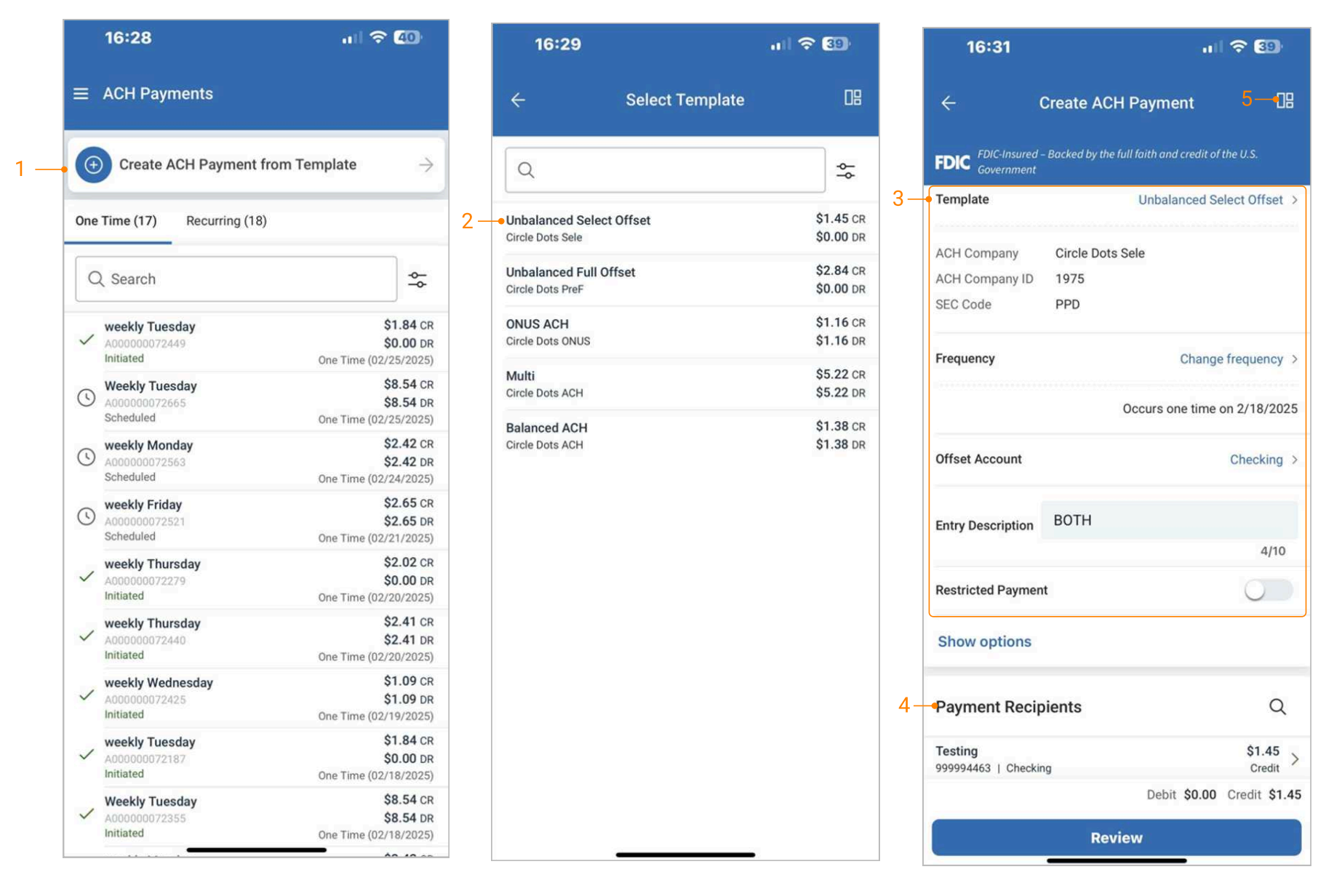
1. Navigate to ACH Payments:
- From the main menu, select Payments > ACH Payments > Create ACH Payment from Template.
- From the dashboard, select ACH Payments > Create ACH Payment from Template.
- From an individual account, select ACH Payments > Create ACH Payment from Template.
-
Select a template.
-
Edit fields if needed.
-
Select Recipients to change or hold amounts for a specific individual.
-
The quick dashboard navigation icon is available on the create ACH payment workflow.
Note:
- Only the dollar amount or hold feature can be edited on a recipient.
- On the Review page, an option to “Apply updates to the Template” can be selected. If selected, any changes made for this payment would be saved to the template.
- If two-factor authentication is established for a payment, the user will be prompted to authenticate upon initiating the ACH payment.
Create Wire From Template
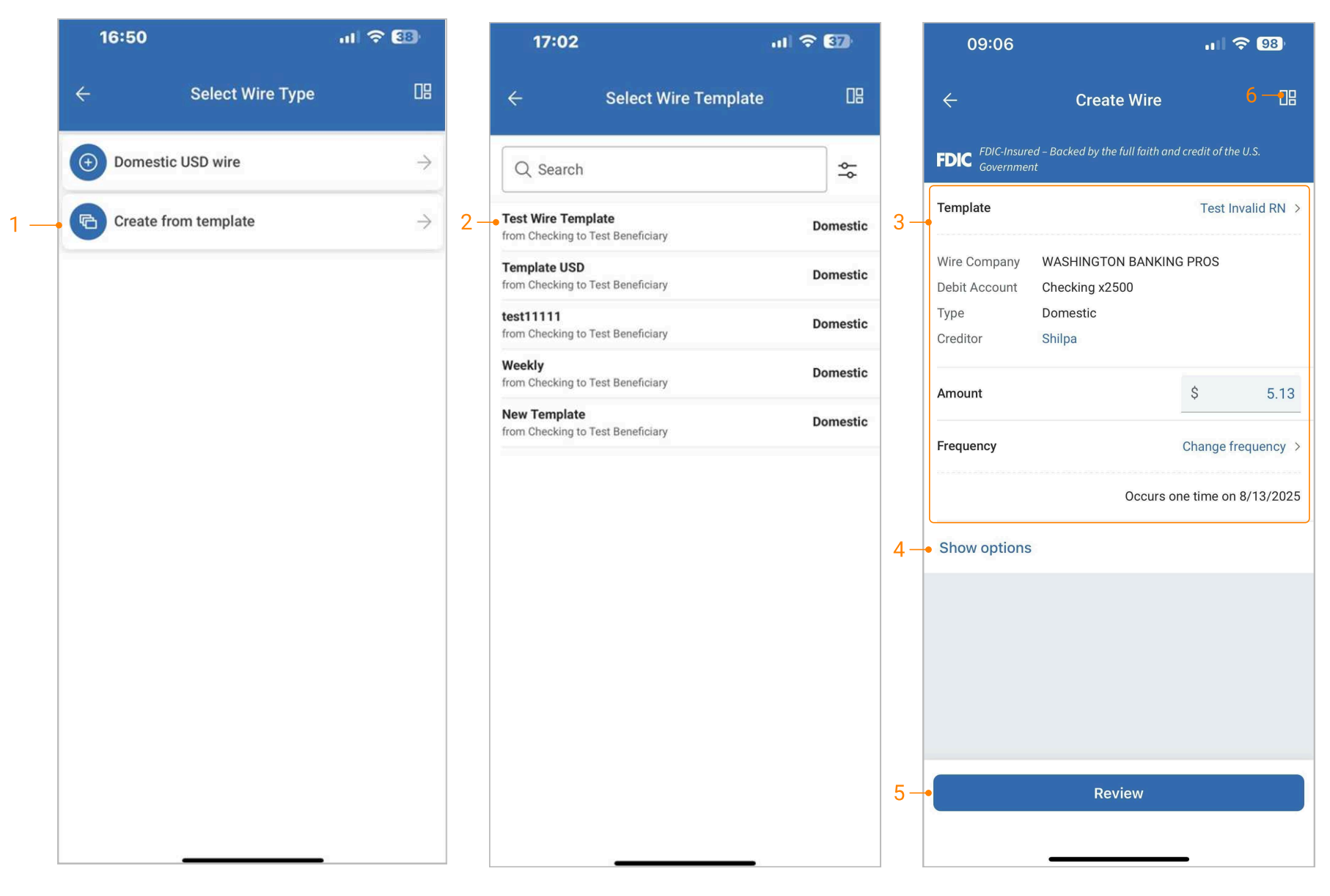
1. Navigate to Wires:
- From the main menu, select Payments > Wires > Create from Template.
- From the dashboard, select Wires > Create from Template.
- From an individual account, select Wires > Create from Template.
-
Select a template.
-
Edit fields if needed.
-
Add or edit optional data by selecting the Show options link.
-
Select Review, then initiate the wire.
-
The quick dashboard navigation icon is available on the create wire workflow.
Create a Free-Form Wire
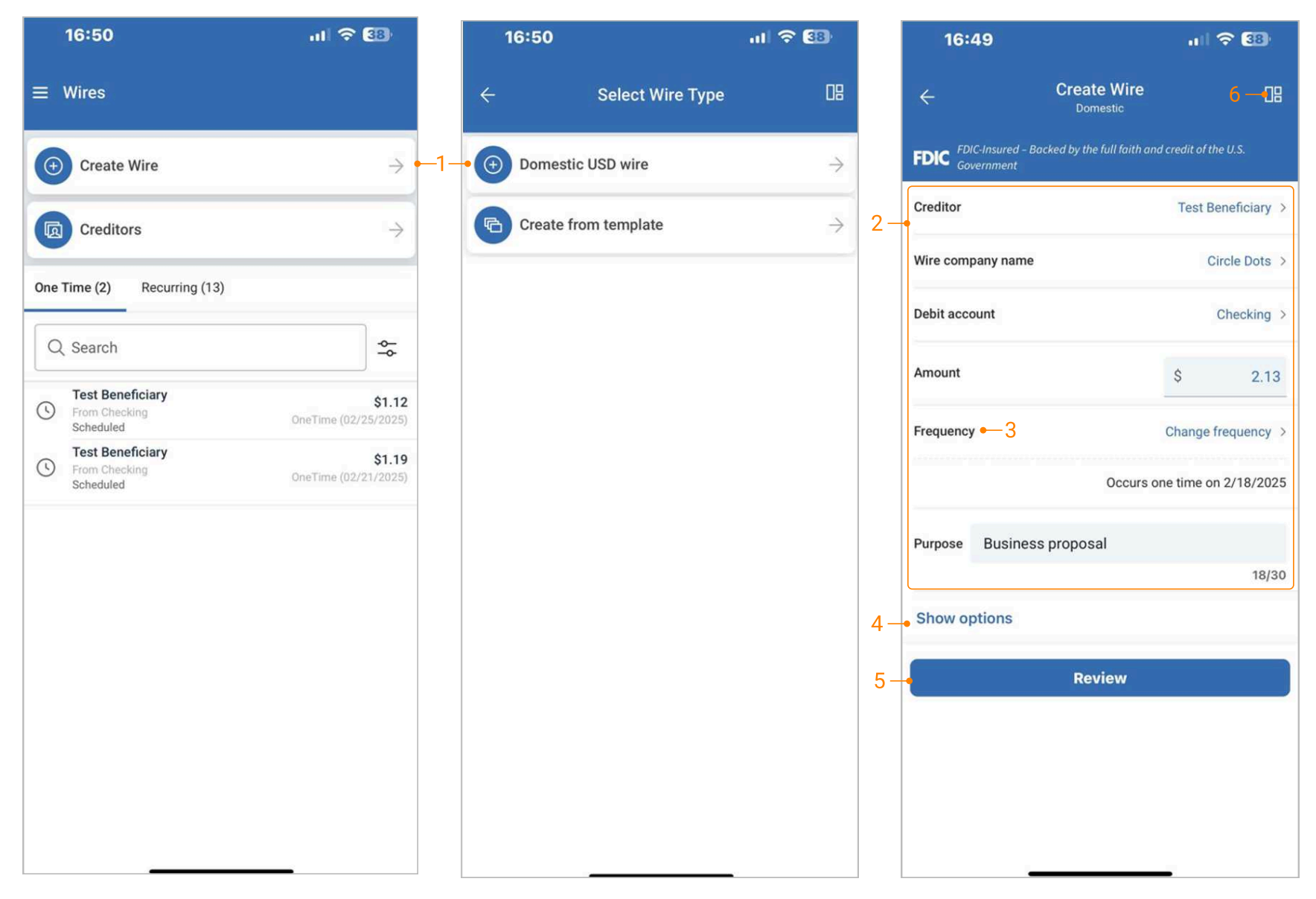
1. Navigate to Wires:
- From the main menu, select Payments > Wire > Create Wire > Domestic USD wire.
- From the dashboard, select Wires > Create Wire > Domestic USD wire.
- From an individual account, select Wires > Create Wire > Domestic USD wire.
-
Complete all required wire fields to enable the review button.
-
Select Frequency to set up a recurring wires.
-
Add optional data by selecting the Show options link.
-
Select Review, then initiate the wire.
-
The quick dashboard navigation icon is available on the create wire workflow.
Create Creditor
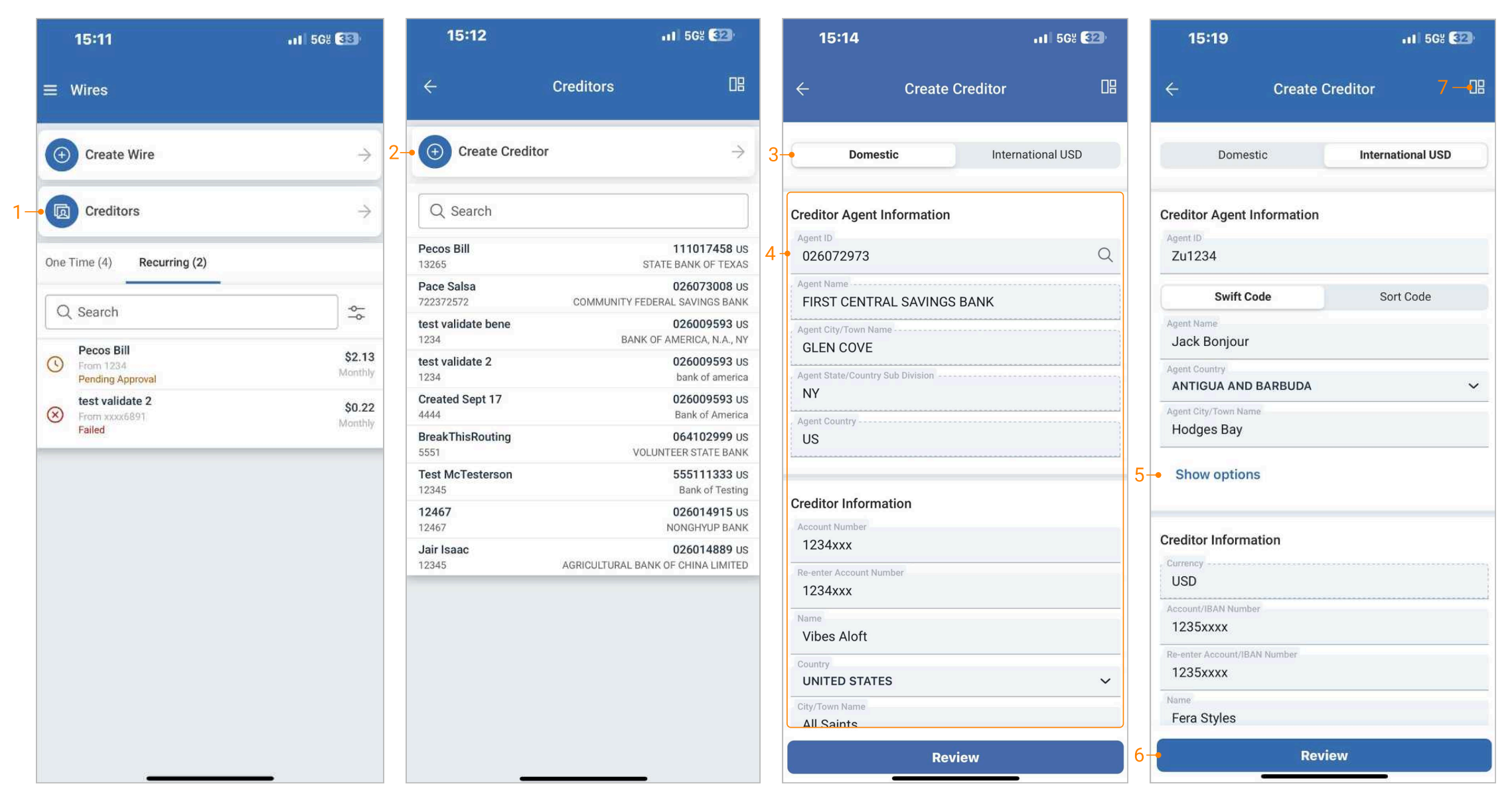
-
Navigate to Creditors by selecting the Creditors button from the Wires homepage.
-
Select Create Creditor.
-
Select the desired workflow, Domestic or International USD.
-
Complete all required input fields to enable the Review button.
-
Select the Show options link to add optional data.
-
Select Review, then Create.
-
The quick dashboard navigation icon is available on the create creditors workflow.
Business Bill Pay
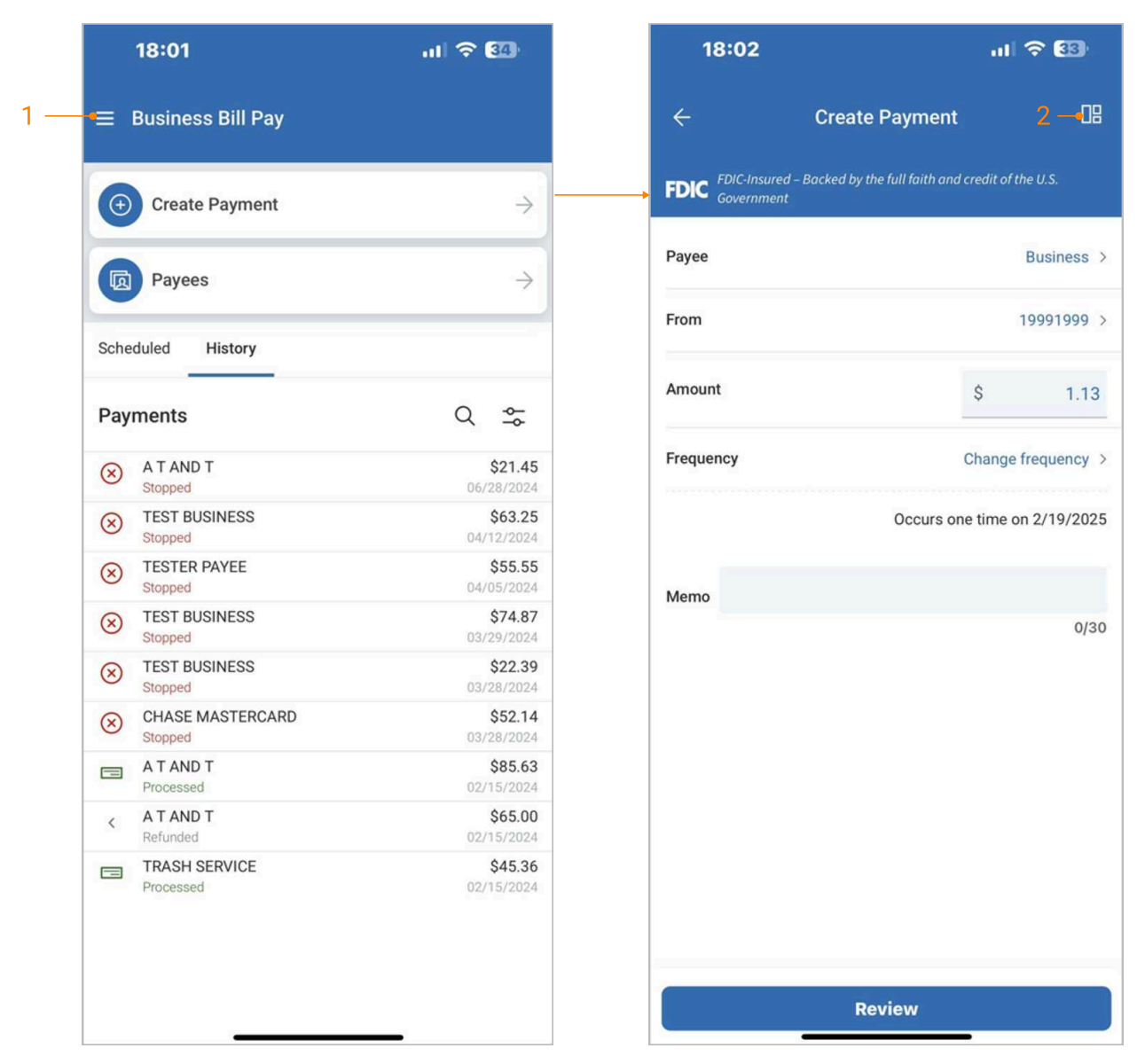
Business Bill Pay allows users to create payments and view payees, payment history, and scheduled transactions.
1. Navigate to Business Bill Pay:
- From the main menu for Payments, select Business Bill Pay.
- From the Dashboard, select the Business Bill Pay tile.
- From an individual account, select the Business Bill Pay tile.
- The quick dashboard navigation icon is available on the create payment workflow.
Create Stop Payments
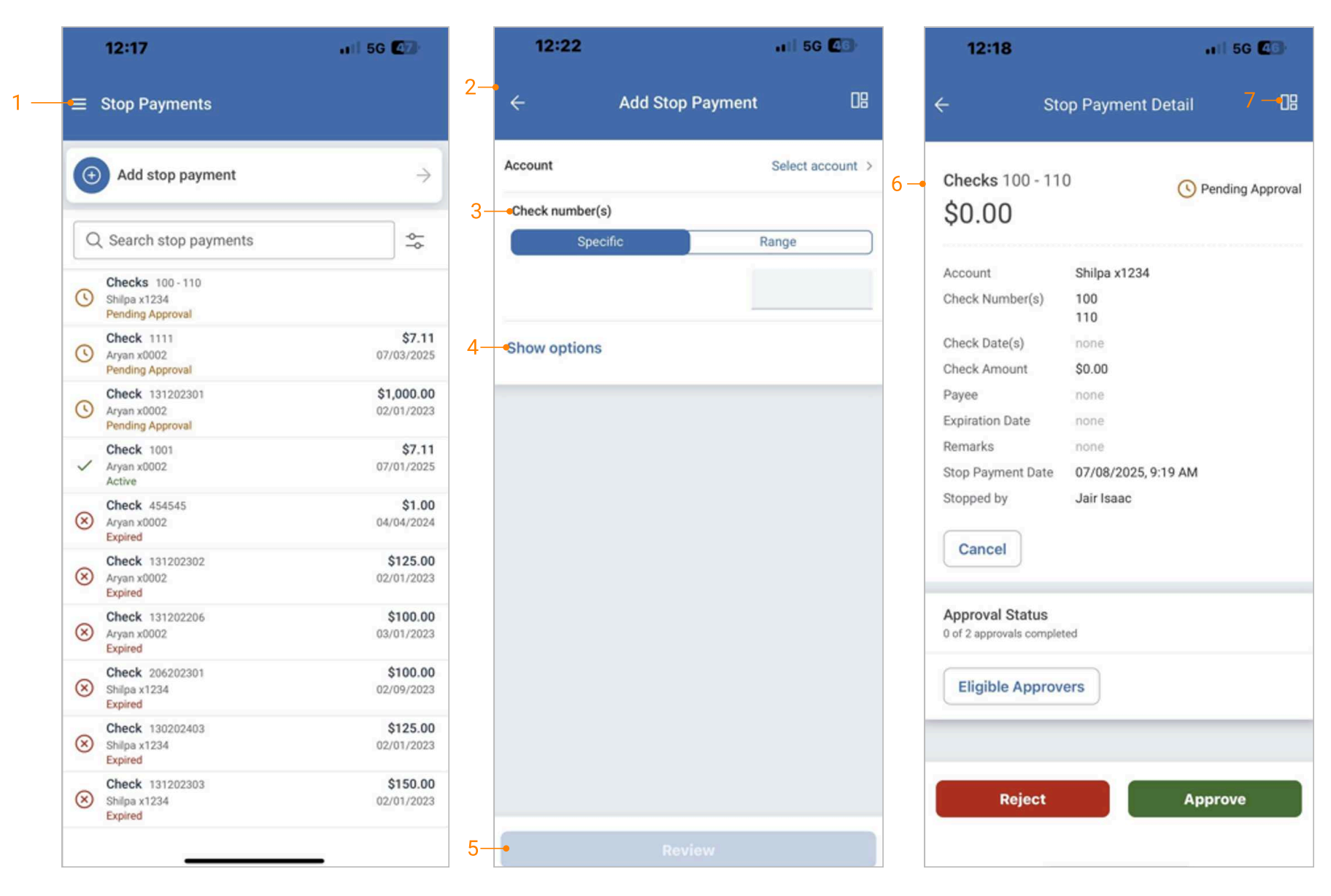
-
Navigate to Stop Payments by selecting Stop Payments > Add stop payment from the main menu.
-
Complete all require fields to enable the Review button.
-
Place a stop payment on a specific check number or range of check numbers.
-
Select the Show options link to add optional data.
-
Select Review, then Add stop payment button at the bottom of the review screen.
-
Select an individual item from the list of stop payments to view the full details of the activity.
- Stop payments pending approval can be approved/rejected from the detail view.
- Use the Cancel button to cancel the stop payment.
- The quick dashboard navigation icon is available on the add stop payment workflow and details screen.
Payment Activity
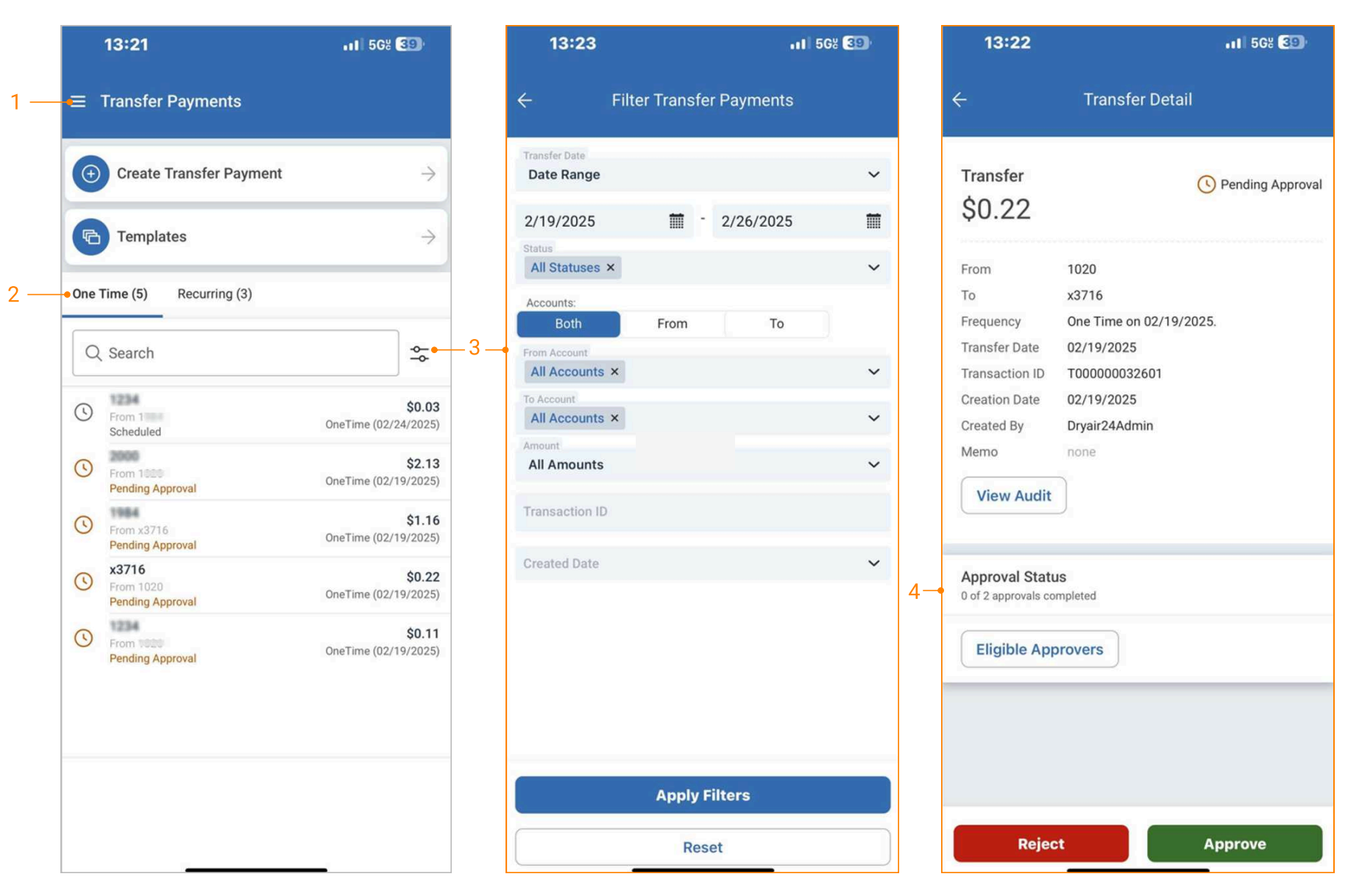
View and filter Transfer, ACH or Wire Activity
-
Select a payment type from the main menu, dashboard or an individual account.
-
The payment activity is readily available on the home page of each payment type.
- One Time activity tab: Grouping of the payment activities with a one-time frequency.
- Recurring activity tab: Grouping of the payment activities with a recurring frequency.
-
Select the advanced filter icon to filter based on selected criteria.
-
Select an individual item to view the full details of the activity. Payments pending approval can be approved from this detail view.
Deposits
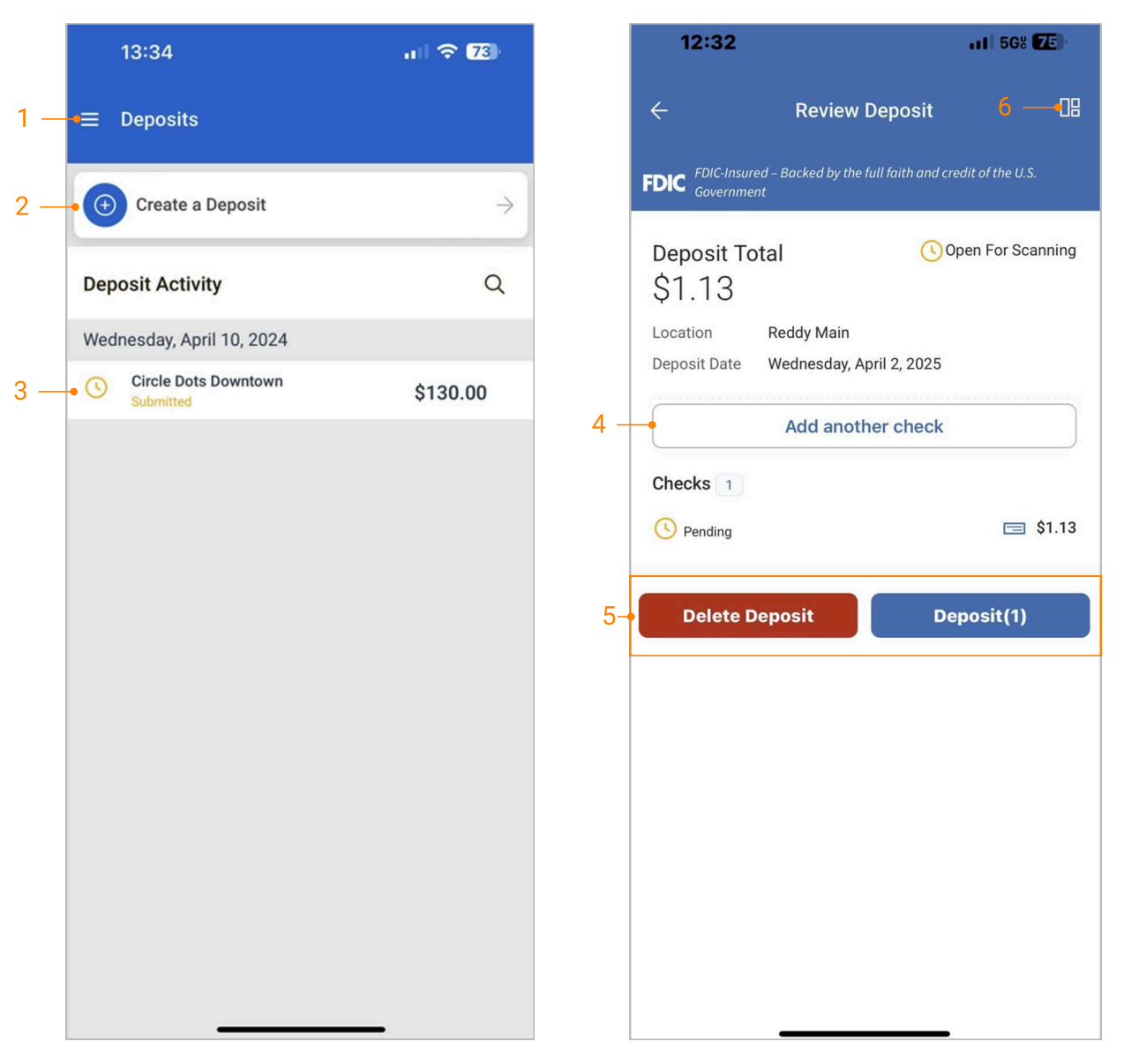
-
Navigate to Deposits by selecting Deposits from the main menu or selecting the deposit tile at the top of the dashboard.
-
Use the Create a Deposit button to make a single or multiple deposits.
-
Select an individual item to view the full details of the deposit activity.
-
The Add another check button allows a user to add multiple deposits.
-
Delete and Deposit are available. Number of check deposits displays on the Deposit button.
-
The quick dashboard navigation icon is available on the review deposit page.
Transfer and Loan Payment Approval
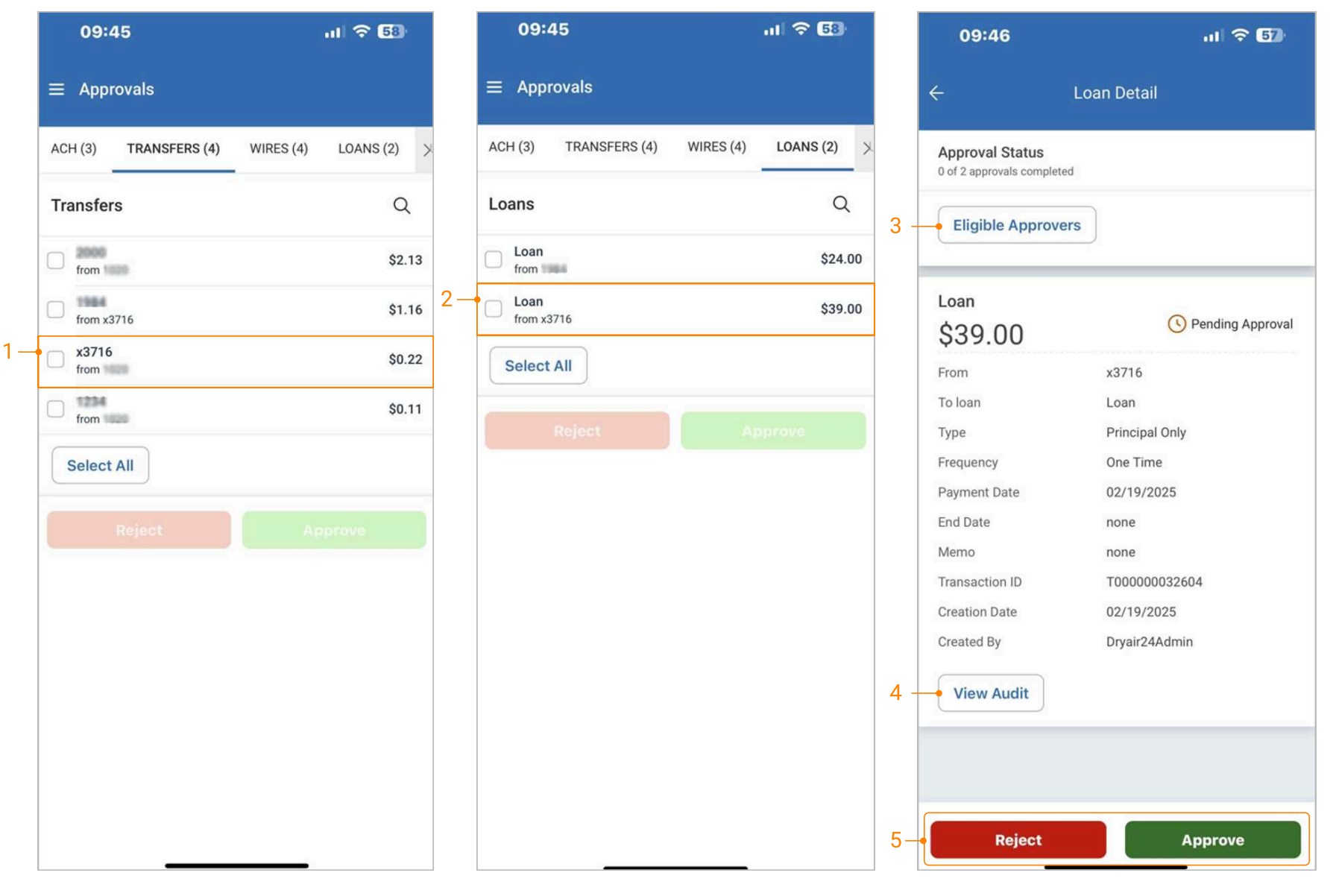
-
Select an individual transfer or loan payment for approval or use the Select All option to approve or reject all payments.
-
Select an individual transfer or loan payment to view the item details and approve or reject the item.
-
Select the Eligible Approvers button to view the list of eligible approvers.
-
Select the View Audit button to view the audit trail data.
-
A confirmation page will display upon approval or rejection.
ACH Payment Approval
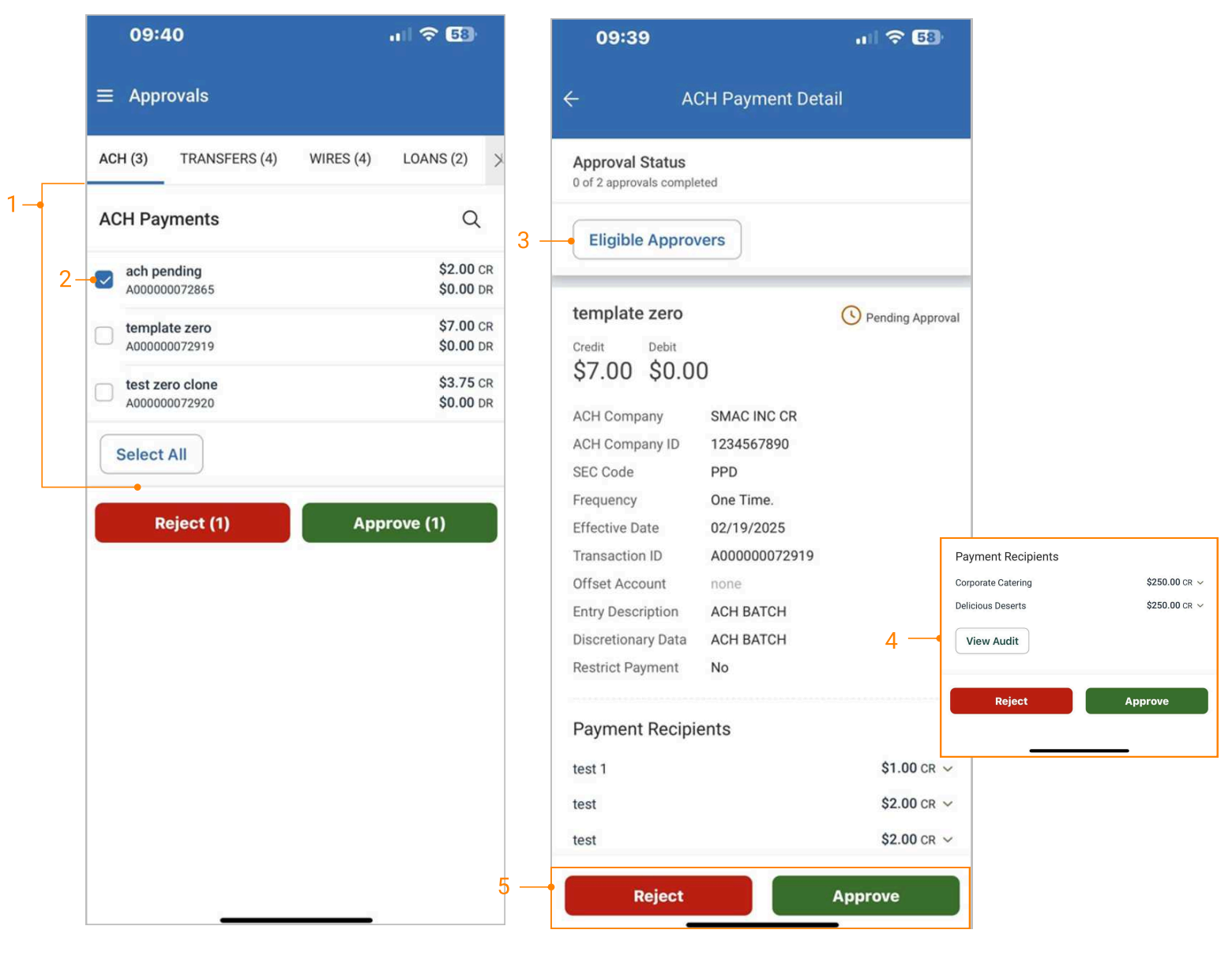
-
Select an individual ACH Payment for approval or use the Select All option to approve or reject all payments.
-
Select an individual ACH Payment to view the ACH payment details and approve or reject the item.
-
Select the Eligible Approvers button to view the list of eligible approvers.
-
Select the View Audit button to view the audit trail data.
-
A confirmation page will display upon approval or rejection.
Wire Approvals
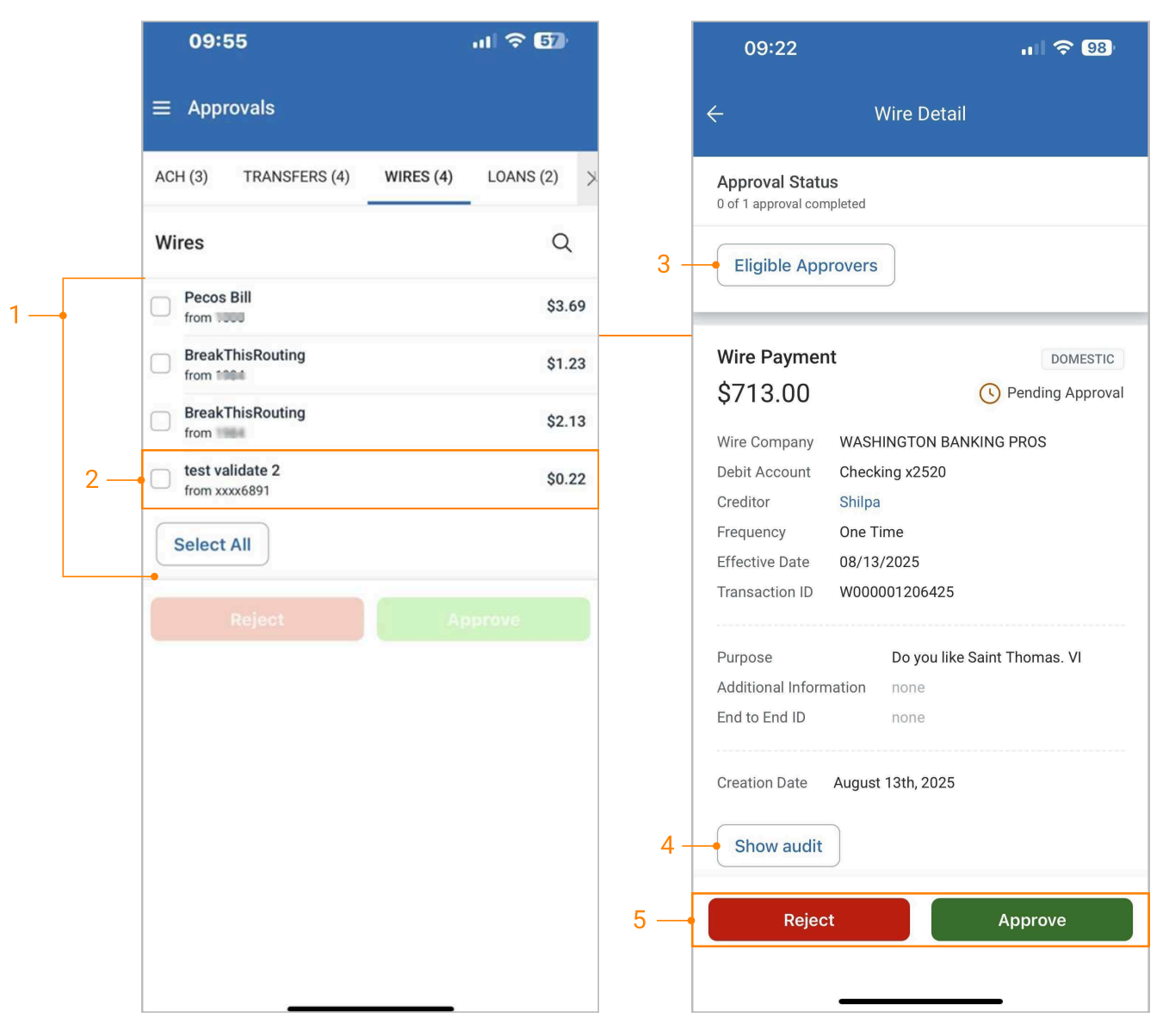
-
Select an individual wire for approval or use the Select All option to approve or reject all payments.
-
Select an individual wire to view the wire details and approve or reject the item.
-
Select the Eligible Approvers button to view the list of eligible approvers.
-
Select the View Audit button to view the audit trail data.
-
A confirmation page will display upon approval or rejection.
Stop Payment Approvals
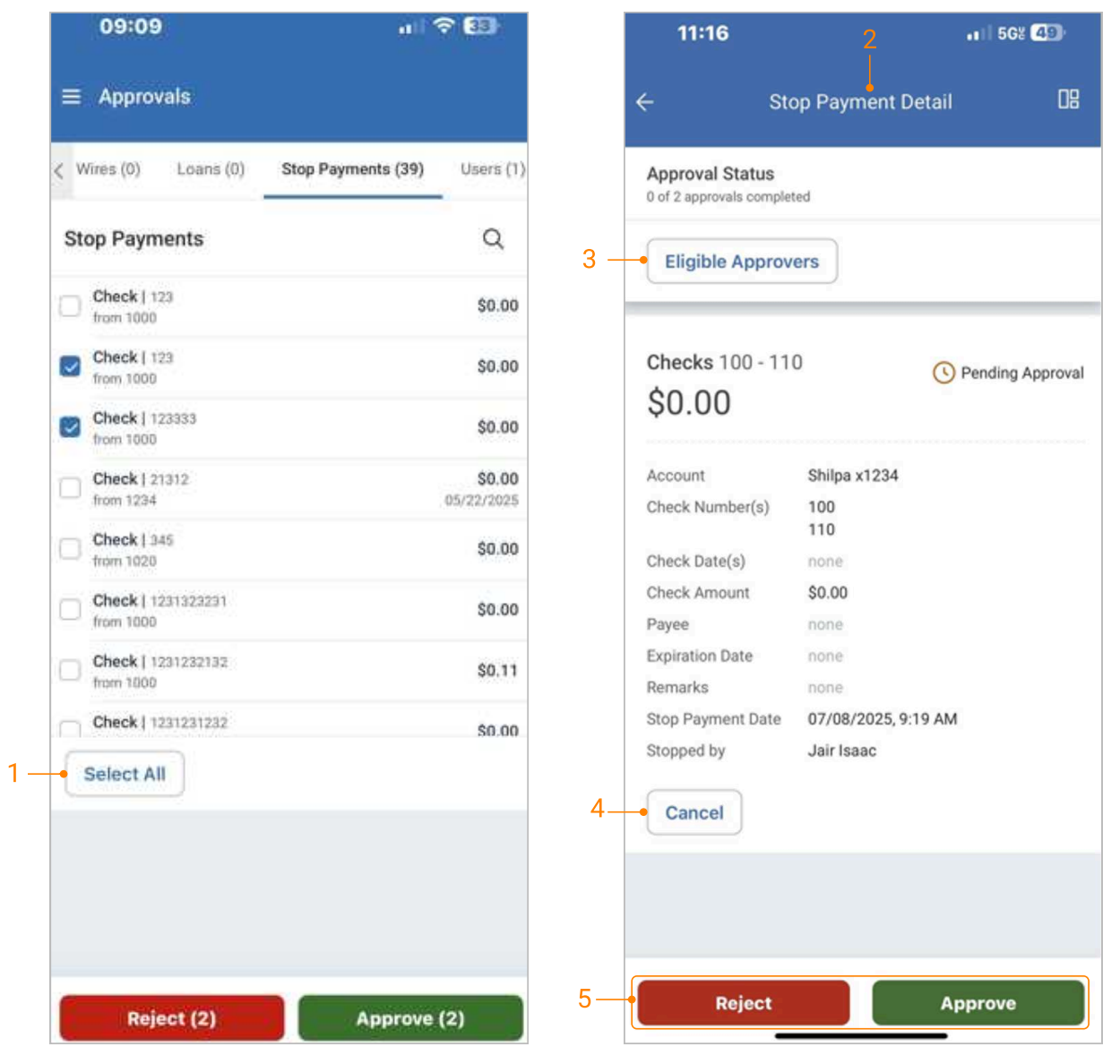
-
The user can approve or reject all stop payments by selecting the Select All button.
-
Select a stop payment item to view the full details and approve or reject individual items.
-
Select the Eligible Approvers button to view the list of eligible approvers.
-
The stop payment can be easily canceled by utilizing the Cancel button.
-
Select the appropriate button to approve or reject the stop payment.
User Approvals
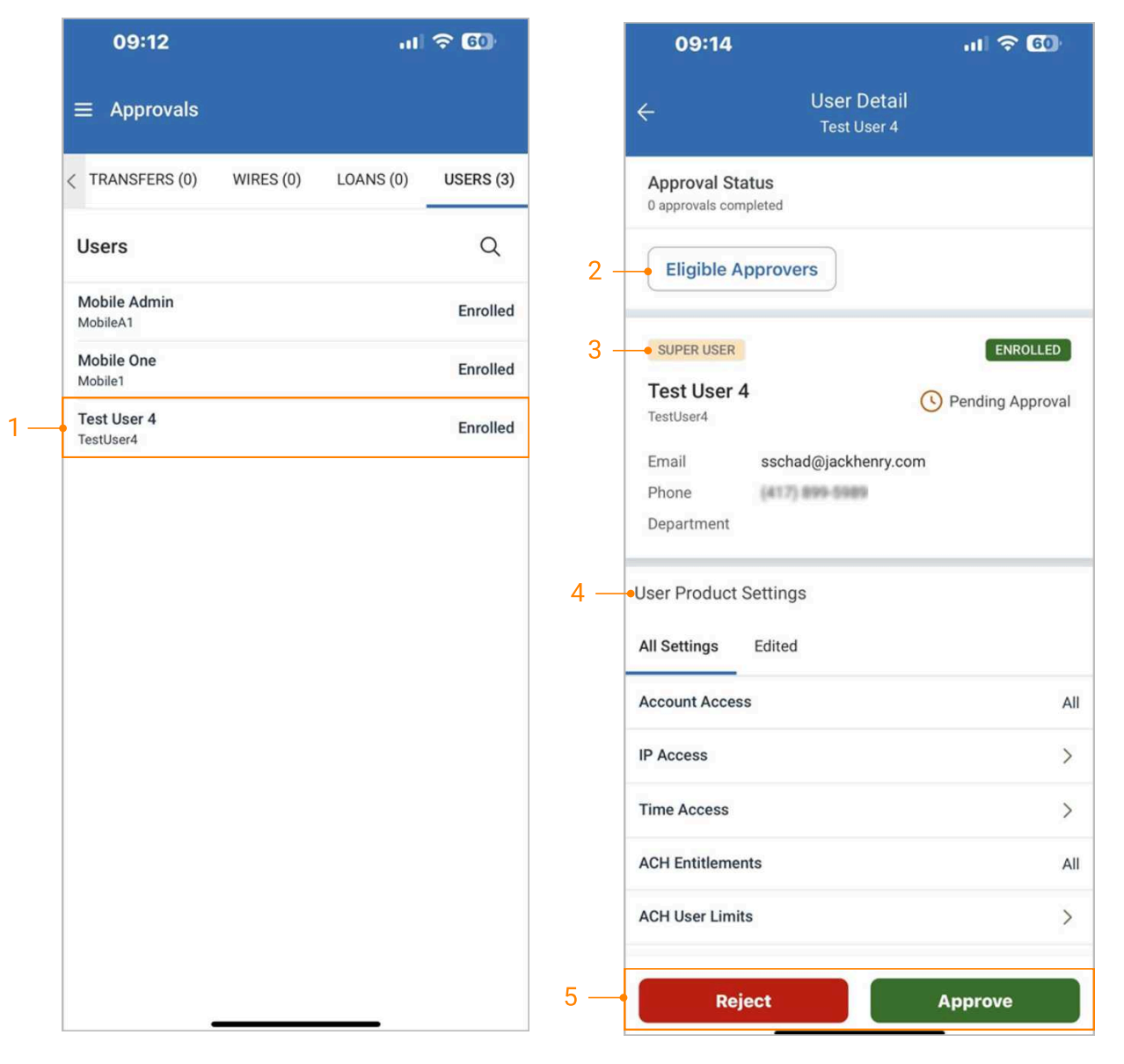
-
Select a user to view details.
-
Select the Eligible Approvers button to view the list of eligible approvers.
-
Edited permissions will be highlighted in yellow.
-
Under User Product Settings, select the feature to view additional details or select Edited to view only the edited items.
-
Select the appropriate button to approve or reject the user.
Positive Pay Decisions
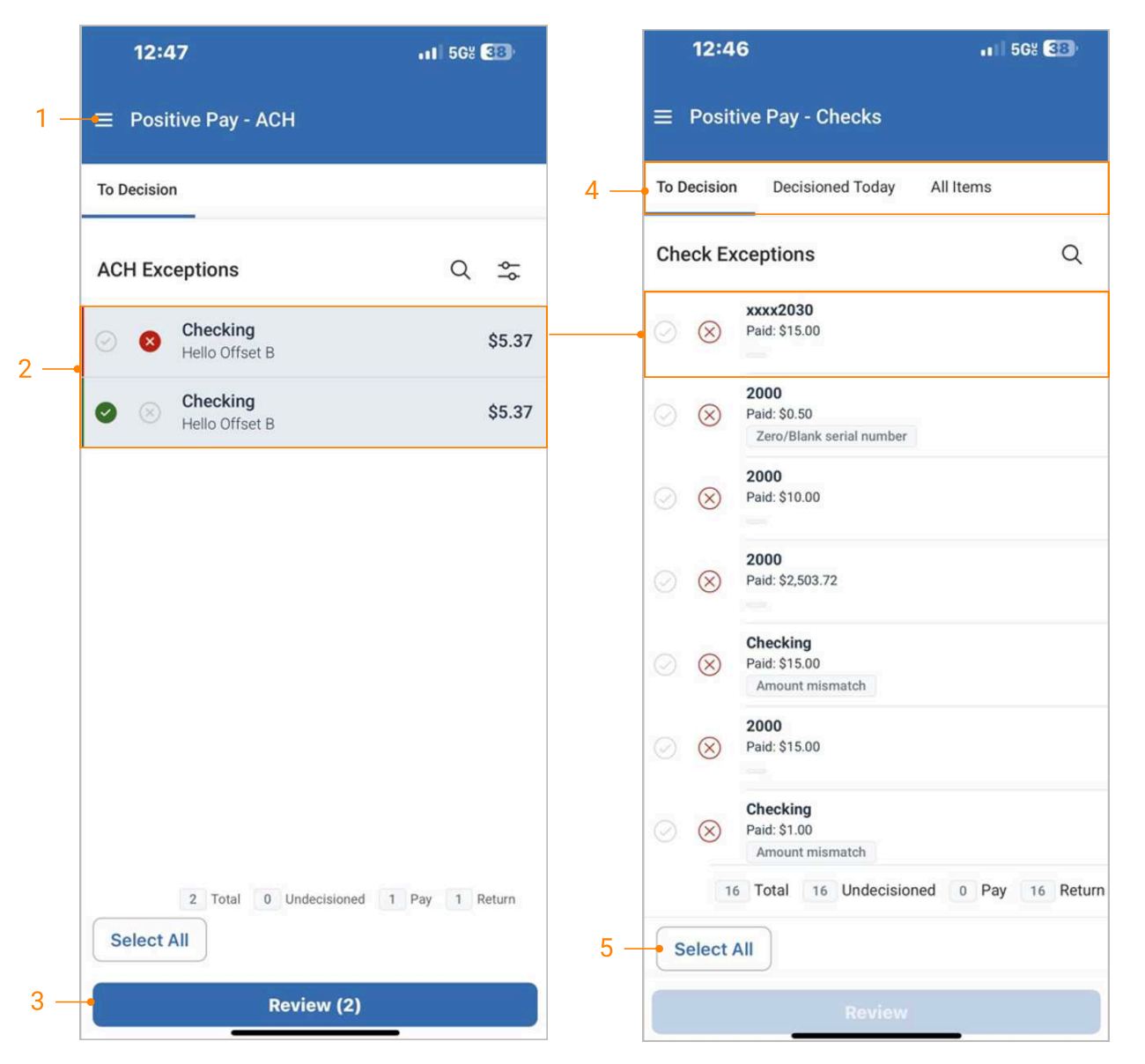
-
From the dashboard or main menu, select Positive Pay Check or ACH Exceptions.
-
Select an Exception to Pay or Return.
-
The Review button displays the number of items selected.
-
View and decision items from three check exception views:
- To Decision view: displays the items in the financial institution’s default state.
- Decisioned Today view: displays only the items worked for the current day.
- All Items view: displays the combined view of the To Decision and Decisioned Today views.
- Selecting the Select All buttons reveal the Pay All and Return All features.
Dashboard Widgets - Quick Loan Payment
-
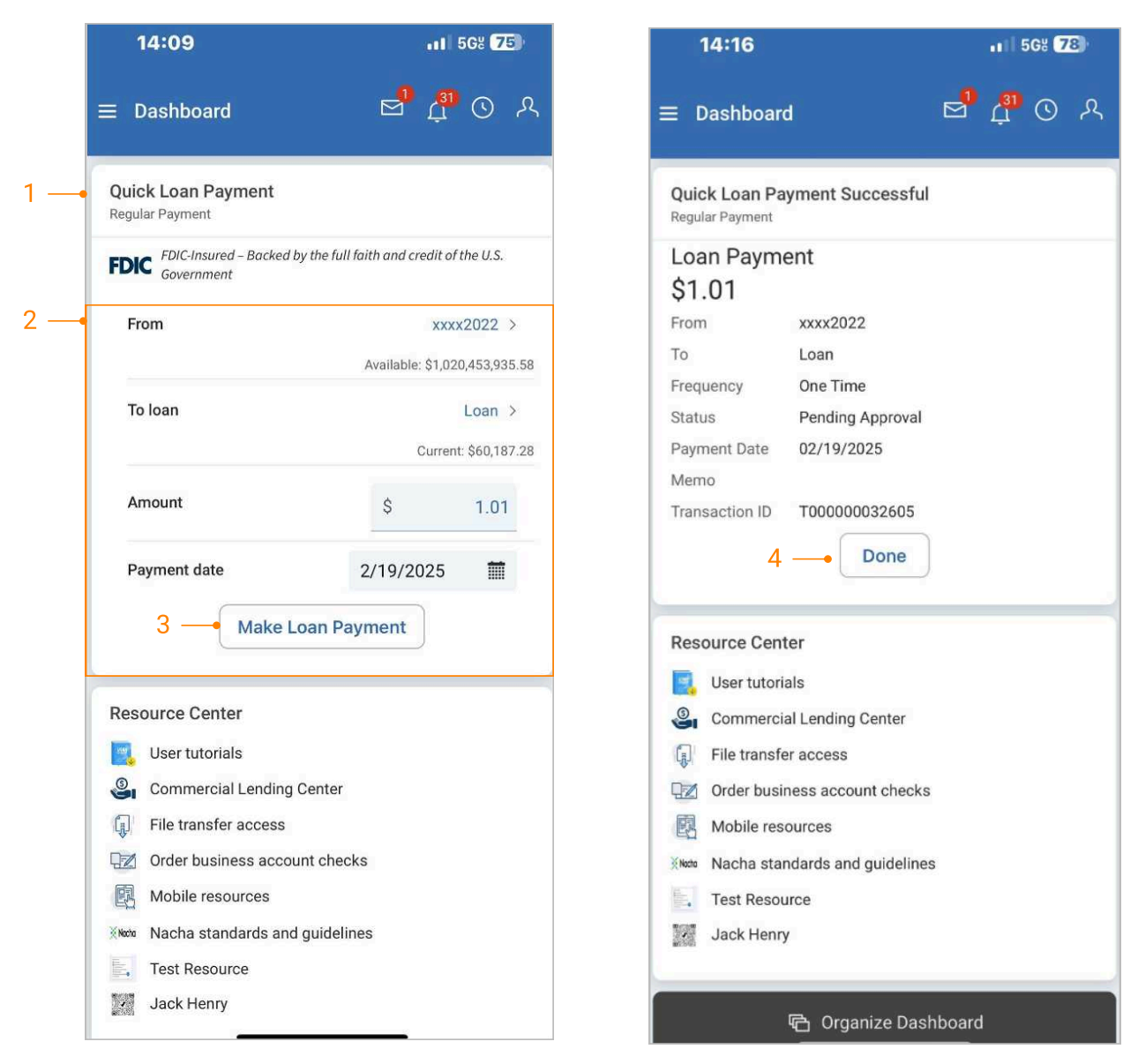
From the dashboard, scroll down to the quick loan payment widget or use the Organize Dashboard button to add the widget.
-
Complete all required input fields.
-
Select the Make Loan Payment button to quickly submit the payment.
-
Select Done to return to the default widget.
Dashboard Widgets - Information Reporting
-
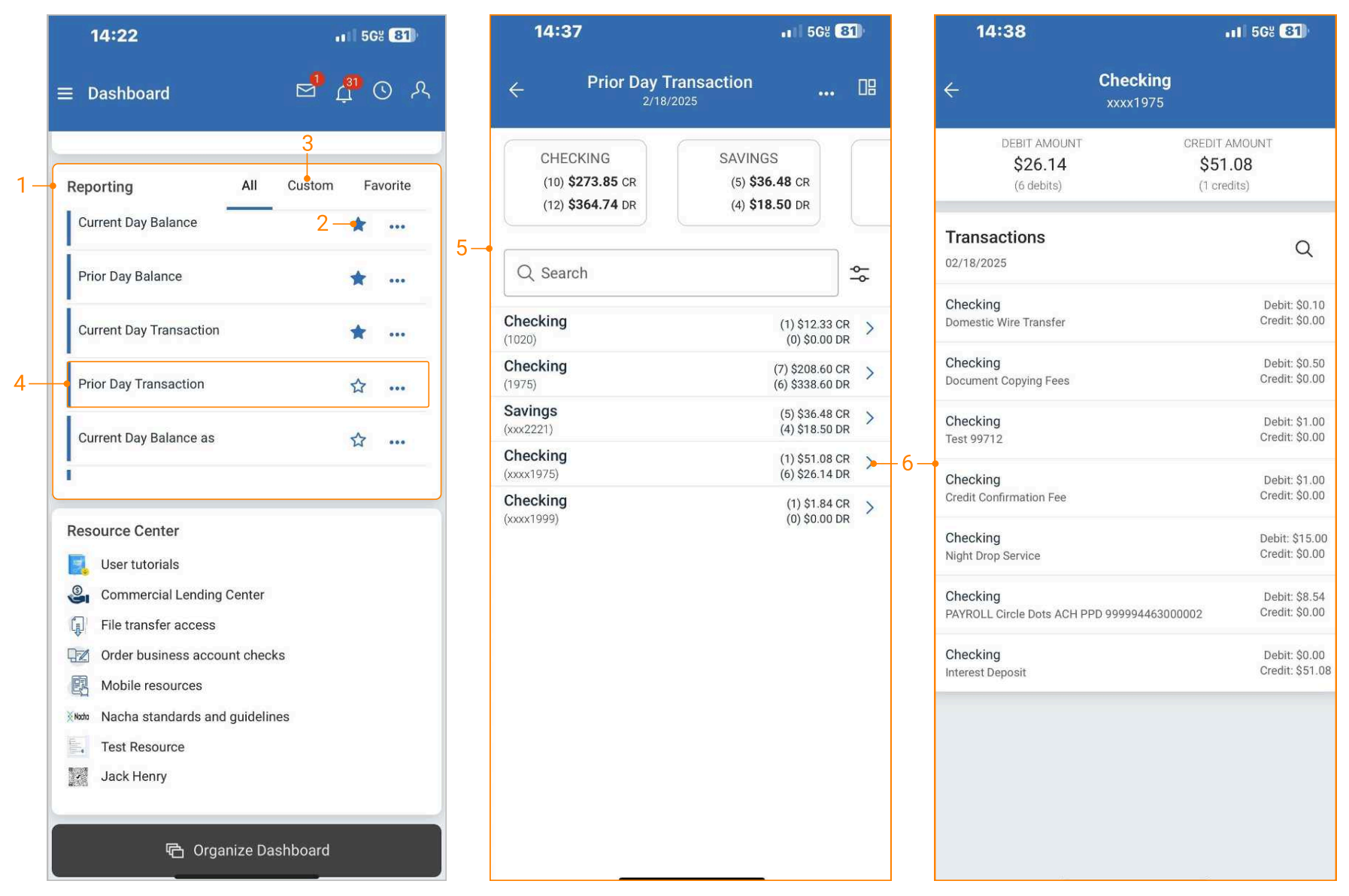
From the dashboard, scroll down to the reporting widget or use the Organize Dashboard button to add the widget.
-
Quickly favorite a report by selecting the star icon on the report. These reports will be located under the Favorite tab.
-
The Custom tab is where reports saved by the user as a custom report are located.
-
Run a report immediately by tapping anywhere on the report name or by selecting the ellipsis icon on the report, then select Run Report.
-
The Report results page provides the summary totals debit and credits for each account.
-
To view individual accounts, select the arrow icon at the end of the row to expand account transaction details.
Dashboard Widgets - Manage Account Groups
-
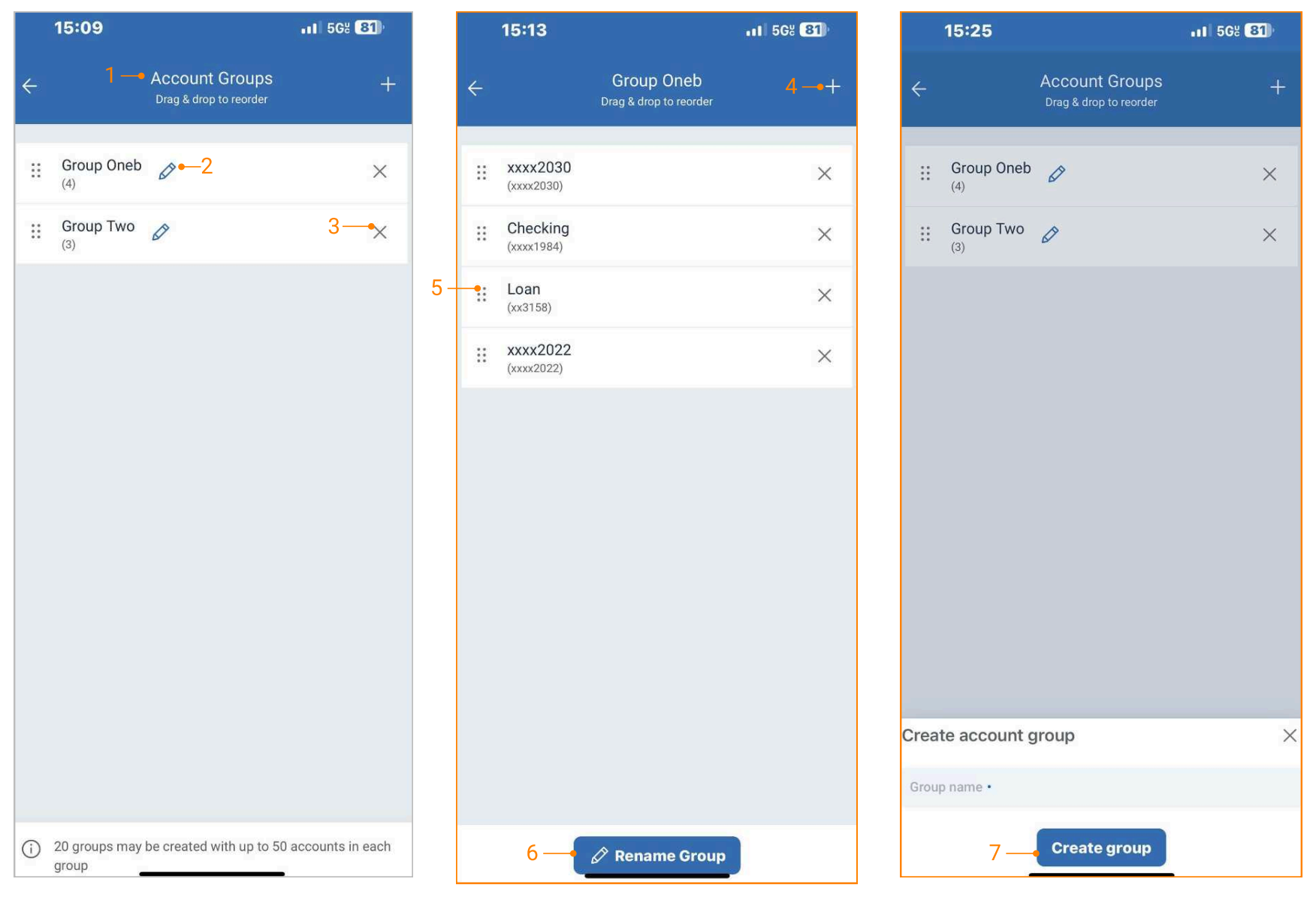
From the dashboard, select the gear icon on the Accounts widget.
-
Edit an existing group by selecting the edit icon on a group card/widget.
-
Remove an account from a group by selecting the closed icon.
-
Add another account to the group by selecting the plus/add icon at the top of the page.
-
Change the position of an account by dragging and dropping the account card to a desired location.
-
Use the Rename Group button to rename the account group.
-
Add a new account group by selecting the plus icon at the top of the account group’s homepage, then create an account group name to immediately start adding available accounts.
Note: The number of groups that a user can create is notated at the bottom of the homepage with an information icon.
Account groupings that have been newly created or updated will be reflected in channel (desktop) and vice versa.
Configure Dashboard Widgets
-
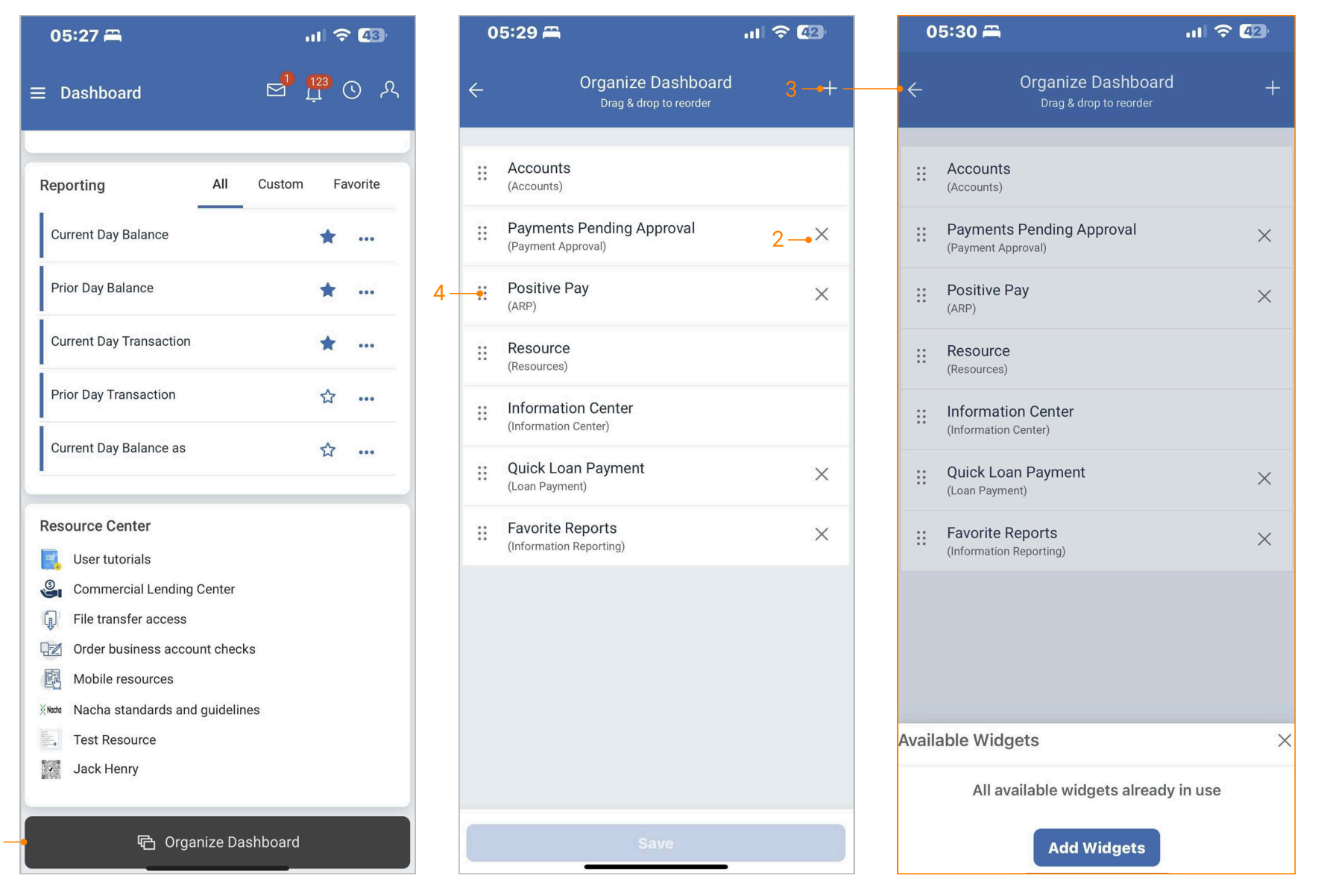
From the dashboard, select the Organize Dashboard button at the bottom of the page.
-
Remove a widget from the dashboard by selecting the closed icon.
-
Add another widget to the dashboard by selecting the plus/add icon at the top of the page and then select the Add Widgets button in the Available Widgets menu.
-
Change the position of a widget by dragging and dropping the widget card to the desired location.
Note: When there are no more available widgets to add, the plus icon at the top of the page will not be available.
Mobile Experience and channel (desktop) maintain separate dashboard configurations.
Dashboard Widgets - Information Center, Resource Center, Modal and Banner Messages
-
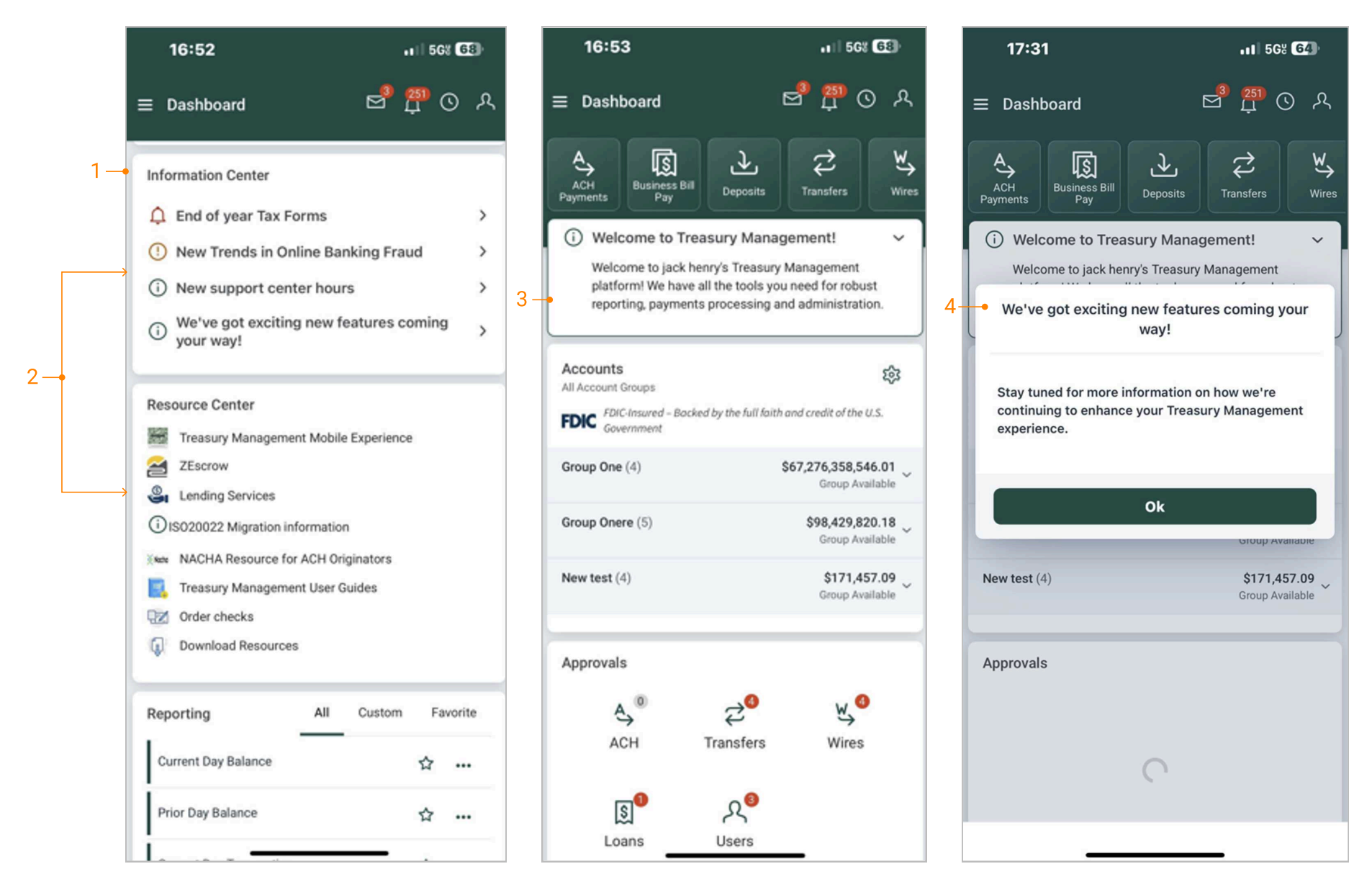
From the dashboard, scroll to the Information Center and Resource Center widgets.
-
Information Center and Resource Center widgets cannot be removed from the dashboard, but their position on the dashboard can be updated using the organize dashboard feature.
-
Banner messages created for the desktop will also display in the Mobile Experience.
-
Modal messages created for the desktop will also display on the dashboard and within the Information Center widget.
Message Center
-
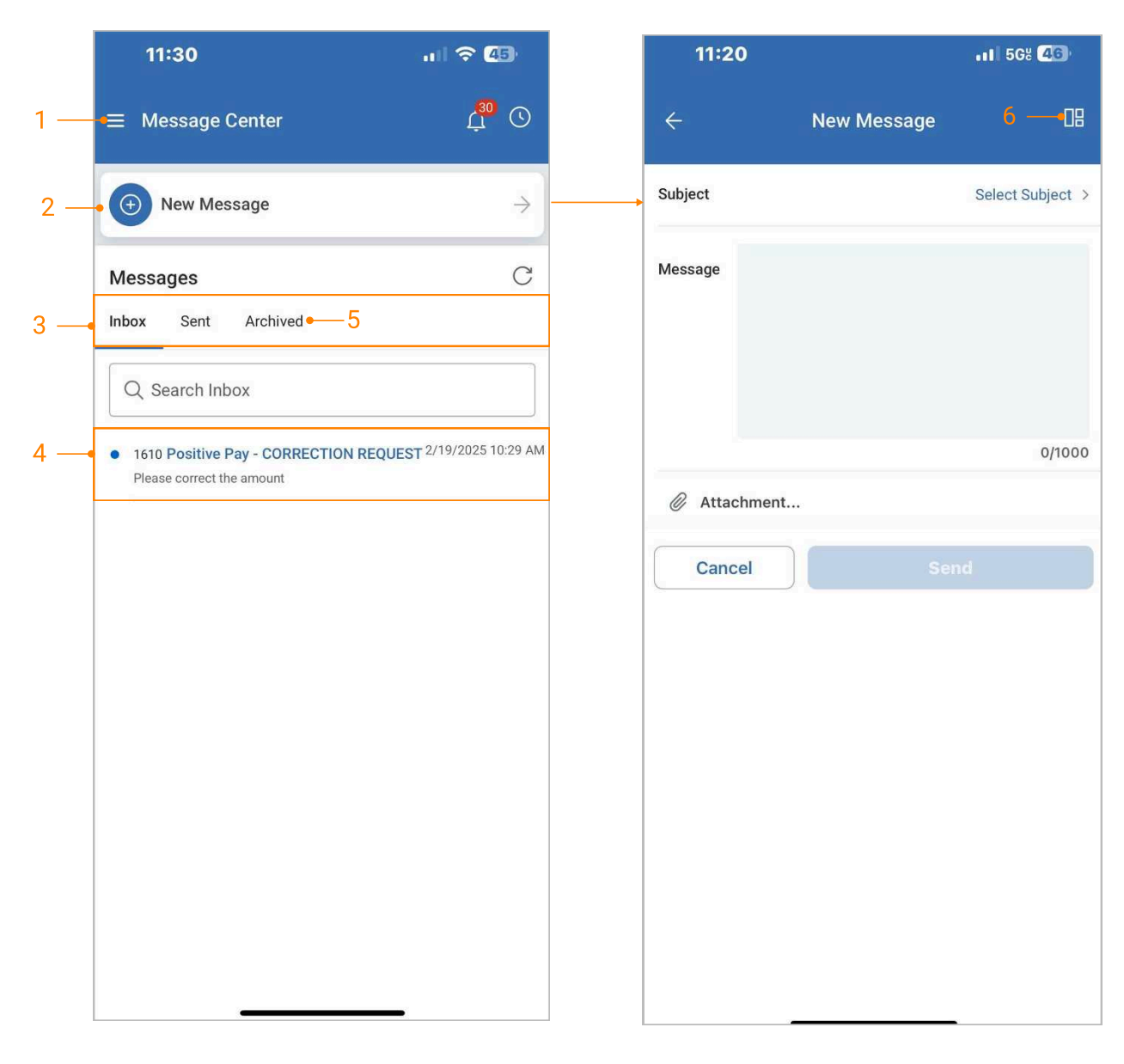
From the dashboard or main menu, select Message Center.
-
Select the New Message button to compose a message with a predefined message subject.
-
Select Inbox, Sent, or Archived.
-
Selecting a message allows the user to view the details and any attachments associated with the message.
-
The user will be able to archive the message as well as reply to the message.
-
The quick dashboard navigation icon is available on the create message page.