Quick Reference Guide: Remote Deposit Capture Configuration
Overview
Enabling Remote Deposit Capture allows users to launch the ProfitStars Enterprise Payment System dashboard to work with remote deposit capture.
Note: To have this feature enabled, existing NetTeller RDC customers will need to log a support case with ProfitStars File Maintenance requesting that the Merchant be configured from the NetTeller RDC SSO to the Treasury Management RDC SSO. The following information will need to be included in the case notes:
- Customer ID (MID/Merchant ID)
- Merchant Username
Configuration
SmartPay Manager Configuration
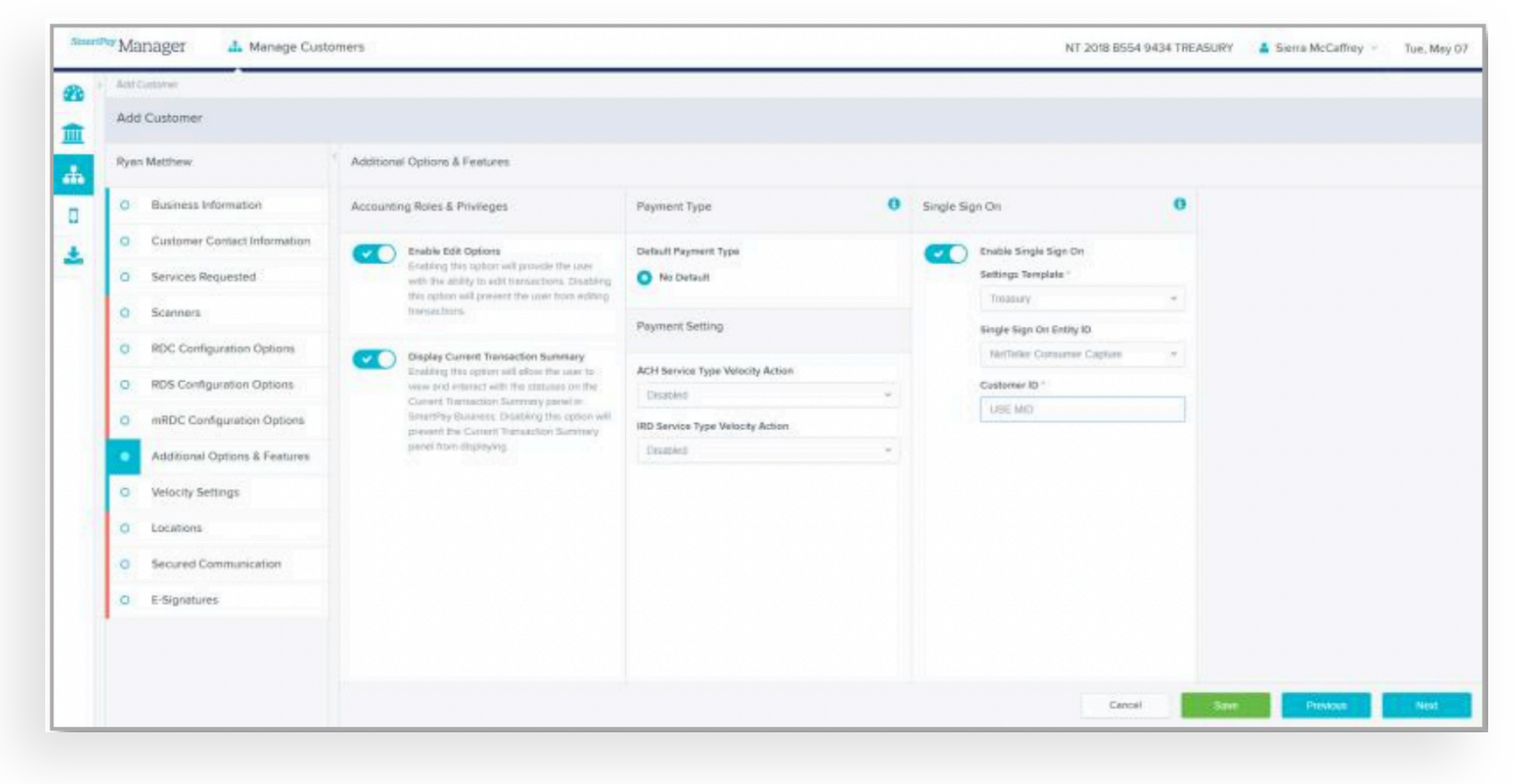
Navigate to SmartPay Manager > Manage Customers > Add Customer > Additional Options & Features.
To Create a New Customer:
- Select Treasury for the Settings Template.
- Select NetTeller Consumer Capture in the Single Sign Entity ID.
- Within the Customer ID field type USE MID.
SmartPay Business Configuration
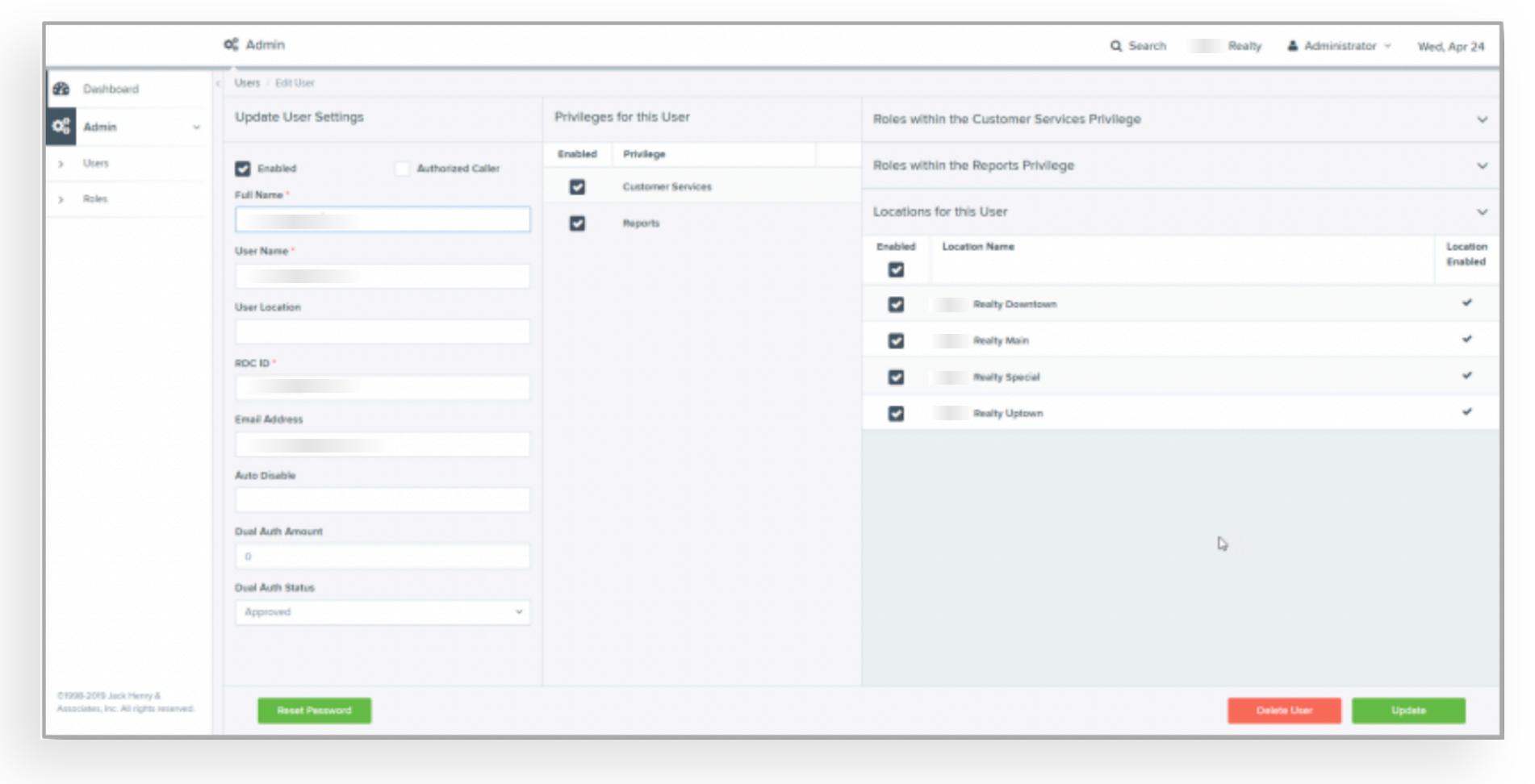
Navigate to SmartPay Business > Users > Select User.
To Create a New User:
- Add the users name.
- Input the Treasury Management Login ID in the RDC ID field.
Treasury Management Back OFfice Configuration (Financial Institution Level)
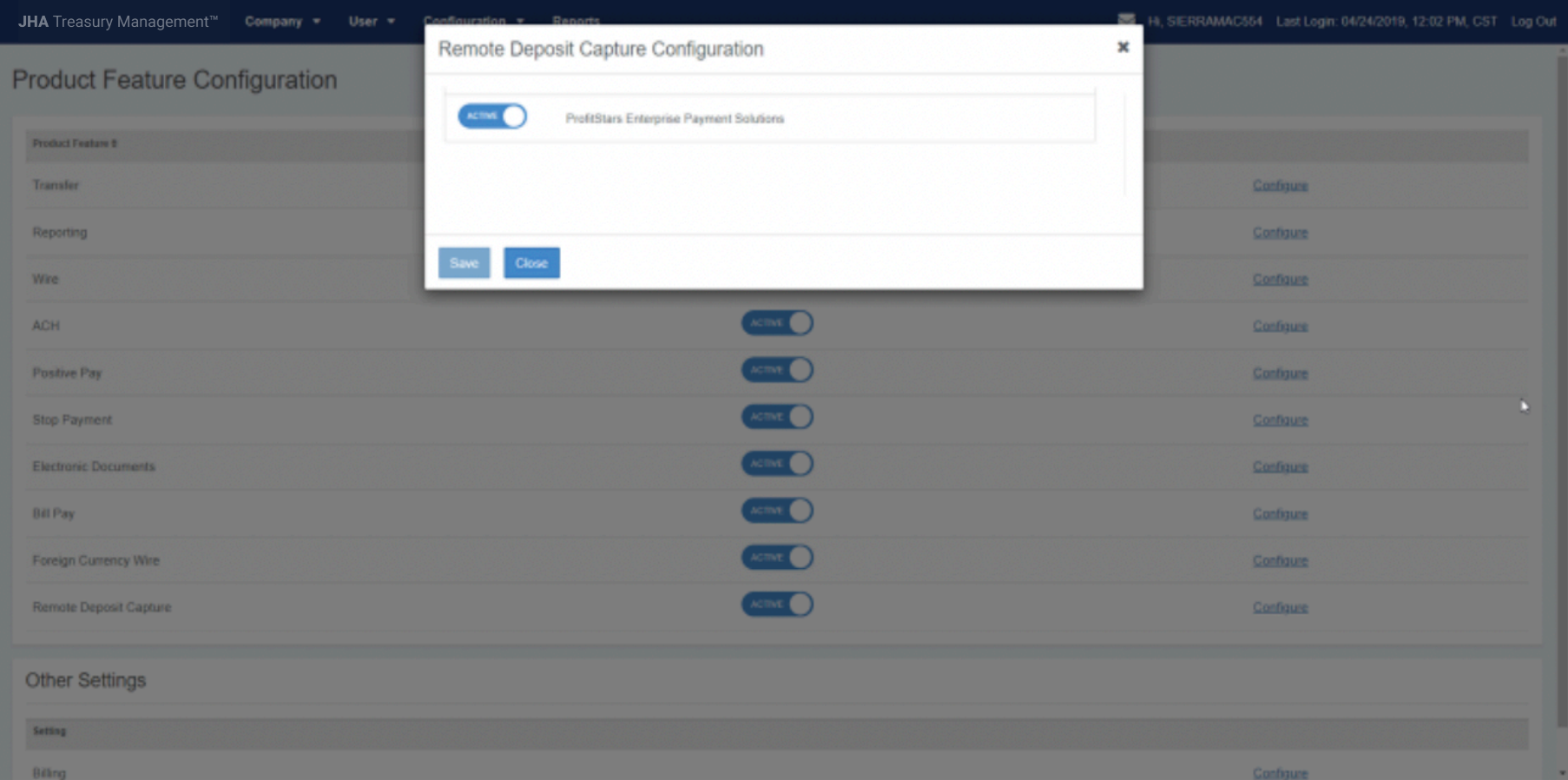
Navigate to Configuration > Product Feature Configuration > Remote Deposit Capture.
To Enable Remote Deposit Capture (Financial Institution Level), select Active for ProfitStars Enterprise Payment Solutions.
Treasury Management Back OFfice Configuration (Company Level)
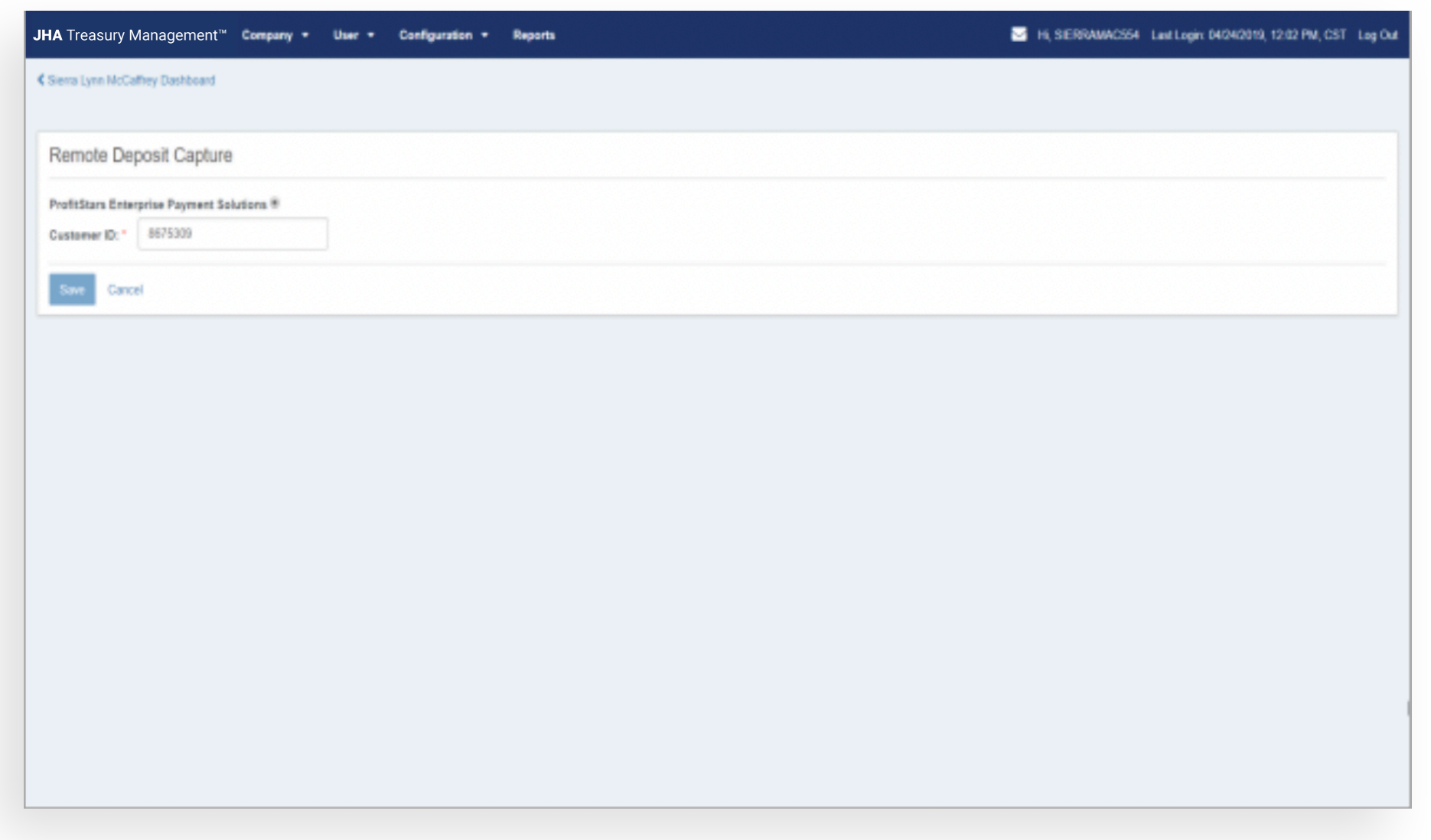
Navigate to Company Details > Product Feature Configuration > Remote Deposit Capture.
To Enable Remote Deposit Capture (Company Level), input the ProfitStars Merchant ID in the Customer ID field.
User Configuration
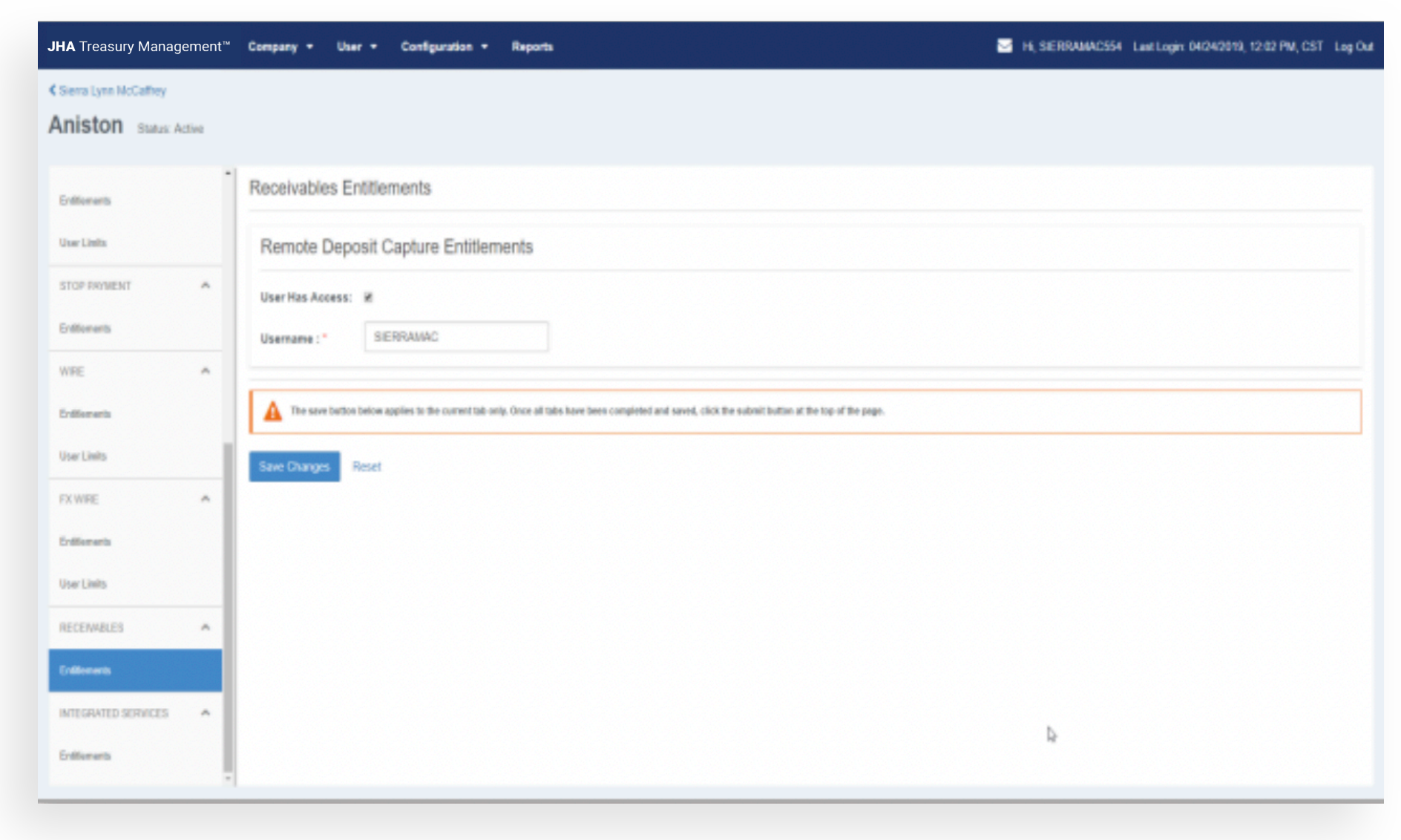
Navigate to Company Details > Users > Receivables > Entitlements.
To Enable a User:
- Select User Has Access.
- Input the ProfitStars Enterprise Payment Solutions username in the Username field.