Quick Reference Guide: Company Onboarding with Enterprise Workflow
What’s new?
- Enterprise Workflow will now automatically create the NetTeller ID used for the ESI Product setup.
- The Positive Pay product and all eligible accounts for Positive Pay will be automatically onboarded to the Treasury Management company.
- The Wires product, including a wire company with matching company CIF and all of its eligible accounts, will be automatically onboarded to the Treasury Management company.
- Bill Pay and Remote Deposit Capture products will be automatically onboarded to the Treasury Management company (available for the Manual Input workflow only).
What is it?
Using Enterprise Workflow, users may now fully automate the Treasury Management company onboarding process of a CIF, including:
- Onboarding the CIF as a new company in Treasury Management, including a History Note recording who initiated the workflow
- Adding and activating all primary associated accounts for the company
- Creating a super/admin Treasury Management channel user and sending an enrollment email to the user
- Adding and activating the Information Reporting product, including all eligible accounts
- Adding and activating the Transfer product, including all eligible accounts
- Adding and activating the ACH product
- Adding and activating the ESI product, including automatically adding the NetTeller ID in SilverLake needed for the ESI product setup
- Adding and activating the Stop Payment product, including all eligible accounts
- Adding and activating the Positive Pay product, including all eligible accounts
- Adding and activating the Wire product, including wire company and all eligible accounts for the matching CIF
- Adding and activating the Bill Pay product (manual input workflow template only)
- Adding and activating the Remote Deposit Capture product (manual input workflow template only)
How to Install
Prerequisites
- Must be live on Treasury Management and Enterprise Workflow (version 2023)
- Must have “Start a Workflow” button in SilverLake installed
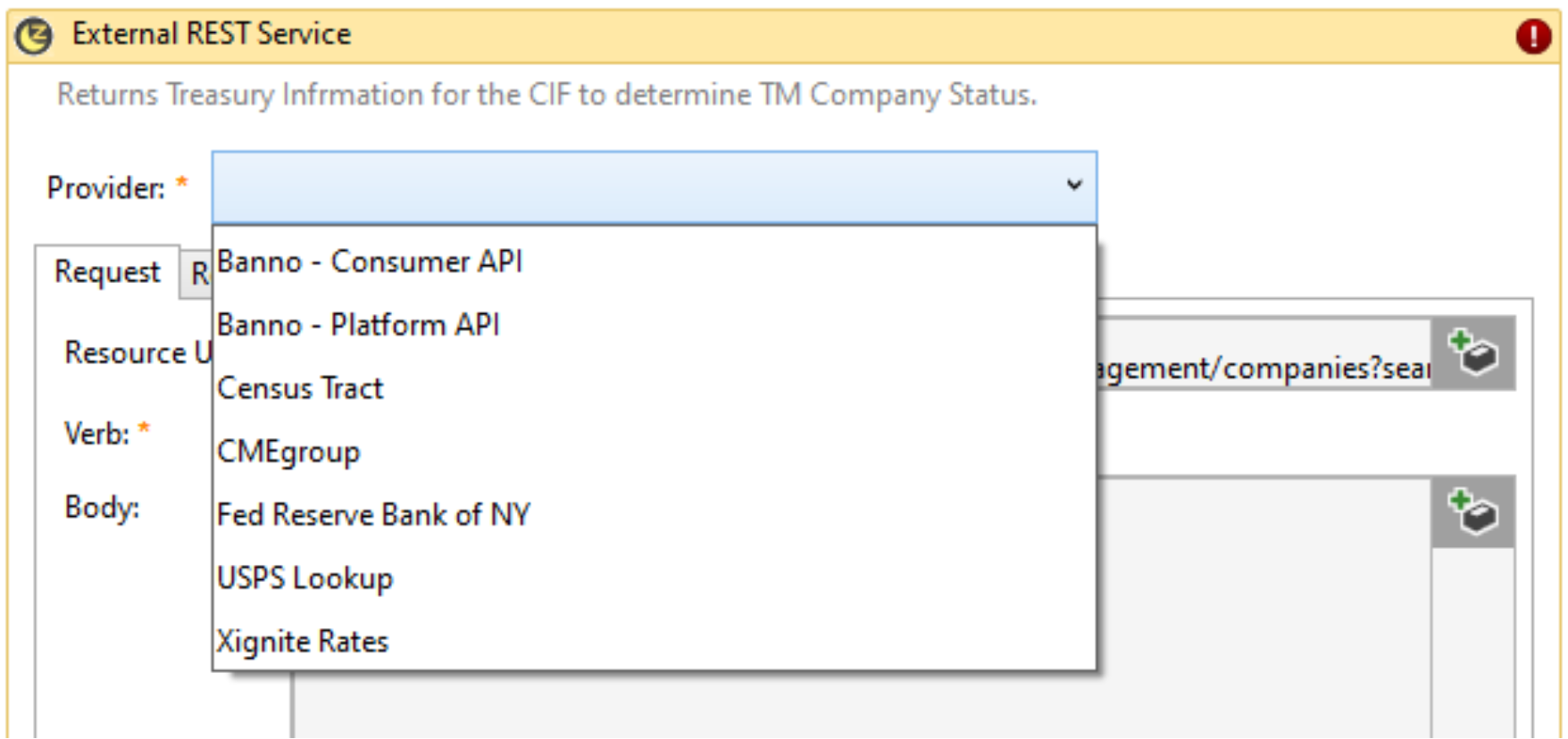
- Must have the Banno – Platform API Provider within Enterprise Workflow; this is what’s used to authenticate Treasury APIs within the workflow
Install Steps: New Installs
- To begin using the new workflow template, create a case with IS Dev – NT Treasury Management requesting installation of the Treasury Management Enterprise Workflow integration.
In this case, include a Back Office financial institution admin user for the Enterprise Workflow integration. This user should be unique and only used for the Enterprise Workflow integration.
-
Visit the Jack Henry Marketplace and download the new fully automated Treasury Management Workflow template.
-
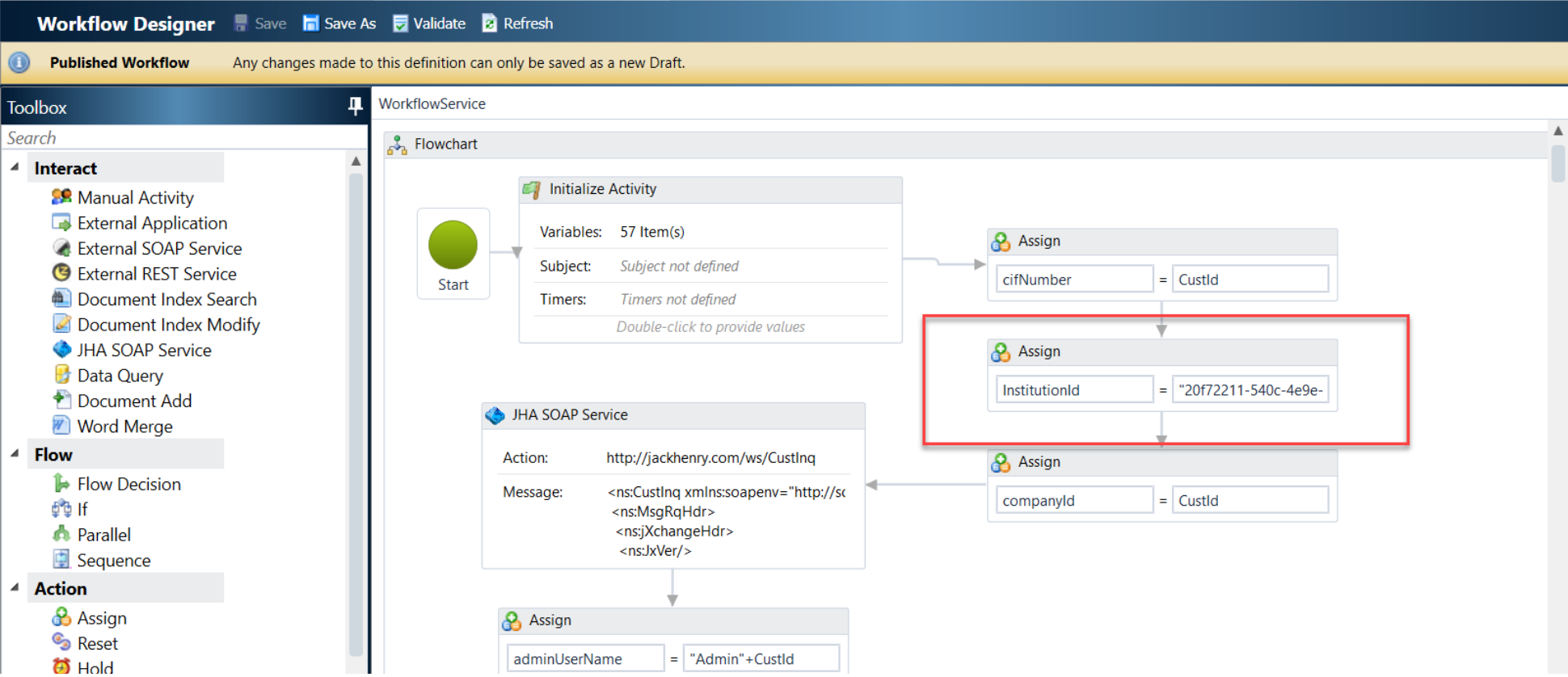
Upon installation completion, users will be provided with an institution ID. This will need to be added to the “Institution ID” Assign field in the Workflow Definition.
- In each API call, click “Provider” and select “Banno – Platform API”.
- Finally, add bank group/employee permissions as to who can view and run the workflow.
Install Steps: Existing Installs
For financial institutions are already using the existing onboarding workflows, visit the Jack Henry Marketplace, download the new Treasury Management Workflow template, and use this in place of the existing workflow template that is currently in use at participating financial institutions.
If preferred, financial institutions can also follow the customization steps below to add the new elements of the template to new and/or existing workflows. Please be aware that this may take additional time and testing than using the new workflow template from the Marketplace.
How to Use
Fully Automated Template
- Create the new customer’s CIF in SilverLake.
- Add and associate all accounts with the CIF in SilverLake.
- Ensure the Primary Email Address field is populated with the desired super/administrator user’s email address.
- Go to the CIF screen in SilverLake. Go to Related Functions > Start a Workflow.
- Select the workflow template to be started.
- Click Ok.
Manual Input Template
- Create the new customer’s CIF in SilverLake.
- Add and associate all accounts with the CIF in SilverLake.
- Go to the CIF screen in SilverLake. Go to Related Functions > Start a Workflow.
- Select the workflow template to be started.
- Click Ok.
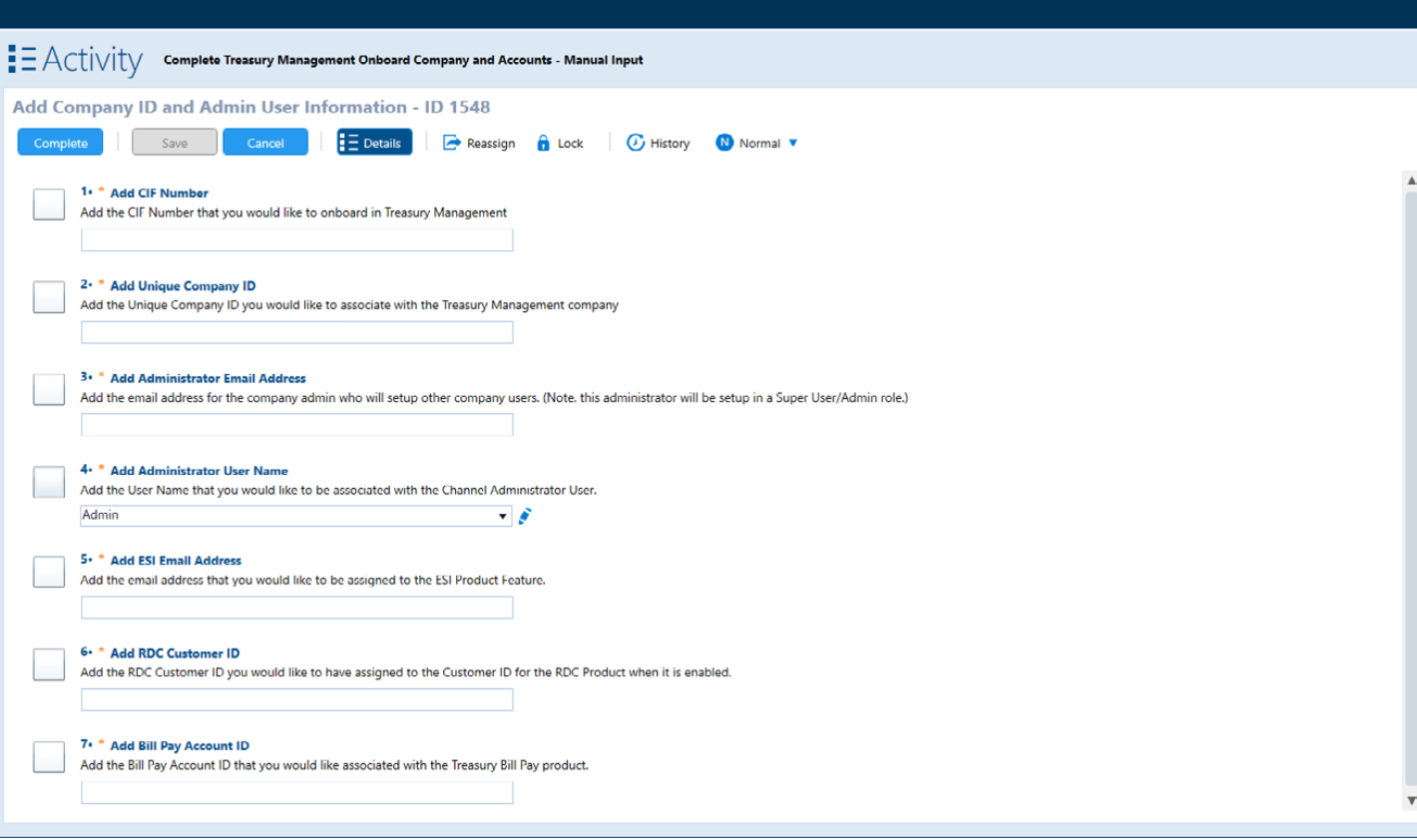
- Go to the workflow queue. Upon initiation of the workflow, a manual input box should appear.
- Add Unique Company ID: Assign a unique company ID that will be associated with the company in Treasury Management.
- Add Administrator Email Address: Assign the email address that will be associated with the enrollment of the super/administrator company user.
- Add Administrator User Name: Assign the administrator’s username that will be associated with the super/administrator company user.
- Add ESI Email Address: Assign the email address that will be assigned to the ESI product feature.
- Add RDC Customer ID: Add the RDC customer ID that will be assigned to the RDC product.
- Add Bill Pay Account ID: Add the Default Bill Pay account ID that will be associated with the Bill Pay product.
- Click Complete.
How to Customize
How to Remove Workflow Steps
- Admin User
- Delete the External Rest Service titled REST - Create the Super Administrator Channel User.
- Delete the External Rest Service titled REST - Enroll the Newly Created Super Administrator User.
Also delete the Decision “Response Code = 200”, the False response beneath this step, and the Assign “Response Code = 0”. - Delete all steps between the two steps listed above.
- Carry the arrow from the last unconnected workflow item to the next available REST call.
- Information Reporting Product
- Delete the External Rest Service titled REST - Adds the Information Reporting Product.
Also delete the Decision “Response Code = 200”, the False response, and the Assign “Response Code = 0” beneath this step. - Carry the arrow from the last unconnected workflow item to the next available REST call.
- Delete the External Rest Service titled REST - Adds the Information Reporting Product.
- Transfer Product
- Delete the External Rest Service titled REST - Adds the Transfers Product.
Note: Also delete the Decision “Response Code = 200”, the False response, and the Assign “Response Code = 0” beneath this step. - Carry the arrow from the last unconnected workflow item to the next available REST call.
To add the Transfers Product to other workflows, the steps above will be cut/copied and pasted, as will the sequence toward the top of the template titled “Transfer Product Parameters” along with all variables within the sequence.
- Delete the External Rest Service titled REST - Adds the Transfers Product.
- ACH Product
- Delete the External Rest Service titled REST - Adds the ACH Product.
Also delete the Decision “Response Code = 200”, the False response, and the Assign “Response Code = 0” beneath this step. - Carry the arrow from the last unconnected workflow item to the next available REST call.
To add the ACH Product to other workflows, the steps above will be cut/copied and pasted, as will the sequence toward the top of the template titled “ACH Product Parameters” along with all variables within the sequence.
- Delete the External Rest Service titled REST - Adds the ACH Product.
- ESI Product
- Delete the External Rest Service titled REST - Creates NT ID for ESI Product Feature Setup.
- Delete the External Rest Service titled REST - Adds the ESI Product.
Also delete the Decision “Response Code = 200”, the False response, and the Assign “Response Code = 0” beneath this step. - Delete all steps between the two steps listed above.
- Carry the arrow from the last unconnected workflow item to the next available REST call.
- Stop Payment Product
- Delete the External Rest Service titled REST - Returns a List of All Numerical TM Account IDs.
- Delete the External Rest Service titled REST - Add the Stop Payment Product.
Also delete the Decision “Response Code = 200”, the False response, and the Assign “Response Code = 0” beneath this step. - Delete all steps between the two steps listed above.
- Carry the arrow from the last unconnected workflow item to the next available REST call.
To add the Stop Payment Product to other workflows, the steps above will be cut/copied and pasted, as will the Assign toward the top of the template titled “StopPaymentApprovals”. The variable “StopPaymentApprovals” will alsonneed to be added to a new/existing workflow.
- Wires Product
- Delete the External Rest Service titled REST - Adds the Wire Product.
- Delete the External Rest Service titled REST - Add the Wire Company to the Wire Product.
- Delete all steps between the two steps listed above.
- Carry the arrow from the last unconnected workflow item to the next available REST call.
To add the Wires Product to other workflows, the steps above will be cut/copied and pasted, as well as the sequence toward the top of the template titled “Wire Product Parameters”. The variables within the Sequence and REST calls will also need to be added to the new workflow.
- Positive Pay Product
- Delete the External Rest Service titled REST - Creates Positive Pay Product Feature.
- Delete the External Rest Service titled Adds all available accounts to Positive Pay Product.
- Delete all steps between the two steps listed above.
- Carry the arrow from the last unconnected workflow item to the next available REST call.
To add the Positive Pay Product to other workflows, the steps above will be cut/copied and pasted, as well as the sequence toward the top of the template titled “Positive Pay Parameters”. The variables within the Sequence and REST calls will also need to be added to the new workflow.
- Remote Deposit Capture
- Delete the External Rest Service titled REST - Adds the RDC Product.
- Remove the RDC “Collect Information” from the Manual Activity at the beginning of the workflow.
- Carry the arrow from the last unconnected workflow item to the next available REST call.
- Bill Pay
- Delete the External Rest Service titled REST - Returns the Bill Pay Default Account Unique ID.
- Delete the External Rest Service titled REST - Adds the Bill Pay Product.
Also delete the “Decision and Manual Activity” beneath this call. - Delete all steps between the two steps listed above.
- Remove the Bill Pay “Collect Information” from the Manual Activity at the beginning of the workflow.
- Carry the arrow from the last unconnected workflow item to the next available REST call.
To add the Bill Pay Product to other workflows, the steps will need to be cut/copied and pasted, as well as the Assign toward the top of the workflow template titled “allowIPayBusinessBillPayForMobile”. The variables within the REST calls will also need to be added to the new workflow.
- Remove All Product Features
- Delete the External Rest Service titled REST - Adds the Information Reporting Product.
- Delete all consecutive steps until the “Workflow is Successful” manual activity.
- Carry the “True” arrow from the last Assign for “Response Code = 0” to the “Workflow Is Successful” manual activity.
To add all products to other workflows, the steps above will be cut/copied and pasted. The following will also need to be copied from the workflow template to the new/existing template:- The sequence toward the top of the template titled “Transfer Product Parameters” along with all variables within the sequence
- The sequence toward the top of the template titled “ACH Product Parameters” along with all variables within the sequence
- The Assign toward the top of the template titled “StopPaymentApprovals” - the variable “StopPaymentApprovals” will also need to be added to a new/existing workflow
- The Assign toward the top of the template titled “allowIPayBusinessBillPayForMobile” and associated variables in Bill Pay REST calls
- The sequence toward the top of the template titled “Wire Parameters” along with all variables within the sequence
- The sequence toward the top of the template titled “Positive Pay Product Parameters” along with all variables within the sequence
How To Modify Transfer Product Parameters
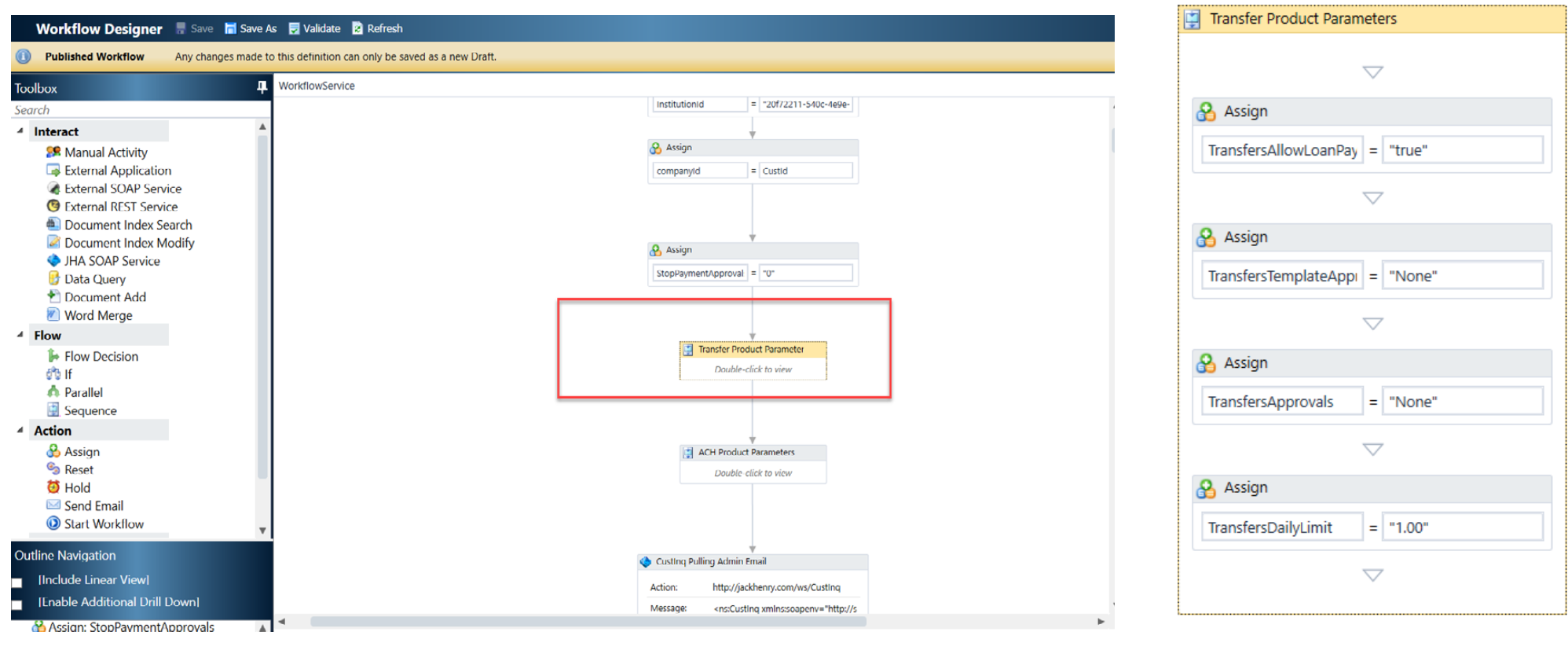
Within the dequence for “Transfer Product Parameters” towards the top of the workflow, there are multiple variables that can be changed. Below are values to that they can be changed.
- “TransfersAllowLoanPaymentsWhilePastDue”
Values on the right hand side of this assign can be “true” or “false”. (these values must be all lowercase.) A “true” value allows loan payments to be made when the loan is past due. Note – this cannot be set to “true” if the Institution Product Configuration has the samevalue set to “false”. - “TransfersTemplateApprovals”
Values on the right hand side of this assign can be “None” , “1” , “2” , or “3”. The number reflects the number of approvals required for transfer templates to be created. Note – this cannot be set to less than the minimum required approvers set at the Institution Product configuration within Treasury Management Back Office. - “TransfersApprovals”
Values on the right hand side of this assign can be “None” , “1” , “2” , or “3”. The number reflects the number of approvals required for transfer templates to be created. Note – this cannot be set to less than the minimum required approvers set at the Institution Product Configuration within Treasury Management Back Office. - “TransfersDailyLimit”
Values on the right hand side of this assign must include two integers after the decimal. This amount reflects the company’s daily limit for transfers. Note – this amount cannot exceed the institution’s settings for daily transfer limit.
How To Modify ACH Product Parameters
Within the Sequence for “ACH Product Parameters” towards the top of the workflow, there are multiple variables that can be changed. Below are values to which they can be changed.
- “AchDailyLimit”
Values on the right hand side of this assign must include two integers after the decimal. This amount reflects the company’s daily limit for ACH. Note – this amount cannot exceed the institution’s settings for daily ACH limit. - “AchRecipientApprovalCount”
Values on the right hand side of this assign can be “None” , “1” , “2” , or “3”. The number reflects the number of approvals required for ACH Recipients to be created. Note – this cannot be set to less than the minimum required approvers set at the Institution Product Configuration within Treasury Management Back Office. - “AchPaymentApprovalCount”
Values on the right hand side of this assign can be “None” , “1” , “2” , or “3”. The number reflects the number of approvals required for ACH Payments to be created. Note – this cannot be set to less than the minimum required approvers set at the Institution Product Configuration within Treasury Management Back Office. - “AchBatchApprovalCount”
Values on the right hand side of this assign can be “None” , “1” , “2” , or “3”. The number reflects the number of approvals required for ACH Batches to be created. Note – this cannot be set to less than the minimum required approvers set at the Institution Product Configuration within Treasury Management Back Office. - “AchInternationalTemplateApprovalCount”
Values on the right hand side of this assign can be “None” , “1” , “2” , or “3”. The number reflects the number of approvals required for International ACH Templates to be created. Note – this cannot be set to less than the minimum required approvers set at the Institution Product Configuration within Treasury Management Back Office. - “AchAllowSameDayAch”
Values on the right hand side of this assign can be “true” or “false”. (These values must be all lowercase.) A “true” value allows Same Day ACH for the company. Note – this cannot be set to “true” if the Institution Product Configuration has the same value set to “false”. - “AchAllowStateTaxPayments”
Values on the right hand side of this assign can be “true” or “false”. (These values must be all lowercase.) A “true” value allows State Tax Payments for the company. Note – this cannot be set to “true” if the Institution Product Configuration has the same value set to “false”. - “AchAllowFederalTaxPayments”
Values on the right hand side of this assign can be “true” or “false”. (These values must be all lowercase.) A “true” value allows Federal Tax Payments for the company. Note – this cannot be set to “true” if the Institution Product Configuration has the same value set to “false”. - “AchAllowChildSupportPayments”
Values on the right hand side of this assign can be “true” or “false”. (These values must be all lowercase.) A “true” value allows Child Support Payments for the company. Note – this cannot be set to “true” if the Institution Product Configuration has the same value set to “false”. - “AchAllowInternationalAchPayments”
Values on the right hand side of this assign can be “true” or “false”. (These values must be all lowercase.) A “true” value allows International ACH Payments for the company. Note – this cannot be set to “true” if the Institution Product Configuration has the same value set to “false”. - “AchPaymentApprovalCount”
Values on the right hand side of this assign can be “true” or “false”. (These values must be all lowercase.) A “true” value allows Unbalanced ACH Payments for the company. Note – this cannot be set to “true” if the Institution Product Configuration has the same value set to “false”. - “AchAllowOnUsAccessManagement”
Values on the right hand side of this assign can be “true” or “false”. (These values must be all lowercase.) A “true” value allows On Us Access Management for the company. Note – this cannot be set to “true” if the Institution Product Configuration has the same value set to “false”. - “AchAllowAchNotificationOfChange”
Values on the right hand side of this assign can be “true” or “false”. (These values must be all lowercase.) A “true” value allows NOCs for the company. Note – this cannot be set to “true” if the Institution Product Configuration has the same value set to “false”. - “AchAllowReturnReview”
Values on the right hand side of this assign can be “true” or “false”. (These values must be all lowercase.) A “true” value allows Return Reviews for the company. Note – this cannot be set to “true” if the Institution Product Configuration has the same value set to “false”.
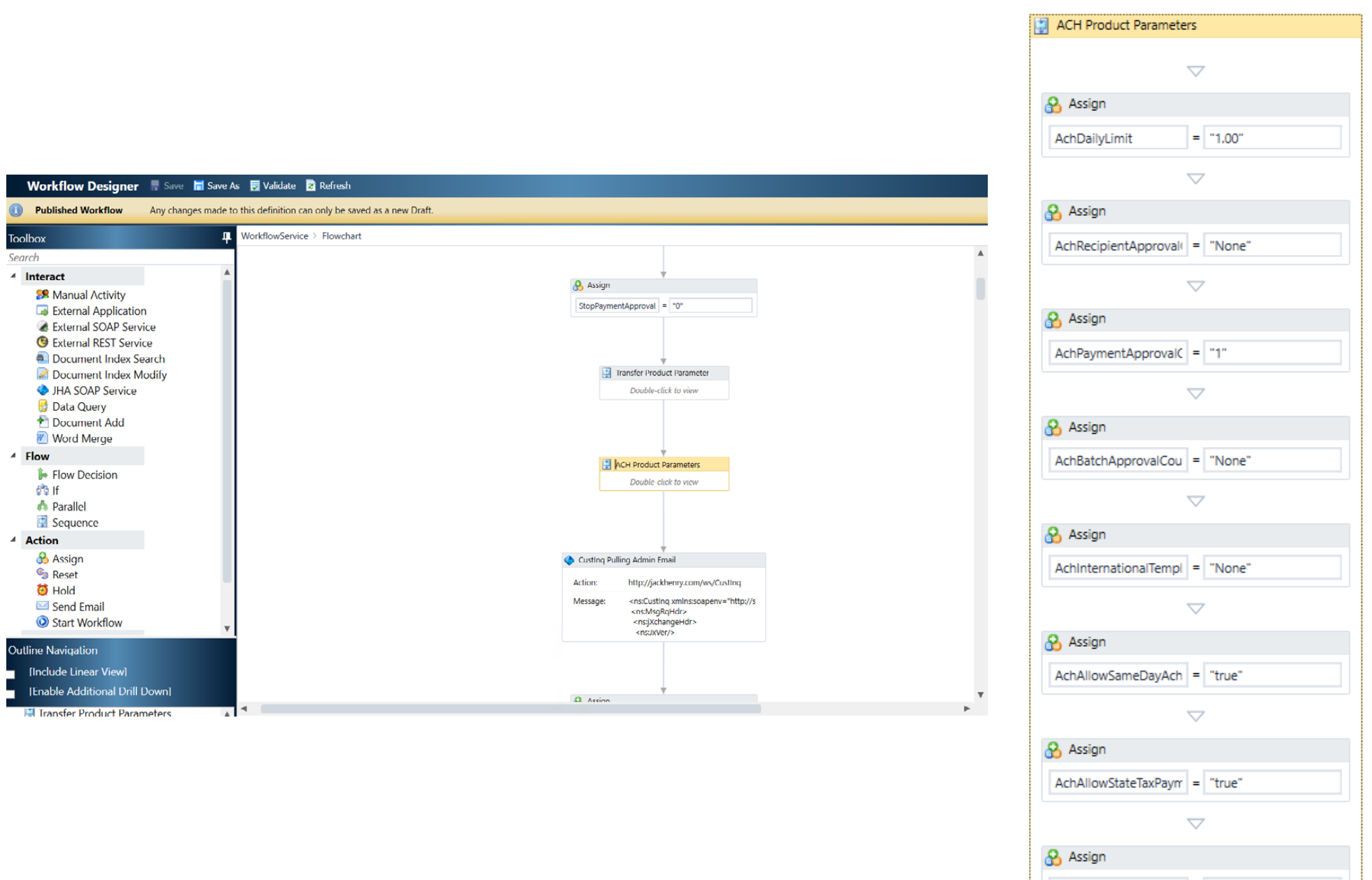
How To Modify Stop Payment Approval Limits
Within the Assign for “StopPaymentApprovals” towards the top of the workflow, change the value on the right hand side from “0” to “1” , “2” , or “3” . (The number reflects the number of approvals required for stop payments for the company.)
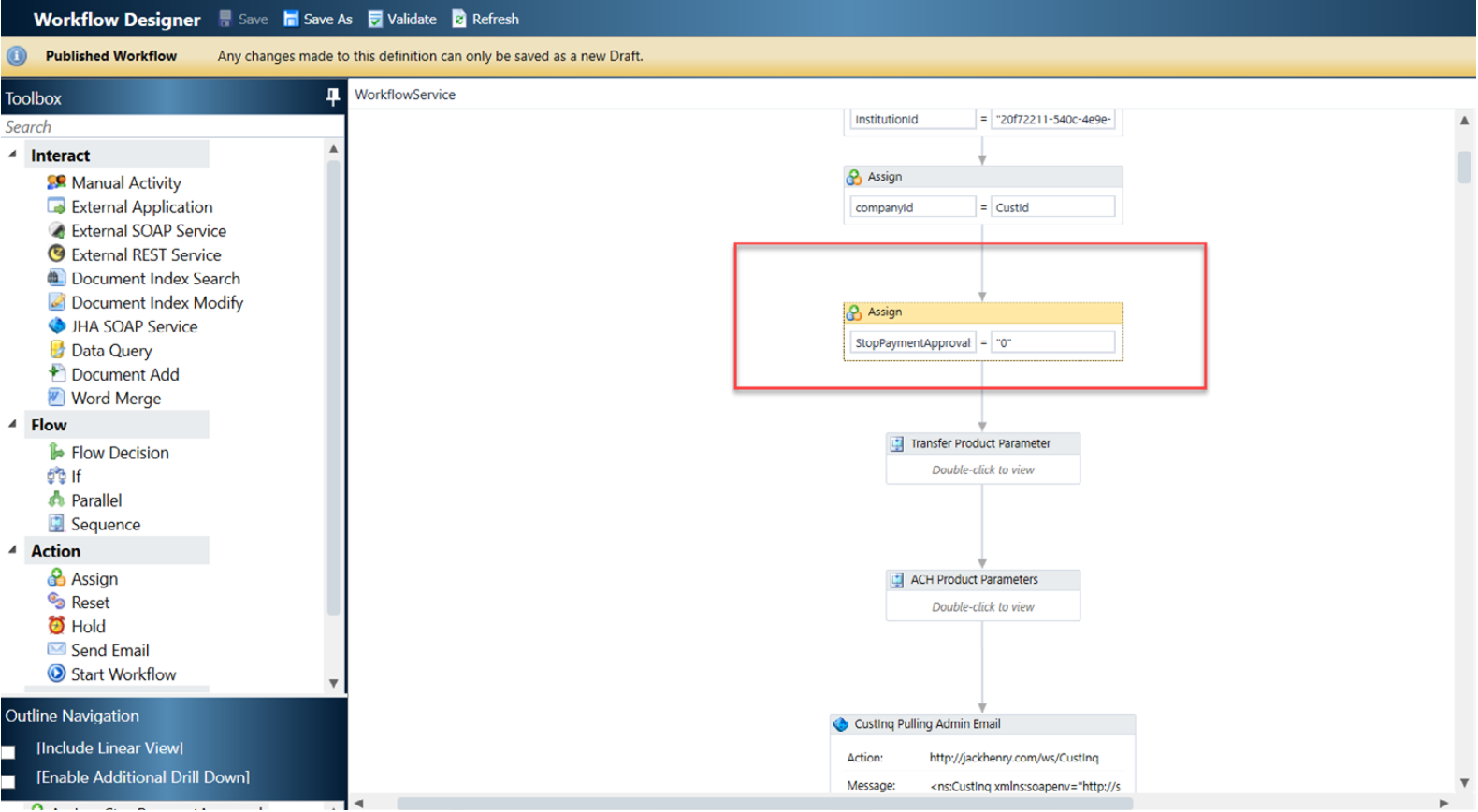
How to Modify Wire Product Parameters
Within the sequence for “Wire Parameters” towards the top of the workflow, there are multiple variables that can be changed. Below are values to which they can be changed.
- WireIsInternational
Values on the right hand side of this assign must be “true” or “false”. This reflects whether international USD wires will be active (true) or inactive (false) for the company. - WireDailyLimit
Values on the right hand side of this assign must be an integer in quotes. This reflects the company’s daily wire limit. Note - this amount cannot exceed the institution’s settings for daily wire limit. - WirePaymentApproval
Values on the right hand side of this assign can be “None’, “1”, “2”, or “3”. The number reflects the number of approvals required for wire payments. Note - this cannot be set to less than the minimum required approvers set at the intitution product configuration within Treasury Management Back Office. - WireBeneficiaryApproval
Values on the right hand side of this assign can be “None’, “1”, “2”, or “3”. The number reflects the number of approvals required for new wire creditors being created in the system. Note - this cannot be set to less than the minimum required approvers set at the intitution product configuration within Treasury Management Back Office. - WireTemplateApprovals
Values on the right hand side of this assign can be “None’, “1”, “2”, or “3”. The number reflects the number of approvals required for wire templates. Note - this cannot be set to less than the minimum required approvers set at the intitution product configuration within Treasury Management Back Office. - WireRequirePurpose
Values on the right hand side of this assign must be “true” or “false”. This reflects whether wire purpose is required for the company. Note - if this is set to “true” in the product configuration in Back Office, it must be true at the company level. - WireLimitFutureDateEnabled
Values on the right hand side of this assign must be “true” or “false”. This reflects whether there is a limit on how far out future dated wires can be scheduled or not. - WireMaximumFutureDays
Values on the right hand side of this assign must be “5”, “10”, “15”, “30”, “60”, “90”, “120”, “180”, “366”. Note - if days are set at the product configuration level in Back Office, the company level must show the same or fewer number of days than what is set at the product configuration level. - WireAllowWireFileUpload
Values on the right hand side of this assign must be “true” or “false”. This reflects whether or not the company has access to the wire file upload feature.
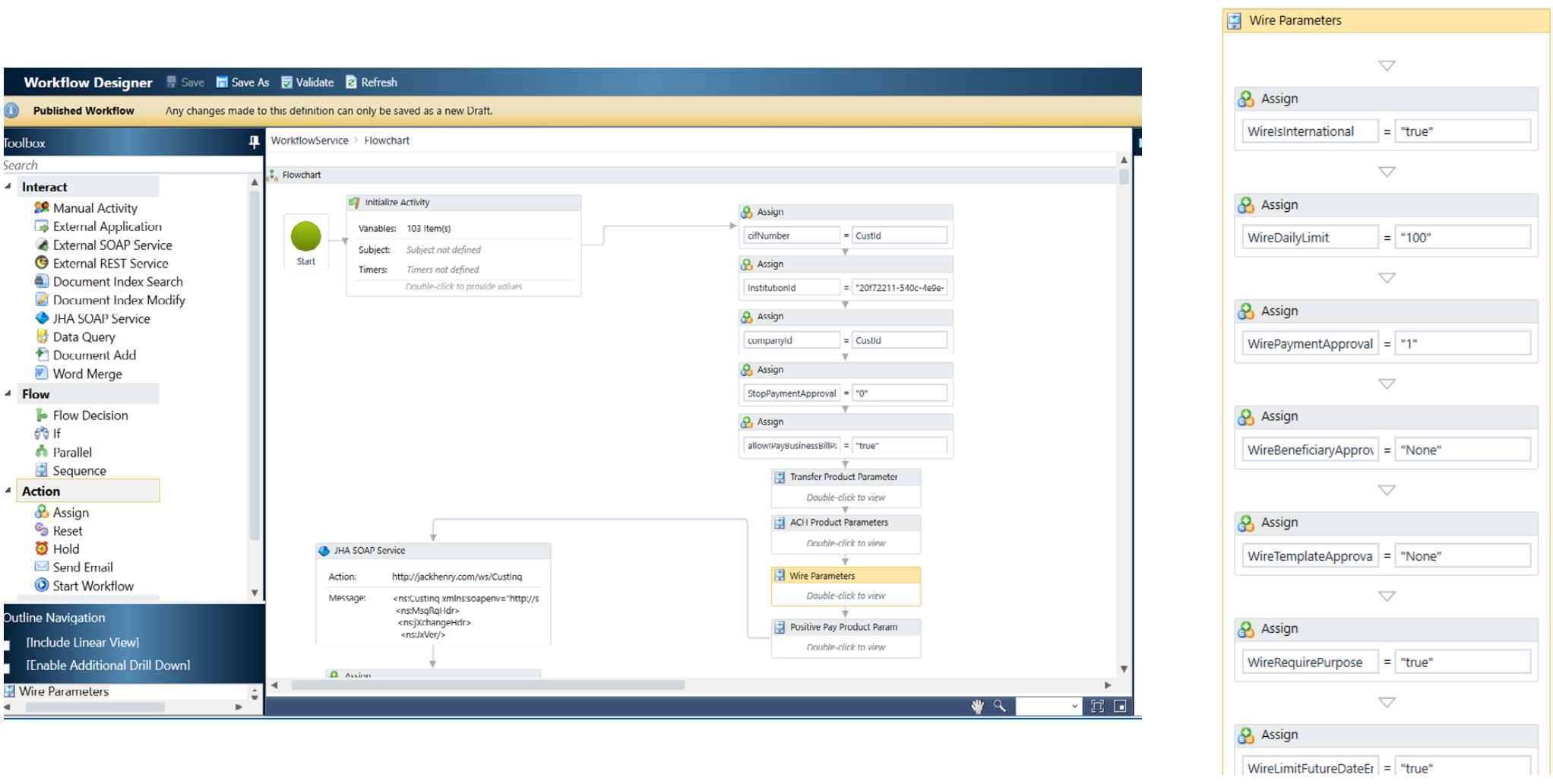
How to Modify Positive Pay Product Parameters
Within the sequence for “Positive Pay Product Parameters” towards the top of the workflow, there are multiple variables that can be changed. Below are the values to which they can be changed.
- PosPayWorkAchExceptions
Values on the right hand side of this assign must be “0” (for inactive) or “1” (for active). This controls the toggle for ACH Exceptions in the Positive Pay Product. - PosPayShowAchExceptions
Values on the right hand side of this assign must be “0” (for inactive) or “1” (for active). This controls the toggle for ACH Exceptions in the Positive Pay Product. - PosPayWorkCheckExceptions
Values on the right hand side of this assign must be “0” (for inactive) or “1” (for active). This controls the toggle for Check Exceptions in the Positive Pay Product. - PosPayAllowIssuedItemActivityReview
Values on the right hand side of this assign must be “0” (for inactive) or “1” (for active). This controls the toggle for Allowing Issued Item Activity Reviews in the Positive Pay Product. - PosPayCheckExceptionAllowCorrectionRequest
Values on the right hand side of this assign must be “0” (for inactive) or “1” (for active). This controls the toggle for Allowing Correction Requests in the Positive Pay Product. - PosPayCheckExceptionAllowReturnReason
Values on the right hand side of this assign must be “0” (for inactive) or “1” (for active). This controls the toggle for Allowing Return Reasons in the Positive Pay Product. - PosPayAchFiltersAllowManageAchFilters
Values on the right hand side of this assign must be “0” (for inactive) or “1” (for active). This controls the toggle for Allowing ACH Filters to be managed in the Positive Pay Product. - PosPayAchFiltersApproversRequired
Values on the right hand side of this assign must be “None”, “1”, “2”, or “3”. This controls the number of approvers required for ACH Filters in the Positive Pay Product. Note - the value here cannot be less than what is set at the Product Configuration level in Back Office.
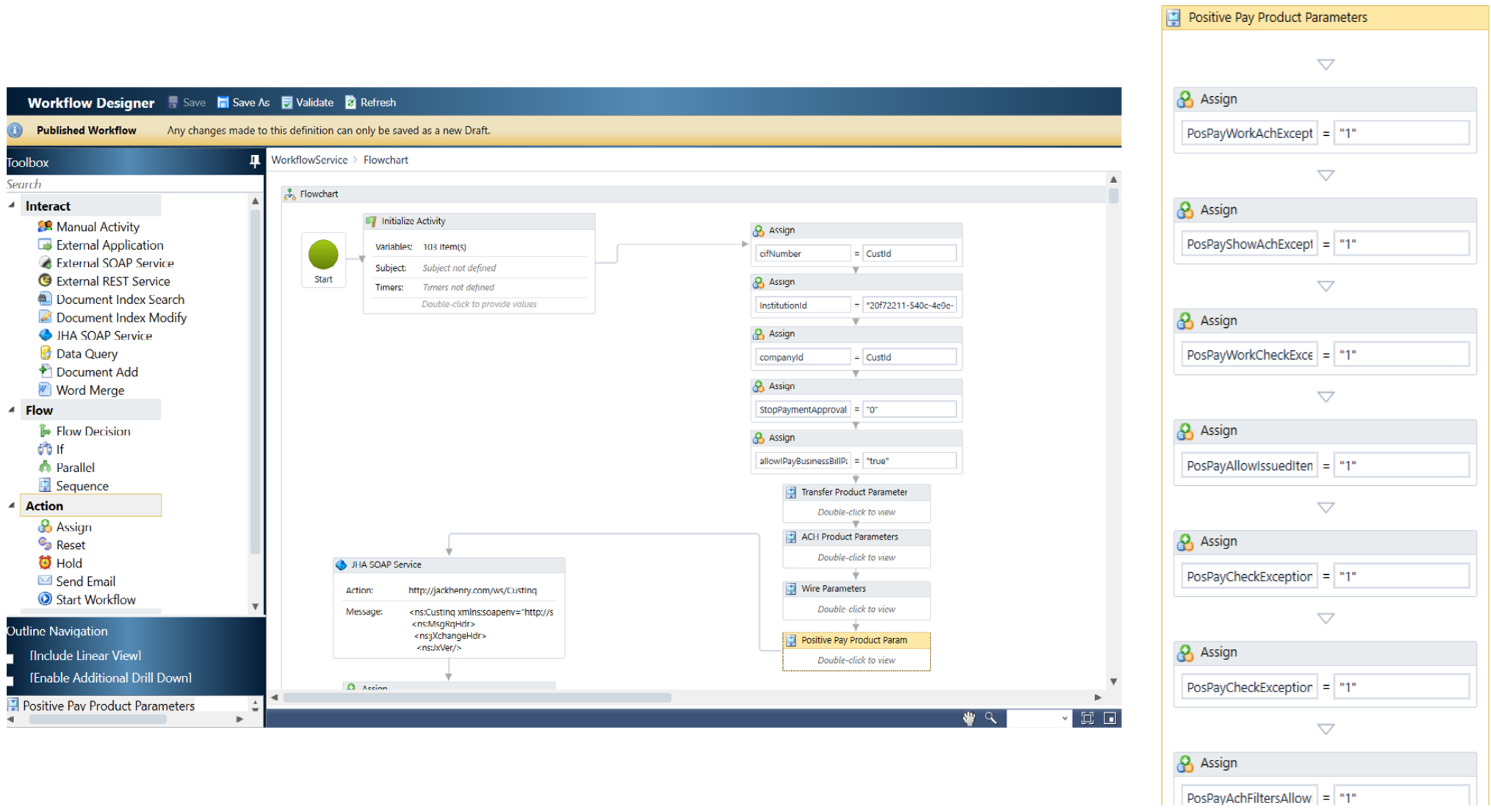
Adding Workflow Steps to Existing Workflows
Enterprise Workflow allows for existing workflow steps to be copied and pasted to other workflows.
- Open both workflow definitions that the user will be working with.
- On the workflow definition to be copied from, locate the steps to be copied. Click above and to the left of the first step to be copied, then drag the mouse down to the bottom right side of the final step to be copied. Use Control+C to copy.
When this has been completed successfully, the user should see all new copied steps highlighted in yellow, while any steps not copied will stay gray. See the screenshot below.
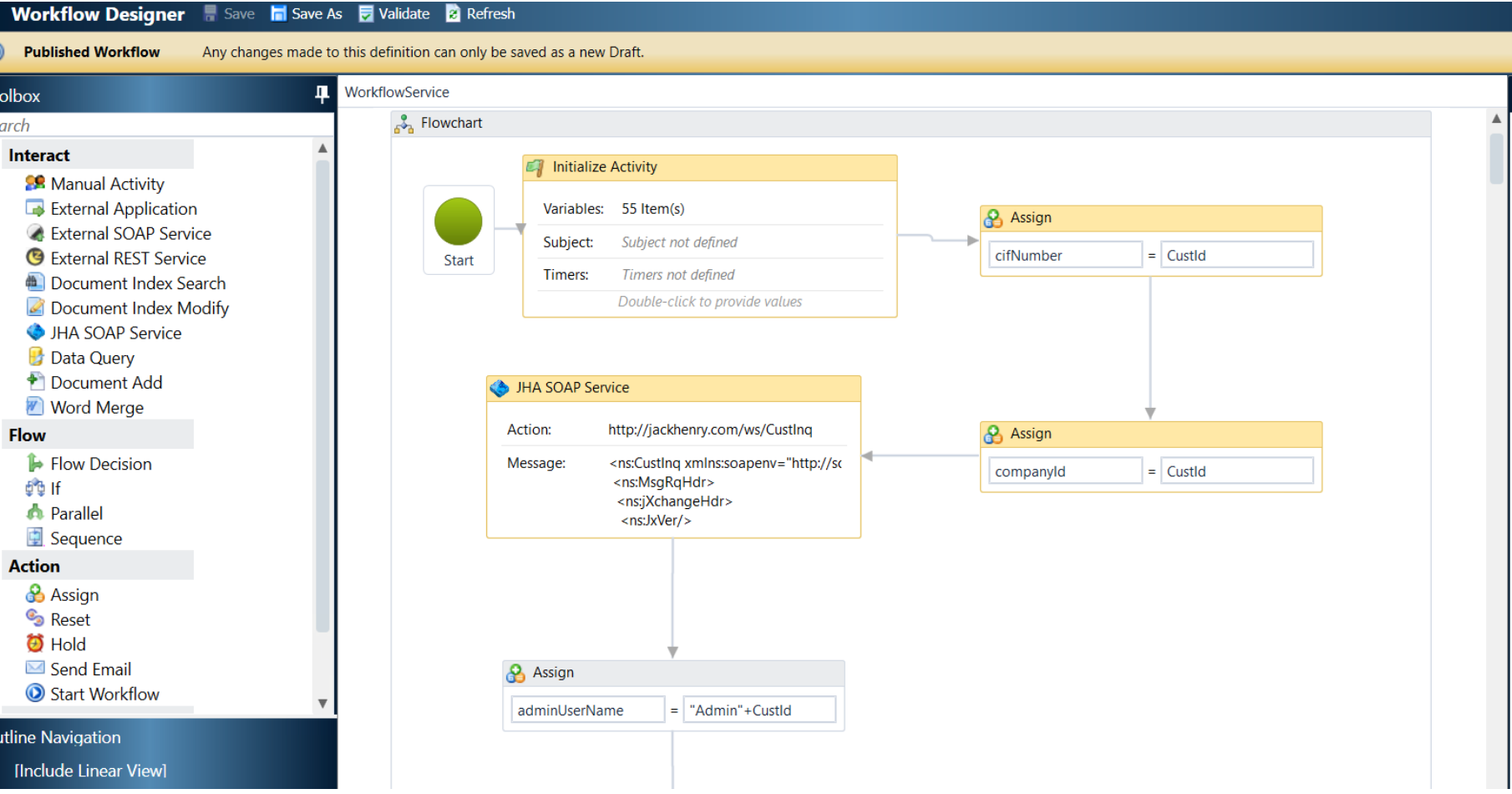
- Go to the Workflow Definition that will receive the pasted steps. Locate the general area of the definition to which the steps will be pasted use Control+V to paste.
- Connect arrows from the existing definition to the first pasted step, then connect the last pasted step to the next available (previously existing) step.
To add products to other workflows, beyond copying/pasting associated REST calls, the following will also need to be copied from the workflow template to the new/existing template:
- Transfers: The sequence toward the top of the template titled “Transfer Product Parameters” along with all variables within the sequence
- ACH: The sequence toward the top of the template titled “ACH Product Parameters” along with all variables within the sequence
- Stop Payments: The Assign toward the top of the template titled “StopPaymentApprovals” – the variable “StopPaymentApprovals” will also need to be added to a new/existing workflow
- Bill Pay: The Assign toward the top of the template titled “allowIPayBusinessBillPayForMobile” and associated variables in Bill Pay REST calls
- Wires: The sequence toward the top of the template titled “Wire Parameters” along with all variables within the sequence
- Positive Pay: The sequence toward the top of the template titled “Positive Pay Product Parameters” along with all variables within the sequence
Using the Company Status API to Deactivate a Treasury Management Company
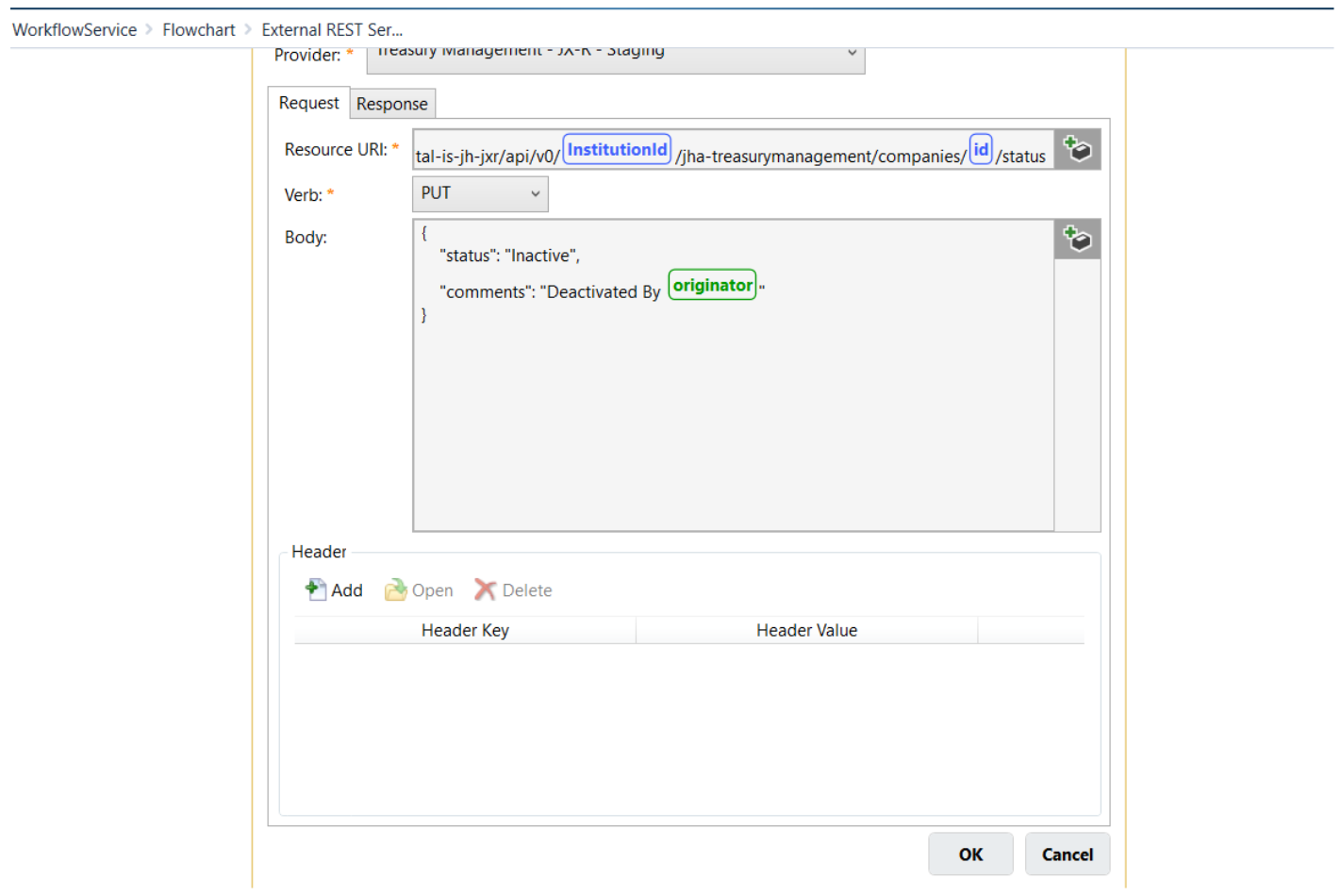
This deactivation process is used when a company needs to transition from Treasury Management to another product, such as Banno Business, or when the business relationship with the financial institution is being closed entirely.
To deactivate a company, simplify modify the body to:
“status”: “Inactive”,
“comments”: “Deactivated By <%originator%>"
}
When a company is deactivated, its status will be updated to Inactive. This action is logged with a History notice, which records the user who initiated the deactivation workflow.
This ensures a clear and auditable record of the change in status for a Treasury Management company.
Additional Customization
Should additional customization be required, customization can be done by modifying the workflow definition. The Enterprise Workflow Consulting team at Jack Henry can also assist with customization requests upon purchase of a block of hours for consulting services. Please email Vance Nall at vnall@jackhenry.com for more information.
Treasury Management API Listing
Additional technical specifications will be added to jackhenry.dev in the future. This will be announced via Service Level Announcements (SLAs) and the ForClients Portal when available.