Quick Reference Guide: Banner and Modal Messages
Overview
Within Back Office, Banner & Modal Message Configuration offers enhanced versatility and customization options. This addition broadens the scope of communication strategies, allowing for more dynamic and impactful ways to convey important information. The banner provides a prominent and persistent display, ensuring key messages remain visible, while the modal offers a focused and interactive overlay for a more engaging user experience.
With this new configuration, users can tailor the presentation of critical information to better suit their communication goals, ultimately optimizing the efficiency and effectiveness of the dashboard configuration within the Back Office environment.
Benefits
Benefits for Banks
- Enables banks to communicate important messages more effectively.
- Ensures key information is prominently displayed and easily noticed by users.
- Banks can tailor the presentation of critical information, providing personalized and relevant user experiences.
- Banks can send targeted messages to users of a specific product(s).
Benefits for Customers
- Awareness is enhanced as important messages are presented more prominently through banner and modal types.
- Customers are regularly informed about updates, promotions, or any changes that may impact their banking experience.
- Customers can enjoy a more user-friendly environment, fostering positive perceptions and loyalty among their end-user base.
Configuration
Back Office – Banner & Modal Messaging Configuration
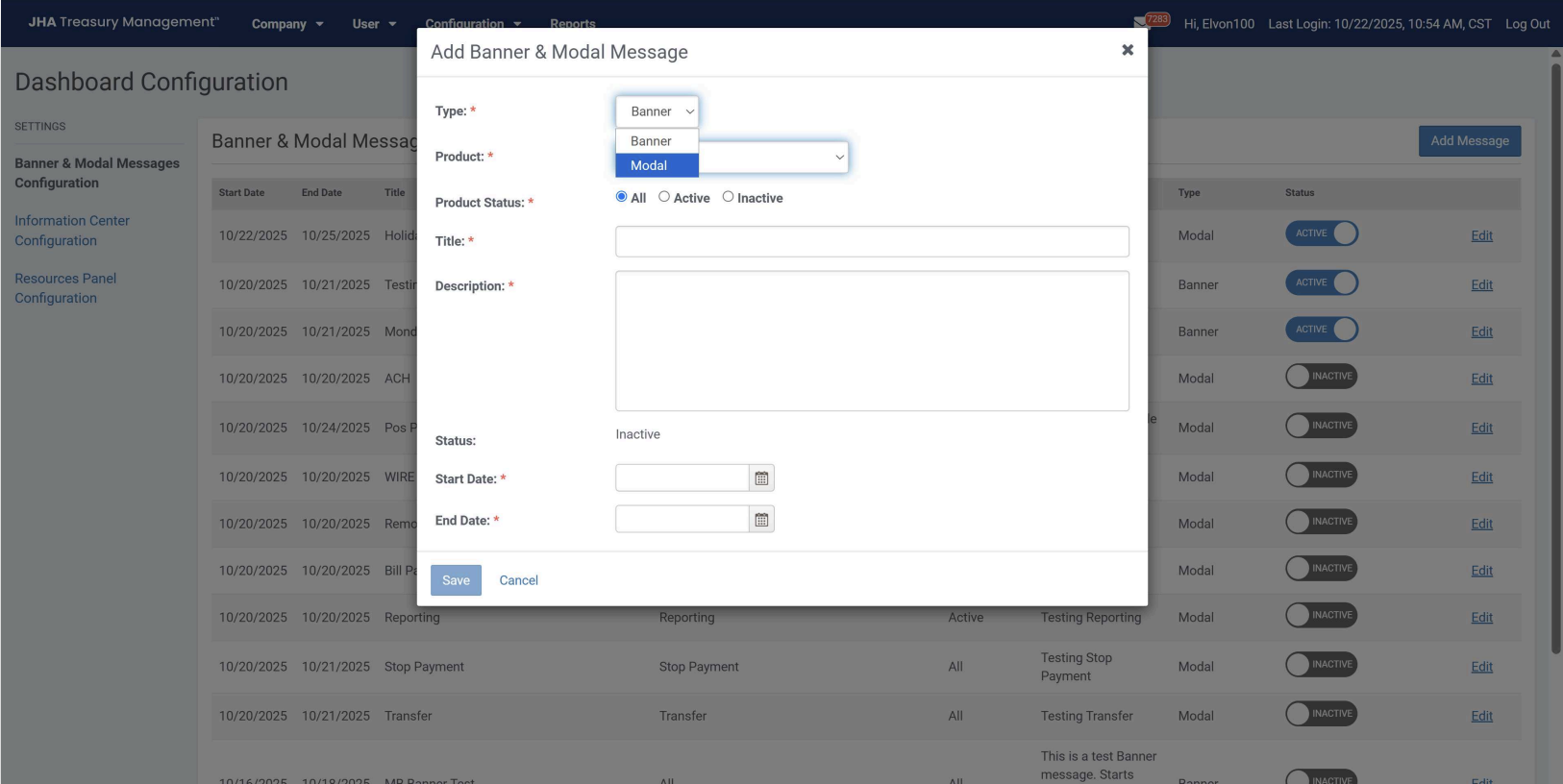
Within Back Office, two new types (Banner & Modal) have been added to the Banner & Modal Messages Configuration.
These fields are required when adding banner and modal messages:
- Type
- Product
- Product Status
- Title
- Description
- Start Date (when a message will begin)
- End Date (when a message will end)
Set the banner or modal message status to active to display a message in Channel. To edit a message, set the status to inactive to enable the edit function.
Back Office Create Modal Message
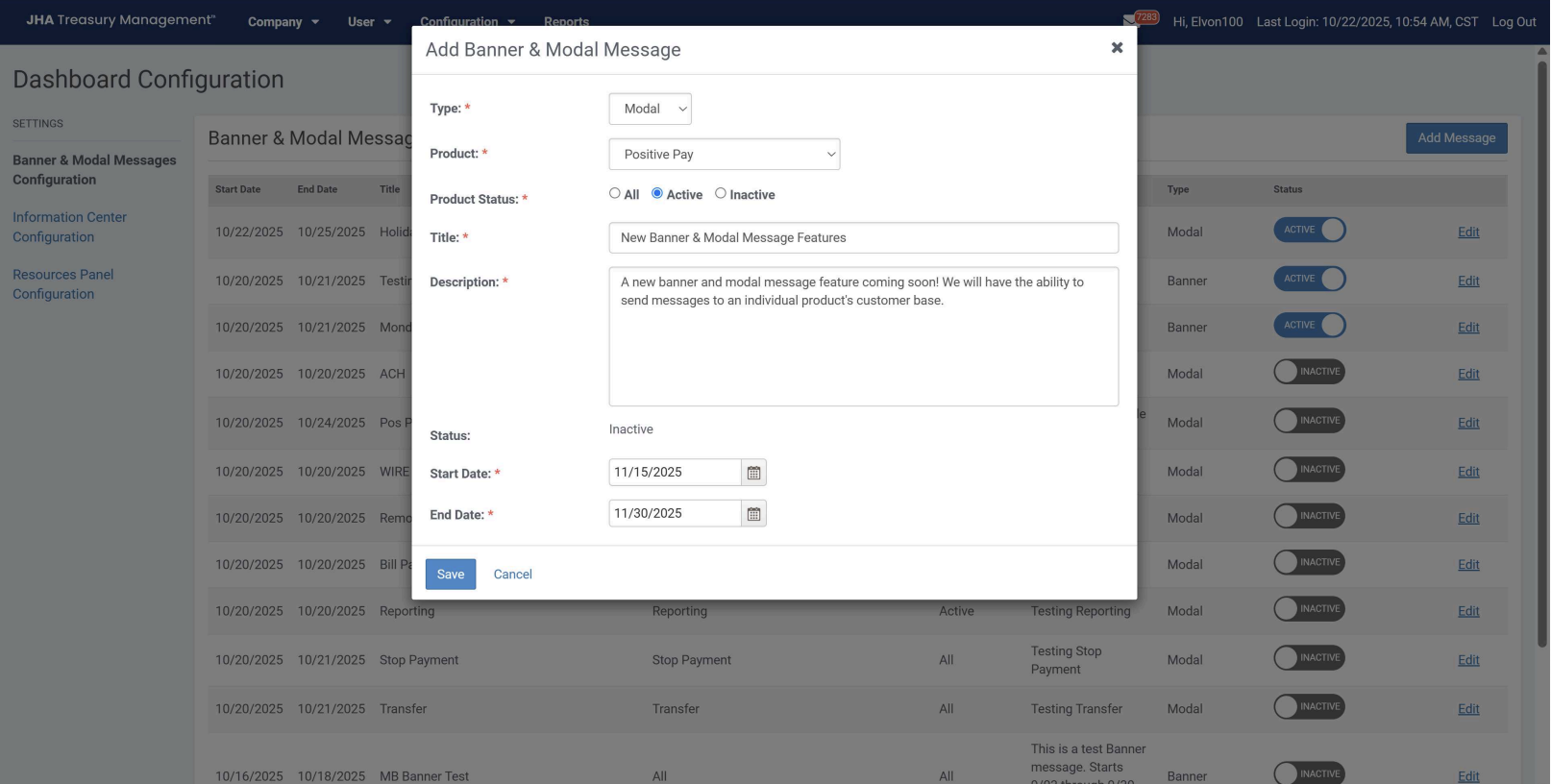
To create a new modal message:
- Select modal from the type dropdown
- Select the product(s)
- Select product status
- Enter the title of the message in the title input field
- Enter the body of the message in the description input field
- Select a start date
- Select an end date
The modal message will be displayed within the timeframe you’ve selected.
Back Office Create Banner Message
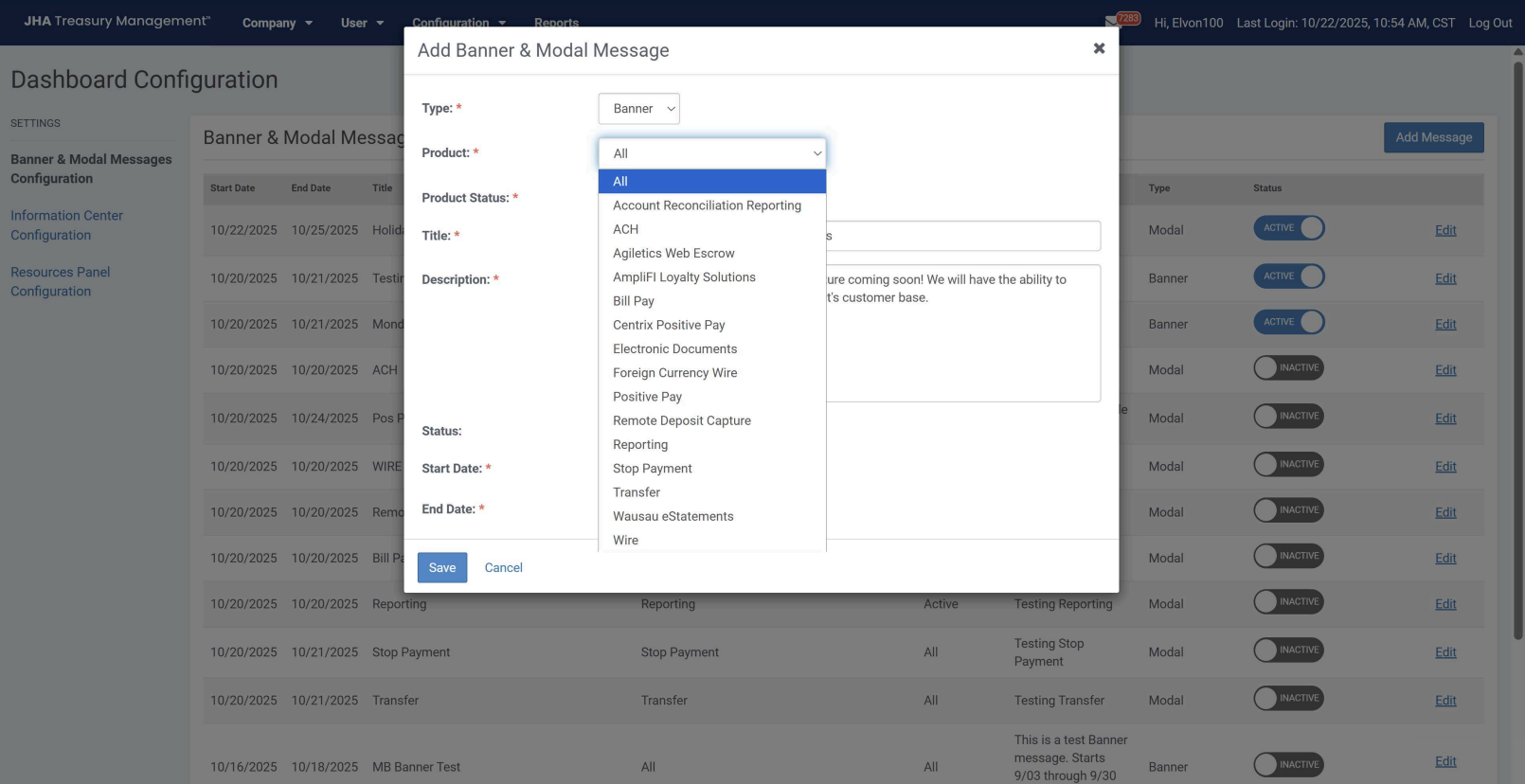
To create a new banner message:
- Select banner from the type dropdown
- Select the product(s)
- Select product status
- Enter the title of the message in the title input field
- Enter the body of the message in the description input field
- Select a start date
- Select an end date
The banner message will be displayed within the timeframe you’ve selected.
Channel Modal Message at Login
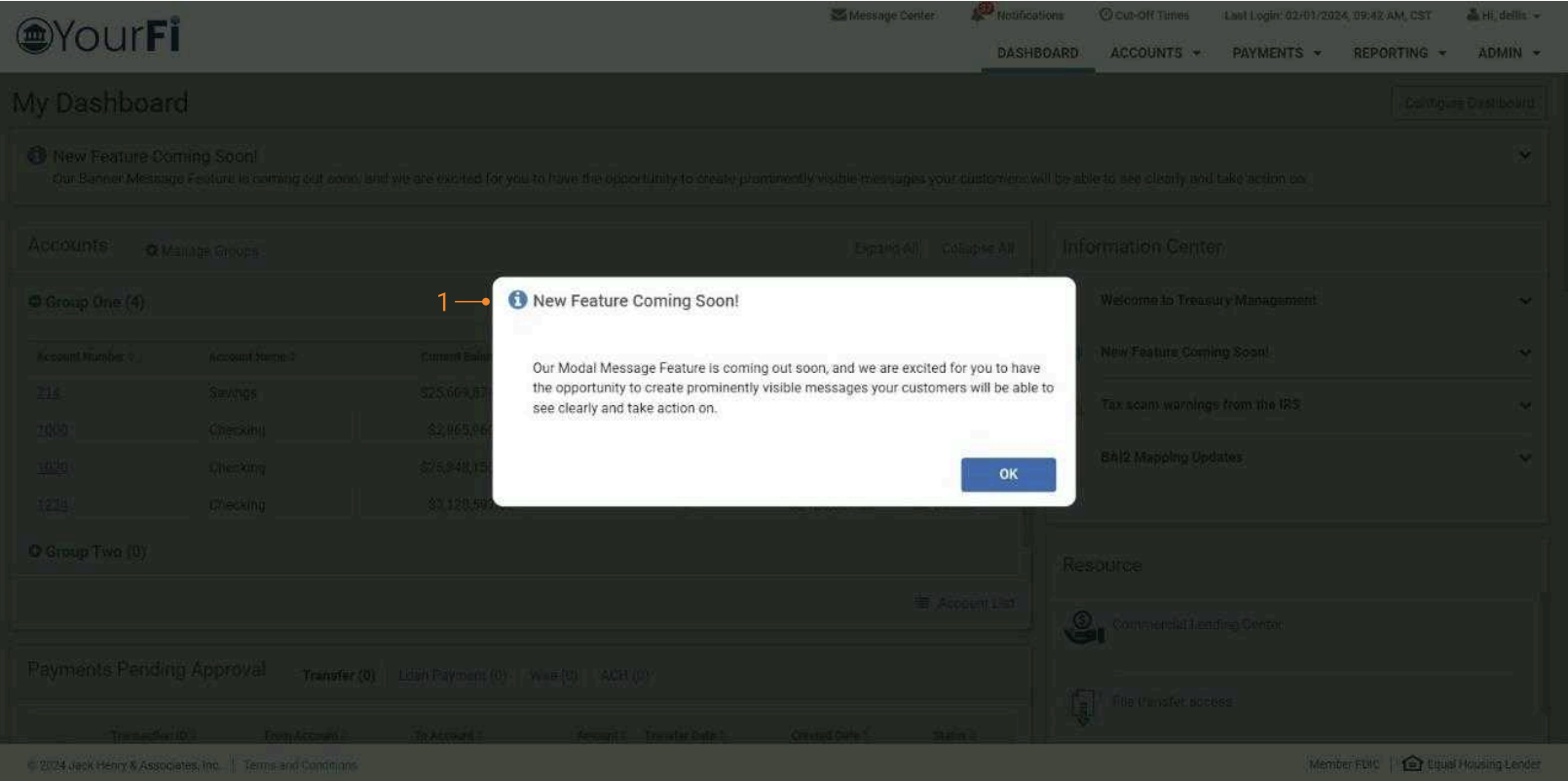
The modal message is available when a channel user logs into Treasury Management. This message type will require the user to acknowledge the message and will only display one time upon login. Messages selected to display as a modal will also display in the Information Center widget.
Channel Dashboard Banner Message
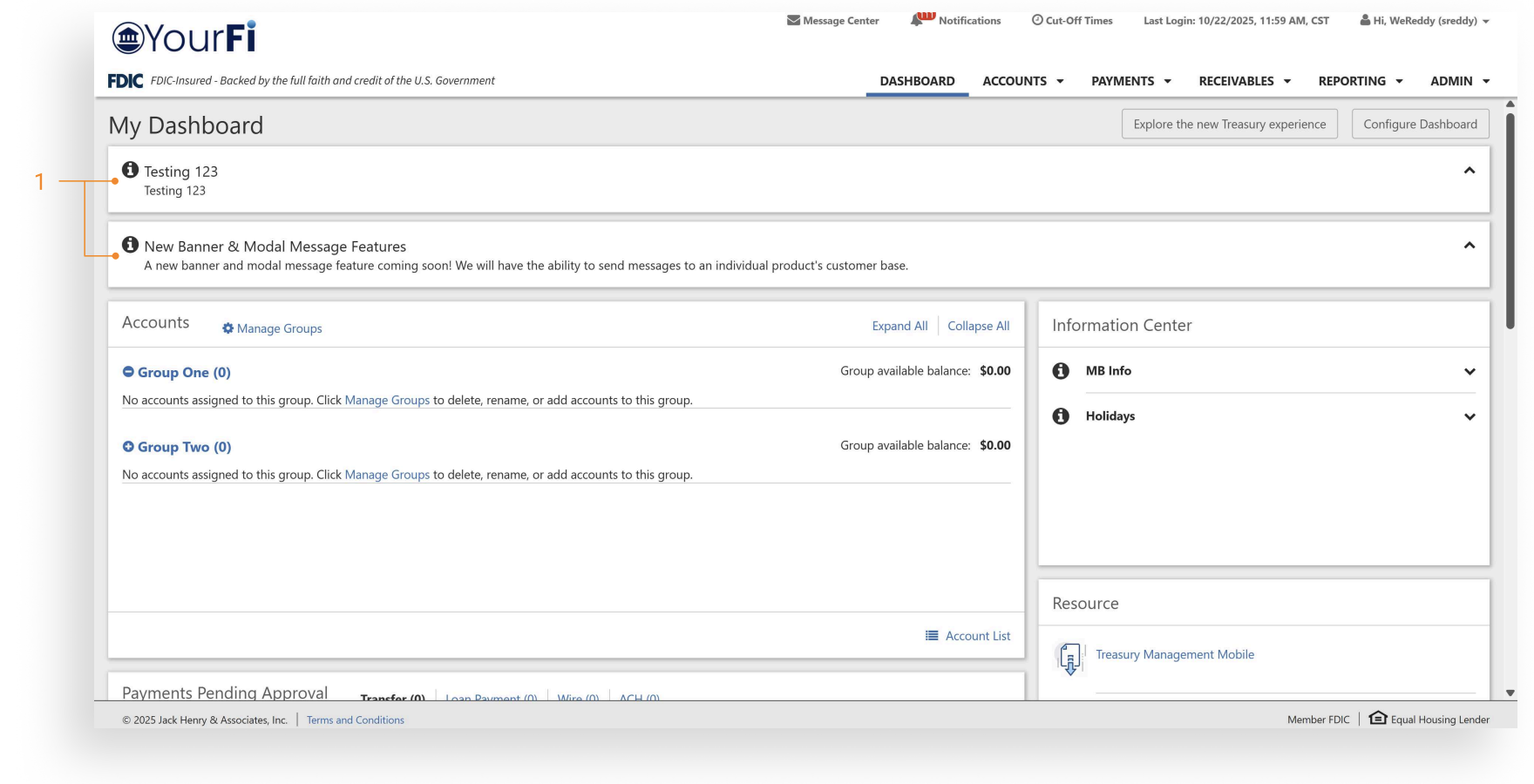
Banner Messages appear prominently at the top of the dashboard. A maximum of two banner messages will be supported.