Quick Reference Guide: Account Analysis
Overview
Account Analysis provides billing options for activity that occurs in Treasury Management.
Important: The Billing Configuration within Treasury Management relies on counters set up with Enhanced Account Analysis to pass volume information. Treasury Management does not integrate with Standard Account Analysis.
Benefits
Benefits for Banks
Provides revenue opportunities for payments and other activity that occurs within Treasury Management.
Benefits for Customers
Provides a detailed statement of activity and the ability to offset fees.
Configuration
Billing Configuration
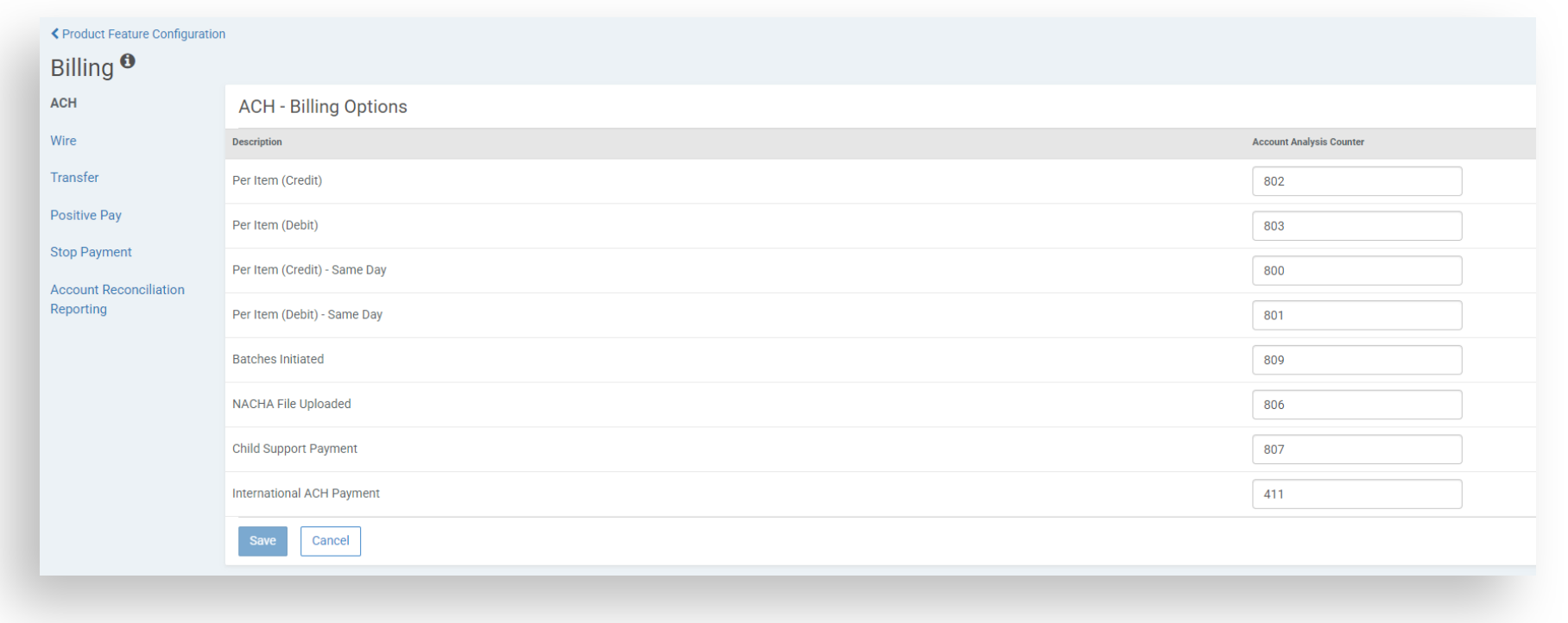
Counters that are set up within the financial institution’s Billing Configuration will default to the company Billing Options for newly onboarded companies.
Company Configuration
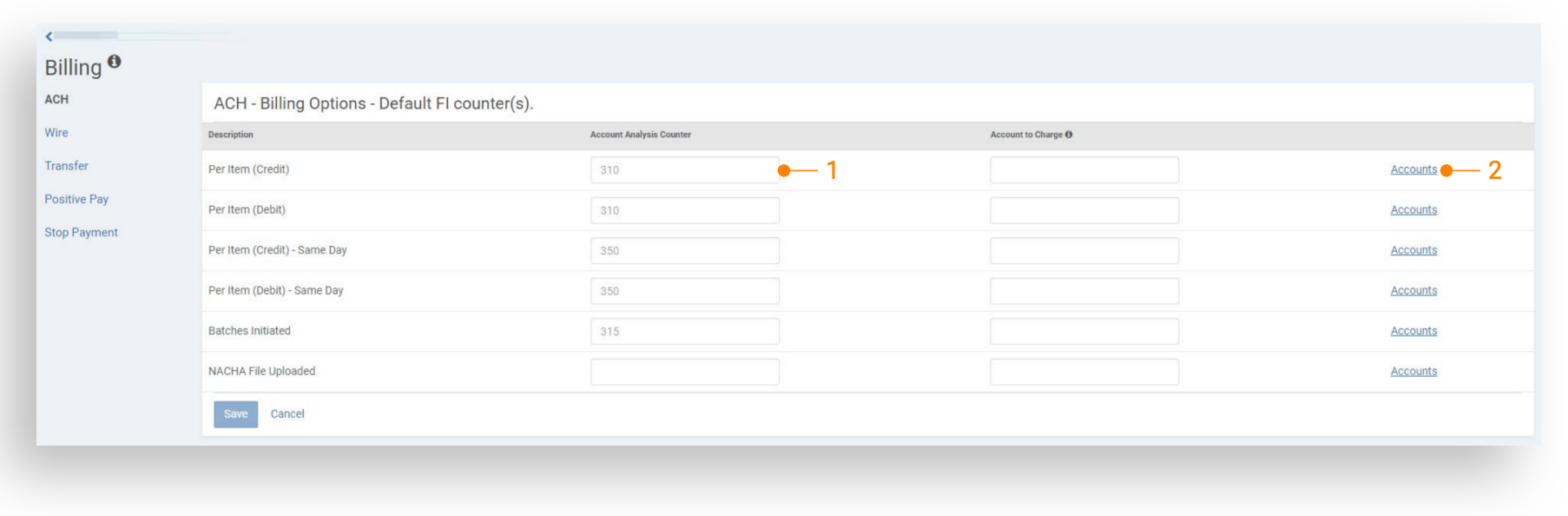
1. Review Default Counters:
- Remove any counters that do not apply to the company.
- Edit any counters that have a different counter from the default.
- Select an Account to Charge (ACH) or Billing Accounts for any counter that is being used for that company.
Note: The Billing Options will display a reminder that the Default FI counter(s) are in place until the counters have been reviewed and changes have been made. Users will not be able to save changes until every counter has an Account to Charge or Billing Accounts selected.
Billing Options - ACH
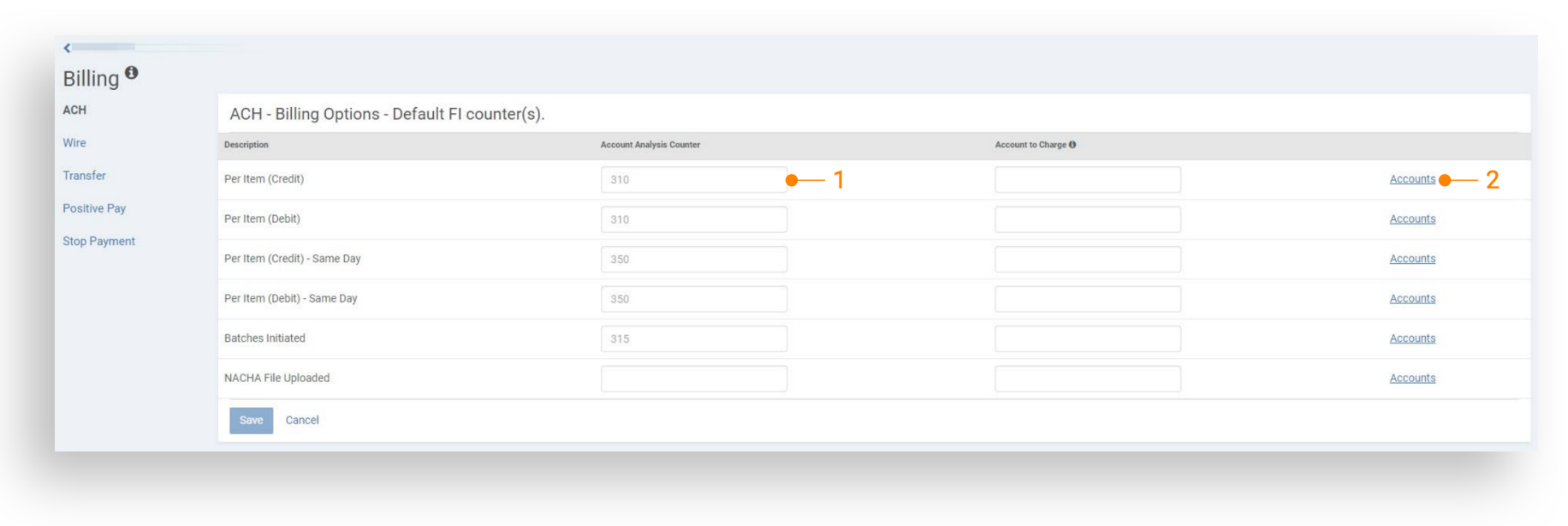
ACH Billing Configuration
-
Review default counters and make any changes.
-
Select an Account to Charge.
Note: Only one account can be selected as the Account to Charge. All ACH Billing Options will be incremented to the account that is selected.
Billing Options – Wire, Transfer, Positive Pay, Stop Payment, Account Reconciliation Reporting
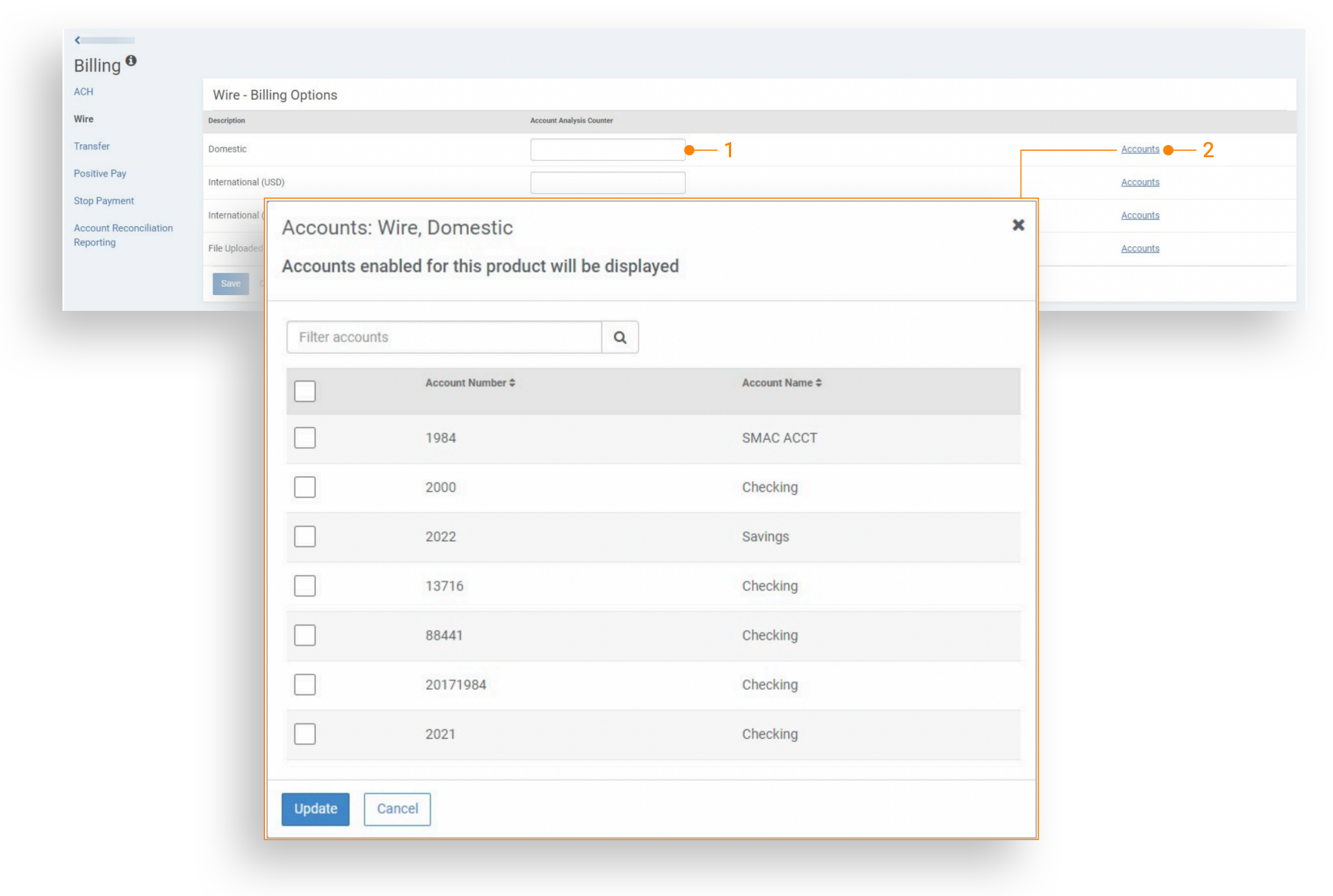
Billing Configuration
-
Review default counters and make any changes.
-
Select the accounts that you wish to be included in the volume sent to EAA for the Billing Option.
Note: Accounts available for selection will include only the accounts that have been enabled in the Product Feature Configuration for each product.
| Services | Counters | Descriptions |
|---|---|---|
| ACH | Per Item (Credit) | ACH Per Item (Credit) Counter increments one time per credit recipient |
| Per Item (Debit) | Counter increments one time per debit recipient (including the offsetting entry for a balanced batch) | |
| Per Item (Credit) – Same Day | Counter increments one time per credit recipient | |
| Per Item (Debit) – Same Day | Counter increments one time per debit recipient | |
| Batches Initiated | Counter increments one time per batch initiated from a template, uploaded file or manual payment | |
| NACHA File Uploaded | Counter increments one time per NACHA file when it is uploaded into Treasury Management | |
| Child Support Payment | Counter increments one time per NACHA file when it is uploaded into Treasury Management | |
| Wires | Domestic | Counter increments one time per domestic wire debit transaction |
| International (USD) | Counter increments one time per international USD wire debit transaction | |
| International (FX) | Counter increments one time per international wire debit transaction | |
| File Upload | Counter increments one time per file when it is uploaded into Treasury Management | |
| Transfers | Transfers Per Item | Counter increments one time per debit account |
| Positive Pay | Positive Pay Decisioned Item (ACH) | Counter increments one time per ACH exception item presented within Treasury Management |
| Positive Pay Decisioned Item (Check) | Counter increments one time per check exception item presented within Treasury Management | |
| Positive Pay Per Item | Counter increments one time per issued check entered manually or uploaded | |
| Stop Payment | Stop Payment Per Item (Add) | Counter increments one time for every stop payment entered manually or uploaded |
| Account Reconciliation Reporting | AR2450 – Checks Paid Returned | Counter increments when the report is generated from SilverLake |
| AR2455 – Non-Issued Checks Paid Returned | Counter increments when the report is generated from SilverLake | |
| AR2460 – Expired Stops | Counter increments when the report is generated from SilverLake | |
| AR2465 – Issued Items Paid Previous Period | Counter increments when the report is generated from SilverLake | |
| AR2520 – Previous Outstanding Items – Detail | Counter increments when the report is generated from SilverLake | |
| AR2530 – Adjustment Transactions | Counter increments when the report is generated from SilverLake | |
| AR2535 – Duplicates Paid Not Issued | Counter increments when the report is generated from SilverLake | |
| AR2540 – Paid No Issue | Counter increments when the report is generated from SilverLake | |
| AR2545 – Electronic Transactions | Counter increments when the report is generated from SilverLake | |
| AR2547 – Other Non-Issued Items | Counter increments when the report is generated from SilverLake | |
| AR2550 – Items Cleared | Counter increments when the report is generated from SilverLake | |
| AR2551 – Items Cleared – Summary | Counter increments when the report is generated from SilverLake | |
| AR2555 – Items Reconciled | Counter increments when the report is generated from SilverLake | |
| AR2560 – Issued Not Offset | Counter increments when the report is generated from SilverLake | |
| AR2570 – Void Items | Counter increments when the report is generated from SilverLake | |
| AR2571 – Void Items Paid | Counter increments when the report is generated from SilverLake | |
| AR2575 – Stop Items | Counter increments when the report is generated from SilverLake | |
| AR2578 – Stop Items Voided | Counter increments when the report is generated from SilverLake | |
| AR2580 – Dormant Items | Counter increments when the report is generated from SilverLake | |
| AR2585 – Stale Dated Items | Counter increments when the report is generated from SilverLake | |
| AR2590 – Dormant/Stale Items Purged | Counter increments when the report is generated from SilverLake | |
| AR2600 – Account Reconciliation | Counter increments when the report is generated from SilverLake | |
| AR2610 – Consolidated Report | Counter increments when the report is generated from SilverLake | |
| AR2630 – Deposit Items by Ticket Location | Counter increments when the report is generated from SilverLake | |
| AR2500 – Issued Items – Detail Effect Date | Counter increments when the report is generated from SilverLake | |
| AR2510 – Issue Items – Detail by Serial | Counter increments when the report is generated from SilverLake | |
| AR2500PSUM – Issued Items – Summary Effect Date | Counter increments when the report is generated from SilverLake | |
| AR2520PSUM – Previous Outstanding Items – Summary | Counter increments when the report is generated from SilverLake |