Quick Reference Guide: Secure Token Authentication
Overview
The Secure Tokens feature within JHA Treasury Management coordinates with third-party software from Symantec. Financial institution users will need to log a case within jSource in order to complete set up and use. The option to enable secure tokens will be grayed out until this step is completed. Channel users can be instructed to download virtual tokens to their desktop or mobile device or be provided physical tokens before these steps are performed.
Configuration
Company Authentication Settings
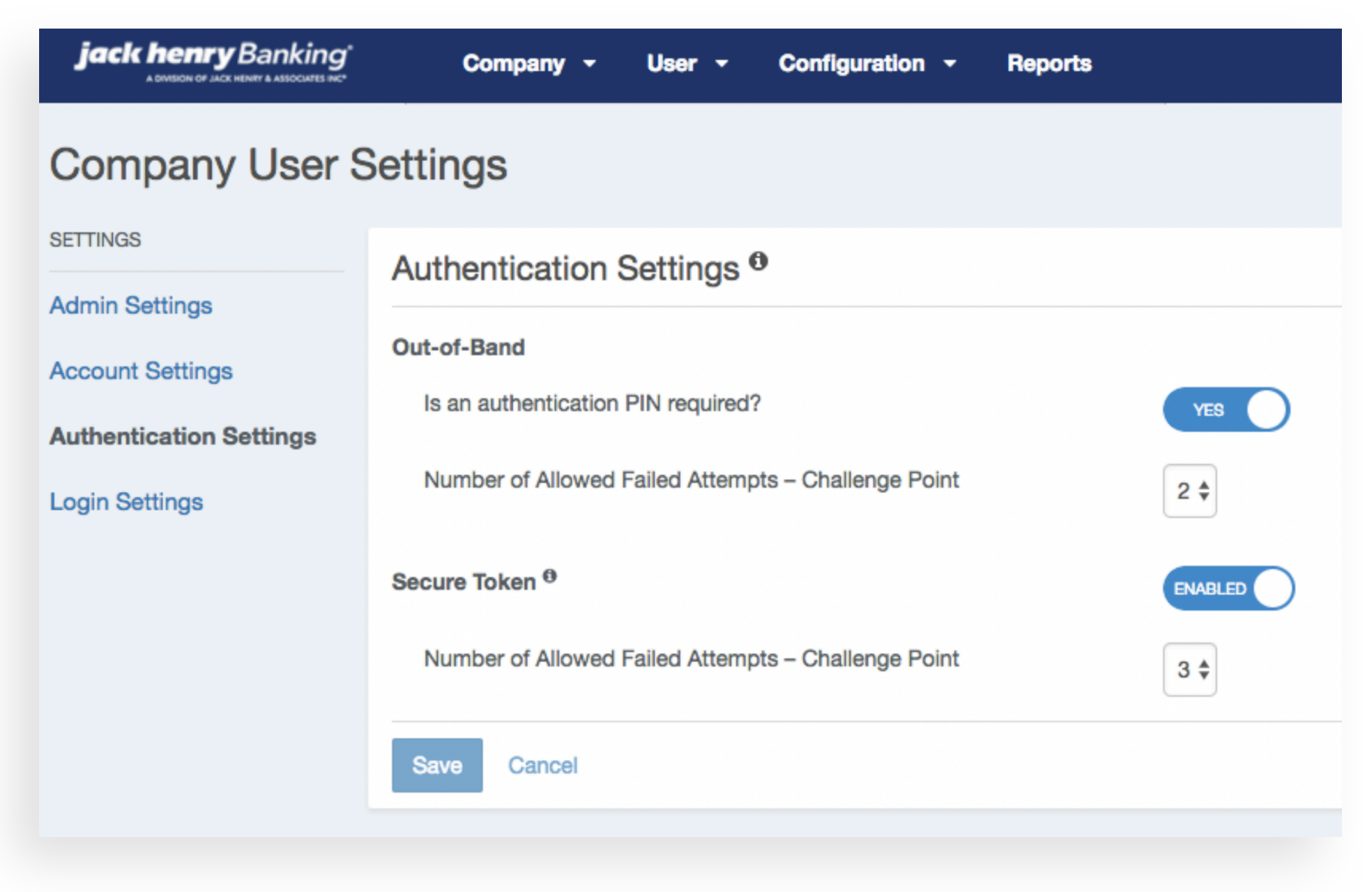
Navigate to Configuration > Company User Settings > Authentication Settings.
-
Enable the usage of secure tokens within Authentication Settings. This step must be performed before secure tokens can be set up for any company.
-
Decide how many failed attempts a user can have at a challenge point before they are locked out from authenticating. The default is 3.
Company Details
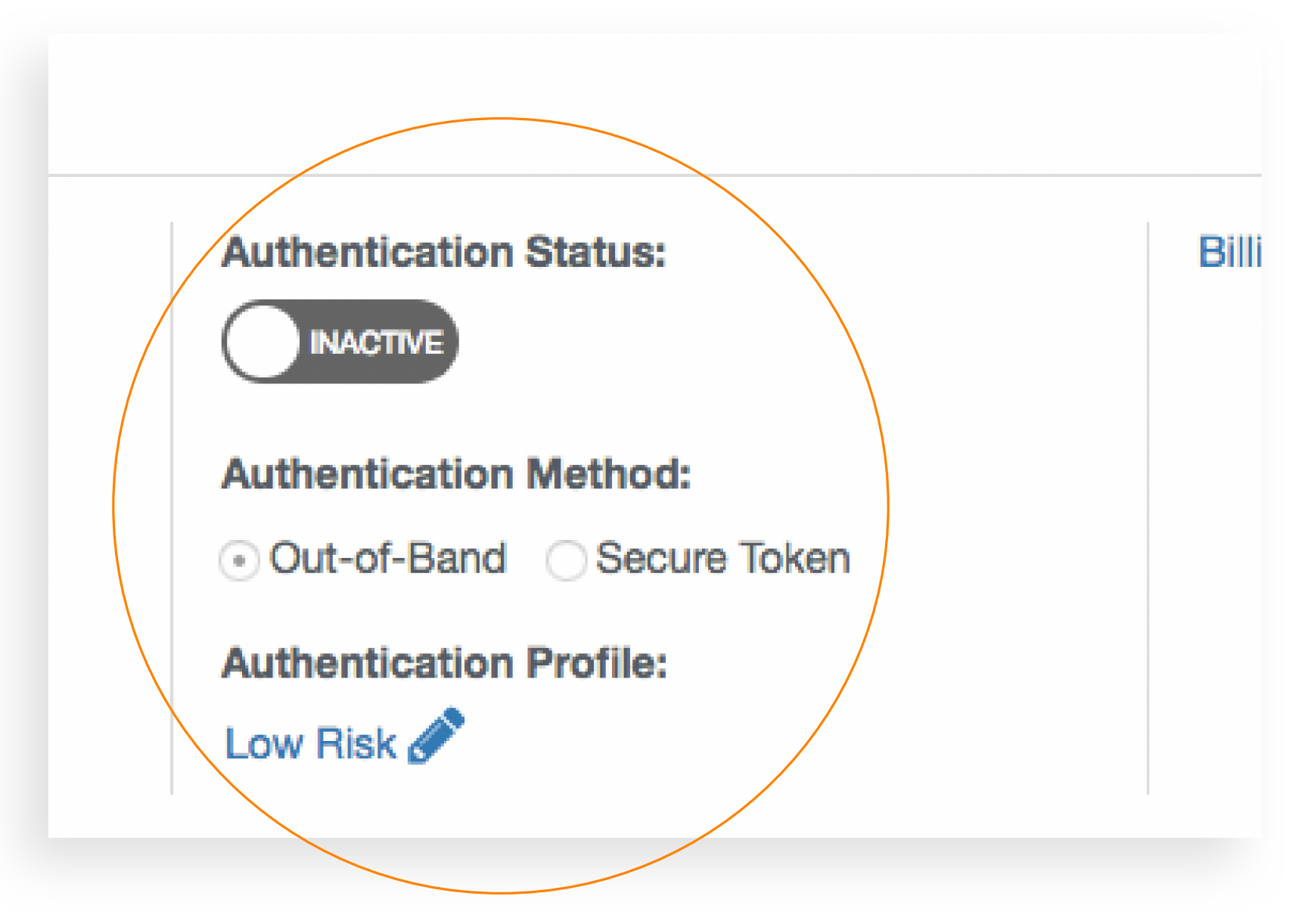
Navigate to Main Company Page > Company Details.
-
Search for and select the company for which you wish to activate secure token authentication.
-
Under Company Details, set the Authentication Status to Active. Select ”Secure Token” for the Authentication Method.
-
Select the desired Authentication Profile for this company (or create a new one).
Three Token Options
Smartphone Access
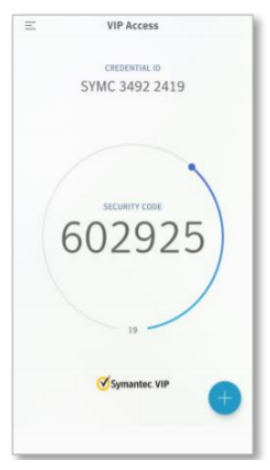
Search VIP Access within the app store on your mobile device and download the Symantec application.
Hard Tokens

Physical keychain devices can be provided to all within your organization for VIP access. Contact your JHA Inside Sales representative to order physical tokens.
Desktop and Tablet Access
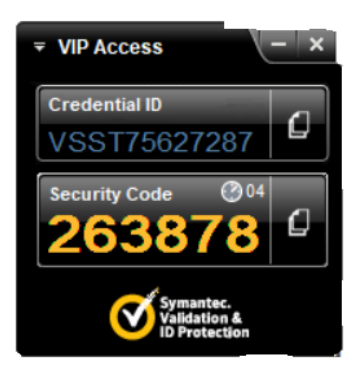
Virtual tokens can be downloaded to company workstations. For instructions on how to download desktop or tablet tokens, visit http:// idprotect.vip.symantec.com.
-
Once the previous steps are performed, users for this company will be prompted to register their credential at login.
-
Users must enter their Credential ID (located on the back of physical tokens), the six-digit security code displayed on the token, and a four-digit PIN of their choosing.
-
To authenticate at challenge points, users must enter the six-digit security code displayed on their token, followed by their four-digit PIN.
User Authentication Settings
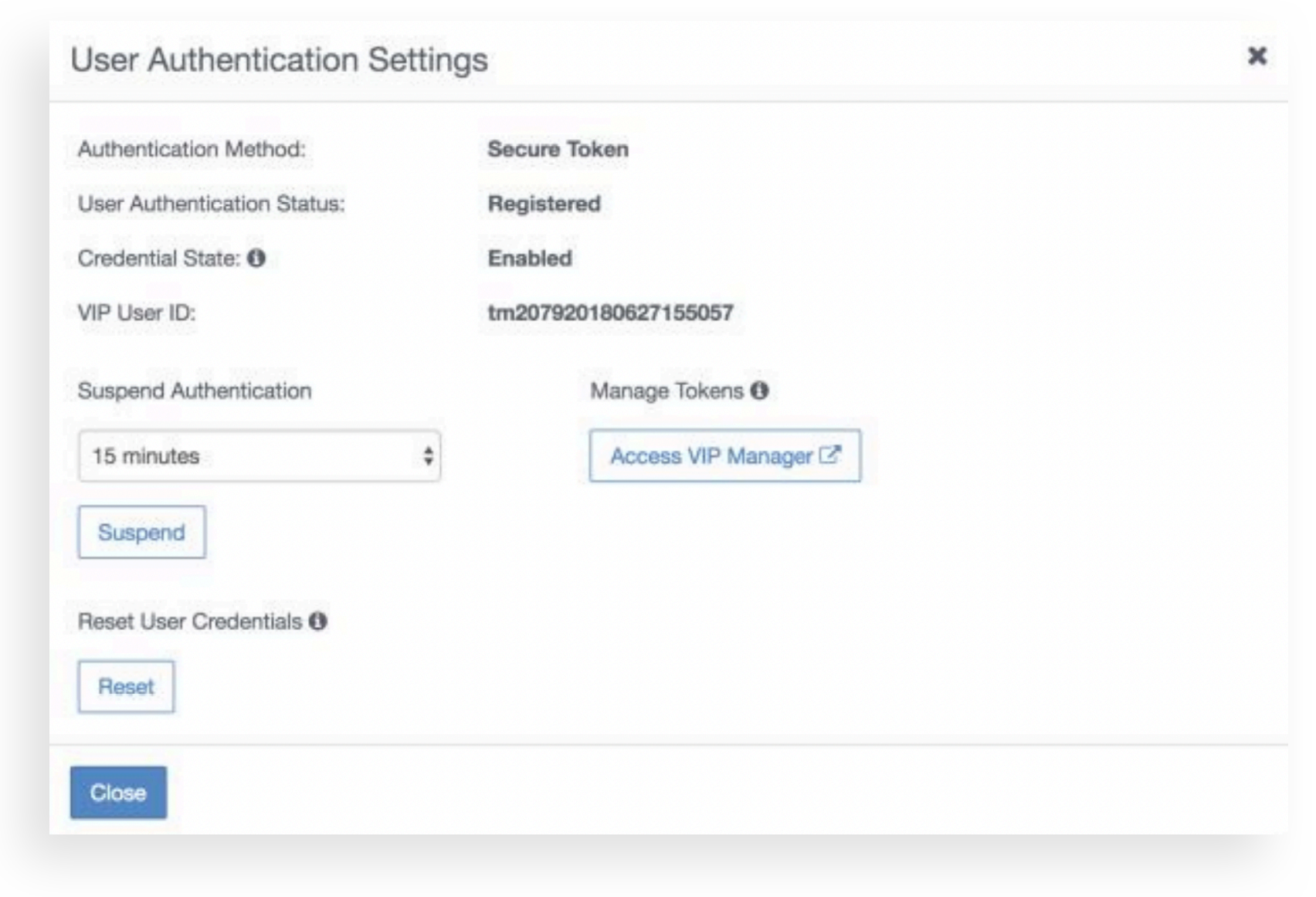
To view or modify a user’s authentication settings, locate the user within the User List, then select Actions from the dropdown menu. The following actions may be performed on this screen.
To Reset a User’s Secure Token Credentials
- Select Reset.
- Select Reset again in the confirmation window.
- The user will be prompted to register again at the next login. This action will also unlock the user.
To Suspend Authentication Requirements for a User
- Select the desired duration from the dropdown menu, then select Suspend.
- Select Suspend again in the confirmation window.
To Unlock a User’s Credentials
- Select Unlock.
- Click the checkbox if you would like to also reset the user’s credential registration.
- Select Unlock Secure Token in the confirmation window.
Unlock User Credentials
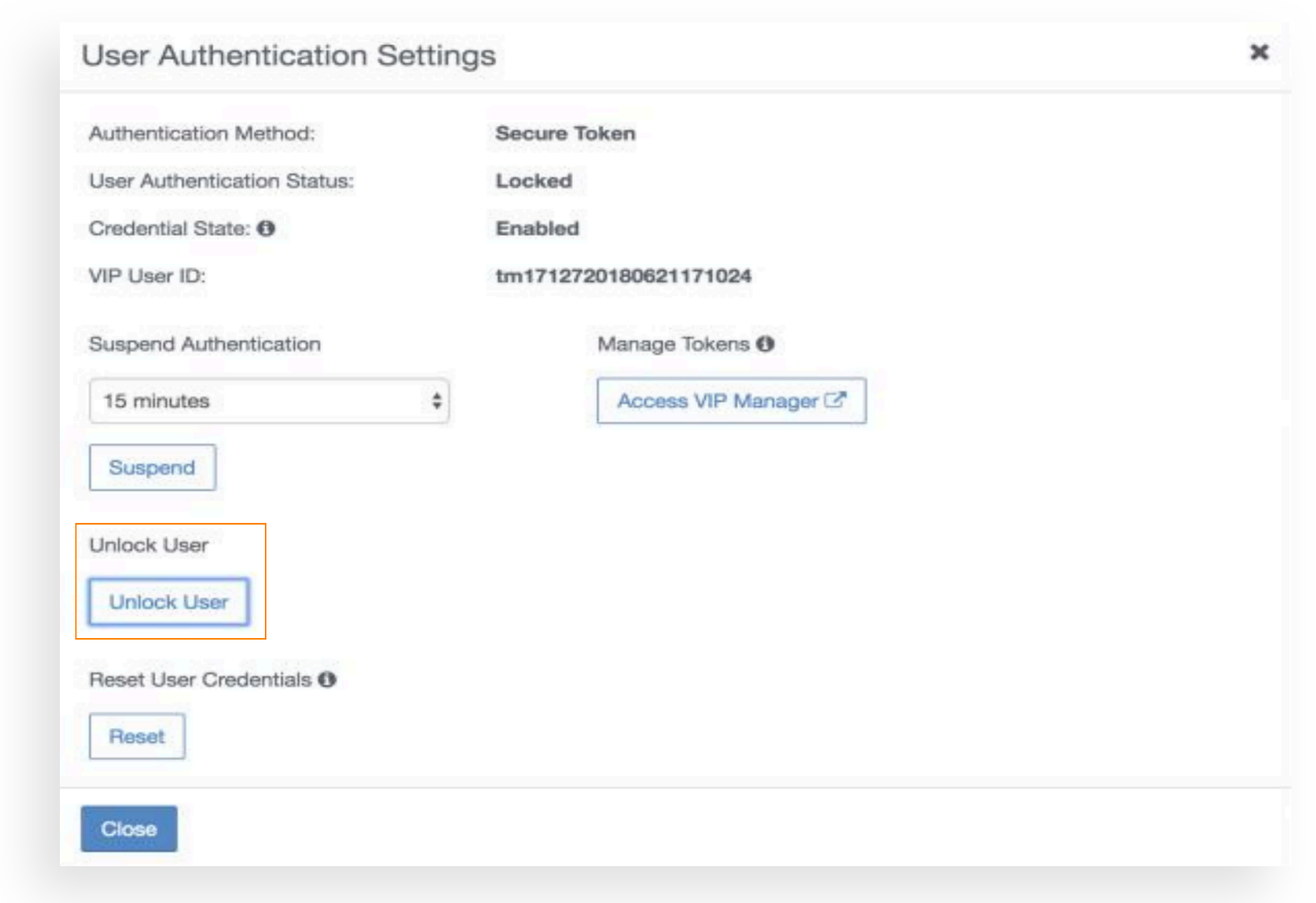
To Unlock a User’s Credentials
- Select Unlock.
- Click the checkbox if you would like to also reset the user’s credential registration.
- Select Unlock Secure Token in the confirmation window.