Quick Reference Guide: 2FA at Login
Overview
Two-Factor Authentication (2FA) is a method that relies on a user providing their login credentials in addition to their password, as well as a second factor, which is usually a secure token or a one-time passcode verification. Integration of 2FA prevents Man in the Middle (MITM) attacks such as Sniffing Attackers, Packet Injection and Session Hacking.
This enhancement will provide Financial Institutions with the ability to activate 2FA at login using the desktop application. Users will be prompted with authentication via Secure Token or Out of Band – based on the selected authentication method setting for the Treasury Management customer.
With this enhancement there will be no changes to the mobile user’s experience. Mobile users will continue to be prompted to input their user credentials or utilize biometrics, and then they will be prompted with their established security questions.
Benefits
Benefits for Banks
- Enhancement activation control with a new feature configuration
Benefits for Customers
- Enhanced security
Back Office - Configuration
Company User Settings & Company Details
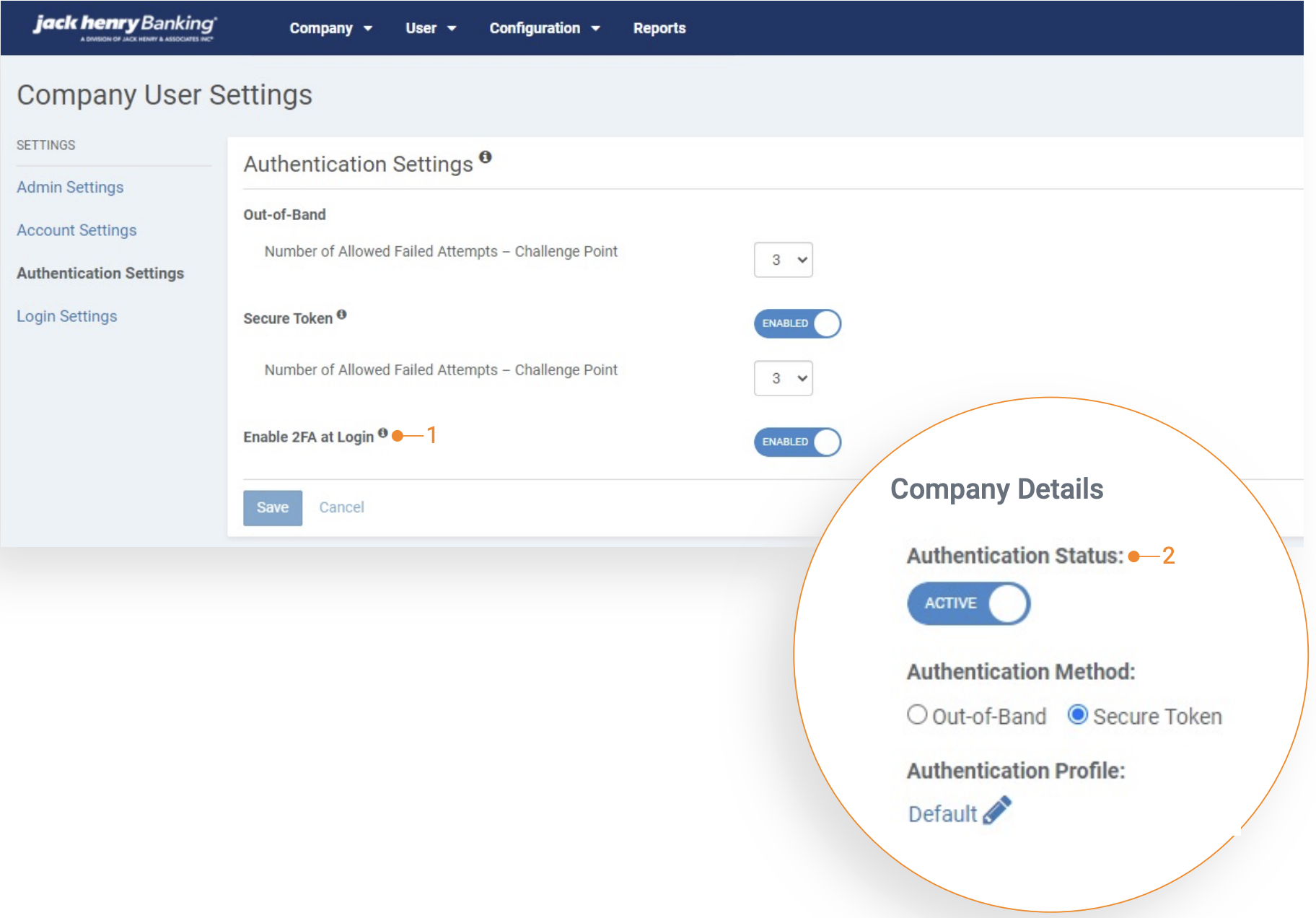
1. Authentication Settings - Enable 2FA at Login: This new configuration will default to inactive.
Until this configuration is activated, users will not be prompted to authenticate with their Secure Token or their One Time Passcode at login.
2. Company Authentication Settings - Authentication Status: Authentication status must be set to Active.
Channel - User Login
Secure Token
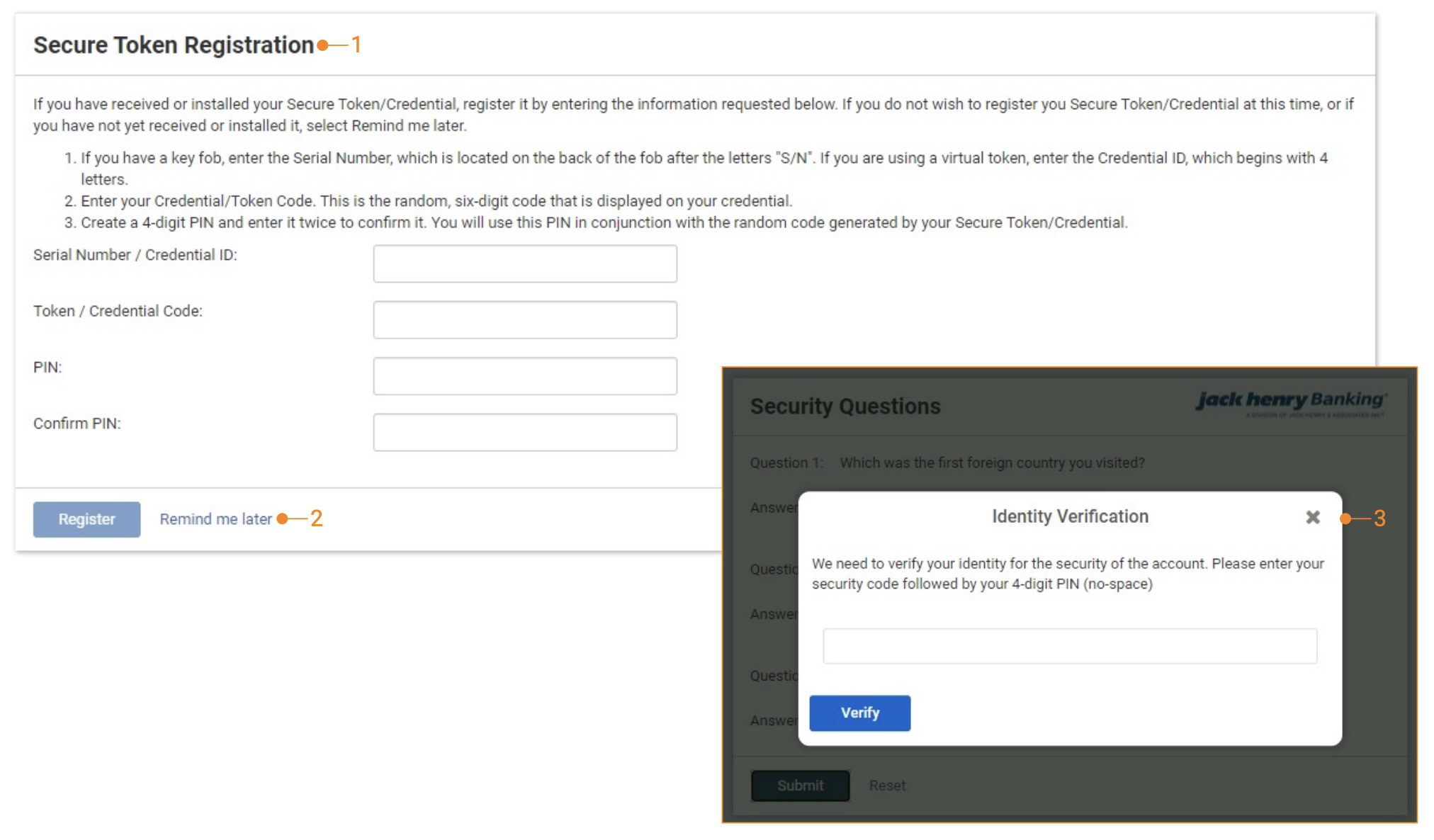
1. Registration: Users who have not previously registered will be prompted to register their secure token at login.
2. Remind me Later: Users have the option to select Remind me later for up to 5 days, and on the 6th day they will be required to register.
3. Authentication: After successful registration and upon a user’s next login, they will be prompted to input their security code + their PIN they established at registration.
Channel - User Login
One Time Password
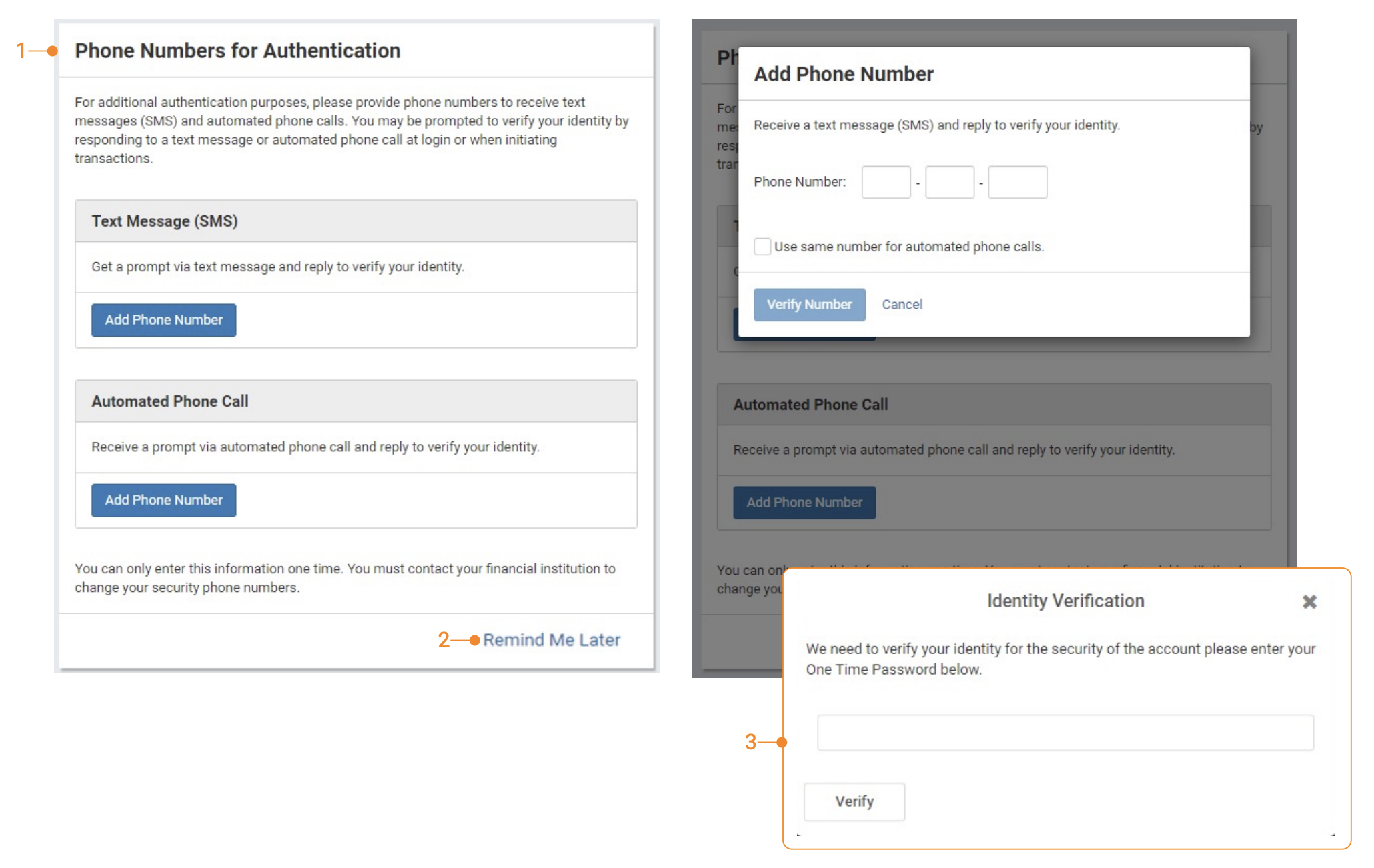
1. Registration: Users who have not previously registered will be prompted to register their secure token at login.
2. Remind me Later: Users have the option to select Remind me later for up to 5 days, and on the 6th day they will be required to register.
3. Authentication: After successful registration and upon a user’s next login, they will be prompted to input their one-time passcode received via text message or automated phone call.