Quick Reference Guide: ACH Tax Payments
Overview
JHA Treasury Management™ Create ACH Tax Payment helps businesses to schedule and make accurate on-time tax payments. Our human-centered designed interface simplifies the process of paying Federal and State taxes by combining all the necessary requirements in one convenient workflow. When all the requested information is completed, users can simply review the data and confirm the payment. Once the payment is complete, audit data is compiled in the Create ACH Tax Payment Report and readily available for internal and external consumption anytime it’s needed.
Benefits
Benefits for Banks
- Selecting Federal or State automatically adjusts data input requirements so users can accurately complete the required information for each field.
- Reduced risk: a direct payment processed as an ACH credit pushes funds to designated accounts.
- The Tax Payments feature can be enabled or disabled at the company level, giving financial institutions the opportunity to charge fees for this service.
Benefits for Customers
- Complies with Electronic Funds Transfer (EFT) systems, making it easy for federal, state and municipalities supporting electronic payments.
- Secure payments: unique user 2FA prevents unentitled users from accessing tax payments and records.
- Creates transparent digital efficiencies, eliminatating missed tax payments and minimizing the potential of human errors.
- Fraud risk point controls are available, including authentication for Create, Edit, Delete, and Approve ACH Tax Payments.
Configuration
ACH Product Configuration
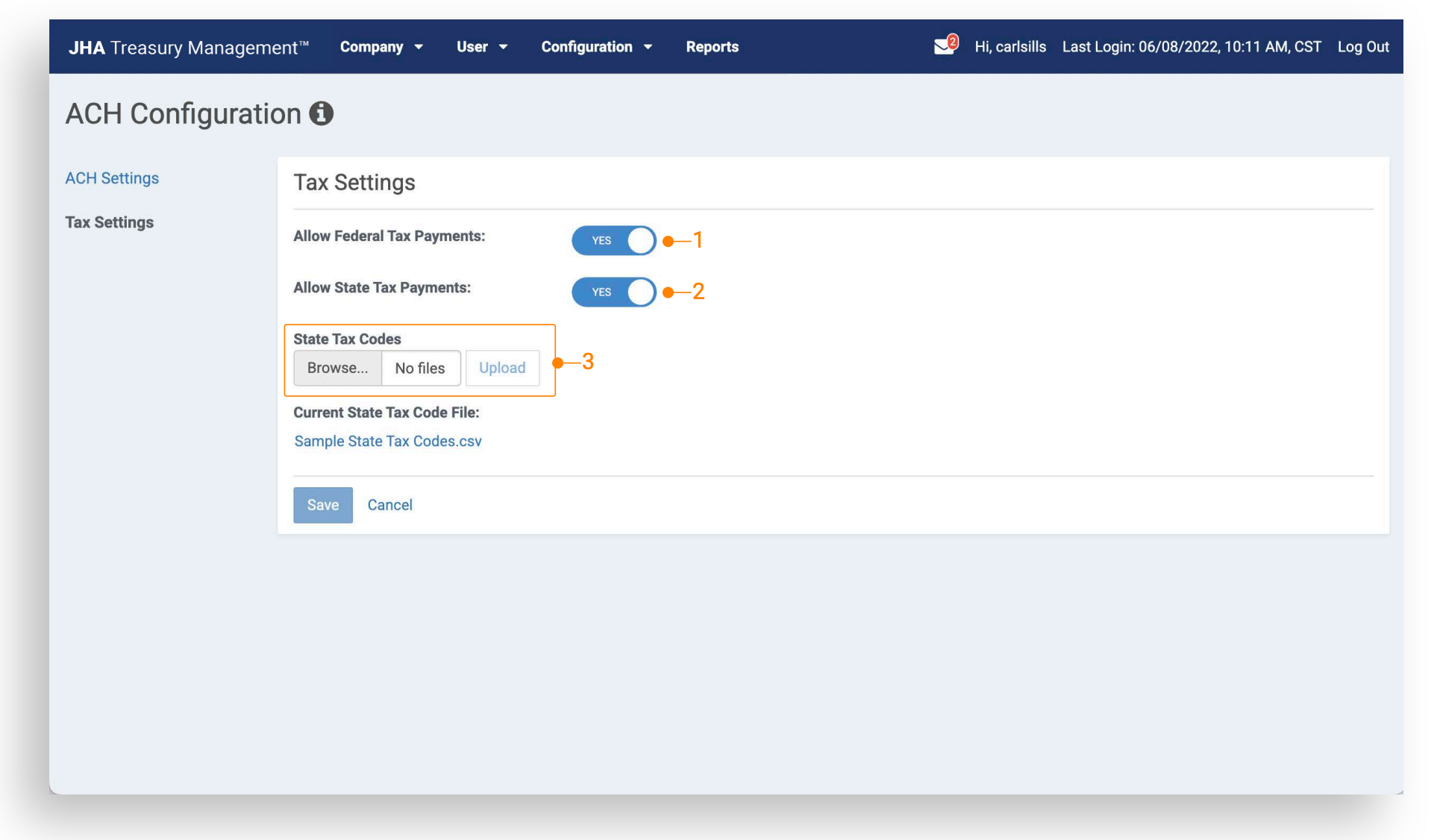
Navigate to Back Office Configuration > ACH Product Feature Configuration > Tax Settings. Configure the following settings to set default for new companies:
- Allow Federal Tax Payments
- Allow State Tax Payments
- Uploaded files must meet the State Tax Code
File Requirements:
- Column A = State
- Column B = Tax Code
- Column C = Tax Code Description
Uploaded files will display under the ‘Current State Tax Code File’ section. Users will be able to select the file and download it.
Edit Company ACH Configuration
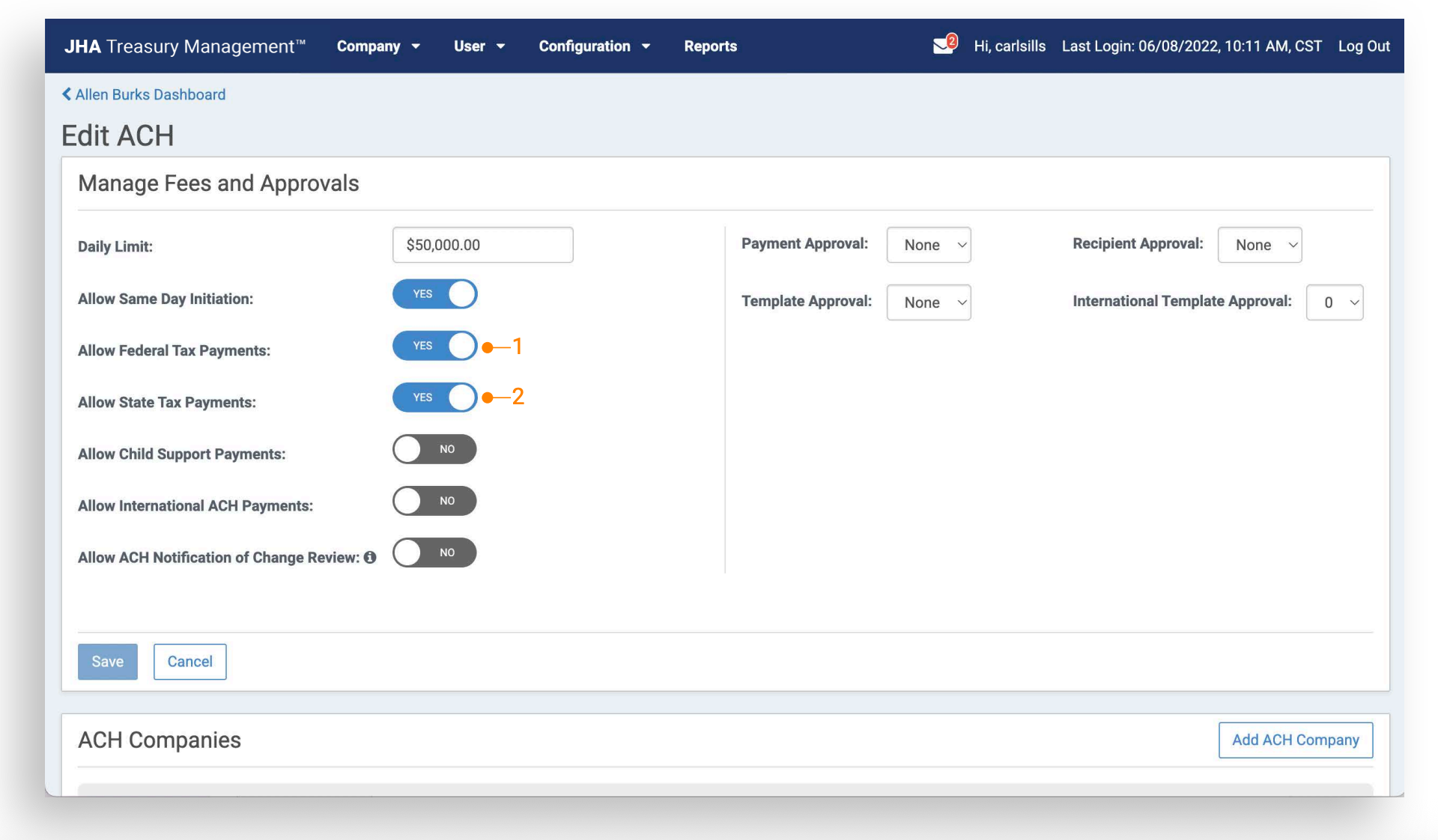
Navigate to Back Office Configuration > Company > ACH Product Features: 1. Allow Federal Tax Payments: Set to yes to enable tax payments for all federal tax type codes. 2. Allow State Tax Payments: Set to yes to enable tax payments for all state tax type codes included in your uploaded State Tax Code file.
ACH Payment Report
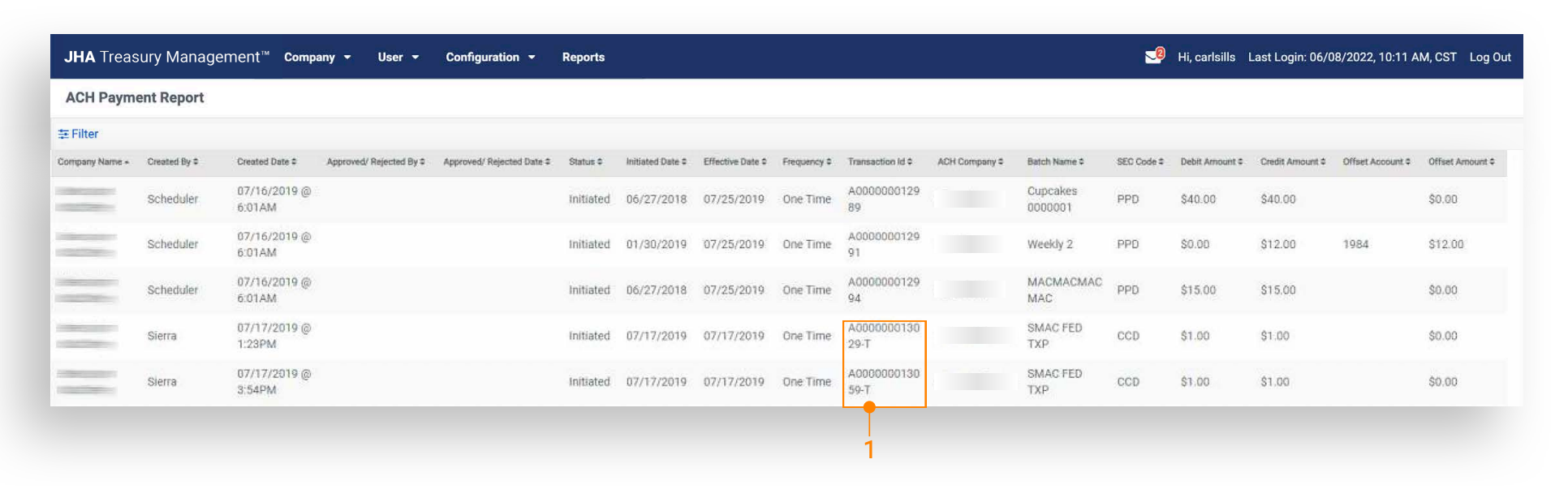
Navigate to Back Office > Reports > ACH Payment Report.
Tax payments will be displayed on the ACH Payment Report and can be easily identified by the Transaction ID suffix designated -T.
Channel Navigation
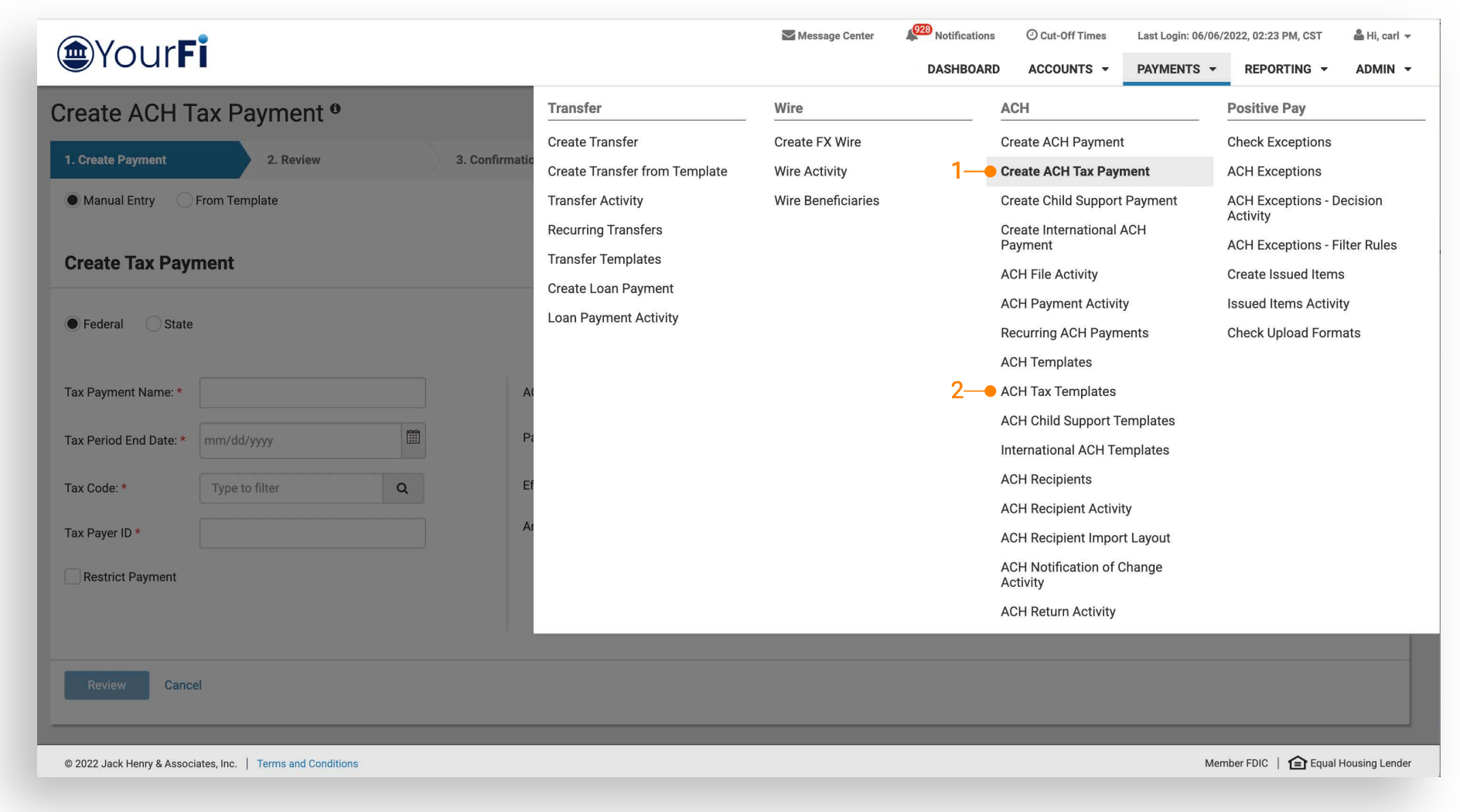
Navigate to Payments > ACH to access tax payment options.
1. Create ACH Tax Payments: From the Create ACH Tax Payments link, a user can choose:
- Manual Entry
- From Template
2. ACH Tax Templates: From the ACH Tax Templates link, a user can:
- View a list of tax templates
- Select one ore more templates to initiate payment
- Create a new template
Note: To work with Tax Payments, a company must be configured within Back Office for one or both of the following ACH Product Feature Configurations:
- Allow Federal Tax Payments
- Allow State Tax Payments
Creating a State Tax Payment
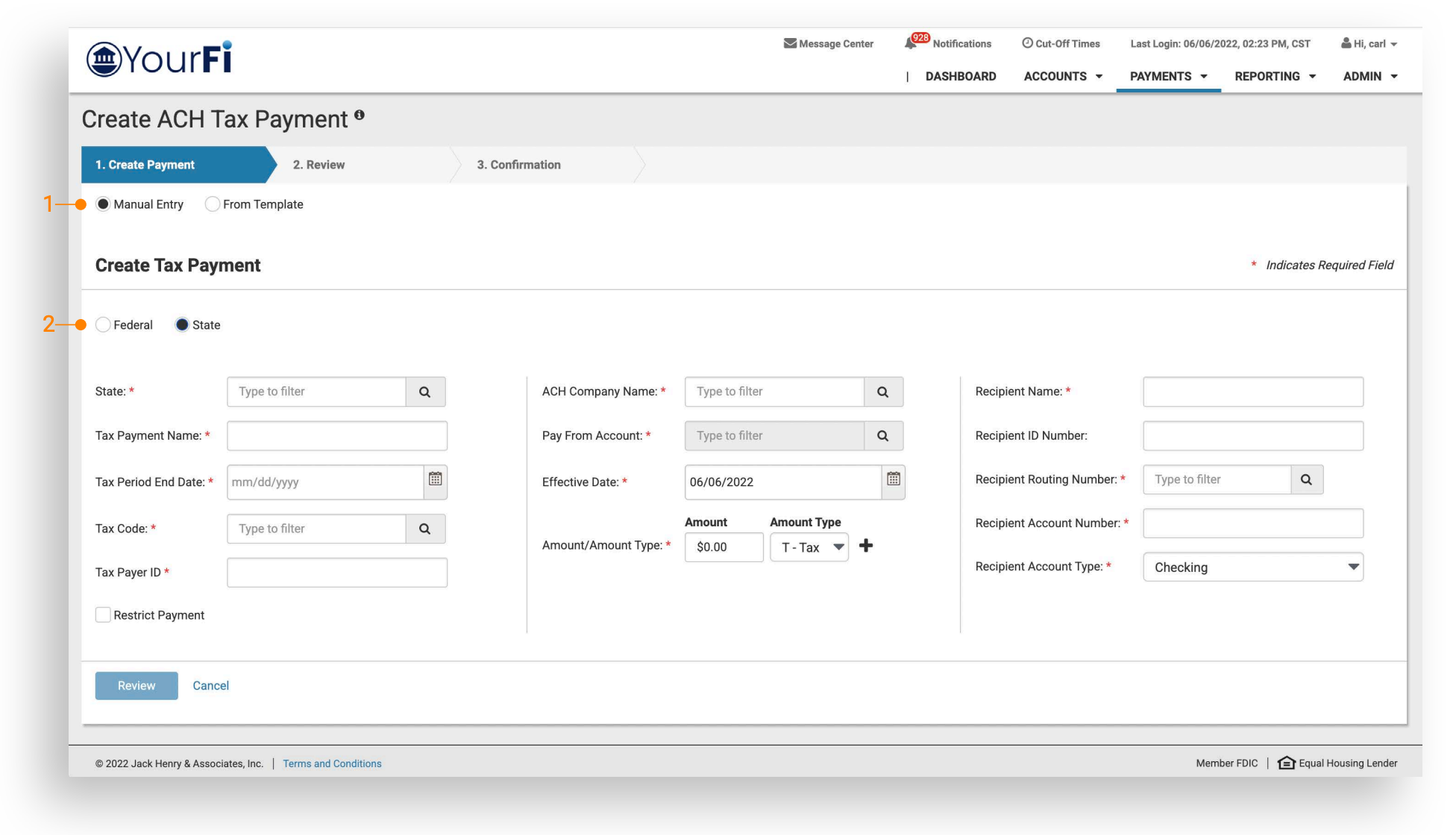
1. Select the Payment Method: From the Create ACH Tax Payments link, a user can choose:
- Manual Entry
- From Template
2. Select State as the Payment Type: When State is selected, the following fields are required:
- State
- Tax Payment Name
- Tax Period End Date
- Tax Code
- Tax Payer ID
- ACH Company Name
- Pay From Account
- Effective Date
- Amount / Amount Type
- Recipient Name
- Recipient Routing Number
- Recipient Account Number
- Recipient Account Type
Creating a Federal Tax Payment
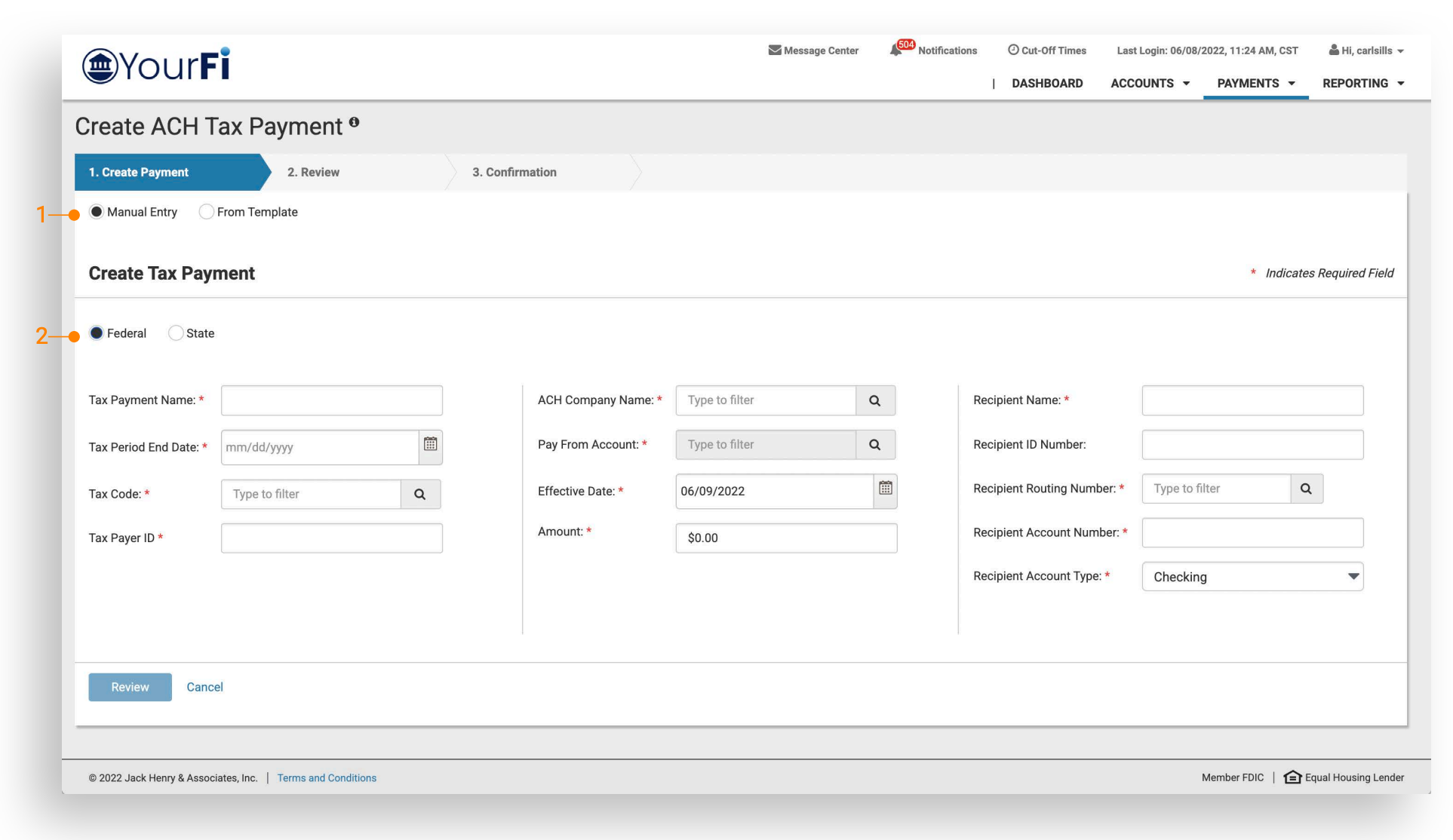
1. Select the Payment Method: From the Create ACH Tax Payments link, a user can choose:
- Manual Entry
- From Template
2. Select Federal as the Payment Type: When Federal is selected, the following fields are required:
- Tax Payment Name
- Tax Period End Date
- Tax Code
- Tax Payer ID
- ACH Company Name
- Pay From Account
- Effective Date
- Amount
- Recipient Name
- Recipient Routing Number
- Recipient Account Number
- Recipient Account Type
ACH Payment Activity
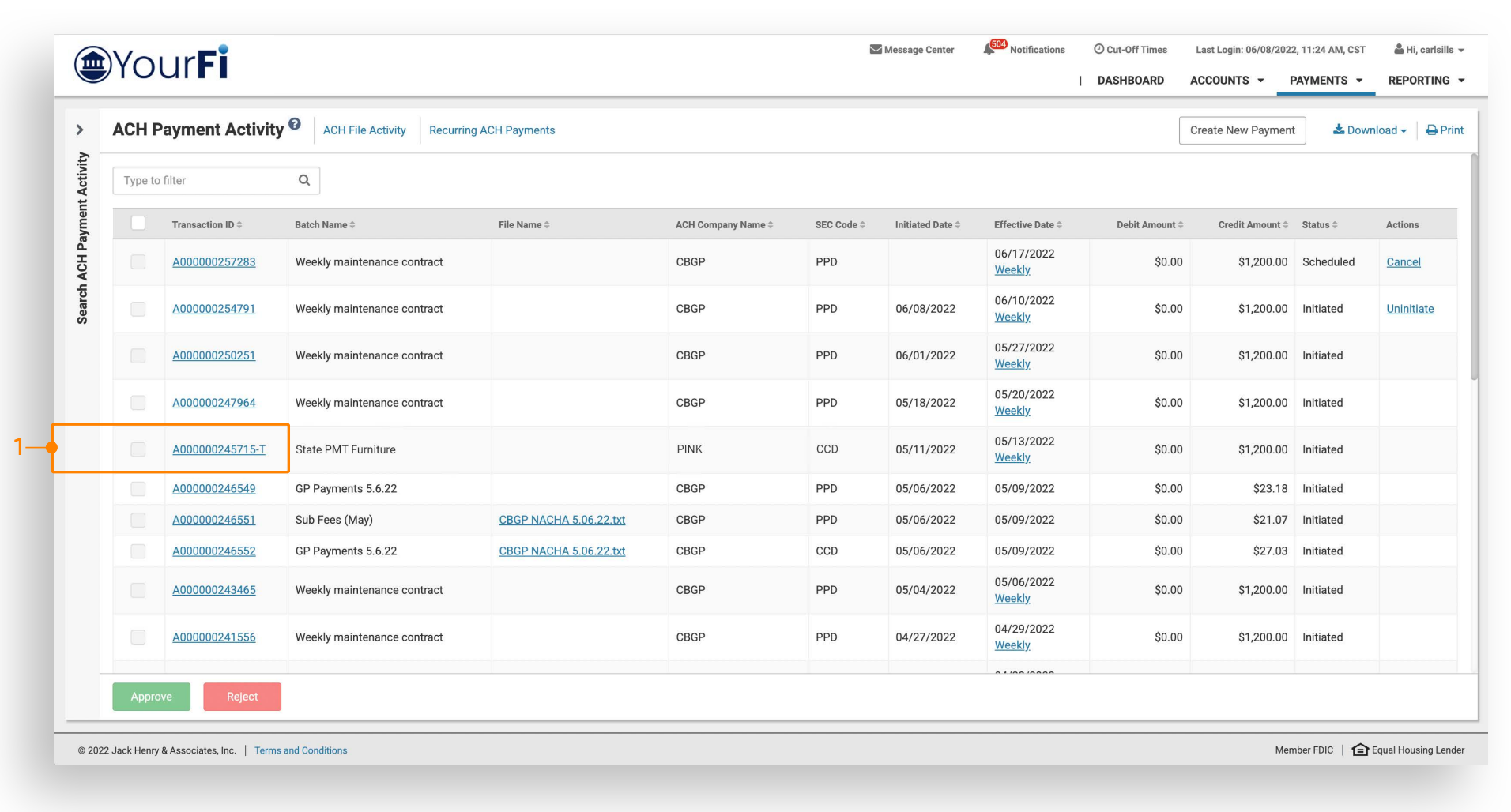
Tax payments will be displayed on the ACH Payment Activity page and can be easily identified by the following updated description: 1. Transaction ID: - T will display after the numeric Transaction ID. Additionally, within the ACH Payment Activity search filter, Tax Payment has been added as an ACH Type.
Tax Payment Detail
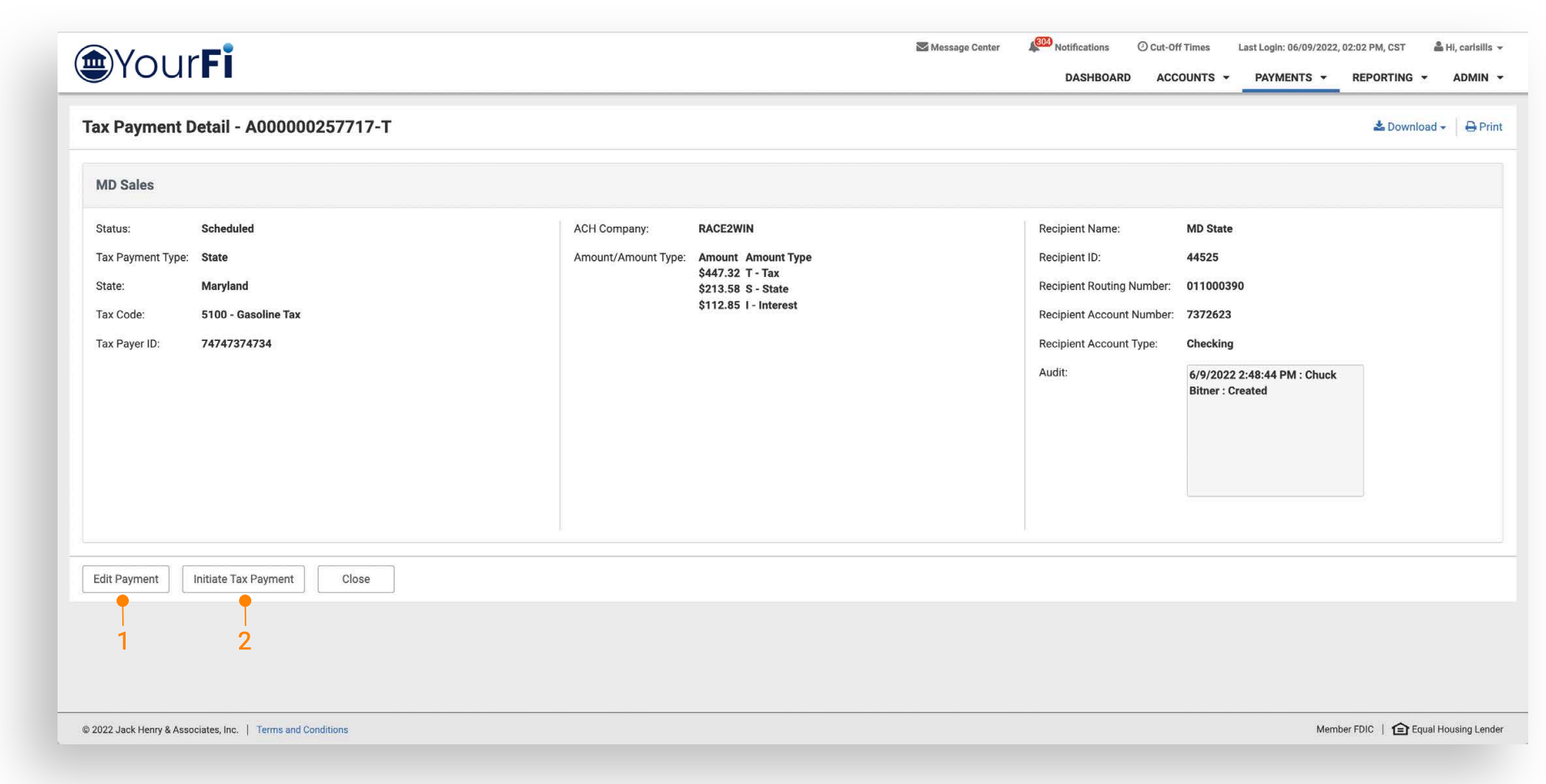
Navigate to Payments > ACH > ACH Payment Activity > Payment Detail. When viewing the payment detail, a user can take the following actions:
1. Edit Payment: Entitled users can edit payment details based on their partial or full edit entitlement.
2. Initiate Tax Payment: Users can create another tax payment using the same payment details. Payment details can also be modified during payment review.
ACH Tax Templates
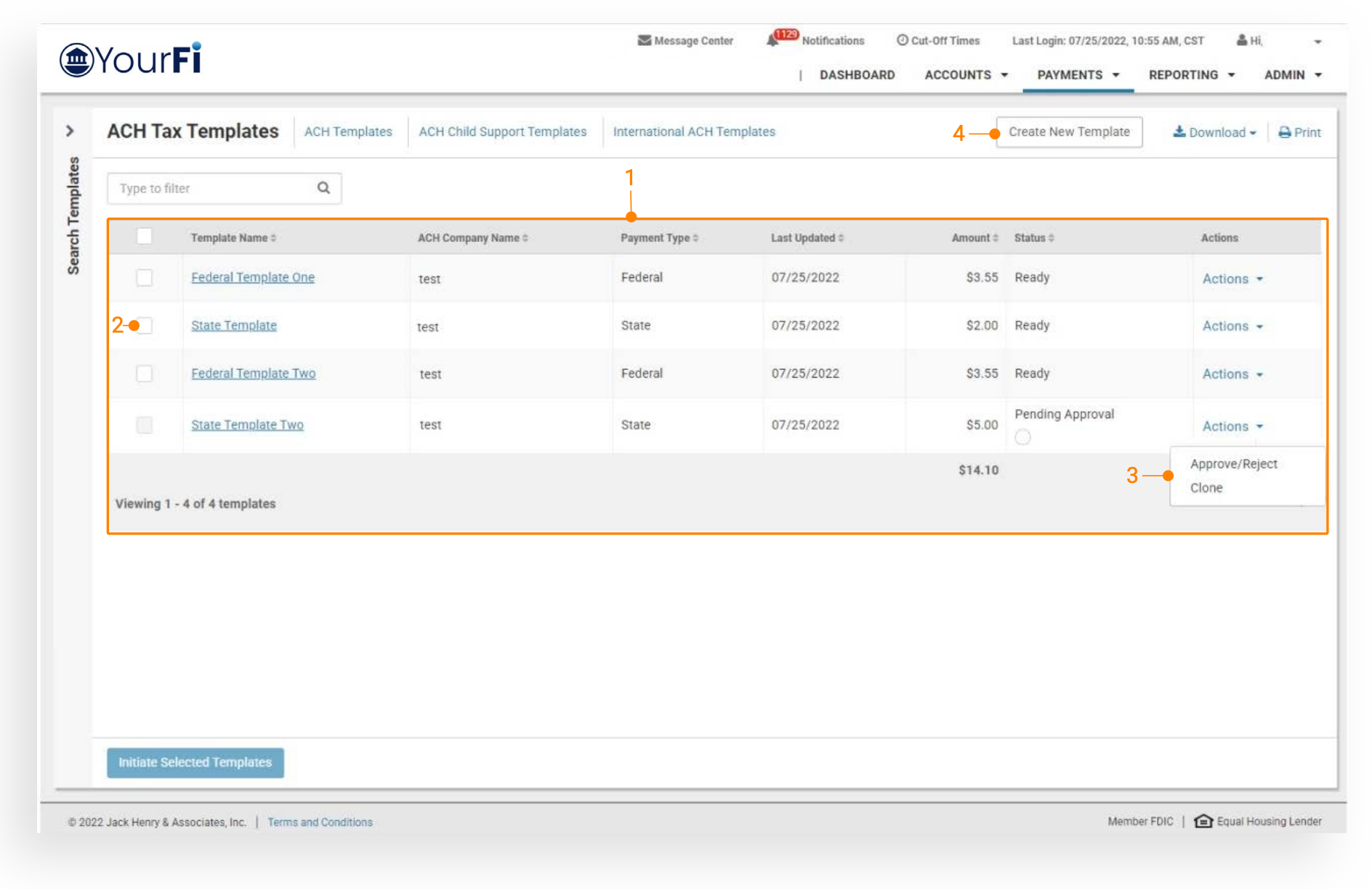
Navigate to Payments > ACH > ACH Tax Templates.
1: Template List
2: Initiate Templates: Select the checkbox to initiate one or more templates.
3: Approve/Reject Template: Select the Actions dropdown, then Approve/Reject.
4: Create New Template: Select to create a new ACH Tax Template.
ACH Tax Templates, Continued
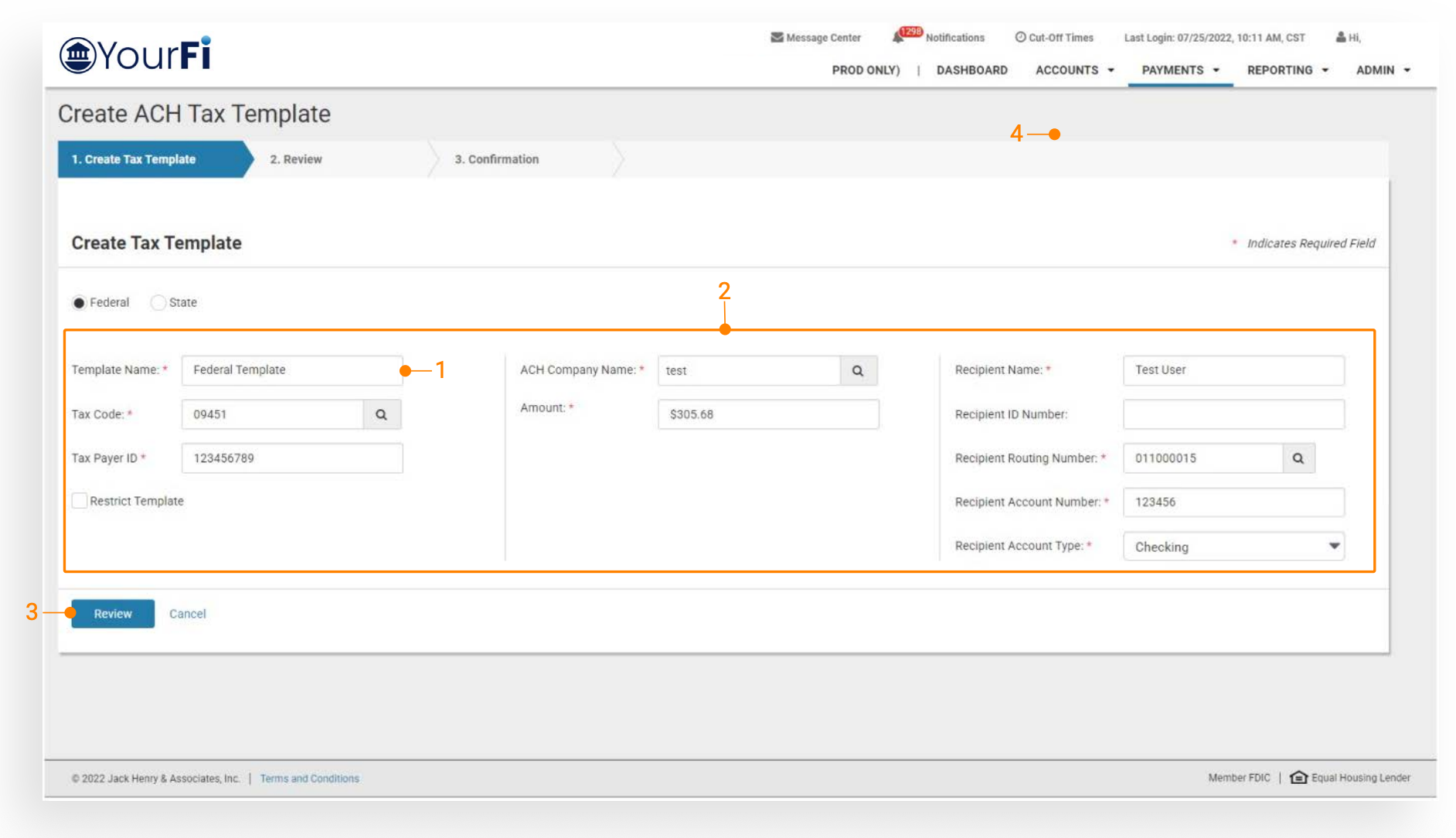
Navigate to Payments > ACH > ACH Tax Templates > Create New Template.
1: Template Name: Create a unique template name.
2: Payment Fields: Complete all required fields.
3: Review: Select Review to view the confirmation page, then select Confirm to create the template.