Quick Reference Guide: ACH International Payments from Template
Overview
International ACH Templates offer the ability to create, edit, initiate, delete and approve templates specific to International ACH Payments. In addition, the option to save an International ACH Payment as a template has been added to the Create International ACH Payment process. International ACH Template approval settings and International ACH Template user entitlements are available within the company and user setup.
Benefits
Benefits for Banks
- Additional payment capability to businesses to support growing economies within the communities you serve
- Alternative payment and template options to international wires
- International ACH template approval controls
- Specific user entitlements for international ACH templates
- Enhanced Back Office Reports provide visibility into international payments
Benefits for Customers
- Ability to make lower cost payments to customers as their business grows in the global economy
- Users can create International ACH Templates from scratch or by saving an International ACH Payment as a template
- Search for International ACH Templates on the International ACH Templates page using a variety of filters
- Administration controls by utilizing International ACH Template specific user entitlements
- Ability to create, approve, reject, edit and delete International ACH Templates
Configuration
Back Office - Product Confoguration
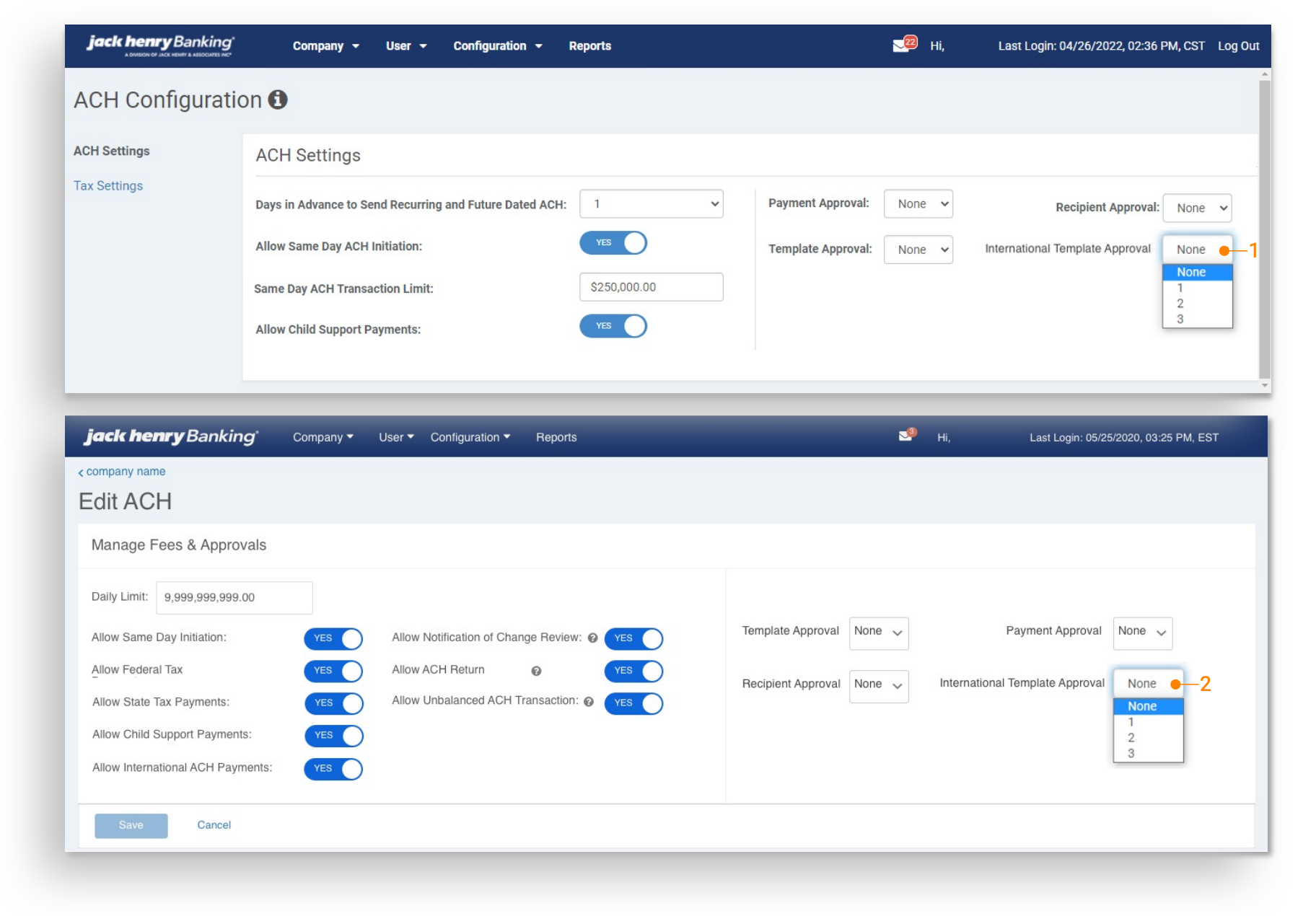
1. International Template Approval - FI ACH Configuration
Establishes the default for the Company ACH Product Configuration.
- None: International ACH Templates created and or edited do not require approval
- 1, 2 or 3: International ACH Templates created and or edited require the selected number of company users to approve a template before the template can be used for Payment Origination.
2. International ACH Template Approval - Company ACH Configuration
- None: International ACH Templates created and or edited do not require approval by another company user.
- 1, 2 or 3: International ACH templates created and or edited require the selected number of company users to approve a template before the template can be used for Payment Origination.
Back Office - Company User Entitlements
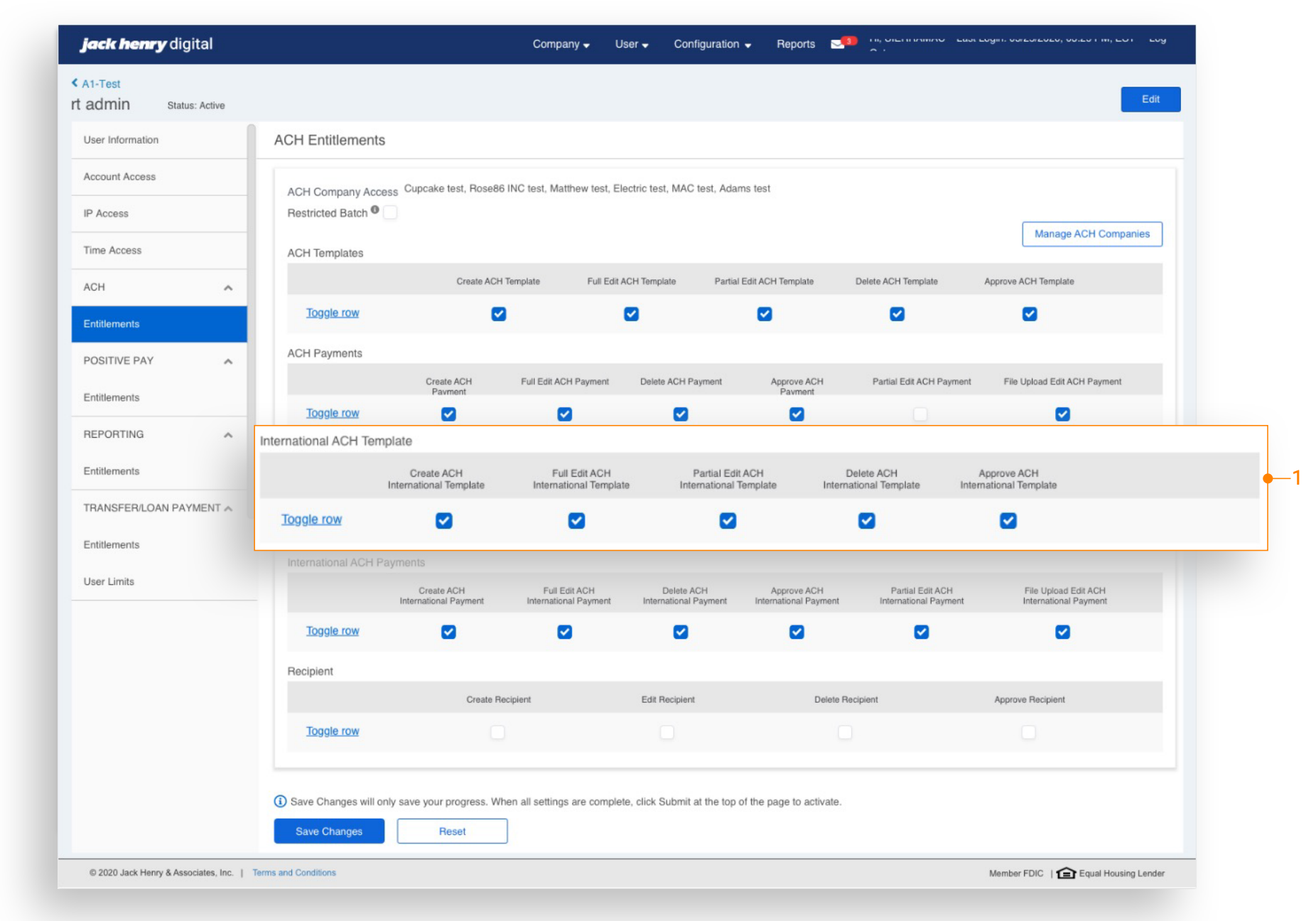
International ACH Template
Establish International ACH Template specific entitlements for users.
- Create: Allows the user to create a template or save a payment as a template.
- Full Edit: Allows the user to edit the entire template.
- Partial Edit: Allows the user to edit the following fields:
- recipient dollar amount
- prenote
- hold
- Delete: Allows the user to delete a template
- Approve: Allows the user to approve a template
Back Office - Reporting
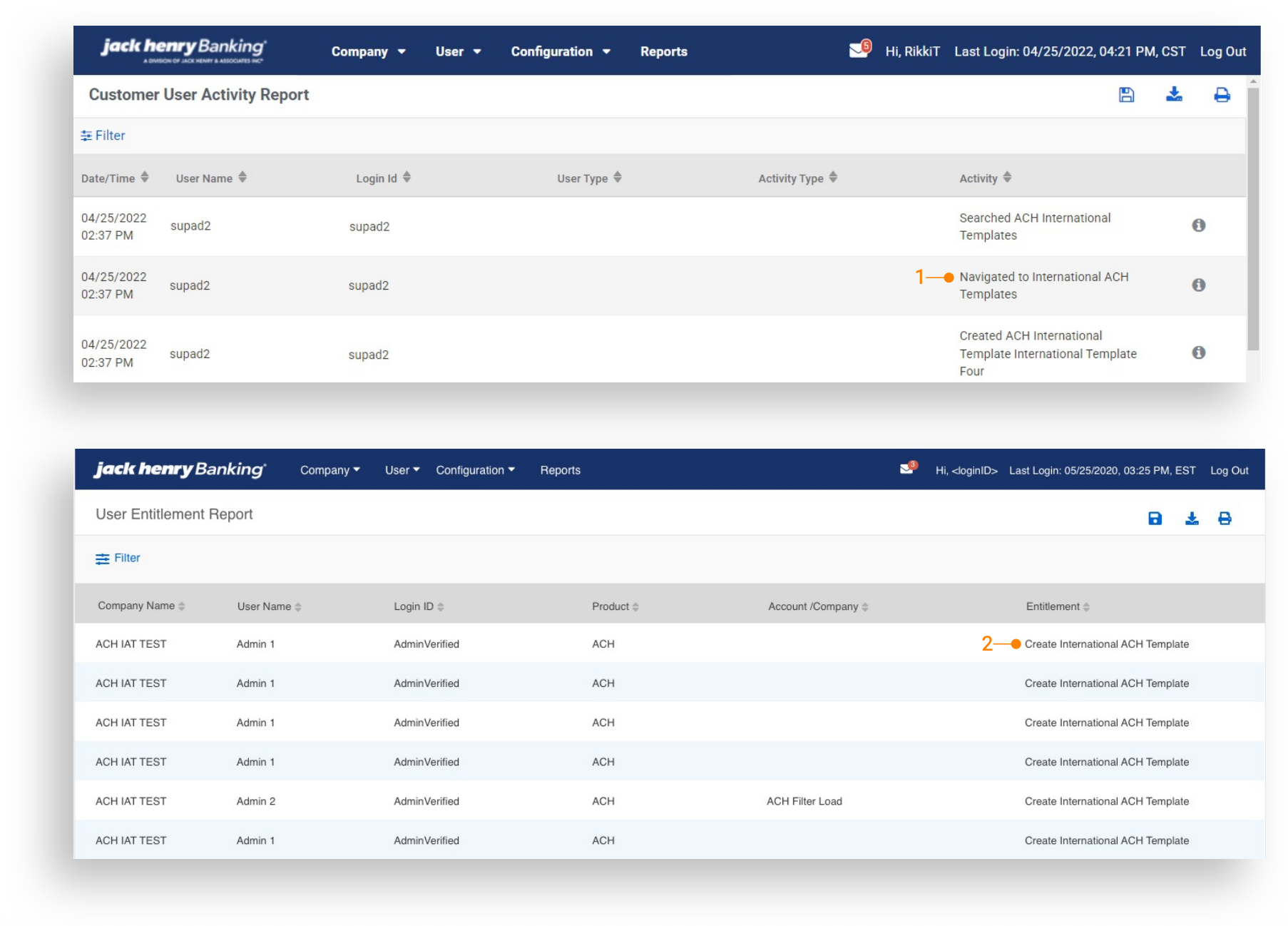
1. Customer Activity Report
Displays user activity related to International ACH Templates.
2. User Entitlement Report
Access to view / filter by user entitlements specifically for International ACH Templates.
Navigation
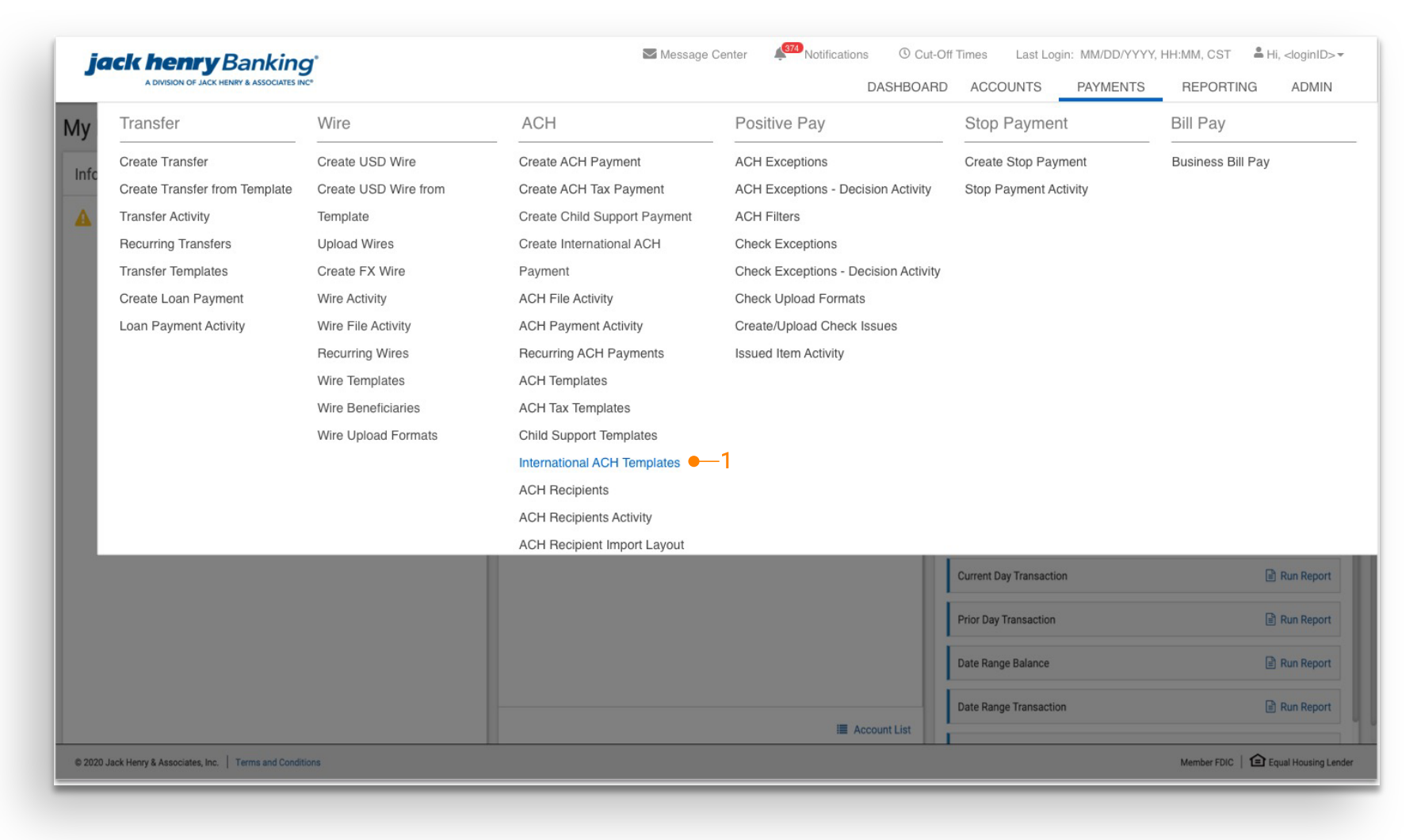
International ACH Templates
Select International ACH Templates to create, view, edit, initiate, approve/reject and delete templates.
International ACH Template List
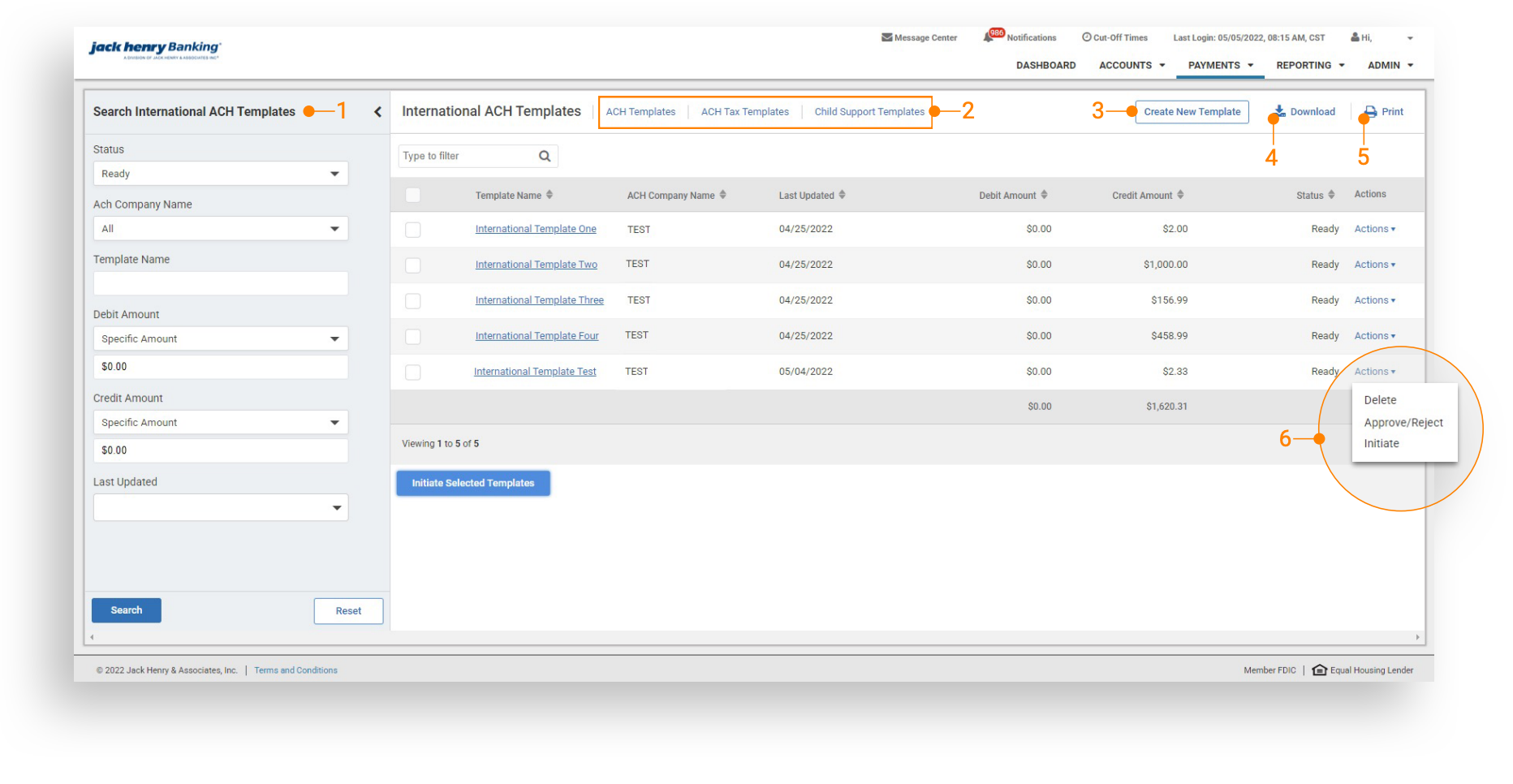
1. Search Templates
Search by Status, ACH Company Name, Template Name, Debit and or Credit Amount, Last Updated.
2. Template Navigation
To navigate to ACH Templates, ACH Tax Templates or Child Support Templates, select the desired link.
3. Create New Template
Select to create a new template, the user is then navigated to the Create New Template Page.
4. Download
Select to download the template list in PDF or CSV.
5. Print
Select to Print the template list.
6. Actions
Select to Delete, Initiate and or Approve/Reject Template.
Initiate International ACH Template
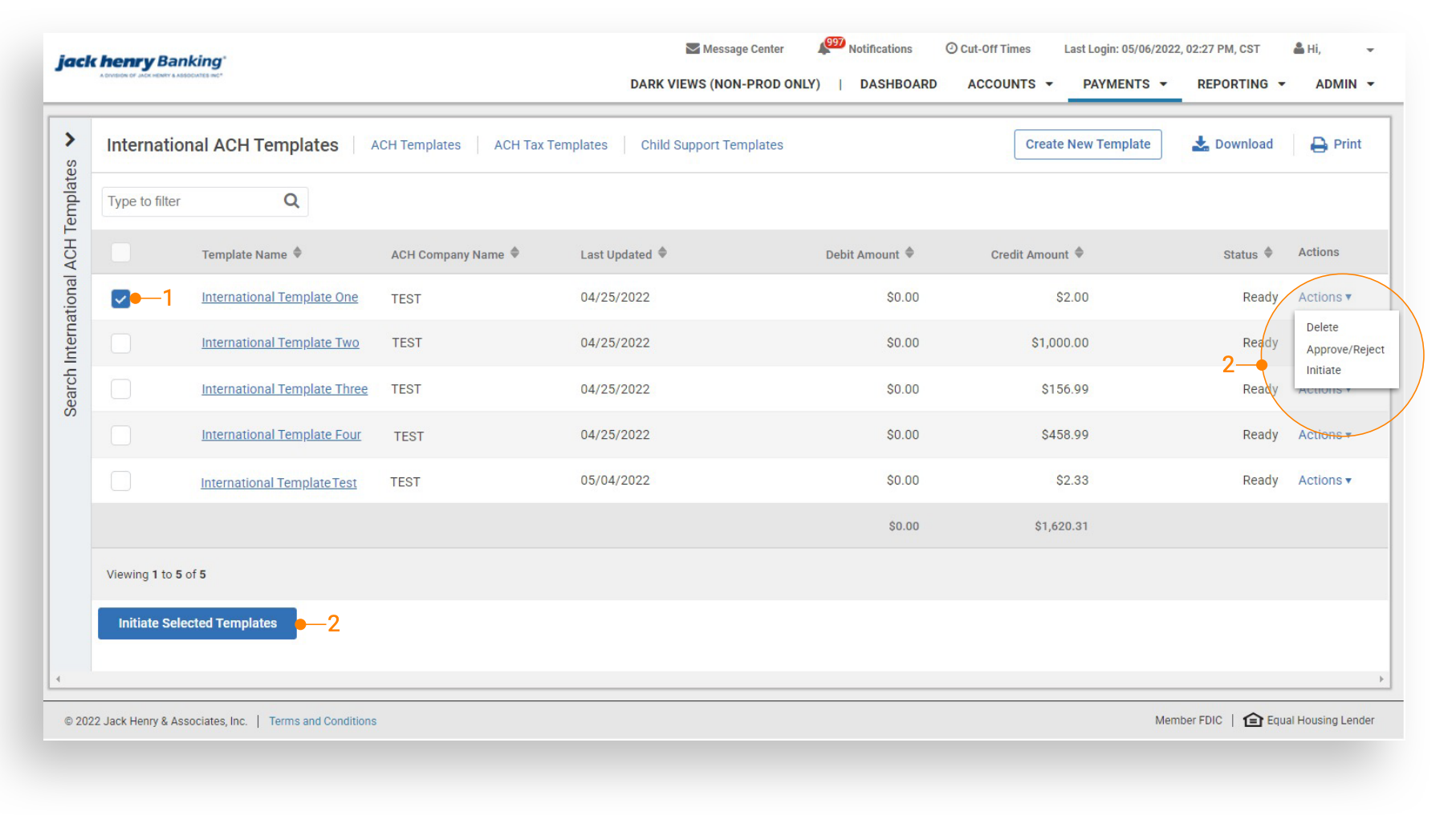
1. Initiate Selected Templates
Select the checkbox next to the desired template then Initiate Selected Template.
2. Initiate Template – Actions Dropdown
Select the Actions dropdown then Initiate.
Create New Template
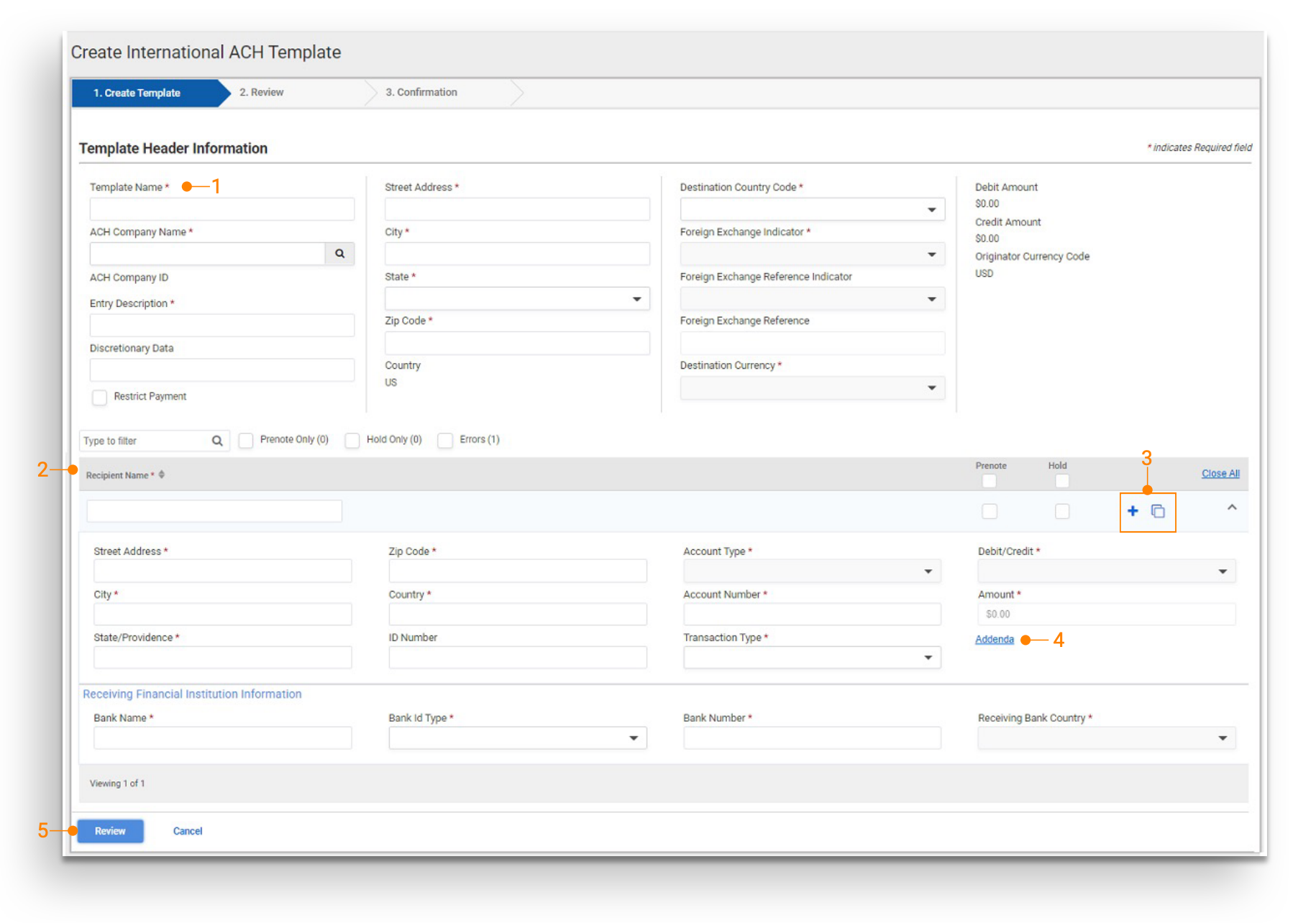
1. Template Name
Create a unique template name.
2. Payment Fields
Complete all required fields.
3. Add/Copy Recipient
Select the plus sign to add additional recipients. To copy the current recipient into a new recipient, select the copy icon.
4. Addenda
Select to add additional freeform addenda information.
5. Review
Select Review to view the confirmation page, then select Confirm to create the template.
Detail Page
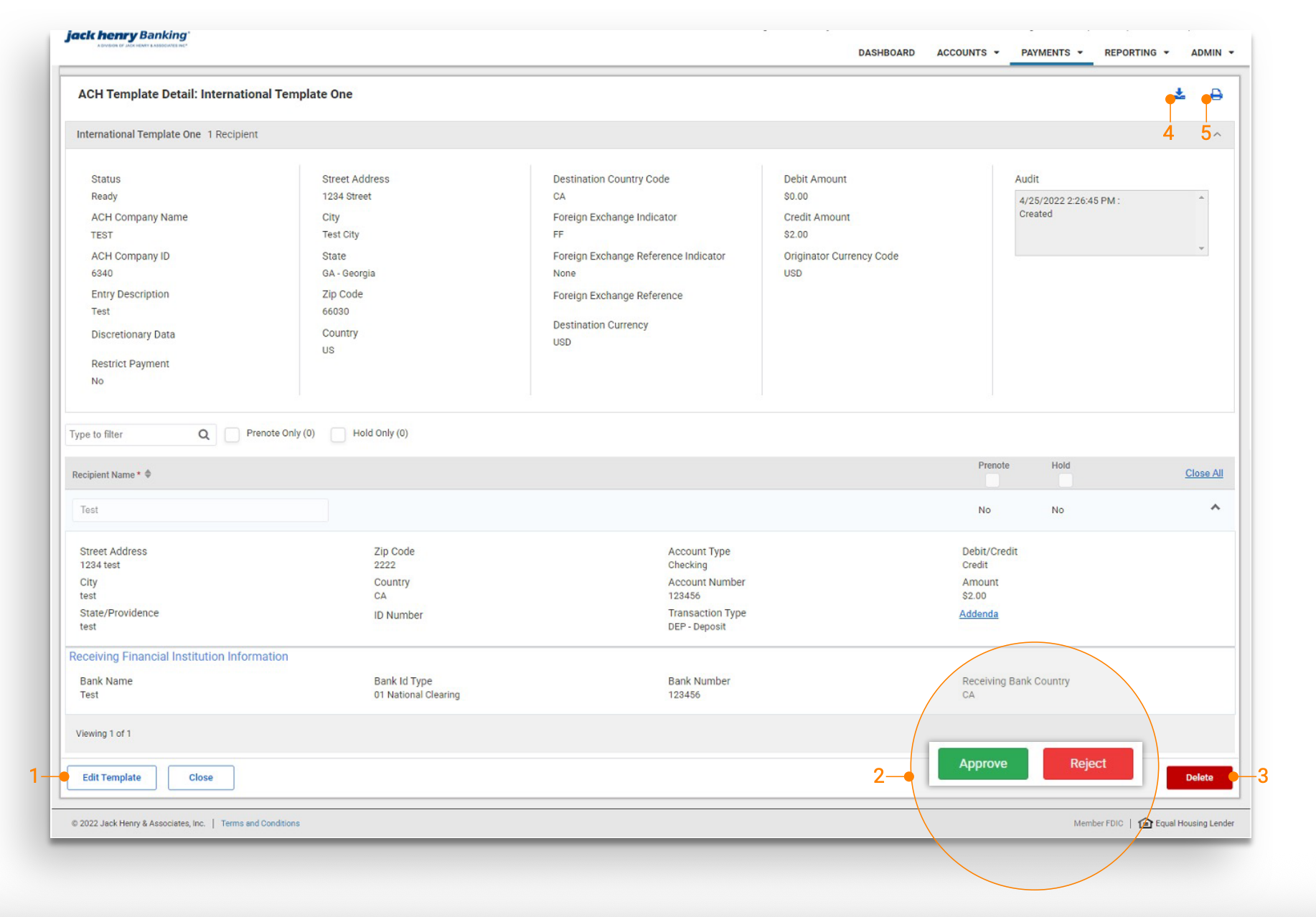
1. Edit Template
Select to edit the payment fields.
2. Approve/Reject
If International Template Approval is On and the template is in a Pending Approval status, Approve/Reject displays. Select the applicable button to approve or reject the template.
3. Delete Template
A Confirm Delete pop up display, select Delete to delete the template.
4. Download
Select to download the template details in PDF and or CSV.
5. Print
Select to print the template details.
Create International ACH Payment – From Template
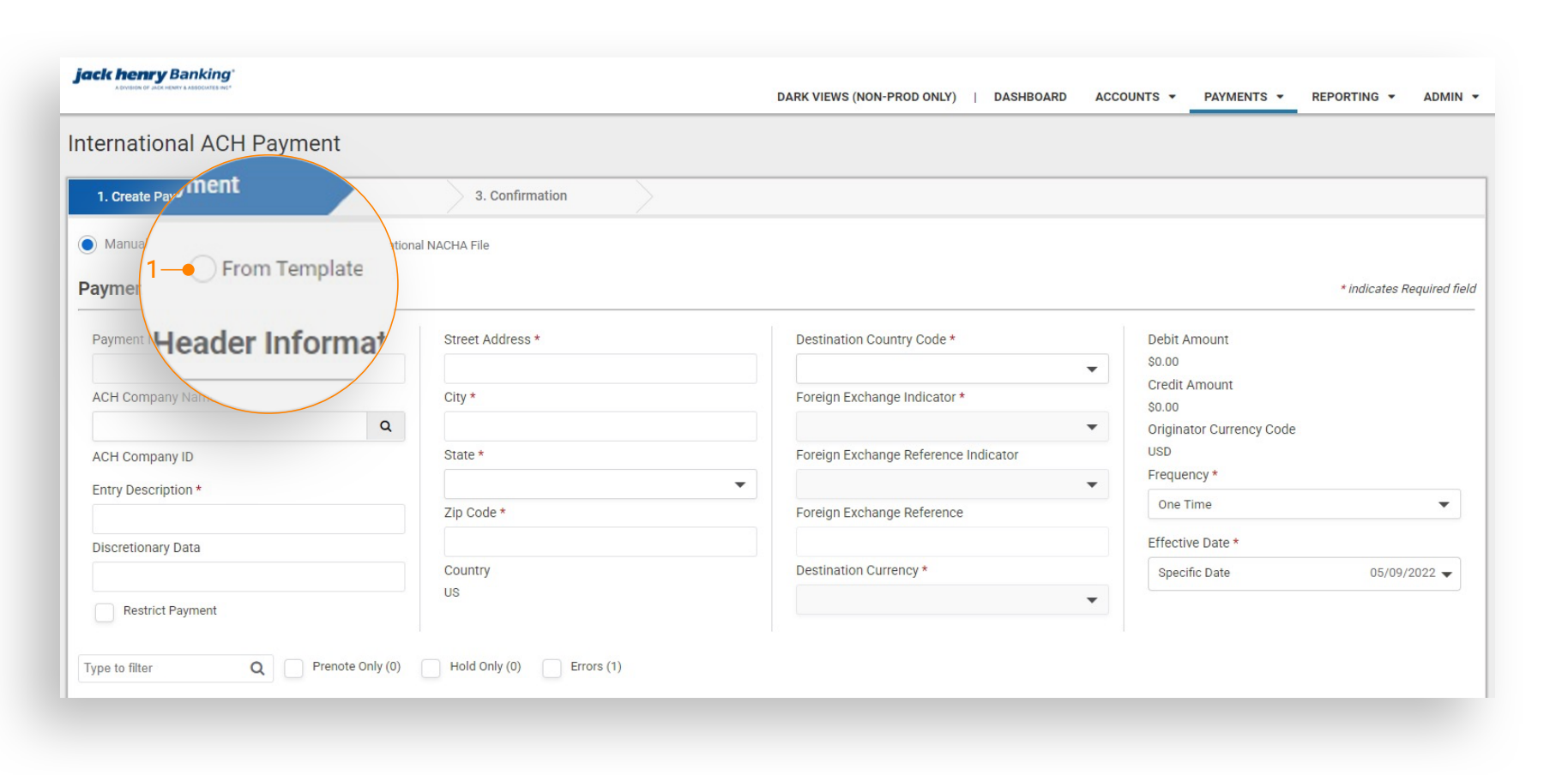
Create International ACH Payment – From Template To create a payment from a template on the Create International ACH Payment Page, select From Template. Once selected, the user navigates to the International ACH Template Listing Page.
Create International ACH Payment - Save as Template
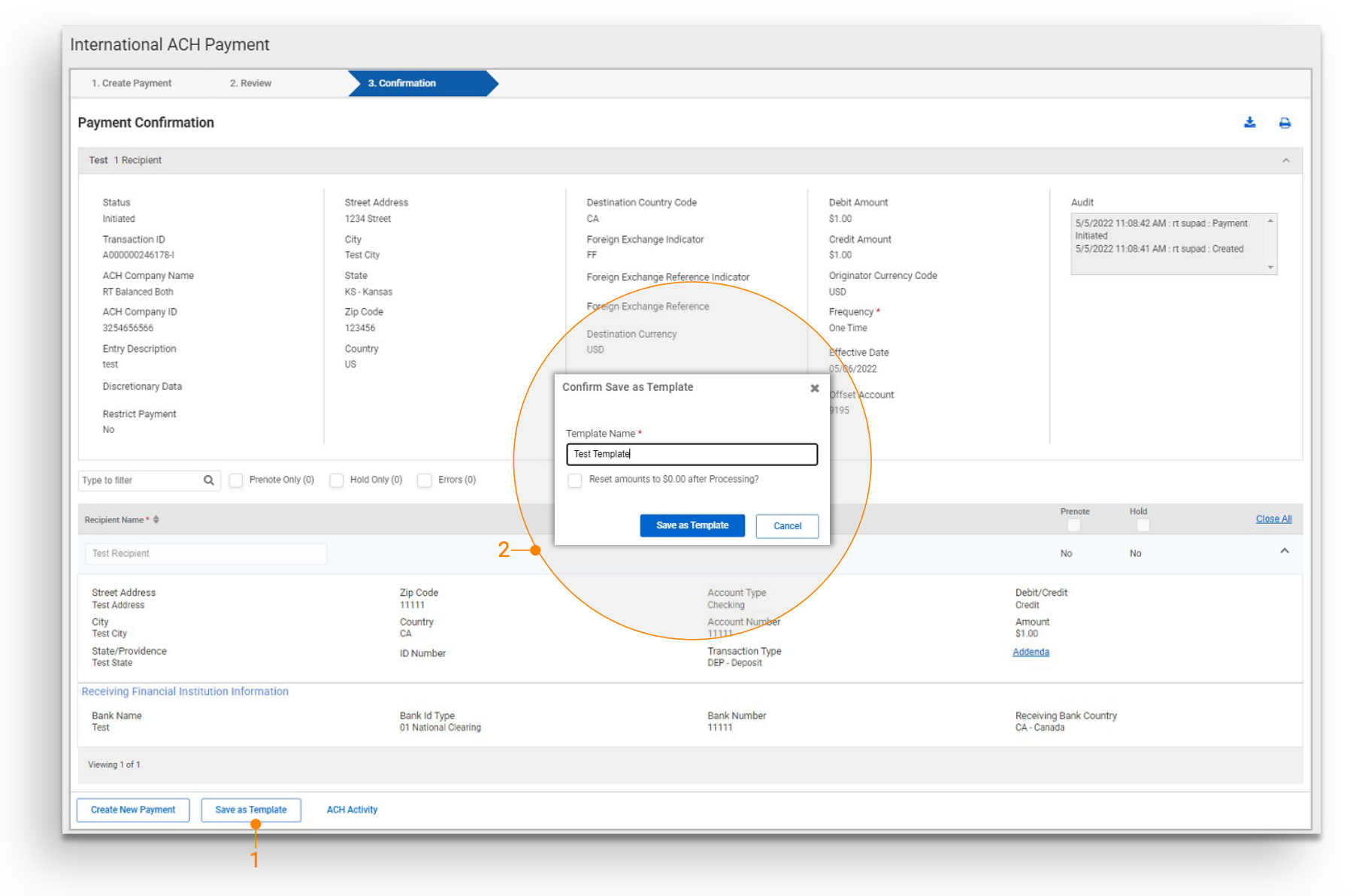
1. Save as Template
Once a payment is completed, the user may select to save the payment as a template.
- Create an International ACH Payment
- On the Confirmation Page, select Save as Template
2 Confirm Save as Template
A modal displays once Save as Template is selected.
- Enter a unique template name (max is 50 characters).
- Select “Reset amounts to $0.00 after Processing” to have the recipient’s dollar amounts set to zero once the payment is processed.
- Select Save as Template, the payment is now saved as a template and the user navigates to the International ACH Template List.
Channel - Admin - User Entitlements
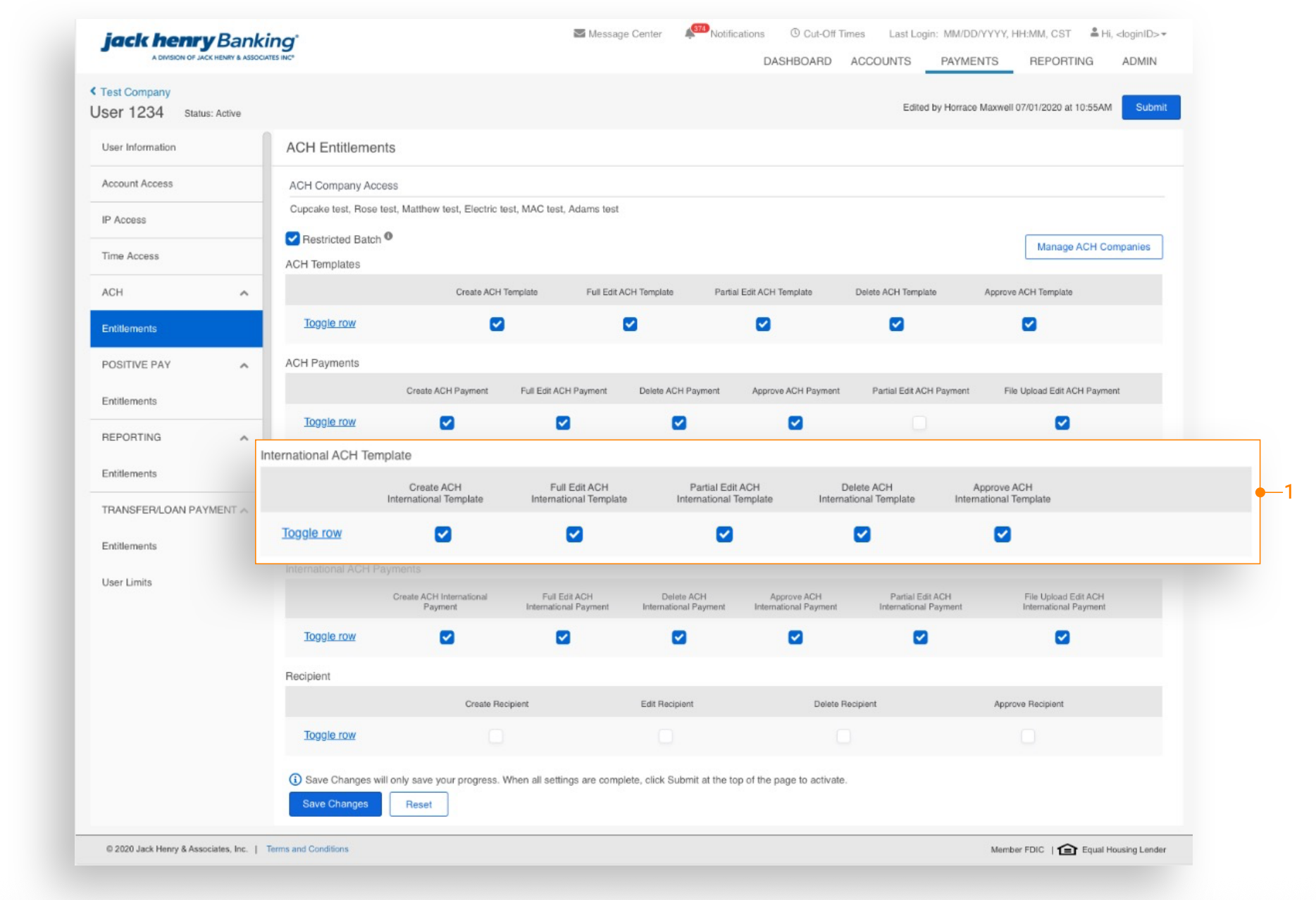
1. International ACH Template
Establish International ACH Template-specific entitlements for users.
- Create: Allows the user to create a template or save a payment as a template
- Full Edit: Allows the user to edit the entire template
- Partial Edit: Allows the user to edit the following fields:
- recipient dollar amount
- prenote
- hold
- Delete: Allows the user to delete a template
- Approve: Allows the user to approve a template