Quick Reference Guide: ACH International Payments
Overview
International ACH transactions are credit or debit entries sent through the US ACH Network that involves a financial agency located outside of the United States. These transactions are identified by the use of the SEC Code IAT. Because of the involvement with foreign countries, these transactions are subject to the rules and regulations of the Office of Foreign Asset (OFAC) and the Bank Secrecy ACT (BSA) Travel Rule. Treasury Management offers the ability to send internationa payments to the Federal Reserve’s FedGlobal-supported countries of Mexico and Panama.
International ACH Payments offers the ability to upload a NACHA formatted file or manually create a one time or recurring debit and / or credit transaction. Treasury Management offers the ability to send international payments to the Federal Reserve’s FedGlobal supported countries of Mexico and Panama. Also, International ACH payments can be re-initiated from the ACH Activity page in Treasury Management. Finally, there are specific user entitlements for International ACH available in the user setup.
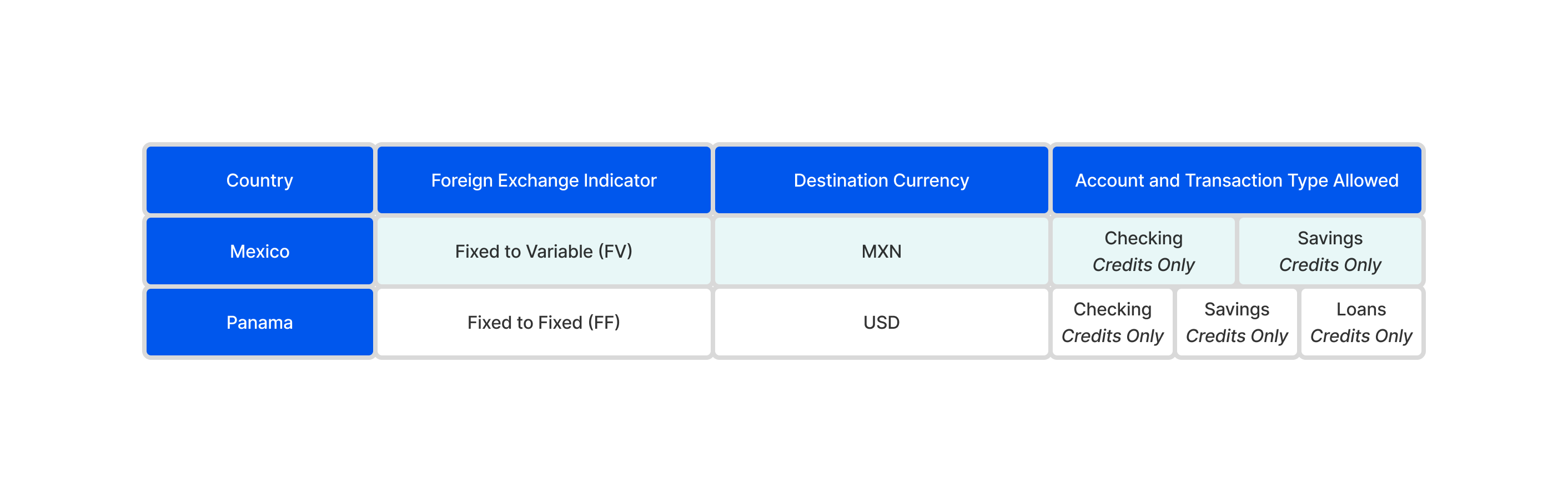
Based on the Destination Country selected; the Foreign Exchange, Destination Currency and Account/Transaction Type will display the
allowable options based on the rules and regulations of International ACH Payments.
Benefits
Benefits for Banks
- Additional payment capability to businesses to support growing economies within the communities you serve
- Alternative payment options to international wires
- Specific user entitlements for international ACH payments
- Enhanced Back Office Reports provide visibility into international payments by selecting one, multiple, or all companies
- Ability to charge via Enhanced Account Analysis through a new billing counter that increments for each international ACH payment
Benefits for Customers
- Ability to make lower cost payments to customers as their business grows in the global economy
- Users can create international ACH payments by manually entering or uploading a NACHA File
- International ACH pyaments can be downloaded in a CSV, NACHA, and PDF format
- Fraud risk point controls are available, including authentication for creating, editing, deleting, and approving international ACH payments
- Search for international ACH payments on the ACH Payment Activity page using a variety of filters
- When viewing a payment’s detail, a user can take the following actions:
- Edit Payments - Entitled users can edit the payment details based on their partial or full edit entitlement
- Initiate International Payments - Users can create another payment using the same payment details
- Payment details can also be modified during payment
Configuration
Back Office - Product Configuration
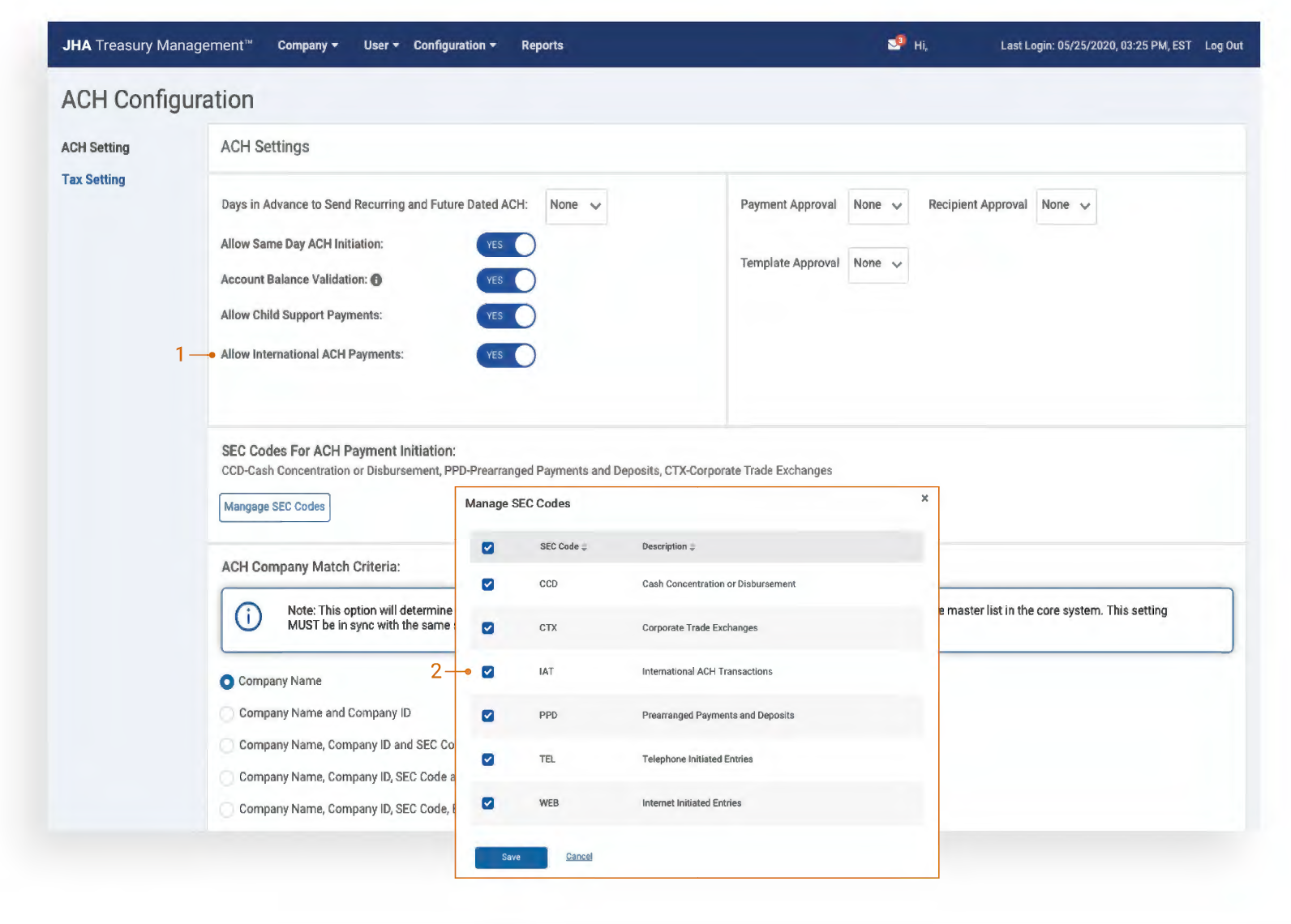
1. ACH Configuration: Allow International ACH Payments is enabled within the ACH Product Configuration. Once YES is selected, Create International ACH Payments will display in Channel for companies with Allow International ACH Payments enabled and if the user has the correct entitlements.
2. Manage SEC Codes: Once Allow International ACH Payments is enabled, access Manage SEC Codes and select IAT International ACH Transactions.
Back Office - Company Configuration
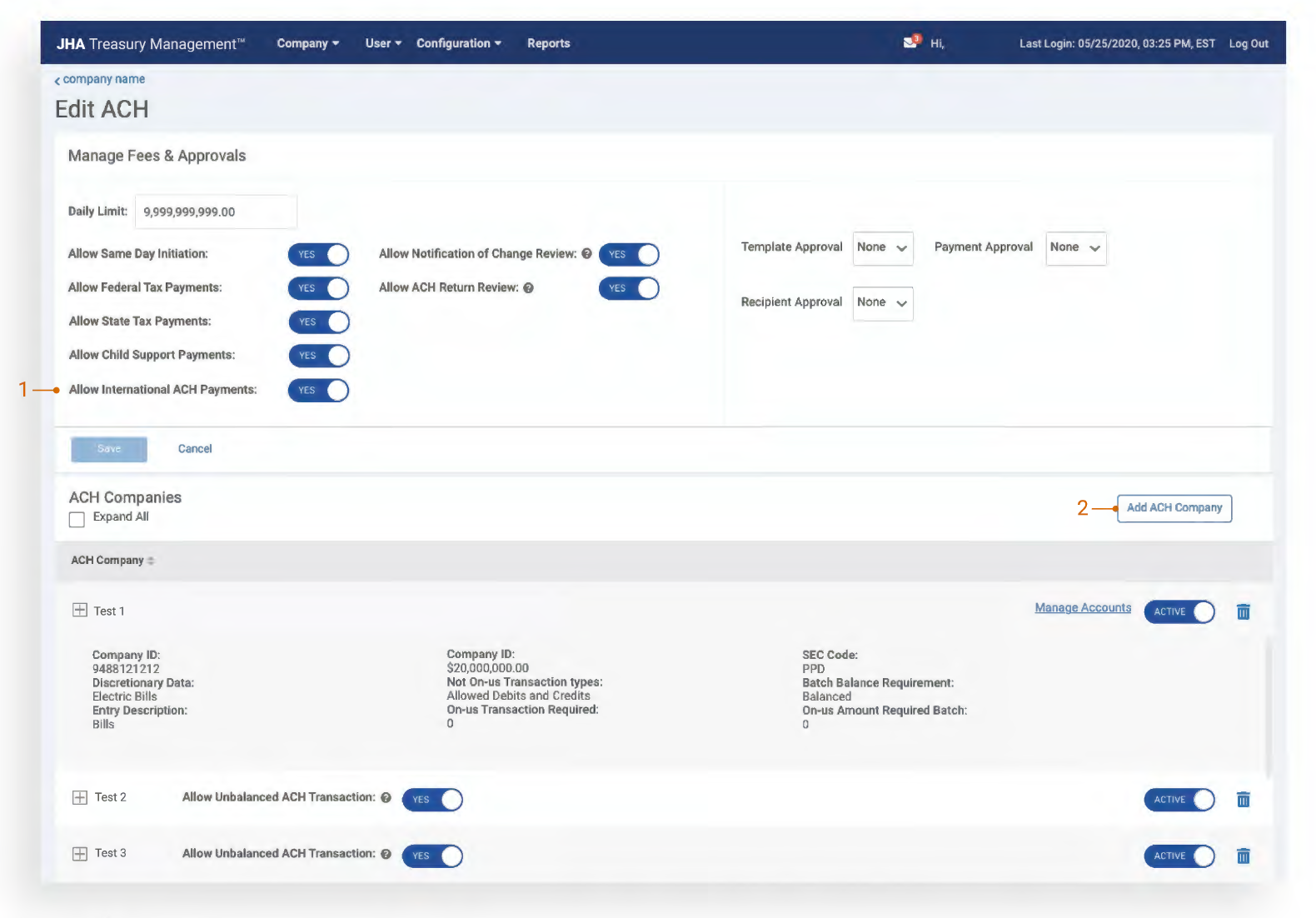
1. Company Configuration: To enable International ACH Payments for a company, navigate to ACH Product Settings and select Yes for Allow International ACH Payments.
2. ACH Companies: Select Add ACH Company to setup an ACH Company for International ACH Payments.
Back Office - Company Configuration - Billing Options
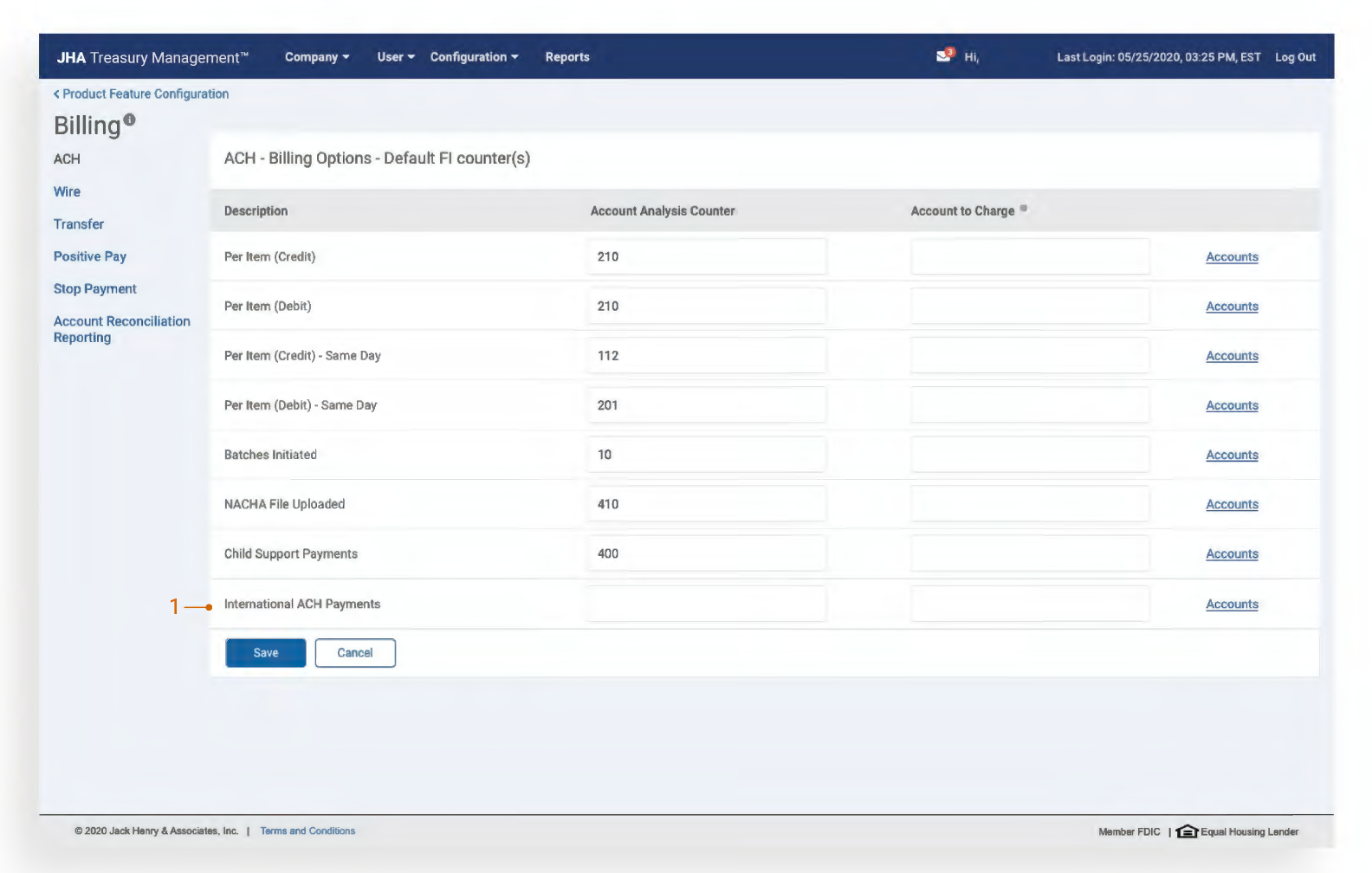
Company Billing Options: Establish Account Analysis Counter and Account to Charge for International ACH Payments initiated.
Back Office - Company User Entitlements
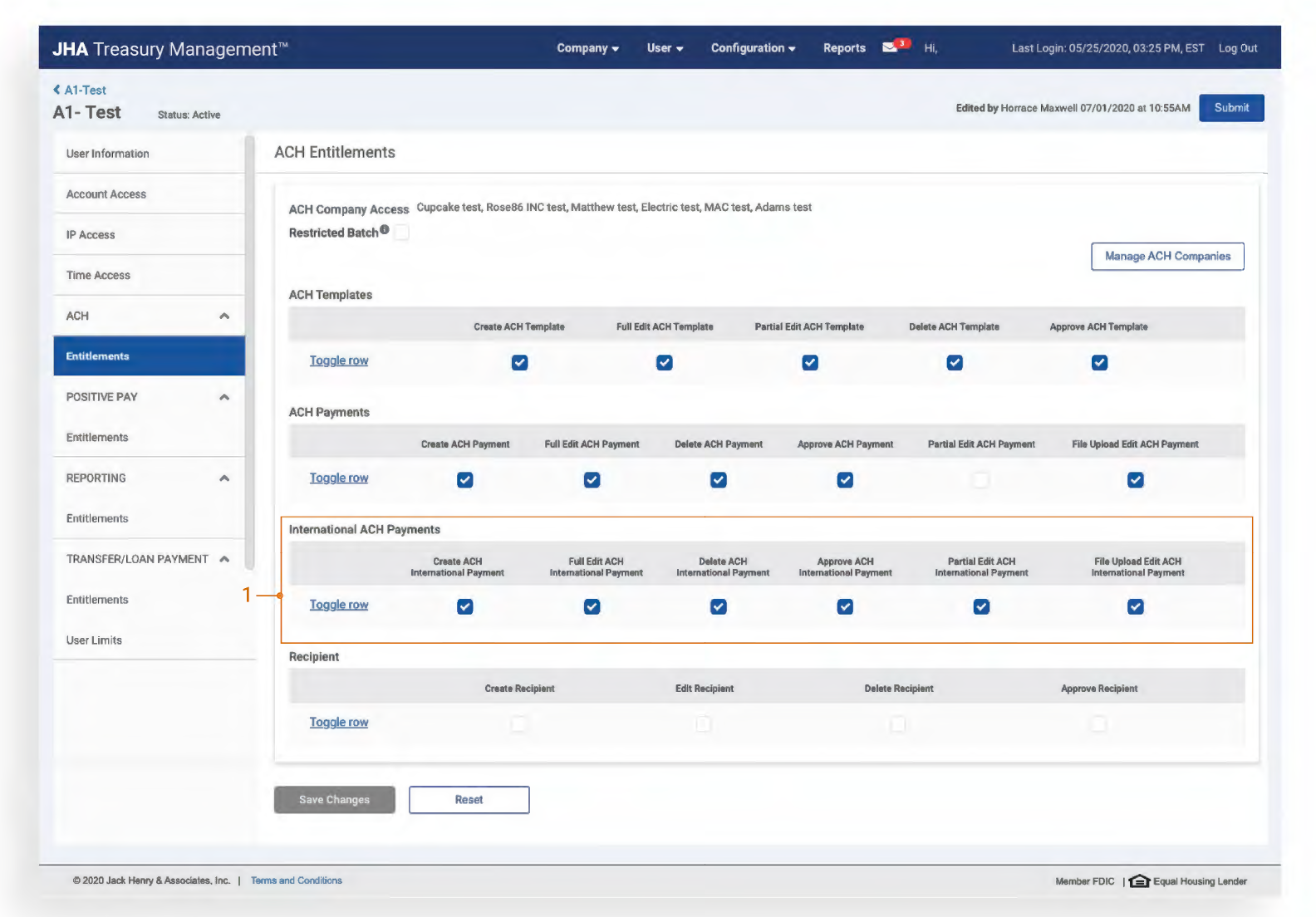
International ACH User Entitlements
Establish International ACH specific entitlements for users:
- Create: Allows the user to create an International ACH Payment
- Full Edit: Allows the user to edit the entire payment
- Delete: Allows the user to delete a payment
- Approve: Allows the user to approve a payment that was initiated by another user
- Partial Edit: Allows the user to only change the Recipient Amount
- File Upload Edit: Allows the user to edit a NACHA file uploaded
Back Office - Reporting
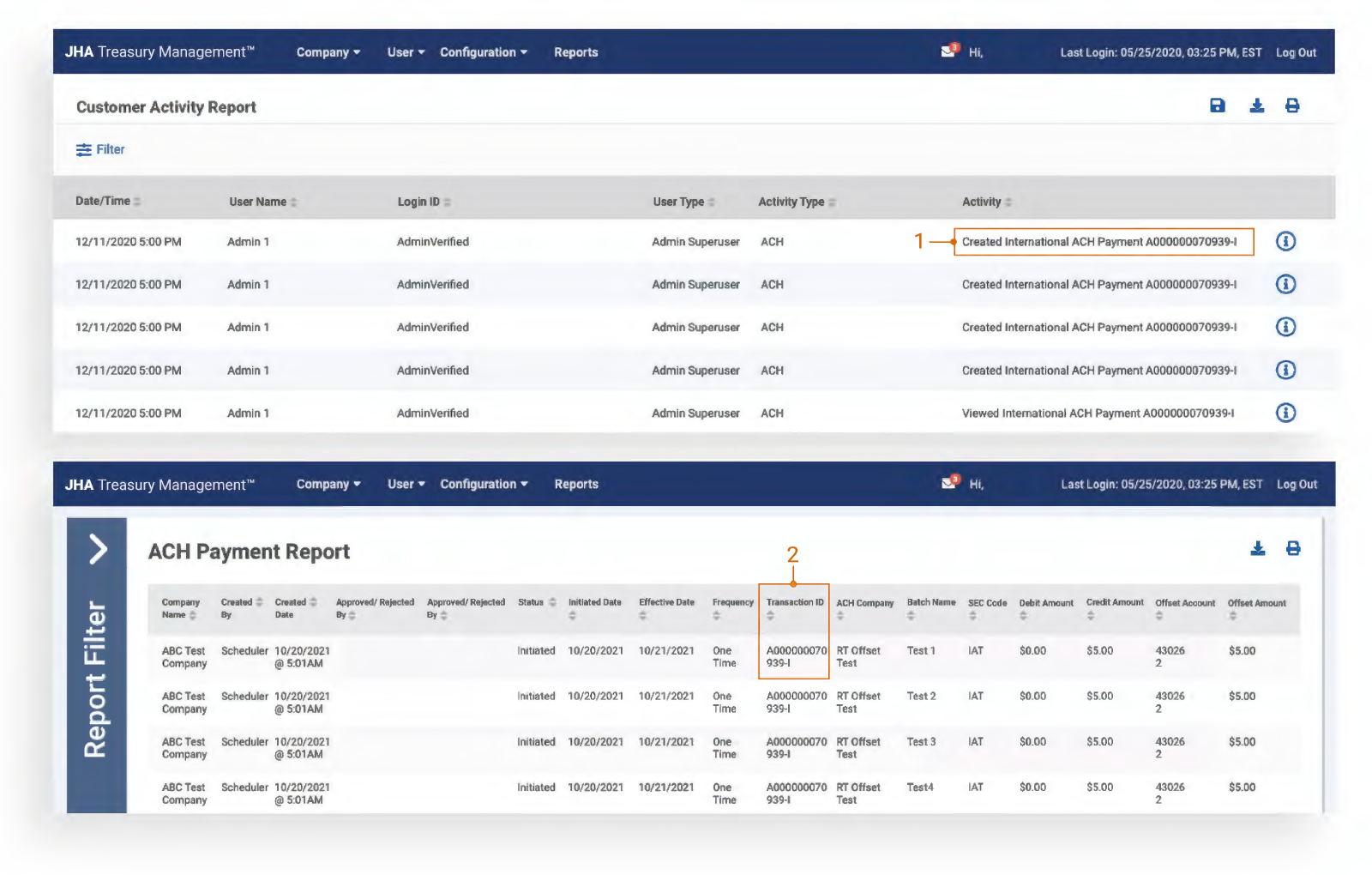
1. Customer Activity Report: Displays user activity related to International ACH Payments.
2. ACH Payment Report: Access to view ACH Payments related to International Payments. International ACH Payments are identified by the -I at the end of the Transaction ID. In addition, IAT under SEC Code will identify International ACH Payments.
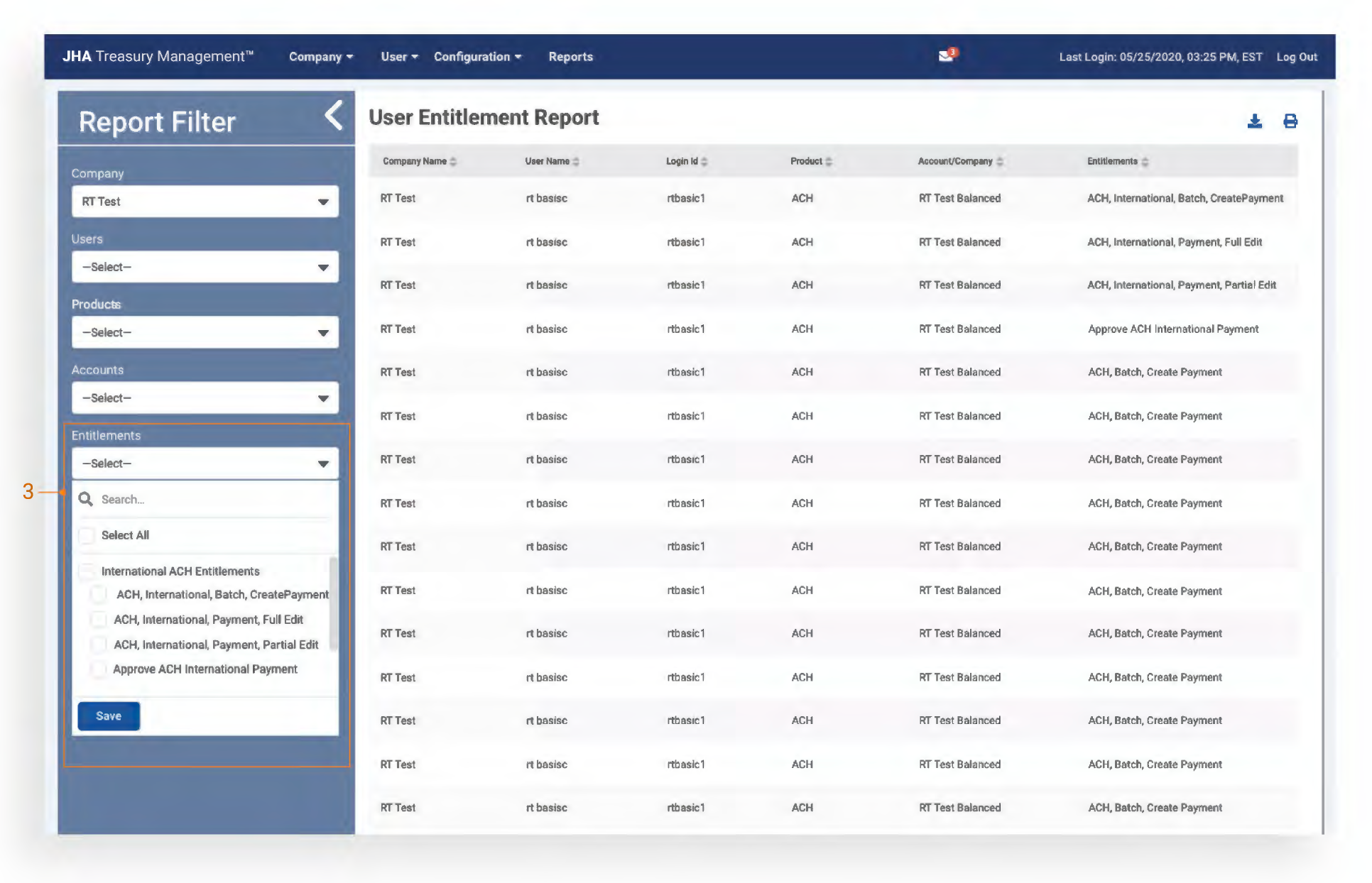
3. User Entitlement Report: Access the Entitlements filter which allows the user to select specific International ACH entitlements.
Channel - Create International ACH Payment
Start Point
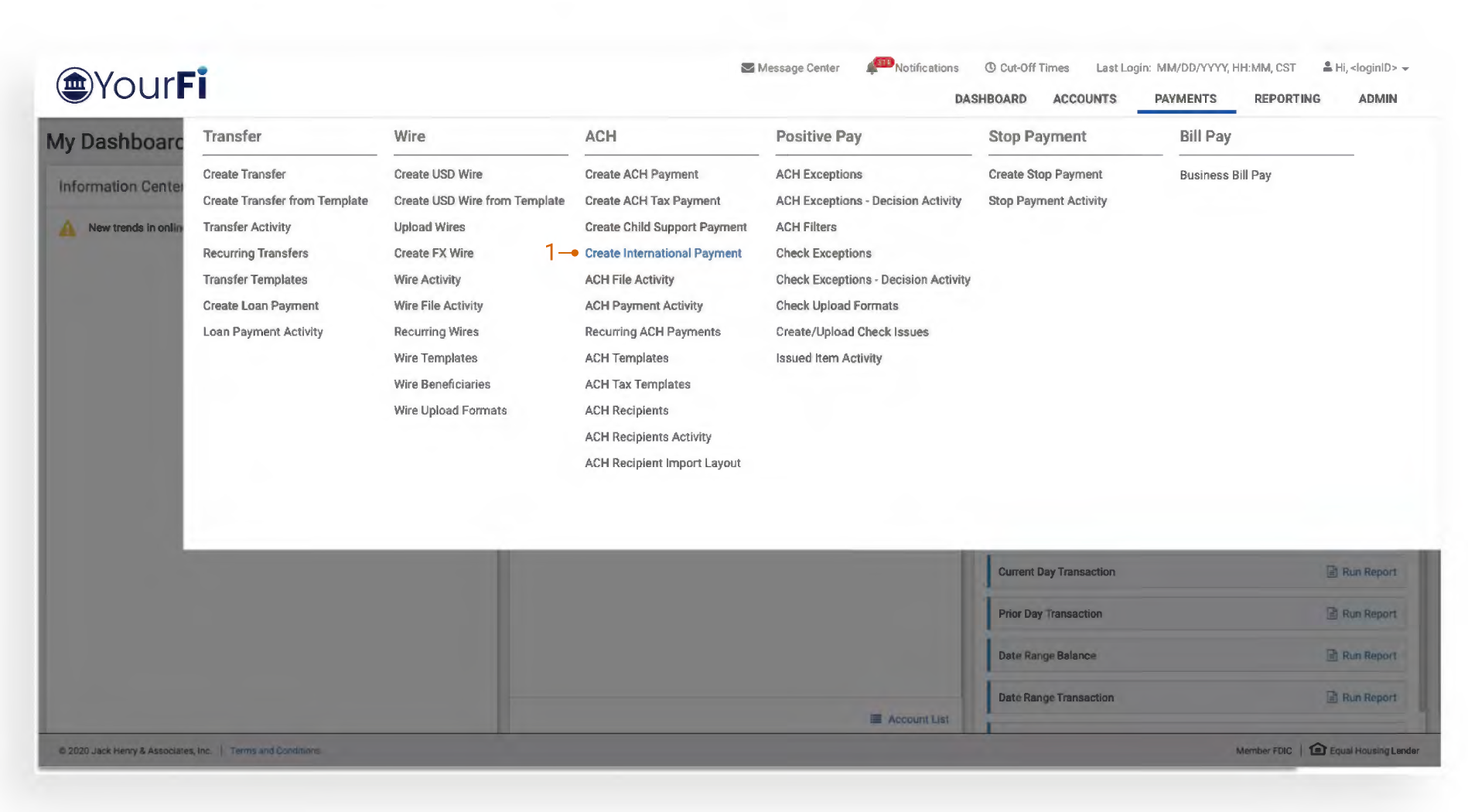
1. Create International Payment: To create a payment, select Create International Payment from the Payments menu.
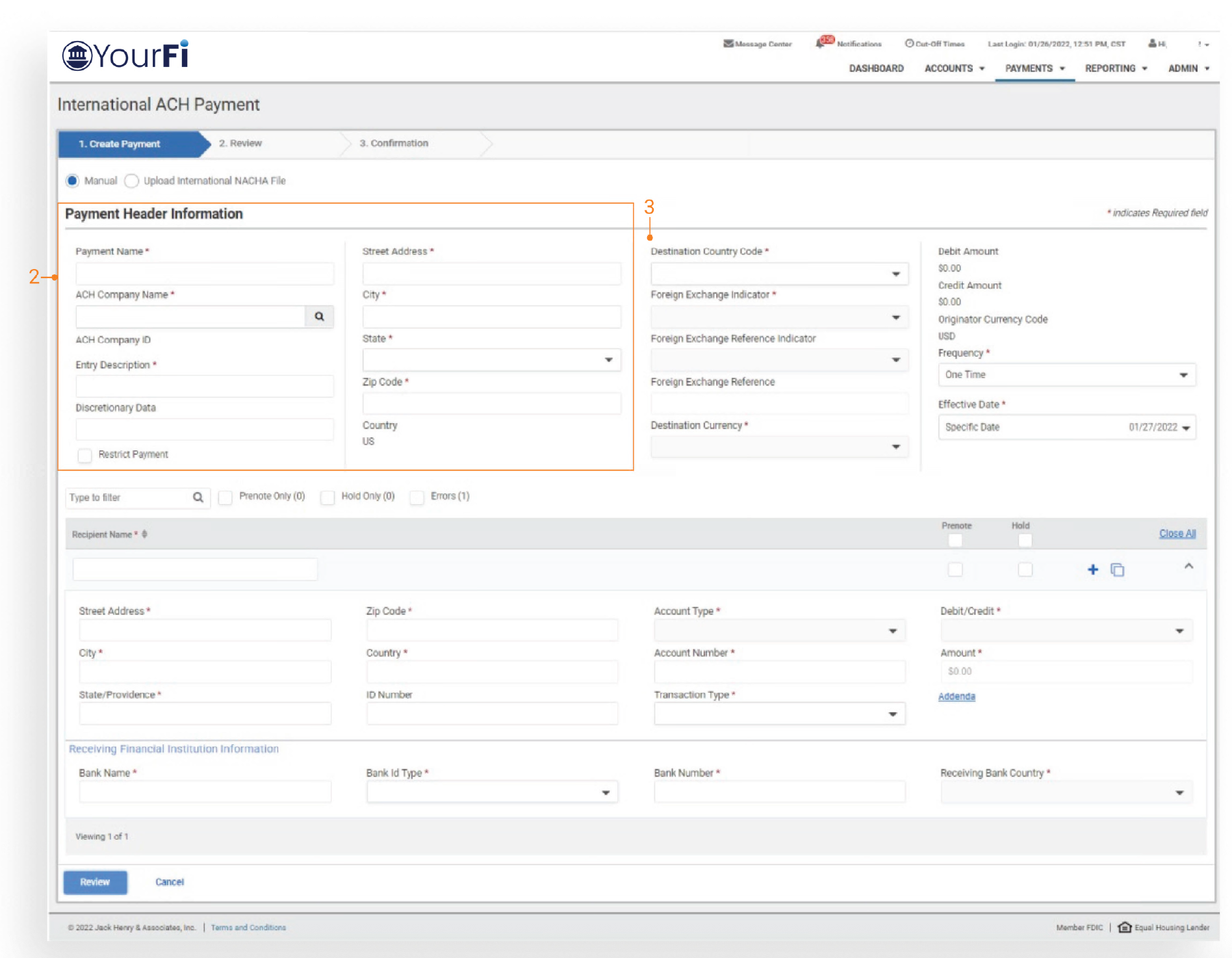
2. Payment Header Information: Complete the following fields:
- Payment Name
- ACH Company Name & ID
- Entry Description & Discretionary Data
- Originator’s address, city, state and zip code
3. Destination Country Code: Select from the dropdown to identify the country receiving the payment.
Payment Header
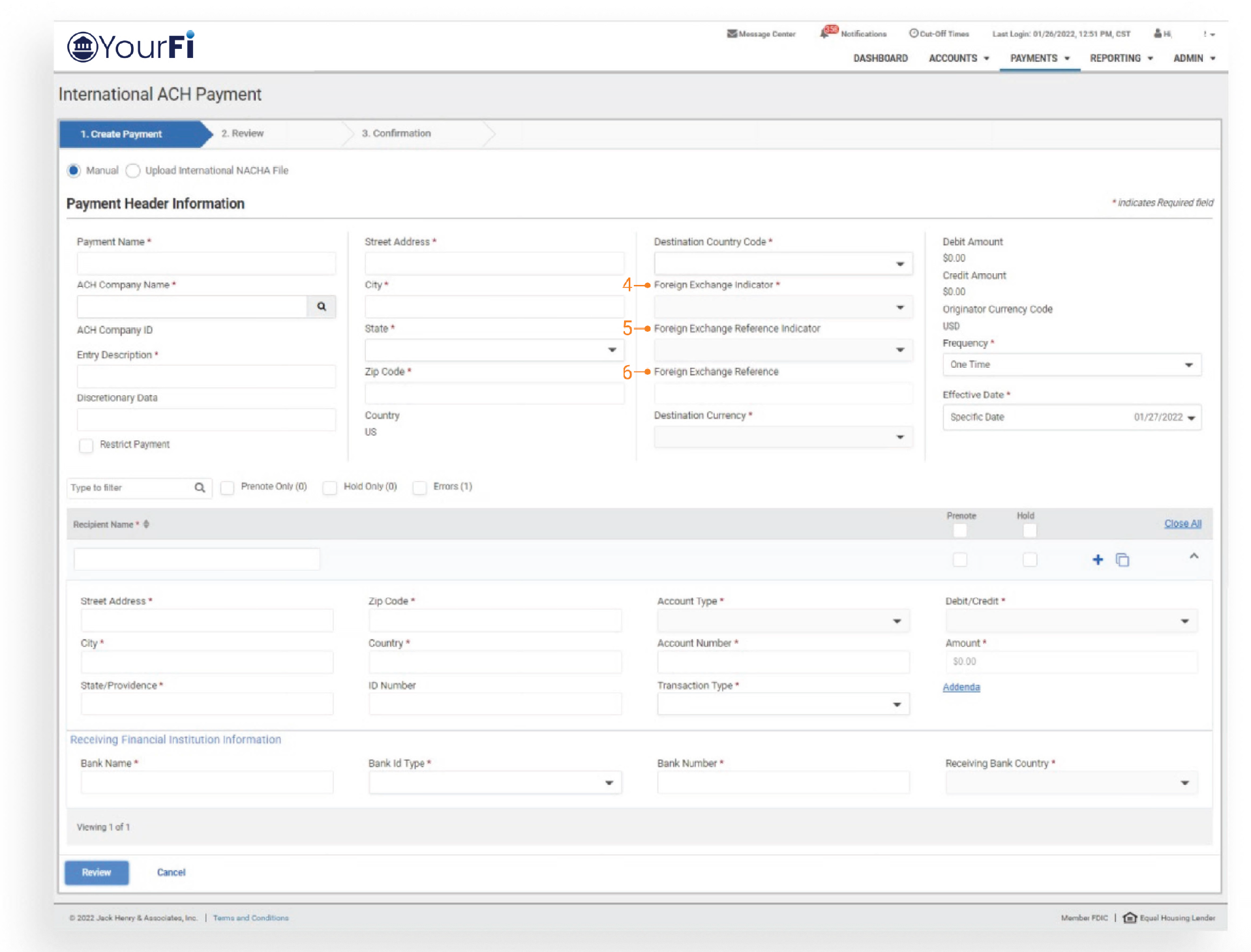
4. Foreign Exchange Indicator
Select one of the following options from the dropdown:
- FF - Fixed to Fixed (USD to USD)
- FV - Fixed to Variable (USD to Foreign Currency) Options are dependent upon the Destination Country selected.
5. Foreign Exchange Reference Indicator
If FV is selected as the Foreign Exchange Indicator, select one of the following options:
- 1 - Foreign Exchange Rate
- 2 - Foreign Exchange Reference Number
- 3 - None
6. Foreign Exchange Reference
Enter the foreign exchange rate to execute the exchange conversion or another reference to the foreign exchange transaction. For current exchange rates, visit this website.
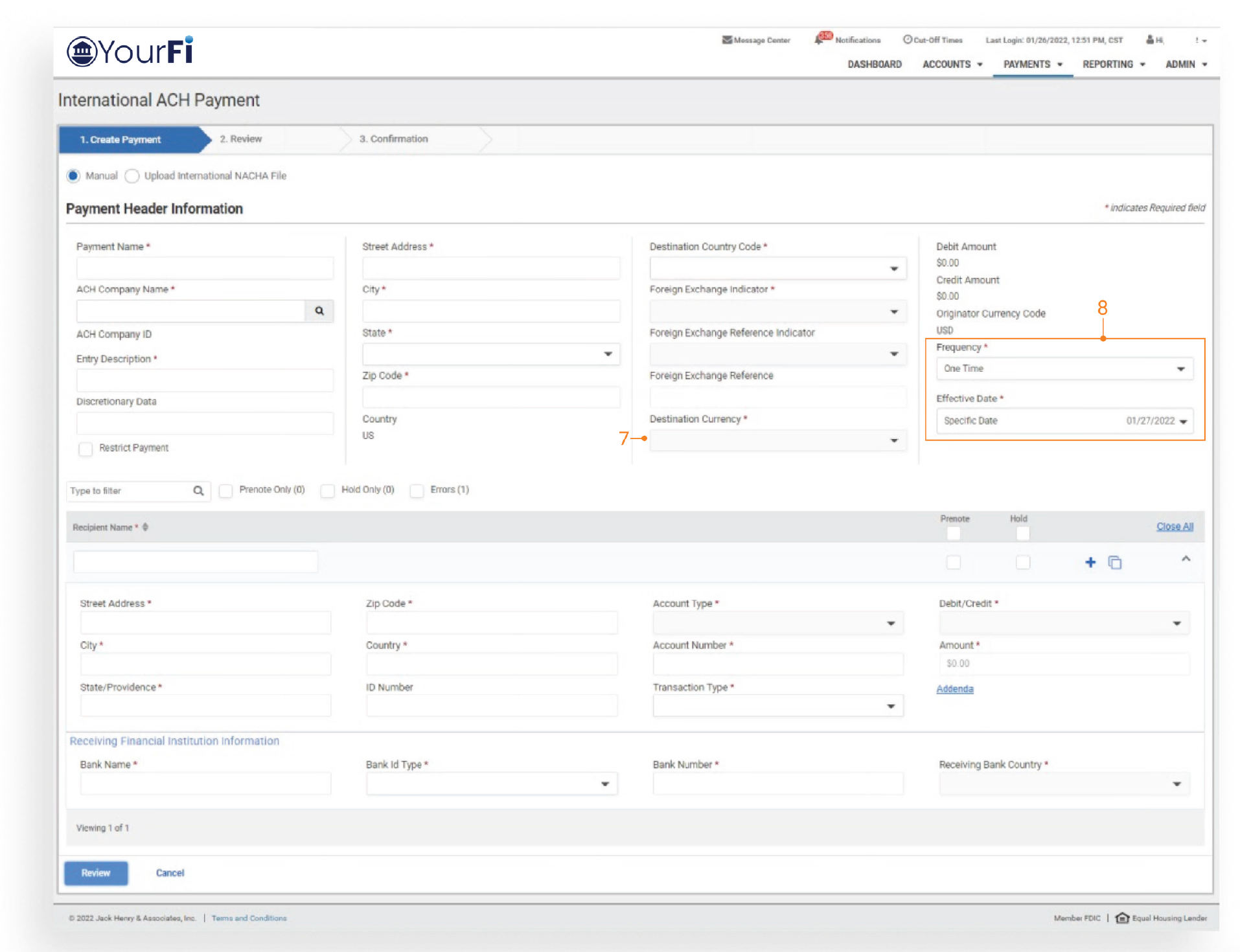
7. Destination Currency
Select from the dropdown to identify the currency denomination in which the entry is to be received in. Dependent on the Destination Country selected in the Payment Header Information, the following options will display:
- Destination Country Selected
- Mexico
- Panama
- Destination Currency
- MXN
- USD
8. Frequency and Effective Date
Same Day ACH is not allowed for International Payments.
Add Recipient
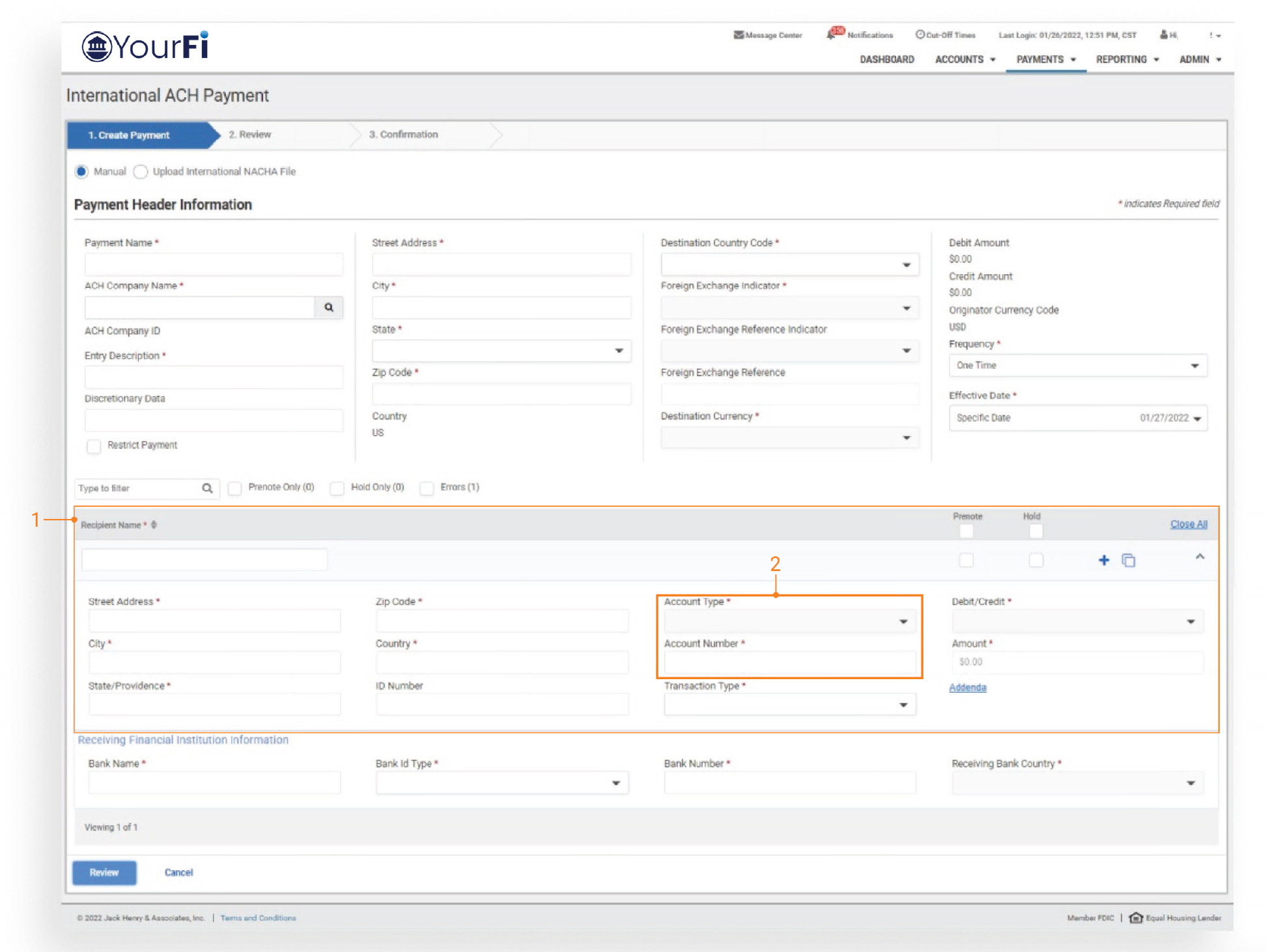
1 Recipient Information
The recipient is the individual and / or corporation that is either receiving the credit or who will be debited.
Complete the following fields:
- Recipient Name, Street Address, City, State/Providence, Zip
- Code and two-digit Country Code
- ID Number (optional)
2. Account Type and Account Number
The following options are available in the dropdown based on the Destination Country selected in the Payment Header Information:
- For Mexico, Account Type options are Checking / Savings
- For Panama, Account Type options are Checking / Savings / Loan
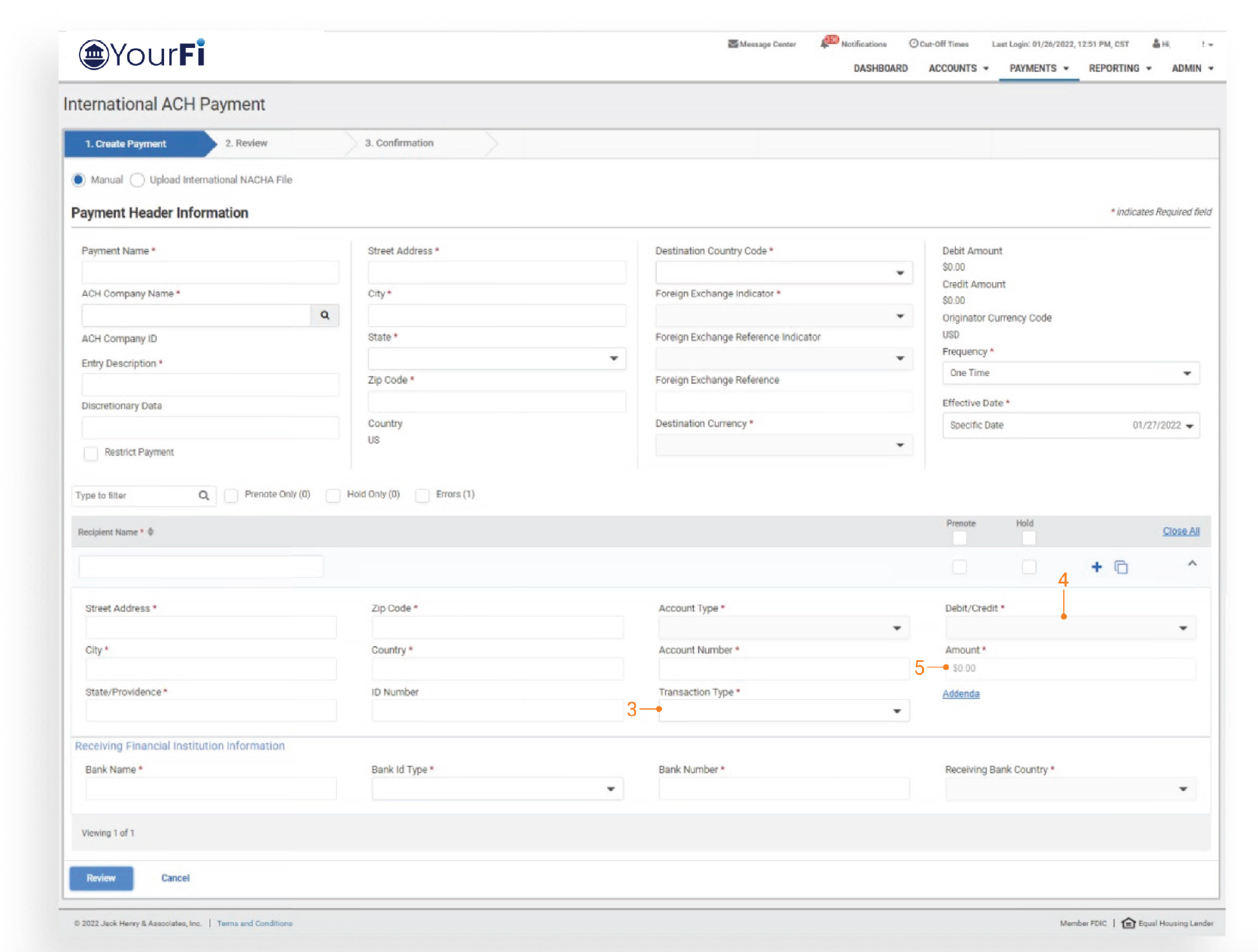
3. Transaction Type Select from the following options:
- ANN - Annuity
- BUS - Business/Commercial
- DEP - Deposit
- LOA - Loan
- MIS - Miscellaneous
- MOR - Mortgage
- PEN - Pension
- REM - Remittance
- RLS - Rent/Lease
- SAL - Salary/Payroll
- TAX - Tax
4. Debit/Credit
Each country has established regulations regarding if debit or credit transactions are allowed and for what account type. Because of this, the Debit/Credit dropdown displays the following options based on the Destination Country selected in the Payment Header and the Account Type selected:
- For Mexico, Credit only (when Checking / Savings is the Account Type selected)
- For Panama, Credit only (when Checking / Savings / Loan is the Account Type selected)
5. Dollar Amount
Dollar Amont is a required field. Users must specify the dollar amount for each recipient transaction.
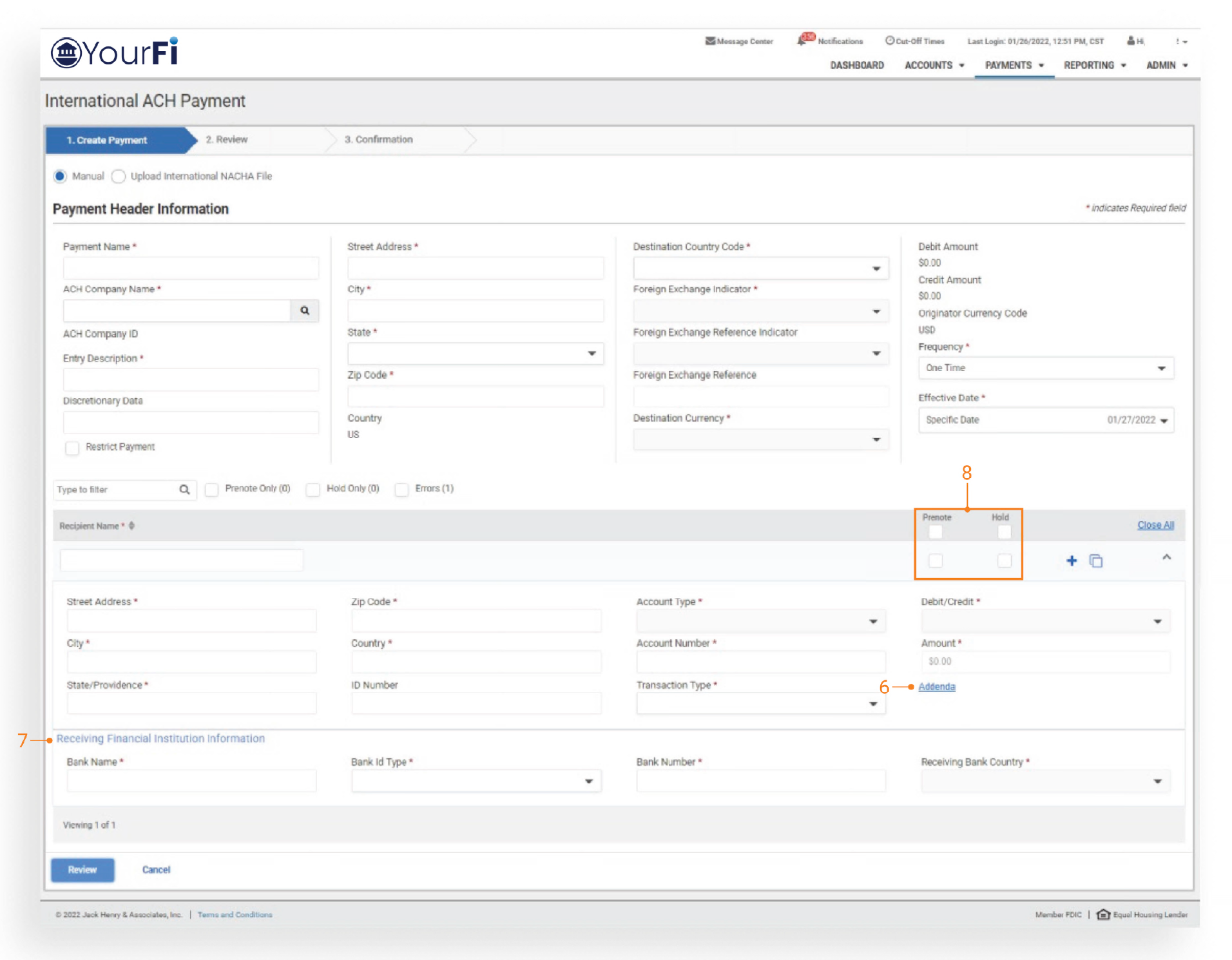
6. Addenda
Each recipient is allowed to have two optional lines of freeform addenda. There is a SO-character maximum per line. Select Addenda to enter the following information.
7. Receiving Financial Institution Information
Complete the following fields:
- Enter the Bank Name
- Select the Bank ID Type: Options are 01 National Clearing, 02 BIC Code, and 03 IBAN
8. Prenote and Hold
Please check with the Receiving Financial Institution to verify prenote transactions are accepted. Selecting the Hold checkbox retains the Recipients information but does not include the Recipient when the transaction is sent out.
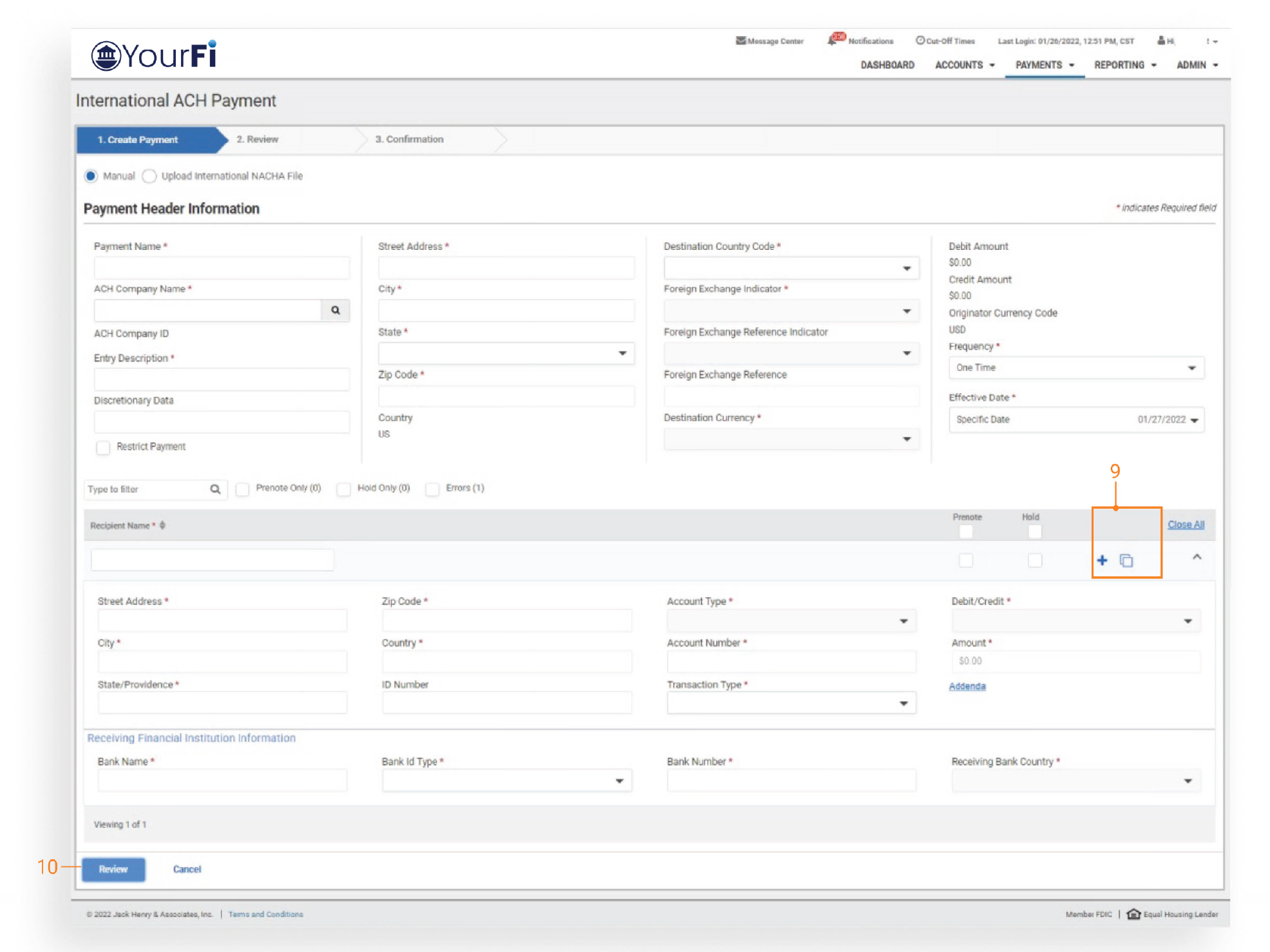
9. Add, Delete and Copy Recipient
- To Add additional recipients, select the plus sign icon
- To Delete a recipient, select the trash can icon (Icon appears when a full record is present.)
- To Copy a recipient, select the copy icon. This copies the current recipient into a new recipient
10. Review
Once all the required fields have been completed, select Review to review payment and select Offset Account.
Add Recipient, Continued
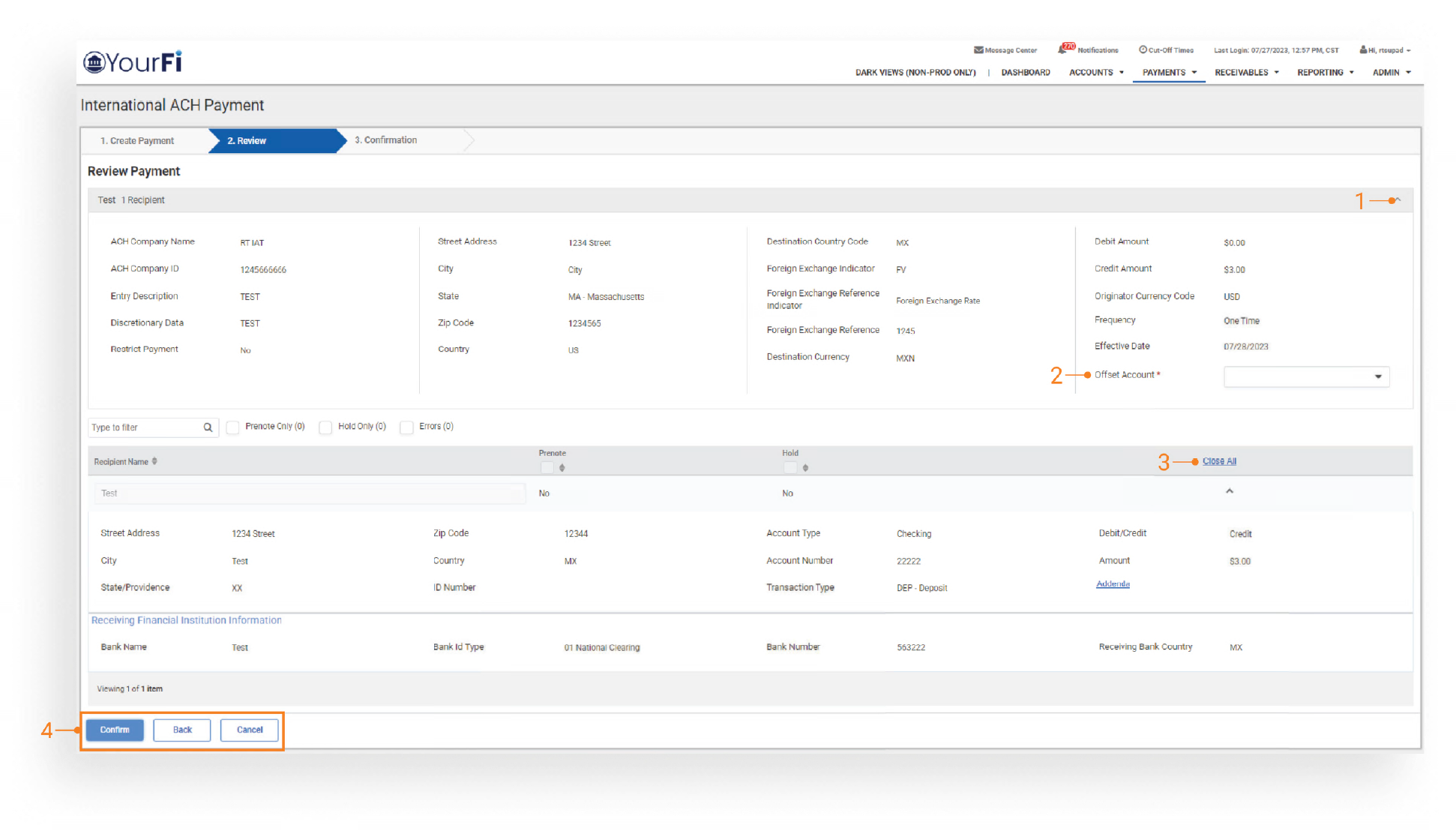
1. Expand or Minimize
Select the arrow to display or not display Payment Header Information.
2. Offset Account
The Offset Account is the internal account to debit or credit the offset amount of the batch. Type or select the search icon to display a list of available accounts. Then select the correct account number.
3. Open All or Close All Recipients
Select Open All or Close All to display or not display recipient information. If Close All is selected, the recipient’s name still appears.
4. Confirm, Back and Cancel
- Select Confirm to initiate the payment.
- Select Back to return to the Add Recipient page where edits to the recipient may be made.
- Select Cancel to cancel the entire payment (any completed fields are not retained).
Upload NACHA File
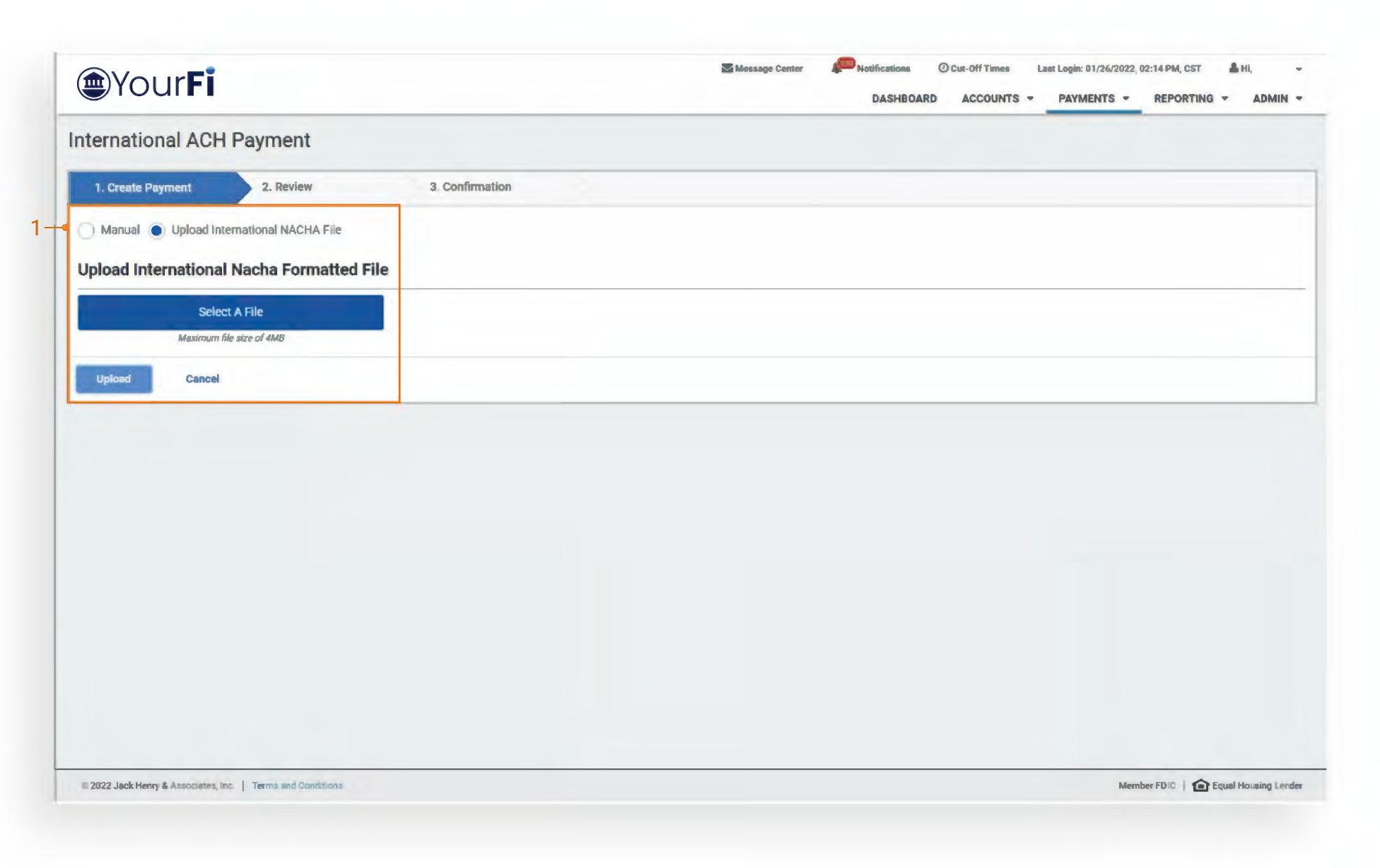
Upload International NACHA File
To upload a NACHA formatted file, select the Upload International NACHA File button. Select a file, then select Upload. Once uploaded, select the Offset Account and Effective Date on the review page, then select Confirm.
Channel - ACH Payment Activity
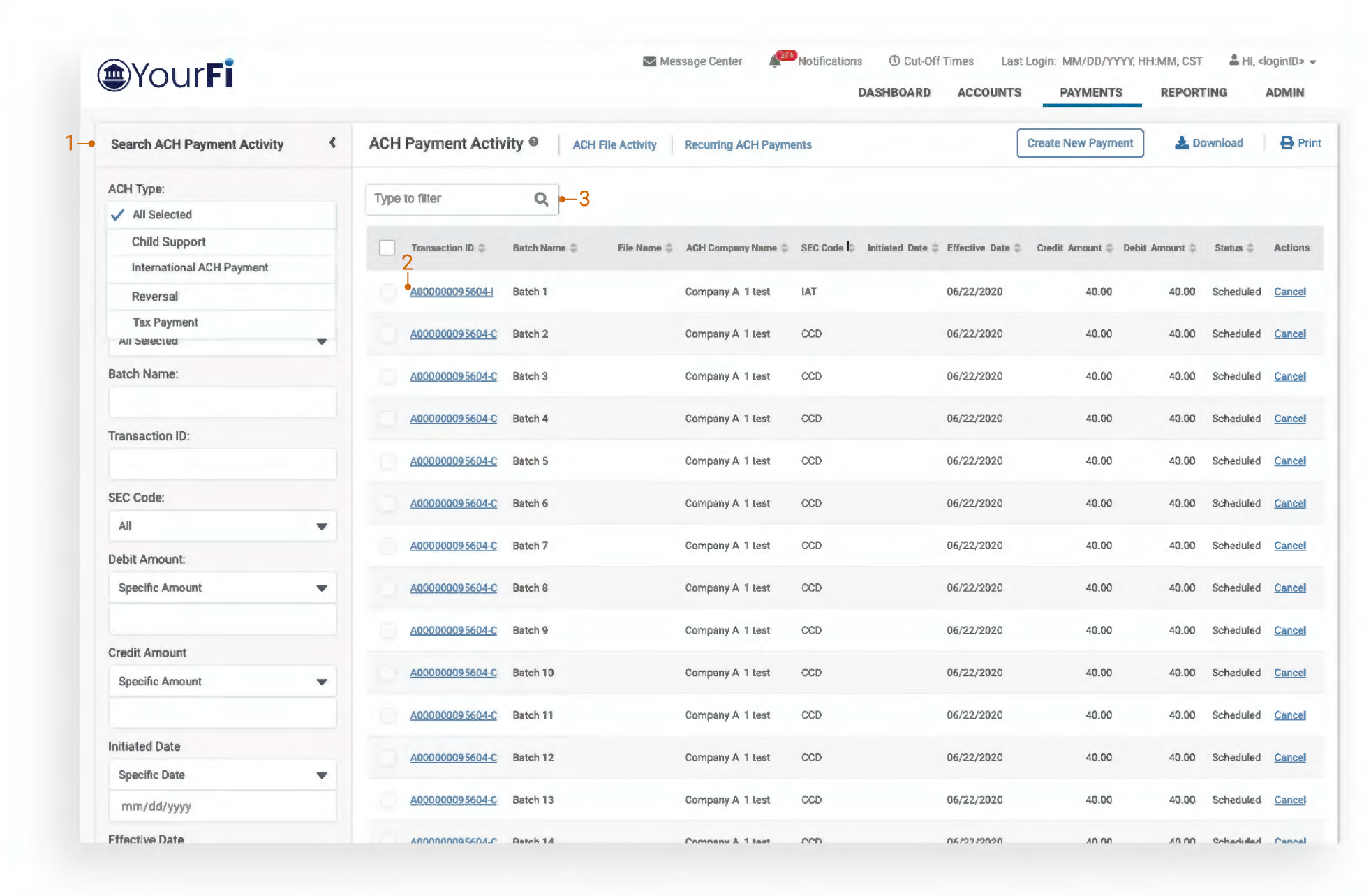
1. Search ACH Payment Activity - ACH Type
To display only International ACH Payments, select Search ACH Payment Activity. In the ACH Type dropdown, select International ACH Payment. Complete additional filters if needed, then select Search at the bottom of the page.
2. Transaction ID
To view details of the payment, select the Transaction ID. International ACH Payments can be identified by the -I at the end of the Transaction ID.
3. Type to Filter
Search for a specific transaction by entering payment information or entering a character/numeric string. The Type to Filter will search across all columns, looking for a match on the string of data, whether at the beginning, middle, or end of the field.
Channel - ACH Payment Detail
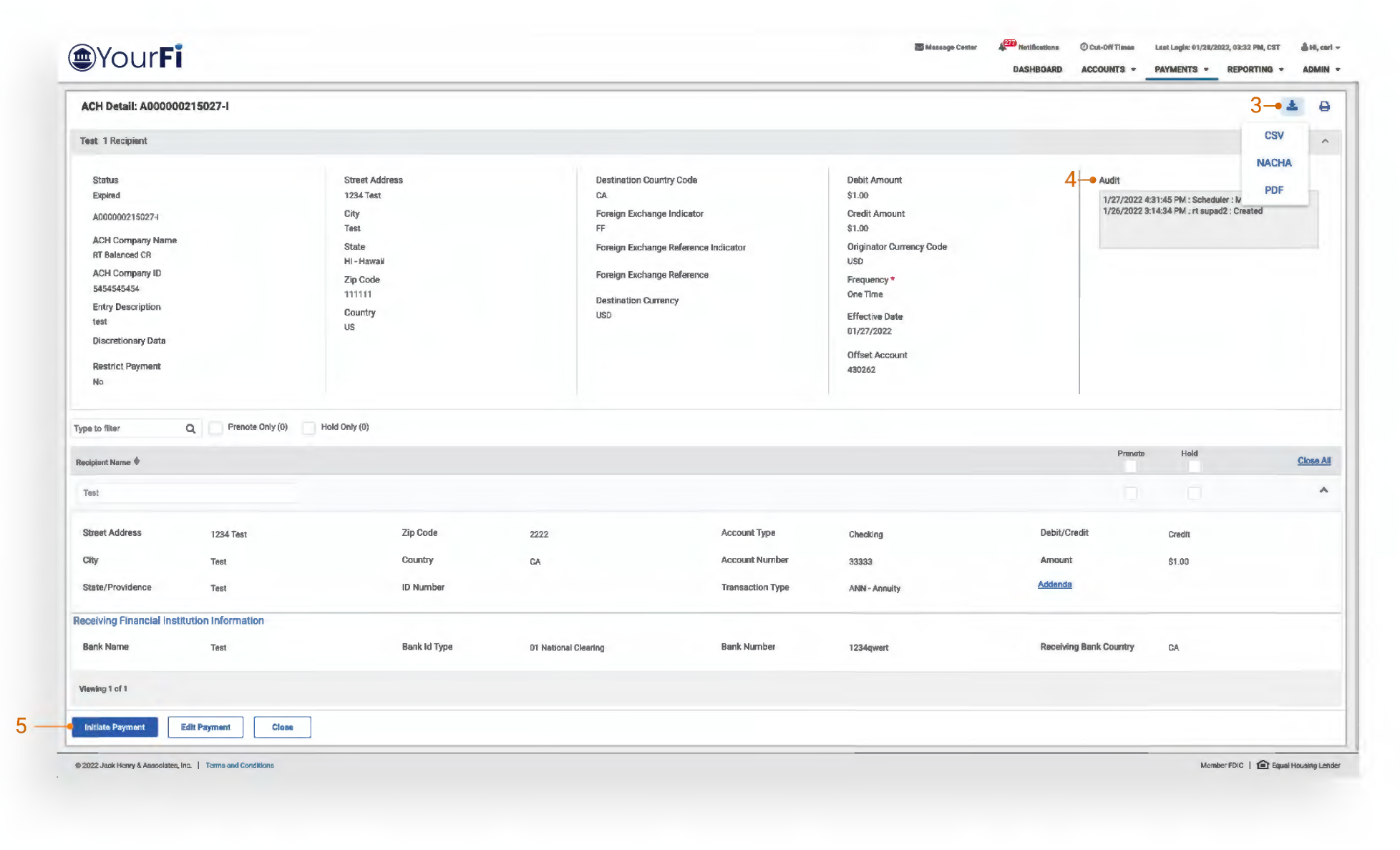
3. Download Payment Details
Options include CSV, NACHA and PDF.
4. Audit
Users have the ability to review an audit log which provides user information associated with the appropriate action along with the date and timestamp.
5. Initiate Payment
Select to create a new International ACH Payment. Fields are pre-filled using the payment information from the previous payment.
Channel - Recurring ACH Payment
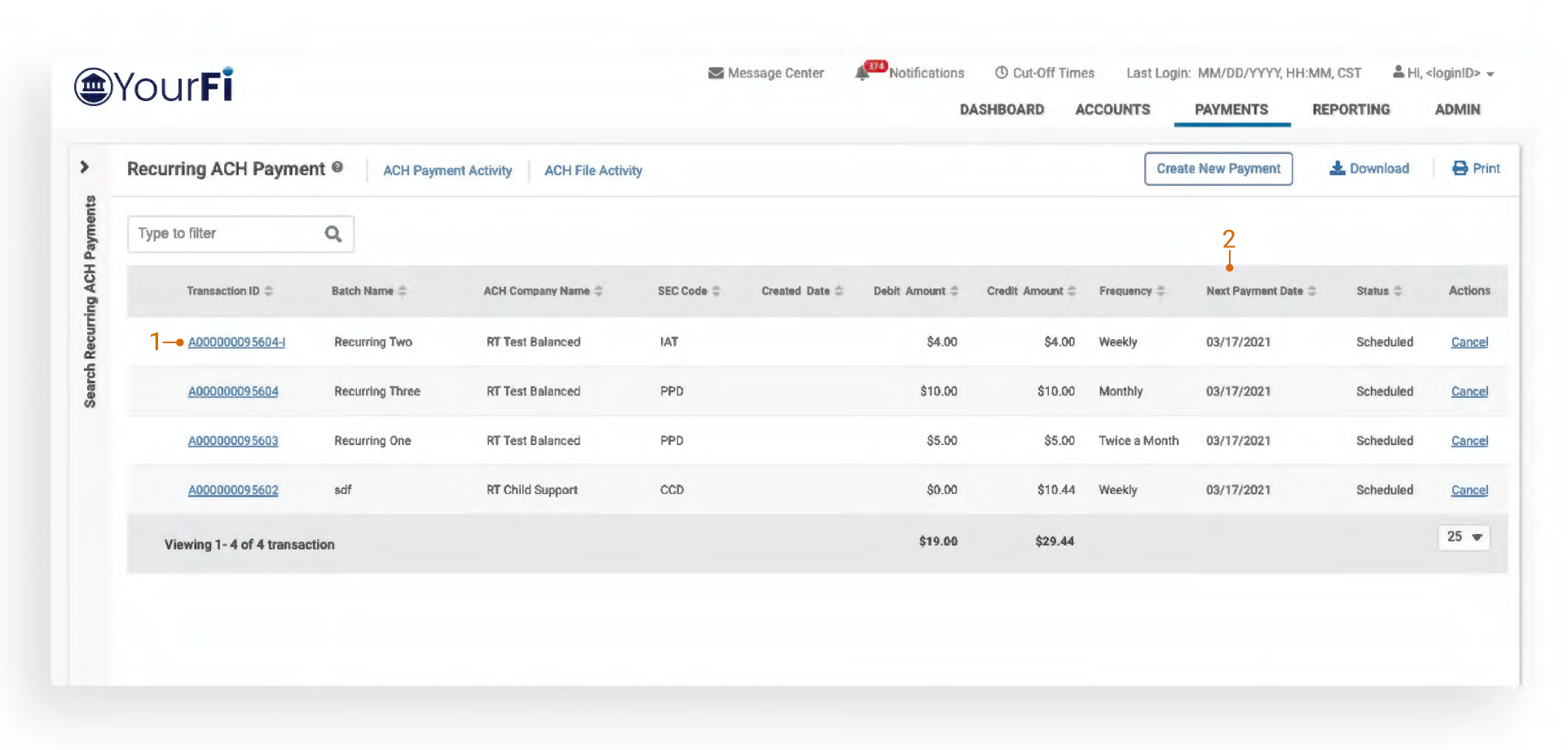
1. Recurring ACH Payments
To view and/ or edit a recurring International ACH Payment, select Payments - Recurring ACH Payment. A list of all recurring ACH Payments display. International ACH Payments can be identified by the -I at the end of the Transactions ID or by an IAT SEC code.
2. Next Payment Date
Next Payment Date indicates the next payment date in the recurring series. In addition, the individual payment will display on the ACH Payment Activity page.