Quick Reference Guide: ACH File Upload
Overview
ACH File Upload feature of the TM platform is an important capability within the business payment process. Files that meet the following criteria can be uploaded for processing using the Create ACH Payment feature within JHA Treasury Management: NACHAformatted file, No more than 10,000 payments and Less than 10 MB in size.
Benefits
Benefits for Banks
- ACH payment capability
- Back Office report providing visibility into ACH file activity
- Ability to charge via Enhanced Account Analysis through a billing counter
Benefits for Customers
- Easy upload of ACH files
- Allows users to review, edit, and confirm ACH file contents
- ACH Payment Activity reporting to easily track ACH file activity
- Additional fraud risk point controls
Configuration
Upload a NACHA Formatted File
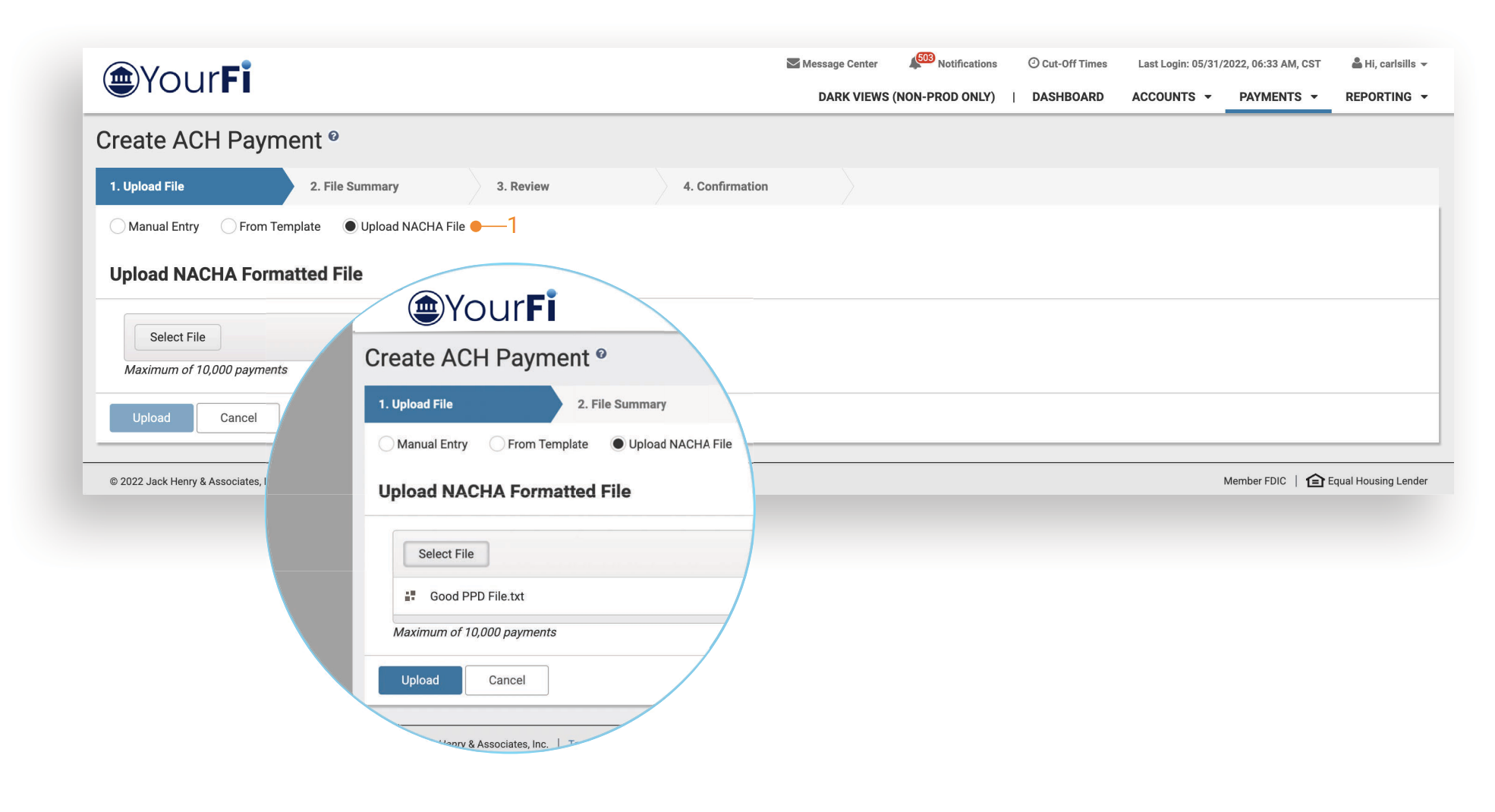
Navigate to Payments, then Select Create ACH Payment
- Navigate to Main Navigation Menu > Payments > Create ACH Payment > Upload NACHA File.
- Select a file to upload to begin creating a payment, then select Upload.
- On the File Summary view, review all batches within the file and payment details, then add the offset accounts (if applicable). Select Review to continue.
- Perform a final review before selecting Confirm to upload the file.
- The final view wil display a summary of the number of batches, the total debits, and total credits in the file.
Files that meet the following criteria can be uploaded for processing using the Create ACH Payment feature within:
- JHA Treasury Management
- NACHA formatted file
- No more than 10,000 payments
- Less than 10 MB in size
Possible Error Scenarios & Troubleshooting
Structural Validation
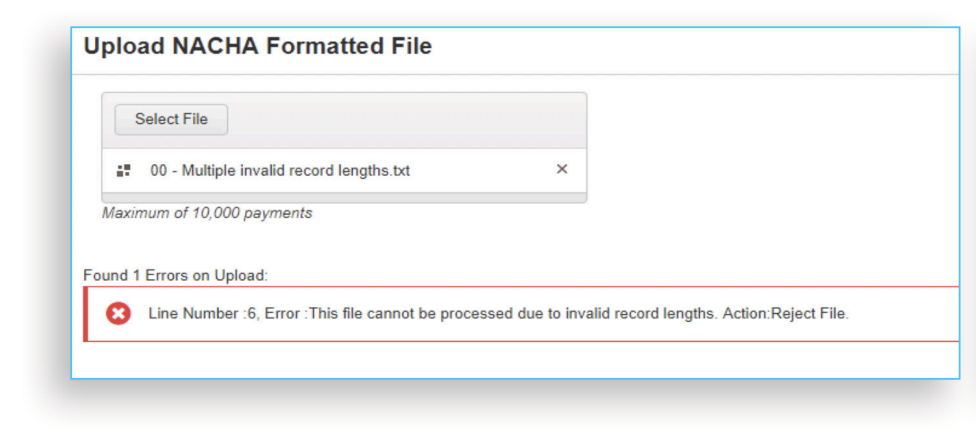
Validates the record length and structure of the file.
NACHA Validation
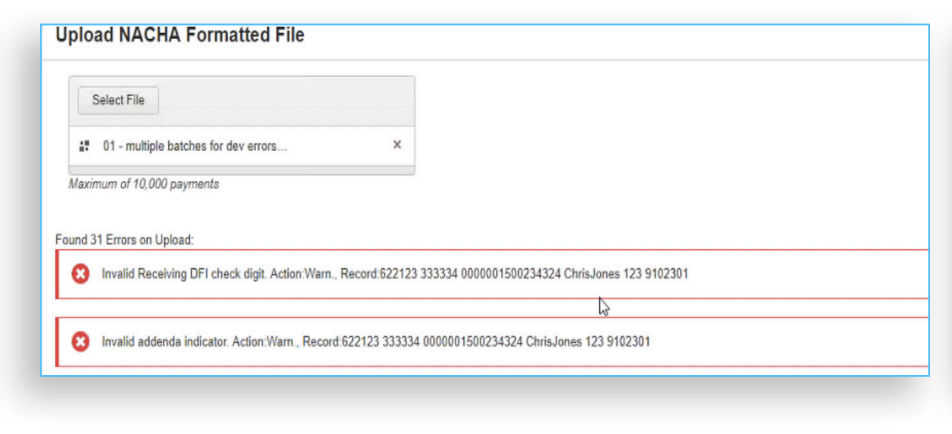
Validates against NACHA formatting requirements.
Business Rules Verification
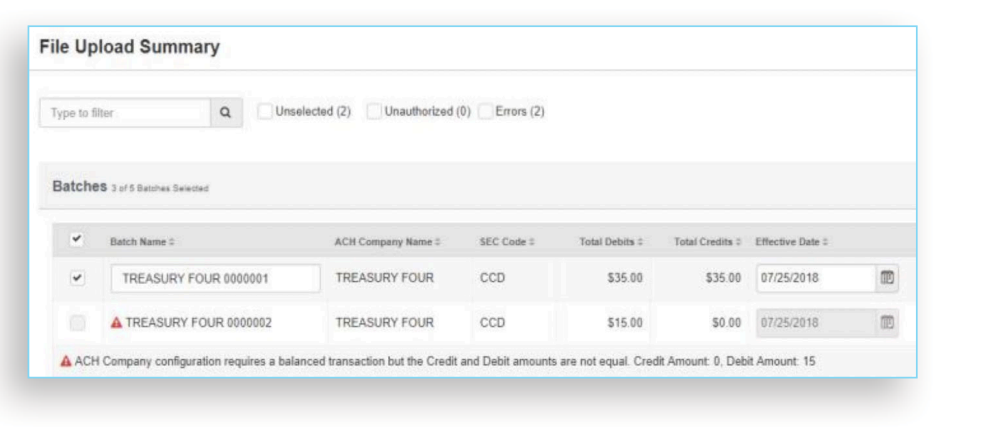
- Limits checked against ACH company and user limits.
- ACH Company Match criteria in Treasury Management is validated against Silverlake ACH General Parameters.
Review Payment Details
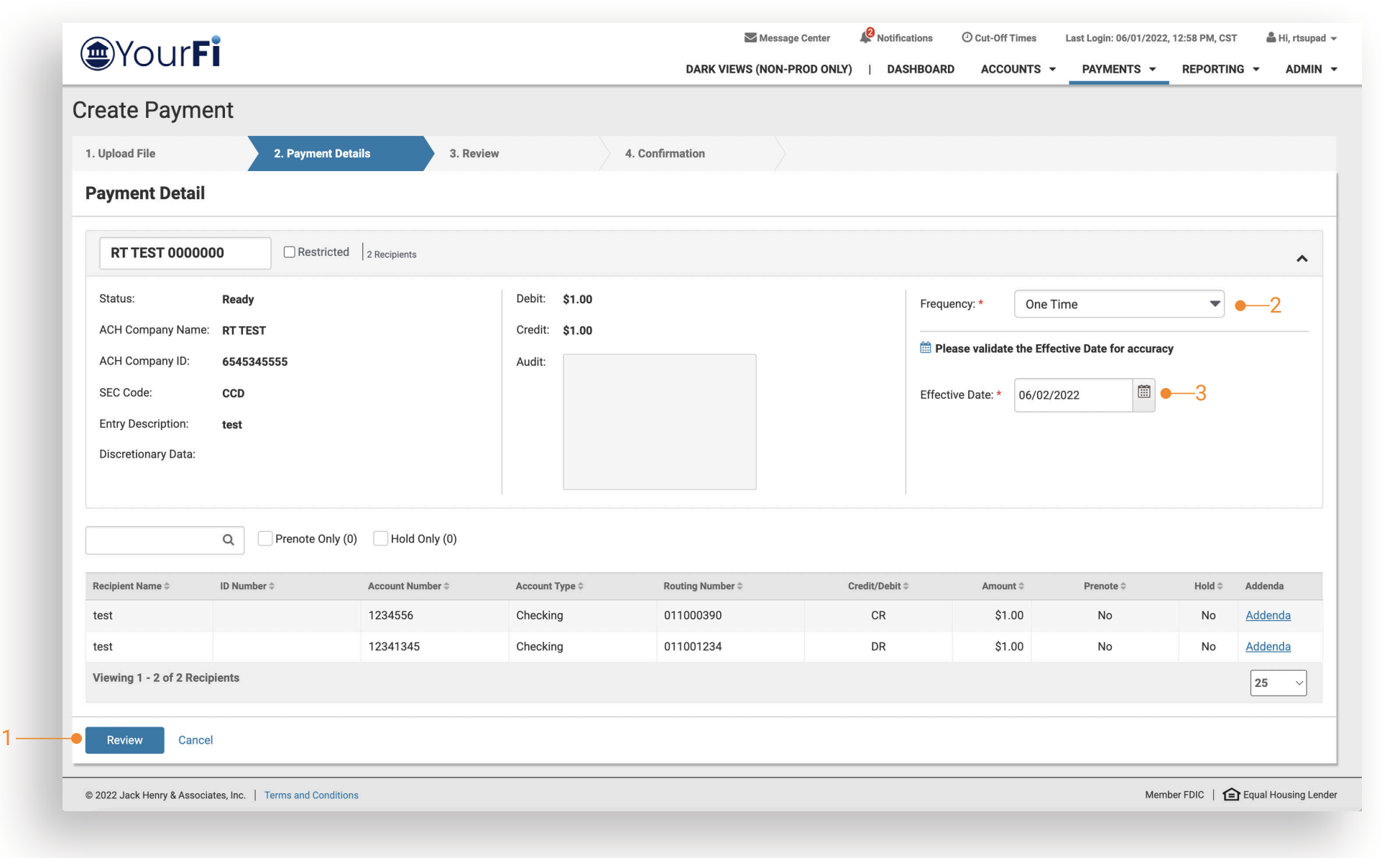
- On the Payment Detail progress tab, the user can verify the information is correct. From here, users can select Review to continue to the payment, or Cancel.
- Users have the ability to adjust the frequency.
- The effective date must be validated to complete the Review screen within the Payment Detail.
Review Payment Details and Confirm
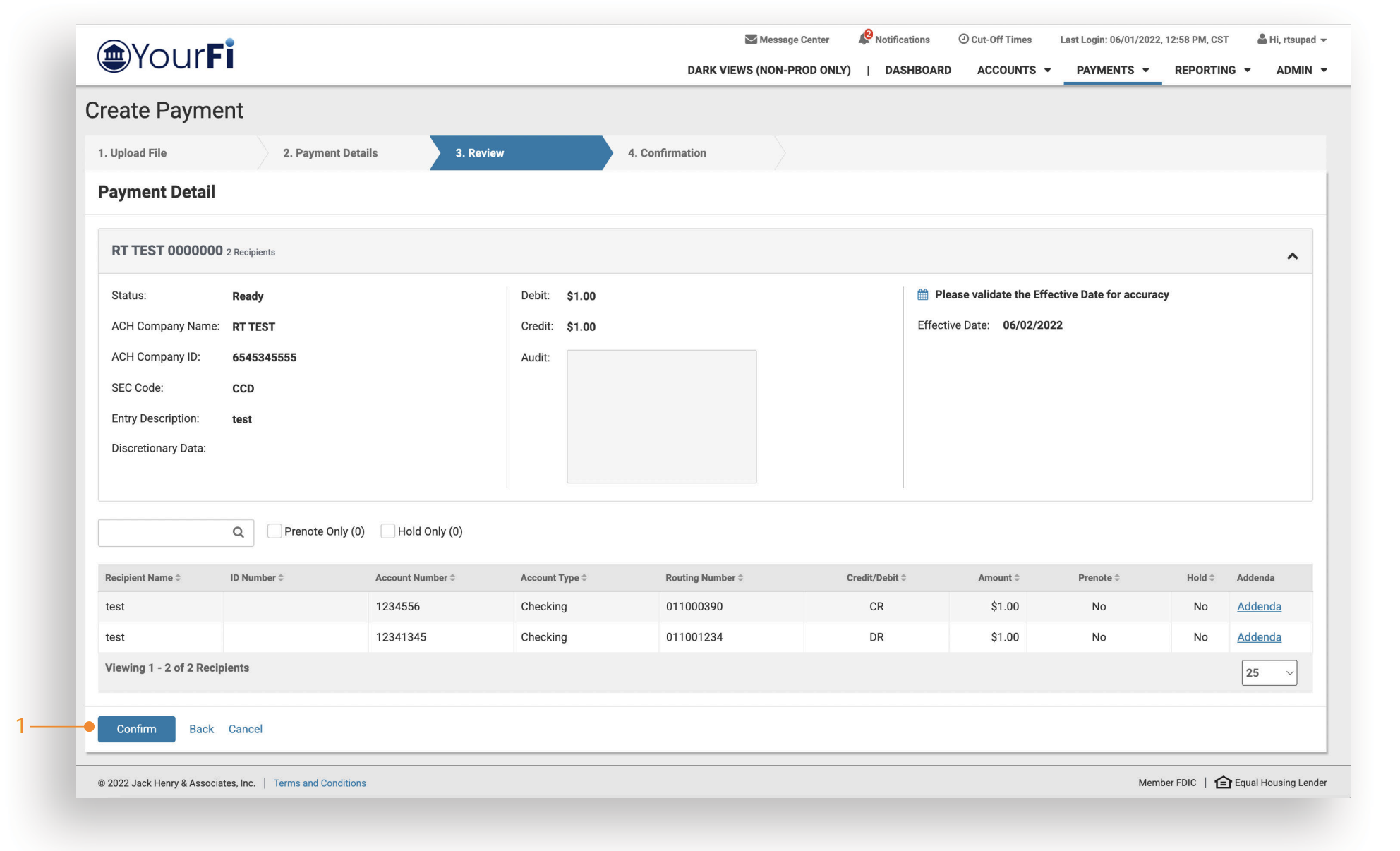
A final review can be conducted before selecting Confirm to upload the file. Users also have the option to go back and make edits to the frequency or the effective date, or they can cancel the upload.
Confirmation
- The Confirmation Success Message verifies the file has been uploaded.
- A link to the ACH Payment Activity screen is provided for quick and easy access.
- Users can simply close this task and move on to what is next in their schedules.
ACH Payment & File Activity
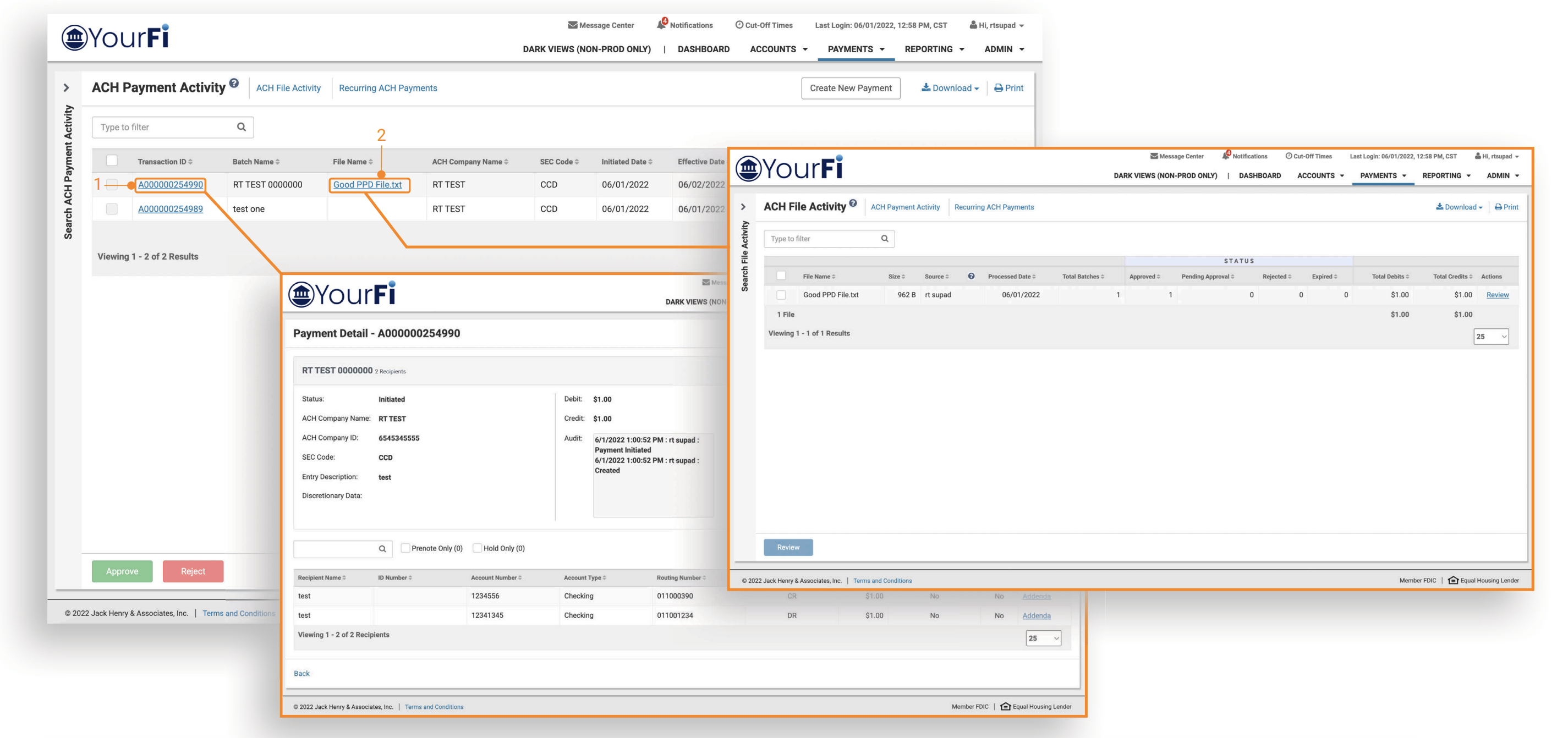
- Transaction ID opens the payment’s details.
- File Name opens the ACH file’s activity, where status information can be viewed.