Quick Reference Guide: ACH Child Support Payments From Template
Overview
Child Support Payments – From Template will allow customers to continue creating manual payments, and once those payments are complete, the customer can save those payments as a template. Customers can utilize the ACH Child Support Templates listing to review, modify, or create payments. Customers will still have the option to recreate a payment from the individual ACH transaction details within the ACH Payment Activity listing. All existing functionality for Child Support Payments will apply with this new enhancement.
Benefits
Benefits for Banks
- Ability for the Financial Institution to control this product offering for manual payments and payments from templates with the Allow Child Support Payments feature.
- Ability to charge via Enhanced Account Analysis which increments for each Child Support Payment created manually or from a template.
- Allows the Financial Institution’s customer to initiate Child Support Payments from a template as a Direct Payer.
Benefits for Customers
- Payment creation simplicity and efficiency.
- Once a template has been saved from a payment, that template will be accessible through the new menu option ACH Child Support Templates.
- Within the ACH Child Support Templates listing, users can filter the results, create payments from a single selected template, modify a template, print the template listing or details, or download the template listing or details.
- Ability to apply any updates to the template that were made during payment creation.
Configuration
Save as Template
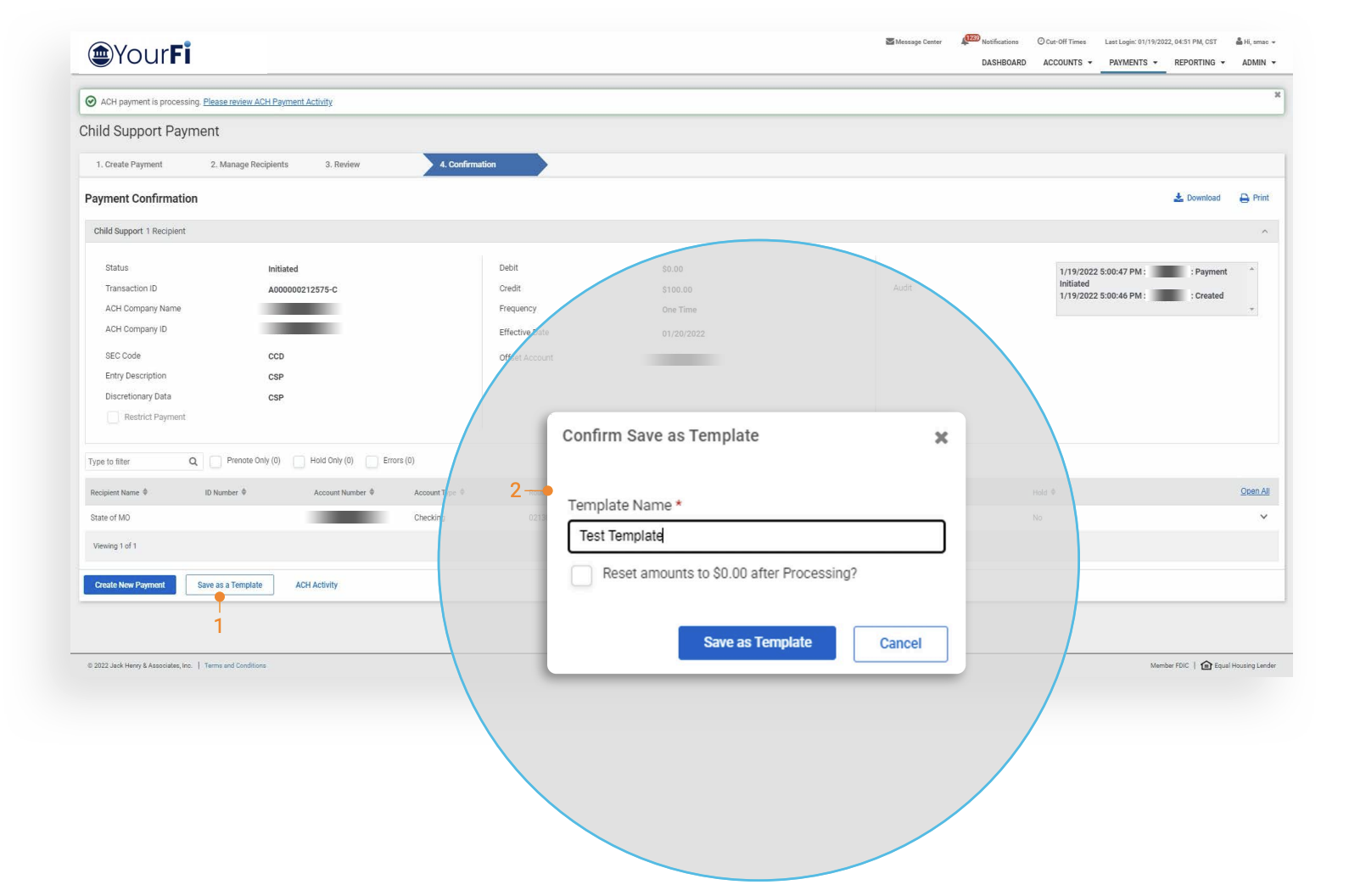
1. Save as Template
- Navigate to Create Child Support Payment.
- Once the payment has been confirmed, users will have an option to create a new template for the child support payment by selecting Save as Template.
2. Confirm Save as Template
- Once the option to save the payment as a template has been selected, the user will be presented with a pop-up.
- The user will be required to enter a template name. In addition, the user will have the option to reset the amounts to $0.00 after processing.
Menu Navigation
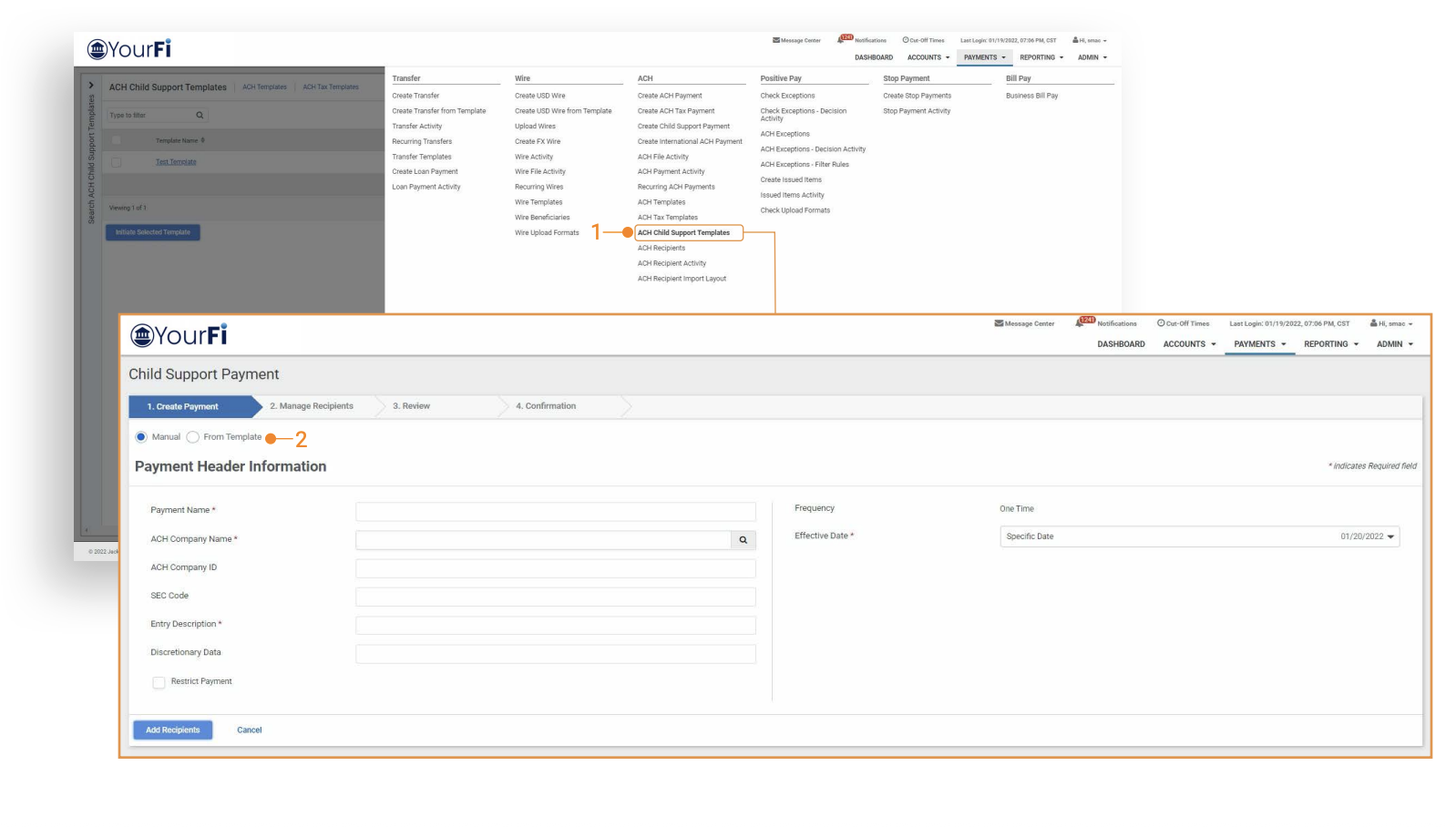
1. ACH Child Support Templates: A new option – ACH Child Support Templates will be available for selection.
- Create ACH Template
- Edit ACH Template
- Delete ACH Template
- Create ACH Payment
2: From Template
- In addition to the new menu navigation, users will have the option to select From Template during the child support payment creation workflow.
- Selection of this option will take the user to the ACH Child Support Template listing where they can select an existing template to originate a child support payment.
ACH Child Support Templates
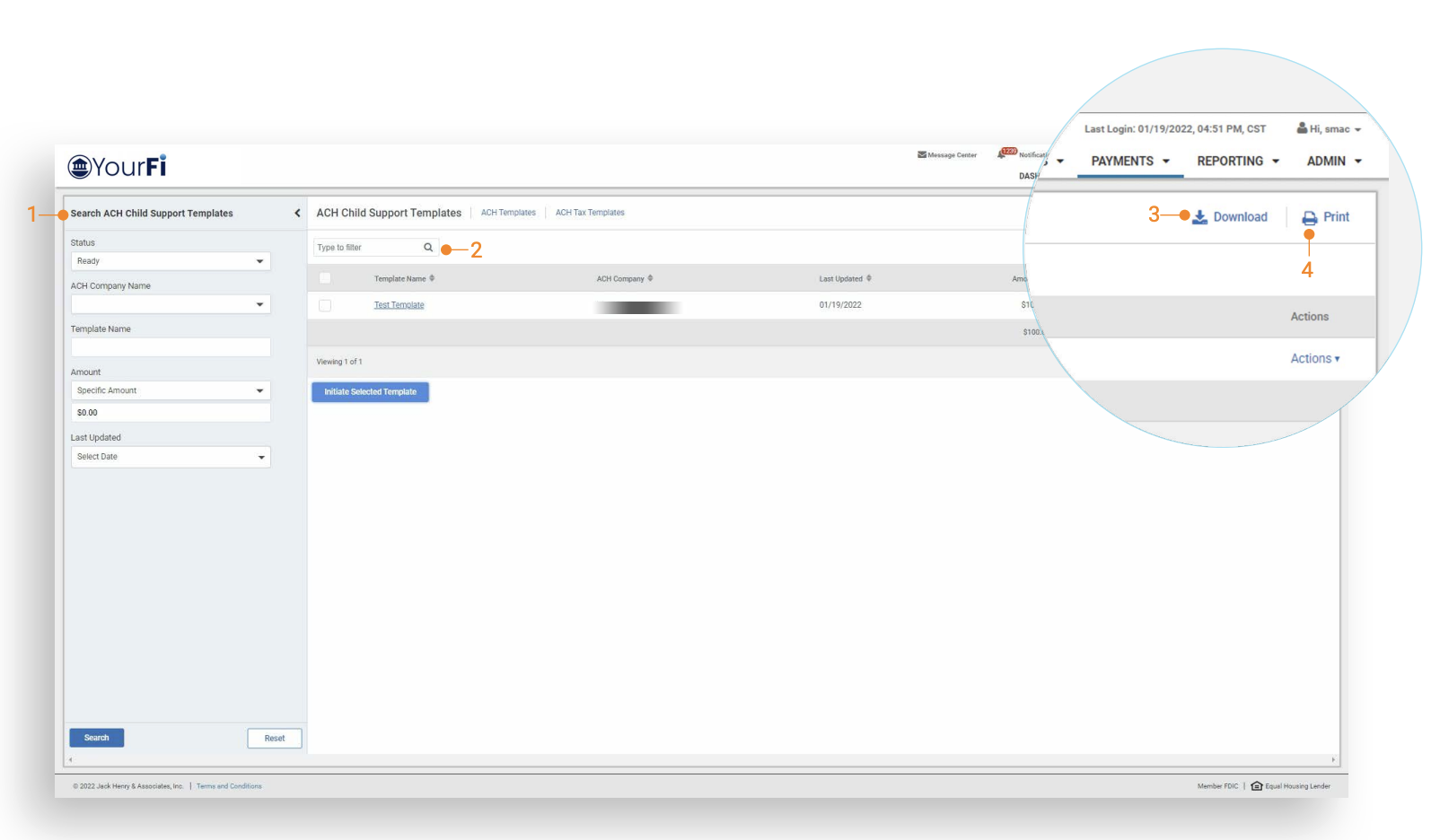
1. Flyout Filter
- All existing child support templates are available when the user navigates to the ACH Child Support Templates
- Users have the option to modify their filter criteria when searching for templates by using:
- Status
- ACH Company Name
- Template Name
- Amount
- Last Updated
2. Type to Filter
- The type to filter will allow the user to further refine the search results.
- The type to filter search will filter across all columns on each page looking for a string of data (character, numeric, or combination) the user entered. The search for that character string will occur across all columns of data as well as the beginning, end, or middle of the data.
3. Download: The ACH Child Support Templates listing can be downloaded in either CSV or PDF format.
4. Print: The print option will print the ACH Child Support Templates listing.
Actions & Initiate Selected Template
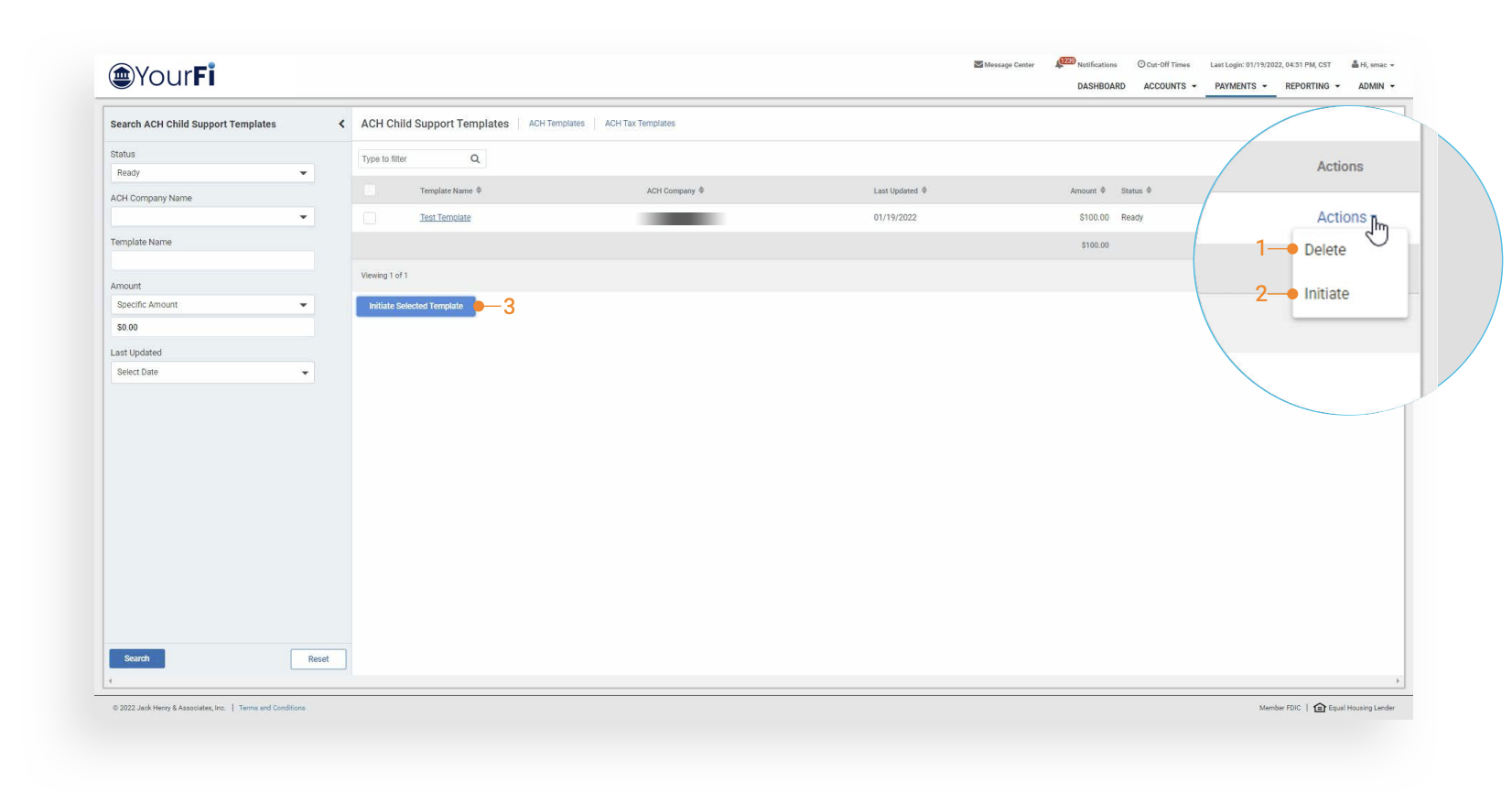
1. Delete: Users will have the option to delete the child support template. If selected, a pop-up will be presented confirming the template deletion.
2. Initiate: Users will have the option to initiate a payment from the child support template.
3. Initiate Selected Template: Select the checkbox next to the child support template. Once a child support template has been selected, the Initiate Selected Template button will be activated.
Template Detail
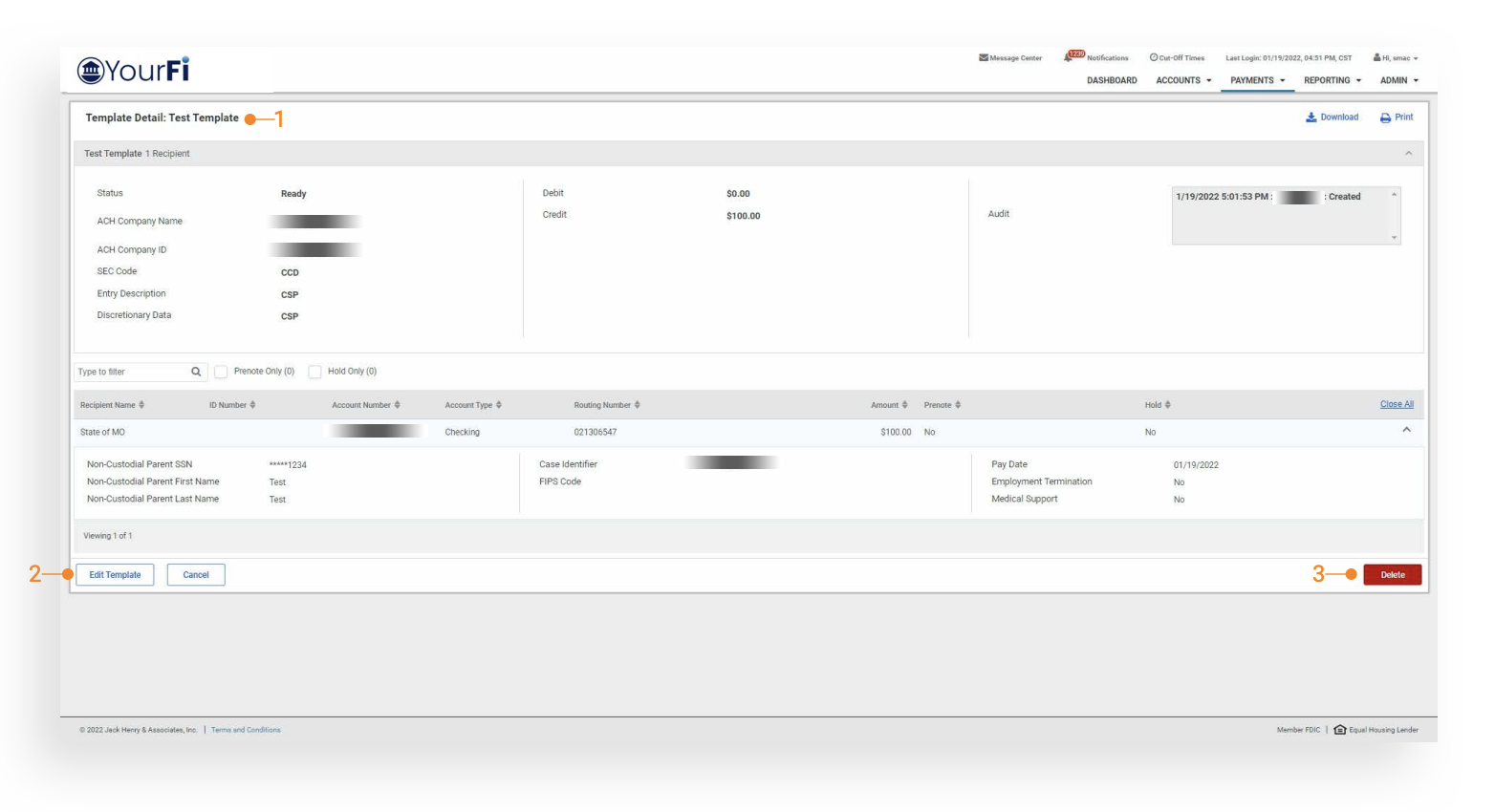
1. Template Detail: From the ACH Child Support Templates listing, select the template name. Users will be presented with the template details.
2. Edit Template: The option to Edit Template will allow users to modify the template details. Only users entitled to Full Edit ACH Template or Partial Edit ACH Template will have the option to edit the template details.
3. Delete Template: The option to Delete will allow users to delete the template. If selected, a pop-up will be presented confirming the template deletion. Only users entitled Delete ACH Template will have the option to delete the template.
Download & Print Features
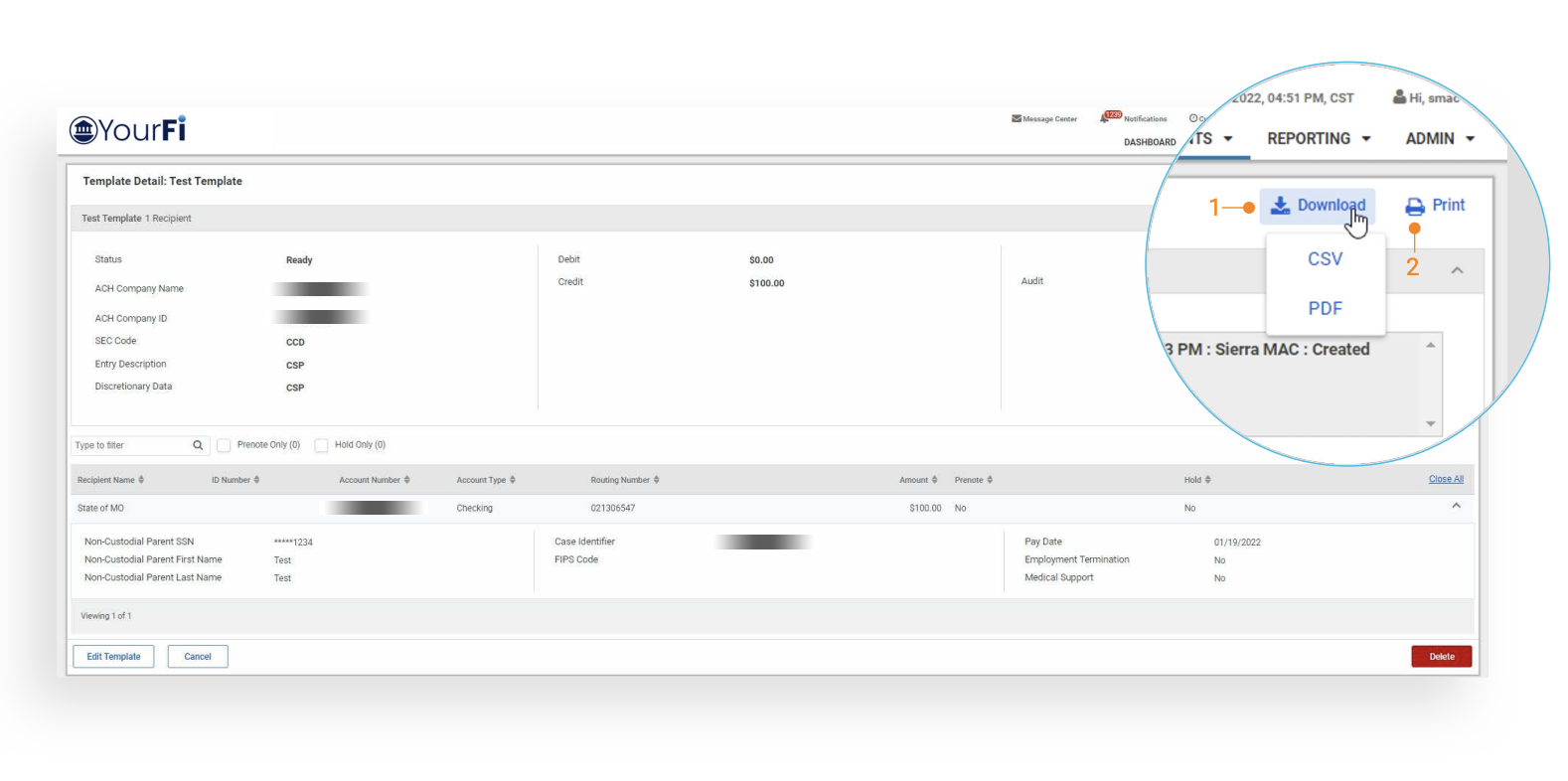
1. Download: The selected ACH Child Support Template can be downloaded in either CSV or PDF format.
2. Print: The print option will print the ACH Child Support Template.
Apply Updates to Template
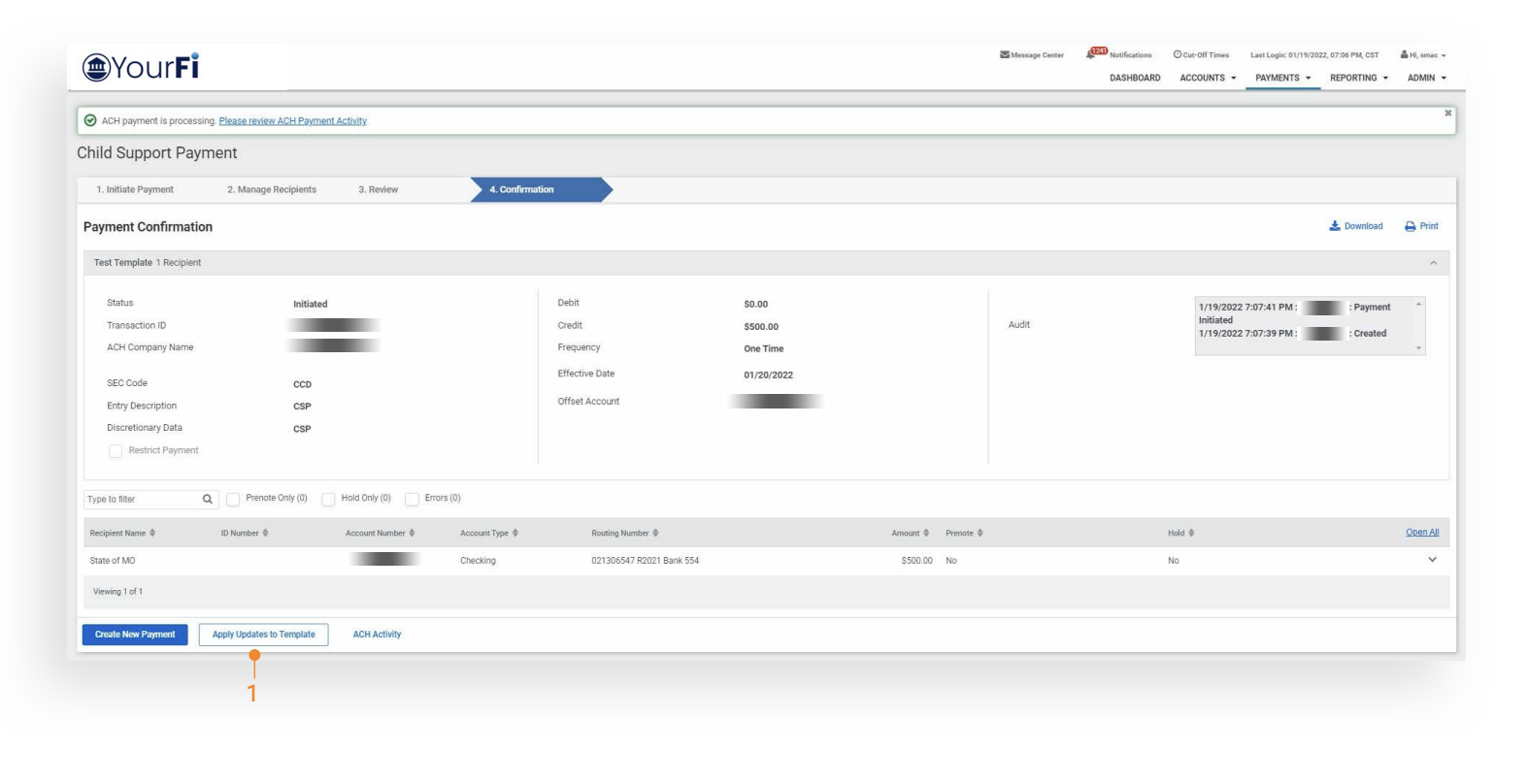
1. Apply Updates to Template
- Navigate to Create Child Support Payment
- Select the option From Template
- The user will be presented with their child support templates.
- The user will select a template to use for payment creation.
- If any updates are made to the template during payment creation, once the payment has been confirmed, users will see the option to Apply Updates to Template. Once selected, the template will be updated.
- Select the option From Template