Quick Reference Guide: ACH Child Support Payments
Overview
An employer is notified to withhold wages of a particular employee by an income withholding order or notice, generated either from a court or state or local child support enforcement agency. The order/notice instructs the employer to withhold wages from an employee and serves as the employer’s legal basis for doing so. The order/notice includes contact information where the employer can obtain the necessary State Disbursement Unit’s (SDU) bank information for sending payments electronically.
The employer should contact the SDU that issued the order to determine which payment formats it is capable of receiving. All automated statewide child support enforcement systems are required to be capable of accepting child support payments in the CCD+ format. In order to transfer the funds and data, the employer transmits the payment instructions and remittance information to its financial institution. The financial institution then originates the ACH entries to transfer the payments and remittance information through the ACH Network to the financial institution of the SDU to which the payments must be sent.
Once received, the SDU’s financial institution posts the funds to the SDU account and provides the remittance information associated with those payments in the format agreed to with that entity. The SDU in turn updates its records, credits the non- custodial parent’s account, and disburses an electronic payment (direct deposit or debit card) or issues a check to the custodial parent.
Benefits
Benefits for Banks
- Allowing the bank’s customer to initiate Child Support Payments as a Direct Payer.
- Enhanced Back Office Report providing visibility into Child Support Payments by selecting one, multiple, or all companies.
- Ability to charge via Enhanced Account Analysis through a new billing counter that increments for each Child Support Payment.
Benefits for Customers
- From the Create Child Support Payments link, a user can manually enter a payment.
- Within the ACH Payment Activity search filter, Child Support Payment can be searched using a variety of filters.
- When viewing the payment detail, a user can take the following actions:
- Edit Payments – Entitled users can edit the payment details based on their partial or full edit entitlement.
- Initiate Child Support Payments – Users can create another payment using the same payment details. Payment details can also be modified during payment review.
- Users can download Child Support Payments in a CSV, NACHA, or PDF format.
- Users can print Child Support Payments.
- Fraud risk point controls including authentication for create, edit, delete, and approve Child Support Payments.
- Child Support Payments can be subject to 0 to 3 levels of approvals.
- Prenotes can be accommodated.
Configuration
ACH Configuration
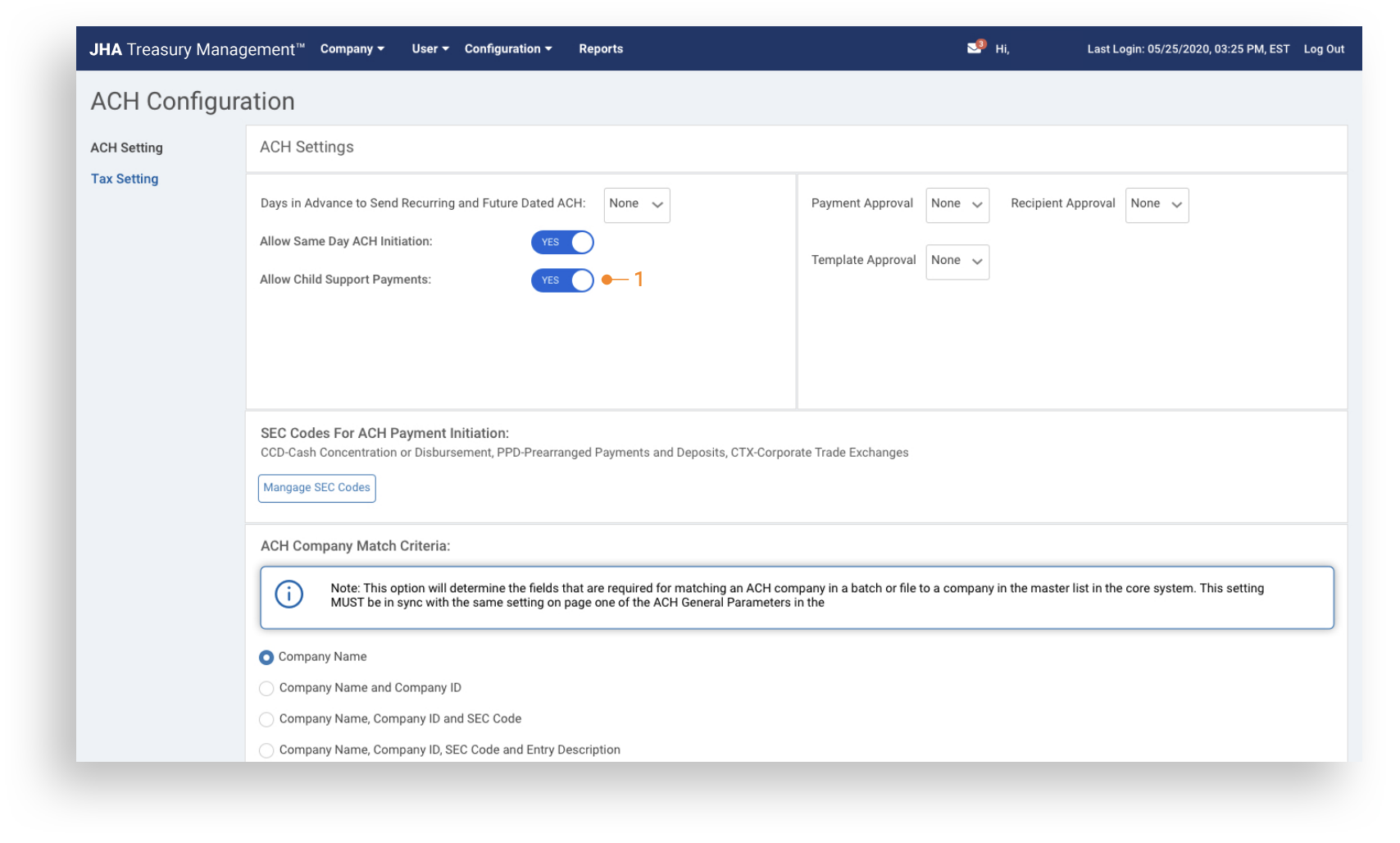
Allow Child Support Payments is enabled within the ACH Product Configuration. Once YES is selected, Create ChildSupport Payment displays in Channel for companies with Allow Child Support Payments enabled. Enabled is not required at the Product level for visibility of the feature at a Company Product Level.
Edit ACH
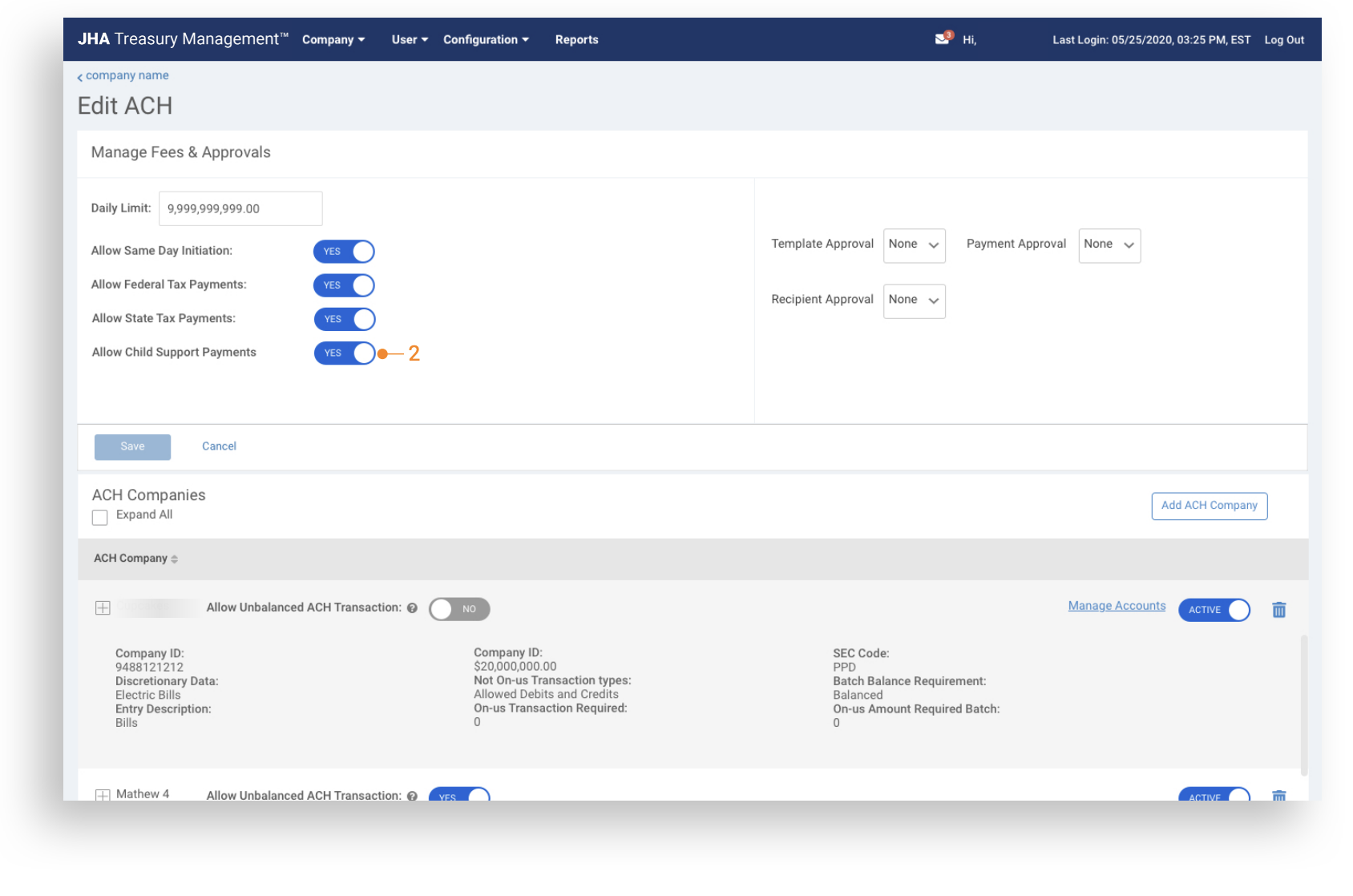
Company Configuration: To enable for a company, navigate to ACH Product Setting and select YES for Allow Child Support Payments.
Billing Options
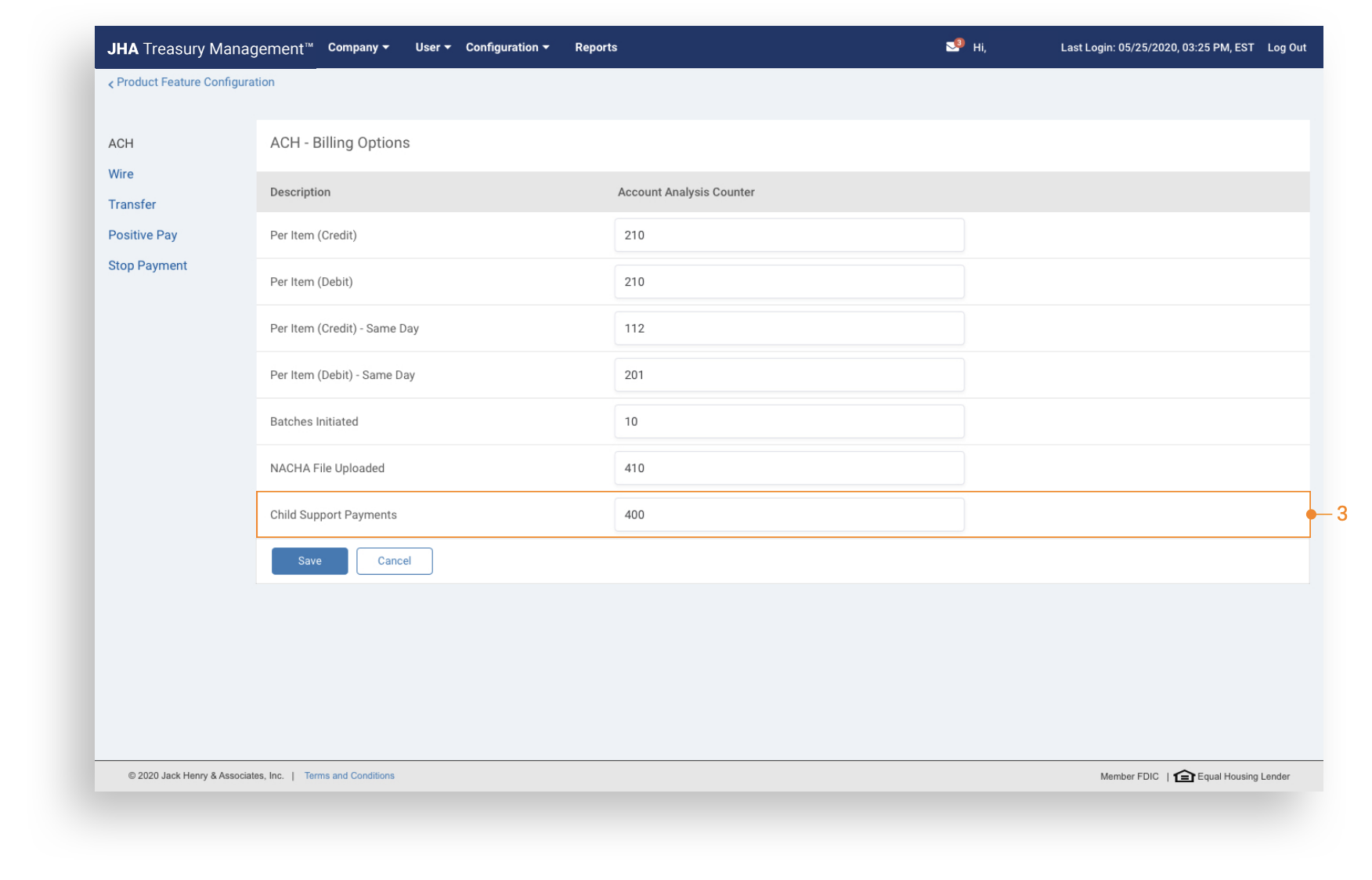
Billing Product Configuration: Establish company default Account Analysis Counter for Child Support Payments under the ACH Billing Options.
Company Billing Options
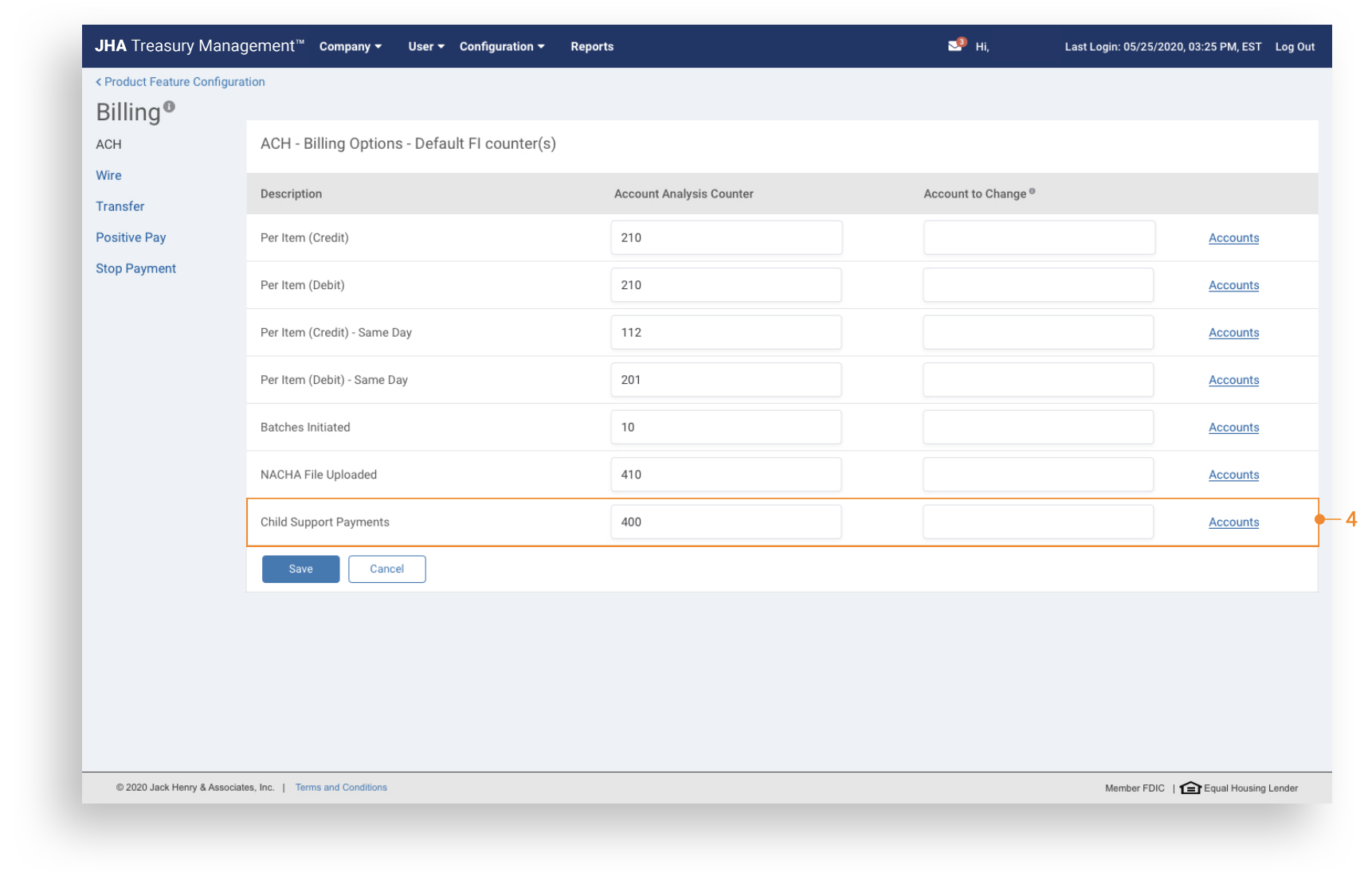
Company Billing Options: Navigate to Company Billing Options to modify Account Analysis Counter for Child Support Payments and to establish the Account to Charge.
Back Office - Reporting
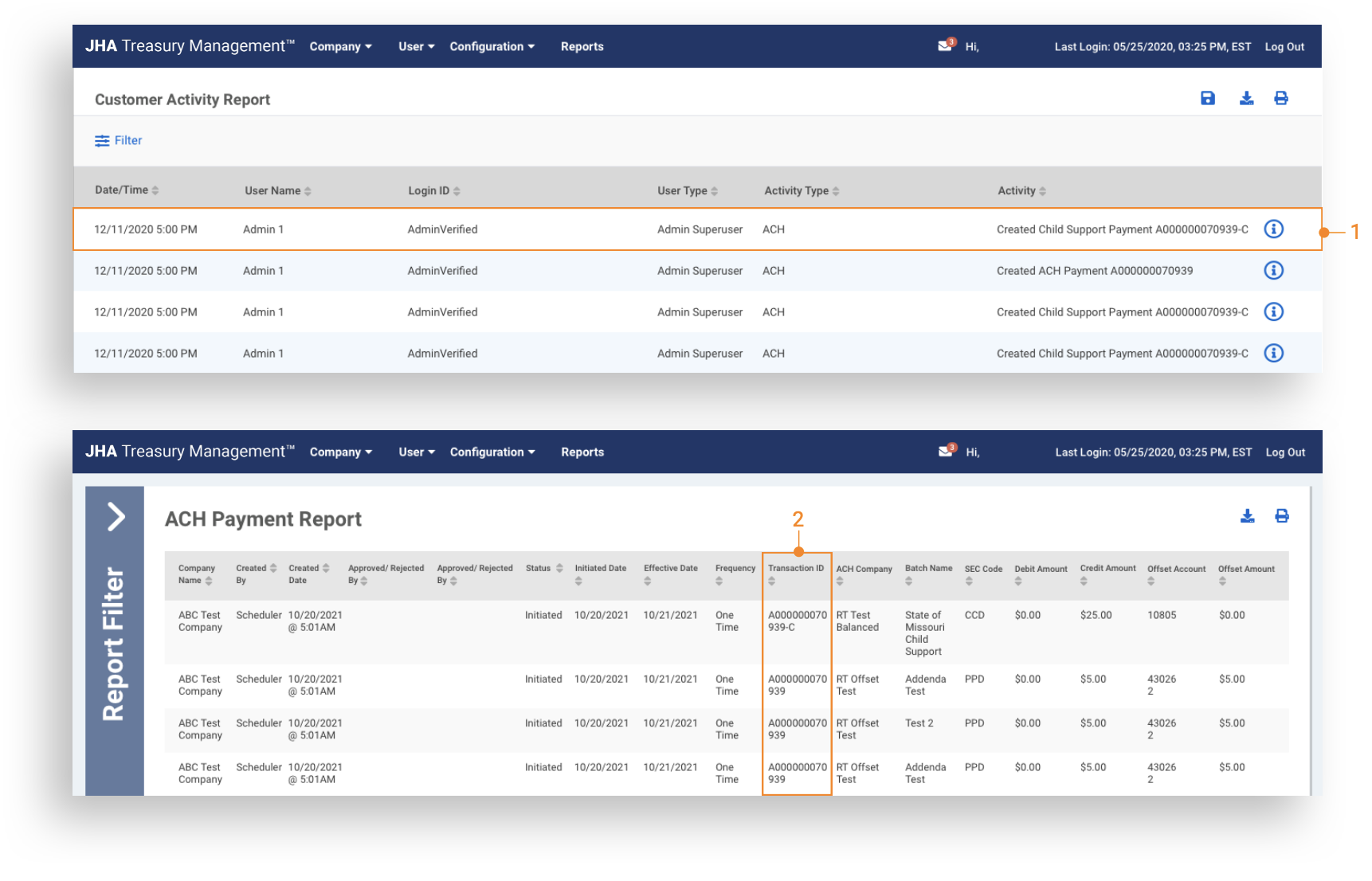
1. Customer Activity Report: Report will display user activity related to Child Support Payments.
2. ACH Payment Report: Access to view ACH Payments related to Child Support Payments. Child Support Payments can be identified by the -C at the end of the Transaction ID.
Create Child Support Payment
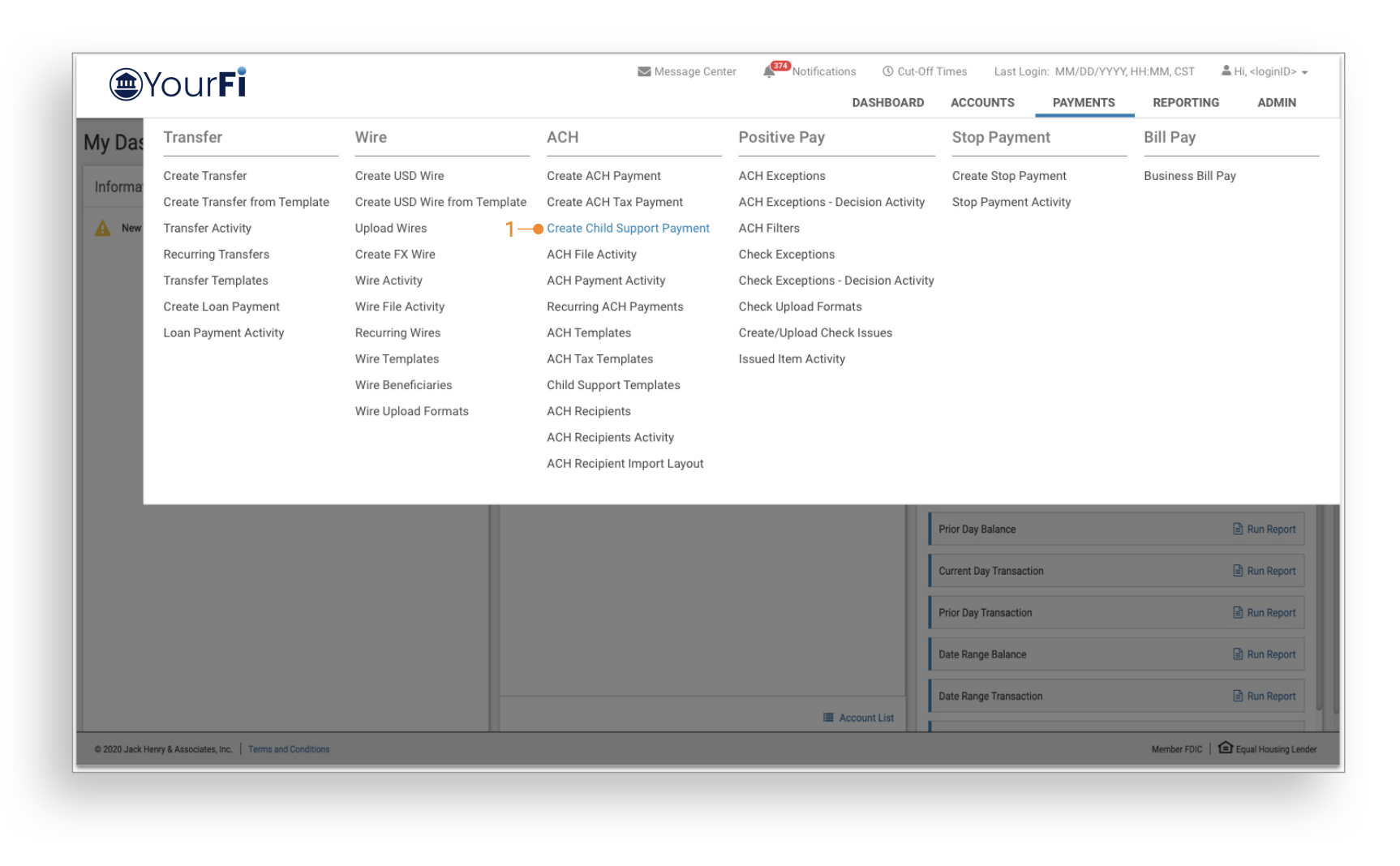
1. Create Child Support Payment: To create a payment, select Create Child Support Payment from the Payments Menu.
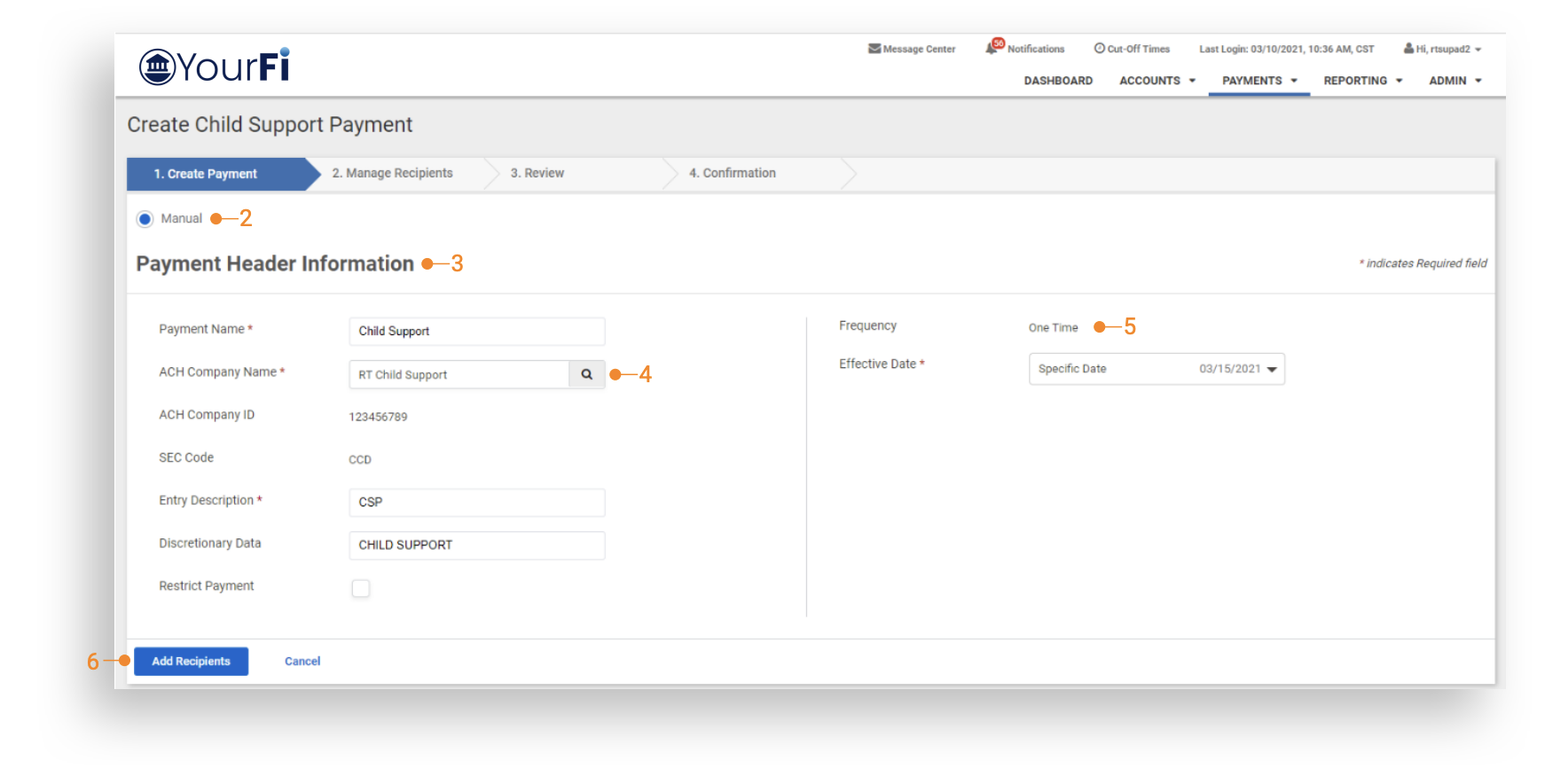
2. Create Manual Payment: Select Manual to manually create Child Support Payments.
3. Payment Header: Enter the following fields:
- Payment Name
- Entry Description
- Discretionary Data
- Effective Date
4. ACH Company Name: Search displays only ACH Companies setup with an offset of credits only.
5. Frequency: Only One Time payments are allowed.
6. Add Recipients: When all required fields are completed, select Add Recipients.
Manage Recipients
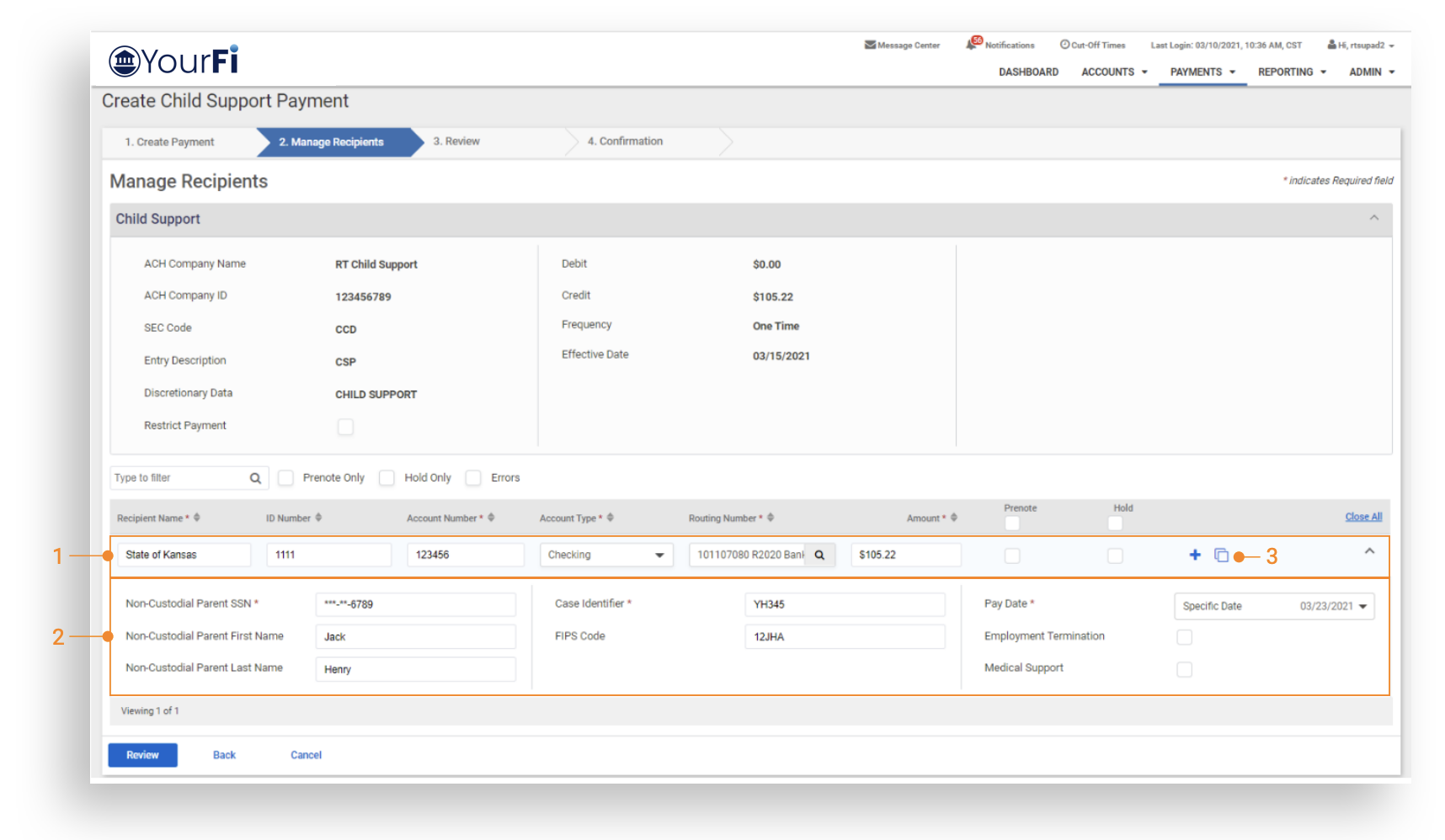
1. Add Recipient: Enter recipient fields. This is generally the State’s information that is receiving the payment.
- Recipient Name
- ID Number (optional)
- Account Number and Account Type
- Routing Number with bank lookup
- Amount
- Prenote or Hold Recipient (optional)
- Select the Add icon to add an additional recipient
2. Non-Custodial Parent/Case Information
- Non-Custodial Parent SSN
- Non-Custodial Parent First and Last Name
- Case Identifier and FIPS Code
- Pay Date — This is the date for the State to apply the payment on behalf of the Non-Custodial Parent
- Employment Termination — Select to identify if the Non-Custodial Parent is no longer employed
- Medical Support — Select to identify if the payment is for medical support
3. Copy Icon: Selecting the icon copies the current Recipient Name, ID Number, Account Number, Account Type and Routing Number into a new Recipient.
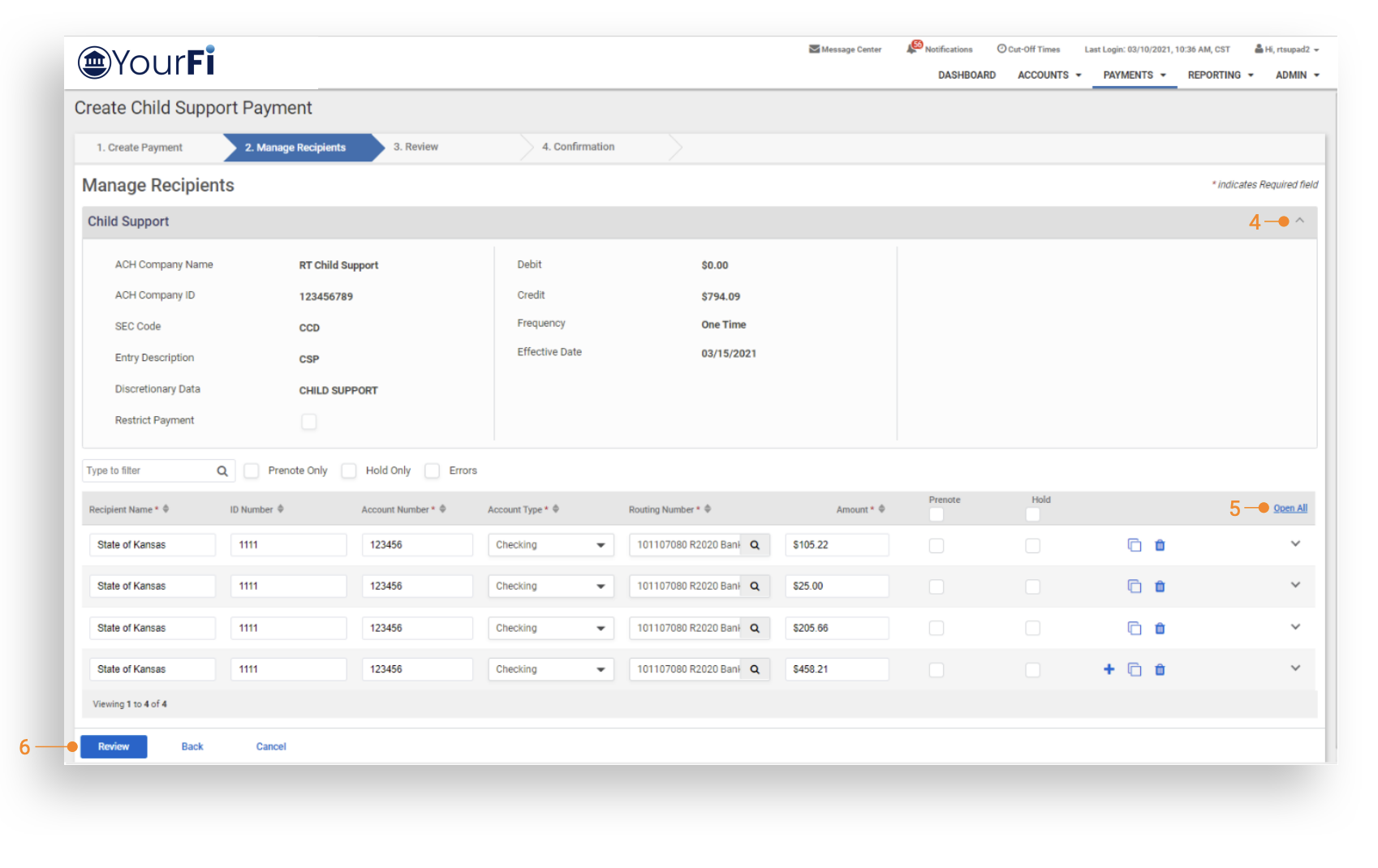
4. Expand or Minimize: Select arrow to minimize/expand Payment Header Information.
5. Open All or Close All: Select Open All/Close All to display Non-Custodial Parent/Case Information.
6. Review: Select Review, then Confirm to initiate payment and receive a confirmation.
Review Payment
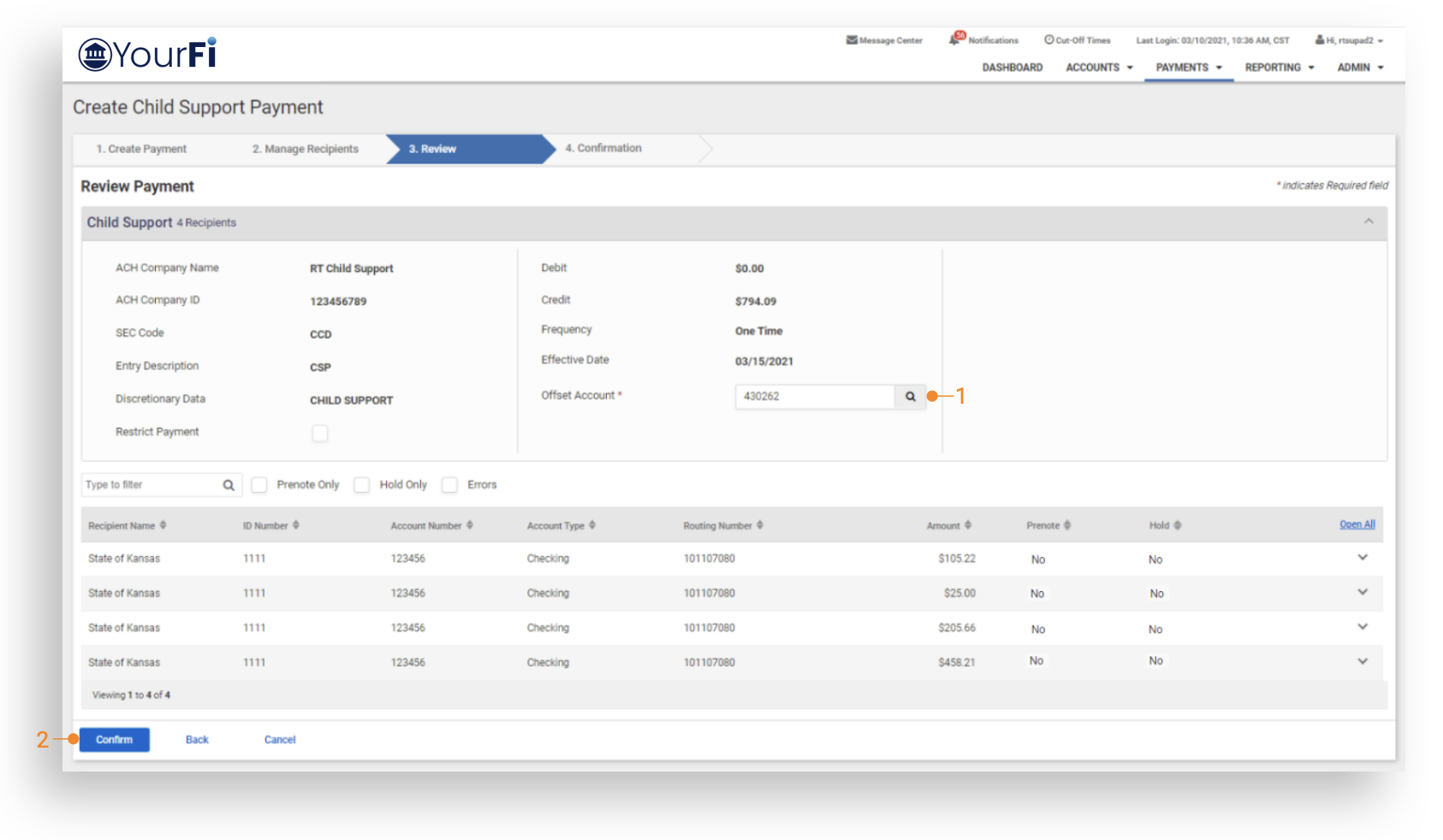
1. Offset Account: Select from list of available offset accounts.
2. Confirm Select: Confirm to initiate payment and receive confirmation.
ACH Payment Activity
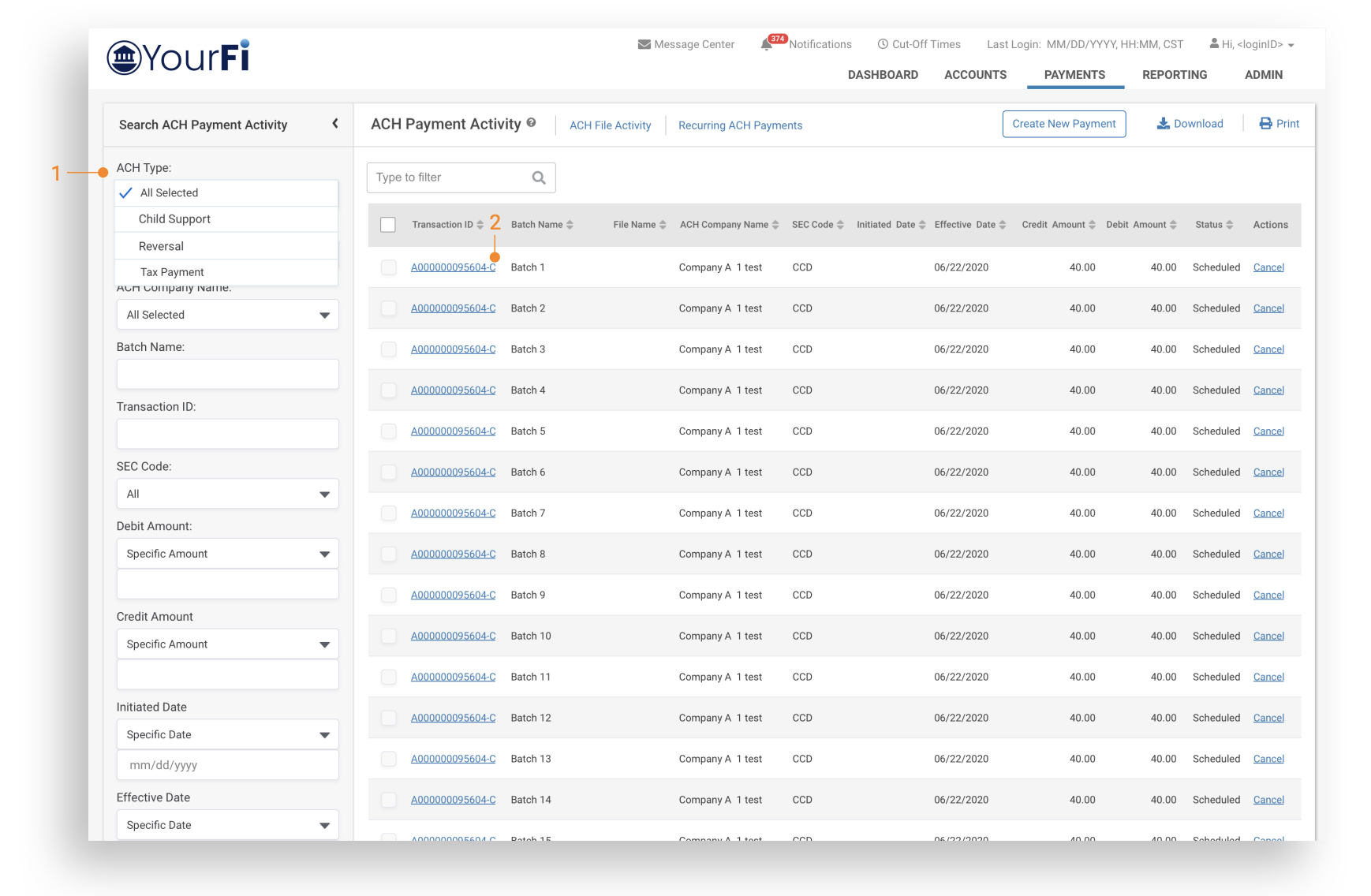
1. Search ACH Payment Activity - ACH Type: Select Child Support from ACH Type Dropdown to display only Child Support Payments.
2. Transaction ID: Child Support Payments display a -C at the end of the transaction ID. Select to display payment details.
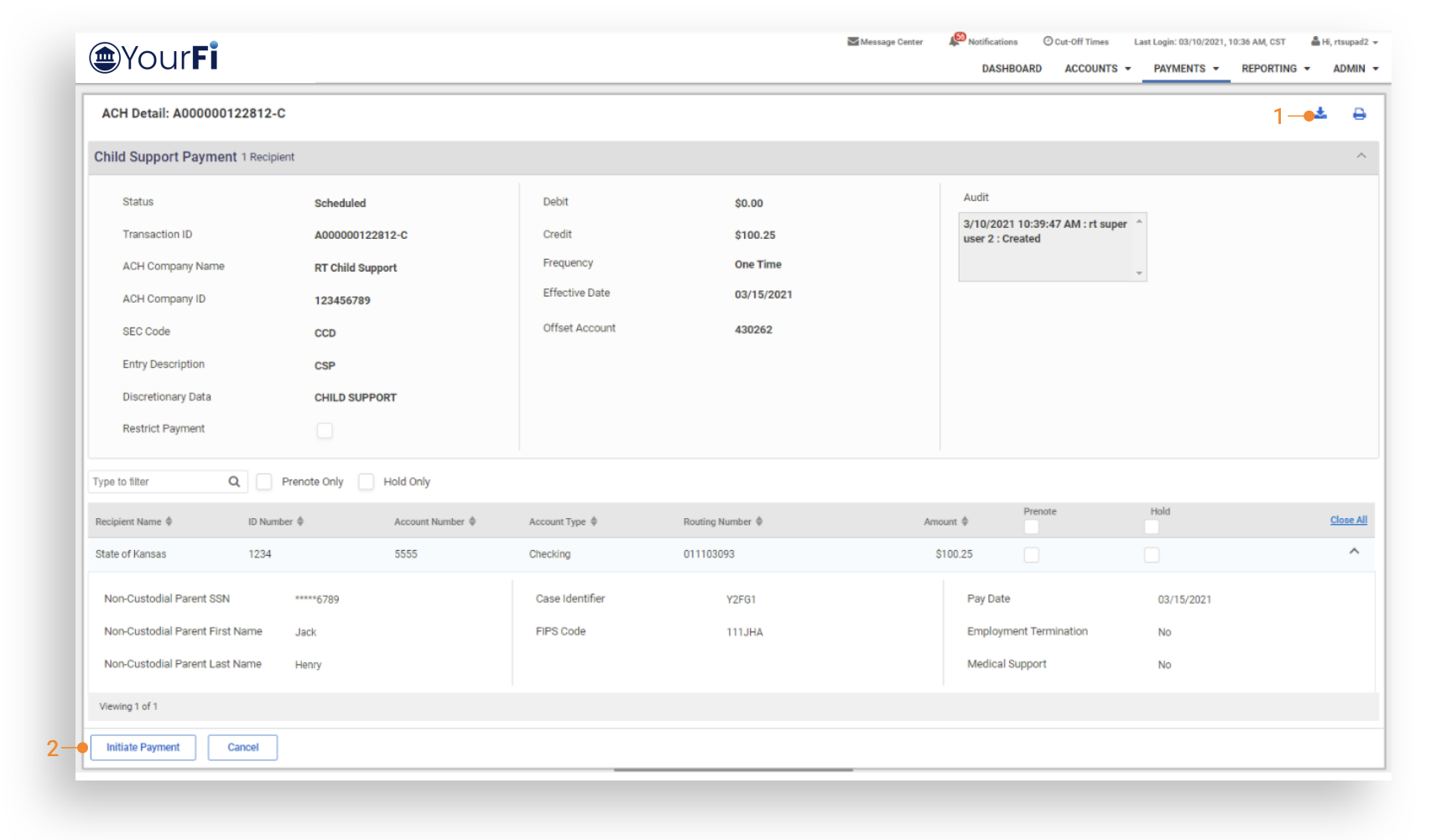
1. Download Payment Details: Options include CVS, NACHA and PDF.
2. Initiate Payment: Select to create a new Child Support Payment, fields are prefilled with the current payment information.